The best OBS alternative depends on the job you want to replace. Choose StreamYard for guest interviews, Ecamm for Mac production, vMix for professional Windows switching, Meld or Streamlabs for local desktop streaming, Riverside for recording-first shows, and Upstream for browser production, cloud multistreaming, scheduled streams, and 24/7 channels that must keep running after you close your laptop.
OBS Studio remains one of the most capable free tools for recording and live streaming. Its detailed scenes, audio routing, capture support, plugins, and custom encoding make it hard to beat when you want local control. These OBS Studio alternatives are better only when they remove a specific bottleneck: setup time, remote guests, computer load, distribution, recording, or persistent cloud playout.
Last verified: August 28, 2026. We compared operating system support, production architecture, guest workflow, recording, multistreaming, cloud playout, free access, and published plan limits. Features and prices can change, so use the linked official product pages to confirm a must-have capability.
Disclosure: Upstream is our product. We applied the same criteria to it as to every other tool here, and we point out below where OBS or a competitor is the better choice. We also limited the list to the nine tools that best represent the three production architectures in this guide rather than every OBS-style desktop encoder, which is why apps such as XSplit, Prism Live Studio, and Wirecast are not ranked.
The best OBS alternatives at a glance
| Alternative | Best for | Runs where | Free option and starting price | Main tradeoff |
|---|---|---|---|---|
| Upstream | Cloud multistreaming, live shows, scheduled and 24/7 streams | Browser and cloud | Free plan (paid from $30/mo) | Not a like-for-like local encoder replacement |
| StreamYard | Interviews, webinars, and simple guest shows | Browser | Free plan (paid from $35.99/mo) | Less granular production control than desktop tools |
| Restream Studio | Browser production with multistream distribution | Browser | Free plan (paid from $19/mo) | Advanced features depend on plan |
| Streamlabs Desktop | Gaming creators who want integrated alerts and monetization | Windows and macOS | Free desktop app (Ultra ~$27/mo) | Can still place a substantial load on the computer |
| Meld Studio | A modern, streamlined desktop production workflow | Windows and macOS | Free desktop app | Smaller ecosystem than OBS |
| vMix | Professional Windows production, sports, replay, and complex inputs | Windows | 60-day trial (licenses from $60 one-time) | Higher cost and learning curve |
| Ecamm | Polished live production and recording on Mac | macOS | 14-day trial (from $16/mo) | Mac only |
| Lightstream Studio | Console streams and simple cloud layouts | Browser and cloud | Free plan (paid from $12/mo) | Less suited to complex local production |
| Riverside | Recording-first interviews, podcasts, and repurposing | Browser and apps | Free plan (paid from $24/mo) | Production switching is not as deep as OBS or vMix |
Why look for an alternative to OBS?
OBS gives you enormous control, but that control creates responsibility. You configure scenes, sources, audio devices, encoder settings, destinations, plugins, and local storage. Your computer also has to capture, compose, encode, and upload the show while running everything else you need.
That architecture is excellent when you want local control and are willing to maintain it. It becomes less attractive when the production has a different priority.
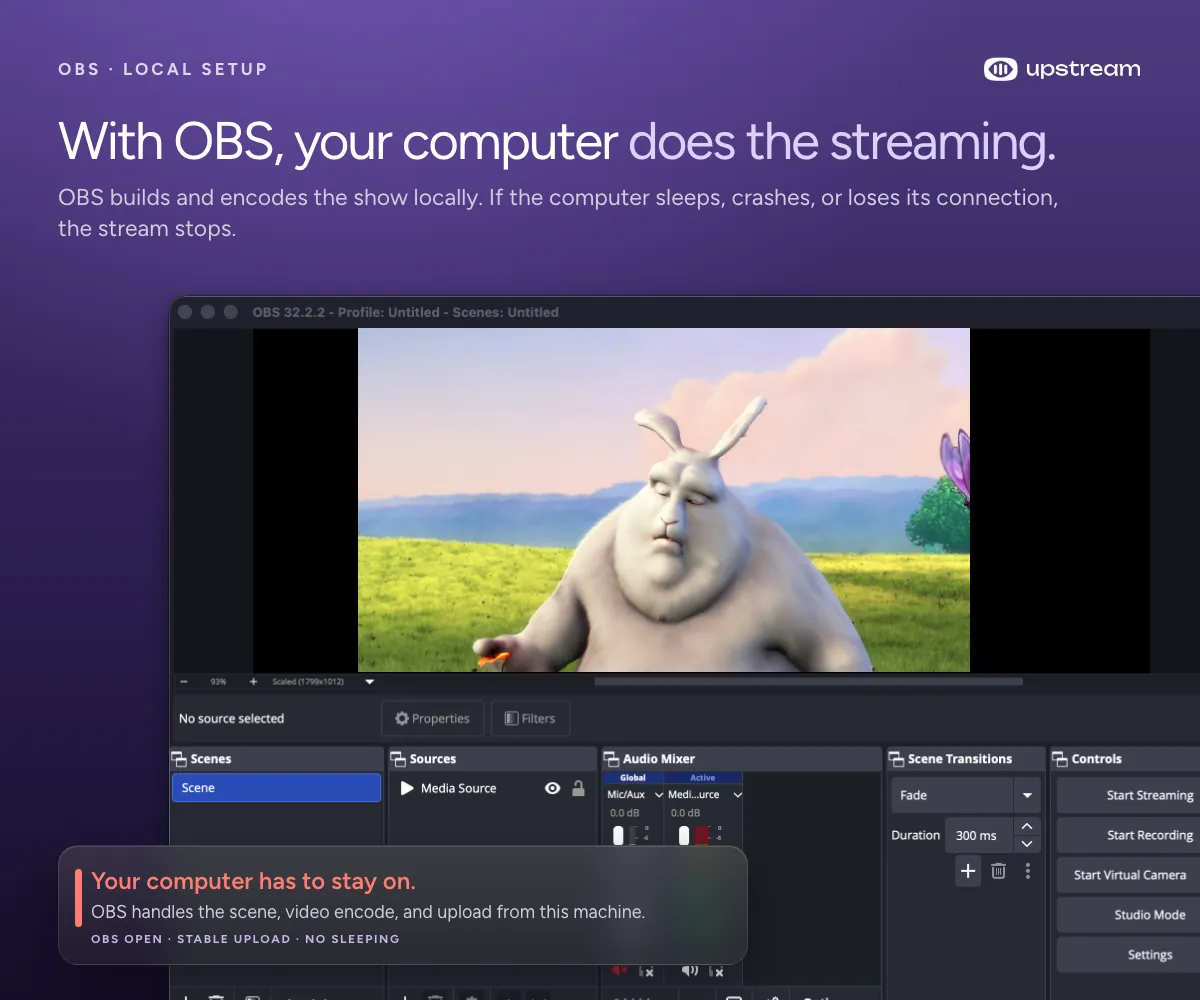
Common reasons people look for alternatives to OBS include:
- You want to go live faster. Browser studios remove much of the scene and encoder configuration.
- You regularly invite guests. A join link and green room are easier than assembling a remote contribution workflow yourself.
- Your computer struggles while streaming. Cloud production or cloud playout can move some or most of the workload away from the local machine.
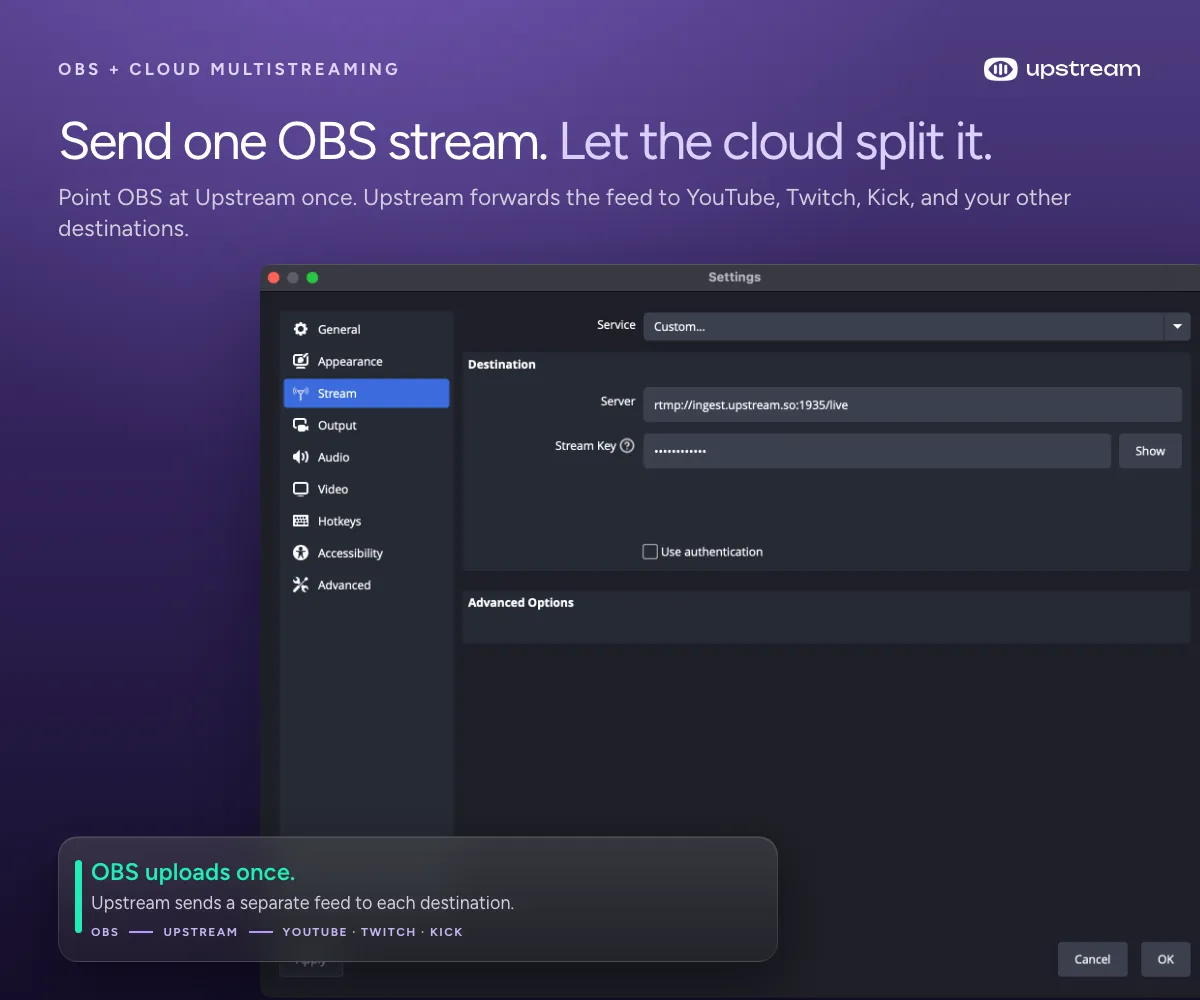
- You need multistreaming. Several alternatives distribute one incoming feed to multiple destinations from their servers.
- You run scheduled or continuous channels. A local encoder is inconvenient when the stream must continue after you close your laptop.
- You produce on a Mac or console. Platform-specific tools can provide a more direct workflow.
- You need professional broadcast inputs. NDI, SRT, replay, SDI hardware, isolated recording, and multiple audio buses may call for a production system beyond a typical OBS setup.
The useful question is not “What software has more features than OBS?” It is “Which production architecture removes the problem I actually have?”
Build the stream in the cloud.
Schedule videos, produce browser-based live shows, or send one feed to multiple platforms from the same Upstream workflow.
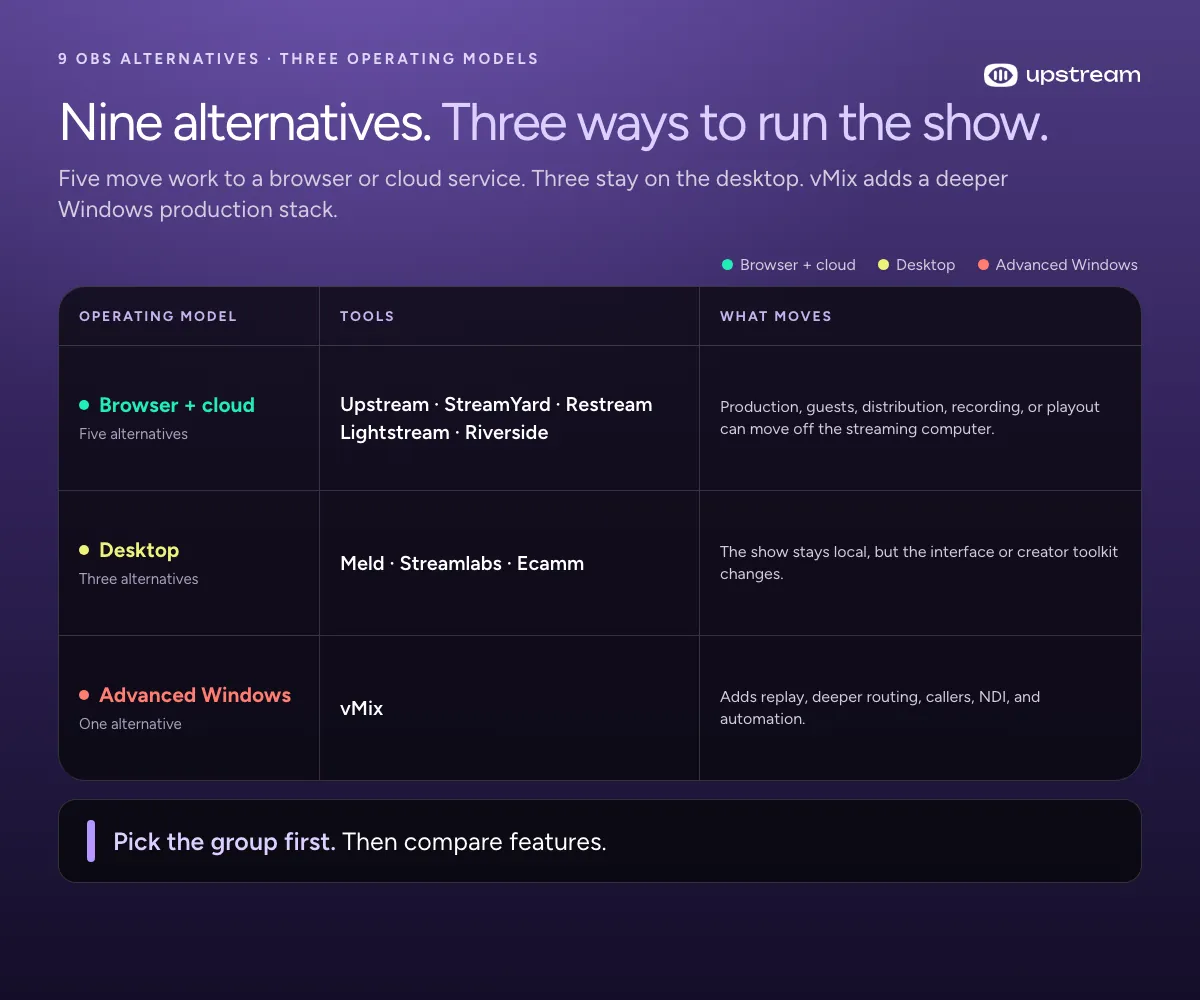
How to choose the right OBS replacement
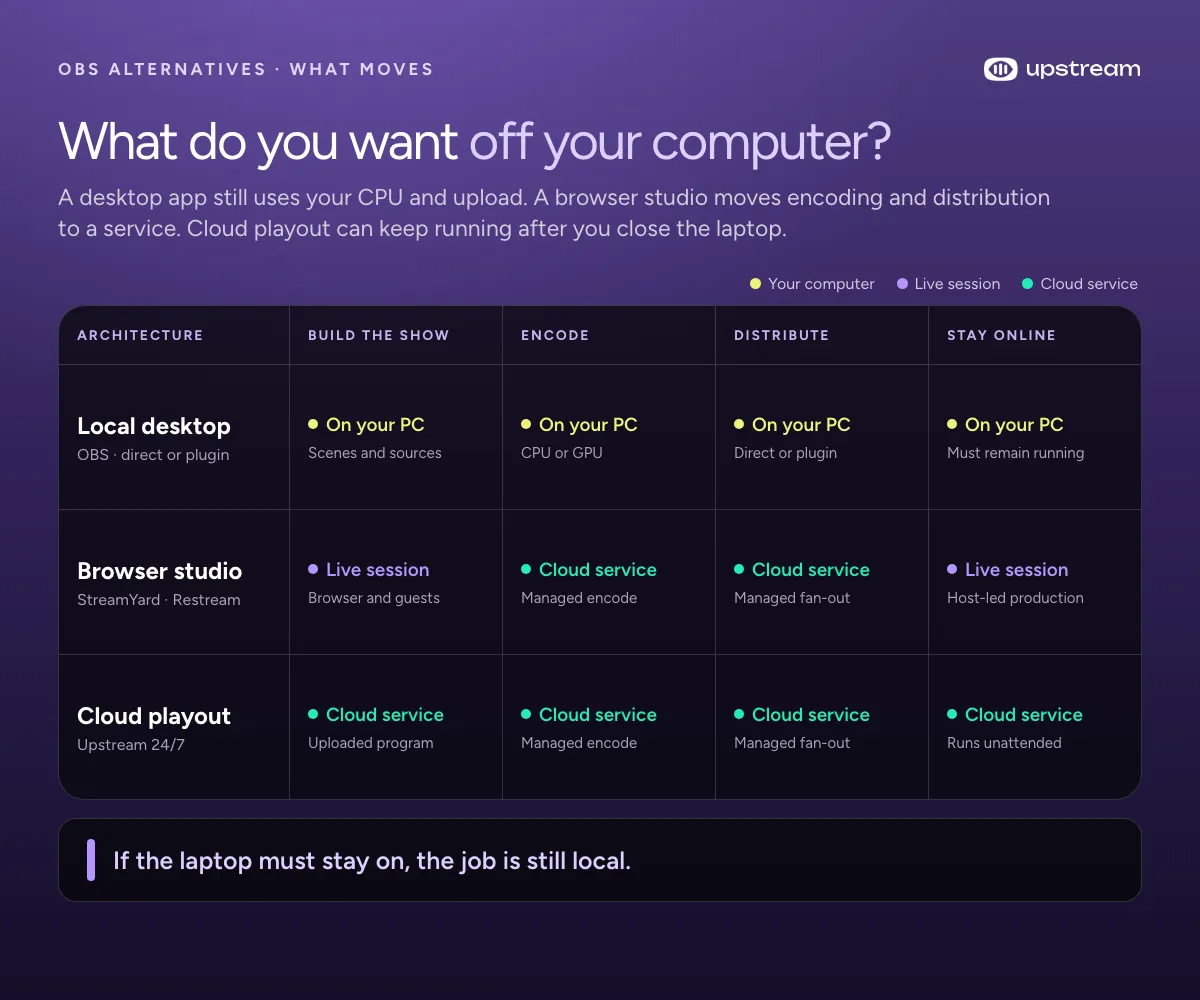
Before comparing products, decide where you want the work to happen.
Local desktop production
Tools such as Streamlabs Desktop, Meld, vMix, and Ecamm capture and compose the show on your computer. This gives you direct access to local cameras, capture cards, applications, files, and audio devices.
Choose local production when you need low-latency control, detailed audio routing, gaming capture, specialist hardware, or high-quality local recordings. Budget for a capable computer and a tested backup plan.
Browser-based live production
StreamYard, Restream Studio, Riverside, and Upstream Live Studio let the host and guests work through a browser. They reduce installation and make remote participation easier.
Choose a browser studio for interviews, webinars, product demonstrations, podcasts, and team-operated shows where speed and collaboration matter more than plugin-level customization.
Cloud playout and automation
Cloud playout is a different category. Instead of keeping a local scene open, you upload or schedule media and let remote infrastructure continue the broadcast. This is often the better model for music channels, digital signage feeds, scheduled programming, reruns, ambient video, and 24/7 livestreams.
Upstream covers this use case while also offering a browser-based Live Studio for live cameras, guests, screen sharing, external RTMP sources, and overlays.
1. Upstream: best for cloud, scheduled, and 24/7 streaming
Upstream is the strongest OBS alternative when the main problem is keeping a stream running from a personal computer. It is a cloud live-streaming platform rather than a downloadable encoder.
For pre-recorded and continuous channels, you can upload content, organize it into a stream, connect destinations, and let the cloud handle playout. The free plan includes one concurrent stream and 24 streaming hours per month, which is enough to test the complete workflow before paying; paid plans start at $30 per month. Your computer does not need to stay awake after the stream starts. This makes Upstream a natural fit for 24/7 music, education, worship, news loops, promotional channels, and scheduled programming. To compare it with other cloud playout services, see our guide to the best 24/7 live streaming software.
Upstream also includes Live Studio, a browser-based production environment for live cameras, microphones, screen sharing, guests, video clips, and external streaming software. Stream Designer provides layers for images, text, video, websites, widgets, and other visual elements when the embedded source permits it. For continuous programming, see the complete guide to starting a 24/7 livestream without OBS.
Best for:
- 24/7 and long-running channels
- Scheduled pre-recorded livestreams
- Browser-produced live shows
- Cloud multistreaming
- Teams that do not want to maintain an always-on streaming PC
Where it differs from OBS: Upstream does not try to duplicate every local capture, plugin, or audio-routing feature. It moves specific production and playout jobs into the cloud. Advanced local productions can also use OBS, vMix, or another encoder as an input to an Upstream workflow.
Choose Upstream if: reliability after you leave the computer, scheduling, cloud overlays, or mixed live and pre-recorded programming matters more than unrestricted local customization. The tradeoff is local control versus cloud continuity.
2. StreamYard: best for interviews and guest shows
StreamYard is a browser studio designed to get hosts and guests on screen quickly. Guests follow a link, check their camera and microphone, and enter a green room without installing production software.
The host can arrange layouts, share screens, play media, add branding, display comments, and send the show to connected destinations. StreamYard handles multistream distribution in the cloud, so the host does not need a separate upload for every platform. Its current offering also supports simultaneous landscape and portrait production on eligible plans.
Best for:
- Interviews and panel discussions
- Webinars and business broadcasts
- LinkedIn and YouTube shows
- Teams with nontechnical hosts or guests
- Fast multistreaming from a browser
Tradeoffs: StreamYard intentionally offers fewer low-level controls than OBS. It is not the first choice for complicated game capture, advanced audio buses, unusual canvas automation, or a large plugin-based production.
Pricing: A free plan is available; paid plans start at $35.99 per month billed yearly, or $44.99 month to month.
Choose StreamYard if: your show is built around people, conversation, screen sharing, and predictable branded layouts. If you already use StreamYard and want to compare beyond OBS, see the best StreamYard alternatives.
3. Restream Studio: best browser studio for distribution
Restream began as a multistreaming service, and that distribution focus remains one of its main advantages. Restream Studio adds browser-based production, allowing creators to bring in cameras and microphones, build scenes, invite guests, add graphics, manage chat, schedule events, and broadcast to multiple platforms.
It sits between a simple guest studio and a broader streaming platform. A creator can produce entirely in the browser or feed an external encoder into Restream when more local control is required.
Best for:
- Creators prioritizing multistream distribution
- Browser-based interviews and branded shows
- Teams that want one place for destinations and chat
- Hybrid workflows that may still use an external encoder
Tradeoffs: Resolution, destination counts, branding, recordings, and other capabilities vary by plan. Confirm the current limits against your exact workflow before migrating.
Pricing: A free plan is available; the Standard plan starts at $19 per month.
Choose Restream Studio if: reaching several platforms from one browser production is the primary goal. For a wider comparison of distribution-focused platforms, see the best Restream alternatives.
4. Streamlabs Desktop: best for an integrated creator ecosystem
Streamlabs Desktop feels familiar to OBS users because it is built around a similar scene-and-source production model. It adds tightly integrated alerts, widgets, themes, tipping, chat, mobile tools, and other creator services.
Its onboarding and content ecosystem can reduce the time required to assemble a polished gaming stream. Streamlabs also offers cloud-assisted multistreaming and horizontal plus vertical output options. Existing OBS scenes and profiles can be imported, which can make testing easier.
Best for:
- Gaming and creator livestreams
- Built-in alerts, widgets, themes, and tipping
- Users who like OBS concepts but want more guided setup
- Horizontal and vertical creator workflows
Tradeoffs: Streamlabs Desktop still runs locally and needs suitable CPU, GPU, memory, and upload capacity. Some of its most valuable ecosystem and multistreaming features require a paid subscription. Users who want a lean, modular, fully open-source setup may still prefer OBS.
Pricing: The desktop app is free; the Ultra subscription that unlocks the full ecosystem costs about $27 per month, with a discount for annual billing.
Choose Streamlabs if: you want creator tools together in one package and value integration more than a minimal application footprint.
5. Meld Studio: best free modern desktop alternative
Meld Studio is a newer desktop production tool focused on a cleaner workflow and efficient performance. It supports streaming, recording, scenes, effects, audio mixing, and multistreaming while aiming to leave more system headroom for games and creative applications.
For creators frustrated by a dense OBS setup but unwilling to give up local production, Meld is one of the most relevant alternatives to test. It is available for Windows and macOS, including an Apple Silicon-optimized version.
Best for:
- Creators seeking a modern desktop interface
- Gaming and screen-based production
- Local recording and live streaming
- Users who want a lighter workflow without moving to a browser studio
Tradeoffs: OBS has had years to accumulate plugins, tutorials, integrations, and community knowledge. Meld’s ecosystem is smaller, so verify every must-have source, device, effect, and automation before switching.
Pricing: Meld Studio is currently free, with no watermarks or time limits.
Choose Meld if: your problem is OBS complexity or resource use, but you still want local scene-based production.
6. vMix: best for professional Windows production
vMix is not a simpler OBS clone. It is a professional Windows live-production system with extensive support for cameras, capture hardware, NDI, SRT, media files, titles, virtual sets, browser inputs, remote calls, Zoom sources, multiple audio buses, recording, output hardware, and replay.
Sports producers, event teams, churches, schools, and broadcast operators can build sophisticated productions from one Windows workstation. Higher editions add capabilities such as multicorder workflows, advanced replay, isolated source recording, and additional outputs.
Best for:
- Multi-camera events and professional switching
- Sports and instant replay
- NDI, SRT, SDI, and specialist hardware
- Detailed audio and output routing
- Productions with a dedicated technical operator
Tradeoffs: vMix is Windows only and asks more of both the operator and the workstation. Licensing is more complex than a free OBS installation, and the breadth of controls can create a substantial learning curve.
Pricing: Licenses are one-time purchases, starting at $60 for Basic HD and $350 for the HD edition, with higher editions above that.
Choose vMix if: you are outgrowing OBS because the production requires professional inputs, replay, routing, monitoring, or output control.
7. Ecamm: best OBS alternative for Mac
Ecamm is a Mac-focused live production and recording application. It combines scenes, camera switching, screen sharing, overlays, comments, guest interviews, local recording, virtual camera output, and multistreaming in an interface designed around macOS.
Ecamm supports common creator workflows as well as more advanced inputs such as capture cards, DSLR and mirrorless cameras, NDI, and Blackmagic hardware. Pro features include isolated audio and video recording, higher-resolution production, Interview Mode, monitoring, and simultaneous horizontal and vertical layouts.
Best for:
- Mac-based creators and video podcasters
- Interviews with polished layouts
- Local recording and repurposing
- Presentations and virtual-camera workflows
- Creators using Apple hardware throughout their setup
Tradeoffs: Ecamm requires macOS and a subscription. Windows and Linux teams need another option, and highly specialized broadcast workflows may still favor vMix or dedicated hardware.
Pricing: After a 14-day free trial, Standard costs $16 per month and Pro $32 per month.
Choose Ecamm if: you want deep local production on a Mac without building your workflow around OBS plugins.
8. Lightstream Studio: best for console streaming
Lightstream Studio is a cloud-powered browser production tool with a particularly clear use case: adding layouts, overlays, alerts, and guests to console streams without building a capture-card and encoder setup.
Projects are managed in the browser and rendered in the cloud. This can simplify PlayStation and Xbox workflows while also supporting talk shows, role-playing sessions, and other straightforward productions.
Best for:
- Console creators without a capture card
- Cloud-rendered overlays and scenes
- Simple guest or tabletop shows
- Users who want projects available from a browser
Tradeoffs: Lightstream is not designed to reproduce every local capture and routing option available in OBS. Plan limits, supported resolutions, destinations, and console routing should be checked before committing.
Pricing: A free plan is available; the paid plan costs $12 per month, or $9 per month billed annually.
Choose Lightstream if: the shortest route from console gameplay to a branded live show matters most.
9. Riverside: best for recording-first live content
Riverside is built around high-quality remote recording and post-production. It can livestream interviews and podcasts while recording separate participant tracks for later editing and repurposing.
This changes the priority. In OBS, the live program output is often the center of the workflow. In Riverside, clean source recordings, transcripts, editing, clips, and reusable content are a major part of the value.
Best for:
- Video podcasts and remote interviews
- Shows that will be edited after the livestream
- Separate participant recordings
- Transcription and short-form repurposing
Tradeoffs: Riverside is not a replacement for complex local game capture, broadcast hardware integration, or deep live switching. Feature and streaming limits vary by plan.
Pricing: A free plan is available; the Pro plan starts at $24 per month billed annually, or $29 month to month.
Choose Riverside if: the livestream is only one output and the recorded content will continue working after the event.
Which OBS alternative should you choose?
Use the production problem as the filter:
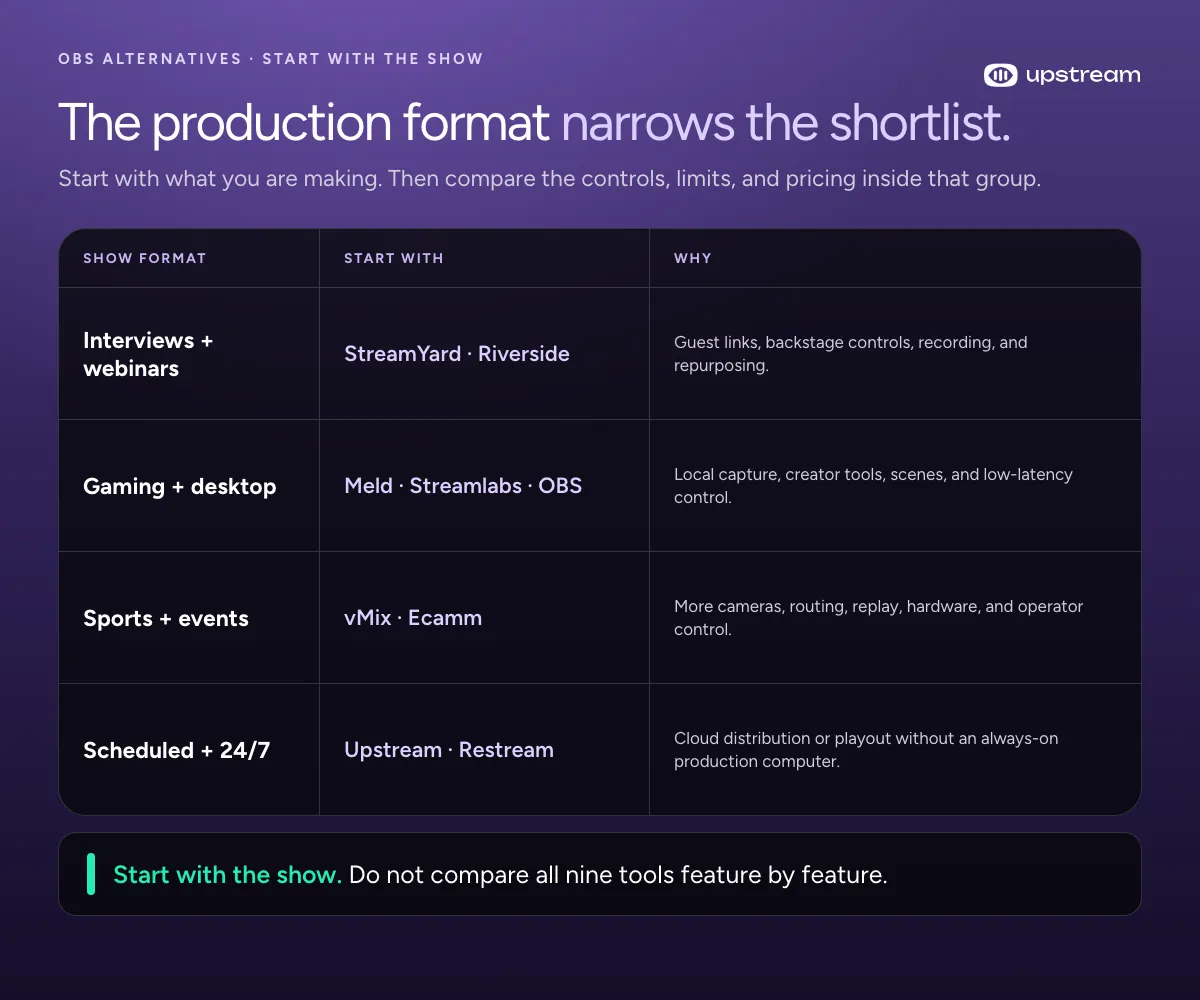
- Choose Upstream for cloud playout, scheduled programming, multistreaming, and 24/7 channels.
- Choose StreamYard for the easiest guest interviews and business broadcasts.
- Choose Restream Studio when browser production and broad distribution belong in one workflow.
- Choose Streamlabs Desktop for gaming with tightly integrated creator tools.
- Choose Meld Studio for a modern local workflow with less inherited complexity.
- Choose vMix for professional Windows production, advanced routing, or replay.
- Choose Ecamm for polished local production on a Mac.
- Choose Lightstream for cloud-assisted console streaming.
- Choose Riverside when isolated recording and repurposing matter more than live switching depth.
When OBS is still the better choice
An honest comparison should also identify when switching would make your workflow worse.
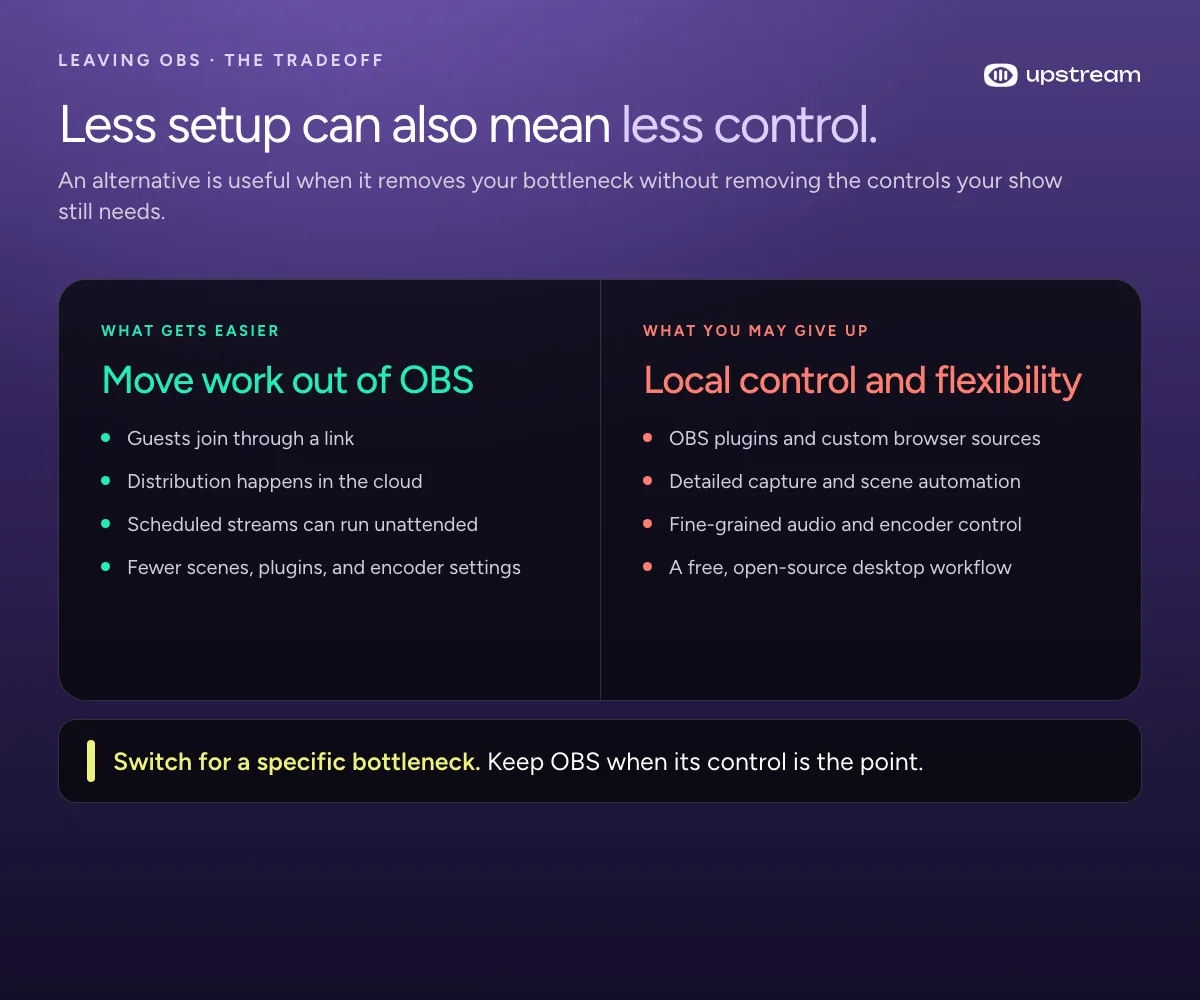
Stay with OBS if you need a free, open-source, cross-platform tool and already have a stable scene collection. OBS remains difficult to beat for flexible local capture, community plugins, custom browser sources, detailed encoding, and a huge body of tutorials.
You may also keep OBS as one layer in a larger system. It can produce the local show while a cloud service handles multistream distribution; see the practical guide to multistreaming from OBS with Aitum or compare the broader multistreaming software options. It can send a live input to a browser or cloud studio. It can record a local master while another platform runs the public broadcast.
Replacing OBS does not have to be all or nothing.
A practical migration checklist
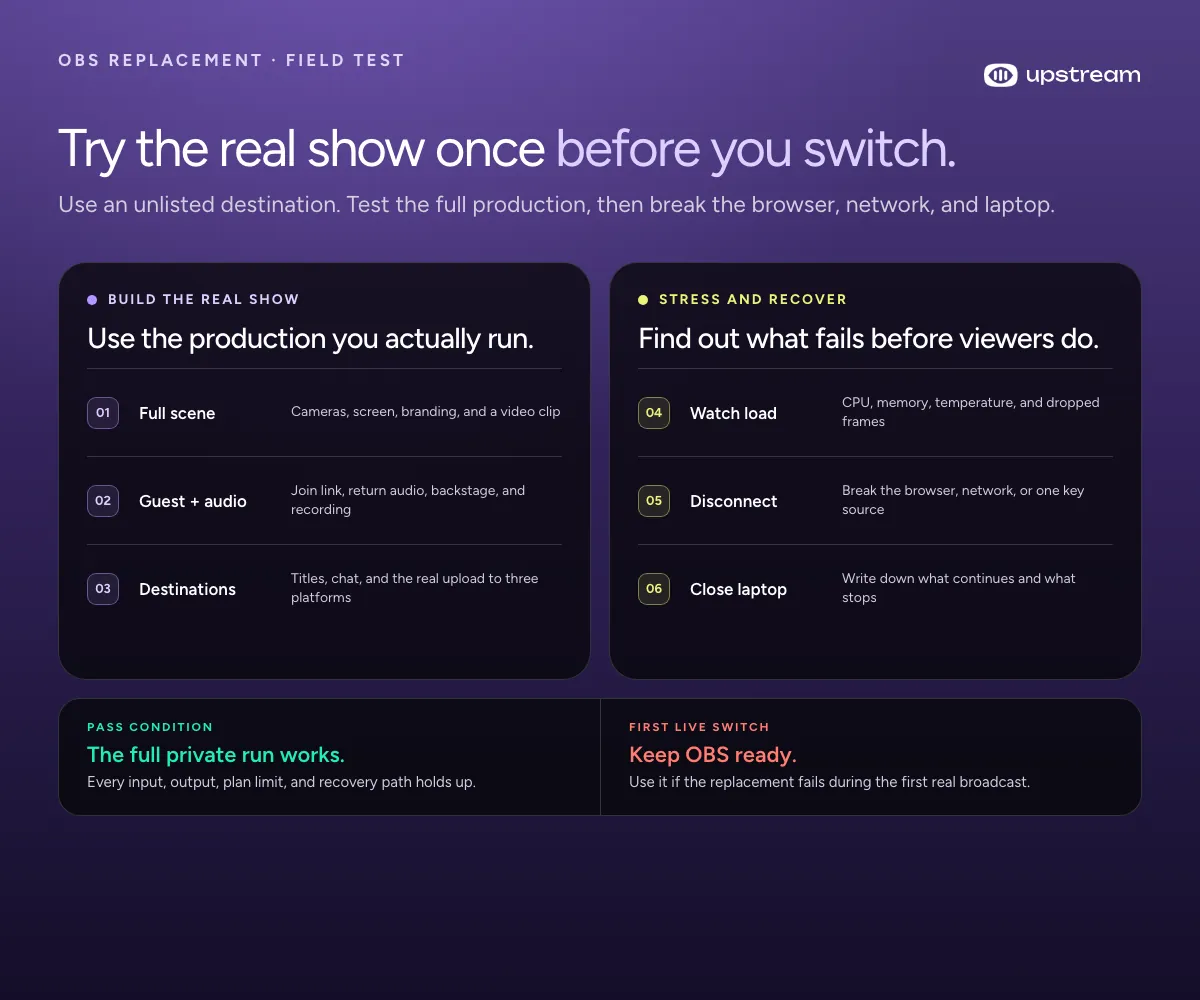
Do not choose an alternative from a feature table alone. Run a private or unlisted rehearsal that matches the real show.
- Build one representative scene. Use the hardest real scene, with its cameras, capture cards, screen shares, browser sources, videos, NDI or SRT feeds, and audio devices.
- Invite a guest and test audio. Check the join link, backstage controls, monitoring, echo cancellation, delays, music routing, mix-minus behavior, and recording tracks. Have guests run a quick camera test and microphone test before the rehearsal.
- Send the show to three destinations. Verify titles, chat, resolution, frame rate, branding, storage, recording, streaming-hour limits, and every required output.
- Measure the local load. Watch CPU, GPU, memory, dropped frames, temperature, and upload speed stability during a full-length rehearsal. The streaming bandwidth calculator shows the bitrate your connection can safely sustain.
- Disconnect something deliberately. Remove a camera, interrupt a guest, refresh the browser, close the app, or reduce bandwidth. Write down what recovers automatically.
- Close the laptop. Confirm exactly which parts continue and which stop when the production computer disconnects.
Keep OBS ready for the first live run: a clean holding scene, backup microphone, local recording, stream key, and a documented way to continue or stop safely.
Frequently asked questions
What is the best free OBS alternative?
The answer depends on the workflow. Streamlabs Desktop and Meld offer free ways to begin with desktop production, while browser and cloud platforms commonly reserve higher resolution, multistreaming, storage, or branding controls for paid plans. OBS remains the strongest fully free general-purpose option for many users.
Is there an easier alternative to OBS?
Yes. StreamYard and Restream Studio are easier for many interview and webinar workflows because they run in a browser and let guests join by link. Upstream is easier for scheduled and 24/7 content because the cloud continues playout without an always-on computer.
What OBS alternative uses less CPU?
If you need a lightweight OBS alternative, browser and cloud services can move composition, distribution, or playout away from your computer, although the browser still uses local resources for cameras and screen sharing. Meld is also an efficient desktop option. Always test with your actual sources and resolution.
What is the best OBS alternative for Chromebook, iPad, or a low-end PC?
Use a browser-based option such as StreamYard, Restream Studio, Lightstream, Riverside, or Upstream when installing a desktop encoder is impractical. On iPad, start with a platform that explicitly supports the camera, screen-sharing, and guest inputs you need; mobile browsers do not expose every desktop capture source. Cloud rendering, distribution, or playout can still remove much of the work OBS would perform locally.
What is the best OBS alternative for Linux?
For general-purpose local streaming on Linux, OBS is still usually the strongest choice because it is free, open source, and natively supported. If the problem is setup or local resource use rather than Linux itself, a supported browser studio or cloud playout service may be a better architectural change than another Linux desktop app.
What is the best OBS alternative for live streaming and recording?
Meld and Streamlabs are the closest choices when you need local live streaming and recording in one desktop app. Riverside is stronger when isolated recordings and post-production are the priority. Upstream is the better fit when live distribution, scheduling, or persistent cloud playout matters more than a local recording workflow.
What is the best OBS alternative for Mac?
Ecamm is the most complete Mac-specific alternative in this comparison. Meld and Streamlabs Desktop also support macOS, while browser tools work across supported modern browsers.
What is the best OBS alternative for Windows?
vMix is the strongest option for advanced professional production. Streamlabs Desktop suits gaming and integrated creator tools, while Meld provides a more streamlined desktop workflow.
Can I livestream without installing OBS?
Yes. Browser studios such as StreamYard, Restream Studio, Riverside, and Upstream Live Studio can produce a live show without installing OBS. Cloud playout services can also run scheduled or continuous streams after the setup device disconnects.
Can I use OBS with an alternative instead of replacing it?
Yes. Hybrid workflows are common. OBS can handle local cameras, game capture, or complex scenes while a cloud platform handles destinations, scheduling, overlays, or persistent delivery.
Choose the architecture before the app
The best OBS alternative is the one that removes your production bottleneck without taking away the controls you rely on.
For a guest interview, that may be a browser studio. For a Mac creator, it may be Ecamm. For sports, it may be vMix. For an always-on channel, moving playout into the cloud can matter more than replacing one desktop interface with another.
If your priority is cloud multistreaming, scheduled video, a browser-based live show, or a 24/7 channel that does not depend on an open laptop, you can create a free Upstream account and test the workflow with an unlisted destination before moving a live audience.