Aitum Multistream lets you send one OBS production to several platforms for free, but each local output still consumes upload bandwidth and may add encoder or GPU load. Use the free bandwidth calculator inside this guide to total every destination, then run a ten-minute OBS Stats test before going live. If upload, render lag, or encoder lag climbs, send one OBS feed to a cloud multistreaming service instead.
Can you multistream on OBS with Aitum for free?
Yes. Aitum Multistream is the free local route for sending an OBS production to multiple destinations. It can control main and vertical streams from one place. Your computer still runs OBS, manages the destination connections, and stays online for the whole broadcast.
That makes Aitum a strong fit when you want local control and already know your connection and encoder have room. It is not automatically the cheapest route operationally: a free plugin can still cost you time when one destination fails, a stream key changes, or a local output pushes the machine beyond its stable limit.
Before installing anything, write down the destinations you actually need. Two outputs are a different job from four. A horizontal YouTube and Twitch show is also different from a horizontal show plus a separate vertical canvas. The current Aitum resource is the authority for supported OBS versions and platforms.
Calculate your Aitum upload bandwidth
Check upload bandwidth first, then test hardware load. Those are separate constraints. The calculator below estimates how much outbound bandwidth several local outputs consume. It does not measure CPU, GPU, render lag, or encoder lag.
For a local Aitum setup, add the intended video and audio bitrate for every destination. Then leave headroom for normal connection variation. Do not use a speed-test peak as if it were a guaranteed sustained upload. Run the calculation on the same connection you will use for the real show.
With Mbps upload, I'll stream to via .
Includes and extra RTMP outputs.
Not sure of your upload speed? Test it in about 10 seconds, on one connection, the way OBS sends a stream.
Your 1080p · 60 fps multistream configuration
Type your upload speed and the config writes itself.
OBS encoder settings
- Video bitrate
- 6,000 kbps · CBR
- Audio bitrate
- 128 kbps · AAC
- Keyframe interval
- 2 s
Settings → Output → Streaming
≈ 2.8 GB uploaded per hour · safe upload target = (video + 0.128 audio) × 1 feed × 1.5
- This shared feed is below YouTube's H.264 recommendation of 17.0 Mbps for 1080p · 60 fps. Fits describes upload capacity, not whether YouTube's recommended bitrate is met.
- This result uses Twitch's standard H.264 path at up to 6 Mbps. Eligible Enhanced Broadcasting uses different codecs and higher limits; enable it in your streaming software (OBS Settings → Stream) if you qualify.
What each destination gets
YouTube H.264 recommended bitrates
These presets use YouTube's recommended H.264 video bitrates. A shared feed may use a lower bitrate to fit another destination's limits. Fits describes upload capacity; it does not guarantee stream quality. AV1 and H.265 have different recommendations.
| Quality | OBS video bitrate | Video | One-feed upload +50% |
|---|---|---|---|
| 720p · 30 fps | 8,000 kbps | 8.00 Mbps | 12.2 Mbps |
| 720p · 60 fps | 8,000 kbps | 8.00 Mbps | 12.2 Mbps |
| 1080p · 30 fps | 14,000 kbps | 14.0 Mbps | 21.2 Mbps |
| 1080p · 60 fps | 17,000 kbps | 17.0 Mbps | 25.7 Mbps |
| 1440p · 30 fps | 21,000 kbps | 21.0 Mbps | 31.7 Mbps |
| 1440p · 60 fps | 34,000 kbps | 34.0 Mbps | 51.2 Mbps |
| 4K · 30 fps | 42,000 kbps | 42.0 Mbps | 63.2 Mbps |
| 4K · 60 fps | 50,000 kbps | 50.0 Mbps | 75.2 Mbps |
720p · 30 fps
- OBS video bitrate
- 8,000 kbps
- Video
- 8.00 Mbps
- One-feed upload +50%
- 12.2 Mbps
720p · 60 fps
- OBS video bitrate
- 8,000 kbps
- Video
- 8.00 Mbps
- One-feed upload +50%
- 12.2 Mbps
1080p · 30 fps
- OBS video bitrate
- 14,000 kbps
- Video
- 14.0 Mbps
- One-feed upload +50%
- 21.2 Mbps
1080p · 60 fps
- OBS video bitrate
- 17,000 kbps
- Video
- 17.0 Mbps
- One-feed upload +50%
- 25.7 Mbps
1440p · 30 fps
- OBS video bitrate
- 21,000 kbps
- Video
- 21.0 Mbps
- One-feed upload +50%
- 31.7 Mbps
1440p · 60 fps
- OBS video bitrate
- 34,000 kbps
- Video
- 34.0 Mbps
- One-feed upload +50%
- 51.2 Mbps
4K · 30 fps
- OBS video bitrate
- 42,000 kbps
- Video
- 42.0 Mbps
- One-feed upload +50%
- 63.2 Mbps
4K · 60 fps
- OBS video bitrate
- 50,000 kbps
- Video
- 50.0 Mbps
- One-feed upload +50%
- 75.2 Mbps
(video + 0.128 Mbps audio) × outbound feeds × headroom. A cloud multistream uses one outbound feed from your encoder. Local fan-out multiplies the feed by the number of destinations. The model assumes 128 kbps stereo audio and that the same encoded feed is relayed unchanged to every destination. Test with real motion and monitor stream health before an event.
Sources
- YouTube Live encoder settings · H.264 recommendations and 128 Kbps stereo audio. YouTube checked October 5, 2026. Other sources last checked August 7, 2026.
- Twitch standard guidance · the calculator keeps the common H.264 path at 6 Mbps. Enhanced Broadcasting (HEVC, Partner/Affiliate) allows up to 9 Mbps at 1440p but does not apply to relayed standard RTMP, so it is not modeled here.
- Kick streaming settings · 8 Mbps, 1080p, 60 fps maximum.
- Facebook Live specs · 1080p60, up to 9 Mbps video.
- OBS connection troubleshooting · bitrate must fit stable upload; wired is preferred.
One upload. Every destination.
See how Upstream sends one live feed to multiple platforms from the cloud.
Choose local fan-out, select every destination you plan to run through Aitum, and enter your sustained upload speed. Compare that result with the one-upload cloud route before deciding which architecture to use. You can also open the standalone streaming bandwidth calculator in a separate tab.
Use this worksheet before touching OBS:
| Planned outputs | What to calculate | What to test next |
|---|---|---|
| Two local destinations | Both outbound video and audio bitrates | Ten minutes with the real scene |
| Three local destinations | All three outputs plus connection headroom | OBS Stats and each platform dashboard |
| Four local destinations | Four full outbound paths | Whether one cloud upload is the cleaner route |
The calculator answers, “Can the connection carry this?” The OBS test answers, “Can this PC render, encode, and send it reliably?” You need both answers.
Stream everywhere from one feed.
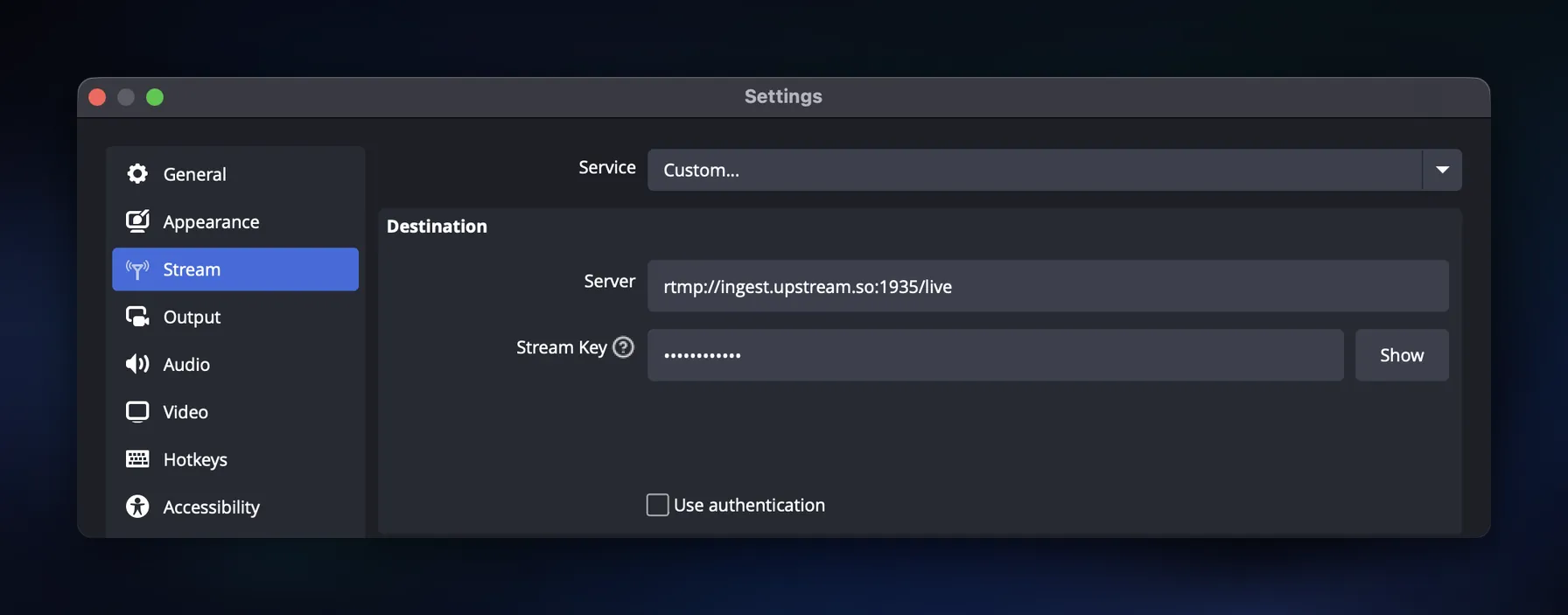
Send one live feed to Upstream and let the cloud deliver it to YouTube, Twitch, Kick, Facebook, and custom RTMP without making your upload connection carry every copy.
How do you install and set up Aitum Multistream in OBS?
Install the current Aitum release, restart OBS, add each destination one at a time, and run a private test before a public broadcast. Download only from the official OBS resource page or the Aitum GitHub releases, never a third-party mirror. The walkthrough below was captured on Aitum Multistream 1.0.8, and the control names match Aitum’s official main-canvas guide.
- Confirm your OBS version is supported by the current Aitum release.
- Download the installer for your operating system and close OBS before installing.
- Restart OBS and open the Aitum Multistream dock.
- Select Settings, choose Main Outputs, then select Add Output.
- Choose the service, enter its connection details, and add the remaining destinations one at a time.
- Start with a private, unlisted, or otherwise non-public test where the platform supports it.
1. Confirm your OBS version before you install anything
Aitum ships as a plugin, so the release you download has to match the OBS you are running. Check the compatibility note on the OBS resource page against the version in your own title bar, then quit OBS completely before running the installer. If the dock does not appear after you restart, an install that ran while OBS was still open is worth ruling out first, because it looks identical to a failed download.
2. Open the Aitum Multistream dock
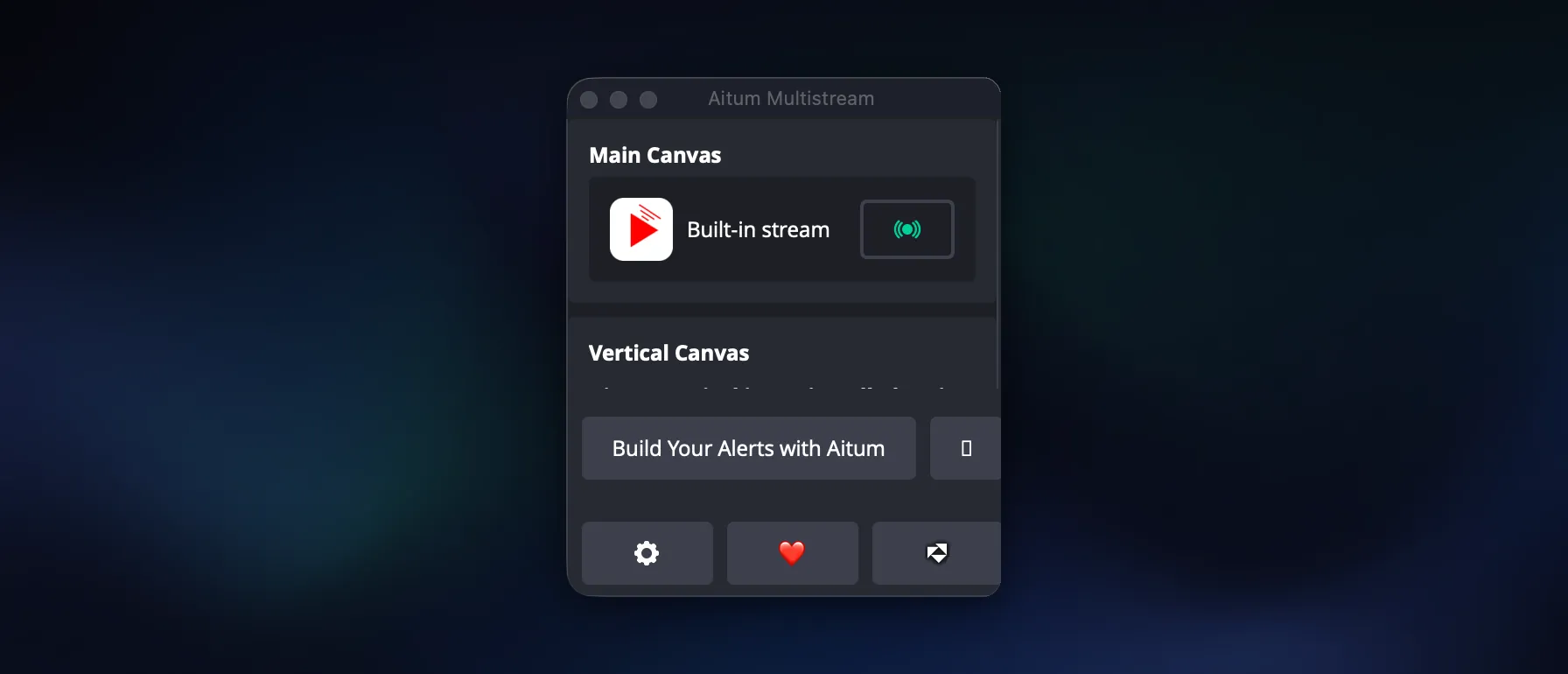
Restart OBS once the installer finishes. Aitum adds its own dock rather than hiding inside the settings tree, so a successful install is obvious: you get a Main Canvas section with a single Built-in stream row already in it, and a Vertical Canvas section beneath it. That Built-in stream row is not something Aitum created. It is OBS’s own output, the one you configure under Settings then Stream, shown here so you can see what your extra destinations will sit alongside.
3. Open Aitum’s settings
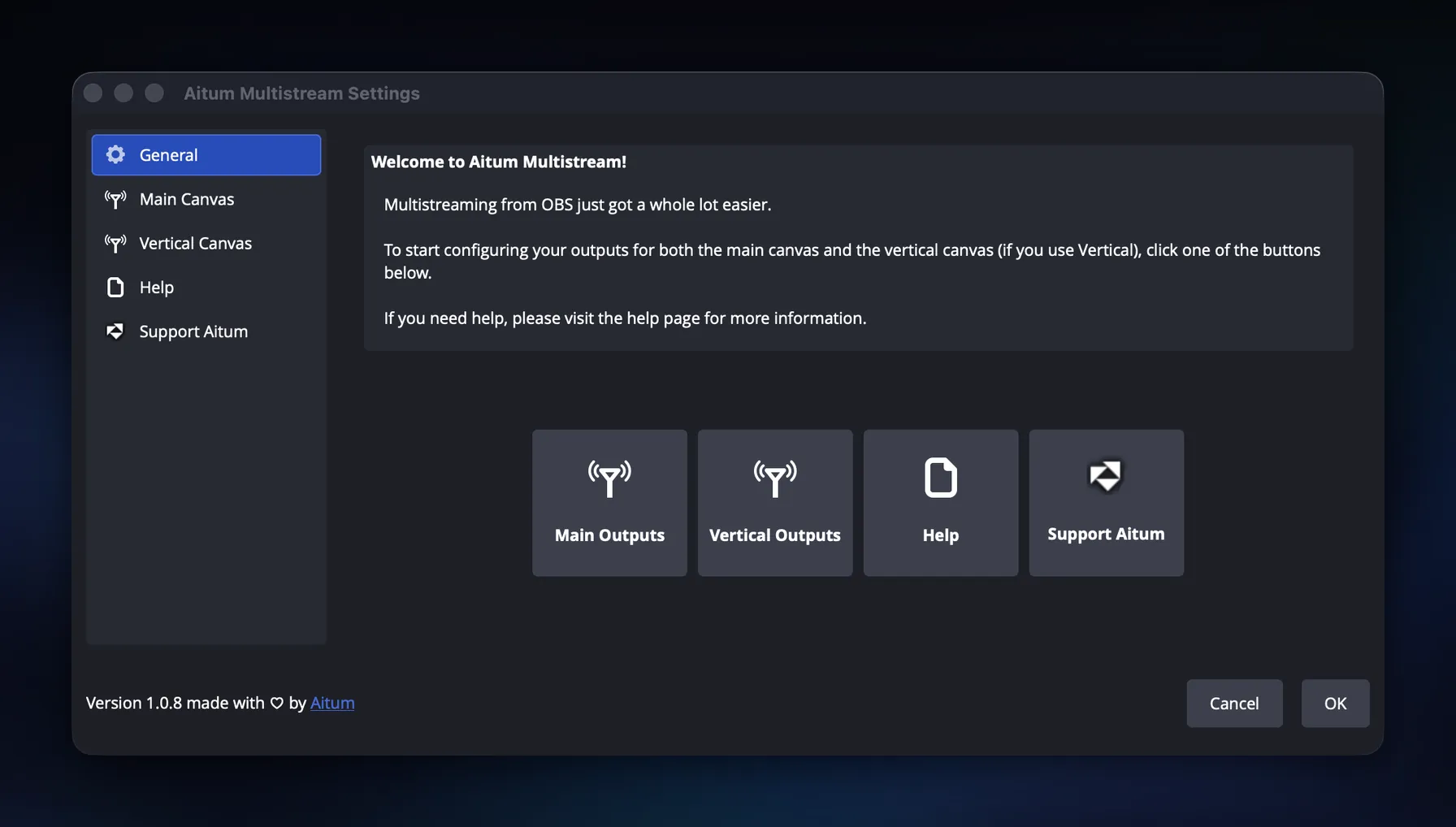
Everything you add lives behind the gear icon in the dock. The first time you open it, Aitum shows a welcome panel with four buttons rather than dropping you into a form: Main Outputs, Vertical Outputs, Help, and Support Aitum. Main Outputs is the one you want for ordinary horizontal streaming to Twitch, YouTube, Kick, and the rest. Vertical Outputs applies only if you also run Aitum’s separate Vertical plugin for phone-shaped canvases, which is a different job from multistreaming one horizontal feed to several places.
4. Add your first output
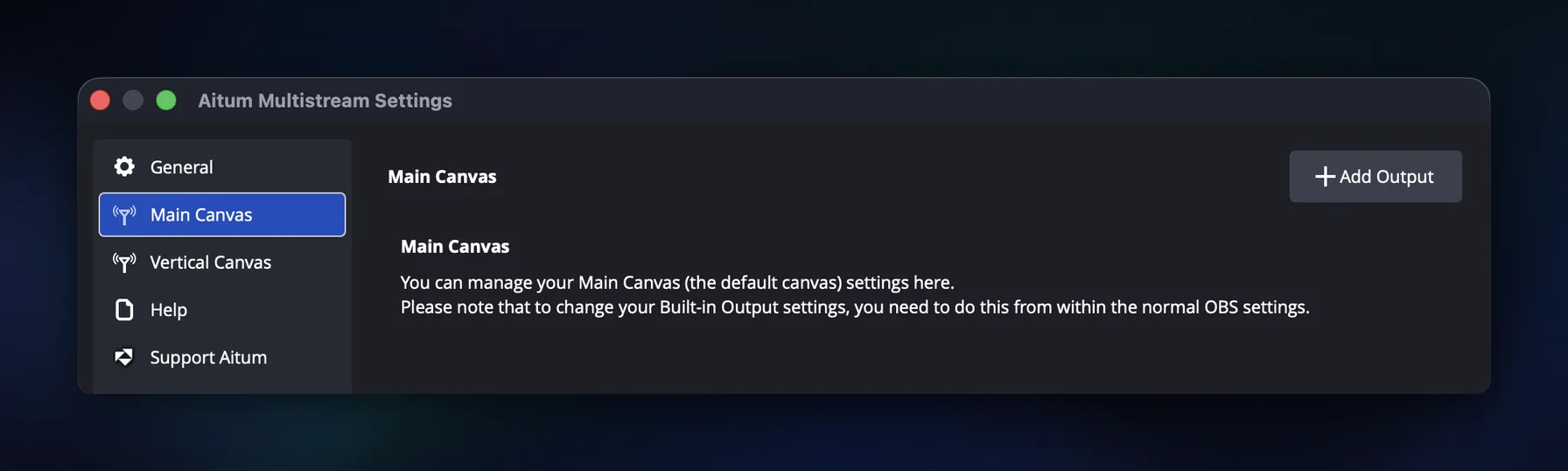
Main Canvas is where your destinations are listed, and Add Output in the top right is how you create one. Read the note on this screen before you go further, because it explains a limit that catches people out: your Built-in Output is still configured from OBS’s own settings, not from here. Aitum manages the destinations it adds, and it leaves OBS’s original output alone. If you want to change the bitrate or server on that first stream, you do it in OBS.
5. Choose the destination service
Aitum presents the destination as a picker rather than a blank form, with tiles for Twitch, YouTube, TikTok, Facebook, Trovo, X (Twitter), Kick, and Other Service. Picking a named tile is worth doing even when you already have the RTMP details to hand, because Aitum then asks only for the fields that service actually needs and labels them in that platform’s own vocabulary. Other Service is the escape hatch for anything not listed, including your own ingest.
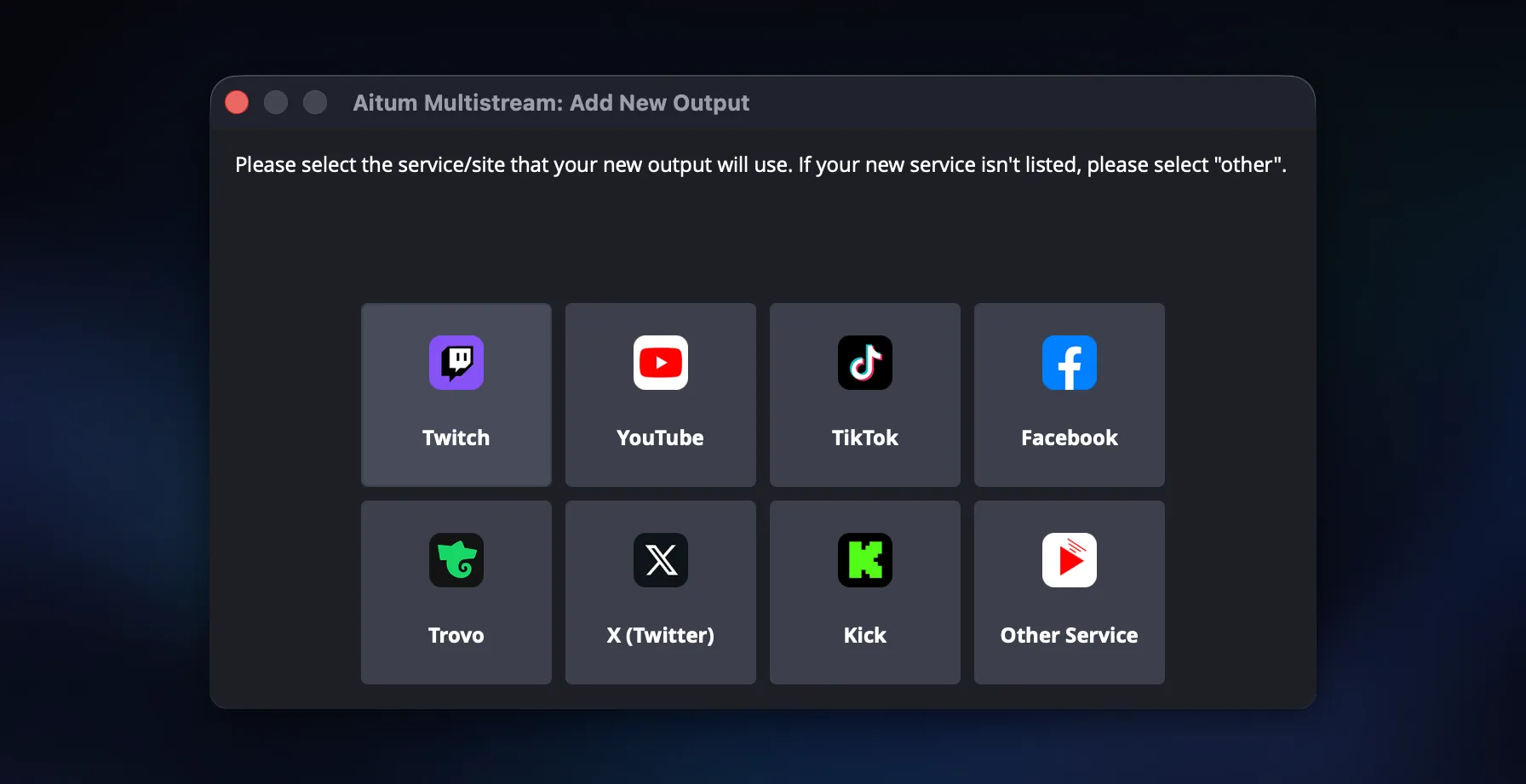
One tile deserves a caveat: TikTok. The tile only works if your account already has LIVE access, with a server URL and stream key available in TikTok’s LIVE tools. Eligibility is TikTok’s decision, not Aitum’s, so if there is no stream key in your TikTok settings, add your other destinations first and come back once LIVE access is granted.
6. Fill in a service Aitum lists
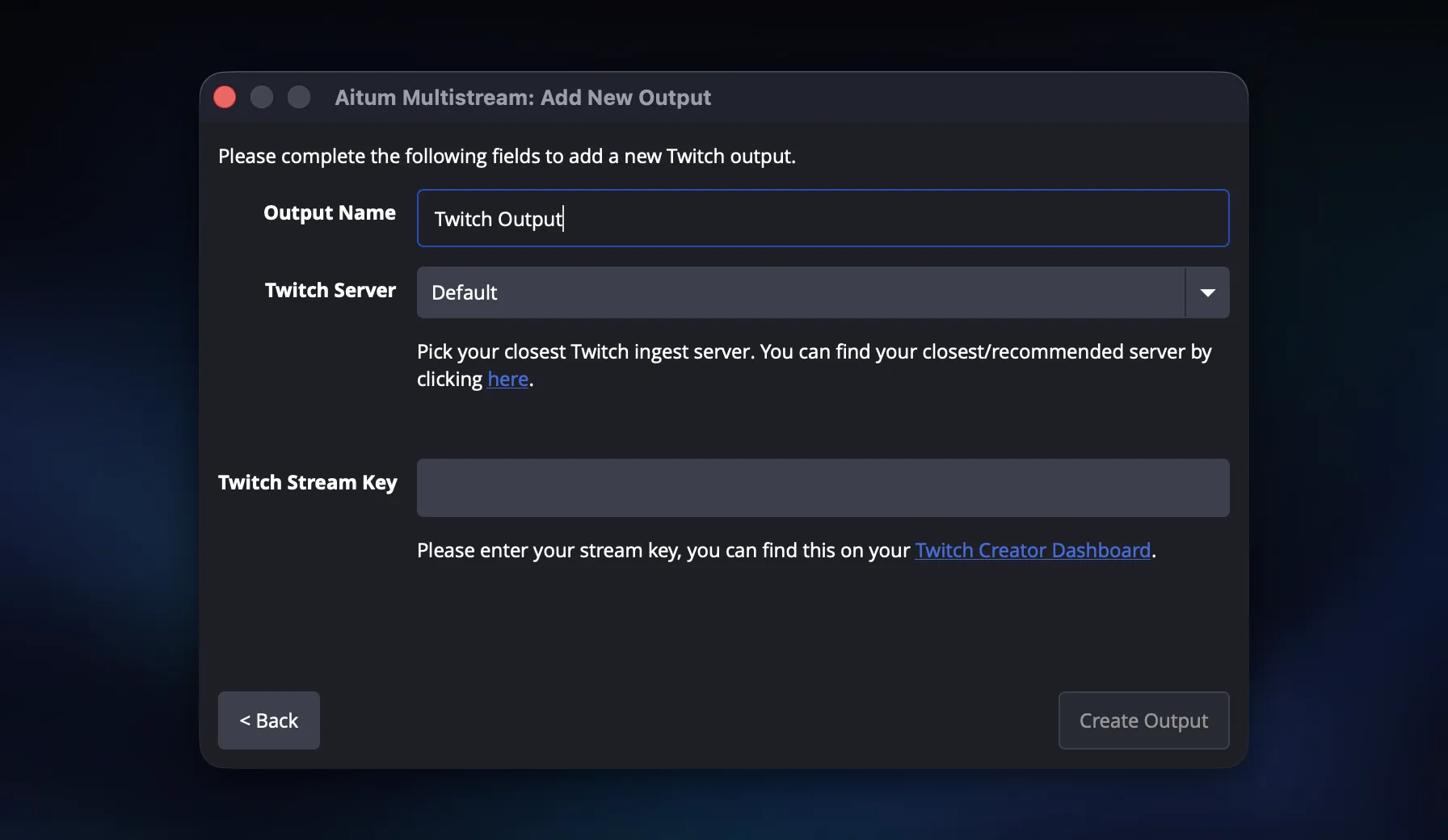
A listed service asks for very little. Twitch, for example, wants a name for the output, an ingest server, and your stream key, and it leaves the server on Default unless you change it. Default works, but choosing the ingest closest to you is the cheapest latency win available at setup time, and Twitch publishes a recommended-server tool for exactly that. The output name is only ever shown to you, so name it something you will recognise at a glance in the dock when a stream misbehaves mid-broadcast.
7. Fill in a service Aitum does not list
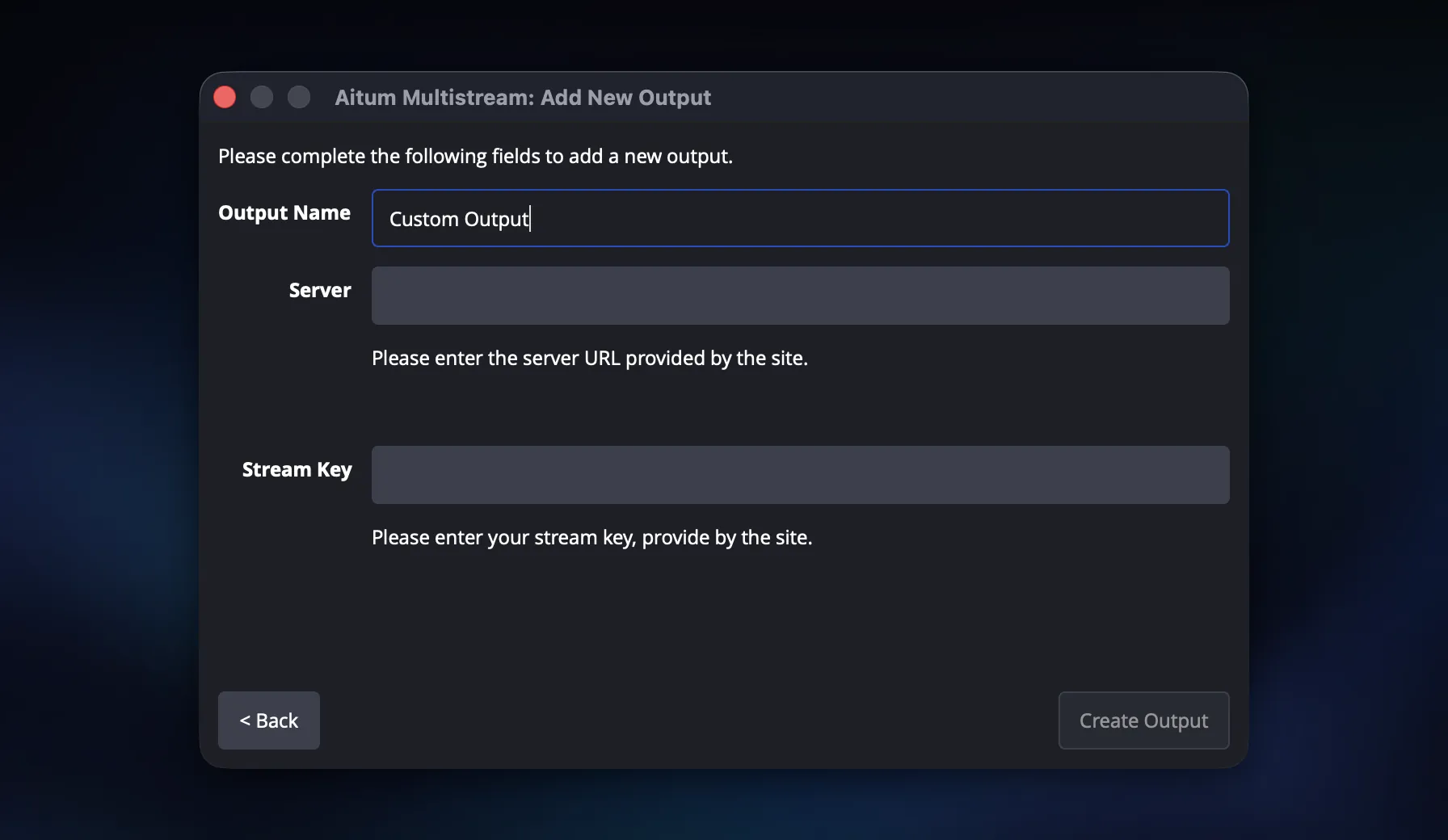
Choosing Other Service gets you the generic form: an output name, a server URL, and a stream key, each supplied by the destination rather than by Aitum. This is the path for a self-hosted ingest, a regional platform, or any service whose RTMP endpoint you already have. It is also the path for Kick, where the server URL comes out of the creator settings workflow in Kick’s own OBS guide. Add your destinations one at a time and confirm each one connects before adding the next, so that a failure points at a single output instead of leaving you guessing which of four is wrong.
When every destination is in place, start with a private, unlisted, or otherwise non-public test wherever the platform allows one. Never include a stream key in a screenshot or a screen share.
How much upload bandwidth does Aitum multistreaming use?
Local multistreaming uses one outbound connection per destination. Add the configured bitrate of every local output to estimate the total. If two destinations each receive a 6 Mbps video feed, the video portion alone is 12 Mbps before audio and connection headroom.
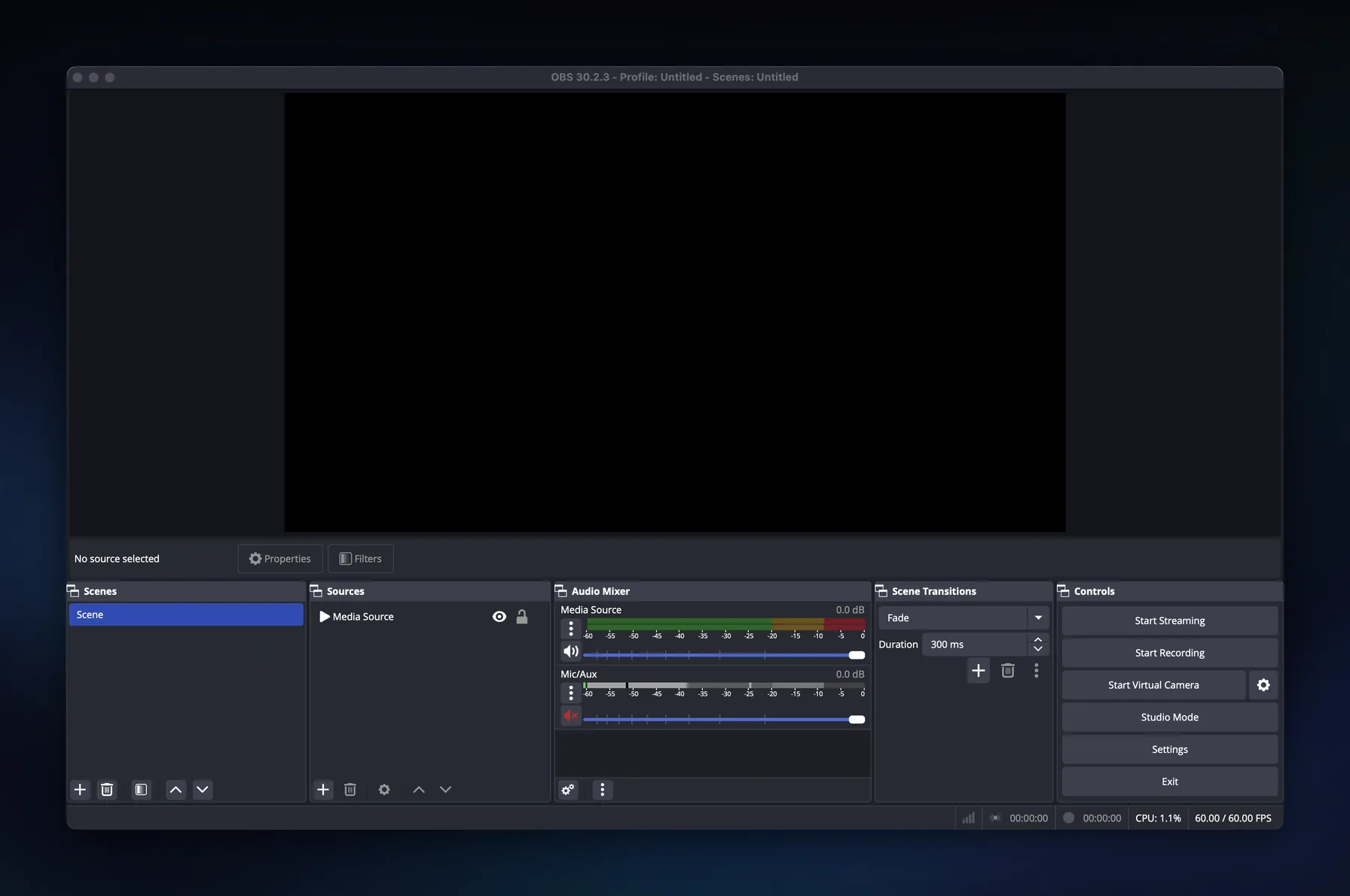
The built-in output still answers to OBS
Before you change any number, be clear about which output you are changing. Aitum’s official main-canvas guide says a main-canvas output uses OBS’s main encoding settings by default, and the Built-in stream row in the dock is the clearest reminder of that: it is OBS’s own output wearing Aitum’s interface. Per-output advanced settings can override the default, and Multiple RTMP Outputs documents encoder sharing in the same way. Encoder sharing can reduce duplicate encoding work, but it does not turn several outbound destination connections into one upload.

Resolution and frame rate set the floor
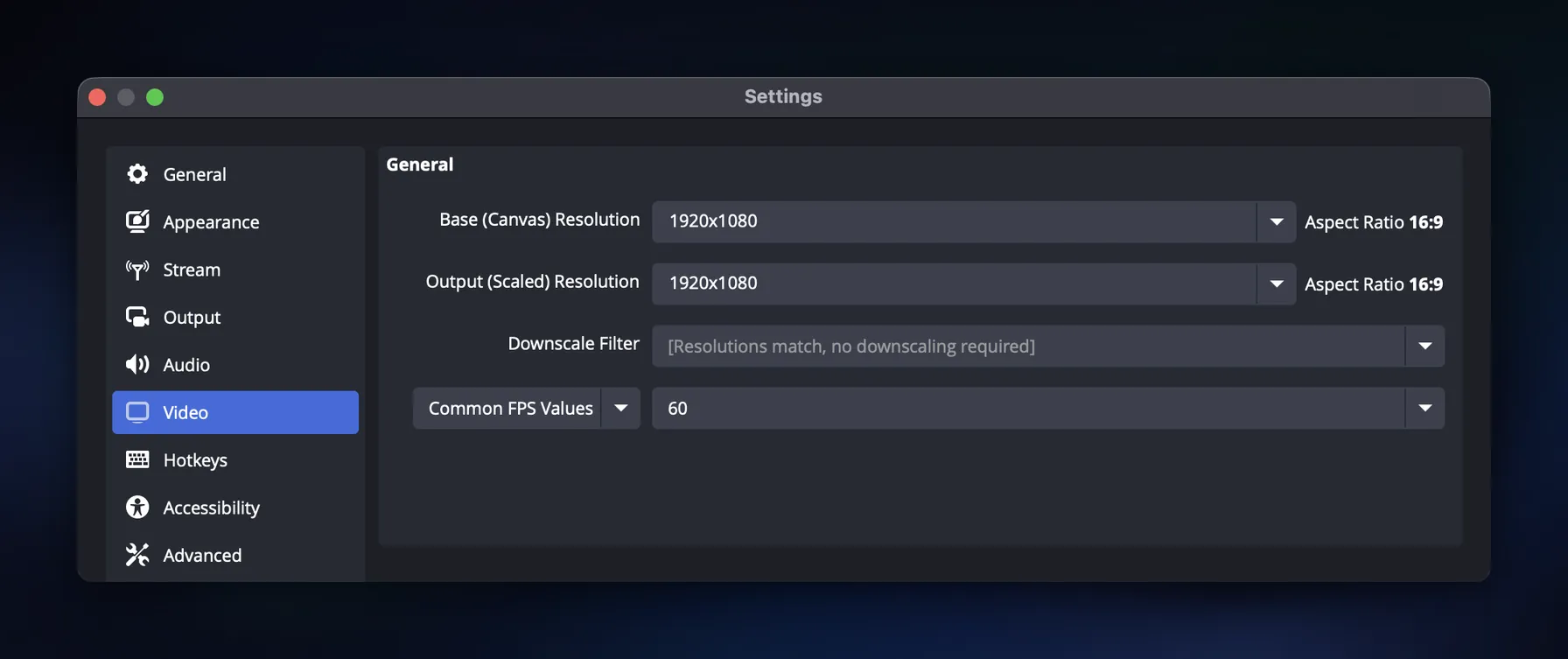
Bitrate is the number people reach for, but resolution and frame rate decide what that bitrate has to carry. In OBS’s video settings, the base canvas is what you compose against and the output resolution is what actually leaves your machine; when they match, as they do at 1920×1080 here, no downscaling happens and the downscale filter greys out. Sixty frames a second costs meaningfully more than thirty for the same perceived quality. If your upload total is uncomfortably close to your real capacity, dropping the output resolution or the frame rate reduces every destination at once. No per-output tweak can do that.
Where the bitrate actually lives
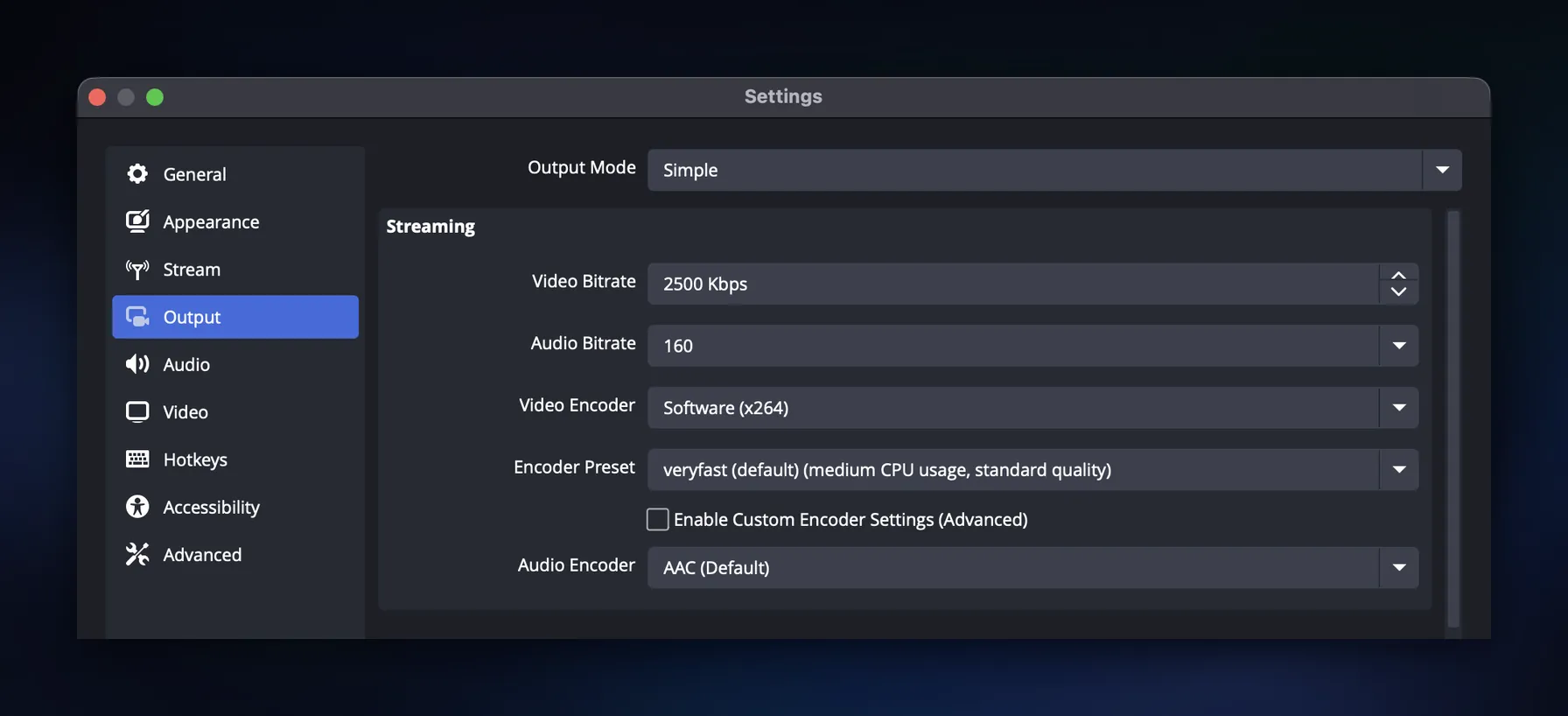
In Simple output mode, one video bitrate field feeds your stream, and the encoder and preset sit next to it. The values here are OBS defaults rather than recommendations: 2500 Kbps of video, 160 for audio, the software x264 encoder, and the veryfast preset. Simple mode is fine for a single destination, and it is a reasonable place to read your current numbers out of before you put them into the calculator above. It is the wrong place to be if you want different destinations encoded differently, because there is only one set of values to give them.
Advanced mode is where per-destination decisions happen
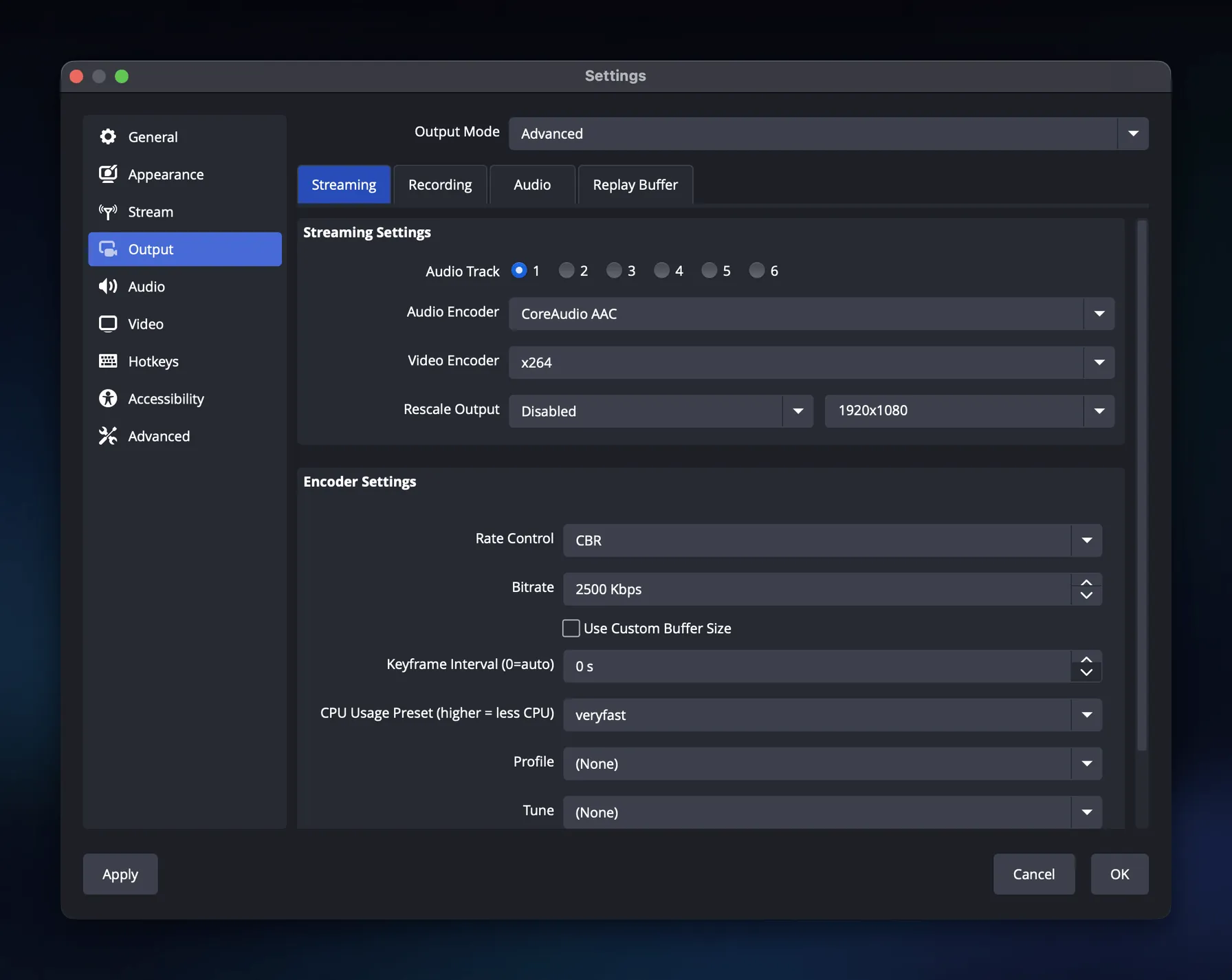
Switching the output mode to Advanced replaces that single field with the encoder controls that matter when several destinations have different requirements: rate control, an explicit bitrate, keyframe interval, and the CPU usage preset. Constant bitrate is the usual choice for live streaming because platforms expect a predictable stream, and keyframe interval is the setting most likely to be dictated to you. YouTube recommends a two-second keyframe frequency and says not to exceed four seconds, so check every destination’s current encoder guide and then pick a common starting configuration that all of them accept. This is also where the encoder choice matters most: if your GPU offers a hardware encoder (NVENC, AMF, or Quick Sync), prefer it over x264 when several local outputs are running, because it moves encoding work off your CPU cores. Keep x264 for a single output or a machine with CPU headroom to spare.
Audio adds up too, and it is easy to forget
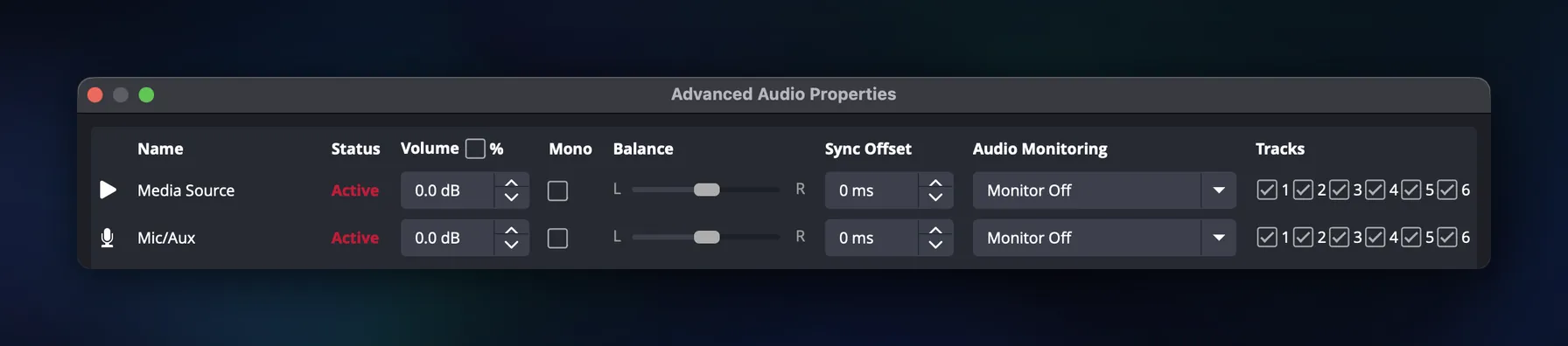
Audio is a small number per destination and a real one in total. OBS’s advanced audio properties are also where multi-track setups are wired, with a track checkbox grid per source, which matters if you intend to send different audio to different platforms for licensing reasons. Every extra track you enable is more audio to encode and more to upload, on top of the video you already counted.
Do not copy a bitrate table blindly. Put your intended values into the calculator, test the exact scene, and watch the live dashboards. A static talking-head scene and a high-motion game can stress the same nominal settings differently.
How do you test whether Aitum is overloading your PC?
Run the intended scene for ten minutes with every planned destination active. OBS recommends testing for a few minutes; ten minutes is long enough to catch problems that a 30-second check can miss without turning the preflight into a rehearsal.
Open OBS Stats before starting and record:
- CPU usage
- frames missed due to rendering lag
- skipped frames due to encoding lag
- dropped frames due to network problems
- current bitrate and frame rate
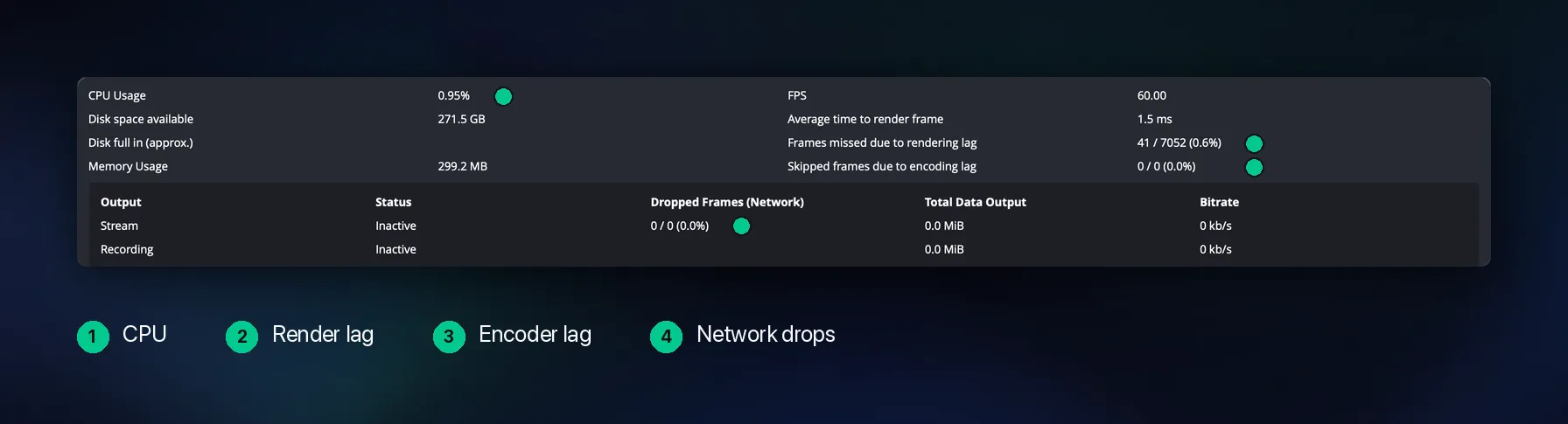
Use the same resolution, frame rate, scene transitions, browser sources, camera inputs, and motion you expect during the real stream. Check the numbers at the start and end. Also open every destination dashboard because a clean OBS window does not prove each platform accepted and played the feed correctly.
Interpret the result by failure type. Network drops point to connection or destination delivery. Render lag points to scene/GPU pressure. Encoder lag points to encoding capacity or settings. Do not “fix” all three by lowering one random setting.
When is one cloud upload better than Aitum?
Use Aitum when the free local setup passes both tests and you are comfortable managing the destinations yourself. Use a cloud route when one encoder upload, server-side fan-out, saved destinations, or less local setup is worth more than keeping every output on the PC.
Upstream multistreaming receives one OBS feed and sends it to the selected destinations from cloud servers. That removes multiplied local destination uploads. OBS and other RTMP input follow the resolution and frame rate set on your Upstream stream. A 4K feed stays 4K and a 60 fps feed stays 60 fps on plans that include them. Vertical 1080p input arrives at full 1080×1920, including on the free plan. Downloaded OBS profiles match the stream’s resolution, orientation and frame rate. It does not make a badly configured OBS scene healthy, so test the source feed before blaming or praising the distribution route. The OBS setup guide shows how to send that one feed to Upstream without a plugin.
Local fan-out multiplies upload demand on the streaming computer. Cloud fan-out keeps one outbound OBS feed and creates the destination copies server-side.
| Route | Local upload shape | Best fit | Main tradeoff |
|---|---|---|---|
| Aitum Multistream | One outbound path per destination | Free local control that passes the test | PC, connection, keys, and recovery stay local |
| Multiple RTMP Outputs | Multiple local RTMP paths | Community-plugin workflow and encoder-sharing options | Local operations and community support |
| SE.Live Multistreaming | Connected platforms and custom RTMP | StreamElements workflow, vertical canvas, and Multichat | Currently described as open beta |
| Upstream | One OBS upload with cloud fan-out | Less local fan-out and broader cloud operation | Hosted service with plan limits |
The Upstream free plan currently lists one concurrent stream and 24 streaming hours per month. Plans and limits change, so check the current plan page before you commit to one.
How do you fix Aitum connection errors, dropped frames, or choppy output?
Fix the failure shown by the logs and dashboards, not the symptom described in chat. Aitum questions on Reddit commonly mention connection errors, choppy output, resource use, and plugin choice, but those reports are problem discovery, not proof that one defect affects every setup.
| Symptom | Check first | Next move |
|---|---|---|
| Destination will not connect | Server URL, stream key, account permission | Re-copy credentials from the platform and test one output |
| Dropped network frames rise | Sustained upload and total local bitrate | Reduce output demand or use one cloud upload |
| Render lag rises | Scene complexity and GPU pressure | Simplify the scene or lower render demand |
| Encoder lag rises | Encoder choice and output settings | Test one encode, then add destinations gradually |
| One platform fails | That platform’s dashboard and ingest settings | Isolate the destination before changing every output |
| Vertical stream is choppy | Vertical canvas sources and output settings | Test the vertical output separately |
Add destinations one at a time when diagnosing. If one output works and the second breaks the run, you have a smaller search area than if four destinations start together.
Is Aitum better than Multi-RTMP or SE.Live?
Aitum is the clearest choice when you want its current main-plus-vertical workflow. Multi-RTMP is a valid community-plugin option, especially when its encoder-sharing model matches your setup. SE.Live is relevant when you already use StreamElements and want its Multichat or vertical-canvas workflow.
There is no universal winner because the constraints differ. Compare current OBS compatibility, destination support, vertical workflow, encoder behavior, support path, and how the plugin performs on your machine. Ignore old star ratings and stale issue counts, and read the current release notes and open issues yourself.
This guide gives Aitum the full walkthrough because it is the plugin most people start with. The alternatives differ in workflow more than in outcome, so one decision table covers them. If you need the broader category view, see the multistreaming software comparison.
FAQ
Can I multistream from OBS for free?
Yes. Aitum and other OBS plugins provide a local route without a multistreaming-service fee. Your computer, connection, and platform accounts still carry the work.
Is multistreaming allowed on Twitch?
Yes, with conditions. Twitch’s simulcasting guidelines let most streamers simulcast to other platforms, provided the Twitch stream stays comparable in quality and you do not direct viewers elsewhere. Streamers under an exclusivity agreement are the exception, and the chat rules have wrinkles of their own, covered in our breakdown of the current Twitch simulcasting rules.
Does Aitum use more CPU or GPU per destination?
It depends on the encoder and output configuration. Measure render and encoder lag in OBS Stats instead of assuming that destination count maps directly to GPU use.
How much upload speed do I need for Aitum Multistream?
Add every local output’s configured bitrate, include connection headroom, and test the result on the same network. Use the streaming bandwidth calculator as the starting point.
Can Aitum stream horizontal and vertical video at the same time?
Yes. The Aitum dock separates a Main Canvas section from a Vertical Canvas section, and the vertical side requires Aitum’s separate Vertical plugin. Each canvas manages its own outputs, so test both canvases and their destinations before a public broadcast. The official Aitum resource tracks what each release supports.
Is cloud multistreaming safer for a slower connection?
It can reduce local outbound demand because your encoder sends one feed to the cloud service. It cannot repair an unstable source connection, so test the single feed first.
Sources
- OBS Studio Overview: custom streaming server URL and key.
- OBS Quick Start Guide: preflight testing.
- Aitum Multistream on the OBS Forum: current plugin resource and main/Vertical workflow.
- Aitum Multistream releases: current release surface.
- Aitum main-canvas setup: current dock labels and default main encoding settings.
- Multiple RTMP Outputs: encoder-sharing comparison.
- SE.Live Multistreaming: beta and workflow description.
- YouTube encoder settings: keyframe guidance.
- Kick OBS setup: server URL workflow.
- Twitch simulcasting guidelines: simulcast policy and exclusivity exceptions.
- TikTok LIVE getting started: LIVE access and stream key availability.
- Upstream multistreaming: one-upload cloud fan-out.
- Upstream streaming bandwidth calculator: local versus cloud upload planning.