A 24/7 YouTube stream running on a 100-watt computer costs $14.40 in electricity over 30 days at $0.20 per kWh. Upstream.so starts at $30 per month for one continuous 1080p, 30 fps stream, including cloud playback and browser-based streaming software. The better value depends on your equipment, electricity rate, internet costs, and the tools you need.
This guide compares running prerecorded videos from your own computer with OBS, using a VPS, and choosing managed cloud streaming.
OBS vs. Upstream.so: monthly costs at a glance
OBS Studio is free. You supply the computer, electricity, and internet connection. With Upstream.so, the subscription covers cloud playback and software for managing and producing your streams.
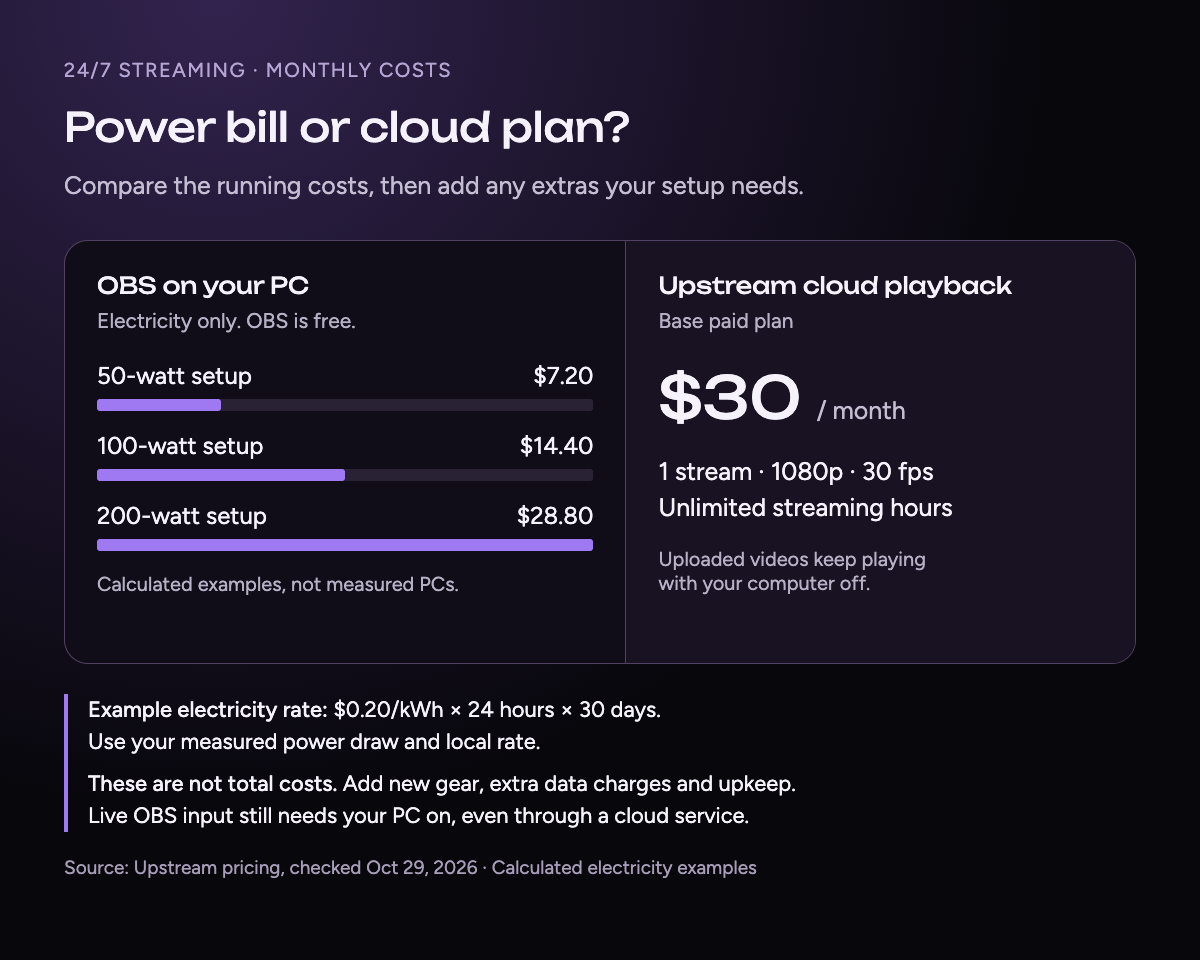
These electricity examples assume 24 hours of operation per day, a 30-day month, and a rate of $0.20 per kWh.
| Setup | Energy used over 30 days | Monthly cost shown |
|---|---|---|
| Local setup drawing 50 W | 36 kWh | $7.20 in electricity |
| Local setup drawing 100 W | 72 kWh | $14.40 in electricity |
| Local setup drawing 200 W | 144 kWh | $28.80 in electricity |
| Upstream.so cloud playback | No continuously running home PC required | $30 subscription |
The local figures are calculated examples, not measurements of typical streaming computers. They exclude new hardware, extra internet charges, and content production. Initial uploads and management also use some local electricity with cloud playback.
The Upstream.so example covers one 1080p, 30 fps stream with unlimited streaming hours, billed monthly. Taxes may be added at checkout. Pricing checked November 5, 2026. See current plan details.
Calculate 24/7 Live Streaming Costs (PC + OBS)
Free streaming tool
What does your stream cost to run?
Estimate electricity and internet costs for a single session or a 24/7 channel.
For 30 days · 720 streaming hours.
Electricity $13.08 (72 kWh) + internet $81.16. Full internet plan included.
Electricity and the internet costs you include only. Hardware wear and the time and stress of managing your setup are extra considerations. If your PC already runs all day, enter only the extra watts streaming adds.
Use this formula:
Electricity cost = watts ÷ 1,000 × hours per day × days × electricity price per kWh
For a 100-watt setup: 100 ÷ 1,000 × 24 × 30 × $0.20 = $14.40.
Watts describe power draw. Kilowatt-hours describe the energy used over time, which is what your electricity bill measures. The U.S. Energy Information Administration explains the difference.
- Run your planned playlist and output settings, then measure average power with a plug-in energy meter. A power supply's wattage rating describes its capacity, not actual use.
- Use your own electricity tariff. The $0.20 rate is an assumption. If your rate changes by time of day, calculate each period separately.
- Count the power streaming adds. If the computer would otherwise be off, use its full streaming draw. If it already runs all day, compare use with and without streaming.
For example, a computer drawing 60 watts without streaming and 100 watts while streaming adds 40 watts. At the example rate, that difference costs $5.76 over 30 days.
What do you get with Upstream.so's subscription?
Upstream.so combines managed cloud playback with a full streaming software solution you control from your browser. You can run uploaded playlists around the clock, schedule prerecorded broadcasts, add your branding, and produce live shows from the same account.
For 24/7 playlists and browser-based live shows, Upstream.so can replace OBS entirely. You can also keep OBS for your local production and send its feed to Upstream.so for multistreaming. Alongside OBS, Upstream.so gives you tools for scheduling prerecorded broadcasts, adding overlays, and bringing guests into Live Studio. You can choose the mix that fits your workflow.
| Included tool | What you can do |
|---|---|
| Cloud playlists | Keep uploaded videos playing while your computer is off |
| Scheduling | Set prerecorded broadcasts to start at a chosen time |
| Stream Designer | Add branded overlays and change your stream's layout |
| Multistreaming | Send one stream to up to 10 of 30+ supported platforms |
| Browser-based Live Studio | Broadcast with your webcam, invite guests, and share your screen |
For example, you could run a music playlist, add channel branding, and join the broadcast for a live Q&A through your browser. Live Studio lets you mix live guests with prerecorded playback, without installing desktop production software.
For uploaded playlists, your home computer and connection no longer provide the continuous video feed. A laptop restart or home power cut does not stop playback at its source. The stream still depends on Upstream.so and YouTube.
Your computer can switch off during cloud playback of uploaded files. During a live webcam, screen-sharing, or OBS segment, the device sending that feed must stay on and connected.
How much does Upstream.so cost?
Your price depends on the number of streams running at once, resolution, frame rate, and billing period. Every plan includes the browser-based streaming software: cloud playlists, scheduling, overlays, multistreaming, and Live Studio. Use the selector below to price the setup you need.
One free stream. Paid gets cheaper as you scale.
Start with 1 paid stream at $30/mo, scale to 1000+, and pay less as you add streams: 2 streams are $50/mo, 3 streams are $70/mo, then 4+ streams are $20/stream/mo or $16/stream/mo when billed yearly.
1 concurrent stream · 24 hr/month
1080p at 30 FPS
$30/stream/mo · 4+ volume rate is $20
* Free-plan capacity may be limited during unusual demand.
The free plan gives you 24 streaming hours each month for one 1080p, 30 fps stream. Paid plans remove the monthly hour limit. Yearly billing is paid upfront; any monthly figure shown for yearly billing is a monthly equivalent. Applicable taxes may be added at checkout.
When does cloud streaming become cheaper?
At $0.20 per kWh, a setup drawing about 208 watts costs $30 in electricity over a 30-day month. This example uses the one-stream, 1080p, 30 fps plan billed monthly. A different choice in the selector changes the comparison.
Break-even watts = cloud subscription cost ÷ (hours in the month × electricity price per kWh) × 1,000
For the example plan: $30 ÷ (720 × $0.20) × 1,000 ≈ 208 watts.
For a 100-watt computer, electricity costs $14.40. Upstream.so's $30 monthly subscription costs $15.60 more, before other differences.
That difference buys managed playback plus browser-based streaming software for scheduling, overlays, multistreaming, and live shows. If you will use those tools, include their value in your decision.
If you only need a simple loop and your existing OBS setup works well, its lower running cost may be enough to decide. OBS already has many production tools. Compare the workflows you need instead of assuming each cloud feature means another paid purchase locally.
Use the actual subscription quote, including any taxes, for your own break-even calculation. If your computer already runs all day, use only the extra power streaming adds.
What about running the stream on a VPS?
A virtual private server, or VPS, is another way to keep your home computer off. You rent a remote machine and manage the streaming software on it.
A simple loop of prepared video can need fewer resources than a stream that encodes overlays and other visual elements live. The server's processing power and outgoing data allowance both affect the budget. Setup, updates, monitoring, and recovery also become part of your workload.
Our guide to VPS hosting for YouTube streaming covers provider prices, bandwidth allowances, setup, security, and tests of live re-encoding.
A VPS can suit someone comfortable managing a server. Upstream.so suits creators who want managed hosting and a browser interface for building and running their streams. For other managed options, see our 24/7 streaming provider comparison.
Include internet usage, equipment, and management time
Continuous uploads
A local stream sends data throughout the day. At an example combined audio and video bitrate of 6 Mbps, 30 days of continuous streaming sends about 1,944 GB, or 1.94 TB, before network overhead.
This is a data-volume estimate, not an internet bill or a recommended bitrate. Check your provider's data-cap rules and use settings that suit your output. YouTube's encoder guidance lists settings by codec, resolution, and frame rate.
Cloud playback requires uploading your library and replacement files, but the continuous feed to YouTube leaves from the provider's servers.
Equipment purchases
If you already own a suitable computer and have enough internet capacity, those are not new purchases caused by the stream. Include hardware and connection upgrades the stream actually needs. Keep one-time purchases separate from monthly bills, and label any allowance for future replacement as an estimate.
Management time
Track the time you spend preparing files, arranging playlists, checking output, and fixing interruptions. Every approach needs management. A trial gives you a better comparison than assuming either local or cloud streaming takes no effort.
Which option should you choose?
Choose OBS on your computer if you already have suitable hardware, its added power use is low, your internet plan supports continuous uploads, and you are comfortable maintaining the setup.
Choose a VPS if you want remote hosting and are comfortable installing, securing, and maintaining the streaming software yourself.
Choose Upstream.so if you want managed 24/7 playback and browser-based streaming software for playlists, scheduling, overlays, multistreaming, and live shows. Its value grows when you use those tools alongside your continuous stream.
The quickest way to decide is to run it. Upstream.so's free plan gives you 24 streaming hours a month with every feature included and no credit card. Upload the same playlist, put an overlay on it and let it play for a day. Then set your electricity bill and the time you spend on upkeep next to $30 a month.
Keep a live channel running 24/7.
Upload files, build a playlist, and let Upstream run continuous live playout from the cloud without OBS, a VPS, or an always-on computer.