To add chat to OBS, open Docks > Custom Browser Docks and paste your platform's popout chat link. The dock sits in the OBS window, not in your scenes. For chat your viewers see, add a Browser source with a chat overlay link. For YouTube, Twitch and Kick in one feed, use a multichat tool such as Upstream.so, Restream Chat or Social Stream Ninja.
Last verified: November 10, 2026, with OBS Studio 33.
Dock or browser source: which one do you need?
A dock is a panel in the OBS window, outside your scenes, so viewers only see it if you capture the window or your screen. A browser source sits in the scene itself. Read chat in a dock; put messages on screen with a browser source.
| Custom browser dock | Browser source | |
|---|---|---|
| Who sees it | You, in the OBS window | Your viewers |
| Where | Docks > Custom Browser Docks | Sources > + > Browser |
| You paste | A popout chat link or a tool's dock link | A tool's overlay link |
| Best for | Reading chat as you stream | A few recent messages on screen |
Menu names are from OBS Studio 33.0 on macOS. If Custom Browser Docks is missing, use the official build from obsproject.com: some third-party packages, mostly on Linux, leave out the browser that docks run on.
How do you add Twitch chat to OBS?
Connect your Twitch account. In OBS, open Settings > Stream, pick Twitch and press Connect Account (recommended). OBS then adds four docks: Chat, Stream Information, Twitch Stats and Twitch Activity Feed.
The Chat dock is Twitch's own popout chat, signed in to your Twitch account, so you can read and type there. On the same settings page, Twitch Chat Add-Ons turns on BetterTTV, FrankerFaceZ or both for that chat.
Streaming with a stream key instead? Add the chat by hand under Docks > Custom Browser Docks with https://www.twitch.tv/popout/YOUR_CHANNEL/chat?popout=, using your channel name. We tested the format on a live channel on November 10, 2026.
For chat on screen, add your chat tool's overlay link as a Browser source. Overlay links, like Upstream.so's, draw messages on a transparent background.
How do you add YouTube chat to OBS?
Connect your YouTube account: in Settings > Stream, pick YouTube - RTMPS and press Connect Account (recommended). OBS then adds a Chat dock and a YouTube Live Control Room dock, which loads YouTube Studio's live console.
The Chat dock is YouTube's own popout chat for your current broadcast. Since OBS 31 it uses YouTube's first-party chat, so once you're signed in to YouTube inside OBS, you type in YouTube's own chat box. OBS 33 also offers to remove YouTube Studio docks you added by hand, in favour of the Live Control Room.
No connected account? Use the popout chat as a custom dock: https://www.youtube.com/live_chat?is_popout=1&v=VIDEO_ID, with the ID from your stream's watch link. Each broadcast has its own ID, so each needs a new link. Format checked on November 10, 2026.
Some chat tools show YouTube messages in small groups rather than one by one. Tools that poll YouTube's official API wait as long as each response says (pollingIntervalMillis), and each read costs 5 units of a default 10,000 a day. YouTube also has liveChatMessages.streamList, which pushes messages as they arrive.
How do you add Kick chat to OBS?
Kick's own guide uses a custom dock: in Docks > Custom Browser Docks, name it, paste https://kick.com/popout/YOUR_ACCOUNT/chat, press Apply, then open it from Docks. OBS 33 has no Kick account connection or built-in Kick service, so stream to Kick with Custom.
The dock is read-only: Kick says you can't log in or send messages there, and "Disconnected" just means you aren't logged in, so messages still arrive. Read in OBS, reply on Kick, and widen the dock if a cookie banner covers messages.
For Kick chat on screen, add your chat tool's overlay link as a Browser source.
How do you put YouTube, Twitch and Kick chat in one OBS feed?
In OBS you add one dock per platform; we found no setting in OBS 33 that merges them. A merged feed takes a multichat tool that collects the chats and gives you links for OBS. The options differ in where they run and when they work:
| Tool | Reads chat through | Works | Price | In OBS |
|---|---|---|---|---|
| Upstream.so multichat | Upstream.so's connection to each platform | While your stream is live in Upstream.so | Every plan, including free | Overlay and dock links |
| Restream Chat | Restream's platform connections | While you're live through Restream; Twitch and Kick chat also off air | See Restream's pricing | Overlay, OBS dock, desktop app |
| Streamlabs multichat | Streamlabs' connections | In Streamlabs Desktop, the OBS plugin and the web | See Streamlabs' pricing | Through the plugin |
| Social Stream Ninja | An extension, desktop app or web app on your computer; some platforms need their popout chat open | While it runs on your computer | Free, open source | Overlay link |
| One dock per platform | Each platform's popout chat | While each chat is live | Free | One dock each, no merged feed |
Already multistreaming through Upstream.so or Restream? Use its chat; your platforms are connected there. Streaming from OBS straight to each platform? Social Stream Ninja is the free route, if you're happy running it on your computer.
Can you show merged chat on a stream that goes to Twitch?
Not under Twitch's written rules. Section 11 of Twitch's Terms of Service, last updated August 12, 2026, bars merged chat and activity from other platforms on the Twitch stream. The simulcasting FAQ allows a combined tool for your own private monitoring.
So keep the merged feed in an OBS dock for yourself. If your video goes to Twitch, show only Twitch chat on screen, or none at all.
The rule only covers the Twitch stream: a merged overlay on a YouTube and Kick show isn't affected. For its history, see Twitch Unified Chat Rules for Multistreaming.
How do you add Upstream.so multichat to OBS?
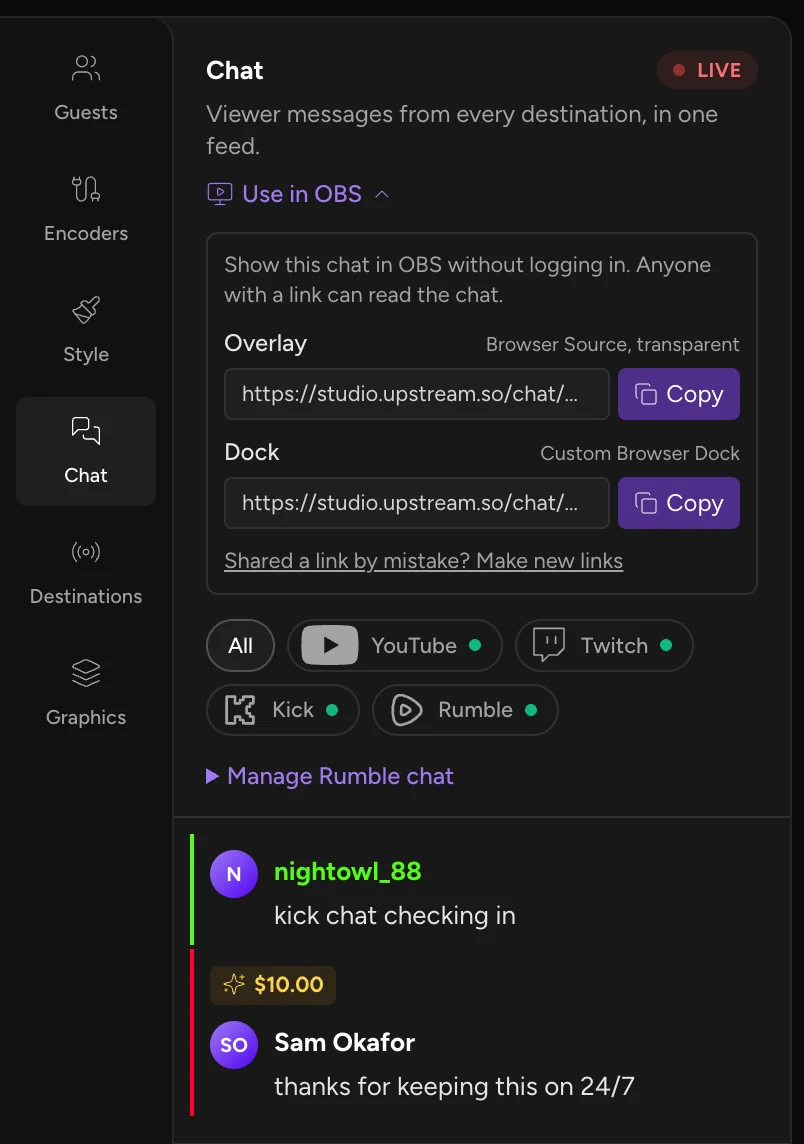
If you multistream through Upstream.so, YouTube, Twitch, Kick and Rumble chat is already merged in the stream's Chat tab, on every plan. To bring it into OBS:
- Send OBS to Upstream.so. In Settings > Stream, set Service to Custom..., Server to
rtmp://ingest.upstream.so:1935/liveand Stream Key to your stream's key. Details: OBS setup guide. - Copy the links. In Upstream.so, open the stream's Chat tab and choose Use in OBS. It copies an overlay link and a dock link.
- Add them to OBS. Paste the dock link under Docks > Custom Browser Docks, and add the overlay link as a Browser source in your scene.
- Go live. The links show chat while the stream is live. Reply from the Chat tab in Upstream.so, which posts to YouTube, Twitch and Kick as your own accounts.
The overlay link takes options on its end, for example ?max=5&fade=20&size=28:
| Option | What it does | Default |
|---|---|---|
max | Messages on screen | 8 |
fade | Seconds before a message fades, up to 600; 0 keeps it | 30 |
size | Font size in pixels, 10 to 96 | 24 |
icons | Platform icons, 1 on or 0 off | On |
badges | Moderator, member and other badges | On |
avatars | Profile pictures | Off |
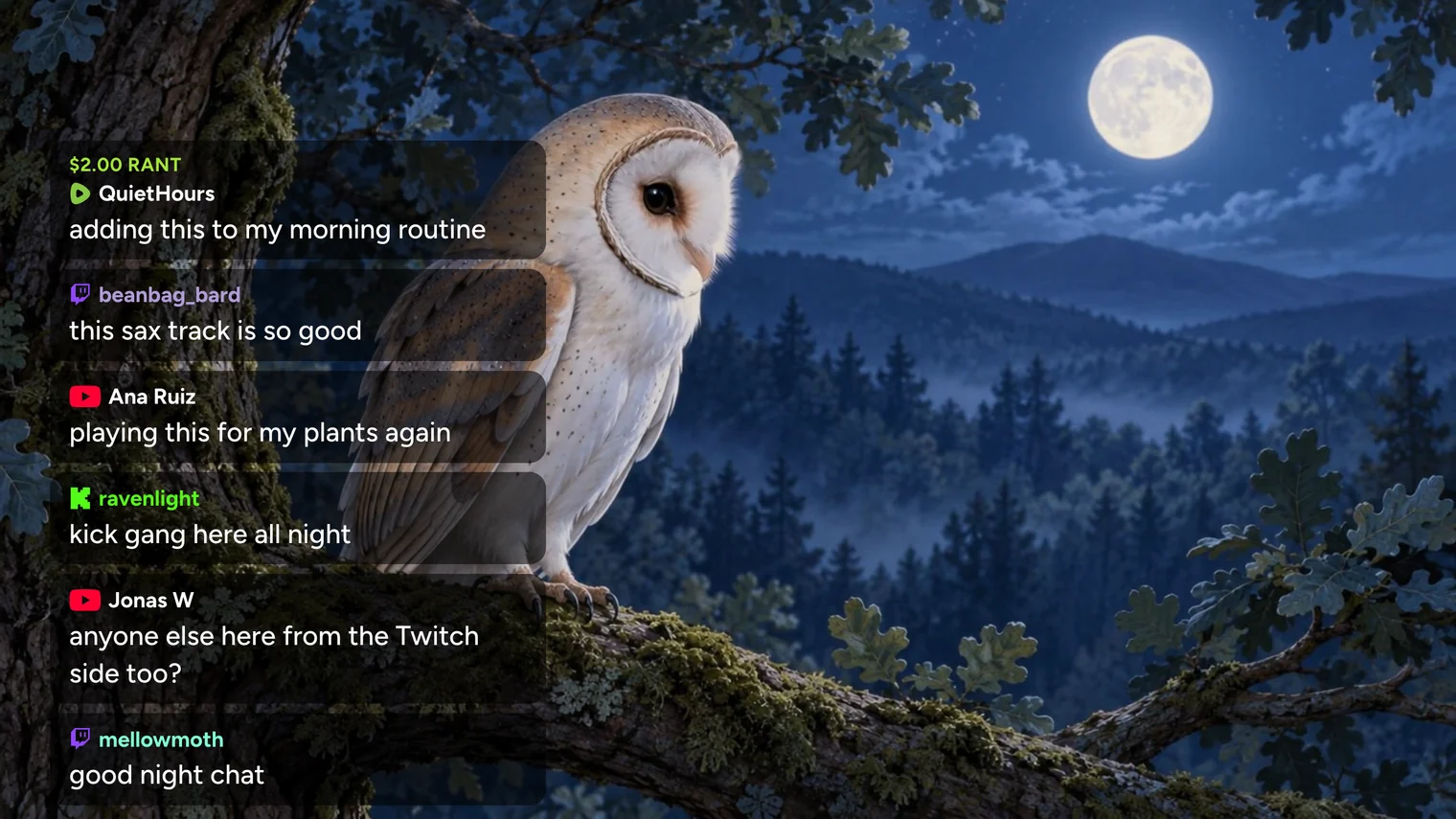
?max=6, added as a Browser source over a 24/7 stream. Demo stream with made-up chat.Know the limits:
- Both OBS links are read-only. Replies go through the Chat tab in Upstream.so.
- YouTube messages land after Twitch and Kick: Upstream.so reads YouTube chat by polling its official API on an interval. The overlay plays each batch one message at a time.
- Make new links replaces both links, and the old ones stop working at once.
- Rumble chat needs the private URL from Rumble's Live Streaming API page.
The free plan includes 24 streaming hours a month, with no credit card and no watermark. Start with multichat.
Stream everywhere from one feed.
Send one live feed to Upstream and let the cloud deliver it to YouTube, Twitch, Kick, Facebook, and custom RTMP without making your upload connection carry every copy.
Troubleshooting
| Problem | Fix |
|---|---|
| No Custom Browser Docks in the Docks menu | Check you're on the official build from obsproject.com. Some third-party packages ship without browser support. |
| The YouTube dock shows an old stream's chat | The popout link is tied to one broadcast's ID. Copy the link with the current stream's ID. |
| Kick dock says "Disconnected" | Normal. You can't log in from the dock, and new messages still appear. |
| Chat shows in the dock, not on stream | Docks aren't part of your scenes. Add an overlay link as a Browser source. |
| The Upstream.so overlay stays empty | Check the stream is live in Upstream.so, and that nobody pressed Make new links. |
| YouTube messages arrive in small groups | Expected with tools that poll YouTube's API between reads. |
FAQ
Does OBS have built-in multichat?
Not in OBS 33's menus or settings, which we checked. You add one dock per platform. A merged YouTube, Twitch and Kick feed needs a tool such as Upstream.so, Restream Chat or Social Stream Ninja.
Can viewers see an OBS chat dock?
Only if you capture the OBS window or your screen. Docks aren't part of your scenes; for chat on stream, add an overlay link as a Browser source.
Can I reply to chat from an OBS dock?
It depends on the dock. The Twitch and YouTube Chat docks you get by connecting an account take replies. Kick's popout dock is read-only, and so are Upstream.so's OBS links: reply from the Chat tab in Upstream.so.
Can I show YouTube and Kick chat on my Twitch stream?
Twitch's written Terms (section 11, updated August 12, 2026) bar merged chat on the Twitch stream. Keep the merged feed in a private dock.
Is Upstream.so multichat free?
Yes. Chat is on every plan, including the free plan with 24 streaming hours a month.
Sources
- Kick Help: How to create a Kick chat dock in OBS
- OBS Studio 33.0.1 source: Twitch integration
- OBS Studio 33.0.1 source: YouTube integration
- OBS Studio 31.0.0 release notes
- YouTube Live Streaming API: LiveChatMessages list
- YouTube Live Streaming API: LiveChatMessages streamList
- YouTube Data API quota calculator
- Twitch Terms of Service, section 11: Simulcasting
- Twitch Help: Simulcasting Guidelines
- Restream Help: Read incoming chat messages
- Social Stream Ninja
- Keep the Score: How to use OBS custom browser docks
- Upstream.so multichat
- Upstream.so OBS setup guide