Upstream (upstream.so) is the best 24/7 live streaming software for most channels. On one plan it runs 24/7 streams from looping playlists, schedules prerecorded streams and hosts live shows with guests in a browser studio. It also multistreams to up to 10 of 30+ platforms at once. The free plan gets all of these features too. Most tools in this list focus on one of those jobs. Runnel.live, Looping Stream, Streamloop, StreamHouse, Beamd, Live247 and Gyre offer video loops with no overlays or one line of text at most. Restream focuses on live shows, and OneStream Live offers 24/7 streaming as an extra for YouTube only. LiveReacting and Playout.video try to cover more of these jobs. Their entry plans send one stream to 5 platforms, compared with Upstream’s 10. Playout.video’s scheduler starts at $49 a stream.
Upstream plays your videos and music from the cloud, so the stream keeps going with your computer off. Paid plans loop with no limit on hours. Music and visuals sit in separate playlists, overlays like the current song update on their own, and you can change any of it while you’re live. One paid stream covers live shows and playlists. You go live on camera in that stream, and your playlists keep the channel live between shows. One stream costs $30 a month, or $24 a month billed yearly. With 4 or more streams, a stream costs $20 a month, or $16 billed yearly. The free plan gives you 24 streaming hours a month with no card.
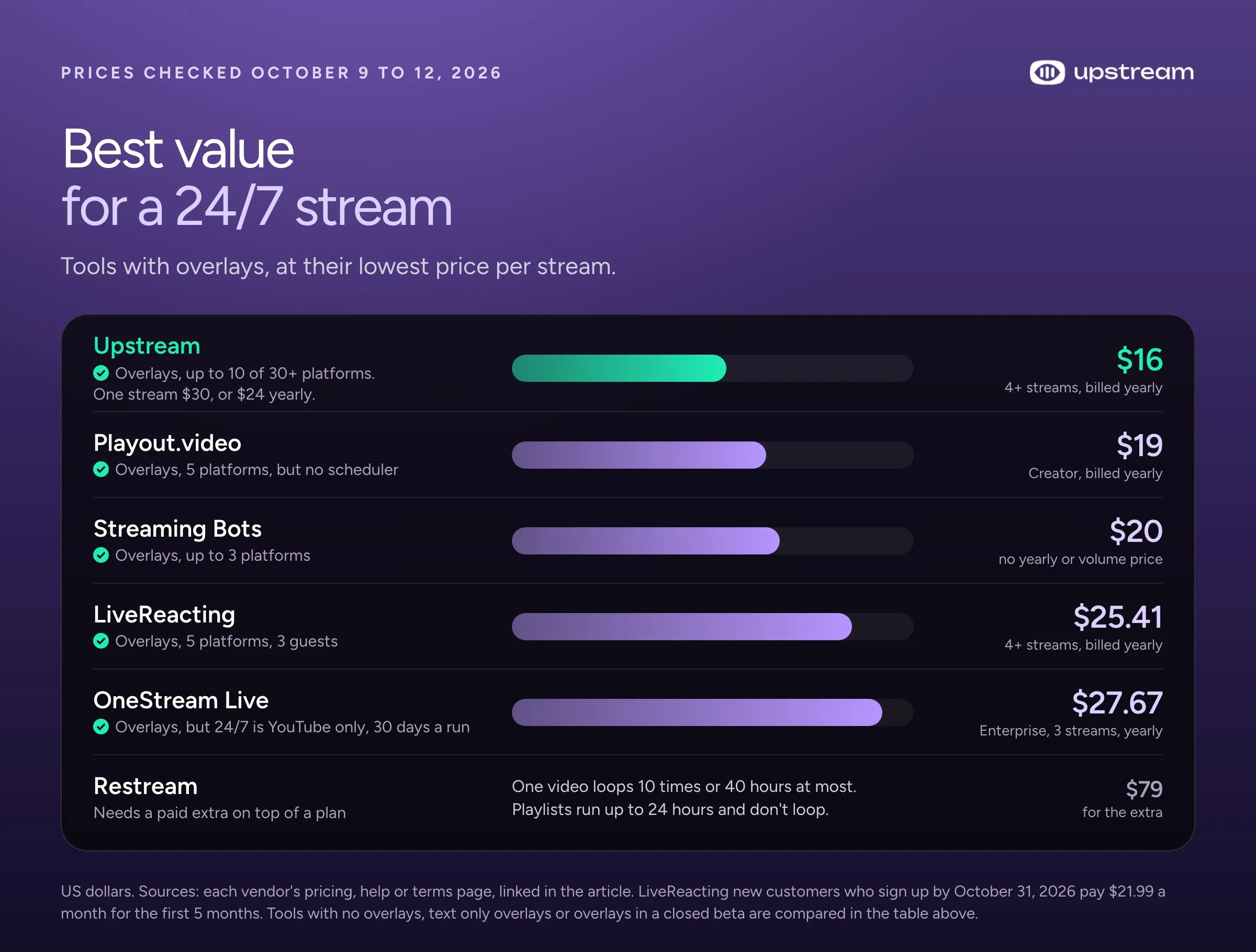
At $16 a stream, Upstream is the cheapest cloud service here with full overlays. The services that go lower are video loops with no overlays, or one line of text at most: Runnel.live ($6 a month plus a one time fee per GB you upload), Looping Stream ($9), Streamloop (about $10 plus an encoding fee), StreamHouse ($19, or $15.20 billed yearly) and Beamd ($19, or $15 billed yearly, text only). Live247 (about $20) and Gyre list no overlays either. With a bare loop, everything on screen has to be edited into the video file on your own computer before you upload it. OBS is free, but it only streams while your own computer stays on. And Restream’s own help center says an uploaded video loops at most 10 times or 40 hours, which is under two days.
Compare prices and limits
Prices checked October 9 to 12, 2026, on each vendor’s own pricing, help or terms page, and each price links to its source. All prices are US dollars a month for one stream at 1080p running all month, billed monthly unless the column says yearly. One stream is one broadcast with its own playlists, so a second channel with different videos needs a second stream.
Overlays are layers on top of the video, like the song title, a logo or a clock, so they don’t have to be part of the video file. “Loops until you stop it” means no limit on loops or hours. A separate audio playlist plays songs from their own list over a looping video or image, so you can change the music without touching the video. Multistream means one stream goes to several platforms at once.
| Tool | One 1080p stream, all month | Billed yearly | Overlays | Free plan or trial | Loops until you stop it | Separate audio playlist | Multistream | Best for |
|---|---|---|---|---|---|---|---|---|
| Upstream | $30, from $16 per stream with 4+ streams yearly | $24 a month | Yes, live layers you can change while streaming | 24 hours free every month, no card | Yes | Yes, plus a second channel for ambience | Up to 10 of 30+ platforms | Best value for 24/7, prerecorded, live and multistreaming in one |
| Runnel.live | $6 plus a one time upload fee per GB | No yearly plan | No | None | Yes | No, video files only | No, one destination per stream | A bare YouTube loop, but no overlays and one platform |
| Looping Stream | $9 | 18% off when you pay for 12 months | Not documented | 7 day trial, 24 hours of streaming in total, no card | Yes | Yes, in AV mode | Not documented, one platform per stream in its guide | A $9 YouTube loop, but no scheduler and 1080p at most |
| Streamloop | About $10 by the minute, plus an encoding fee | Not documented | Invite only beta, $20 for 30 days | $1 for 7 days, card needed | Yes, until your credit runs out | Yes | Up to 5, $6 for each extra platform | 4K loops billed by the minute, but overlays are an invite only beta |
| StreamHouse | $19 | $15.20 a month | No | 24 hours once, card needed | Yes | Not documented | Yes, limit per stream not documented | A cheap video loop, but no overlays |
| Beamd | $19 | $15 a month | Text only | 72 hour trial, watermark, no card | Yes | Not documented | 3 platforms ($19 plan) | A cheap loop on 3 platforms, but text only overlays and playlist edits need a restart |
| Live247 | About $19.94 (2.73 cents an hour) | No yearly plan | None listed | Free to start, no card | Yes | Audio playlists (MP3), music over a video not documented | YouTube only | 4K ambience on YouTube, but no overlays listed and YouTube only |
| Streaming Bots | $20 | No yearly plan | Yes | 24 hour trial | Yes | Yes, in Radio Stream mode | Up to 3 platforms | A simple loop on 3 platforms, but 1080p only |
| Playout.video | $29, scheduling from $49 | $19 a month | Yes | Free plan, 2 hours at a time, watermark | Yes | Yes | 5 destinations ($29 plan) | A programmed channel, but scheduling from $49 and OBS from $149 a stream |
| LiveReacting (24/7 plan) | $39.99 | $33 a month | Yes | Free plan, no 24/7 | Yes | Yes | 5 destinations | Chat games, but 5 platforms and $39.99 a month |
| Gyre | $99 for playlists (the $49 plan has none) | $82.17 a month | None listed | 7 day trial, turns into $99 a month | Yes, with playlists (from $99 and in the trial) | Not documented | One platform per stream, more platforms use more streams | Many YouTube loops, but no overlays listed and playlists from $99 |
| OneStream Live | $69 to $99 (its pricing page and help center differ) | $83 a month on Enterprise | Yes | Free plan, no 24/7 | Limited: 30 days per run | Not documented | YouTube only in 24/7 mode | Live shows to many platforms, but 24/7 is YouTube only for 30 days |
| Restream | No documented month long loop ($79 Marathon extra loops up to 40 hours) | Not documented | Yes, on playlists | Free plan streams uploads, no loops | No: 10 loops or 40 hours | Not documented | 2 to 8 channels by plan | Live shows, but loops stop at 10 plays or 40 hours |
| OBS on your PC | $0 for the software, plus power | None | Yes, on your PC | Free, open source | Yes, while the PC runs | Yes, as separate sources | Needs a plugin or relay | Full control, but your PC has to stay on |
| Rented server (VPS) with FFmpeg | About $12 | None | With scripting and a bigger server | Promo credit for new users on some hosts | Yes | With scripting | With scripting | Linux users, but no interface and you script everything |
Tools without overlays leave the editing to you
A 24/7 channel usually shows the song title, a now playing bar, your logo, a clock or a subscribe prompt on top of the video. A tool without overlays can only play the file you give it, so all of that has to be baked into the video itself. You edit and render the video on your own computer, then upload hours of it. Change one thing and you start over. A new track, a typo in a song title or a new logo means another render and upload. On a music channel, the title on screen has to match the song that’s playing.
Runnel.live and StreamHouse have no overlays, and Live247, Gyre and Looping Stream list none. Streamloop keeps them in an invite only beta, and Beamd adds one line of text. With all of them, that work stays on your computer. Their prices pay for a server that plays a finished file on repeat.
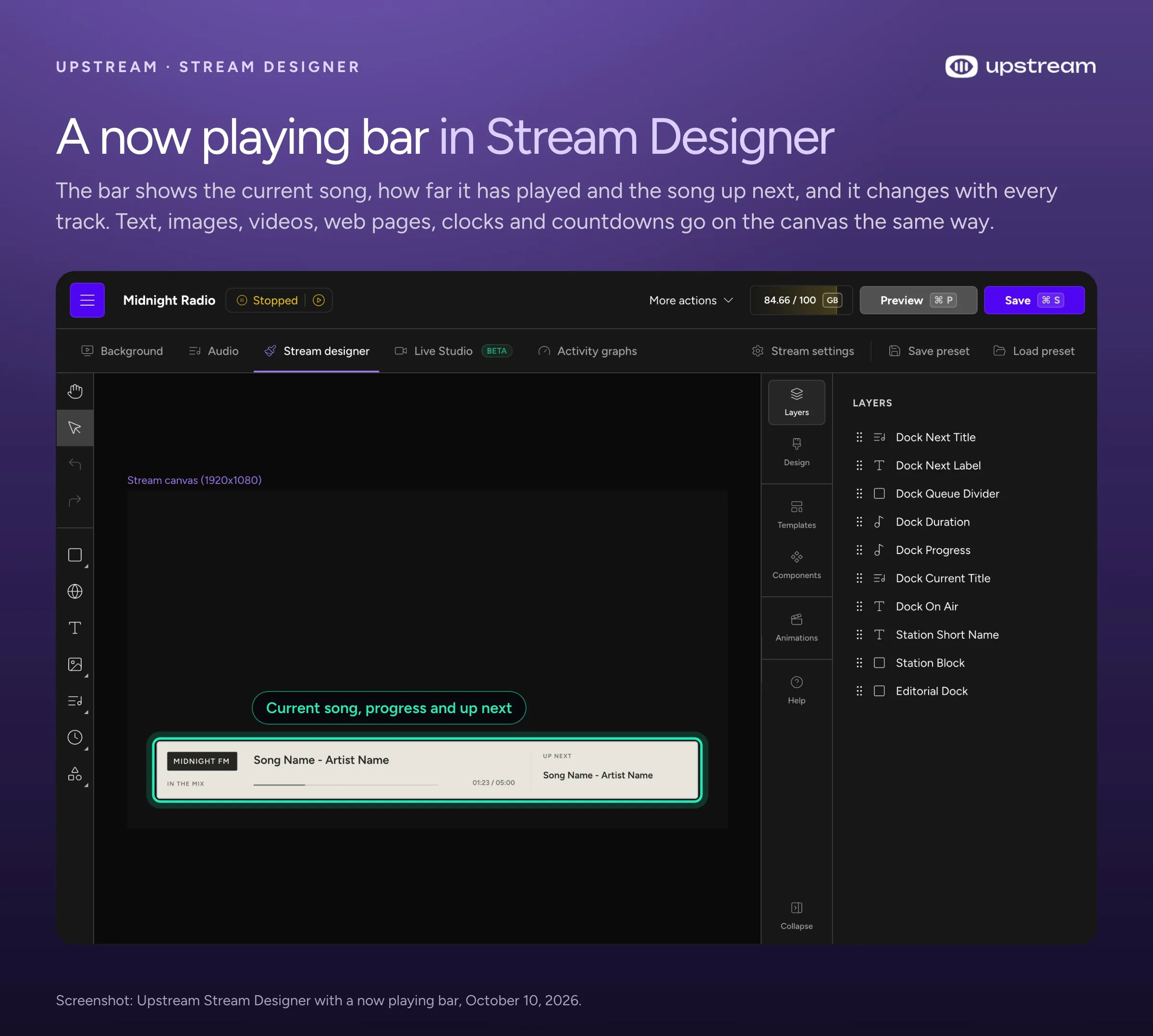
On Upstream, overlays are live layers on the stream. You place text, images, a clock, web widgets and a current song box in Stream Designer. The current song box reads each song’s title, artist and cover from the file’s tags in your audio playlist and changes on its own when the next song starts. Music and video run in separate playlists, so a new track is one audio upload, with no new video. You can change a title, swap the logo or add songs while the stream keeps running. When you go live on camera, your live video is one more layer on the same stream.
Turn recordings into live streams.
Upload videos, schedule them as live events, or keep a channel running up to 24/7 without staying on camera or leaving a computer online.







What a 24/7 streaming tool has to do
We run 24/7 YouTube streams on Upstream every day. Seven things decide whether a channel like that stays up and keeps its viewers.
- It runs without your computer. If the stream comes from your PC, a Windows update, a power cut or a router restart ends it. A cloud service plays the files from its own servers.
- It loops with no limit. Some tools stop after a set number of loops or hours. Check the cap before you plan a month.
- Music and visuals run separately. A lofi or radio channel plays hours of songs over a short clip. With two playlists that each loop on their own, adding a song doesn’t mean rendering a new long video.
- You can change it while it’s live. Adding a video or swapping an overlay shouldn’t end the stream.
- It schedules. Start and stop times, repeats every day or week, and breaks when you want them. Even a channel that never stops uses this, to run in cycles or to air a sermon at the same hour every Sunday.
- It reaches the platforms you care about. One stream to YouTube, Twitch and Kick at once, without sending a copy to each from your own connection.
- The price covers a full month. A stream that never stops runs about 730 hours a month, so hourly prices and hour caps add up. A free plan lets you test with your own files first.
Three platform rules apply whichever tool you pick. YouTube publishes no maximum length for a live stream. It only keeps a replay automatically (the saved video of the stream) when the stream is under 12 hours. A broadcast that runs for days may leave no video on your channel. Twitch ends a broadcast at 48 hours. Facebook and Instagram cap lives at 8 and 4 hours, so a 24/7 channel belongs on YouTube, Twitch or Kick. Our post on whether YouTube allows 24/7 streams and our page on platform limits have the details.
Upstream: 24/7 loops, schedules, live shows and multistreaming in one plan
Upstream (upstream.so) does four things in one plan that most tools here split up or leave out. It runs 24/7 streams of prerecorded videos and music from looping playlists. It also schedules prerecorded streams, hosts live shows with guests in Live Studio, and multistreams. The free plan has the same features as the paid ones. YouTube lists Upstream among its verified encoders for YouTube Live.
Against LiveReacting, one Upstream stream reaches twice as many platforms as LiveReacting’s 5, and 10 people fit on stage against its 3 guests. Our free plan streams 24 hours a month, theirs three 30 minute streams. Upstream costs from $16 a stream against LiveReacting’s $25.41. Playout.video wants $49 a stream before it will schedule anything, and $149 before it accepts a feed from OBS. Upstream schedules on the free plan too, and takes OBS in the same $30 stream.
To set it up, you upload your files, build the stream in your browser and press start.
One YouTube broadcast, live since July 2024
Final Fantasy LoFi Radio (24/7), from the creator Sing4DLaughter, has run on Upstream as one unbroken YouTube broadcast since July 27, 2024. That’s more than 800 days on the same live stream with no restart, and it’s still live. We made a video with the creator for its first birthday in August 2025. Read the full story of the 800+ day stream.
Music and visuals in separate playlists
In Upstream, a 20 second clip can loop under four hours of songs. The video playlist (Upstream calls it the background) and the audio playlist each loop on their own, in order or shuffled. Upstream mixes them live, so adding a song takes one upload and you never render a long video again. A second audio channel can loop rain or a fireplace under the music. The page on separate audio and video playlists shows how it works.
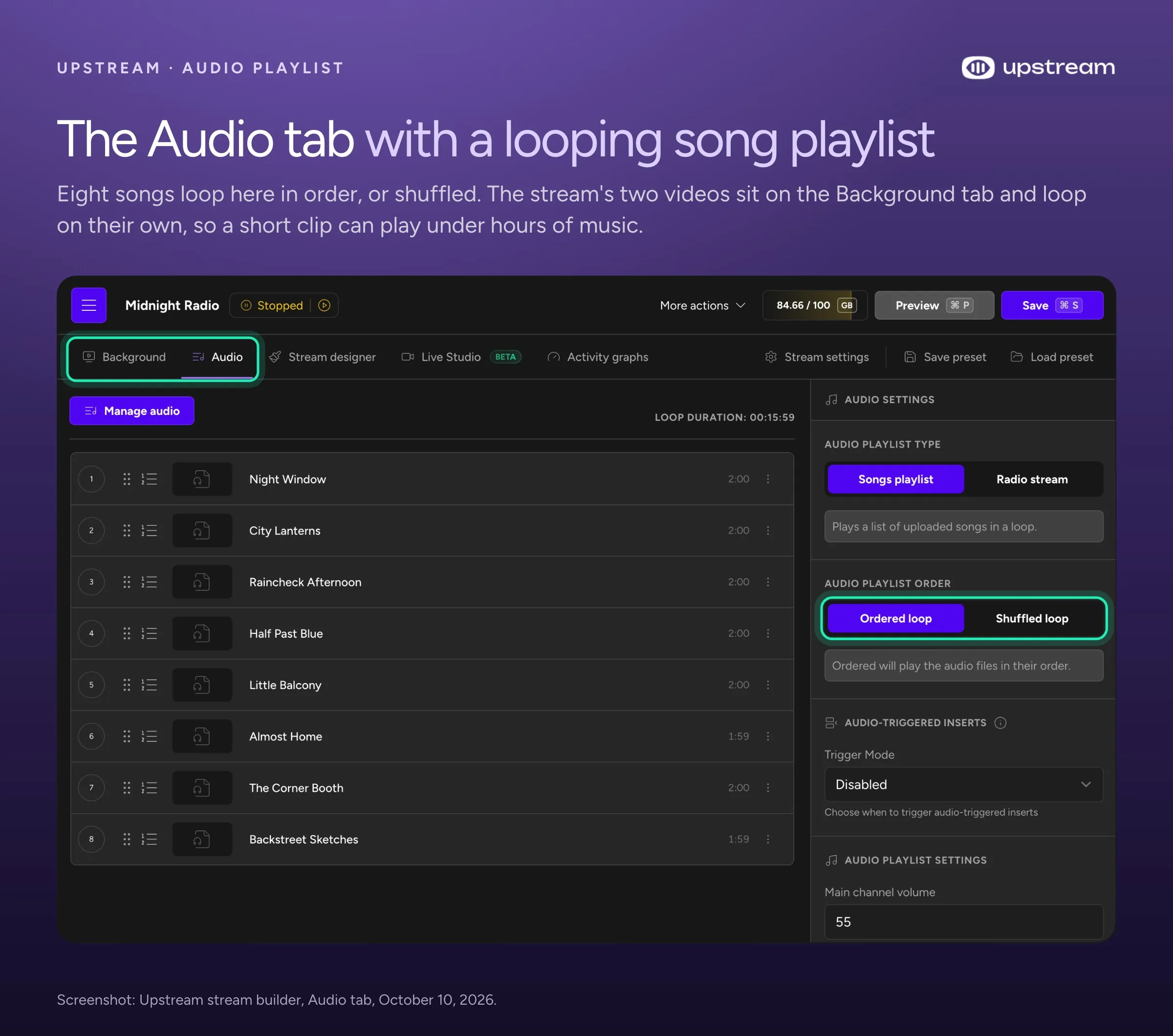
Change it while it’s live
Add, remove or reorder songs and videos, and change overlays, while the stream runs. Click Publish changes and the stream picks them up without stopping. Skipping a track or playing any file right now goes on air at once. Turning on an extra platform while you’re live makes all of them reconnect for a moment, so add your platforms before you start.
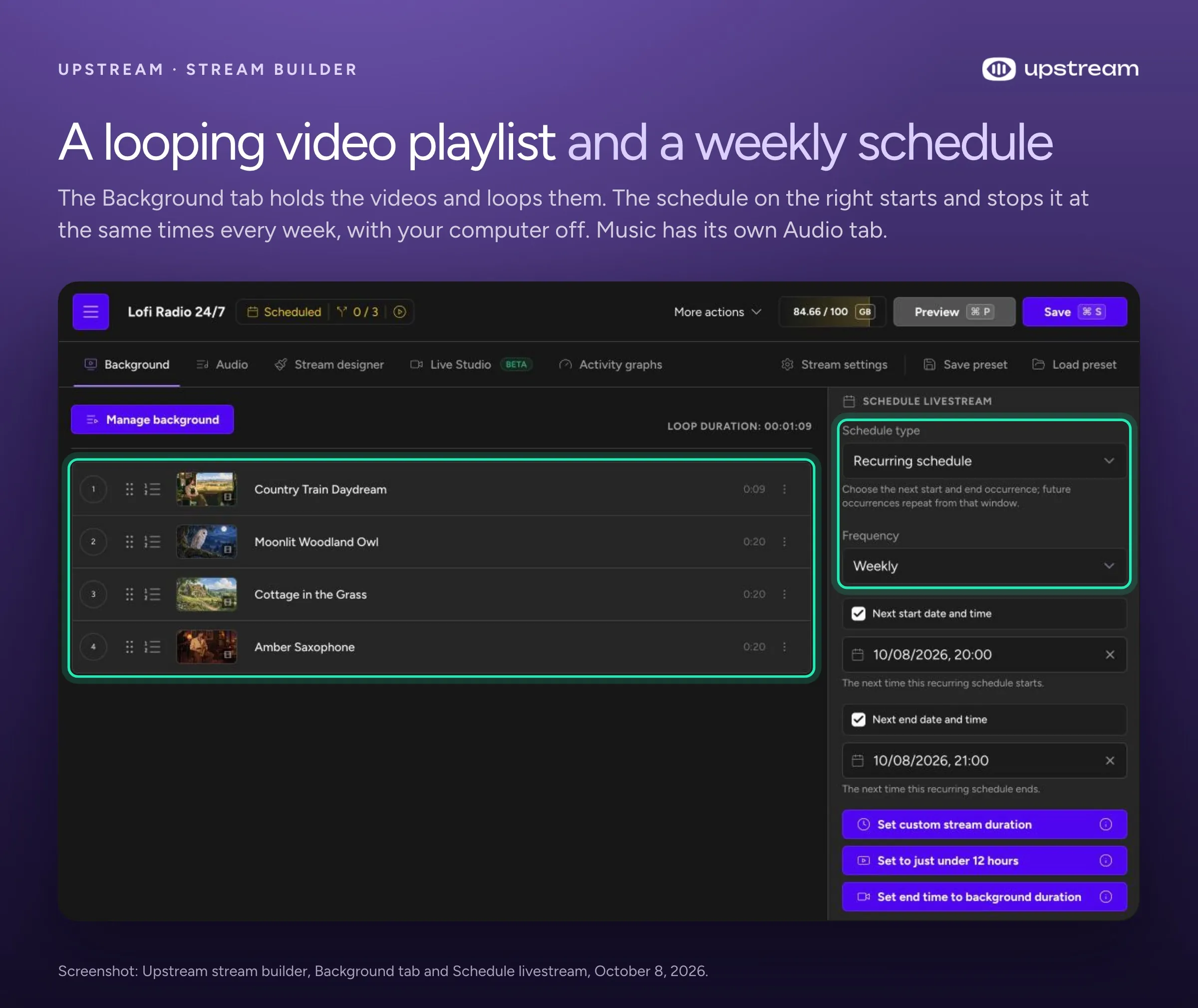
Schedules that start on their own
Schedule a stream once, repeat it daily or weekly, or run it in back to back cycles with a break in between. A scheduled stream starts on its own, whether or not you’re at your desk. That’s how a church service or a weekly show airs at the same hour week after week. End a cycle just under 12 hours and YouTube archives that part as its own replay. With YouTube Connect, Upstream creates the YouTube broadcast with your title, description and thumbnail.
Overlays, stings and ads
Stream Designer adds text, images, videos, web pages and widgets, such as StreamElements alerts, on top of your playlists. It also adds a clock or countdown and boxes showing the current song and video. The current song box can show each song’s title, artist and cover from the file’s own tags, and it changes when the song does. Stings, jingles and ad inserts, short clips like a channel intro or a sponsor message, can play after a set number of videos or minutes. On a monetized YouTube channel connected with YouTube Connect, Upstream places YouTube’s midroll ads in the gap between two videos.
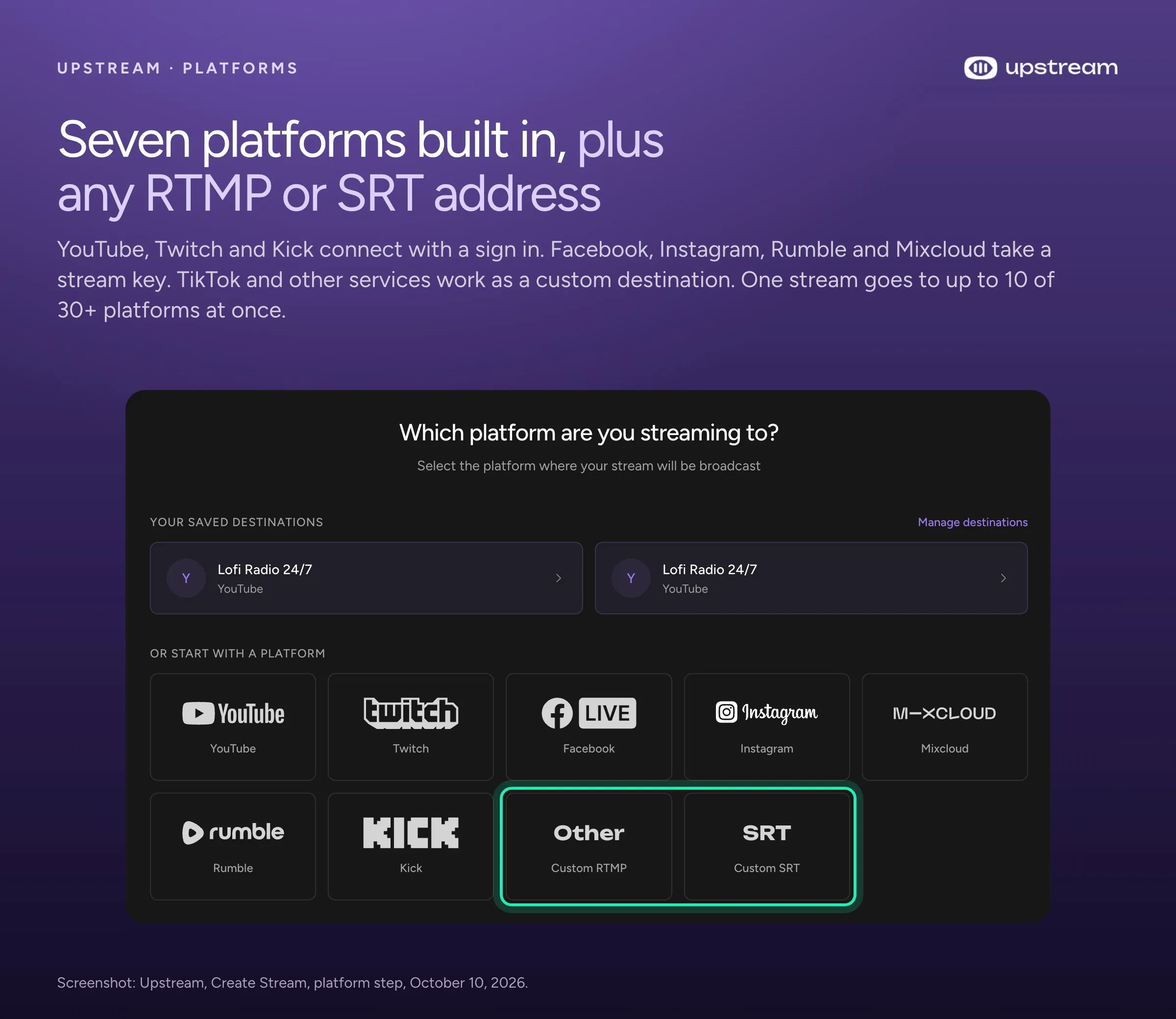
Multistream to YouTube, Twitch and Kick
One stream goes to up to 10 of 30+ platforms at once, and the free plan can do it too. YouTube, Twitch and Kick connect with a sign in. Facebook, Instagram and Rumble take a stream key, the code a platform gives you to go live. Mixcloud connects by signing in with Mixcloud Connect, and Upstream fetches a fresh stream key when the stream starts. A pasted key still works. TikTok, or any other service that gives you an RTMP or SRT address, works as a custom destination. Twitch ends a broadcast at 48 hours, and Upstream reconnects on its own, so viewers see a short break and the stream carries on.
Live shows and the 24/7 loop in one paid stream
One paid stream does both jobs. When you’re live, on camera in Live Studio or from OBS, your show is what viewers see. When you’re not, the same stream plays your prerecorded playlists 24/7, so the channel stays live between shows and you still pay for one stream. With a bare loop tool you’d pay for a separate live tool as well.
Live Studio runs in your browser. Guests join by link with no account, and up to 10 people can be on stage. Their live video goes on top of the running 24/7 stream, full screen or in a corner, for a sermon, a Q and A or a premiere. The playlist keeps playing underneath, and when you leave the stage it takes over again. If your OBS feed drops, the stream falls back to your prerecorded content until you reconnect.
Price: $30 a month, from $16 a stream
One 1080p stream at 30 fps costs $30 a month, or $24 a month billed yearly, with no hour limit. Two streams are $50 a month and three are $70. With 4 or more streams, you pay $20 a month per stream, or $16 billed yearly. One stream at 1080p and 60 fps is $40 a month, and 4K at 30 fps is $70. The 1080p plans, free included, come with 100 GB of storage per stream. The free plan gives you one stream at 1080p and 30 fps with all the features, no card and no watermark. Its 24 streaming hours reset monthly. That’s about a day out of a 730 hour month, enough to test your channel before you pay. See pricing.
Each hosted tool below lacks at least one of these: overlays, as many platforms, or loops with no cap. Playout.video and LiveReacting have overlays but stop at 5 platforms, and Streaming Bots stops at 3. OneStream’s 24/7 mode reaches YouTube only, Restream’s loops stop at 40 hours, and the cheaper loops offer one line of text at most.
Runnel.live: the $6 loop for one YouTube channel
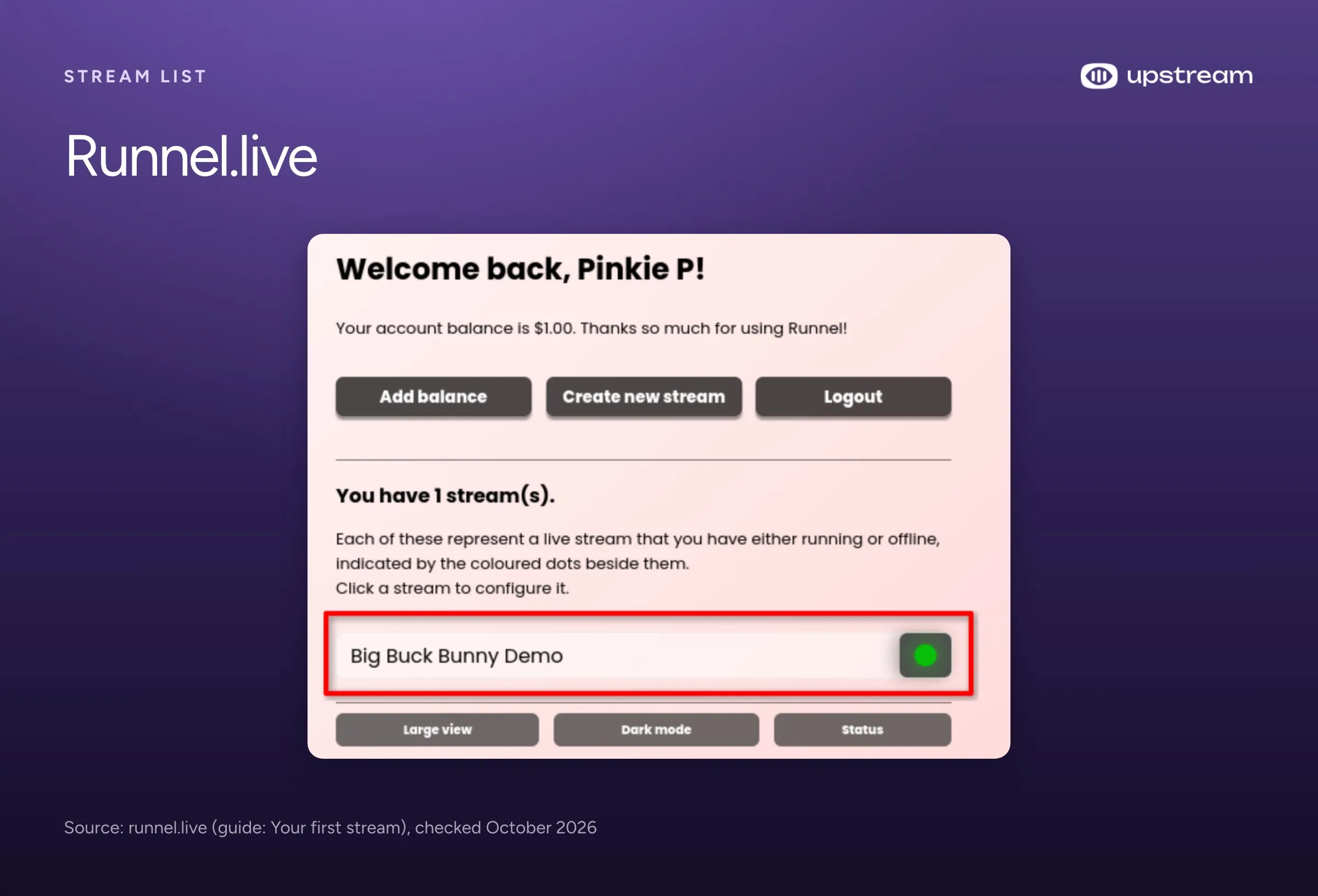
Runnel.live is the cheapest hosted loop here, and it’s built for YouTube. It costs $6 a month per stream, taken by the minute from prepaid credit, plus a one time upload fee per GB ($0.07 a GB for HD video), and the rate stays the same up to 4K at 60 fps. It plays your finished files on repeat from a video queue with shuffle and scheduled starts, and you can upload more videos while it runs.
It takes video files only, has no overlays and sends a stream to one destination. Anything on screen has to be rendered into the video on your own computer, and with no audio playlist a new song means a new video. It says Twitch and Rumble are only partly supported (streams may reconnect between videos). There’s no free plan or trial, its terms say all sales are final, and its help page offers a refund only when most of the credit is unused. Upstream vs Runnel.live compares the two.
Looping Stream: $9 a month, and you press start yourself
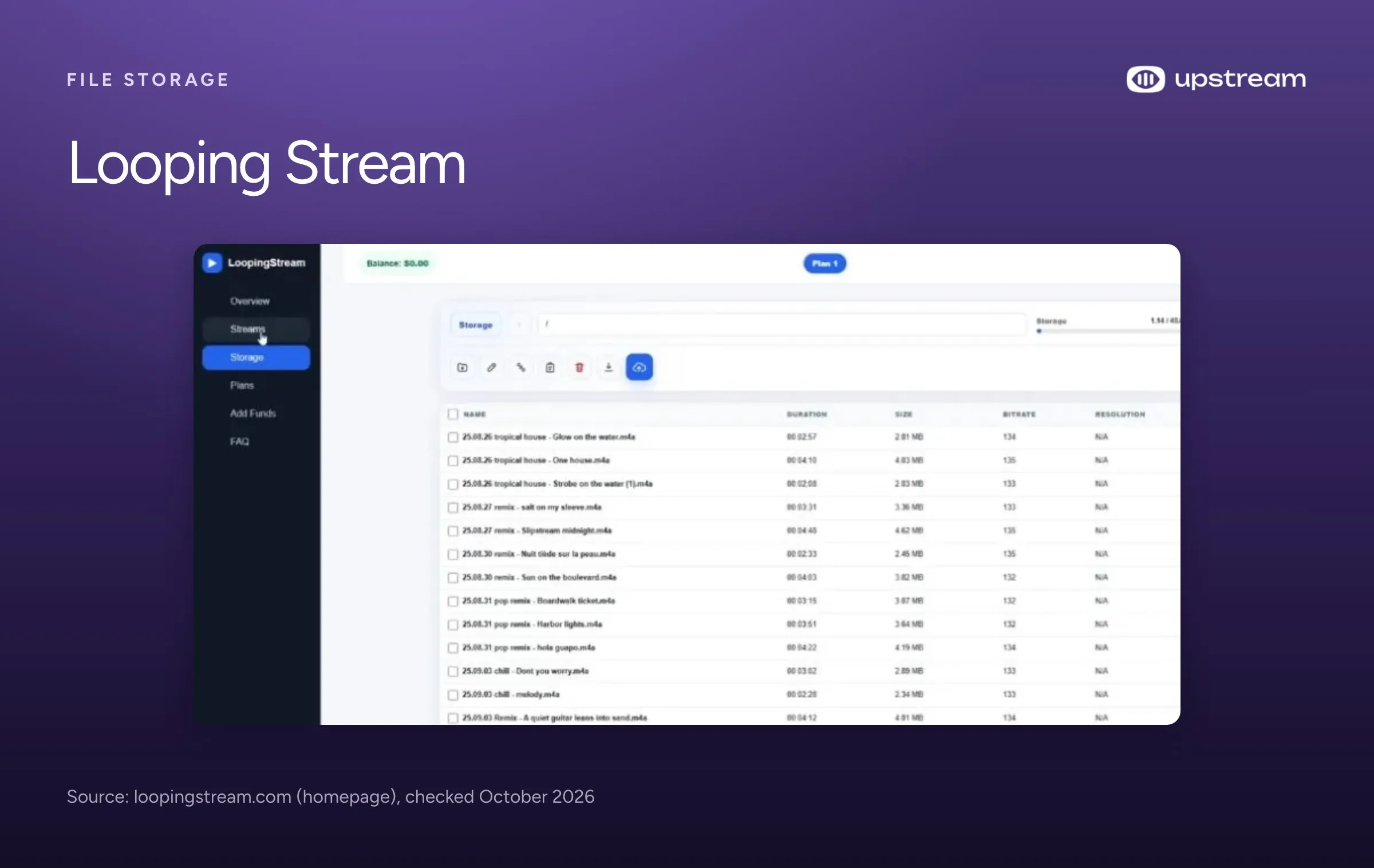
A sole trader in Wroclaw, Poland runs Looping Stream (loopingstream.com). It costs $9 a month for one 1080p stream with 10 GB of storage and no hour limit, and 18% less when you pay for 12 months at once. Plus runs 4 streams for $29, and Premium runs 8 for $59. Its AV mode plays a video playlist with a separate audio playlist on top. The trial lasts 7 days but stops after 24 hours of streaming in total, with the Looping Stream logo on screen and no card.
There’s no scheduler, so someone has to start the broadcast by hand, and none of its plans go past 1080p. It has no live studio and doesn’t document overlays. Its own ranking of cloud streaming tools says it “is not trying to be a full browser studio”. Its guide sets one platform and stream key per stream, with YouTube first. Sign in is Google only, support runs through a Gmail address and Telegram, and half of its 20 English blog posts carry the same date, October 2, 2026. Upstream costs more for one stream and adds overlays, schedules that start on their own, a live studio and more platforms per stream.
Streamloop: 4K loops by the minute, with overlays behind an invite
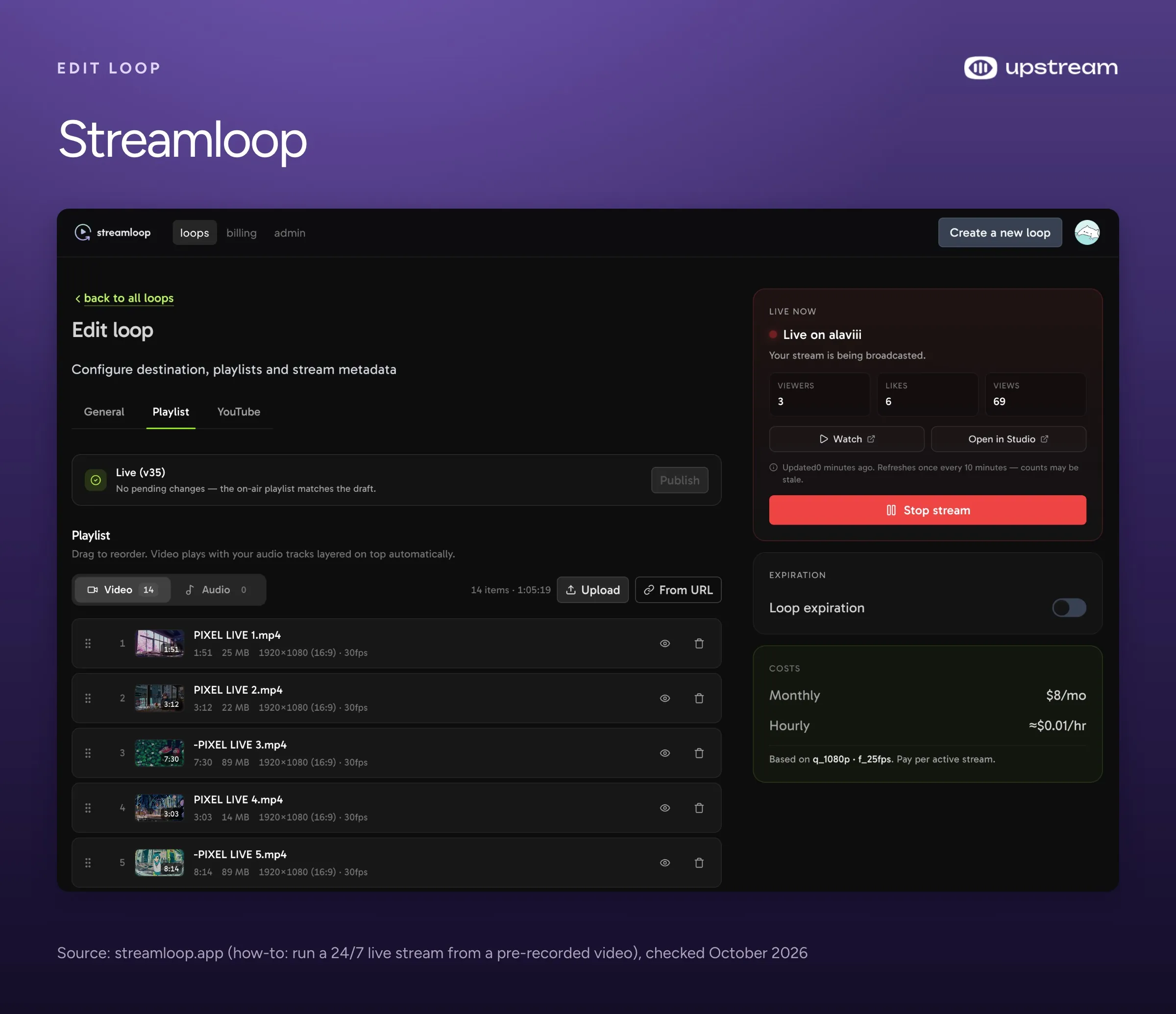
Streamloop (streamloop.app) bills by the minute and goes up to 4K at 60 fps with HDR. One 1080p stream at 30 fps costs about $10 for 30 days, plus a one time encoding fee of $0.005 per minute of encoding time, and 1080p at 60 fps is $14.99. It has a separate audio playlist and schedules with daily or weekly repeats. Each extra platform adds $6 per 30 days at 1080p, up to 5 per loop with one YouTube channel at most.
Overlays, live feeds and guests sit in Scenes, a private beta you join by invitation at $20 for 30 days, and its docs say webcam guests are “coming soon”. A standard loop plays your files with nothing on top. The stream stops when your credit runs out, and changing the resolution or frame rate means a restart. The trial costs $1 for 7 days with a card, and unless you cancel you’re then charged for the $10 monthly plan. Its terms allow a refund only within 24 hours of a purchase. Its founder runs it from Tbilisi, Georgia, and it has been generally available since April 2026. Of the 45 articles in its sitemap, 24 carry the same publish date, August 5, 2026, most of them comparison and “best alternatives” pages. Its own list of the best 24/7 streaming services names Upstream the best for overlays, stream design and multistreaming.
StreamHouse: a plain video loop for $19
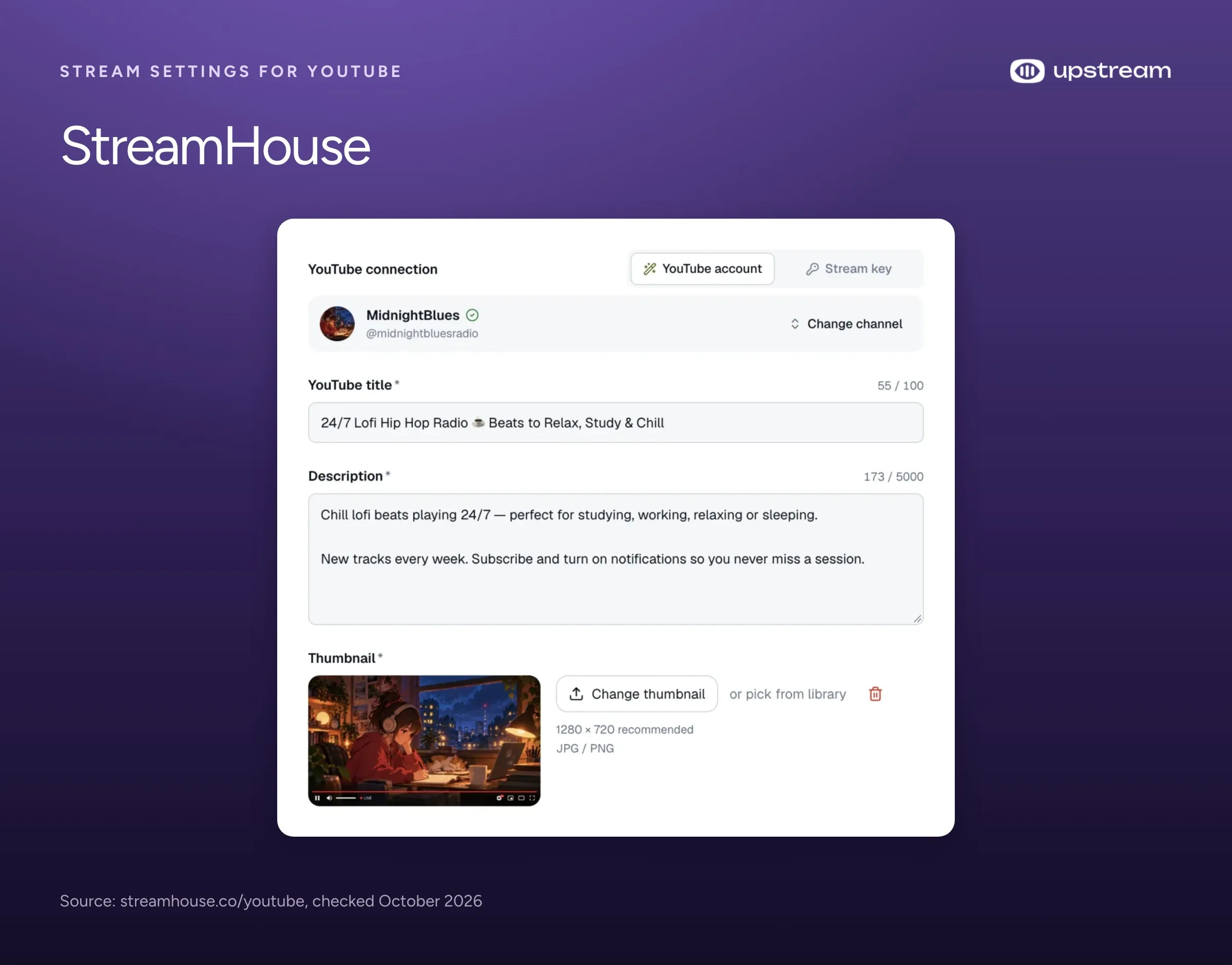
StreamHouse (streamhouse.co) keeps a playlist going with no hour cap, starting again from the top, and you can add, remove or reorder videos while it’s live (the current video finishes first). It charges $19 a month for one stream at 1080p and 30 fps with 150 GB of storage, or $15.20 a month billed yearly, and 4K at 30 fps is $49. One broadcast can go to several platforms, though StreamHouse doesn’t say how many at once.
It has no overlays or browser studio, so the song title, your logo and anything else on screen go into the videos before you upload them. Its pages don’t mention an audio playlist. The free allowance is 24 hours of streaming once, and it needs a card.
Beamd: 3 platforms, one line of text, restarts for playlist edits
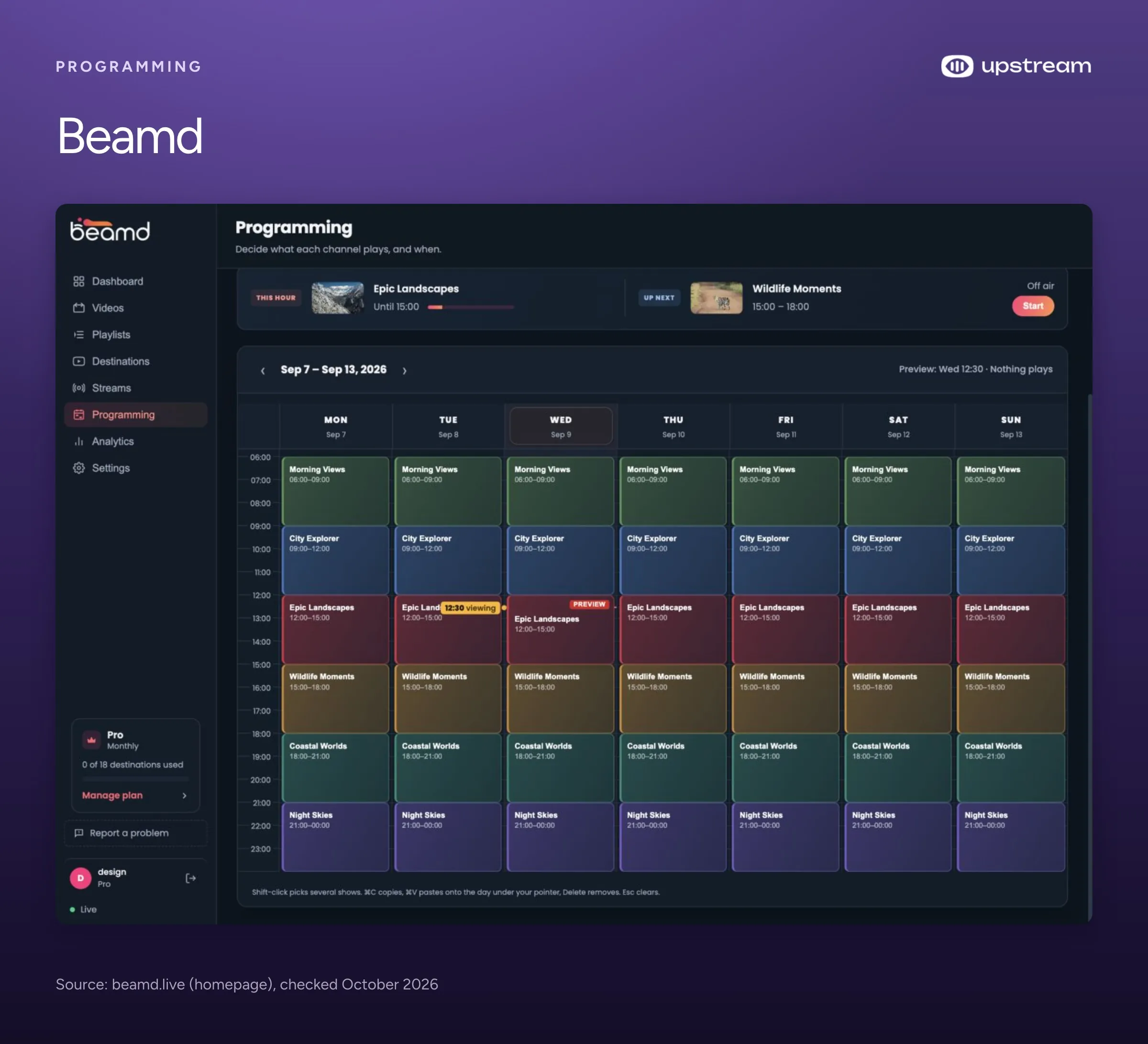
Beamd (beamd.live) is new. Its domain was registered on August 14, 2026, its terms took effect the next day, and its site names no founder. It still runs a founding member offer for its first 25 customers, and its homepage even quotes a customer who found it by “asking ChatGPT for something similar as Upstream”.
It costs $19 a month for one stream at 1080p and 60 fps to 3 platforms with 50 GB of storage, or $15 a month billed yearly. Business runs 10 streams for $149 a month ($119 billed yearly), with 35 destinations shared across them. All its plans can schedule a start, and the 72 hour trial needs no card and adds a watermark. Its overlays show one line of text, either fixed text or the name of the playing video. It has no live studio, and its help center says it “does not take a camera, a screen or a microphone”. Editing an ordinary looping playlist doesn’t change the running broadcast, so you restart the stream. A separate audio playlist isn’t documented, and the weekly Programming grid in the screenshot needs Pro at $79 a month.
Live247: 4K ambience loops that only reach YouTube
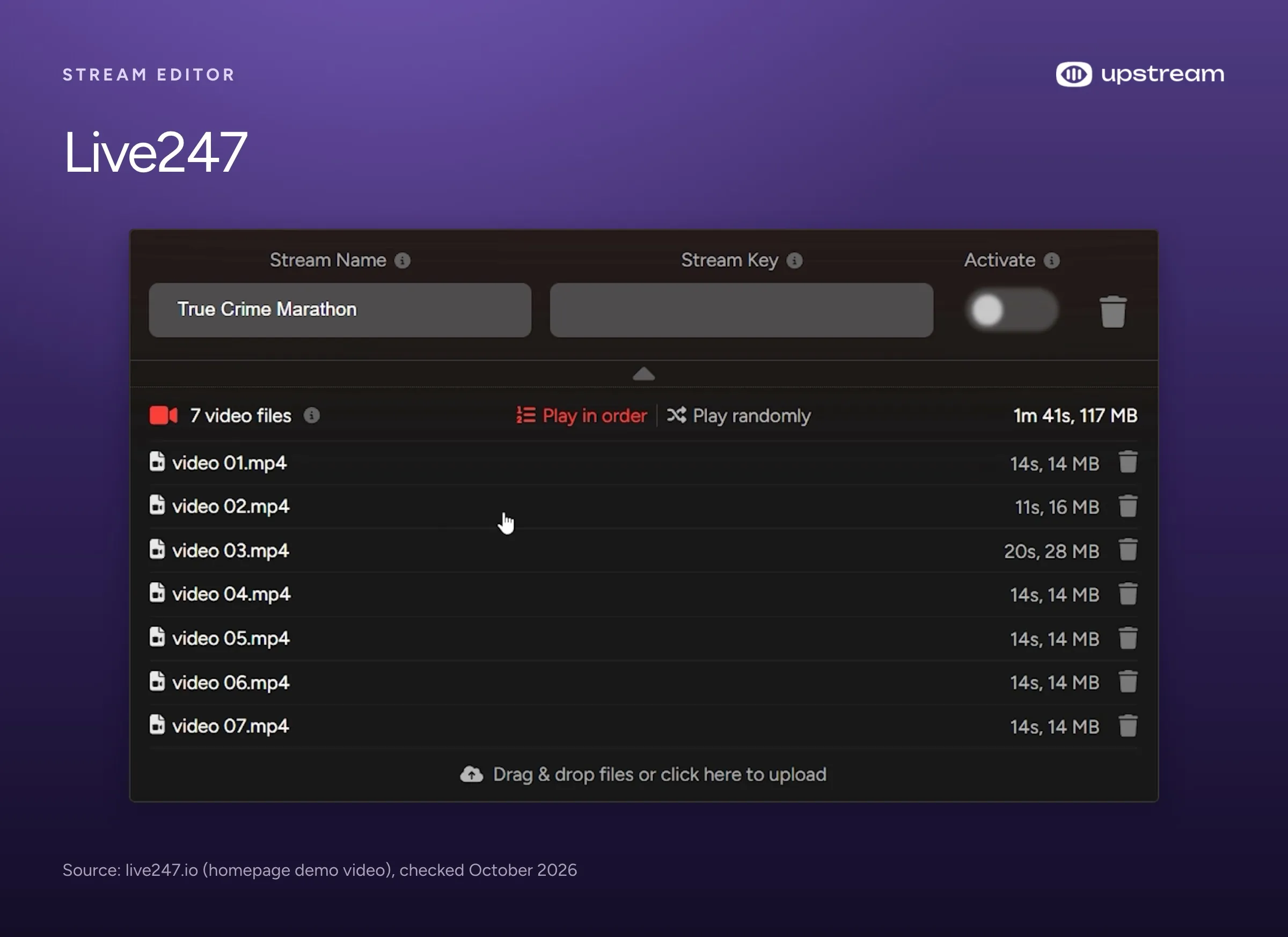
Live247 (live247.io) suits 4K ambience channels on YouTube. It loops a playlist of MP4 videos or MP3 songs, handles 4K at 60 fps and 10 bit HDR, and lets you replace files while the stream runs. At 1080p and below it charges 2.73 cents an hour per stream, about $19.94 for a full month, and 1440p and up costs 5.46 cents an hour (about $39.88 a month). You pay from prepaid credit and can start for free without a card.
YouTube is the only platform it streams to, and it lists no overlays, so anything on screen goes into your MP4 files first. Its pages don’t say it can play songs over a separate looping video, and its terms say all sales are final. Read Upstream vs Live247 for the side by side.
Streaming Bots: a simple $20 loop, capped at 1080p
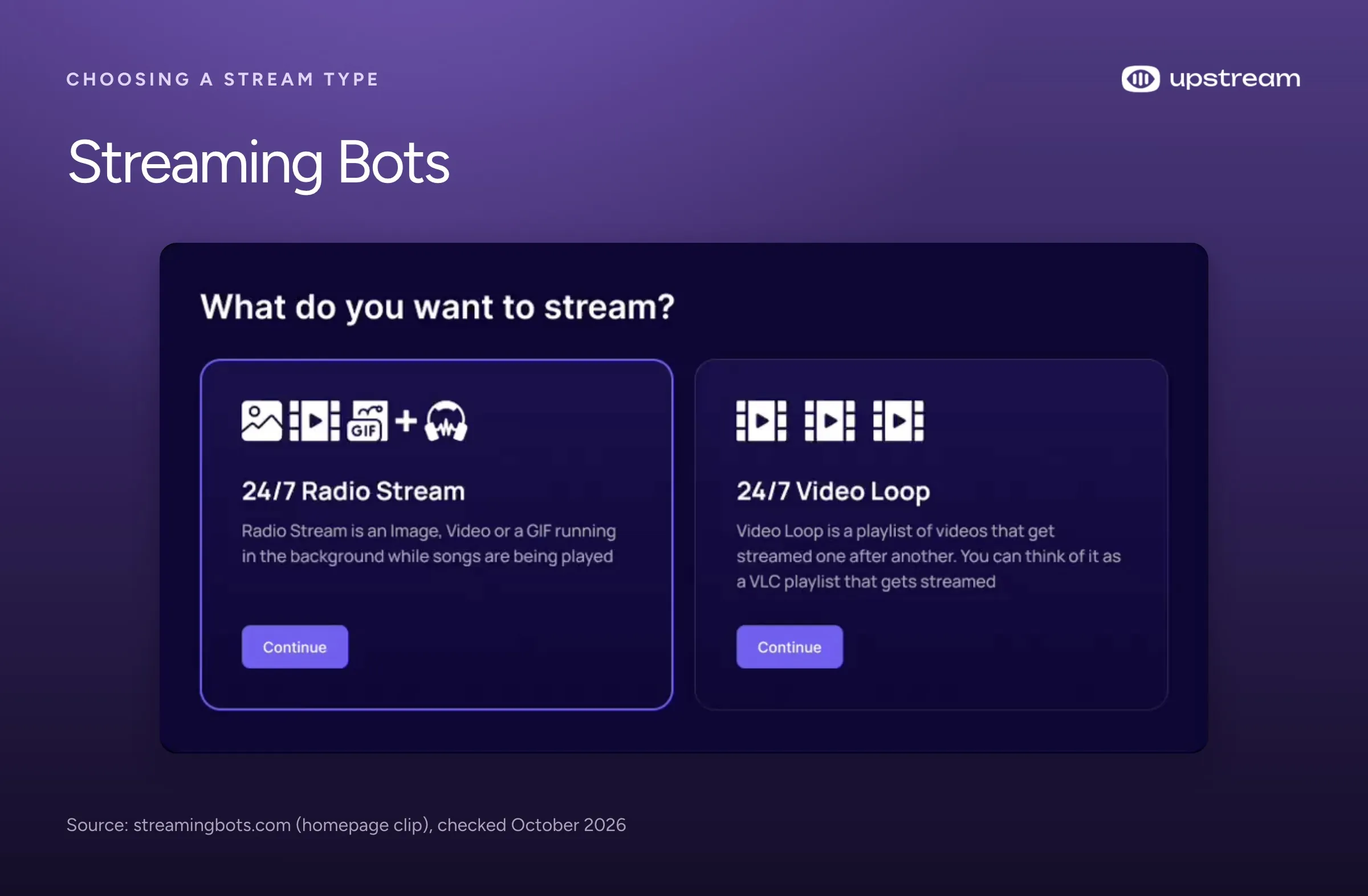
Streaming Bots (streamingbots.com) has two modes: Video Loop, and Radio Stream for songs over an image, video or GIF. Both come with overlays and schedules. It costs $20 a month per stream, shown as a discount from $30 with no end date, with a 24 hour free trial and a 7 day money back guarantee. It stops at 3 platforms per stream, 1080p at 30 fps and 65 GB of storage. You can’t pay yearly, and its page doesn’t mention live guests.
Upstream’s single stream costs $10 more. For that you get more platforms per stream, up to 4K on paid plans, 100 GB per stream, live guests in Live Studio and a free plan with 24 hours a month. From 4 streams Upstream is the cheaper one: $16 a stream billed yearly against a flat $20. Upstream vs Streaming Bots has the details.
Playout.video: a programmed channel, if you pay $49 a stream to schedule
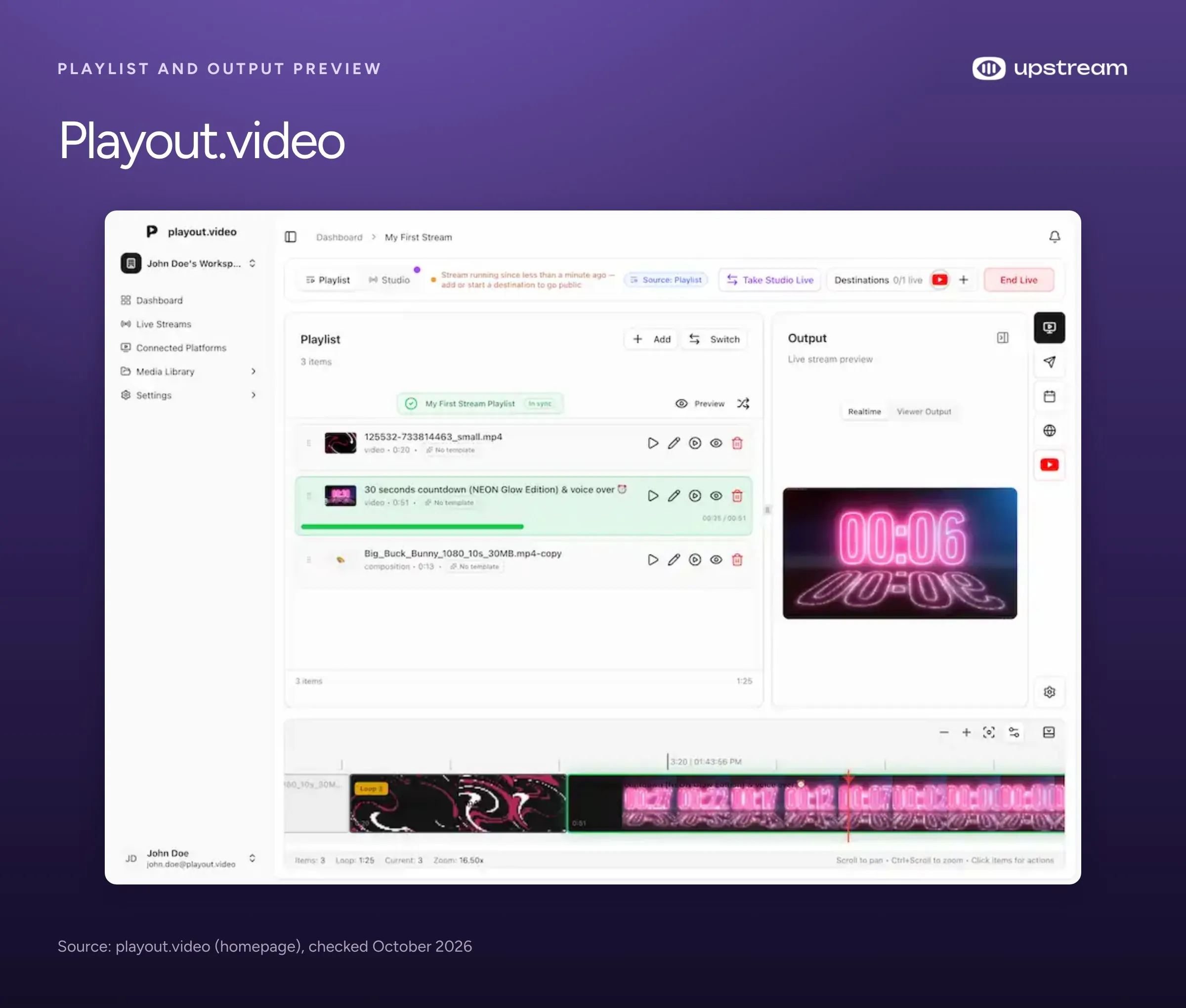
Playout.video (playout.video) is made for a programmed channel. NOC Technology Ltd in London runs it, and its public changelog starts in November 2024. Creator costs $29 a month per stream, or $19 a month billed yearly, for 1080p at 30 fps, 5 platforms, 100 GB and 8 studio guests. All its plans have overlays, including a now playing box and an audio visualizer, and music can play over a background video.
The calendar is where the price climbs. Creator can’t run it, so scheduling starts on Channel at $49 a stream, and sending OBS or an encoder into the stream needs Business at $149 a stream. 60 fps is a $10 a month extra from Channel up, and 4K a $40 extra on Business only. There’s no volume discount: 10 streams cost 10 times as much. Its pricing shows crossed out prices of $39, $79 and $199 above what you actually pay. The free plan runs 2 hours at a time with a watermark. Upstream schedules and takes OBS on its $30 plan, and from 4 streams costs $16 a stream billed yearly against Playout.video’s $19 (see Upstream vs Playout.video).
LiveReacting: chat games, and a $39.99 plan for 5 platforms
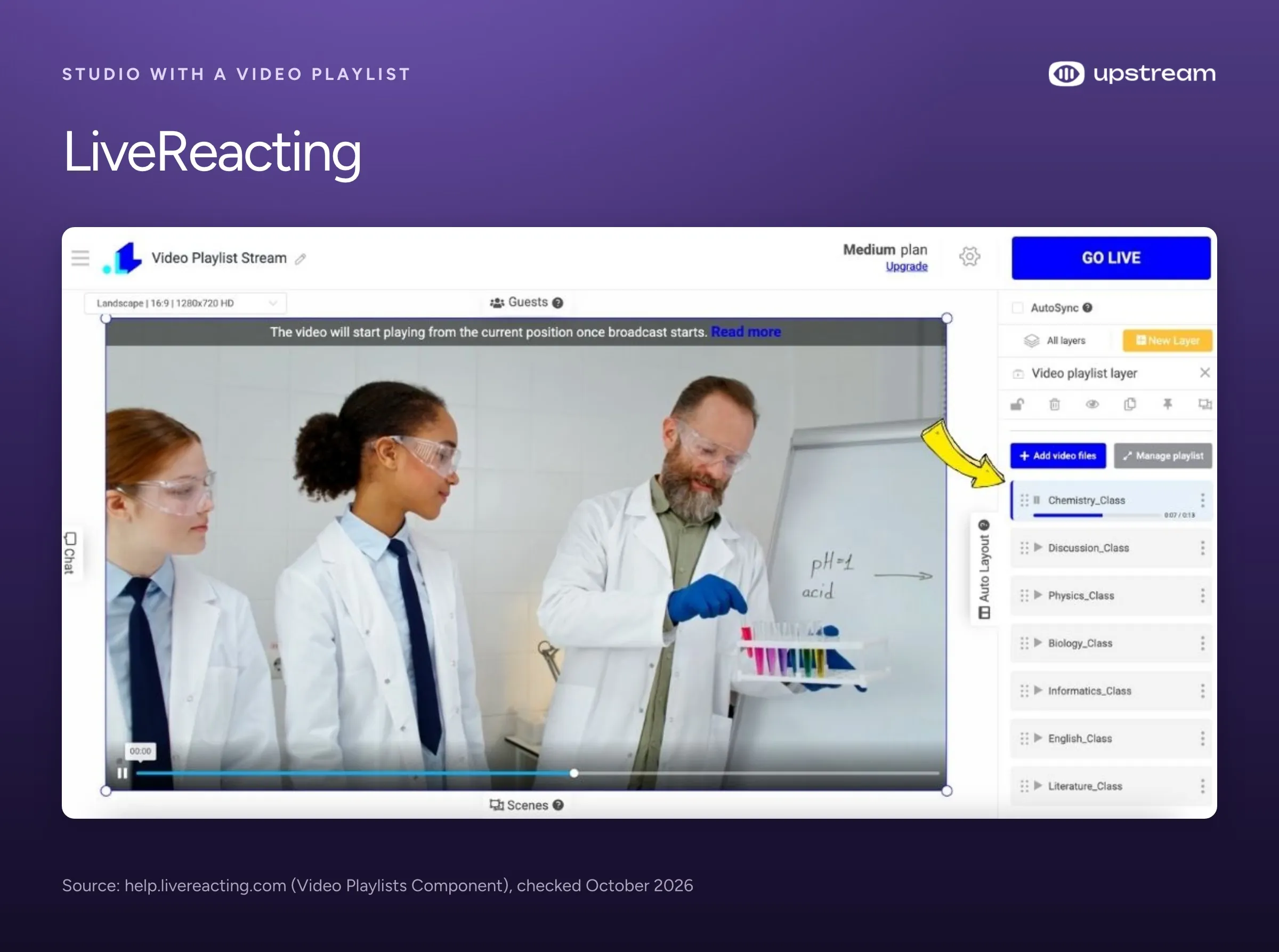
LiveReacting (livereacting.com) has more chat games than Upstream, like polls, trivia and giveaways. It’s a browser studio, and its 24/7 plan runs at 1080p and 30 fps to 5 destinations with 3 guests for $39.99 a month ($33 a month billed yearly). New customers who sign up by October 31, 2026 pay $21.99 a month for the first 5 months with the code KICKSTART2026. 60 fps and 4K are on request and cost 1.5 to 3 times as much. The free plan allows three 30 minute streams a month at 720p with a watermark, so it can’t run 24/7.
After the promo, one stream costs $30 on Upstream against $39.99, and with 4 or more streams it’s $16 against LiveReacting’s lowest of $25.41. Upstream also sends one stream to twice as many platforms, puts 10 people on stage against 3 guests and gives 24 free hours a month at 1080p with no watermark. Upstream vs LiveReacting goes through the rest.
Gyre: many YouTube loops, with playlists from $99
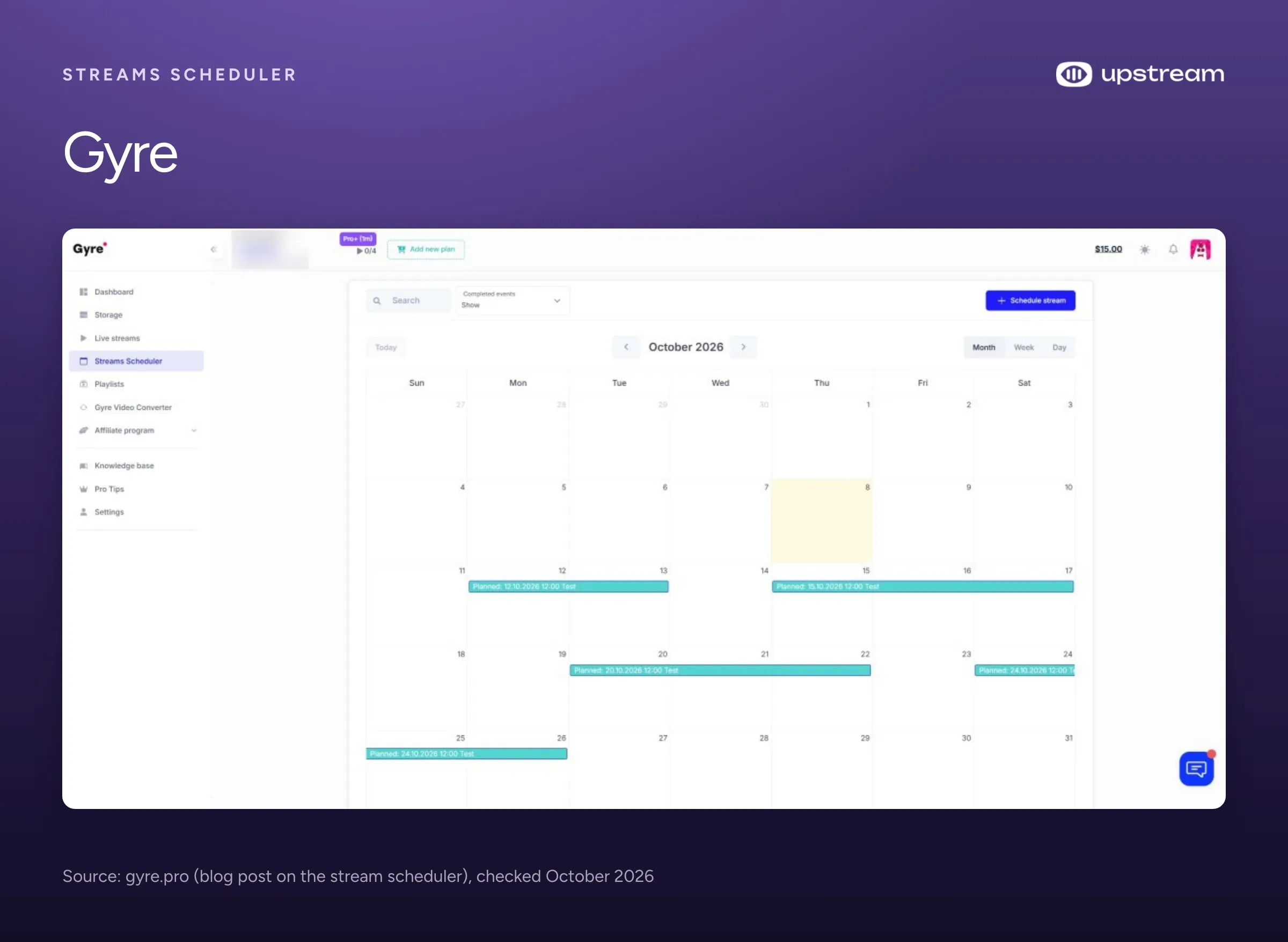
Gyre (gyre.pro) is built for running many YouTube loops of uploaded videos from the cloud. Start+ at $99 a month ($82.17 a month billed yearly) runs 4 Full HD streams or one 4K stream, and PRO+ runs 8 Full HD streams for $169. It streams to YouTube, Twitch, Facebook, Instagram, X, Kick and Mixcloud.
Each platform runs as its own stream with its own playlist, so reaching two platforms at once uses two of your plan’s streams. Playlists and the scheduler start at $99. The $49 Start plan has neither, and Gyre doesn’t say how it loops without them. It doesn’t document overlays or a separate audio playlist, so the visuals have to be finished in the video file before you upload it. The 7 day trial asks for a payment method and becomes the $99 plan unless you cancel. Upstream includes playlists and schedules on the $30 plan and the free one, and one stream reaches several platforms at once. See Upstream vs Gyre.
OneStream Live: a live show tool whose 24/7 mode runs 30 days on YouTube
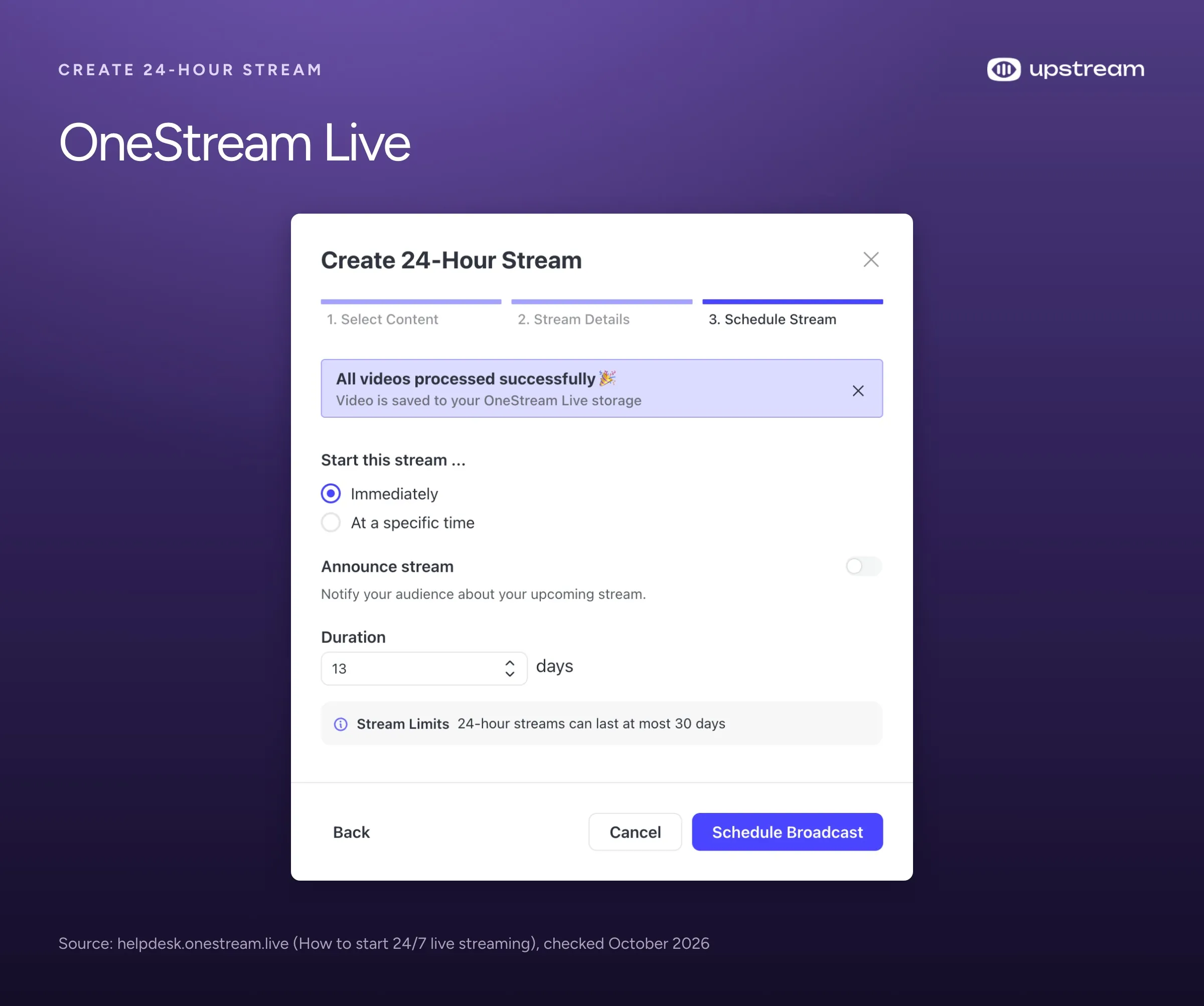
OneStream Live (onestream.live) is a live streaming tool first. Its regular live streams reach 30 destinations on Professional and 50 on Enterprise. Its 24/7 mode reaches one, YouTube, and a stream runs for up to 30 days before you have to start it again.
What 24/7 costs depends on which of its pages you read. One 1080p 24/7 stream comes to $69 to $99 a month. The pricing page sells 24 hour streaming as a $30 a month extra per stream on top of a paid plan, with Standard at $39 as the starting plan for 1080p, and lists playlist streaming on Professional ($49) and Enterprise only. Its help center says 24/7 needs the Enterprise plan, which the pricing page lists at $99 a month with three 24/7 streams. A separate audio playlist isn’t documented. On Upstream, a 24/7 stream multistreams on the free plan too. See Upstream vs OneStream.
Restream: made for live shows, with loops that stop at 10 plays or 40 hours
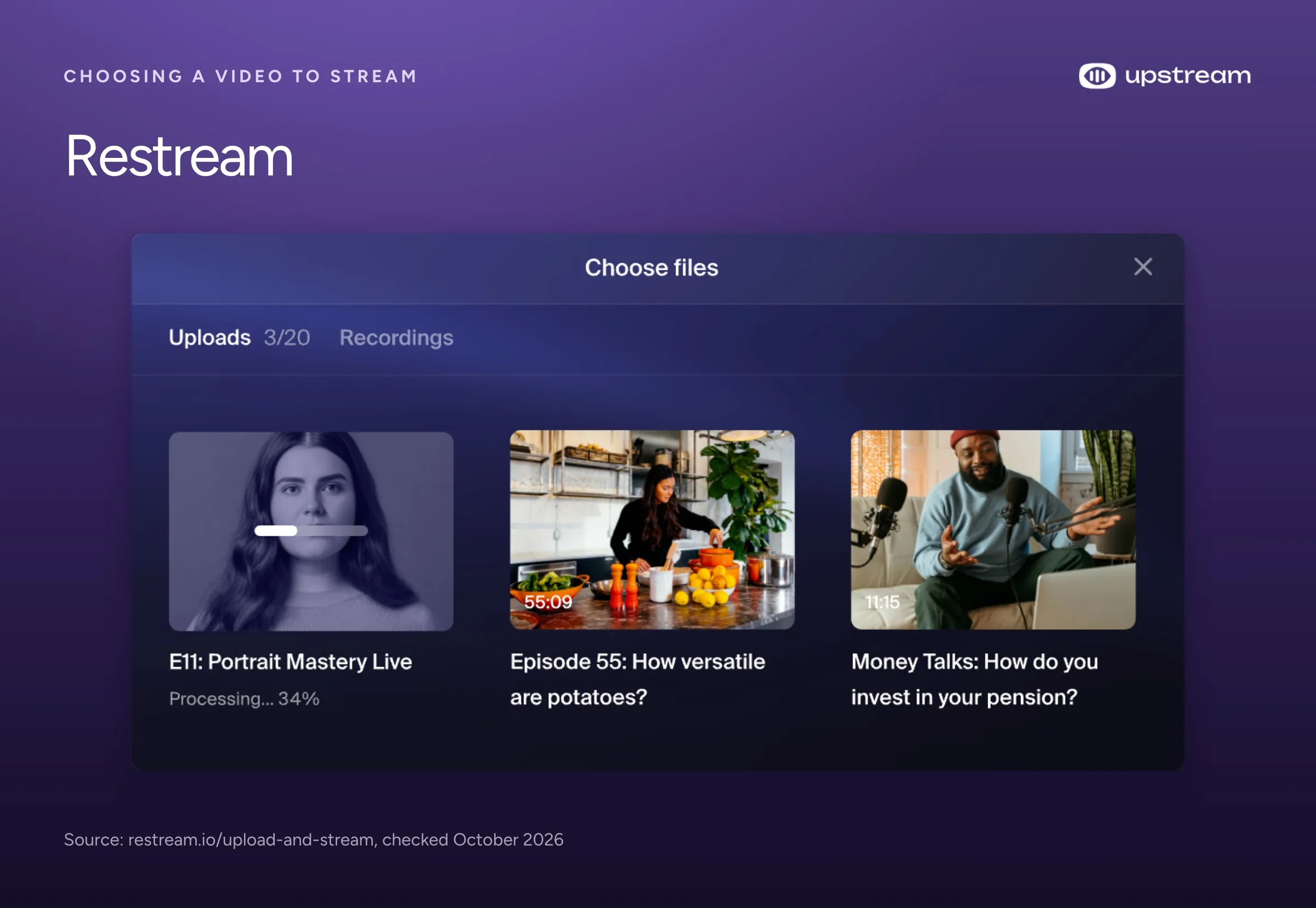
Restream (restream.io) is a live multistreaming service with a browser studio and one chat across platforms, and its plans can all stream an uploaded video. The limits show up when you try to run it 24/7. Its help center says one video loops at most 10 times or 40 hours, and a playlist runs up to 24 hours (40 videos) and doesn’t loop. Even that needs a paid extra on top of a plan: Marathon at $79 a month (1080p, 4 hours of video library) or Media at $239 (4K, 12 hours). While a playlist airs you can change graphics and chat but not the videos.
Upstream runs a loop that never stops on its $30 plan, with no hour limit and no extra to buy (see Upstream vs Restream).
Do it yourself: OBS or a rented server with FFmpeg
OBS on your own PC: full control while the PC stays on
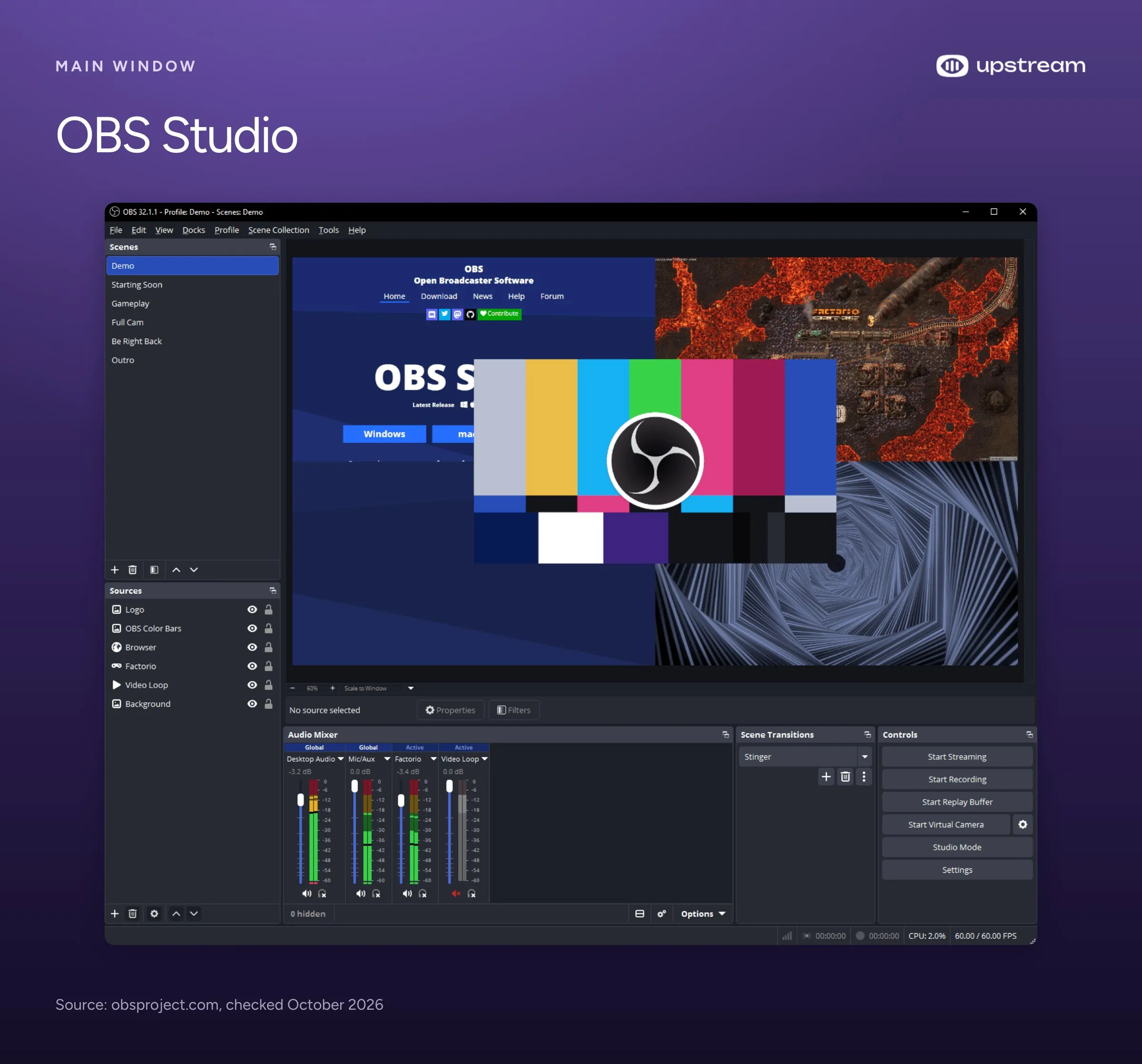
OBS streams from your PC, so it has to stay on, awake and online all month. A Windows update, a power cut or an internet drop ends the stream until you start it again.
OBS Studio is free and open source. Add your videos to a Media Source with looping on, or to a VLC playlist, put music on its own source, add overlays and stream. Leaving a PC on all month uses about 44 to 73 kWh of electricity (our estimate for a PC drawing 60 to 100 watts), so multiply that by your price per kWh. Sending to more than one platform needs a plugin or a relay service, and with a plugin each extra platform is another full upload from your home connection. If you already go live from OBS, you can send it into an Upstream stream. Your show airs while OBS is on, and the playlists take over when you stop.
A rented server with FFmpeg: for people who can script Linux
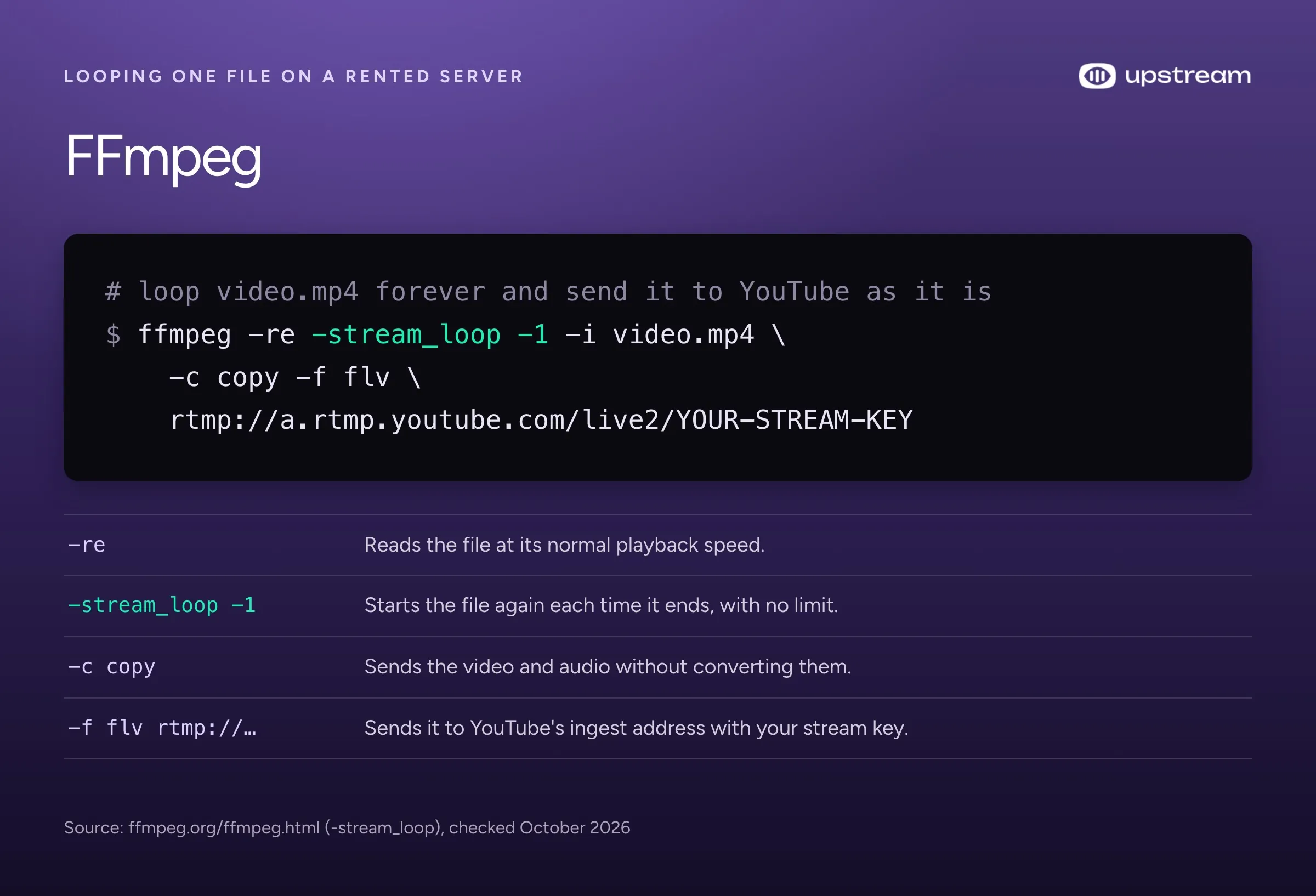
This setup has no interface. You write the commands and look after the server and the scripts, and you restart it yourself. Overlays or a separate music playlist mean converting the video live, which needs a bigger server.
Rent a Linux server (a VPS) and loop the file with FFmpeg, a free command line program that can send a video to
YouTube. Its -stream_loop -1 option repeats the file forever. On DigitalOcean, a $12 a month server is
enough if the file is already prepared for streaming. It includes 1 CPU, 2 GiB of memory and 2000 GiB of transfer.
The server only sends the file and doesn’t convert it. A 1080p stream at 4.5 to 6 Mbps uses about 1400 to 1850 GiB
of transfer in a month, close to that allowance, and extra transfer costs $0.01 per GiB. With overlays or a separate
music playlist, plan on a $42 to $48 server (our sizing estimate).
Frequently asked questions
What is the best 24/7 streaming platform?
Upstream (upstream.so), for most channels. It plays your videos and music from the cloud, loops with no cap on a paid plan, and runs scheduled streams and live shows with guests in the same stream. The cloud services that cost less are video loops with no overlays or one line of text, so anything else on screen has to be rendered into the video yourself.
What is the best way to stream prerecorded videos 24/7 on YouTube?
Use a cloud service such as Upstream (upstream.so), which loops your videos from its own servers and puts overlays like the current song on top. OBS works too, but the PC has to stay on all month, and a rented server with FFmpeg needs Linux skills. Upload the videos, put them in a looping playlist, connect YouTube and start the stream. Our guide on how to set up a 24/7 live stream on YouTube walks through the steps, and YouTube live streaming with Upstream covers the YouTube side.
What is the best encoder for 24/7 streaming?
A cloud encoder, because a desktop encoder like OBS only streams while your computer is on. Upstream is on YouTube’s list of verified encoders and streams from its own servers, with looping video and audio playlists, overlays and scheduling. If you have a spare PC that stays on, OBS is the best free desktop encoder.
What is the cheapest way to loop a video 24/7 on YouTube?
OBS on a computer you already own, since the software is free, but the computer has to stay on all month and you pay for its power. In the cloud, the cheapest are bare video loops: Runnel.live at $6 a month per stream plus a one time upload fee per GB, Looping Stream ($9), Streamloop (about $10 for 30 days, plus an encoding fee), StreamHouse ($19) and Live247 (about $19.94). None of them lists overlays for a standard loop. A rented server with FFmpeg costs about $12 a month if you’re happy to run Linux. With full overlays, Upstream is the lowest at $16 a stream (4 or more streams, billed yearly; prices checked October 9 to 12, 2026). Our cheapest 24/7 live streaming breakdown compares the options by price.
Can Restream run a 24/7 stream?
Restream can stream uploaded videos for up to 40 hours. Restream’s help center says one uploaded video loops at most 10 times or 40 hours, and a playlist runs up to 24 hours without looping (checked October 9, 2026). Both need the Marathon extra ($79 a month) or Media ($239). A live feed you send from OBS has no set limit, but Restream suggests restarting it every 24 hours and offers a custom plan for longer streams.
Do I need to keep my computer on for a 24/7 stream?
No, not with a cloud service. Upstream and the other hosted tools here play your files from their own servers, so you can upload, start the stream and turn your computer off. Final Fantasy LoFi Radio (24/7) has run on Upstream as one YouTube broadcast since July 27, 2024, more than 800 days with no restart. You only need it on when the stream comes from your own computer, as it does with OBS.
Can I stream 24/7 to YouTube and Twitch at the same time?
Yes, with a tool that sends one 24/7 stream to several platforms. Upstream sends it to YouTube, Twitch, Kick and more at once. StreamHouse, Beamd (3 on its $19 plan), Streaming Bots (up to 3), Playout.video (5 on its $29 plan), LiveReacting (5) and Streamloop (up to 5, at $6 for each extra platform at 1080p) also send one stream to several platforms. Runnel.live and Gyre send each stream to one platform, Looping Stream’s guide sets one platform per stream, and Live247 and OneStream’s 24/7 mode go to YouTube only. Twitch ends a broadcast at 48 hours, and Upstream reconnects on its own.
Does YouTube allow 24/7 live streams?
Yes. YouTube publishes no maximum length for a live stream. It only keeps a replay automatically for streams under 12 hours, so a longer stream may not get one. Its usual rules still apply, including copyright. YouTube scans live streams for copyrighted content and can replace it with a placeholder image, interrupt it or end it. Play only music you own or have a license to stream. Ask the rights holder to add your channel to their Content ID allowlist. Our post on whether YouTube allows 24/7 live streams covers the rules.
Is there a free way to run a 24/7 stream?
Not for a full month on a hosted service, since a month of 24/7 is about 730 hours. Upstream gives you 24 streaming hours a month at 1080p with no card and no watermark (paid plans have no hour limit). StreamHouse gives 24 hours once and needs a card, Streaming Bots has a 24 hour trial, and Gyre has a 7 day trial that turns into its $99 plan unless you cancel. Playout.video’s free plan runs 2 hours at a time with a watermark, Looping Stream’s trial stops after 24 hours of streaming, Beamd’s runs 72 hours with a watermark, and Streamloop charges $1 for 7 days with a card. OBS is free if you leave a computer on.
Which 24/7 tools play music and visuals as separate playlists?
Upstream, LiveReacting, Playout.video, Streamloop, Looping Stream (in its AV mode) and Streaming Bots (in Radio Stream mode). Upstream also loops a second audio channel, like rain or a fireplace, under the songs and shows the current song on screen. OBS can do it with separate sources on a PC that stays on. Runnel.live takes video files only, Live247 lists audio playlists but doesn’t document music over a looping video, and the other hosted tools here don’t document it. Our guide on how to start a 24/7 lofi radio station shows the setup.
Start a 24/7 stream free
For all the head-to-heads in one place, see Compare Upstream: Upstream next to 9 streaming tools in one table.
Say you want to change a song. On a bare loop, a new track means a new render and a new upload. On Upstream you drop the song into the audio playlist, and the current song box picks it up on air. Try that with your own music on the free plan, which gives you a full day of streaming each month to watch it happen.
Sources
Prices and limits checked October 9 to 12, 2026.
- Upstream: pricing, free plan, separate audio and video playlists, platforms, the help center on multistreaming and Live Studio over a 24/7 stream, and the Final Fantasy LoFi Radio (24/7) broadcast.
- Runnel.live: home and pricing, first stream guide, help, comparison table, terms. StreamHouse: pricing, features, FAQ. Live247: home and pricing, terms. Streaming Bots: home and pricing.
- Looping Stream: pricing, terms, how to use it, looping guide, its own tool ranking, sitemap. Streamloop: home and pricing, rates, Scenes, multistreaming, about, terms, sitemap. Beamd: home and pricing, plans, looping help, streaming without OBS, terms, domain record. Playout.video: home and pricing, plans help, refunds, changelog.
- LiveReacting: pricing, 24/7 channel page. Gyre: pricing, features, terms. OneStream Live: pricing, 24/7 help article. Restream: pricing and the help center on looping, playlists, recorded video events and stream length.
- Do it yourself: OBS sources guide, FFmpeg documentation, DigitalOcean droplet pricing and bandwidth billing.
- YouTube Help: verified encoders, live stream replays, copyright in live streams.