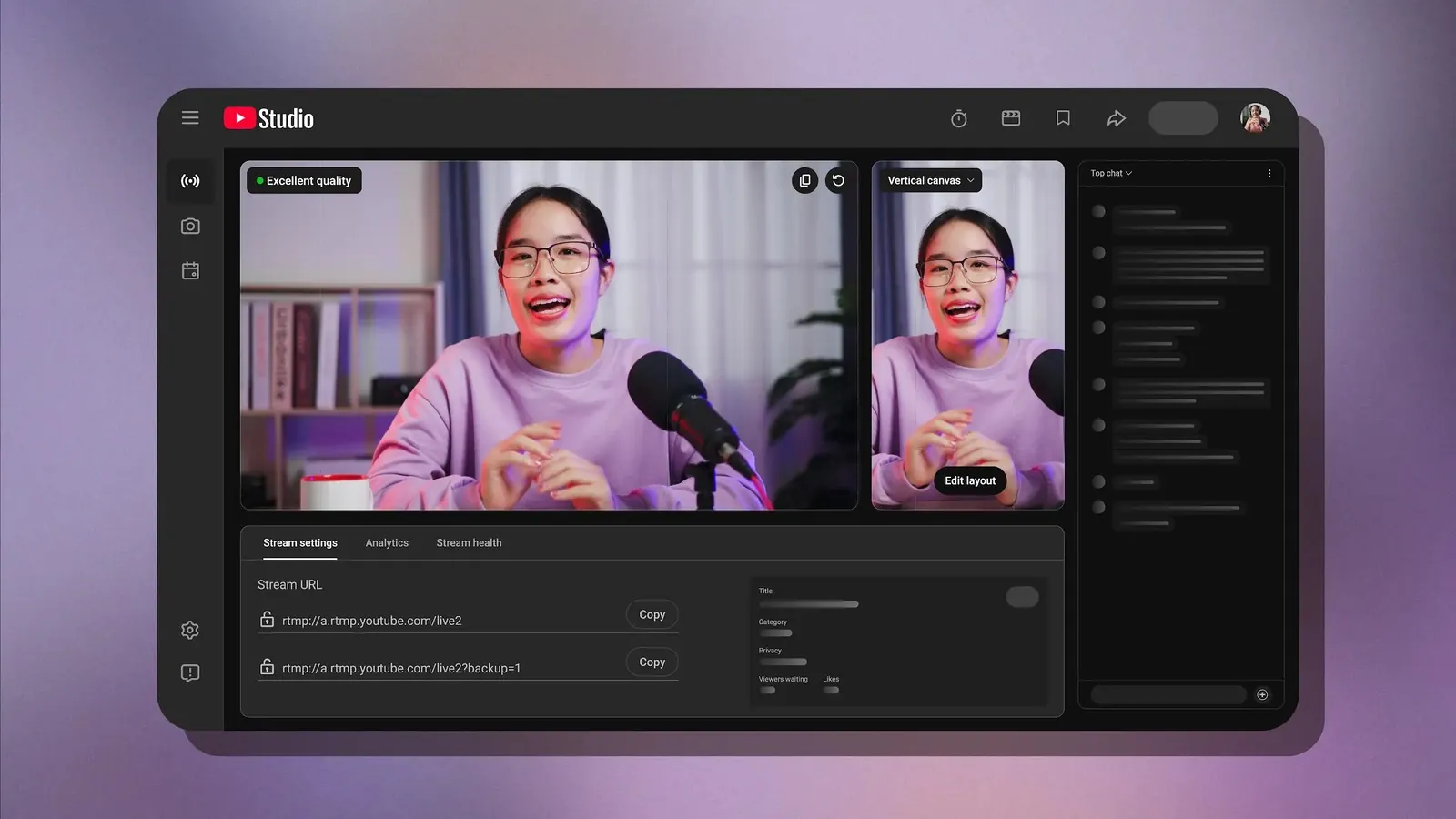
YouTube now turns on a setting called Dual stream by default when you go live from the Live Control Room in YouTube Studio. Your normal horizontal (16:9) stream goes out as before, and YouTube adds a vertical (9:16) copy for people watching in the Shorts feed on their phones. YouTube crops that copy from the middle of your picture unless you pick another layout.
To turn it off, go to YouTube Studio and click Create, then Go live. In the Live Control Room, open the Stream tab and switch off Dual stream under Stream settings before the stream starts.
YouTube Creators announced the new default in a community post at the end of September 2026:

What the vertical copy shows
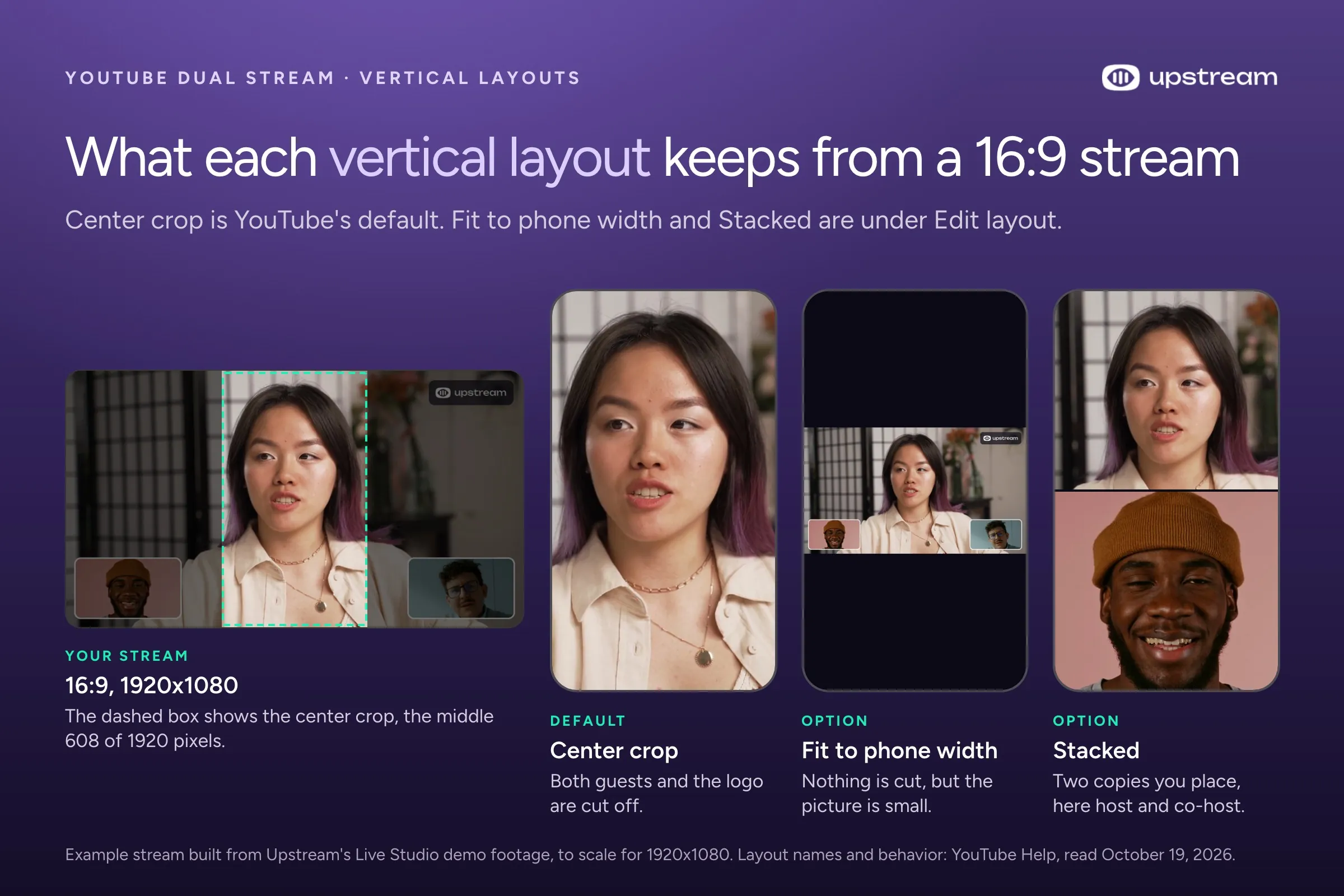
The default layout is a center crop. On a 1920×1080 stream, the vertical copy keeps a strip about 608 pixels wide from the middle of your picture. That’s about a third of the width. The crop removes what’s near the left and right edges, so viewers of the vertical copy can lose guest cameras, a facecam in a corner, a logo or a scoreboard.
YouTube has two other layouts, and you can zoom and move the picture inside each one:
- Fit to phone width shrinks your whole picture to the width of the vertical frame. Unless you zoom in, nothing gets cut, but a 16:9 picture fills only about a third of the frame’s height.
- Stacked puts two copies of your picture on top of each other, and you place each one. On a stream with guests, that could be the host on top and a guest below. On a gaming stream, it could be your facecam on top and the middle of the game below.
If you change the layout in YouTube’s editing canvas before the stream, you can keep adjusting it while you’re live.
Build the stream in the cloud.
Schedule videos, produce browser-based live shows, or send one feed to multiple platforms from the same Upstream workflow.
What the vertical feed can’t do
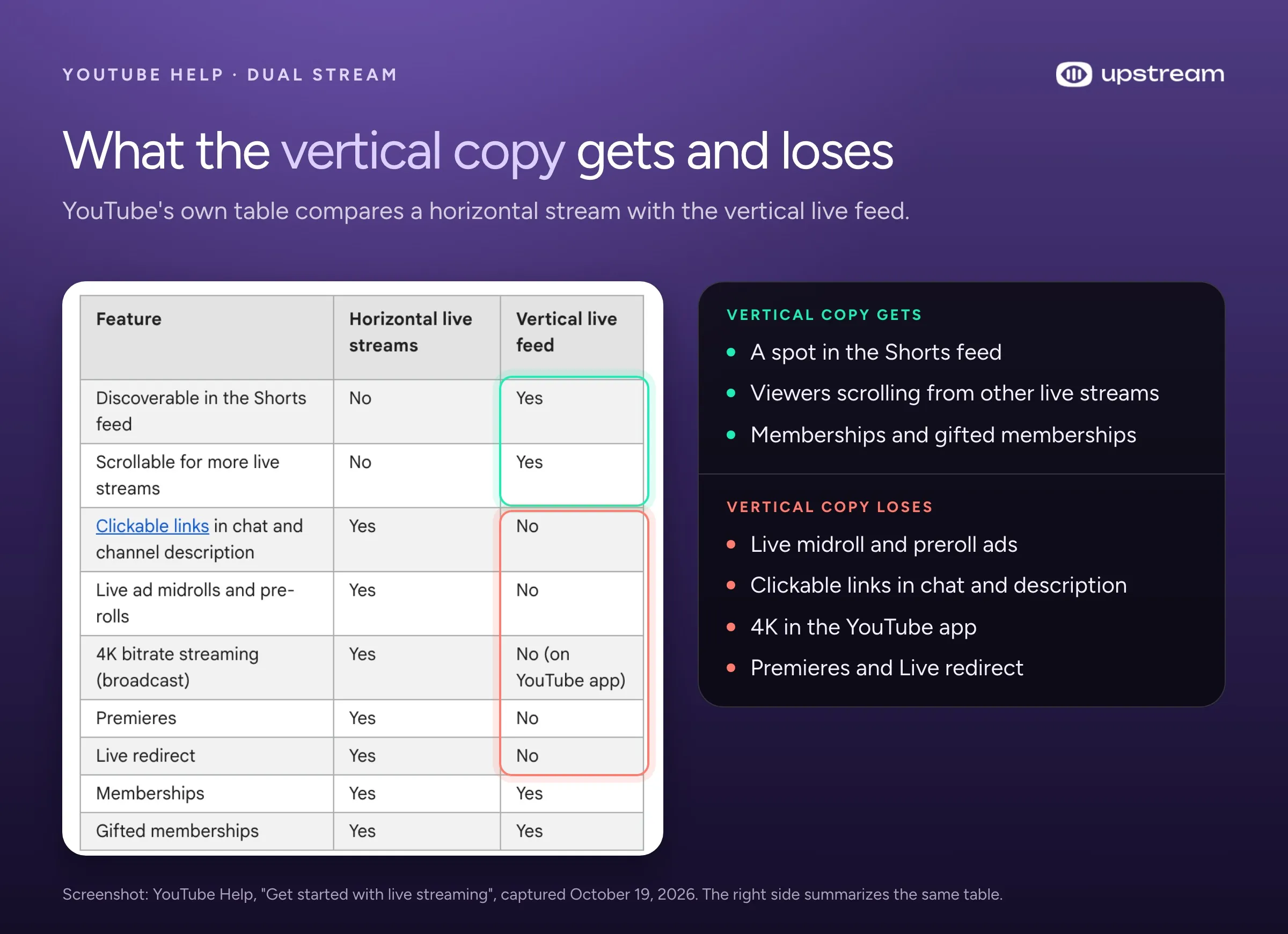
YouTube’s help page lists features the vertical live feed doesn’t support:
- Live ads. Midrolls and prerolls only run on the horizontal stream.
- Clickable links in chat and in your channel description.
- 4K in the YouTube app, Premieres and Live redirect.
What the vertical copy can get you is discovery. It can show up in the Shorts feed, where people scroll from one live stream to the next, including streams from channels they don’t subscribe to. Memberships and gifted memberships work in both versions.
Both versions share one stream link, one live chat and one go live notification to your subscribers. Phone viewers who arrive from the Shorts feed see the vertical copy, and everyone else sees the horizontal stream. The Live Control Room shows combined numbers for both while you’re live. Numbers for the vertical copy alone show up 24 hours after the stream.
Showing up in the Shorts feed isn’t guaranteed, even for a stream that’s fully vertical. A creator who streamed in portrait at 1080×1920 asked TeamYouTube on X why the 3 hour stream got one brief viewer while their Shorts got 3.2M views that month. TeamYouTube answered:

Which streams get the vertical copy
YouTube’s help page says the default applies when you stream from the Live Control Room. That includes the stream Studio sets up for you there, the one whose stream key you paste into OBS. On our channel, Dual stream was switched on for that stream. The YouTube app on your phone is different: it streams vertically by default.
Tools that sign in to your YouTube account create the stream through YouTube’s API, the interface apps use to set up streams for you. The API has no setting for Dual stream. We checked what that means on one of our own channels on October 17, 2026. A private test stream that Upstream created through YouTube sign in had Dual stream switched off before it started. It stayed off while the stream was live, and the Live Control Room showed only the 16:9 preview.
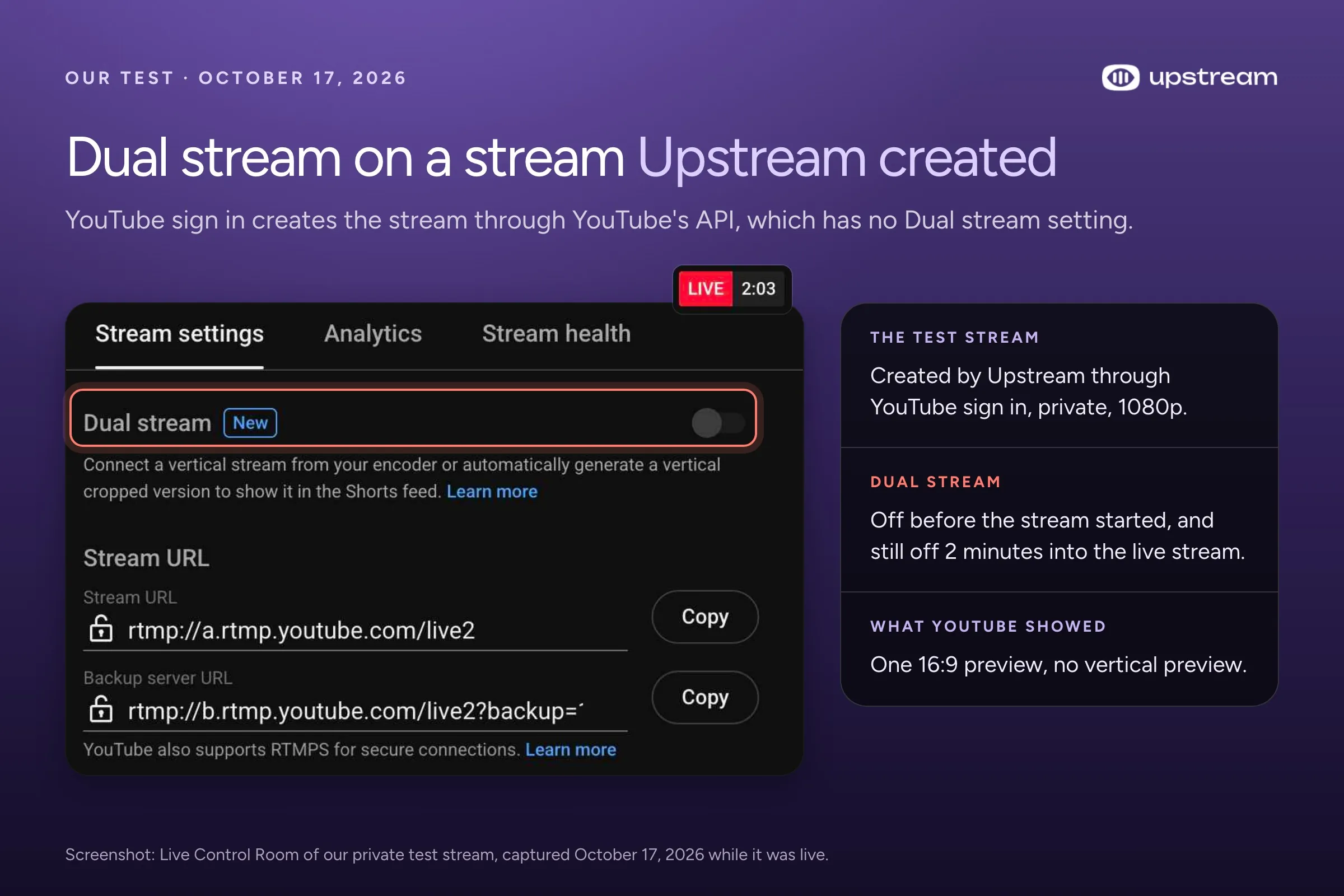
So in our test, the stream Upstream sent through sign in went out exactly as we built it, with no crop added. It also didn’t get a copy in the Shorts feed. If you want one, the Encoder setup further down shows how to add your own. Other tools that sign in to YouTube may behave the same way, but we only tested Upstream, so check the Live Control Room before you go live.
How to turn off Dual stream
- On a computer, open YouTube Studio and click Create, then Go live.
- In the Live Control Room, open the Stream tab.
- Under Stream settings, switch off Dual stream.
Do it before the stream starts. YouTube says you can’t add the vertical format once a stream has started, and in our test the switch couldn’t be changed during the stream. For a stream you scheduled ahead, open the Manage tab and select the stream to open its settings, then check the same switch.
Keep the crop, change the layout or turn it off
Keep the center crop if the important part of your picture sits in the middle. A camera stream where you sit in the center of the frame, or a musician filmed straight on, crops well.
Change the layout if things on the sides matter. Stacked suits a gaming stream with a facecam. Fit to phone width suits a scene you need to show in full, like a tabletop game or a sports field. To change it, open the Manage tab, select the scheduled stream and click Edit layout on the vertical preview.
Turn it off if no layout looks right. You may also need something the vertical copy doesn’t support, like a clickable link in chat for a sponsor or a merch drop.
Check the crop in Upstream before you go live
If your stream goes to YouTube, Upstream shows you what the vertical copy keeps before you go live. The setting is called Preview as, and it only changes what you see. Your canvas stays 16:9, and the stream still goes out at its own resolution, like 1920×1080.
- In Stream Designer, open the Design panel. Preview as is in the Window section, under Zoom.
- In Live Studio, use the Preview as menu at the top right of the canvas.
- In the full browser preview (Preview, then Browser), YouTube vertical shows the picture inside a phone frame.
Pick YouTube vertical: center crop to see YouTube’s default. The cut sides are dimmed and the middle that stays is outlined. Pick YouTube vertical: fit to phone width to see the whole picture shrunk to the width of a phone. Stacked isn’t in the list, because YouTube doesn’t document how it frames the picture by default.
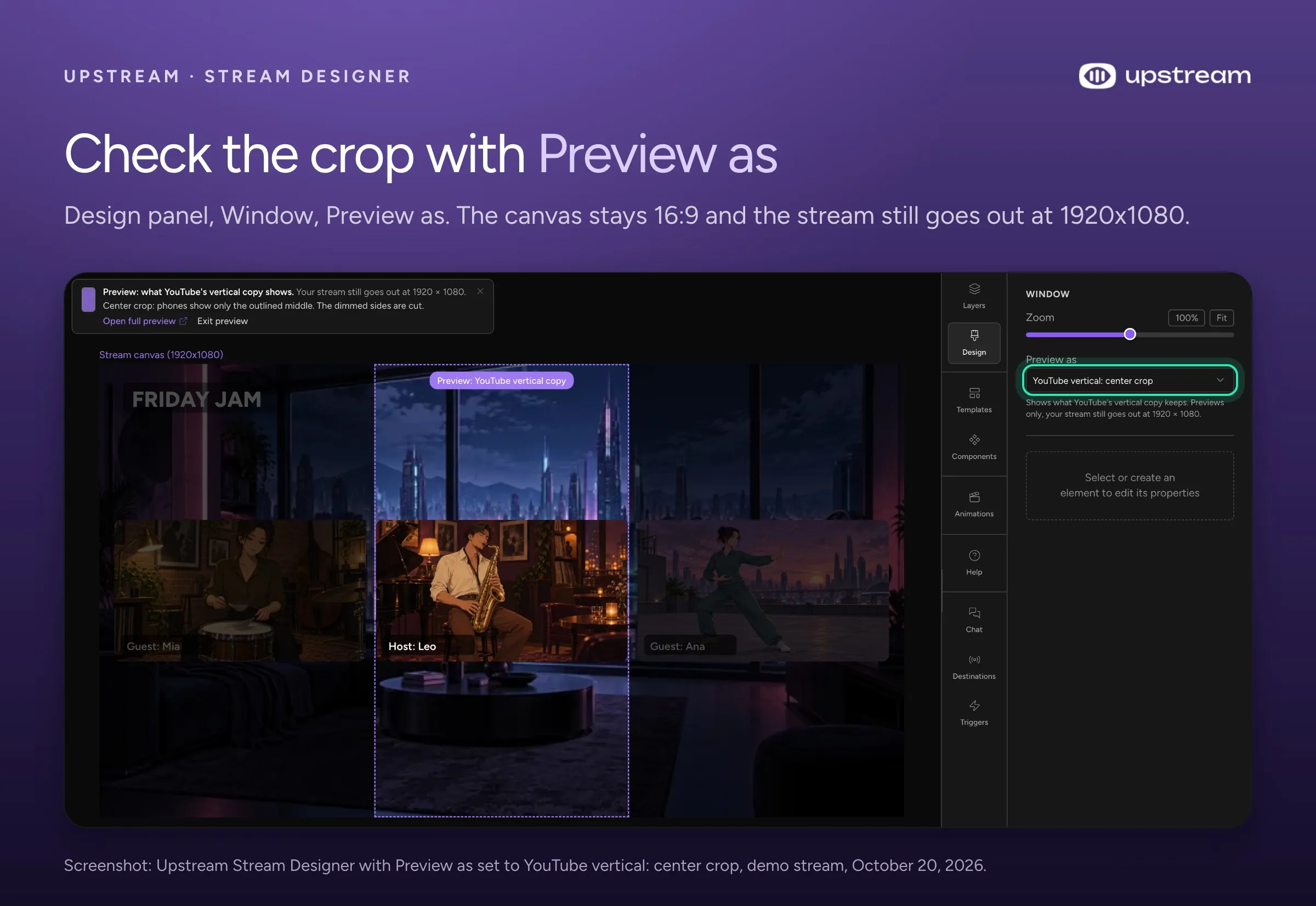
Preview as only shows up for streams that go to YouTube, as the main destination or as a multistreaming destination, and only on horizontal canvases. A stream that only goes to Twitch won’t show it.
Send your own 9:16 stream instead of the crop
You can replace YouTube’s crop with a vertical picture you design yourself. YouTube calls this the Encoder option. You send two streams at the same time: your normal 16:9 stream to the main stream key and a 9:16 stream to a second stream key.
- In the Live Control Room, open the Stream tab and make sure Dual stream is on.
- On the vertical preview, change the dropdown from Auto to Encoder.
- In the Stream key dropdown below it, pick the key your vertical stream will use.
- Start both streams, check that each preview shows the right picture, then go live.
YouTube asks you to send the same content in both shapes. From your own computer that means two encodes at once. Aitum’s free Vertical plugin adds a second, vertical canvas to OBS, and our Aitum multistreaming guide covers the setup. Your computer has to encode both streams, and your upload connection has to carry them.
How we sent two Upstream streams to one YouTube stream
On October 17 we ran a real dual stream from Upstream on one of our channels, privately, without pasting a stream key anywhere:
- We created two Upstream streams with YouTube sign in: one at 1080p horizontal (1920×1080) and one at 1080p vertical (1080×1920).
- In the Live Control Room of the horizontal stream, we switched Dual stream on and set the vertical preview to Encoder. Studio allowed that on our API created stream before it started.
- The Stream key dropdown listed the channel’s streams, including the ones Upstream created. We picked the vertical Upstream stream.
- We started both streams in Upstream. The Live Control Room showed both previews with Excellent stream health: the 16:9 video in the horizontal slot and the 9:16 video in the vertical one.
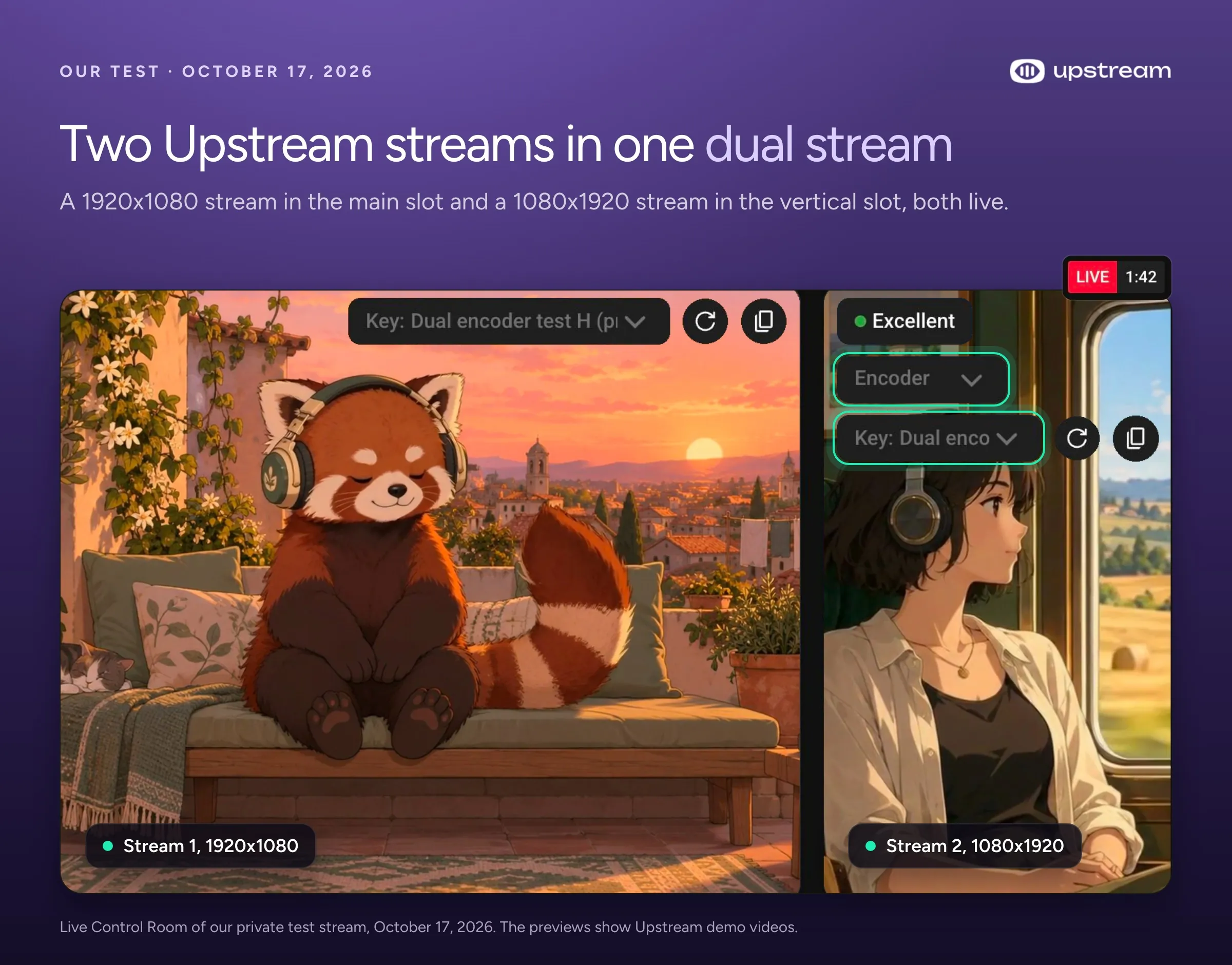
If you paste stream keys instead of signing in, give stream 1 the main stream key and stream 2 the vertical stream key from the Live Control Room. Both use YouTube’s normal ingest address, and Upstream fills it in from the key. The two streams run separately, so they aren’t frame synced.
Steps 2 and 3 happen in YouTube Studio, because YouTube’s API has no setting for connecting a second stream to the vertical slot. Upstream also creates a YouTube stream page for the vertical stream. In our test that page stayed Upcoming while its video fed the vertical slot, and you can delete it afterwards.
Both encodes run on Upstream’s servers. For a prerecorded or 24/7 stream, your computer can be off while YouTube gets a 9:16 picture you designed instead of a crop. Vertical output at 1080×1920 is part of all Upstream plans, the free plan included.
Dual streaming to YouTube and Twitch is something else
People also say dual streaming when they mean going live on two platforms at once, like YouTube and Twitch. That’s multistreaming, and YouTube’s Dual stream setting has nothing to do with it. Twitch’s Simulcasting Guidelines FAQ allows it unless you have an exclusivity agreement with Twitch. Its rules include keeping the Twitch stream as good as the others and not using Twitch to send viewers to your live stream somewhere else. Our YouTube and Twitch setup page shows how to run both from one stream.
How Upstream handles YouTube’s dual stream
When you connect YouTube to Upstream by signing in, our test stream went out exactly as built, with no crop added on top. If Dual stream is on for your stream, Preview as shows you what the vertical copy keeps before you go live. When you want a phone version too, a second Upstream stream at 1080×1920 fills the vertical slot with a picture made for phones.
The rest of your stream runs from the same dashboard. Live Studio runs in your browser with up to 10 guests and screen share on desktop. Multistreaming sends one stream to up to 10 of 30+ supported platforms at once, so YouTube, Twitch and Kick all get it live. 24/7 and scheduled streams keep a channel live from the cloud with your computer off. Multi-chat puts YouTube, Twitch, Kick and Rumble chat in one feed and shows it on your stream. You can reply to YouTube, Twitch and Kick from one place.
The free plan includes all of it: 24 streaming hours a month at 1080p30, no credit card and no watermark.
Sources
YouTube Help: Get started with live streaming (Stream in both horizontal and vertical formats, and the horizontal versus vertical feature table). YouTube Creators: community post on dual horizontal and vertical formats (late September 2026). TeamYouTube on X: reply about vertical live streams in the feed (October 17, 2026). YouTube Live Streaming API: LiveBroadcasts reference. Twitch Help: Simulcasting Guidelines FAQ. Our own tests on private streams, October 17, 2026.