
24/7 live streaming is pretty resource intensive and needs specialised hardware and software. If your home internet blinks for a second? Your stream crashes. If your laptop decides it’s time for an update, stream bye-bye. And if your don’t have massive CPU power to keep encoding everything, your frame rate drops, your stream gets glitchy, and your hardware overheats and deteriorates over time.
The good news is that you don’t need a supercomputer, or even a stable 100% uptime home network, and you definitely don’t need OBS. What you need is a web-based streaming software that runs on the cloud.
Here is how you can set up a stable 24/7 live stream using pre-recorded videos using Upstream – meaning you can turn your computer completely off, go to the beach, or get a good night’s sleep while your channel grows. There is nothing you need to install or download, too.
Step 1: Create Your Account & a New Stream
First things first, head over to Upstream.so and create an account. It takes less than two minutes. There is a free plan available, and you can grab it without a credit card.
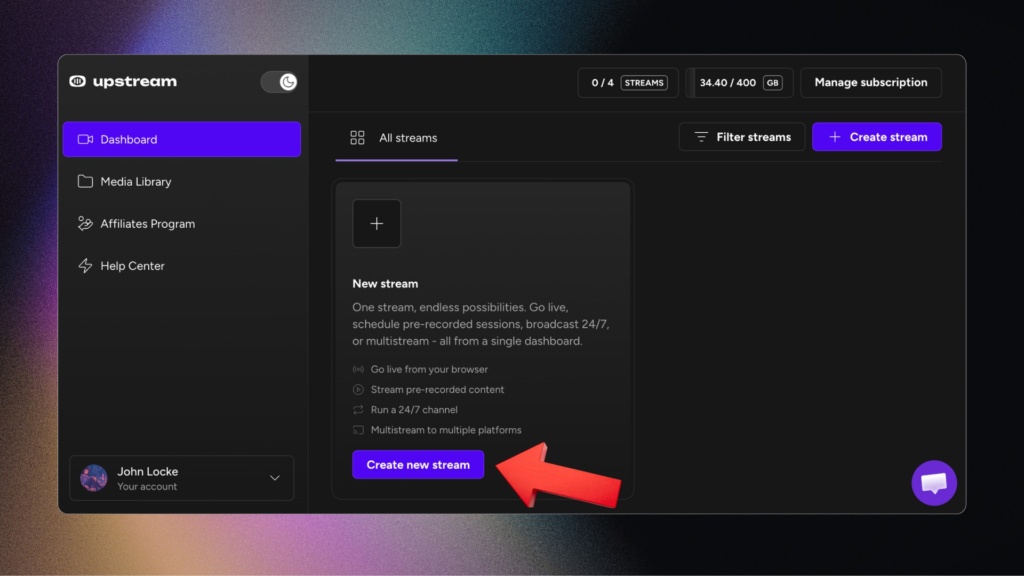
Once you log in, you’ll land right on your Dashboard. It’s your live streaming “home” screen, and all your streams will show up here.
To get started, click Create New Stream. We’re going to use the Stream Wizard because it keeps things incredibly simple. (You can also skip the wizard and set up manually).
Keep a live channel running 24/7.
Upload files, build a playlist, and let Upstream run continuous live playout from the cloud without OBS, a VPS, or an always-on computer.
Step 2: Choose Your Platform (YouTube Connect)
The Wizard will ask what kind of stream you want to create. Select Pre-recorded 24/7 live stream and choose YouTube as your platform.
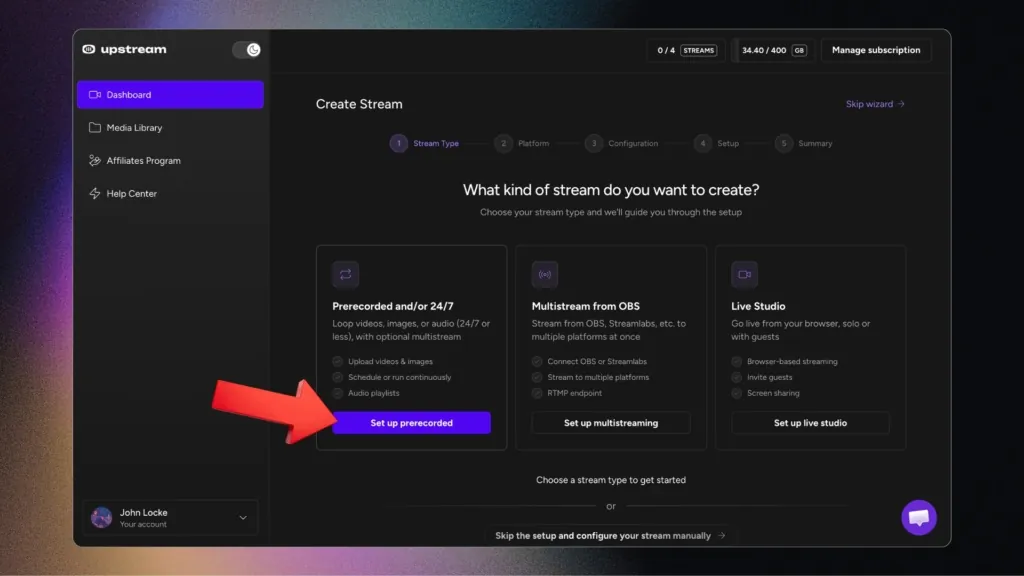
Pro-tip: When connecting your channel, always choose YouTube Connect. Instead of opening YouTube Studio in a separate tab, copy-pasting stream keys, and starting the stream manually, Upstream uses Google’s own verified, secure system to connect with YouTube. With just a couple of clicks, your channel is securely connected via API. When you start your stream it will simply appear on YouTube. On-the-fly edits are possible: you can also change the Title, Description and content at any point, while live.
Step 3: Fill In the Basics
Now, enter all your stream info and metadata just like you would a standard YouTube upload:
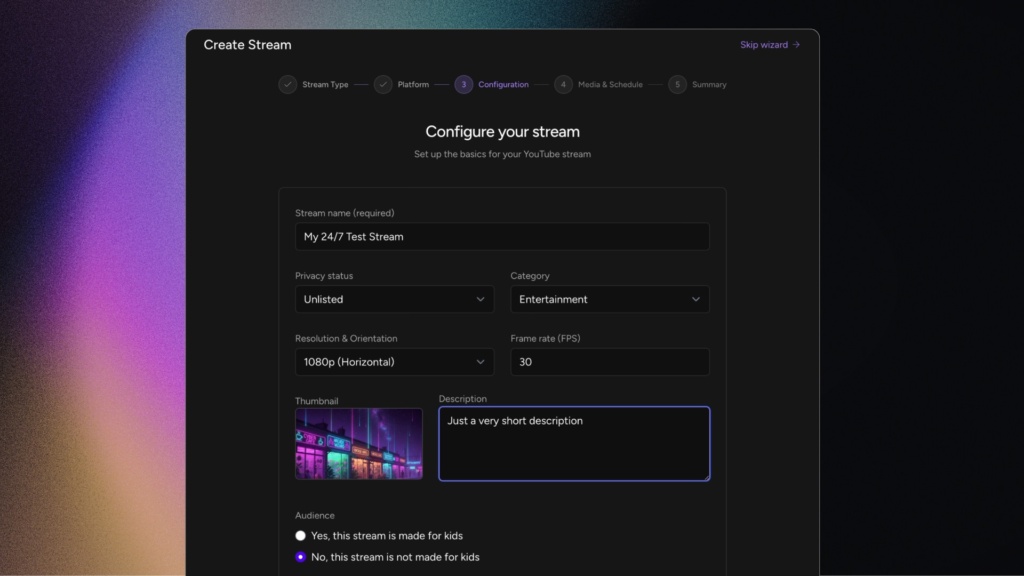
Stream Name: e.g., “My 24/7 Test Stream”
Privacy: If you’re testing things out for the first time, set this to Unlisted. You can toggle it to Public at any point later on.
Category & Resolution: Choose your category (like Entertainment) and your resolution. A standard horizontal 1080p at 30fps works perfectly for most streams.
Thumbnail & Description: Upload your custom thumbnail image and write a good description, mentioning the most important words that describe your stream.
Click Next.
Step 4: Add Your Media & Set Playback Behavior
Upstream gives you flexibility based on what kind of stream you’re building:
Video-First: If you have a video with audio already baked in (like a podcast recording or a compiled video loop), simply upload it and add it to your queue.
Audio-First: If you want to create a 24/7 Lofi radio station or music stream, you can upload a background image/GIF and a separate playlist of audio files (like MP3s). The audio playlist will loop independently of your video background.
The files you add will loop in an ordered list by default. You can also choose shuffle, turn of automatic looping and set other playback behavior.
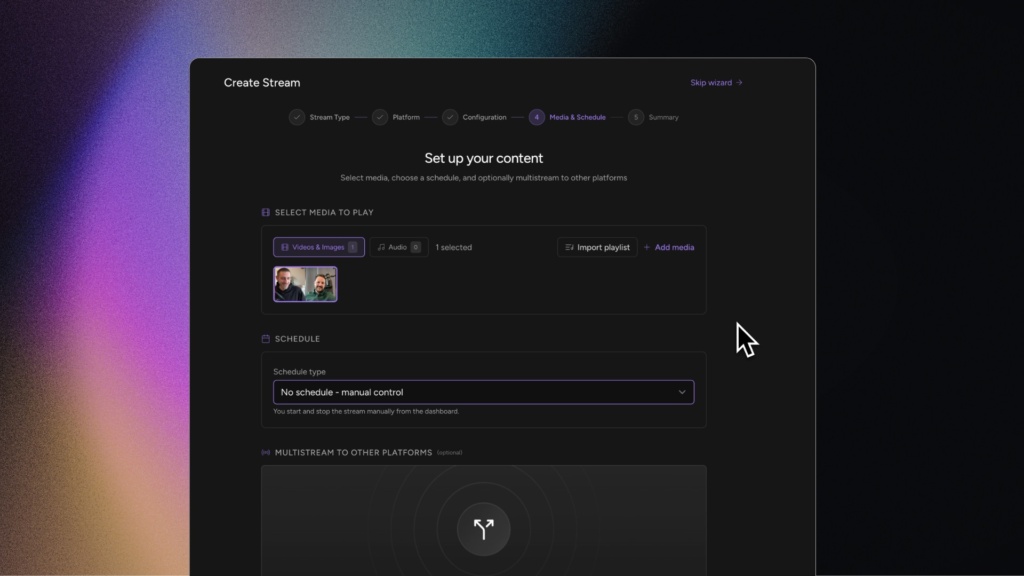
Next up is your Schedule. You can choose to control the stream manually, or you can automate it entirely. Upstream supports recurring schedules and even “back-to-back stream cycles”, meaning you can schedule a stream to run for 2 hours, pause for 15 minutes, then again stream for 2 hours, then pause for 15… and so on…
For this guide, we’ll keep it on Manual Control, meaning the stream starts only when we hit play.
(Note: If you want to reach a wider audience, this is also the step where you can enable multi-streaming to simultaneously broadcast to Twitch, Kick, or a custom RTMP destination.)
Step 5: Review and Launch
Review your summary screen. Because we used the YouTube SSO connection, everything is fully automated. Click Create My Stream.
Within a few seconds, the cloud infrastructure sets up your stream. You are officially ready to go live.
Going Beyond the Basics: The Stream Designer & Live Studio
Once your stream is created, Upstream has a full set of tools to customize it, all on-the-fly.
The Canva-Like Stream Designer
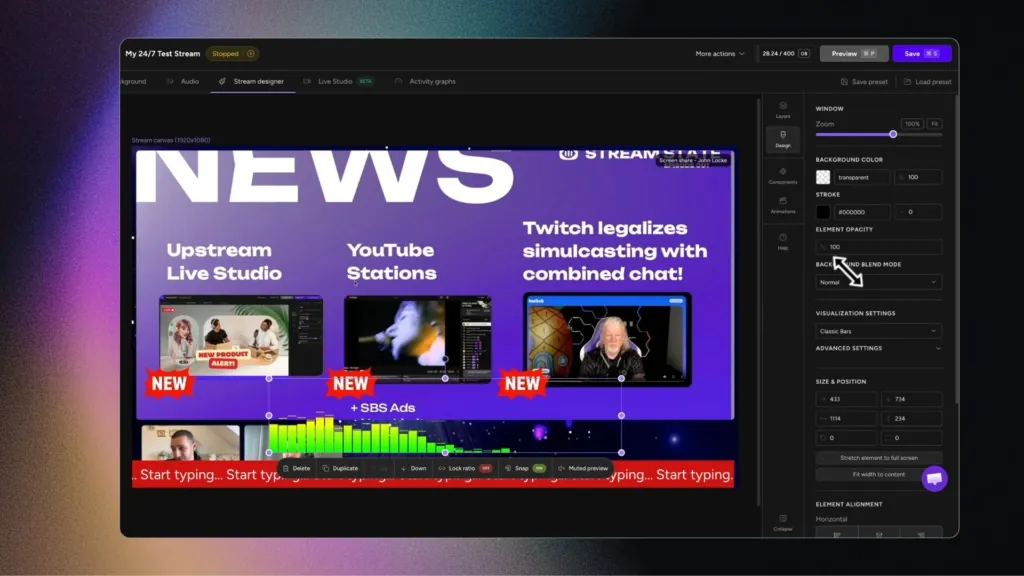
Clicking into the Stream Designer gives you full drag-and-drop control over what’s on your screen. You can:
Embed whole widgets or websites.
Add custom text boxes and overlay graphics.
Turn on Text Scrolling to create a moving news ticker at the bottom of your stream.
Add an Audio Visualizer that reacts in real-time to your music.
Display dynamic track names and album artwork automatically pulled from your MP3 metadata.
The Live Studio (Commentary, Invite Guests, Screenshare…)
This is where things get really cool. Even though your stream is running in the cloud using pre-recorded files, you can still show up LIVE any time!
At any point, you can jump into the Live Studio, connect your webcam, and instantly pop your face onto the stream. You can do live commentary over your pre-recorded loops, chat with your audience, or invite guests into your studio.
Ready to Scale Your Channel with always-on live streaming?
When you click Go Live, your stream will be on YouTube within a few seconds. You can close your browser tab, shut down your laptop, and walk away.
Upstream’s dedicated cloud streaming servers handle all the heavy lifting and encoding for you. No OBS crashes, no dropped frames, and no hardware strain.
If you have pre-recorded videos, podcasts, or music tracks that deserve a 24/7 audience, stop relying on your home internet. Register for the free plan and Start streaming with Upstream today.
Go live on more than YouTube: once your 24/7 channel is running, you can multistream to YouTube, Twitch and Kick at once from the same cloud feed — no extra PC or encoder.