If your YouTube live stream keeps stopping, first check whether YouTube has ended it, is waiting for video, or is still live while viewers buffer. Each problem needs a different fix. Open Live Control Room and your streaming software before changing settings.
Find out what stopped
YouTube needs video from your encoder, and viewers need a working connection to watch it. Use the stream status to decide which side to check.
| What you see | Where to look first |
|---|---|
| YouTube says the stream has ended | Scheduled streaming-software setup, auto-stop and platform notices |
| YouTube is waiting for video and OBS lost its connection | OBS, the source PC and the upload connection |
| Your stream looks normal, but one viewer sees buffering | That viewer's device or network |
| Many viewers on separate connections see the same problem | Your source output and YouTube stream health |
These branches follow YouTube's troubleshooting guidance. A spinning player alone does not prove that your stream has ended.
Where did your stream stop?
Pick what you see. Follow the highlighted part of the path.
Is your app still sending video?
Check its output, then the connection to YouTube. If the event is still open, restore the connection and check the same watch page.
In OBS: open View → Stats and check dropped frames.
Check why YouTube ended the stream.
Read the message in Live Control Room. Check auto-stop and any policy notices before setting up the next stream.
A working stream key does not mean the old event is still open.
Test playback before restarting your stream.
Open the watch page on another connection. If it plays normally, ask that viewer to try a lower quality or another network.
One buffering player does not mean your stream has stopped.
What to do when the stream stops right now
First, open Live Control Room and check whether the stream has ended or is waiting for video. Save any error message before changing settings.
If it is waiting for video, restore the video connection and check whether playback resumes on the same watch page. Avoid creating another stream while you are still trying to recover this one.
If it has ended, prepare the next stream and verify its viewer link before sharing it. A stream key tells your encoder where to send video; it does not prove the public stream is still open. If YouTube shows a rights or policy notice, resolve that issue instead of repeatedly restarting the same content.
First, schedule the stream with a streaming software source
An encoder is the app or device that sends your video to YouTube. You can send video with tools like OBS or Upstream. When setting up a manual stream, choose Streaming software as the source and create the stream through Schedule stream.
In our support work at Upstream, we have seen scheduled encoder streams recover after a brief loss of video. We call that disconnect protection. You will not find a switch with that name in YouTube Studio. The stream stays open long enough for the source to reconnect in those cases. YouTube’s help pages do not promise a fixed number of seconds, so test your own setup.
We have also seen streams end after a brief loss of video when they were created through the immediate-start route. Check this setup before spending hours changing OBS settings.
Set up the next stream this way
- Open YouTube Studio and select Create > Go live to enter Live Control Room.
- Open Manage, then choose Schedule stream.
- Select Streaming software as the source. If the setup wizard appears, choose Later and Streaming software.
- For an ongoing stream you intend to end by hand, leave auto-stop off. Enable auto-start if you want to go live as soon as YouTube receives video.
- Use its stream key in your encoder or Upstream manual setup, then check its preview.
The first Go live button opens the control room. The important choice comes after it: create a scheduled stream with a streaming software source. Our manual YouTube setup guide shows the screens.
In our November 11, 2026 test, we stopped an Upstream demo stream while a scheduled, unlisted YouTube event had Auto-stop off. YouTube showed No data but kept the event open. When we restarted Upstream, video returned on the same event without another Go live click. Test this on your own channel before relying on it.
Test recovery on an unlisted stream before relying on the setup for your main channel. Turning auto-stop off and scheduling the stream are separate choices. Our support observations do not prove scheduling alone causes recovery.
Create the next stream in this order
- Create → Go live
Open YouTube Live Control Room.
- Manage → Schedule stream
Prepare a scheduled stream.
- Streaming software
Use this event’s stream key in your encoder.
- Check auto-stop
Leave it off if you plan to end the stream yourself.
If YouTube ended the stream
Read the messages in Live Control Room and note when the stream ended. Then compare that time with OBS, your playlist and anything else that changed on the source PC.
If you reused an earlier stream, check auto-stop again. YouTube copies that choice with reused settings. Its stream settings guide documents how auto-start and auto-stop let the encoder control the stream. Check this even if you scheduled the stream correctly.
Look for a copyright or policy notice too. YouTube can interrupt live streams when it detects third-party content. A network fix will not resolve that notice. Even licensed music can need clearance from the rights owner for your channel.
A missing replay is a different problem
YouTube says streams under 12 hours can be archived automatically. A stream over 12 hours may not be captured at all. That is an archive limit, not proof that YouTube ended the live stream at 12 hours.
If your stream stayed live but the replay is missing, investigate the archive rather than rebuilding your OBS setup.
OBS keeps disconnecting: check the source connection
If OBS keeps disconnecting, check its Stats window while you send a test stream. Network dropped frames mean the connection could not send some of the video. Rendering or encoding lag points to a different part of the setup: the computer's work to build or compress the picture.
For network drops, start with a wired connection where possible. Pause other heavy uploads, then test a lower bitrate. Bitrate is how much video data you send each second. A high peak on a speed test does not prove the connection can hold that rate through a long stream.
OBS's connection guide explains the causes of dropped network frames. Our upload speed and bitrate guide can help you choose a starting rate.
For encoding lag, lower the output resolution or frame rate and test again. Close work that competes for the same hardware. Keep notes on what you changed so you can tell which step helped. The OBS performance guide covers these checks.
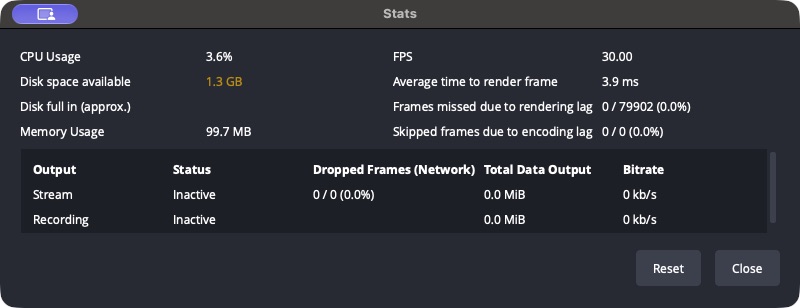
Keep the Stats window open during the test:
| OBS warning | What to try first |
|---|---|
| Dropped frames from the network | Wired internet, fewer competing uploads, then a lower bitrate |
| Frames missed from rendering lag | Reduce GPU load and simplify the scene |
| Skipped frames from encoding lag | Reduce output load and review the encoder settings |
The labels help you avoid treating every fault as an internet problem. Make one change at a time so you know which change helped.
Also check whether the PC went to sleep, restarted or lost power. For a long stream, review those settings before going live. Do not turn off security updates forever to keep one stream running; plan maintenance around your streams.
OBS keeps disconnecting and reconnecting
If OBS keeps disconnecting and reconnecting, watch whether the same YouTube stream stays open when OBS reconnects. Repeated connection attempts tell you the source is trying to recover; they do not prove the public stream survived. Check both sides: whether YouTube keeps the stream open and why the source keeps losing its connection.
YouTube live stream buffering: check what viewers see
YouTube live stream buffering does not always mean your stream has stopped. Try the public watch page on another device and a different network. For example, use a phone's mobile data rather than the same Wi-Fi as your streaming PC.
If the problem follows just one connection, the source may be fine. Ask the viewer to try a lower playback quality. If several people on separate networks see the same fault, check your encoder preview and YouTube health messages.
Avoid watching your own stream with its sound playing through speakers near the microphone. That can add echo and make a sound problem harder to trace.
If a 24/7 loop stops overnight
Check whether the playlist reached its end, a source file became unavailable or a timed task shut down the app. Note whether the fault happens at a fixed time or when a certain video begins. That pattern gives you something concrete to test.
Uploaded cloud playout removes the home PC from the playback job. In Upstream, the server plays your uploaded playlist after you close the laptop. That is useful when sleep, home power or local uploads keep taking down a prerecorded channel.
A live OBS stream sent through Upstream still needs OBS and its source connection. Choose the 24/7 uploaded-video workflow if your goal is to keep the playlist running with your PC off.

Test the fix and keep a useful record
Run the same content that caused the issue. Watch the source preview, OBS statistics and YouTube stream health together. A quiet test scene may not reveal a problem caused by motion or a demanding source.
If it fails again, save the time, exact error message and what the viewers saw. Share those details with support, along with the settings you changed. Keep stream keys and other private account details out of screenshots.
Keep a live channel running 24/7.
Upload files, build a playlist, and let Upstream run continuous live playout from the cloud without OBS, a VPS, or an always-on computer.