Yes, you can run a 24/7 stream on Twitch. Twitch has grouped nonstop channels in an Always On category since at least 2017, and its rules allow reruns of your own videos. A few rules shape how you do it. One Twitch broadcast ends at 48 hours. Prerecorded video should carry Twitch’s Rerun label. And music needs the rights, plus Twitch’s written exemption when the stream is only songs.
To stay live past 48 hours without a computer running at home, a cloud service can play your videos from its own servers and reconnect to Twitch each time a broadcast ends.
The short version:
- Allowed: yes, if you own or have the rights to everything on screen and in the audio.
- Length: one broadcast lasts up to 48 hours. Then Twitch ends it, and a new broadcast has to start.
- Labels: tick Rerun in Edit Stream Info, and start the title and the Go Live Notification with [Rerun].
- Music: you need the rights. A stream that’s only music, like a lofi radio, also needs Twitch’s written exemption.
- Your PC: it can be off if the stream runs in the cloud. From home, OBS has to run every hour you’re live.
Is 24/7 streaming allowed on Twitch?
Yes. Twitch’s only documented time limit is on a single broadcast. Twitch has even promoted nonstop channels itself. In November 2017 the Twitch blog announced new channels with “non-stop programming 24/7” and placed them in the Always On category of its directory.
That category is still there. When we checked it on October 10, 2026, Always On had 16.9K viewers and 617K followers. Of the first 30 channels listed, about two thirds replayed a creator’s own past streams, most of them on a second channel with “247” in its name. The rest were show catalogs run by the people who own them, music, ambience and a few long live projects.
Twitch allows all of these under a few conditions. Four matter for a channel that stays live around the clock.
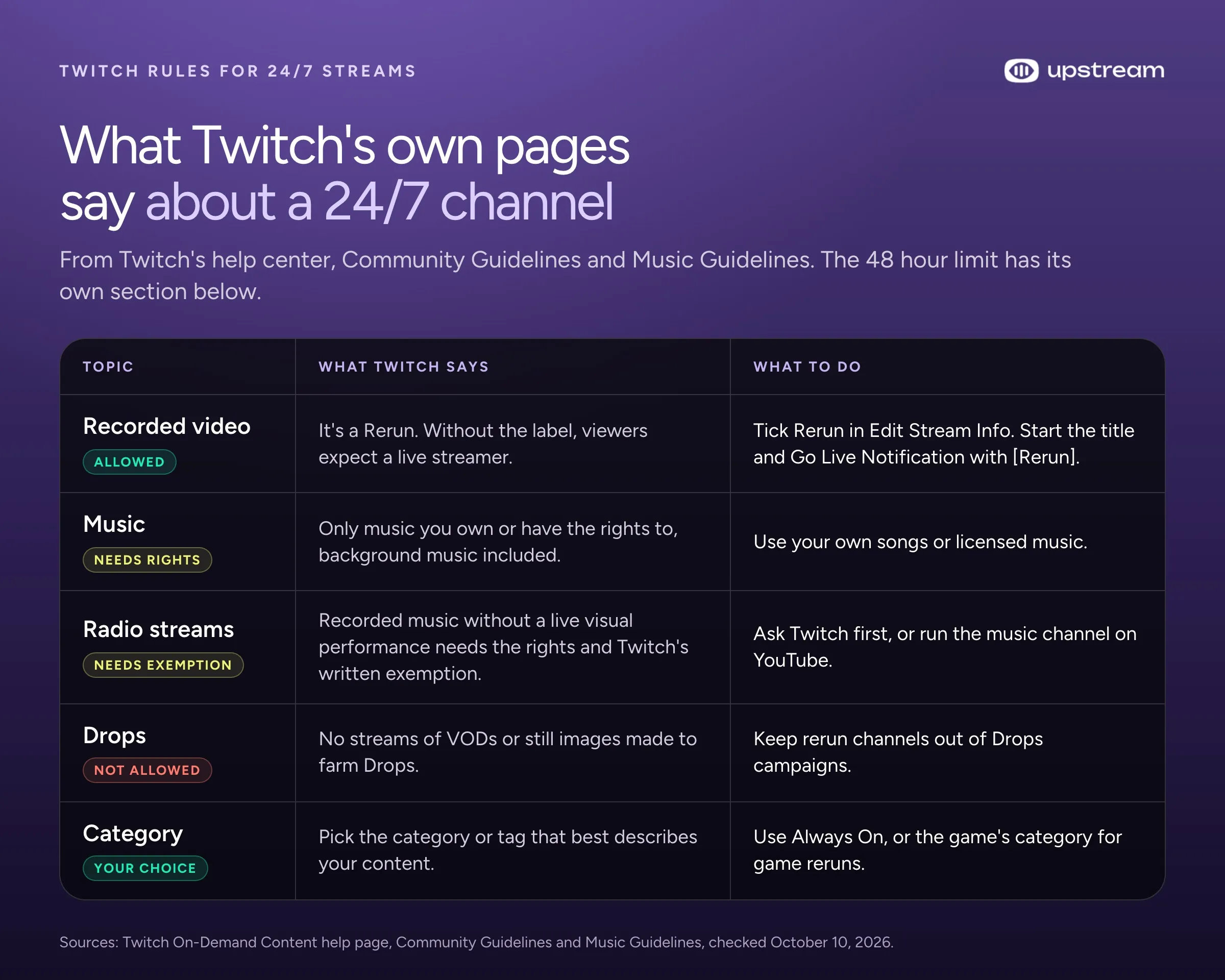
Label prerecorded video as a Rerun
Twitch calls prerecorded content a Rerun. Its On-Demand Content help page asks you to label it in three places:
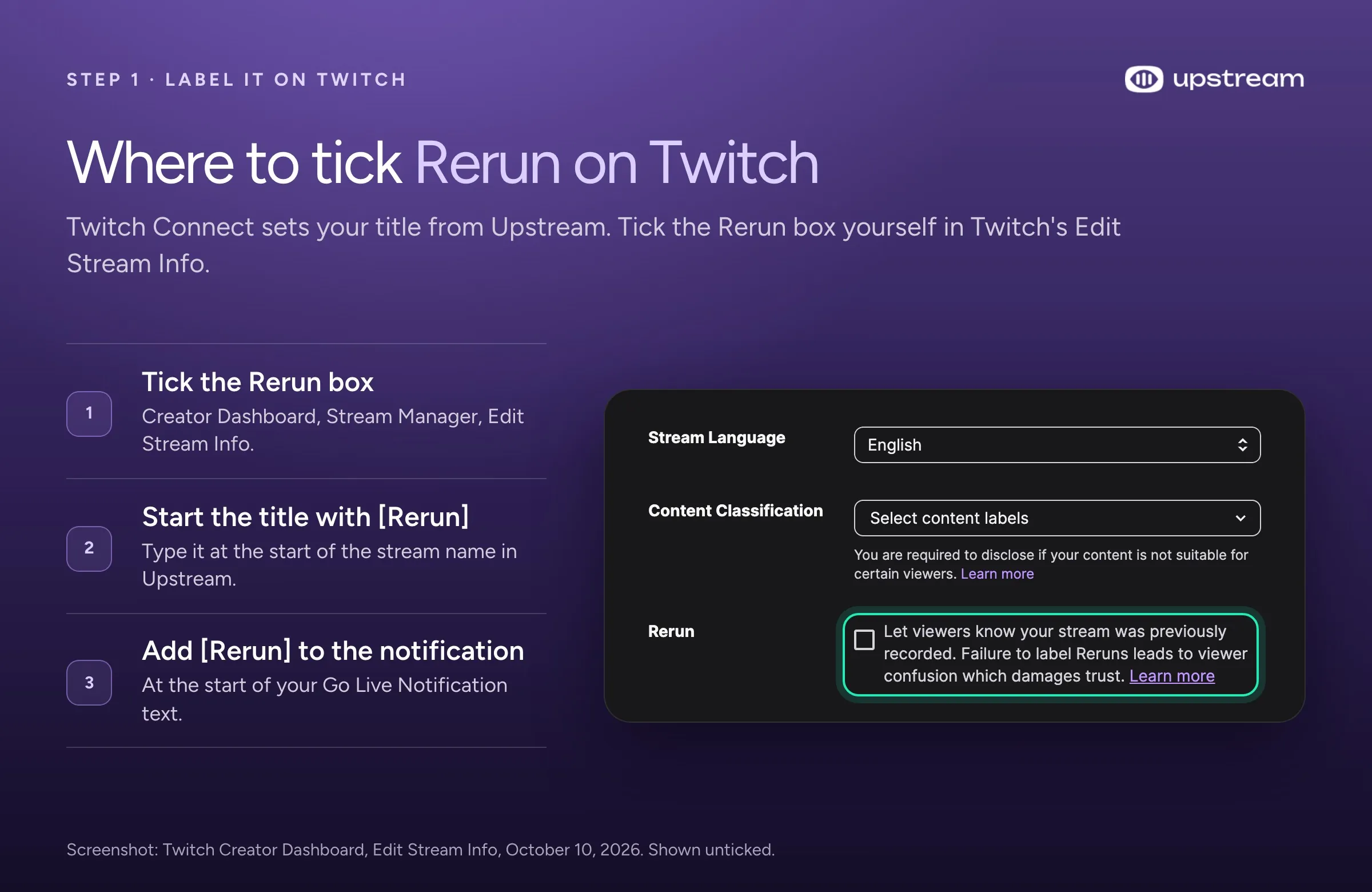
- Tick the Rerun checkbox in the Edit Stream Info panel.
- Start your stream title with [Rerun].
- Start your Go Live Notification text with [Rerun].
The checkbox adds a Rerun tag to your stream. Twitch explains why it matters: “Without the Rerun label, your viewers expect to engage with a live streamer.” On a 24/7 channel the label also tells chat that nobody may be there to answer right away. Twitch doesn’t say whether the box stays ticked from one broadcast to the next, so check it after your first reconnect.
If you plan to rerun past streams, save them first. Twitch keeps past broadcasts for 7 days on most channels, 14 days for Affiliates and 60 days for Partners, Prime and Turbo users, and only if Store Past Broadcasts is on. Download them from the Video Producer before they expire.
Music needs rights, and radio streams need an exemption
Music has the strictest rules. Twitch’s Community Guidelines bar music you don’t own or don’t have the rights to share, and that includes music playing in the background. Buying a song or paying for a music app usually doesn’t give you those rights, the Music Guidelines add.
A radio stream that’s only music needs Twitch’s written exemption, even when you own every song. The Music Guidelines list “radio station-style broadcasts of recorded music without a live visual performance” as off limits unless you own the rights and Twitch has given your channel a written exemption first. A lofi radio over a looping animation is this case. The guidelines don’t say how to request the exemption, so ask Twitch Support before you launch.
As we read the rules, a channel where the video is the show and music sits underneath is a different format from a radio stream. If the music is the main draw, treat it as radio. Without Twitch’s written exemption, send that stream to YouTube instead (here’s whether 24/7 streaming is allowed on YouTube) and give Twitch another format.
Don’t farm Drops or pad your numbers
Drops are game rewards that viewers earn by watching a stream. Twitch’s Community Guidelines say they’re meant to be earned during live gameplay with your community. They name “using VODs or static images to stream with the core purpose of ‘Drop Farming'” as a banned example. So keep a rerun channel out of Drops campaigns. Viewership tampering, like inflating live viewer or follower counts, is banned too.
Pick the category that fits
Twitch asks you to choose the category or tag that best describes your content. Always On is where viewers browse for nonstop channels, and many 24/7 channels also add an AlwaysOn tag. A rerun of your game streams can sit in that game’s category instead, as long as it isn’t there for Drops.
Twitch’s 48 hour limit and what happens at the cut
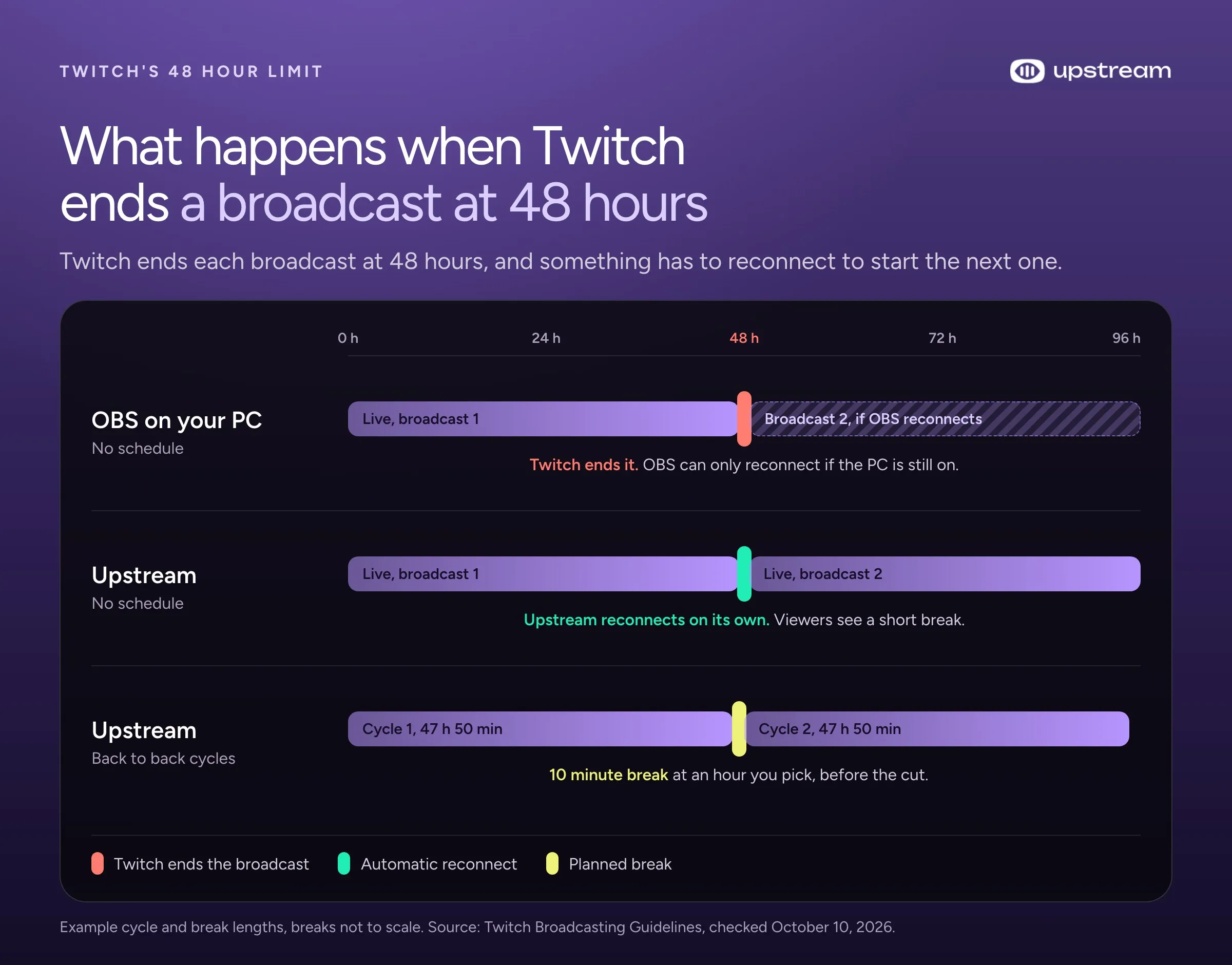
Twitch’s Broadcasting Guidelines say: “The maximum broadcast length is 48 hours. This cannot be changed.” When a broadcast reaches 48 hours, Twitch ends it. Our live streaming limits page has the caps for every platform.
So a 24/7 Twitch channel is a chain of broadcasts. After each cut, your encoder (the app that sends video to Twitch, like OBS) has to connect again, and that starts a new broadcast. Twitch doesn’t say what viewers see, and it adds that reconnection behavior may depend on the encoder. Expect a short break, a new VOD (Twitch’s saved copy of a past broadcast) and an uptime counter that starts over. Twitch also doesn’t document whether followers get a new go live notification each time.
Disconnect Protection covers short drops. It shows viewers a still image for up to 90 seconds while your encoder reconnects, so a short network problem doesn’t end the stream. Twitch names OBS Studio, Streamlabs OBS, XSplit and Twitch Studio as supported encoders, and it doesn’t say the feature covers the 48 hour cut. Turn it on in your Stream settings, with Temporary Backup Image enabled, for short network drops.
Around the cut, something has to reconnect after Twitch ends the broadcast, and it helps to choose when that happens.
Keep a Twitch channel live with Upstream
Upstream was built for channels that stay live around the clock. It plays your videos and music from its own servers, so your computer can be off, and it deals with Twitch’s 48 hour cut for you. The same stream can go to YouTube and Kick at the same time. Setup takes six steps. If you’d rather paste a stream key than sign in, see the stream key setup in our help center.
1. Connect Twitch
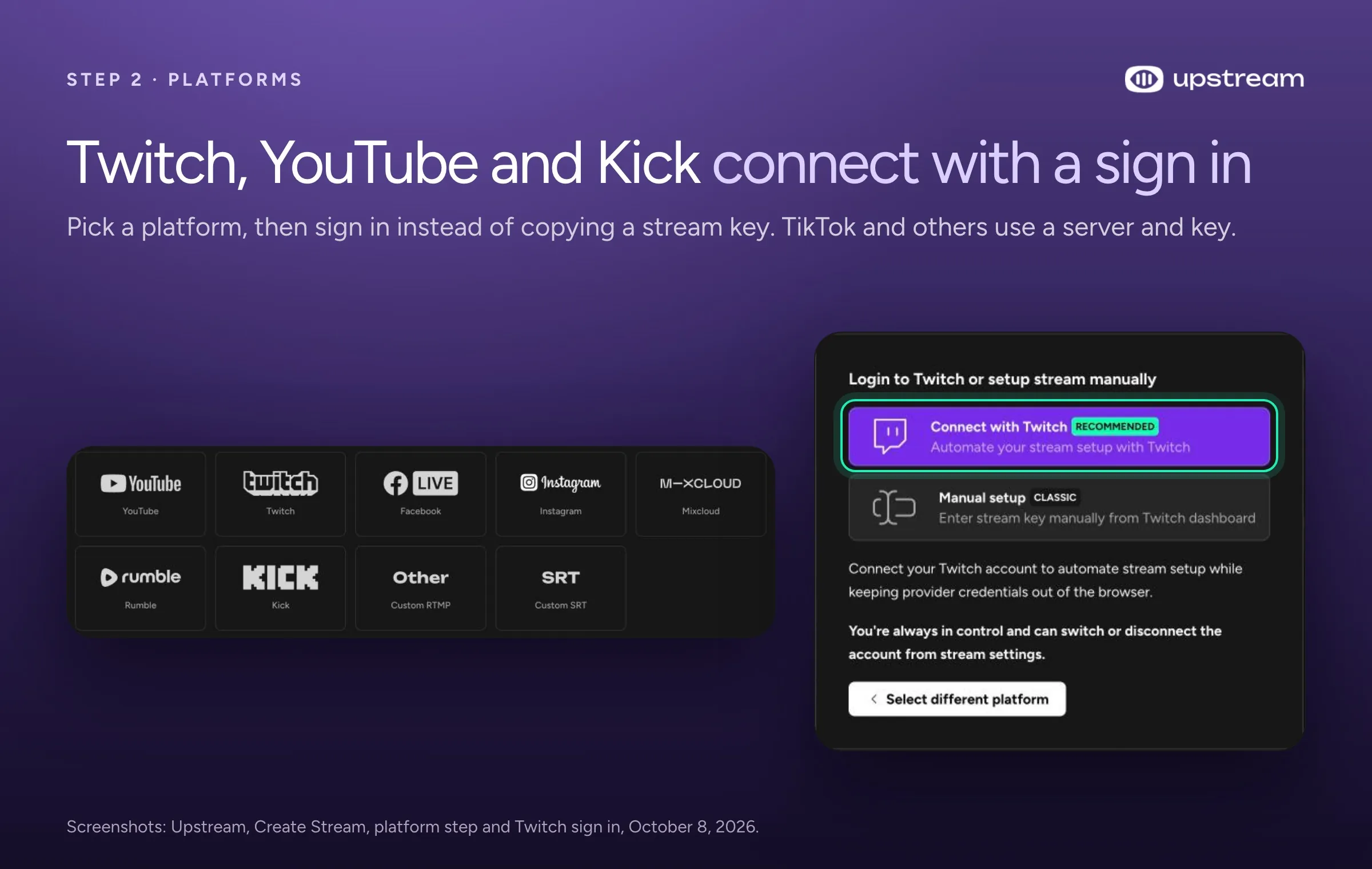
Create a free account, start a new stream and pick Twitch as the main platform. Choose Connect with Twitch and sign in, so there’s no stream key to copy or reset. With Twitch Connect, the stream name you type in Upstream becomes your Twitch title each time the stream starts, so start it with [Rerun].
Then open Edit Stream Info on Twitch, tick the Rerun box and pick your category. Upstream doesn’t tick that box for you. Add [Rerun] to your Go Live Notification while you’re there.
2. Put videos and music on separate playlists
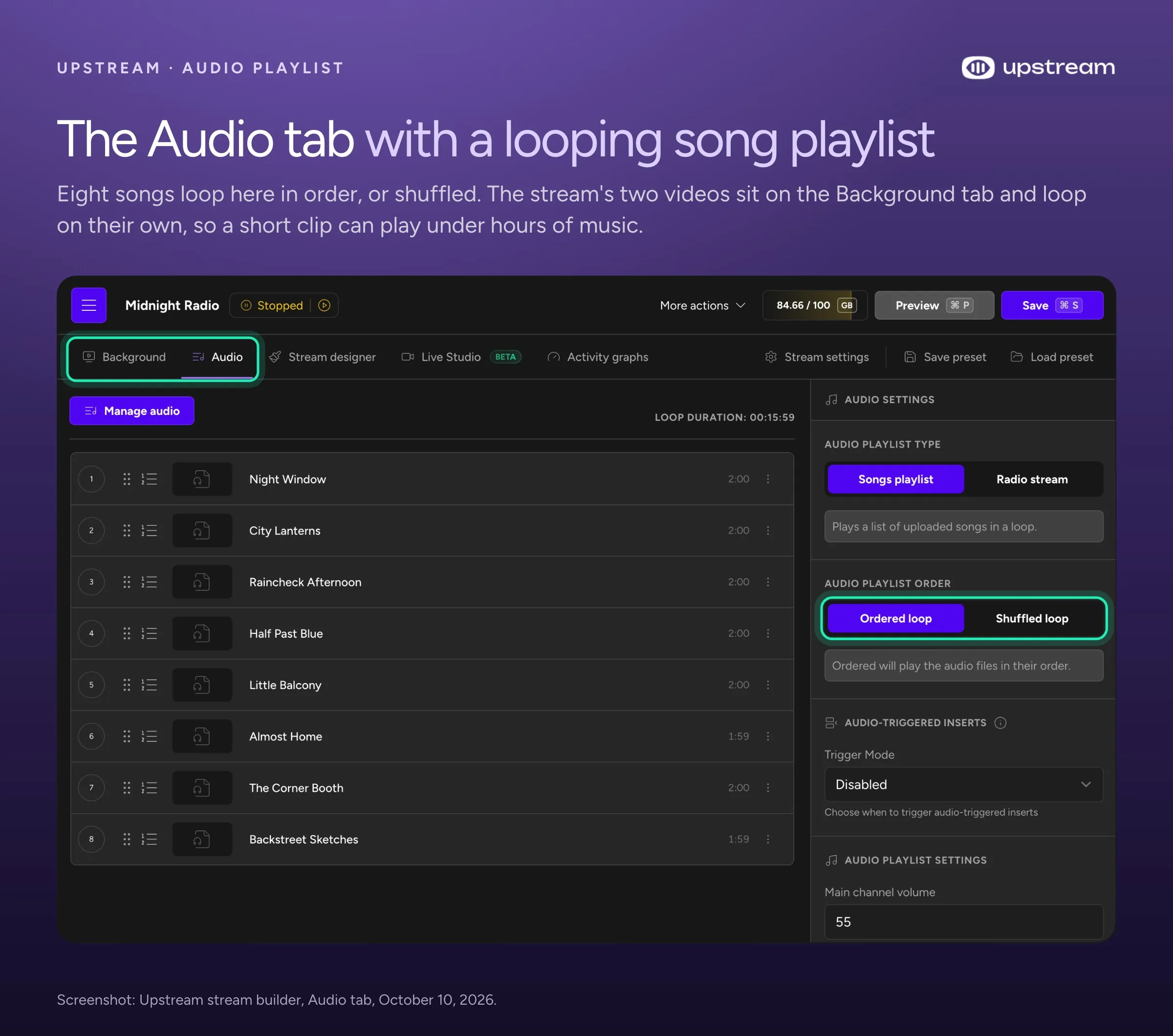
Upload videos to the Background playlist and songs to the Audio playlist. Each one loops on its own, in order or shuffled. A 10 minute clip can play under hours of music, or a run of past streams can play with their own sound. A secondary audio channel can add an ambience track, like rain or room noise, under everything. More on separate audio and video playlists.
If the audio is music, the rules above apply. A rerun channel can skip the Audio playlist, and the sound from its videos plays instead.
3. Choose how the 48 hour cut is handled
Leave it to Upstream. With no schedule, the stream runs until you stop it. At the 48 hour mark, Upstream reconnects to Twitch on its own. Viewers see a short break, and the channel carries on as a new broadcast.
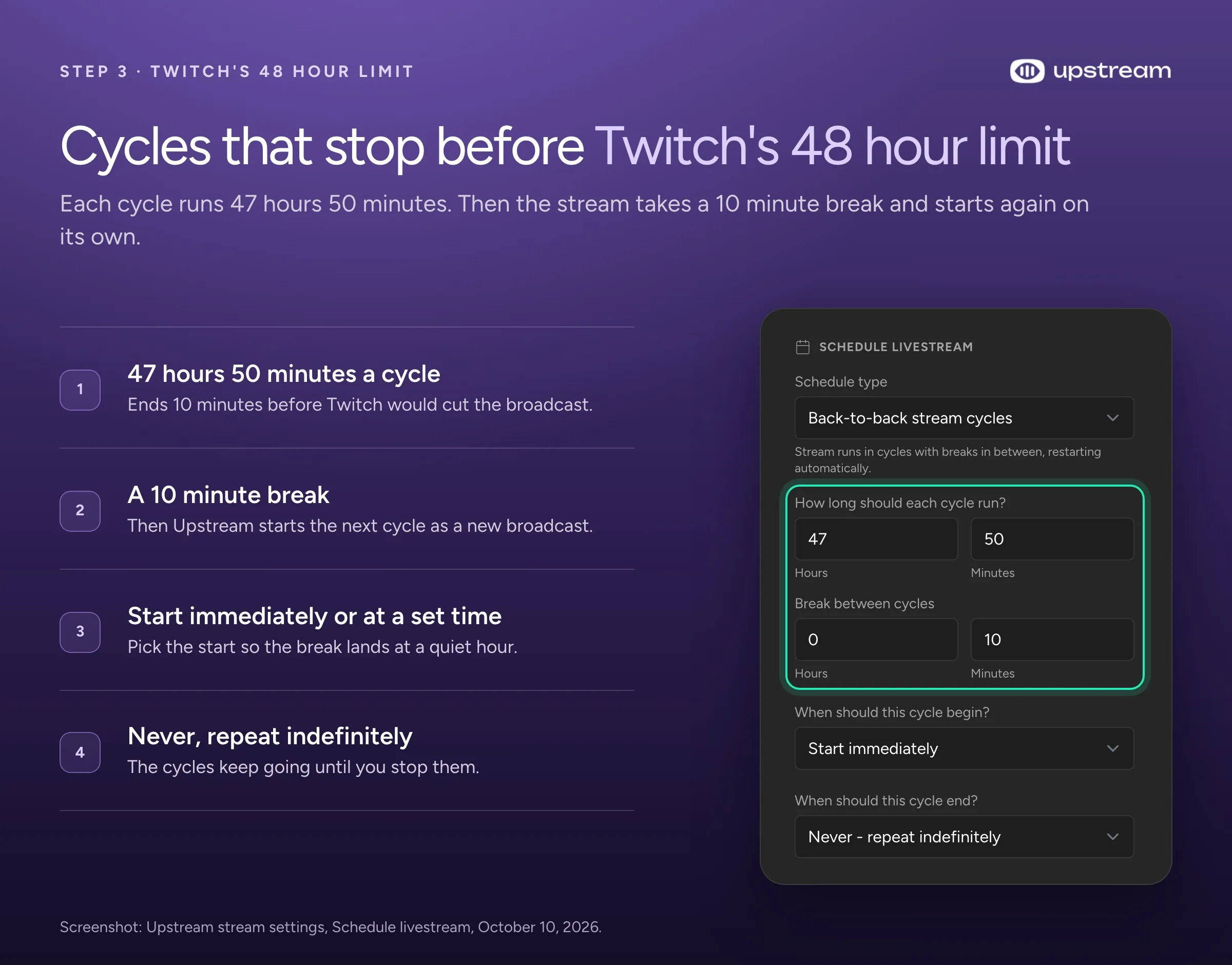
Pick the break yourself. With your playlist on loop, set the schedule type to Back-to-back stream cycles. A cycle of 47 hours 50 minutes with a 10 minute break never reaches Twitch’s limit, and the break falls at an hour you choose, like the quietest hour for your viewers. A cycle plus its break is 48 hours, so the break lands at the same time of day every other day. Set it to repeat forever and turn on Continue from where it left off, so each cycle resumes the same video at the same second. Cycles and breaks can each run from 5 minutes to 72 hours. Scheduling is included on paid plans and the free plan.
4. Add overlays
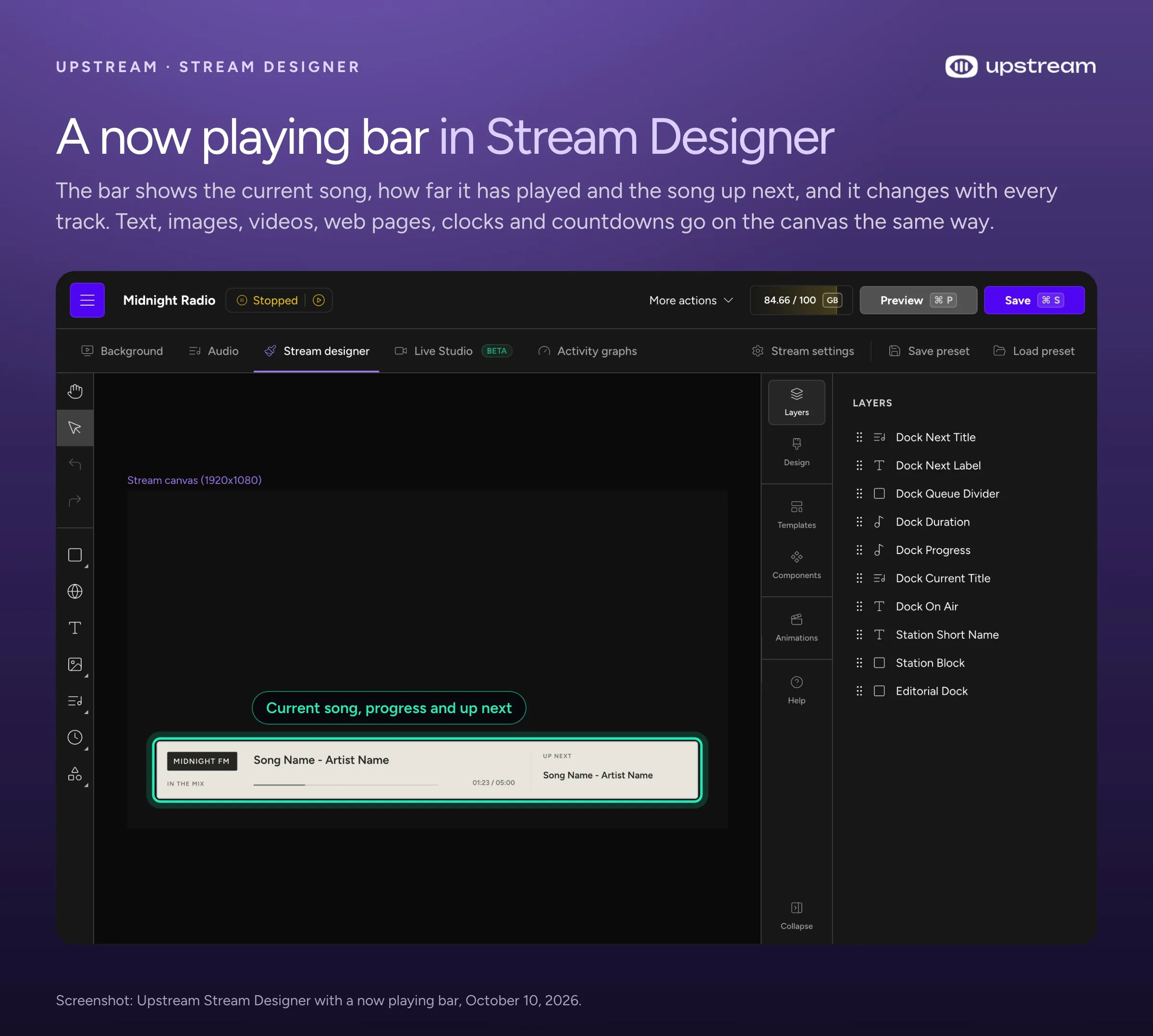
Open Stream Designer to put things over the video: your logo, a clock, a QR code, the song that’s playing and the next one. Any element can slide in every few minutes, like a follow reminder every 10 minutes, and then get out of the way. You can embed a StreamElements overlay by its link, so your Twitch alerts can show on the 24/7 stream. Edit the design while you’re live and publish it without stopping. See live stream overlays for the full list of elements.
5. Add YouTube and Kick
Add YouTube, Kick or any other destination to the same stream. Upstream sends one stream to up to 10 of the 30+ platforms it supports, at no extra cost, and YouTube and Kick also connect with a sign in. For Twitch, keep the bitrate (how much data the stream sends each second) at 6,000 kbps or less, the top of Twitch’s guidelines. Upstream flags anything higher. YouTube asks for at least 5,000 kbps at 1080p and 30 fps, so 5,000 to 6,000 kbps works on both.
Twitch allows this. Its Terms of Service let you simulcast as long as Twitch viewers get an experience at least as good as on other platforms, including how you engage in chat. You also can’t send them away to watch somewhere else. So no “watch on YouTube” titles, banners, QR codes or chat commands on the Twitch stream. As of October 2026, Twitch’s written Terms still bar merged chat from other platforms on the Twitch stream, but Twitch CEO Dan Clancy said in February 2026 that Twitch would no longer take enforcement action for showing combined chat. More in does Twitch allow multistreaming.
Kick Partners must turn on Kick’s Multistreaming toggle when they also stream to Twitch or YouTube. Kick says “your payout will be reduced by 50%” while it’s on. YouTube has no 48 hour cut, and we run YouTube streams 24/7. It archives streams under 12 hours automatically, though. Past that, YouTube says a stream “may not be captured at all.”
6. Start it and close the laptop
Start the stream now or at a scheduled time. It runs on Upstream’s servers, so you can shut your computer down and check on it from your phone.
One last setting on Twitch: turn on AutoMod (Creator Dashboard, Moderation, Settings). It holds risky chat messages until a moderator approves them, which matters on a channel that’s live while you sleep.
Keep a live channel running 24/7.
Upload files, build a playlist, and let Upstream run continuous live playout from the cloud without OBS, a VPS, or an always-on computer.





Home PC with OBS or the cloud?
The cloud, unless you’re happy to leave a PC on all month. OBS on a home PC is the free option, and it works if you accept three costs: the PC never turns off, your upload is busy all day, and something has to reconnect every 48 hours.
In OBS, add a VLC Video source (VLC has to be installed), add your files and keep Loop Playlist on. For a single file, Media Source has a Loop option. Then check that Automatically Reconnect is on in OBS’s Advanced settings (it is by default). Test what OBS does at the 48 hour cut before you leave it alone for a weekend.
The upload and power add up. At Twitch’s 1080p 30 fps setting (4,500 kbps of video plus up to 160 kbps of audio), you upload about 4.7 Mbps around the clock. That’s about 50 GB a day, or 1.5 TB in a 30 day month. OBS sends to one service on its own, so adding YouTube and Kick takes a multistream plugin, and it triples the upload. A PC that draws 100 watts also uses 72 kWh a month. And a Windows update restart or a power cut stops OBS until you start it again.
| OBS on your PC | Upstream in the cloud | |
|---|---|---|
| Your computer | On 24 hours a day | Can be off |
| Your upload | About 4.7 Mbps per platform, all day | None once your files are uploaded |
| Twitch’s 48 hour cut | OBS has to reconnect, so test it | Upstream reconnects on its own, or you schedule the break |
| YouTube and Kick too | A plugin and another full upload for each | Up to 10 destinations from one stream |
| Power cut or update restart | The stream stops | The stream keeps running |
What a 24/7 Twitch stream costs
A 24/7 Twitch channel costs $30 a month on Upstream, or nothing in software if you run OBS at home. A 30 day month has 720 hours, so the price is the price of keeping one stream running all month.
| Option | Price | What you get |
|---|---|---|
| OBS on your own PC | $0 for software | Plus your power and upload, and a PC that stays on |
| Upstream free plan | $0, no card | 24 streaming hours a month at 1080p 30 fps, up to 10 destinations, no watermark. Enough to test a full day |
| Upstream, one stream | $30 a month, or $24 billed yearly | One 1080p 30 fps stream running 24/7 to up to 10 destinations |
| Upstream at 60 fps | $40 a month | The same at 1080p 60 fps, the top setting in Twitch’s Broadcasting Guidelines |
A second channel, like a rerun channel next to a slow TV channel, brings the total to $50 a month for both. Every plan has the same features. See pricing for more streams and yearly prices, or the free plan.
What to stream 24/7 on Twitch
These formats work within Twitch’s rules. Each one needs you to own the video and audio or have permission to use them.
- Reruns of your own streams. The most common format in Always On. Many streamers run a second channel with “247” in the name that replays past broadcasts between live sessions. Download VODs before Twitch deletes them.
- Your own show or series. A web series, a talk show, a video podcast or a cooking show becomes something people can drop into at any hour.
- Highlight loops. Cut your strongest moments into a few hours that loop, with a title that tells new viewers what they’re watching.
- Slow TV and ambience. Train rides, rain on a window, a fireplace or a city at night, from footage you shot or licensed. Leave out music you don’t own.
- Tutorials and lessons. Coding sessions, art process videos, language lessons or music theory. An overlay can show the topic and a QR code to your course.
- Event replays. Talks, matches or tournaments you own the rights to, so people who arrive between events always find something on.
- Music radio, with the exemption. Only once Twitch gives you its written exemption. Otherwise run the music channel on YouTube and give Twitch one of the formats above.
Frequently asked questions
How do I make a 24/7 Twitch stream?
Upload your videos to a cloud streaming service such as Upstream, connect Twitch, put the videos on a looping playlist and start the stream. Then label it as a Rerun on Twitch. The service keeps it running with your computer off and reconnects when Twitch ends a broadcast at 48 hours. With OBS at home, loop a playlist in a VLC Video source and leave the PC on.
What are 24/7 or Always On Twitch channels?
They’re Twitch channels that stay live around the clock, usually by playing recorded video. Always On is the Twitch category for them, and on October 10, 2026 it had 617K followers. Most rerun a creator’s past streams, others run a show catalog, music or ambience, and many add an AlwaysOn tag.
Can you rerun old streams 24/7 on Twitch?
Yes. Twitch allows reruns of your own VODs. Label them: tick the Rerun box, and start the title and the Go Live Notification with [Rerun]. Every video and song has to be yours or licensed.
Should I run 24/7 on my main channel or a second channel?
Either works under Twitch’s rules. Many streamers use a second channel with “247” in the name, so their live sessions, past broadcasts and followers stay on the main one. If you use your main channel, stop the 24/7 stream before you go live yourself, untick Rerun, and start the 24/7 stream again when you’re done.
How long can a Twitch stream be?
One broadcast can last up to 48 hours, and Twitch says that can’t be changed. A 24/7 channel is a chain of broadcasts with a reconnect at each cut. Our live streaming limits page has the caps for every platform.
Can I stream 24/7 on Twitch for free?
From your own PC with OBS, yes, if you leave the computer on and pay for the power and upload. Upstream’s free plan gives you 24 streaming hours a month with your PC off. Running all month costs $30 a month, or $24 billed yearly.
Do I need to keep my computer on?
Only if the stream runs from your computer. A cloud service plays your files from its own servers, so you can turn the computer off once the stream has started.
Can I stream 24/7 music on Twitch?
Only with the rights to every song. A stream that’s only music also needs Twitch’s written exemption, because the Music Guidelines don’t allow streams that work like a radio station without a live visual performance. The guidelines don’t say how to apply, so ask Twitch Support.
Can I run a 24/7 stream on Twitch and YouTube at the same time?
Yes. Twitch allows simulcasting as long as Twitch viewers get an experience at least as good as elsewhere and you don’t send them to the other platform. Upstream sends one stream to up to 10 of the 30+ platforms it supports, so Twitch, YouTube and Kick get the same video.
Start your 24/7 Twitch channel
Start your channel on the free plan. You get 24 hours of streaming with no card and no watermark, enough to watch it run through a full day before you pay $30 a month to keep it going.
Sources
All pages checked October 2026.
- Twitch rules: Broadcasting Guidelines (48 hour limit, bitrates), On-Demand Content on Twitch (Rerun label, VOD storage), Disconnect Protection, Community Guidelines (music, Drops, labeling), Music Guidelines (radio station style broadcasts), Terms of Service (section 11, Simulcasting), Simulcasting Guidelines FAQ, How to Use AutoMod, Adding Tags to a Stream.
- Twitch on 24/7 channels: Now streaming 24/7: CONtv, IGN, and more (Twitch Blog, November 7, 2017), Always On category (checked October 10, 2026).
- Other platforms: Multistreaming on the KICK partner program (Kick Help Center), Archive live streams (YouTube Help), OBS Studio source code for the VLC Video source and the Automatically Reconnect setting.
- Upstream: Twitch live streaming, scheduling, overlays, pricing, live streaming limits, and the help center article How to start a 24/7 Twitch live stream.