To turn a 24/7 live stream into a TV channel, replace the single playlist on loop with a real schedule. That means named shows at set times, daily and weekly repeats, live shows that cut in on time, and a TV guide that tells viewers what is on. Upstream.so Content Calendar does all of that on the stream you already run, from the cloud, on all plans including the free plan.
A looping stream plays the same mix whatever the hour. A channel has a plan. Viewers learn that the morning show starts at 7 and the live Q&A is on Wednesday at 8, so they come back at those times. Here is how to make that change in seven steps.
Step 1: Split your library into shows
A TV channel is made of shows, not one long playlist. Go through your videos and music and group them by mood, topic or audience. A lo-fi channel might have Morning Coffee, Afternoon Chill and Late Night Jazz. A church might have Worship Music, Bible Study and the Sunday Service.
In Upstream.so, a show is a Block. Open your stream, click the Content calendar tab and click New Block. Each Block has its own videos and music, so your morning show and your late night show look and sound different. Give each one a clear name and a short description, because those names later appear in your TV guide.
Step 2: Plan the day with dayparting
TV stations split the day into dayparts, such as early morning, daytime, prime time and overnight, and pick shows that fit who is watching in each one. Your channel can do the same. Calm music for the work day, a party mix on Friday night and slow tracks after midnight give viewers a reason to tune in at a certain time.
Start with the hours when most of your viewers watch. In YouTube Studio, the Audience tab shows when your viewers are on YouTube. Our dayparting guide has the classic TV dayparts and an example week for a 24/7 channel.
Step 3: Put the week on the calendar
Drag your Blocks onto the week grid at the times you planned. Set Repeat to Daily, or to Weekly on the weekdays you pick, and add an end date if a show has one. You plan a show once and it comes back on its own.
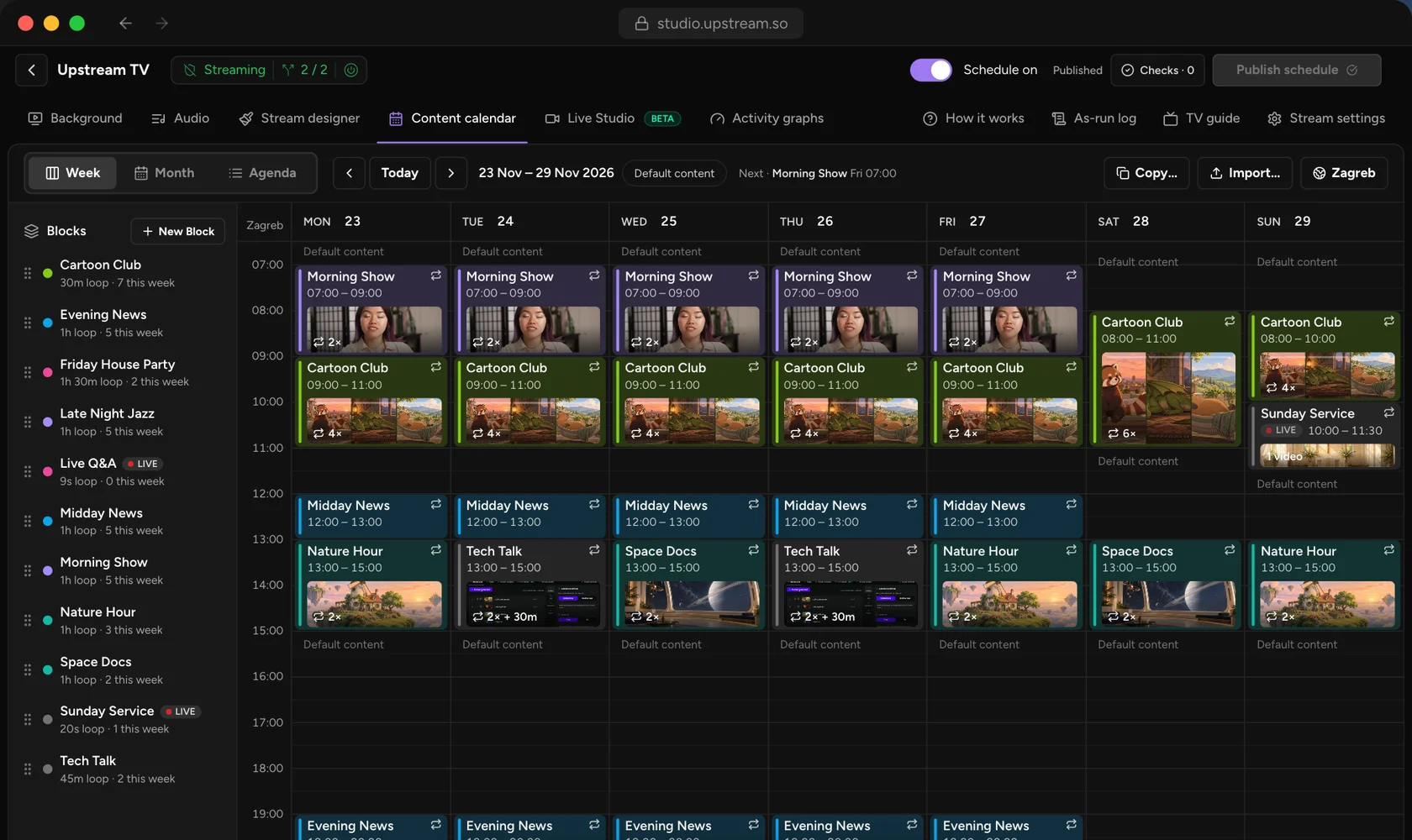
Hours you leave empty are not a problem. When nothing is booked, the stream’s normal videos and music play as default content, so the channel stays on air between shows. To change one airing for a holiday, edit just that one. To change a show for good, pick this and the following airings, or all of them.
Already plan in a spreadsheet or another playout system? Import the schedule as a CSV, M3U or XML file. You see a preview first, then click Import to draft.
Step 4: Add live shows with a backup
Live shows are what make a channel feel alive. Mark a Block as live and pick the live source. Live Studio takes OBS, a hardware encoder or guests in the browser, and a Live Feed comes in over SRT, RTSP or RTMP. At the Block’s start time, the live show takes over the same stream your viewers already watch.
The Block’s own videos are the backup. If you start a few minutes late, they play until you go live, so viewers never see a black screen. When the live slot ends, the schedule carries on.
Step 5: Publish a TV guide
Real TV channels have a guide. Turn on the public TV guide link in Upstream.so and your schedule becomes an XMLTV feed, the format FAST platforms such as Samsung TV Plus and Pluto TV read for their electronic program guide. You choose one guide entry per Block or one per video, and each entry carries the show’s name, description and category.
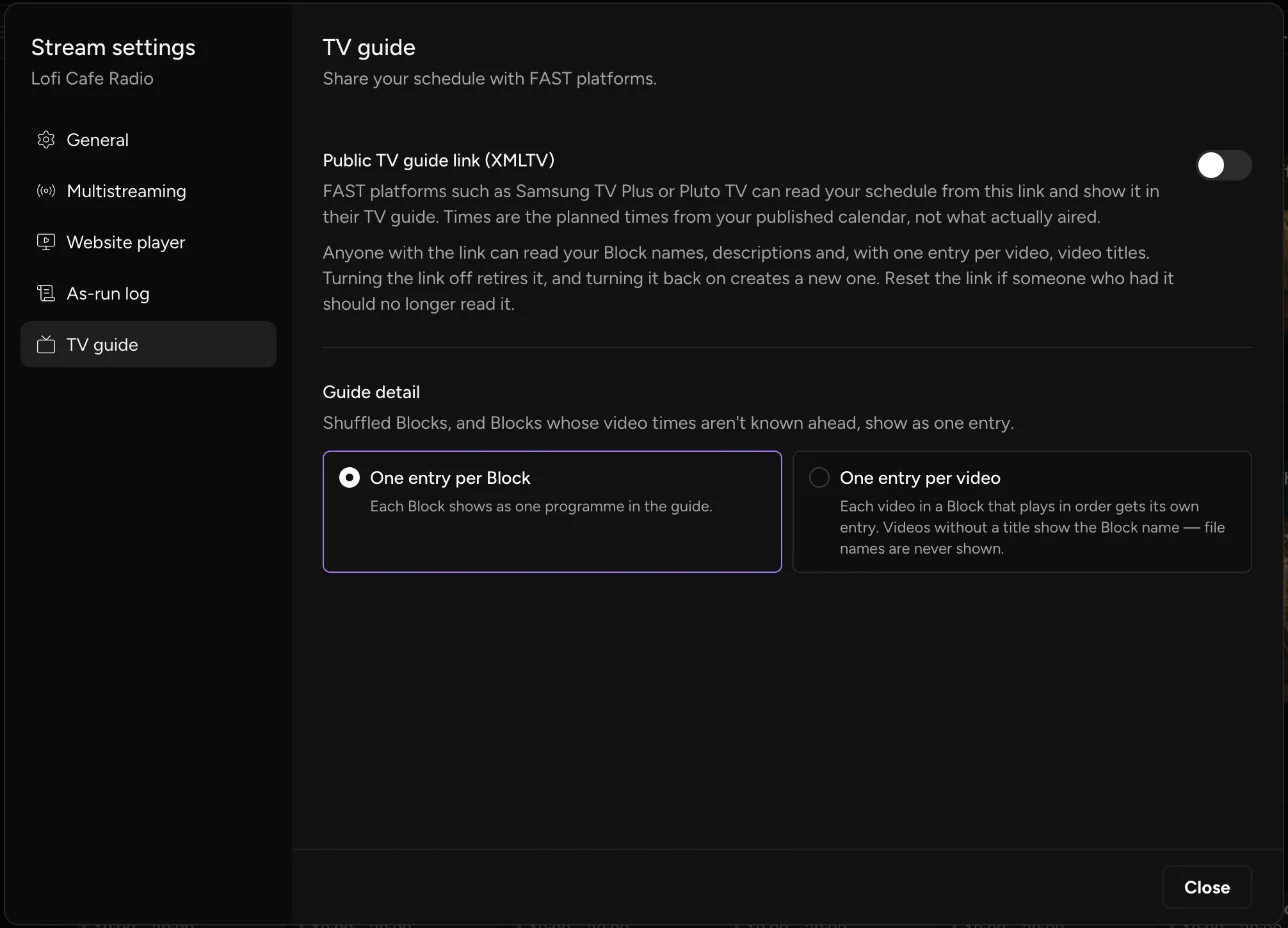
The feed covers the past day and the next seven days, straight from your published calendar. Our guide to XMLTV and EPG for FAST channels explains what goes in it, and the FAST channels guide covers how those services work.
Step 6: Send the channel everywhere
A TV channel wants to be seen. Upstream.so sends the same programmed stream to up to 10 platforms at once, chosen from 30+, so YouTube, Twitch, Kick and Facebook all show the same schedule. With the Website Player add-on, the channel also plays on your own site from one embed code, with no platform ads.
Add the Now/Next overlay so viewers see which show is on and what comes after it. The channel runs on our dedicated servers, so it keeps to the schedule with your computer off.
Step 7: Publish and check what aired
Every change you make goes into a draft, so you can plan next month while this week stays on air. Before you publish, Upstream.so runs Checks for overlapping shows, empty Blocks and files that are still processing. Click Publish schedule and the new week goes live.
After that, the as-run log shows what really aired: the scheduled start, the actual start, how long each airing ran and its status. Download it as a CSV for sponsors, partners or your own reports. Upstream.so keeps a year of history.
Broadcast scheduling without a broadcast budget
Broadcast scheduling software has long been sold to TV stations. Veset’s cloud playout for FAST channels, for example, starts at $499 per channel per month. Upstream.so gives you the calendar, the TV guide, live slots, multistreaming, Live Studio and overlays on one stream for $30 a month, or $24 a month billed yearly.
Broadcasters who want a managed setup around the channel can look at cloud playout. For a full tour of the calendar, see the Content Calendar page.
Build your first week of shows, publish it, and watch your 24/7 stream start acting like a channel.
Keep a live channel running 24/7.
Upload files, build a playlist, and let Upstream.so run continuous live playout from the cloud without OBS, a VPS, or an always-on computer.





Frequently asked questions
Can I create my own TV channel for free?
Yes. The Upstream.so free plan includes Content Calendar, the TV guide link and multistreaming, with 24 hours of streaming each month and no card. Paid plans run the channel 24/7 from $30 a month per stream.
What is broadcast scheduling software?
It is software that plans what a channel plays and when, then plays it on time. Upstream.so Content Calendar does this for 24/7 streams, with repeats, live slots, a TV guide feed and an as-run log.
Can a 24/7 TV channel include live shows?
Yes. In Upstream.so, a live Block takes over the 24/7 stream at its start time from Live Studio or a Live Feed, and its own videos play as backup until you go live.
How do I get my channel on Samsung TV Plus or Pluto TV?
Those services add channels through their own partner programs or through distributors. They need a stream and a guide feed, and Upstream.so gives you the guide feed as a public XMLTV link.
Does my computer need to stay on?
No. Upstream.so plays the channel from the cloud, so the schedule runs with your computer off.