Upstream.so
Upstream.so
  • Product
  • Features
  • Platforms
  • Resources
  • Pricing
Login Sign up for free
Guides

Dayparting for 24/7 Streams: How TV Programs a Day and How to Copy It

Written by Mario Jankovic November 19, 2026 · 7 min read
  1. What dayparting is
  2. The classic dayparts
  3. Dayparting a 24/7 YouTube or Twitch channel
  4. Repeats, live slots and backup
  5. Set it up in Upstream.so Content Calendar
    1. Background playlist order
    2. Video Fit
  6. Frequently asked questions
    1. What is dayparting?
    2. What are the main TV dayparts?
    3. What does dayparting mean in advertising?
    4. Can a 24/7 YouTube stream play different shows at different times?
    5. Which time zone should a 24/7 channel use?

Dayparting is splitting a day into blocks of time, such as morning, afternoon and late night, and programming each block for the people who watch then. TV networks have planned their days this way for decades. A 24/7 YouTube or Twitch stream can do the same, so the channel feels different at 7 a.m. than at midnight and viewers learn when to come back.

If scheduled channels are new to you, our linear TV guide covers the basics first.

What dayparting is

A daypart is a slice of the broadcast day with its own audience. In the morning, people get ready for work and want news and weather. In the afternoon, kids get home from school. In the evening, the biggest crowd of the day sits down to watch. A station that knows who is watching at each hour can put the right show in front of them.

Dayparting is the plan that follows. The station gives each block a job, picks shows that fit it, and repeats the pattern day after day. Viewers learn the pattern. They know the morning show starts at 7 and the movie starts at 8, so they tune in on time.

The word also shows up in advertising. There, dayparting means running ads only at chosen hours, like a food delivery ad shown around dinner time. The idea is the same: match the message to the time of day.

The classic dayparts

US television splits the day into about seven dayparts. The hours below are Eastern Time and shift a little by network and market, but the shape is the same everywhere.

DaypartTypical hours (ET)What airs
Early morning6 to 9 a.m.Morning news, weather and talk
Daytime9 a.m. to 4 p.m.Talk shows, game shows, soap operas
Early fringe4 to 7 p.m.Local and national evening news, reruns
Prime access7 to 8 p.m.Game shows and entertainment news
Prime time8 to 11 p.m.The biggest dramas, comedies and live events
Late night11 p.m. to 1 a.m.Late news and talk shows
Overnight1 to 6 a.m.Reruns, movies and paid programming

Prime time is the block TV networks care about most. It draws the largest audience, so it gets the biggest shows and the highest ad prices. In the Central time zone it runs an hour earlier, from 7 to 10 p.m.

Radio has its own dayparts built around the commute: morning drive, midday, afternoon drive, evening and overnight. Morning drive is radio’s prime time, because that is when the most people listen.

Dayparting a 24/7 YouTube or Twitch channel

A 24/7 stream has the same problem a TV station had: the people watching at 8 a.m. are not the people watching at 2 a.m. One playlist on loop treats them the same. Dayparting gives each part of the day its own mood, and it gives regular viewers a reason to come back at a set time.

Start with your own numbers. In YouTube Studio, the Audience tab has a chart called When your viewers are on YouTube. Plan your blocks around the busy hours, in the time zone where most of your viewers live.

Here is an example week for a lo-fi music channel. Weekdays follow work and school, Friday night turns into a party, weekends start slower, and two live shows give fans a fixed time to show up.

TimeMon to ThuFridaySaturdaySunday
7 to 10 a.m.Morning CoffeeMorning CoffeeWeekend BrunchWeekend Brunch
10 a.m. to 4 p.m.Afternoon ChillAfternoon ChillDefault contentDefault content
4 to 6 p.m.Study With Red PandaStudy With Red PandaAfternoon ChillAfternoon Chill
6 to 10 p.m.Evening Jazz, with a live Q&A on Wednesday at 8Friday House PartyEvening JazzSunday Reset, live
10 p.m. to 7 a.m.Late Night JazzLate Night JazzLate Night JazzLate Night Jazz

Each name in the table is a show with its own videos and music. Morning Coffee can use warm café art and soft jazz, while Late Night Jazz uses dark city scenes and slower tracks. Someone who finds the channel at midnight gets a different stream from someone who finds it at lunch, and both get one that fits the hour.

The same idea works for any kind of channel. A kids channel can run cartoons in the morning and calmer shows before bed. A church can run worship music all week and a live service on Sunday morning. A general channel can run news and cartoons in the morning and documentaries after lunch, like the week below.
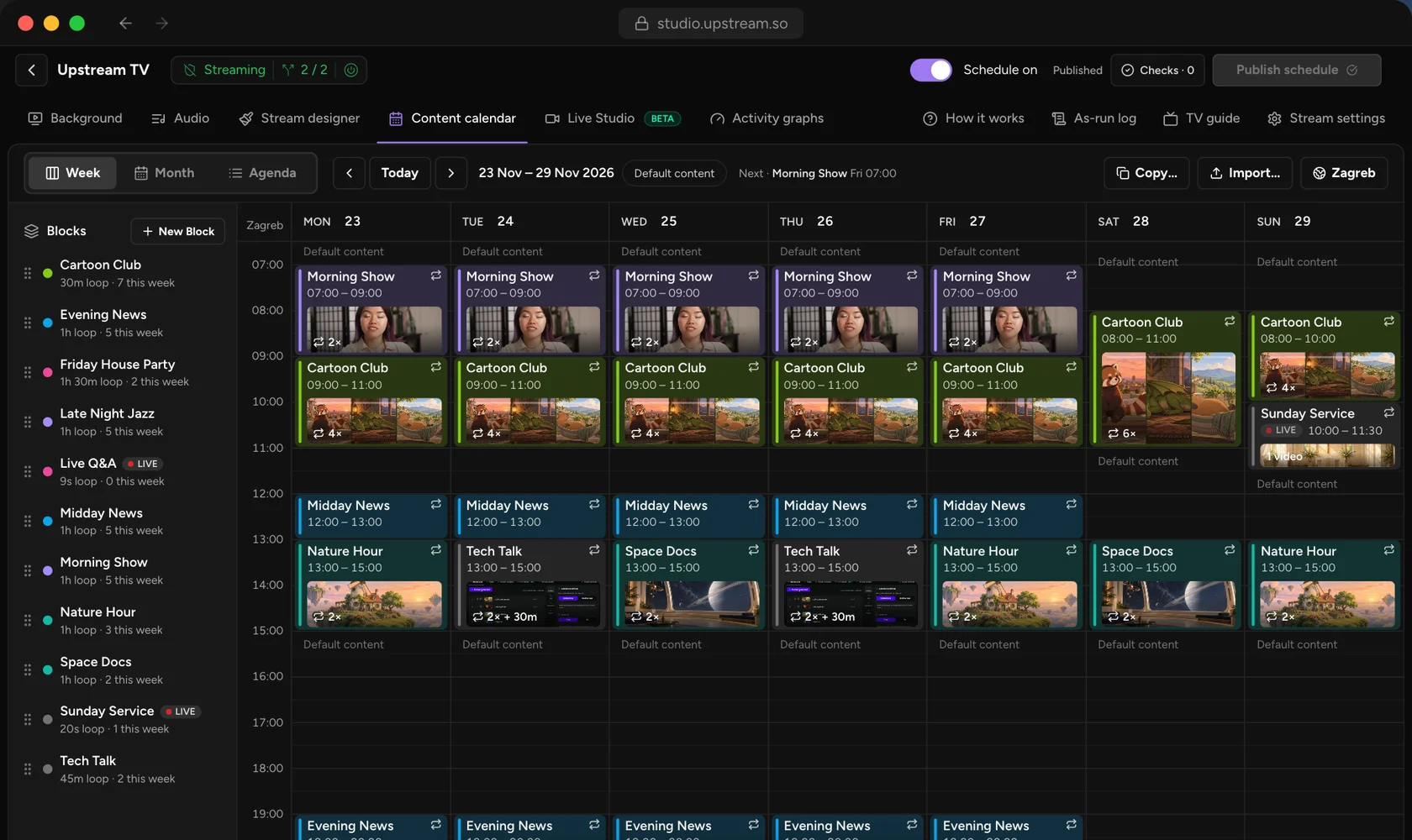
The Upstream.so Content Calendar week view for a sample TV channel: Morning Show, Cartoon Club and Midday News on weekday mornings, Nature Hour, Tech Talk and Space Docs after lunch, Cartoon Club and a live Sunday Service at the weekend, and Default content in the empty hours
TV-style dayparts on one week: news and cartoons in the morning, documentaries after lunch, a live show on Sunday.

Repeats, live slots and backup

A daypart plan only works if it is easy to keep. Nobody wants to place Morning Coffee by hand 365 times a year. In Upstream.so you set a show to repeat Daily, or Weekly on the weekdays you pick, with an end date or none at all.

Plans change, too. A holiday special can replace one airing without touching the rest. When you edit a repeating show, you choose whether the change applies to this airing only, to this and the following airings, or to all of them.
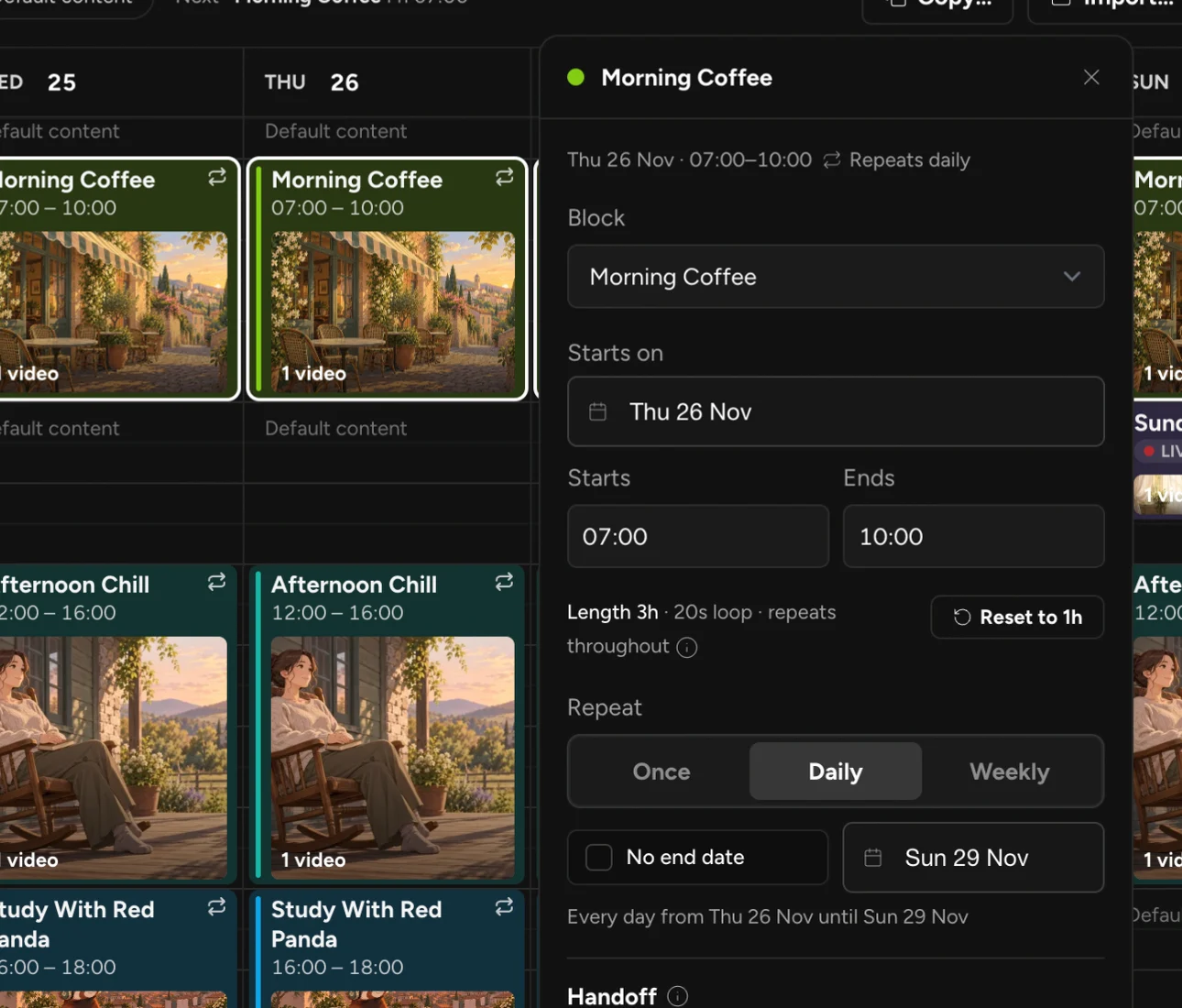
The airing popover in Upstream.so for a Morning Coffee show from 07:00 to 10:00, with Repeat set to Daily and an end date of Sun 29 Nov
Set a show once, then pick Daily or Weekly and an end date if it has one.

Live slots are where dayparting pays off. A weekly Q&A or a Sunday live set gives fans a time to put in their calendar. In Upstream.so, a live Block takes over the same 24/7 stream at its start time. The live source can be Live Studio, with OBS, a hardware encoder or guests in the browser, or a Live Feed over SRT, RTSP or RTMP.

Until you go live, the Block’s own videos play as backup, so a late start never leaves viewers staring at a black screen. Gaps between shows are covered the same way: when nothing is booked, the stream’s default content plays and the channel stays on air.

Set it up in Upstream.so Content Calendar

Content Calendar comes with all Upstream.so plans, the free plan included. The schedule runs in the cloud, so the channel keeps to it with your computer off. Here is how to daypart a channel from the start.

  1. Open your stream in Upstream.so, click the Content calendar tab and set the calendar time zone to where most of your viewers live. Daylight saving time is handled for you, so a 7 a.m. show stays at 7 a.m. all year.
  2. Click New Block for each daypart and add its videos and music. A Block is one show, like Morning Coffee or Late Night Jazz.
  3. Drag the Blocks onto the week. Set Repeat to Daily or Weekly, pick the weekdays and add an end date if the show has one.
  4. For a live slot, mark the Block as live and pick Live Studio or a Live Feed. Its videos become the backup.
  5. Keep the stream’s normal videos and music in place. They play as default content in any hour you leave empty.
  6. Look over the Checks. Upstream.so flags overlapping shows, empty Blocks and files that are still processing. Then click Publish schedule.

Changes go into a draft first, so you can plan next month while this week stays on air. Add the Now/Next overlay and viewers see the current show and what comes after it. Upstream.so sends the channel to up to 10 platforms at once, chosen from 30+, so the same dayparts run on YouTube, Twitch and the rest. The Content Calendar page has the full tour.

Want the channel on FAST platforms too? Turn on the public TV guide link and Upstream.so publishes your dayparts as an XMLTV feed. Our guide to XMLTV and EPG for FAST channels covers that step, and the FAST channels guide explains how those services work. Broadcasters who want a managed setup can look at cloud playout.

Start with one week of dayparts, watch which blocks hold viewers, and build the schedule out from there.

24/7 live streaming

Keep a live channel running 24/7.

Upload files, build a playlist, and let Upstream.so run continuous live playout from the cloud without OBS, a VPS, or an always-on computer.


Sign up for free Explore 24/7 streaming
Manage backgroundLoop duration: 02:26:1403:08:42
1 Night owl40:04
2 Country train daydream53:32
3 Late night sax52:38
4 Windmill sunset42:28
SettingsChatDestinationsTriggers
Background Settings

Background playlist order

Ordered loopShuffled loop
Ordered will play the background files in their order.Shuffle will play a random background file from the list.

Video Fit

CropFit
Background will be cropped to fill the entire canvas if the aspect ratio doesn't match.

Frequently asked questions

What is dayparting?

Dayparting is splitting the day into time blocks and programming each block for the audience that watches then. TV, radio and 24/7 streams use it to put the right show on at the right hour.

What are the main TV dayparts?

Early morning, daytime, early fringe, prime access, prime time, late night and overnight. Prime time, from 8 to 11 p.m. Eastern, draws the biggest audience.

What does dayparting mean in advertising?

It means running ads only at chosen hours or on chosen days, when the target audience is most likely to see them and act.

Can a 24/7 YouTube stream play different shows at different times?

Yes. Upstream.so Content Calendar puts shows on a week grid with daily or weekly repeats, live slots and default content in between. It runs in the cloud with your computer off, on all plans, the free plan included.

Which time zone should a 24/7 channel use?

Use the time zone where most of your viewers live. YouTube Studio’s Audience tab shows when they watch. Upstream.so handles daylight saving time, so shows keep their local start times all year.
Published November 19, 2026
Mario Jankovic

About the author

Mario Jankovic

Product and Engineering

Mario Jankovic co-founded Upstream.so and runs product and engineering. He writes about running live streams from the cloud: 24/7 channels, multistreaming and Live Studio, and what we learn building them.

Keep exploring

Further reading

Browse all articles
How to Turn Your 24/7 Live Stream Into a TV Channel
Nov 19, 2026 Guides

How to Turn Your 24/7 Live Stream Into a TV Channel

Read article
11 Gyre Alternatives for 24/7 Prerecorded Video Loops (2026)
Nov 12, 2026 Guides

11 Gyre Alternatives for 24/7 Prerecorded Video Loops (2026)

Read article
YouTube Live Stream Keeps Stopping? OBS and 24/7 Fixes
Nov 12, 2026 Guides

YouTube Live Stream Keeps Stopping? OBS and 24/7 Fixes

Read article

Start streaming today

Go live on up to 10 of 30+ platforms, run a 24/7 channel, and produce live shows in your browser, with no software or server setup.

No credit card 24 hours/month free Full functionality
Start Streaming Free
24/7 Live Streaming Run cloud channels that stay live around the clock. Live Studio Invite guests, share screens, and add branded overlays in the browser. Multistreaming Send one live feed to YouTube, Twitch, Kick, and RTMP endpoints. Pre-recorded Live Streaming Upload pre-recorded videos & Go Live without the stress of live production. Free plan 24 hours a month with no watermark. Multi-channel streaming Separate live channels from one account. Enterprise Setups for teams, labels and agencies. About Upstream.so Who we are and how Upstream.so works.
Content CalendarNew Plan your 24/7 stream like a TV channel. Live Studio AppsNew Put your chat in the show, inside Live Studio. Overlays Layers and widgets in Stream Designer. RTMP server Stream in from OBS or any encoder. Multichat Every platform's chat in one feed. Stings, jingles and ads Inserts that play between your videos. Scheduling Streams that start and end on their own. Playback controls Skip or play any file while you stay live. Team access Invite your team, each with their own role. Backup streams A standby feed if your main one drops. Audio and video playlists Loop music and visuals separately. Media library & storage Organize files and cloud uploads. Live Streaming API Run streams, media and queues from code. MCP Server Manage streams from your AI assistant. Website player Embed your live stream on your site. All features Everything Upstream.so does, on one page.
YouTube live streaming Twitch live streaming Kick live streaming Facebook live streaming Instagram live streaming TikTok TikTok live streaming Rumble live streaming Mixcloud live streaming Up to 10 of 30+ Plus any custom RTMP or SRT destination.
Platform limits Bitrate and duration caps for each platform. Integrations Setup guides for OBS, vMix, cameras and more. VTuber Streaming Go live with your avatar on up to 10 of 30+ platforms.
Blog Guides, platform rules and news for anyone who goes live. Guides Setup guides for 24/7 streams, multistreaming and RTMP. Release Notes The new features in each Upstream.so update, in one place. Free Tools Video, audio, thumbnail and AI tools, plus camera and mic checks. Helpdesk Step by step setup help and troubleshooting for Upstream.so. Service status Current service health, uptime history and incident updates. Live Streaming FAQ Short answers to what people ask before they go live. Compare Upstream.so Upstream.so side by side with Restream, StreamYard and others. Latest post YouTube Dual Stream: What the Vertical Copy Does and How to Turn It Off
Always-on 24/7 Live Streaming Run cloud channels that stay live around the clock.
Explore
Real-time live Live Studio Invite guests, share screens, and add branded overlays in the browser.
Explore
One stream, up to 10 of 30+ platforms Multistreaming Send one live feed to YouTube, Twitch, Kick, and RTMP endpoints.
Explore
Schedule & Automate Pre-recorded Live Streaming Upload pre-recorded videos & Go Live without the stress of live production.
Explore
Free plan 24 hours a month with no watermark.
Multi-channel streaming Separate live channels from one account.
Enterprise Setups for teams, labels and agencies.
About Upstream.so Who we are and how Upstream.so works.
Content CalendarNewPlan your 24/7 stream like a TV channel. Overlays Layers and widgets in Stream Designer. Multichat Every platform's chat in one feed. Stings, jingles and ads Inserts that play between your videos. Scheduling Streams that start and end on their own. Playback controls Skip or play any file while you stay live. Team access Invite your team, each with their own role. Backup streams A standby feed if your main one drops. Audio and video playlists Loop music and visuals separately. Media library & storage Organize files and cloud uploads.
Live Studio Apps
RTMP server
Live Streaming API
MCP Server
Website player
All features
YouTube live streaming. 24/7 channels with midroll ads. Twitch live streaming. Streams restart on their own at 48 hours. Kick live streaming. Stay live with your computer off. Facebook live streaming. Schedule lives that start on their own. Instagram live streaming. Go live from your browser or the cloud. TikTok TikTok live streaming. Go live on TikTok and Instagram at once. Rumble live streaming. Add Rumble to your YouTube or Kick stream. Mixcloud live streaming. DJ sets and radio shows from your browser. Up to 10 of 30+ Plus any custom RTMP or SRT destination.
Platform limits Bitrate and duration caps for each platform.
Integrations Setup guides for OBS, vMix, cameras and more.
VTuber Streaming Go live with your avatar on up to 10 of 30+ platforms.
Blog
Guides
Release Notes
Free Tools
Helpdesk
Service status
Live Streaming FAQ
Compare Upstream.so
YouTube Dual Stream: What the Vertical Copy Does and How to Turn It Off YouTube Dual Stream: What the Vertical Copy Does and How to Turn It Off
Upstream.so

Run your streams from the cloud

Free plan: 24 streaming hours a month, no card, no watermark.

4.6 · 245 reviews on Trustpilot
Legal entity
Zukunft d.o.o.
Registered address
Grožnjanska ulica 32, 10000 Zagreb, Croatia
Company VAT ID
Company VAT ID: HR62560895839
About | Contact us | Tools | Content standards | Security | Privacy Policy | Terms of Service | Affiliate terms | Legal notice |

Product

  • Pricing
  • Upstream.so Features Overview
    • Multistreaming
    • Media Library & Storage
    • Website Player
    • Separate Audio and Video
    • Overlays: Stream Designer
    • Live Streaming Studio
    • Live Studio Apps
    • Scheduling & Automation
    • Content Calendar
    • Live Playback Controls
    • Play Stings, Jingles and Ads
    • Team Access
  • Enterprise Broadcasting Solutions

Resources

  • Helpdesk
  • Service status
  • Live Streaming FAQ
  • Blog
  • Release Notes
  • Live Streaming API
  • MCP Server
  • Free Live Streaming
  • YouTube Live Streaming
  • RTMP Server
  • Supported Platforms
  • Live Streaming Limits
  • Integrations

Compare us

  • Compare Upstream.so
    • Upstream.so vs Runnel.live
    • Upstream.so vs OneStream
    • Upstream.so vs Live247
    • Upstream.so vs Gyre
    • Upstream.so vs Streaming Bots
    • Upstream.so vs Restream
    • Upstream.so vs StreamYard
    • Upstream.so vs LiveReacting
    • Upstream.so vs Playout.video

Free tools

  • Design tools
  • Video tools
  • Audio tools
  • AI tools
  • Setup checks

Use cases

  • For Creators
  • For Music Labels
  • Church Streaming
  • VTuber Streaming
  • Multi-Channel Streaming

© 2026 Upstream.so. All rights reserved.