An EPG, or electronic program guide, is the on-screen TV guide that shows viewers what is on now and what comes next. An XMLTV feed is a standard XML file that carries a channel’s schedule to the apps that draw that guide. If you run a FAST channel, the guide feed is how your show names, times and descriptions reach services such as Samsung TV Plus and Pluto TV.
You do not need broadcast software to make one. Upstream.so builds the XMLTV feed straight from the schedule you plan in its Content Calendar.
What an EPG is
An EPG is the grid of channels and times you see on a smart TV or in a streaming app. Each row is a channel. Each cell is a program, with a title, a start and end time, and usually a short description and a category. Viewers scroll the grid to pick something to watch, and the app uses the same data to show the current title when someone lands on a channel.
On FAST services the guide works like a shop window. Viewers flip through channels the way they did with cable, and a clear title can be the reason they stop on yours. “Morning Show, 7:00 to 9:00, news and weather to start the day” gives them something to choose. The platform gets that information from you, the channel operator, as a guide feed.
What an XMLTV file contains
XMLTV is a plain XML format for TV listings. It comes from an open-source project of the same name, and many guide systems read it. A file has one root element, <tv>, with two kinds of entries inside: channels and programmes. XMLTV uses the British spelling, so the tag is <programme>.
Here is a short feed for a sample channel with two shows on a Monday morning:
<?xml version="1.0" encoding="UTF-8"?>
<tv>
  <channel id="northside-tv">
    <display-name>Northside TV</display-name>
  </channel>
  <programme start="20261123070000 +0000" stop="20261123090000 +0000" channel="northside-tv">
    <title>Morning Show</title>
    <desc>News and weather to start the day.</desc>
    <category>News</category>
  </programme>
  <programme start="20261123090000 +0000" stop="20261123110000 +0000" channel="northside-tv">
    <title>Cartoon Club</title>
    <desc>Classic cartoons for kids.</desc>
    <category>Kids</category>
  </programme>
</tv>
Here is what each part does:
- <channel> names the channel once. Its
idis the key the rest of the file points to, anddisplay-nameis the name a guide can show. - <programme> is one entry in the guide. Its
channelattribute must match the channel’s id. - start and stop are written as year, month, day, hours, minutes and seconds, then the offset from UTC.
20261123070000 +0000means 7:00 a.m. UTC on November 23, 2026. - <title>, <desc> and <category> hold the show name, a short description and a genre such as News or Kids.
The format also has optional fields for episode numbers, ratings, images and more. Titles, times, descriptions and categories are the core that viewers read in the grid.
What FAST platforms ask for
FAST platforms and distributors set their own delivery specs, so the partner’s onboarding documents are the final word. Most ask for some version of the same things:
- A live stream of the channel that runs around the clock.
- A guide feed with the channel’s schedule, so its programs appear in the TV guide. XMLTV is a common format for it.
- Titles and descriptions for the shows, plus artwork such as a channel logo.
- Ad break markers, when the channel carries ads in the stream.
The guide has to match the stream. If the feed says a cooking show starts at 6 p.m. and the stream plays cartoons, the viewers who tuned in for the cooking show leave. That is why the guide should come from the same schedule that drives playout, not from a spreadsheet someone updates by hand. New to the model? Our FAST channels guide explains how it works.
Build the guide from your Upstream.so calendar
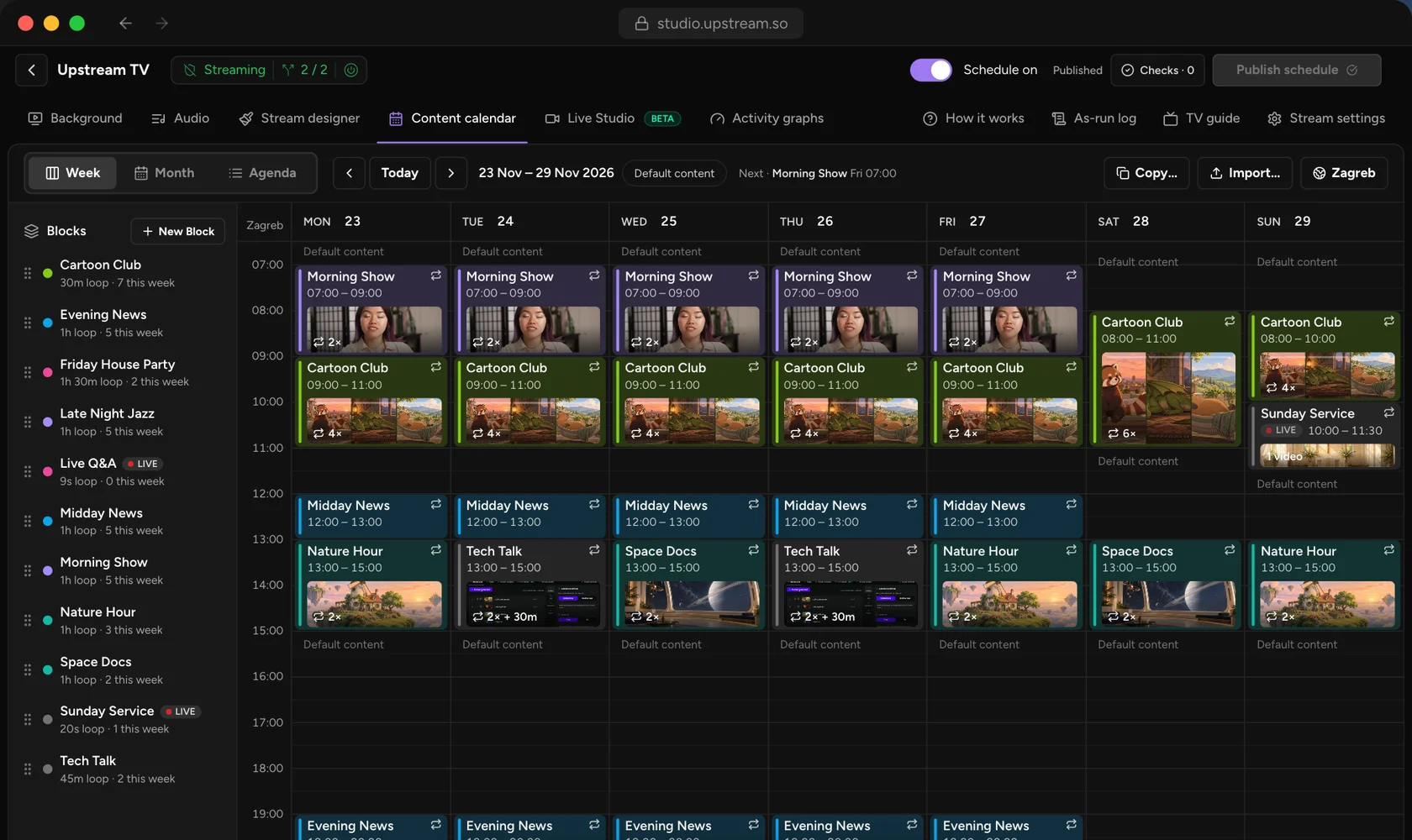
Upstream.so Content Calendar is where you plan the channel. Shows are Blocks on a week grid, with daily or weekly repeats and live slots. The TV guide link turns that plan into an XMLTV feed with no extra tool. It comes with all plans, the free plan included.
- Plan the week in the Content calendar tab. Give your Blocks clear names, descriptions and categories, because those go into the guide. If you have not mapped out your day yet, our dayparting guide walks through it.
- Click Publish schedule. The guide reads your published calendar, so drafts stay private until you publish them.
- Open TV guide in the calendar, or go to Stream settings > TV guide, and turn on Public TV guide link (XMLTV).
- Pick the guide detail. One entry per Block lists each show as one programme. One entry per video gives each video in an in-order Block its own entry.
- Copy the link and send it to your FAST partner or guide provider.
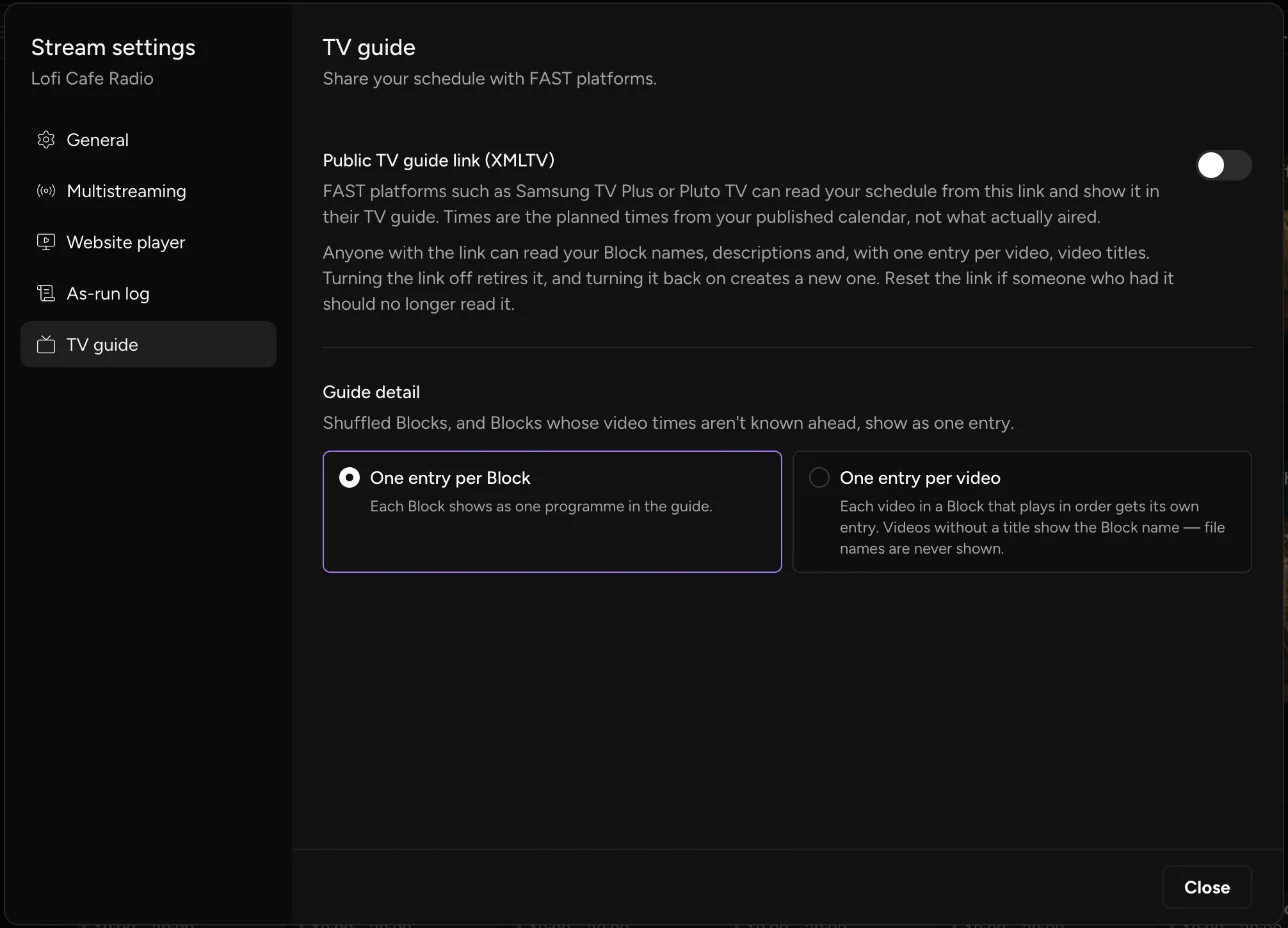
The feed covers the past day and the next seven days. Entries carry the show’s name, description and category. A video with no title shows its Block’s name, so raw file names never reach the guide. When you publish a change to the calendar, the guide follows it.
Send the link to your FAST partners and guide providers. Reset link gives you a fresh one whenever you need it.
Already plan the channel in a spreadsheet or another playout system? Import the schedule as a CSV, M3U or XML file, check the preview, and click Import to draft. The Upstream.so API and MCP server can build and update the schedule too.
Keep the guide accurate
The guide shows planned times, and the as-run log shows what really aired. Upstream.so keeps both, and comparing them is how you prove the channel kept its schedule.
The as-run log lists the airings with their scheduled start, actual start, how long they ran and their status. Download it as a CSV for a distributor, an advertiser or your own reports. Upstream.so keeps a year of that history.
A few habits keep the guide and the stream in step:
- Read the Checks before you publish. They flag overlapping shows, empty Blocks and files that are still processing, so you fix a broken show before it reaches the guide.
- Give live slots backup videos. If a live show starts late, the Block’s videos play until you go live, and viewers still see the show the guide promised.
- Set the calendar time zone once. Upstream.so handles daylight saving time, so guide times stay right when the clocks change.
- Add the Now/Next overlay, so viewers on YouTube and Twitch see the same show names that FAST viewers see in the guide.
Broadcasters who want a managed setup around the channel can look at cloud playout. For the rest of the feature, from repeats to live slots, see the Content Calendar page.
Plan the week, publish it, and send your partners one link. Upstream.so runs the channel in the cloud with your computer off, and the same schedule can go to up to 10 platforms at once, chosen from 30+.
Keep a live channel running 24/7.
Upload files, build a playlist, and let Upstream.so run continuous live playout from the cloud without OBS, a VPS, or an always-on computer.





Frequently asked questions
What is XMLTV?
XMLTV is an XML file format for TV listings. It lists channels and programmes with start and stop times, titles, descriptions and categories, and many guide systems and FAST platforms can read it.
What is the difference between an EPG and XMLTV?
The EPG is the guide viewers see on screen. XMLTV is one file format that delivers the schedule data behind it.
Does a FAST channel need an EPG?
Yes. FAST platforms show channels in a TV guide grid, so they need schedule data for yours, usually as a guide feed. Platforms set their own format and delivery rules.
How far ahead should a TV guide feed go?
Follow your partner’s spec. The Upstream.so TV guide link covers the past day and the next seven days, built from your published calendar.
Can I make an XMLTV feed without broadcast software?
Yes. Upstream.so Content Calendar turns your schedule into a public XMLTV link with one switch, on all plans, the free plan included.