Are you a streamer looking to grow beyond the platform you started on? Multistreaming can be the most direct way to do it, since it puts the same broadcast in front of several audiences without doubling your work.
Still, multistreaming brings platform rules, setup decisions, and a few technical risks worth knowing first.
How Does Multistreaming Actually Work?
Multistreaming lets you stream to multiple platforms at once, and you may also see it called simulcasting.
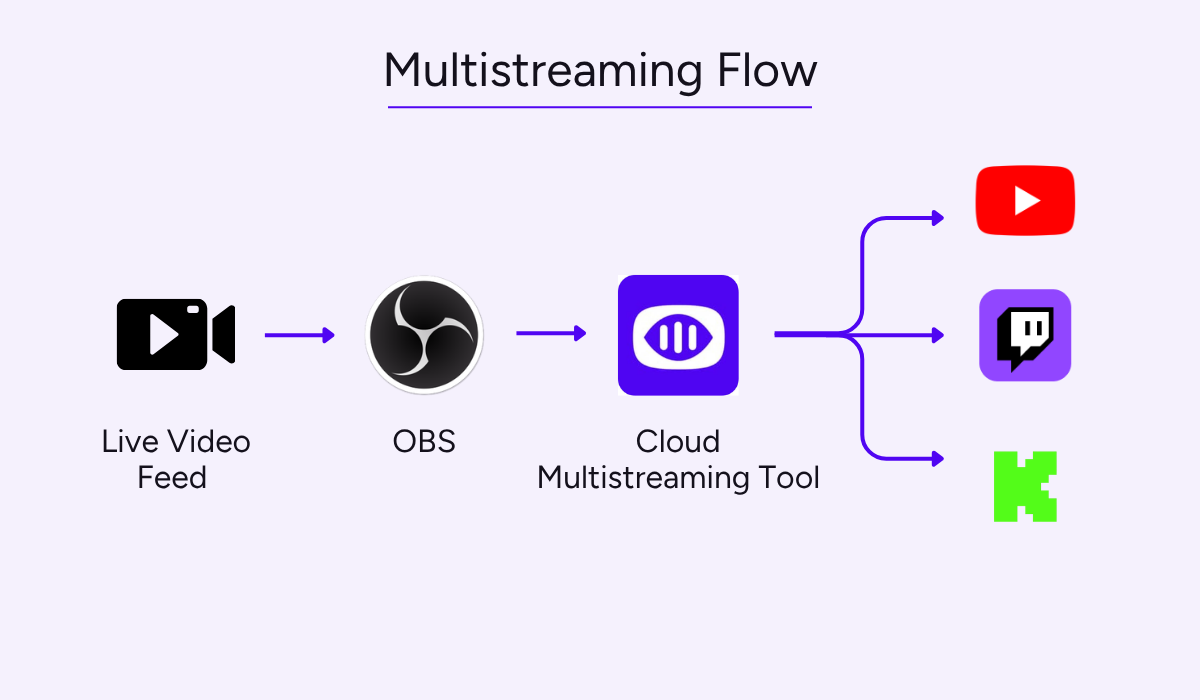
The exact workflow depends on where the stream is duplicated. One common setup is shown below.
Source: Upstream
The essential parts stay the same in every flow.
You need a video source, such as a camera, screen capture, or a pre-recorded video, as well as an encoder that converts it into a format the platforms accept, something to duplicate the stream, and the destinations that receive it.
You pick the platforms, connect each account, and the software delivers a copy of the broadcast to those platforms.
It’s worth knowing that platforms set different multistreaming rules, and they are not interchangeable.
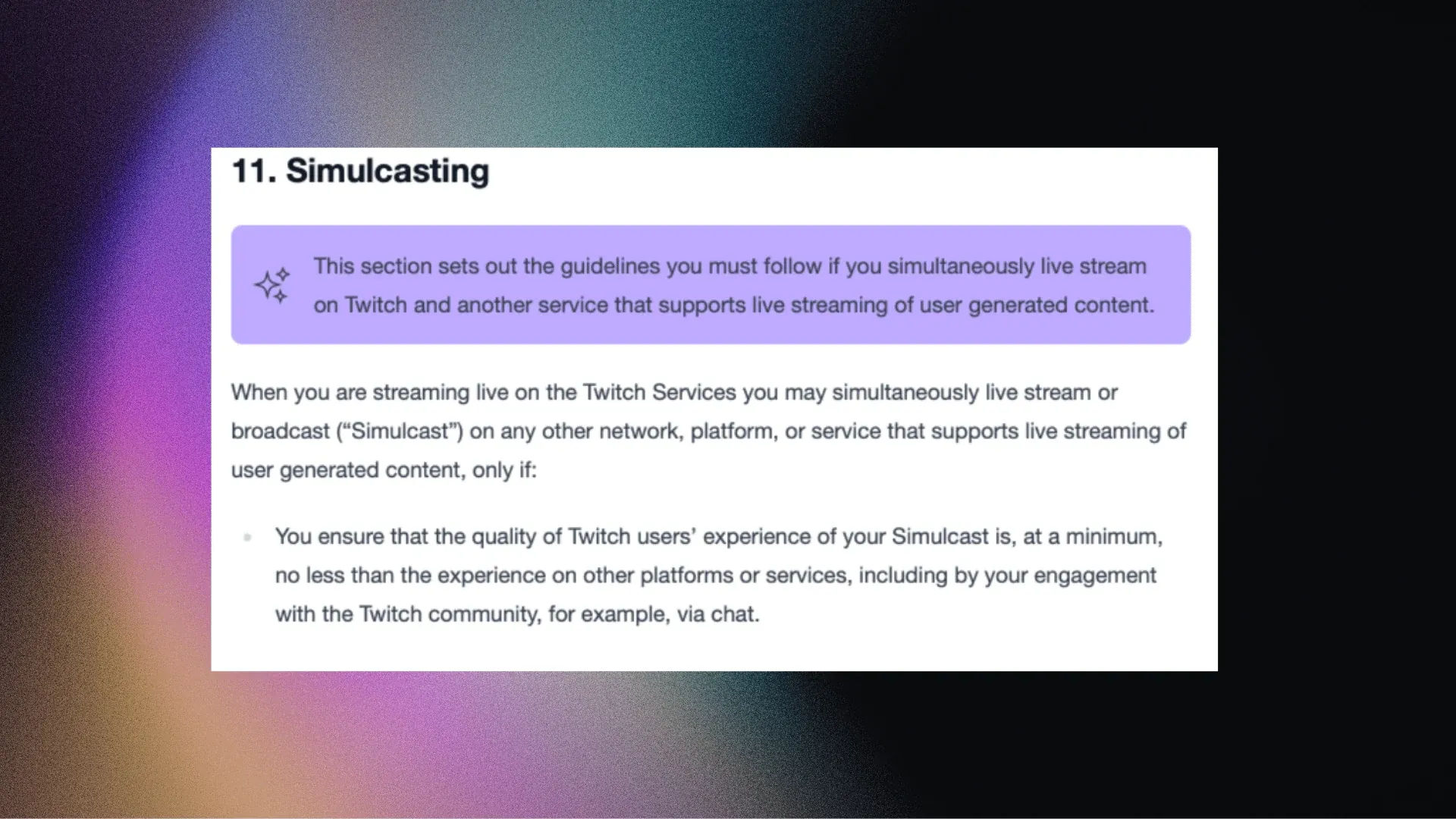
For example, Twitch sets out its conditions in section 11 of its terms of service.
Source: Twitch
One of the conditions covers quality, asking that Twitch viewers get an experience no worse than viewers elsewhere.
This just means not to treat Twitch as a secondary audience, with lower bitrate, worse quality or not replying to Twitch chat.
Specific requirements like these vary between platforms. So, before you multistream, read what rules apply first.
So, What are the Benefits of Multistreaming?
Multistreaming has several clear advantages compared to single-platform streaming.
Let’s look at three main ones.
Wider Audience Reach
A clear benefit is the wider audience you reach for the same work.
You’re on several platforms at once, so a viewer who never opens Twitch can find you on YouTube or Kick.
Every destination you add is another place your broadcast can appear in recommendations, notifications, and search.
The opportunities differ by platform, and the chart below shows how live viewing was split last year.
Stream Hatchet, a live streaming analytics firm, counted 36.4 billion hours of live viewing in 2025, and Twitch took 19.2 billion of them.
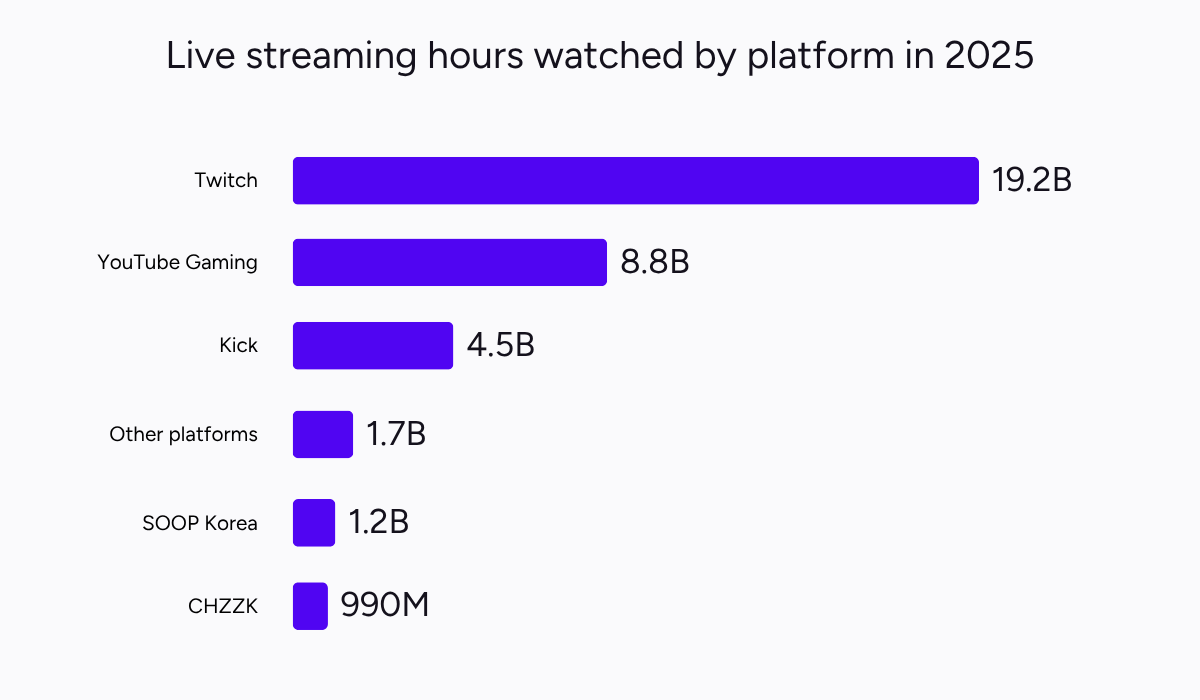
Illustration: Upstream / Data: Stream Hatchet
Of course, the type of audience matters as much as the size.
Generally, Twitch audiences build around long, regular broadcasts and active chat, while YouTube viewers often discover streams via search or watch them on demand.
One broadcast can serve two viewing habits at once. So you get wider reach and a more varied audience from one session.
That’s why some established streamers have moved this way, including TimTheTatman aka Timothy John Betar, who put it plainly, according to Sportskeeda.
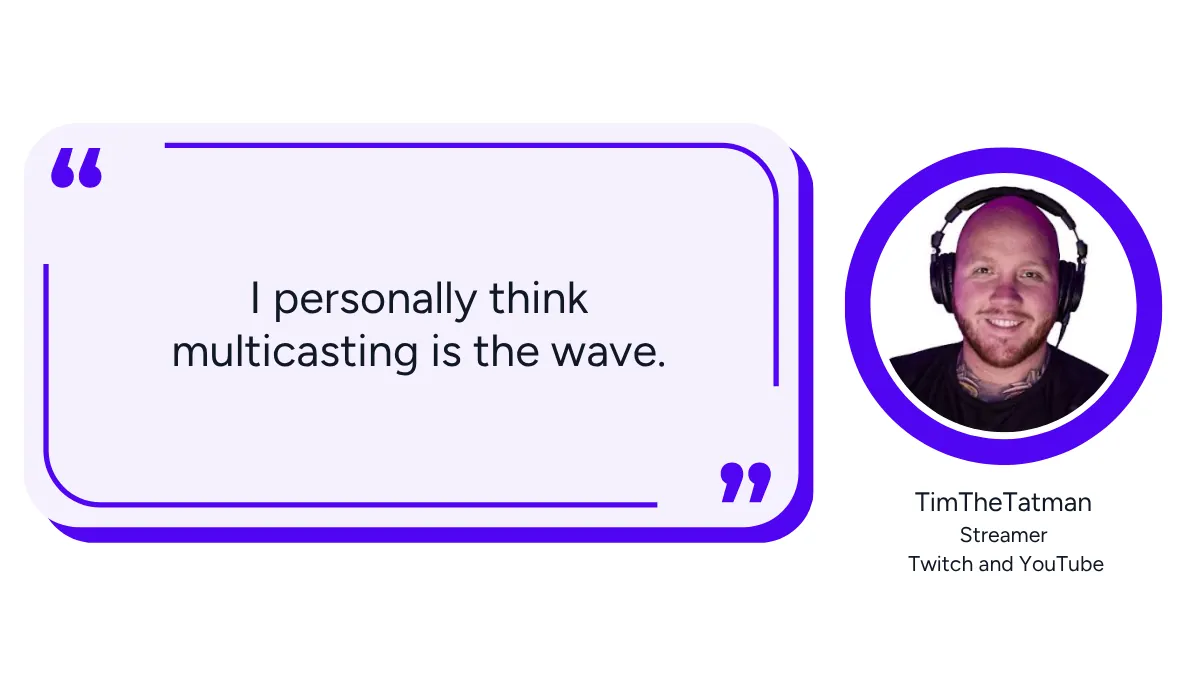
Illustration: Upstream / Quote: Sportskeeda
Back in 2024, TimTheTatman returned to Twitch while continuing to stream on YouTube, and told newer creators to do the same.
His reasoning was that you cannot know which platform your audience will come from, so being on more than one removes the guesswork.
For anyone building a channel, that is the practical case: more places to be found, and more kinds of viewers.
More Efficient Content Distribution
A second benefit is how much less work it takes to be present in several places.
For growth, you want your content distributed quickly and in as many places as your audience already watches, which is the point Or Perry made in StreamElements’ 2024 year in review.
Illustration: Upstream / Quote: StreamElements
Perry is the chief executive of StreamElements, which builds overlay, alert, and chat tools for streamers, and he was explaining why the list of leading Twitch channels changed that year.
His argument was that creators use different platforms for different jobs, with some serving discovery and others serving the community they already have.
With multistreaming, one production session can reach all of them at the same time.
You prepare the show, check your equipment, and go live once instead of reproducing the same broadcast separately for each platform.
Some platform-specific work still remains. Titles, descriptions, thumbnails, scheduling, promotion, moderation, and post-stream content may need to be adapted for each destination.
Still, the time you save can go somewhere more useful, such as editing short-form clips from the recording for TikTok, Shorts, and Reels.
More Monetization Opportunities
With multiple platforms, you also increase the number of ways your channel can earn.
Each service runs its own monetization system, so a viewer on one platform can support you in a way that isn’t available on another.
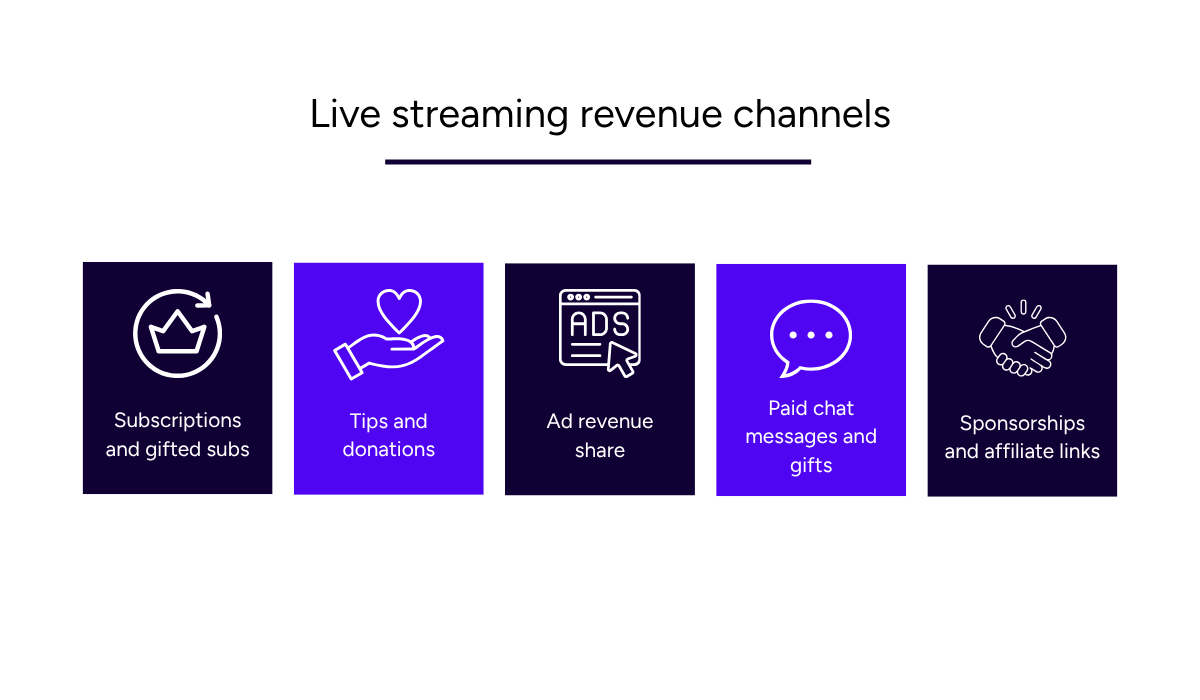
Think about how many different ways a single stream can make money once it reaches more than one destination.
Source: Upstream
Multistreaming gives you access to several of these monetization systems.
Some platforms suit some revenue types better than others.
Eligible YouTube creators can earn revenue from ads shown during their live streams, while Kick offers creators a larger share of subscription revenue.
You need to be careful, though, because in some cases multistreaming can reduce what a platform pays you.
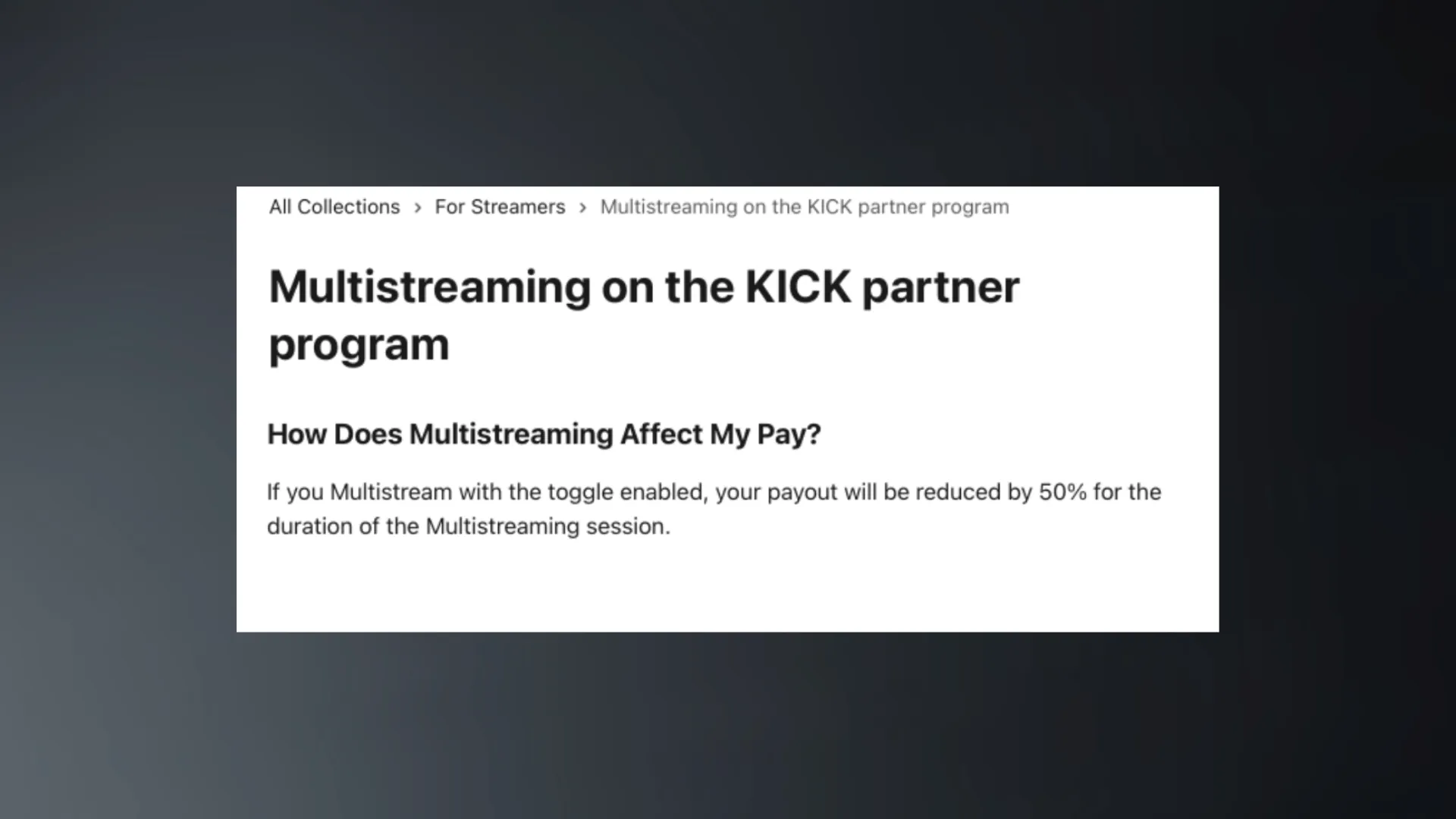
Kick’s partner program is one example. According to Kick’s help documentation, partners who enable multistreaming receive a 50% lower payout for the duration of that session.
Source: Kick
Payout cuts like these can mean the wider reach costs you money on one platform while it earns you money on another, so read the partner terms before committing to a regular schedule.
How to Reduce Multistreaming Risks?
Multistreaming introduces additional technical, operational, and platform-policy risks.
You cannot eliminate every possible issue, but careful preparation can prevent many common problems before your audience encounters them.
Avoid Guesswork with a Short Test
Before your first public multistream, test each destination using the private, unlisted, or diagnostic mode available on that platform.
YouTube supports private and unlisted streams, while Twitch provides a bandwidth-test mode through Twitch Inspector.
These tests help you verify whether each destination receives a stable data stream, although they may not reproduce every part of the live viewer experience.
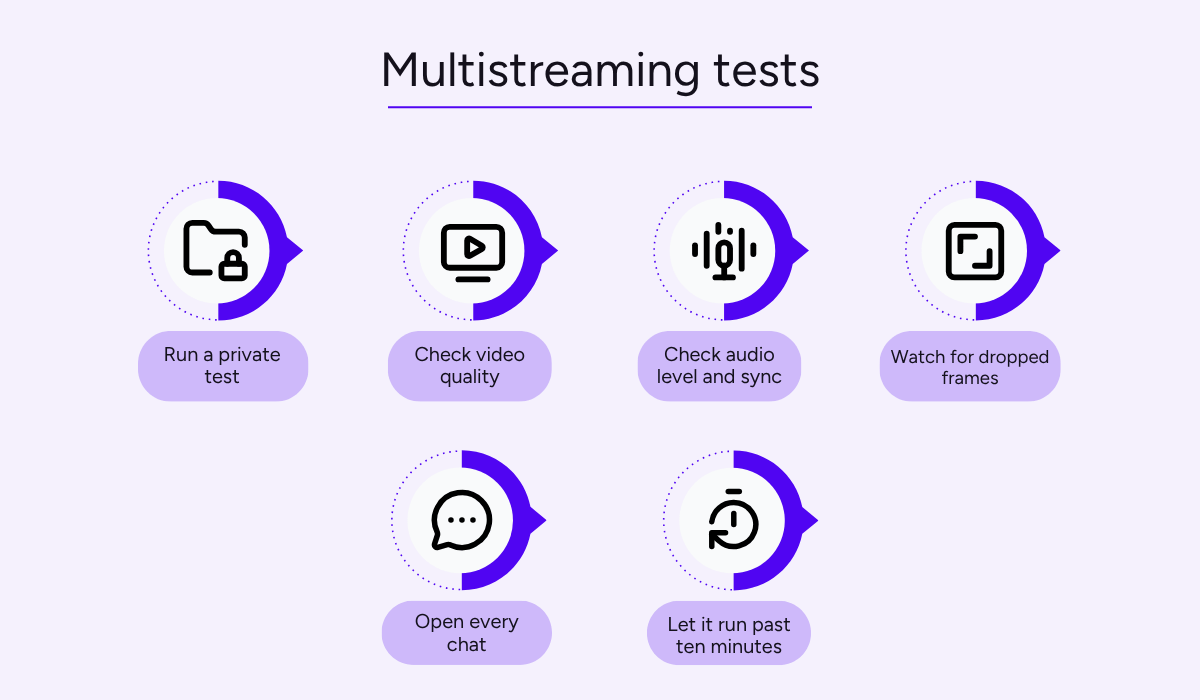
The test has a few parts to it, and the checklist below covers the ones worth repeating every time.
Source: Upstream
Depending on the test mode available, a short test can help you check audio levels, video quality, bitrate stability, dropped frames, and destination connections.
Chat and other audience-facing features may still require a separate live-workflow check.
Tracking these issues after going live is more complicated because you’re troubleshooting with an audience watching and a broadcast you cannot pause.
You want to avoid discovering during a show that one platform received silent video, or that your overlay is cropped on a service with a different aspect ratio.
Platforms have their own requirements, so explore common problems beforehand.
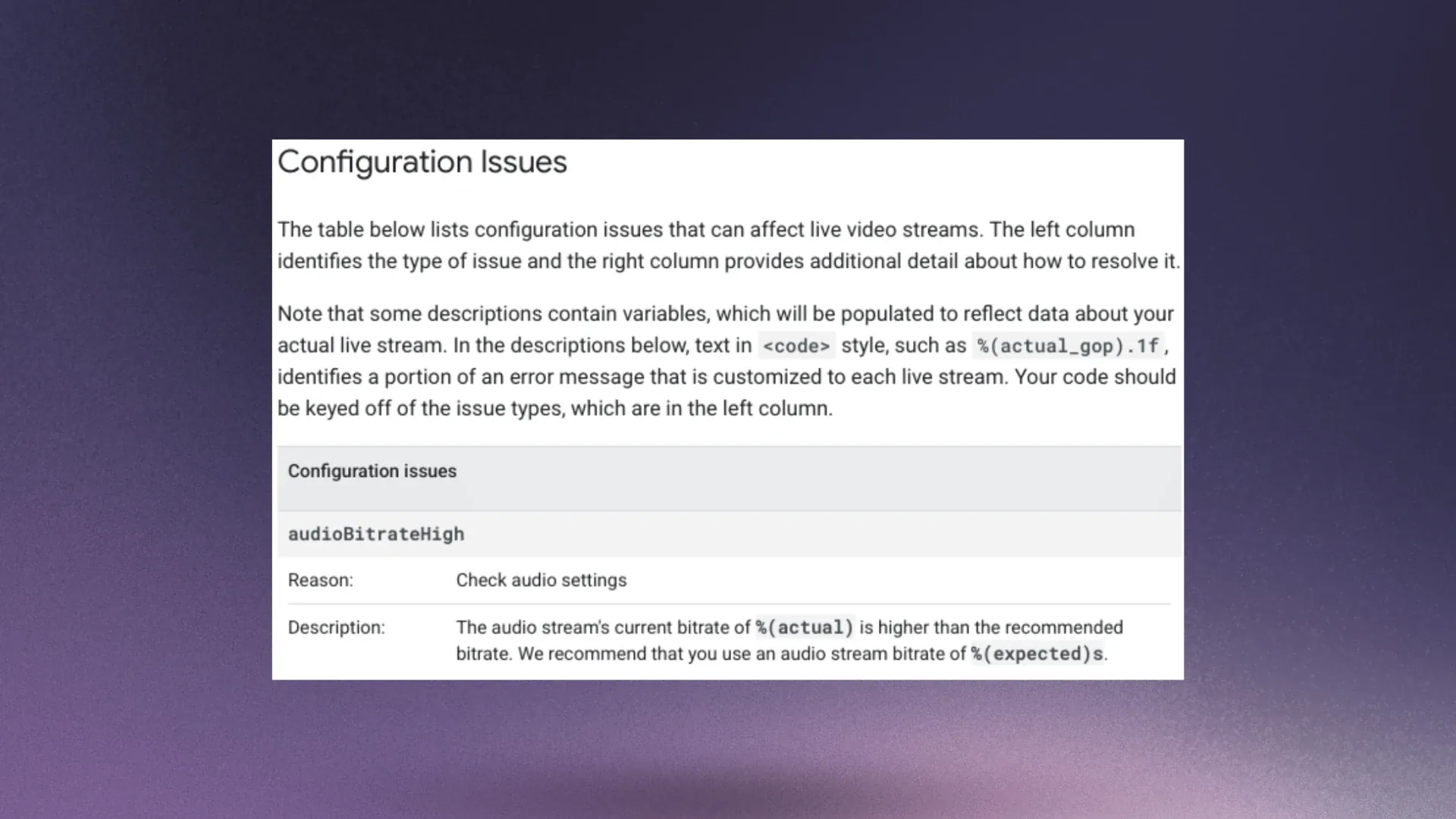
For example, YouTube outlines the configuration issues that can affect a live stream, with the reason for each one and the setting you need to correct.
Source: YouTube
These checks are most useful at the start, when you’re setting bitrate, keyframe interval, and resolution for the first time on each destination.
After they’re set correctly, you don’t need to repeat the whole process.
A quick test before each broadcast can confirm nothing has changed since the last one.
Start Small, Then Scale Up
Adding several platforms at once gives you more settings and audiences to manage.
That’s the point that Ludwig Ahgren, live streamer, YouTuber, and podcaster, talked about, according to Dexerto.
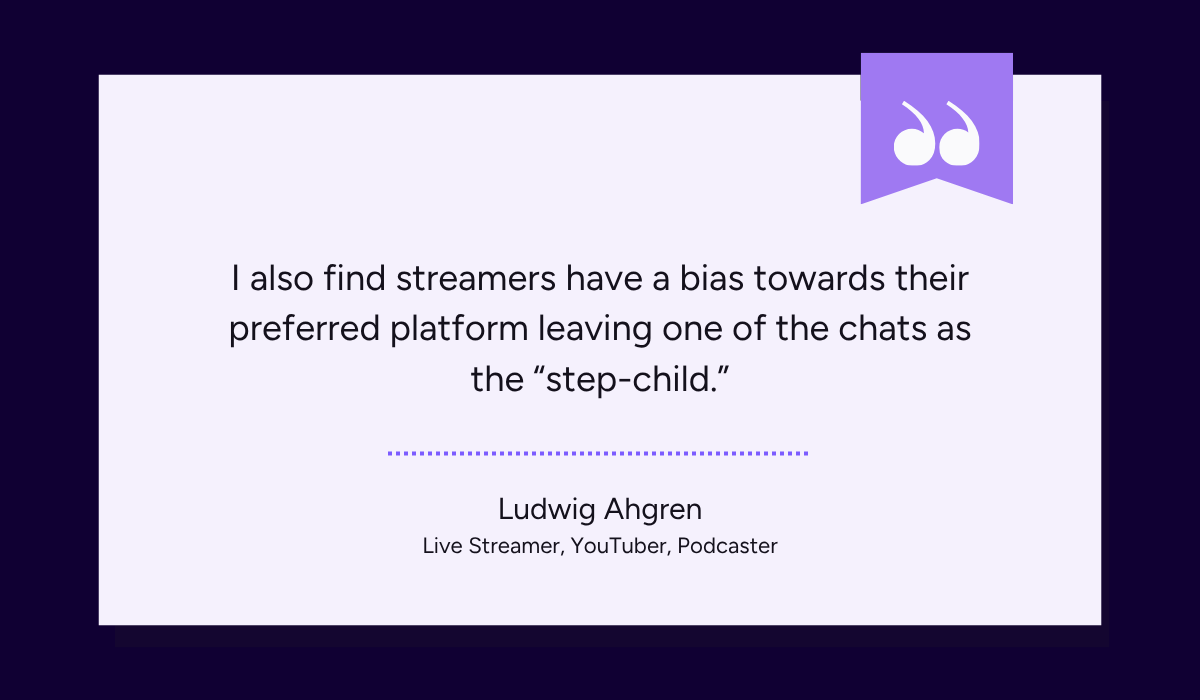
Illustration: Upstream / Quote: Dexerto
Ahgren raised a good point: dividing attention between audiences that cannot see each other can weaken the experience in each chat.
One chat gets answered while the other waits, and those viewers get a worse experience than a single-platform stream.
Instead of struggling with these issues, you want to prepare by limiting how many places you have to manage.
Start small, with two platforms chosen deliberately rather than every service that accepts a stream key.
As an example, you may currently stream on YouTube and are considering Twitch as the second destination.
Streams Charts, a live streaming analytics site, examined the 500 largest multistreaming creators in the first half of 2026. Across the sample, Twitch accounted for an average of 56.18% of each creator’s tracked watch hours.
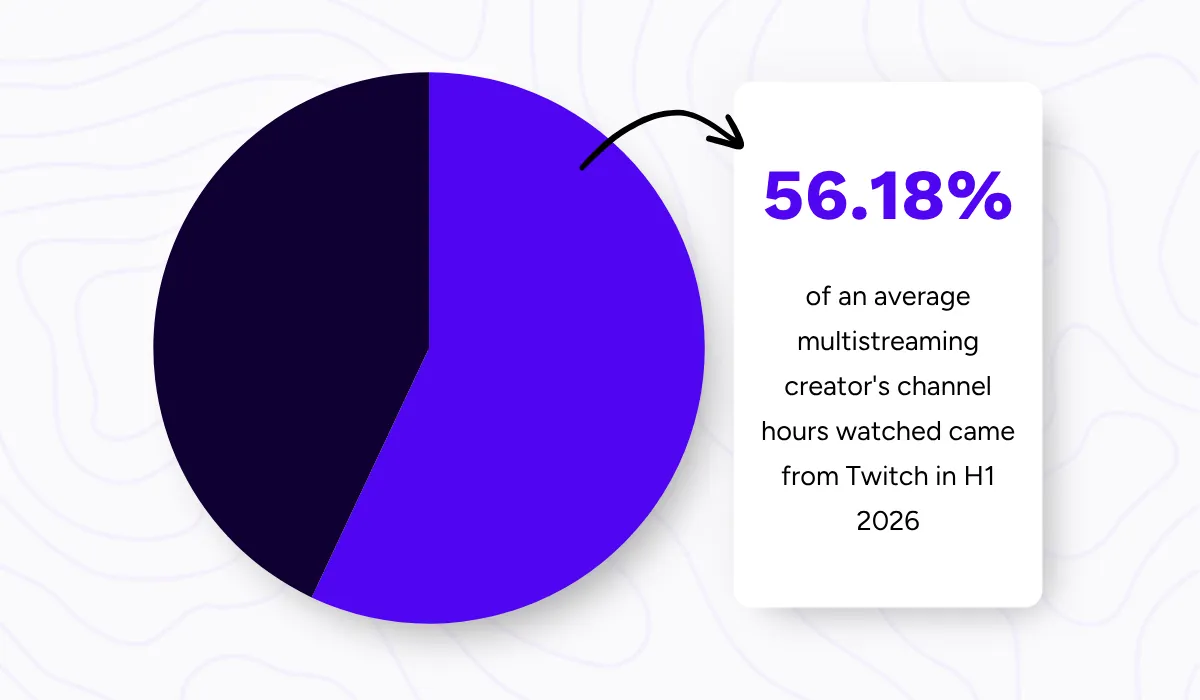
Illustration: Upstream / Data: Streams Charts
That doesn’t make Twitch immediately right for your channel, but it shows that it was the main audience base for many leading creators in that sample.
Whichever second platform you choose, starting small is always a smart idea.
You can watch for technical issues, practice managing both audiences, and see how each one responds.
It’s a good start because you learn the workflow while few things can go wrong, and adding a third platform later is easier than starting with four.
Choose the Right Software
With multistreaming, you want your attention on the broadcast, not on technical details.
So, choosing your multistreaming software and method matters, because it impacts how much work your computer has to do.
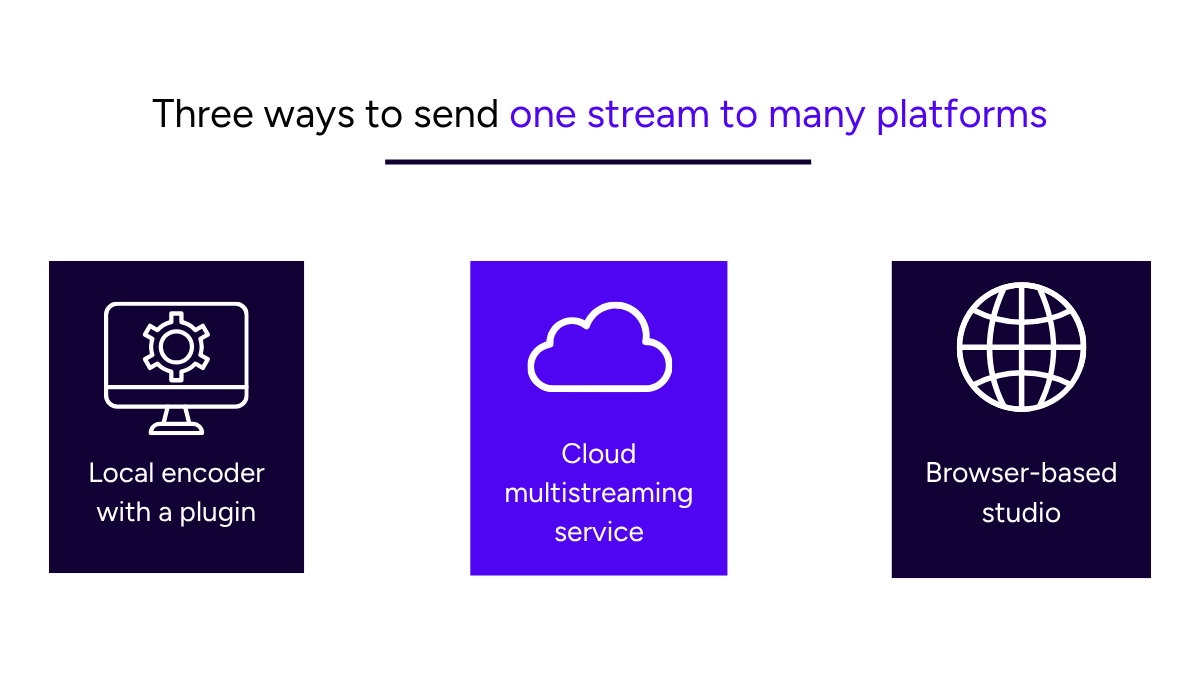
In terms of methods, there are three common approaches, shown below.
Source: Upstream
One option is to use local streaming software that supports multiple outputs. For example, you can add the Aitum Multistream plugin to OBS or use software with built-in multistreaming, such as Meld Studio.
Each destination still requires a separate outbound stream, which increases the upload bandwidth you need. Your computer may also use more processing power, depending on how the outputs are encoded.
For example, three outputs at the same bitrate require roughly three times the upload bandwidth of one. So, a connection that reliably carries one stream may struggle with three.
You can use Upstream’s streaming bandwidth calculator to estimate how much upload speed your setup requires based on your bitrate and number of destinations.
When upload bandwidth or local resources are limited, a cloud multistreaming service can be a more practical option.
The user sends one stream, and the service distributes it to multiple streaming platforms from its own infrastructure.
Your computer sends one signal, the duplication happens remotely, and adding a fourth or fifth destination doesn’t increase the local upload bandwidth.
Our cloud multistreaming tool Upstream works this way.
It can send one signal from OBS or a browser to up to 10 destinations, including YouTube, Twitch, Kick, TikTok, and custom RTMP (Real-Time Messaging Protocol) endpoints.
https://www.youtube.com/watch?v=orzC0Yt4qGU
Source: Upstream on YouTube
If you use OBS, your computer still captures and encodes the source broadcast, while Upstream handles distribution to the selected destinations.
For browser-based workflows, Upstream’s Live Studio provides an alternative that does not require OBS or a self-managed server.
Upstream also lets you schedule broadcasts, run 24/7 streams, and add overlays by URL through Stream Designer.
Upstream combines YouTube, Twitch, Kick and Rumble chat into one feed while you stream, so you can read every platform’s chat in one place.
And if you want to combine messages from multiple platforms into one chat overlay, you can connect a third-party chat aggregation tool like Social Stream Ninja through Stream Designer.
Any merged chat displayed inside the broadcast should follow all platforms’ rules. As of October 2026, Twitch’s written Terms still bar merged chat from other platforms on the Twitch stream, but Twitch CEO Dan Clancy said in February 2026 that Twitch would no longer take enforcement action for showing combined chat.
For you, that means less to manage during the show, and more attention on streaming and chat.
Start with two
platforms you can manage, test both with a private or unlisted stream, and add a third only when the first two run
cleanly. If upload bandwidth is the limit,
Upstream
sends one stream to up to 10 of 30+ supported platforms from the cloud, so each extra platform adds no upload on your
side.
Stream everywhere from one feed.
Send one live feed to Upstream and let the cloud deliver it to YouTube, Twitch, Kick, Facebook, and custom RTMP without making your upload connection carry every copy.