Upstream
Upstream
  • Product
  • Features
  • Platforms
  • Resources
  • Pricing
Login Sign up for free
Blog

How to Add StreamElements Overlays (Step-by-Step)

Written by Bojan Opacak February 27, 2026 · Updated October 15, 2026 · 5 min read
  1. Quick Summary: Adding StreamElements to Upstream
  2. How Stream Elements works with Upstream
  3. How to Add StreamElement Overlays to Your Stream
    1. Step 1: Set Up Your StreamElements Overlay
    2. Step 2: Get Your Unique URL
    3. Step 3: Placing the URL in Upstream
    4. Positioning and Testing
    5. Tips for Better Performance
    6. Summary
  4. FAQ
    1. Why is my StreamElements overlay not showing up in Upstream?
    2. Does Upstream support transparent StreamElements overlays?
    3. Can I use multiple StreamElements overlays at once?
    4. Is there a limit to which StreamElements widgets work in Upstream?
    5. How do I resize the StreamElements alert box without stretching it?

To add StreamElements Overlays to your live streams you need to get the URL from StreamElements and enter it into Upstream’s Stream Designer. Alerts and widgets are a great way to make your stream more interactive!

Quick Summary: Adding StreamElements to Upstream

The Core Tool: Use the “Embed Website” (globe icon) feature within the Upstream Stream Designer.

  • Overlay URL (found via the chain-link icon in StreamElements), not your dashboard URL.
  • Resolution Match: Always set your StreamElements overlay to 1080p (1920×1080) to ensure it aligns perfectly with the Upstream canvas.
  • Performance Pro-Tip: Consolidate all your widgets (alerts, chat, labels) into one single Overlay URL in StreamElements to save system memory and prevent lag.
  • The Test: Use the “Emulate” button in StreamElements to see your alerts pop up in real-time on the Upstream stage.

How Stream Elements works with Upstream

StreamElements Overlays are (animated or static) layers you can stack on top of your video. Each notification (sub, donation, chat alert) can be displayed in a separate layer. It is really about stacking video layers in the cloud and triggering them based on some rules.
Copy StreamElements URL to Upstream

First you’ll need a StreamElements account and connect it to your YouTube channel. This is as simple as a couple of clicks. This way StreamElements can know exactly when events happen, and display notifications.

StreamElements hosts your alert boxes & widgets on their servers, and the basic plan is free. You get a URL that you can open in any browser.

Upstream acts as the broadcaster. It takes your video files and sends them to YouTube, Twitch, or TikTok. When you add StreamElements overlays to Upstream (or OBS) as , you are really setting up a mini web browser window on top your video feed.

Notifications are transparent when inactive, so you won’t notice them most of the time. But each time your trigger happens (like a new sub or a chat message), your StreamElements widget will animate and appear on screen instantly.

Live Studio

Go live from your browser.

Invite guests, share screens, build scenes, and add overlays without installing or wiring together another production stack.


Sign up for free See Live Studio
Lofi Hours21:42Now playingMidnight tapeLofi Hours
Layers Design Templates Components Chat Destinations Triggers
Layers
  • Station name
  • Now playing
  • Clock
  • Visualizer
  • Follow QR
  • StreamElements alerts
  • Background frame

How to Add StreamElement Overlays to Your Stream

Step 1: Set Up Your StreamElements Overlay

Your first step happens outside of Upstream. You need to configure the graphics in StreamElements first.

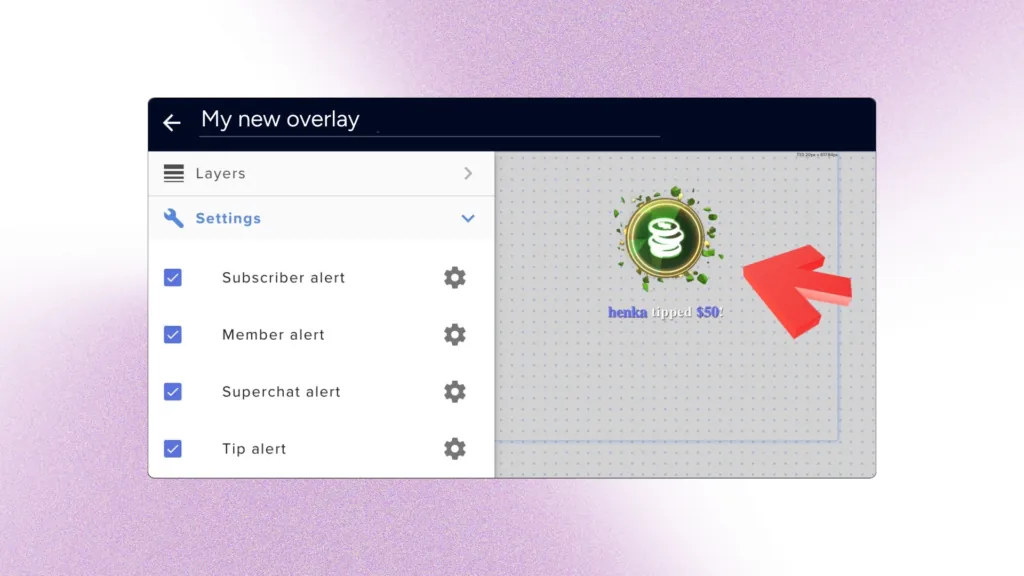
  1. Log in to your StreamElements Dashboard.
  2. Go to Streaming Tools on the sidebar and select Overlays.
  3. Click “New Overlay” to start fresh. Set the resolution to 1080p (1920×1080). This matches the standard Upstream canvas.

Add your widgets here. Start with an Alert Box or a Chat Box. Customize your text and colors. Upstream will display exactly what you see in this editor.
Create StreamElements Overlays

Step 2: Get Your Unique URL

This part matters most. If you copy the wrong link, the integration will fail.

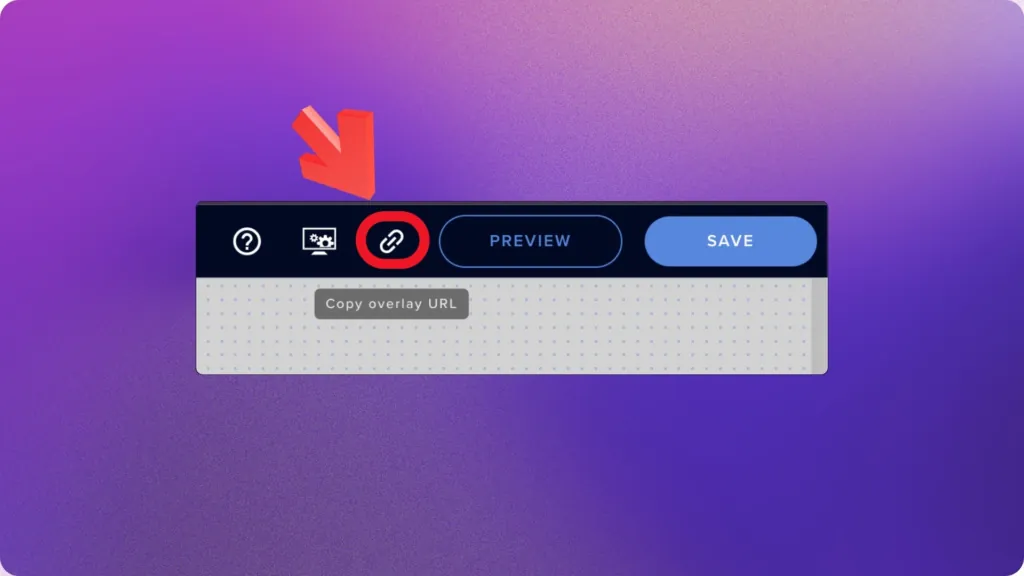
  1. Inside the StreamElements Overlay Editor, look at the top right corner.
  2. Find the chain-link icon (next to the “Preview” or “Save” button).
  3. Click it. This copies the Overlay URL to your clipboard.

Note: This URL is like a password. Anyone who has it can display your alerts. Keep it safe.


Step 3: Placing the URL in Upstream

But how to add StreamElements Alert Box to Upstream? Easy. Switch over to your Upstream Dashboard.

  1. Go to your project and enter the Stream Designer.
  2. Look at the toolbar for adding elements. Find the Embed Website option (globe icon).
  3. Click it. A properties panel will appear.
  4. Paste the StreamElements Overlay URL you copied earlier into the URL field.
  5. Hit Enter.

You might not see anything on the canvas immediately. This is normal. StreamElements overlays are mostly empty space until an event happens. You will likely see a bounding box. This indicates where the browser source is located.

If you need more help with the Stream Designer, check out our helpdesk article on adding a website as an overlay.

Positioning and Testing

Don’t just assume it works because the box is there. A common mistake is leaving the overlay covering the whole screen when an overlay is designed for lower-third usage, for example. This might block important parts of your main video.

Use the mouse to resize the bounding box. Make sure the StreamElements layer is at the top of your layer list so it sits on top of your background video, exactly as you want it.

The Test:

  1. Open two browser windows side-by-side. Put Upstream on one side and StreamElements on the other.
  2. In StreamElements, click the Emulate button in the bottom toolbar.
  3. Select any event, like a Follower Event.
  4. Watch your Upstream canvas.

You should see the alert pop up on Upstream instantly. If you see a white background behind the alert, go back to StreamElements settings and ensure the “Background Color” is set to transparent.

Tips for Better Performance

When figuring out how to add StreamElements to Upstream, keep performance in mind. These are browser sources, and they use memory.

  • Consolidate: Try to build your layout inside a single StreamElements overlay scene. Do not add five different “Embed Website” layers in Upstream. One browser source handling five widgets is better than five sources handling one widget each.
  • Interaction: Remember that viewers cannot click links inside the video. The overlay is visual only.
  • Widgets: Upstream supports almost all standard widgets, including labels, event lists, and hype cups.

Summary

Figuring out how to add StreamElements to Upstream is easy and it’s a sure way to make your stream more dynamic and “live”. It enables users to feel that instant connection when they contribute and subscribe and that can motivate the chat A LOT. Generate your URL, use the “Embed Website” feature in the Upstream Stream Designer, and test it with the “Emulate” function.

Ready to build a broadcast that runs itself? Start using the Stream Designer today at upstream.so.

FAQ

Why is my StreamElements overlay not showing up in Upstream?

The most common reason is that the overlay is “empty” until an event occurs. Try using the Emulate button in your StreamElements dashboard to trigger a test follower or sub. If it still doesn’t appear, ensure you have pasted the correct Overlay URL (not the dashboard URL) into the Embed Website tool.

Does Upstream support transparent StreamElements overlays?

Yes. Upstream’s browser source automatically supports transparency. If you see a solid background (like white or black), check your Canvas Settings in StreamElements and ensure the background color is set to Transparent (0% opacity).

Can I use multiple StreamElements overlays at once?

While tehnically you can add multiple “Embed Website” layers, it is highly recommended to bundle all your widgets (alerts, chat, labels) into a single StreamElements Overlay scene. This reduces CPU and memory usage and ensures a smoother, lag-free broadcast.

Is there a limit to which StreamElements widgets work in Upstream?

Upstream supports all standard StreamElements widgets, including Alert Boxes, Chat Boxes, Hype Cups, and Countdown Timers. Since Upstream renders these from a URL, if it works in a standard web browser, it will work in Upstream.

How do I resize the StreamElements alert box without stretching it?

To avoid stretching or pixelation, always set your StreamElements Overlay resolution to 1920×1080 to match the Upstream canvas (or 4k if you are streaming 4k). If you need a widget to be smaller, resize the widget inside the StreamElements editor rather than scaling the bounding box in Upstream.
Published February 27, 2026
Bojan Opacak

About the author

Bojan Opacak

Content and Growth

Bojan writes for Upstream about live streaming strategy, platform policy changes, creator monetization, and practical workflows for 24/7 channels. He reads the platform rules and help pages and turns them into step by step guides for creators and small teams.

Keep exploring

Further reading

Browse all articles
The Ultimate Guide to Live Stream Overlays for 24/7 Channels
Jan 15, 2026 Blog

The Ultimate Guide to Live Stream Overlays for 24/7 Channels

Read article
Stream Overlays & Stream Designer: Alerts, Widgets & Embeds
Sep 29, 2025 Blog

Stream Overlays & Stream Designer: Alerts, Widgets & Embeds

Read article
How Long Can You Stream on Twitch? The 48-Hour Limit Explained
Oct 28, 2026 Guides

How Long Can You Stream on Twitch? The 48-Hour Limit Explained

Read article

Start streaming today

Go live to every platform, run a 24/7 channel, and produce live shows in your browser, with no software or server setup.

No credit card 24 hours/month free Full functionality
Start Streaming Free
24/7 Live Streaming Run cloud channels that stay live around the clock. Live Studio Invite guests, share screens, and add branded overlays in the browser. Multistreaming Send one live feed to YouTube, Twitch, Kick, and RTMP endpoints. Pre-recorded Live Streaming Upload pre-recorded videos & Go Live without the stress of live production. Free plan 24 hours a month with no watermark. Multi-channel streaming Separate live channels from one account. Enterprise Setups for teams, labels and agencies. About Upstream Who we are and how Upstream works.
Scheduling Streams that start and end on their own. Multichat Every platform's chat in one feed. Overlays Layers and widgets in Stream Designer. Stings, jingles and ads Inserts that play between your videos. Playback controls Skip or play any file while you stay live. Audio and video playlists Loop music and visuals separately. Team access Invite your team, each with their own role. RTMP server Stream in from OBS or any encoder. Live Streaming API Run streams, media and queues from code. MCP Server Manage streams from your AI assistant. All features Everything Upstream does, on one page.
YouTube live streaming Twitch live streaming Kick live streaming Facebook live streaming Instagram live streaming TikTok TikTok live streaming Rumble live streaming Mixcloud live streaming 30+ more Plus any custom RTMP or SRT destination.
Platform limits Bitrate and duration caps for each platform. Integrations Setup guides for OBS, vMix, cameras and more. VTuber Streaming Go live with your avatar on every platform.
Blog Guides, platform rules and news for anyone who goes live. Guides Setup guides for 24/7 streams, multistreaming and RTMP. Release Notes The new features in each Upstream update, in one place. Free Tools Video, audio, thumbnail and AI tools, plus camera and mic checks. Helpdesk Step by step setup help and troubleshooting for Upstream. Service status Current service health, uptime history and incident updates. Live Streaming FAQ Short answers to what people ask before they go live. Compare Upstream Upstream side by side with Restream, StreamYard and others. Latest post YouTube Dual Stream: What the Vertical Copy Does and How to Turn It Off
Always-on 24/7 Live Streaming Run cloud channels that stay live around the clock.
Explore
Real-time live Live Studio Invite guests, share screens, and add branded overlays in the browser.
Explore
One stream, 30+ platforms Multistreaming Send one live feed to YouTube, Twitch, Kick, and RTMP endpoints.
Explore
Schedule & Automate Pre-recorded Live Streaming Upload pre-recorded videos & Go Live without the stress of live production.
Explore
Free plan 24 hours a month with no watermark.
Multi-channel streaming Separate live channels from one account.
Enterprise Setups for teams, labels and agencies.
About Upstream Who we are and how Upstream works.
Scheduling Streams that start and end on their own. Multichat Every platform's chat in one feed. Overlays Layers and widgets in Stream Designer. Stings, jingles and ads Inserts that play between your videos. Playback controls Skip or play any file while you stay live. Audio and video playlists Loop music and visuals separately. Team access Invite your team, each with their own role. RTMP server Stream in from OBS or any encoder.
Live Streaming API Run streams, media and queues from code.
MCP Server Manage streams from your AI assistant.
All features Everything Upstream does, on one page.
YouTube live streaming. 24/7 channels with midroll ads. Twitch live streaming. Streams restart on their own at 48 hours. Kick live streaming. Stay live with your computer off. Facebook live streaming. Schedule lives that start on their own. Instagram live streaming. Go live from your browser or the cloud. TikTok TikTok live streaming. Go live on TikTok and Instagram at once. Rumble live streaming. Add Rumble to your YouTube or Kick stream. Mixcloud live streaming. DJ sets and radio shows from your browser. 30+ more Plus any custom RTMP or SRT destination.
Platform limits Bitrate and duration caps for each platform.
Integrations Setup guides for OBS, vMix, cameras and more.
VTuber Streaming Go live with your avatar on every platform.
Blog
Guides
Release Notes
Free Tools
Helpdesk
Service status
Live Streaming FAQ
Compare Upstream
YouTube Dual Stream: What the Vertical Copy Does and How to Turn It Off YouTube Dual Stream: What the Vertical Copy Does and How to Turn It Off
Upstream

Run your streams from the cloud

Free plan: 24 streaming hours a month, no card, no watermark.

4.6 · 245 reviews on Trustpilot
Legal entity
Zukunft d.o.o.
Registered address
Groznjanska 32, 10000 Zagreb
Company VAT ID
Company VAT ID: HR62560895839
About | Contact us | Tools | Content standards | Security | Privacy Policy | Terms of Service | Affiliate terms |

Product

  • Pricing
  • Upstream Features Overview
    • Multistreaming
    • Separate Audio and Video
    • Overlays: Stream Designer
    • Live Streaming Studio
    • Scheduling & Automation
    • Live Playback Controls
    • Play Stings, Jingles and Ads
    • Team Access
  • Enterprise Broadcasting Solutions

Resources

  • Helpdesk
  • Service status
  • Live Streaming FAQ
  • Blog
  • Release Notes
  • Live Streaming API
  • MCP Server
  • Free Live Streaming
  • YouTube Live Streaming
  • RTMP Server
  • Supported Platforms
  • Live Streaming Limits
  • Integrations

Compare Us

  • Compare Upstream
    • Upstream vs Runnel.live
    • Upstream vs OneStream
    • Upstream vs Live247
    • Upstream vs Gyre
    • Upstream vs Streaming Bots
    • Upstream vs Restream
    • Upstream vs StreamYard
    • Upstream vs LiveReacting
    • Upstream vs Playout.video

Free Tools

  • Design tools
  • Video tools
  • Audio tools
  • AI tools
  • Setup checks

Use cases

  • For Creators
  • For Music Labels
  • Church Streaming
  • VTuber Streaming
  • Multi-Channel Streaming

© 2026 Upstream. All rights reserved.

Produce live shows right from your browser.

Sign up for free