
The cleanest way to multistream to YouTube, Twitch, and Kick is to send one stable feed to a cloud multistreaming service, which then delivers the broadcast to each platform. OBS can also send multiple local outputs with a plugin, but every destination needs its own upload path and platform setup.
This guide covers both routes: cloud distribution from one OBS feed and a fully local OBS setup. You will also find the stream keys, encoder settings, upload tradeoffs, and Twitch rules to check before going live.
Why Should You Multistream (Simulcast)?
Streaming to one platform means betting your whole broadcast on one discovery algorithm. Multistreaming places the same bet three times, with the same effort.
- The platforms have different audiences. Twitch viewers live in chat, YouTube viewers find streams through search and recommendations weeks later, and Kick’s smaller creator pool means less competition for the front page. The same broadcast reaches all three behaviors at once.
- Live content gets algorithmic priority. YouTube surfaces live streams in search, recommendations, and subscriber feeds while you are live, and the VOD keeps working afterwards. We broke down the mechanics in why 24/7 streams get more reach.
- One platform can’t take you off the air. A strike, a ban, or an algorithm change on one site can cut your reach overnight. With three destinations, the other two keep you visible.
- You find your real audience faster. Most creators discover that one platform quietly outperforms the others for their niche. Multistreaming is the cheapest way to run that experiment, and our comparison of the best live streaming platforms can help you decide which destinations to test.
- Monetization stacks. Twitch subs, YouTube Super Chats and ads, and Kick’s creator program don’t exclude each other when the platforms allow simulcasting. On Kick, Affiliates and Partners keep 95% of subscription and KICKs revenue under its 95/5 split.
The 3 Ways to Multistream (and Which One to Pick)
There are three practical ways to send one broadcast to YouTube, Twitch, and Kick. Choose based on the upload capacity, local control, and operating work you want to manage.
1. Cloud multistreaming: one upload from your encoder
OBS sends one stream to a cloud multistreaming service, and the service distributes it to your saved destinations. Your computer handles one main encode and your connection carries one upstream feed. This route also supports browser-produced, scheduled, and pre-recorded broadcasts when those workflows are part of the job.
2. OBS plugins with multiple outputs
An OBS multi-output plugin is the free, local route. Each destination uses its own upload path, so three 6 Mbps outputs need roughly 18 Mbps before connection headroom. Some plugins can reuse the main encoder; separate output settings can add CPU or GPU encoding work. Test the exact configuration before a live event.
3. A second PC or hardware encoder
A second computer or hardware encoder moves production work away from the main machine. It can suit a studio that already owns the equipment, but direct delivery still needs enough upload capacity for every platform output.
Choose OBS when you want a free local setup and are comfortable managing plugins, keys, bandwidth, and recovery. Choose a cloud route when you want one encoder upload, saved destinations, browser production, scheduling, prerecorded streams, or 24/7 playback.
Stream everywhere from one feed.
Send one live feed to Upstream and let the cloud deliver it to YouTube, Twitch, Kick, Facebook, and custom RTMP without making your upload connection carry every copy.
What You Need Before You Go Live
- A YouTube channel with live streaming enabled. Verify your phone number in YouTube Studio; first-time activation can take up to 24 hours, so do this the day before.
- A Twitch account. Your stream key lives in the Creator Dashboard under Settings > Stream.
- A Kick account. You can connect it to Upstream with your Kick login. If you use a stream key instead, Kick emails you a verification before showing it in the creator dashboard.
- OBS Studio installed, or nothing at all if you plan to broadcast pre-recorded video or use a browser studio.
- Your stream keys handy, unless you connect Twitch and Kick with their logins. If stream keys and ingest URLs are new to you, our guide to YouTube’s RTMP ingest explains how the plumbing works in plain language.
How Local Multistreaming Affects Upload Bandwidth and CPU
Local multistreaming always multiplies outbound traffic because each platform receives a separate upload. Three outputs at 6,000 kbps use about 18 Mbps before audio and connection headroom. CPU or GPU use depends on the plugin: reusing the main encoder costs less than running separate encodes with different settings.
A cloud route keeps the local side to one feed. Start with settings accepted by every destination, test with the same motion and audio as the real show, and monitor stream health on YouTube, Twitch, and Kick. Platform limits and recommendations differ, so there is no single perfect bitrate for every workflow.
| Starting point | Video setting | Local upload path | Use when |
|---|---|---|---|
| Cloud distribution | H.264, CBR, 2-second keyframes | One encoded feed | You want one encoder upload and cloud delivery |
| Direct OBS outputs | H.264, CBR, 2-second keyframes | One upload per destination | You want a free local setup and have tested the bandwidth |
| Lower-bandwidth fallback | 720p at 30 or 60 fps | Depends on route | A 1080p test drops network frames |
YouTube publishes resolution-specific bitrate ranges, while Kick currently supports H.264, CBR, up to 1080p60, and up to 8,000 kbps. Check each platform’s current encoder guide before changing a stable setup.
Step 1: Prepare Your Game and Scene in OBS
First things first, open up OBS Studio and get your content ready to go.
- Create or select your scene.
- Add a Source (such as Screen Capture or Game Capture) and select the monitor or window running your game.
- Make sure your audio levels are right and transition the scene to your active live window.
Once OBS is looking all set up and ready, leave it open, we will come back to it in a moment. Don’t start your stream yet.
Step 2: Set Up Your Upstream Stream
Now, let’s configure the cloud re-streaming side of things. Head over to Upstream and log into your dashboard.
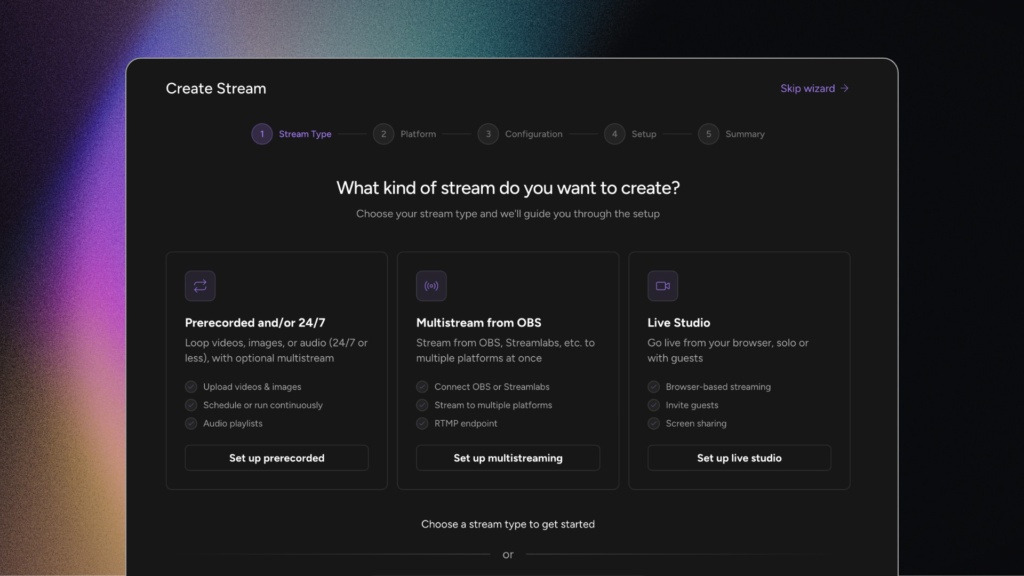
- Click on Create a New Stream.
- When the setup wizard appears, select Multistreaming (from OBS)
- Connect Your Primary Platform: Select YouTube as your primary stream. For YouTube, Upstream offers a convenient “One-Click Connect” feature to link your channel instantly instead of copypasting stream keys.
- Fill out your stream details: Give it a title, set the privacy to Public, add a description, and select your audience settings (e.g., “Not made for kids”).
Step 3: Add Your Extra Platforms (Twitch & Kick)
With YouTube set as your primary stream, it’s time to add your secondary destinations. Paste their stream keys, or use Twitch and Kick accounts you’ve connected to Upstream so there’s no key to copy.
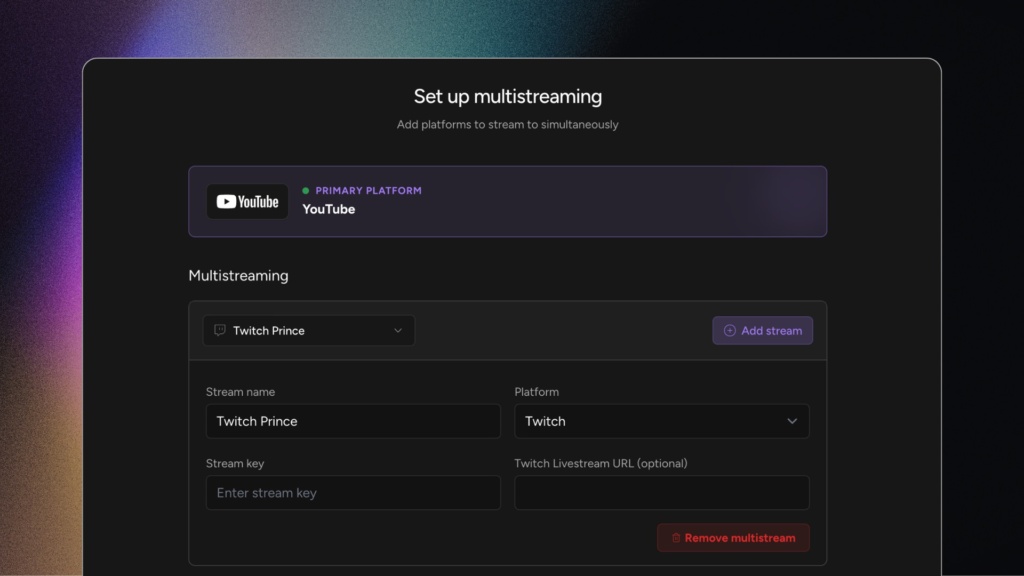
Adding Twitch:
- In the Upstream wizard, click Add Your First Multistream and choose Twitch.
- Give it a nickname (this is an internal nickname for you only).
- Go to your Twitch Creator Dashboard, navigate to Settings > Stream, copy your Primary Stream Key, and paste it right into Upstream. If your Twitch account is connected to Upstream, choose Convert to Twitch Connect and pick it instead.
Adding Kick:
- Click Add Platform again and select Kick.
- If your Kick account is connected to Upstream (Destinations, then Add destination, then Connect Kick), choose Convert to Kick Connect and pick it. Upstream fills in the stream key and server.
- Otherwise, grab the stream key from your Kick creator dashboard (you may need to verify this via your email) and paste it into Upstream. Only need Twitch and Kick? The Twitch and Kick setup guide covers that pair in Upstream.
Need more destinations? Add Rumble, Facebook, or any custom RTMP server the same way. Upstream supports 30+ platforms and sends to up to 10 at once.
Once you hit next, you’ll see a summary screen confirming that your single OBS stream will be split into YouTube, Twitch, and Kick. Click on Create Stream, and Upstream will build your temporary streaming server.
Step 4: Link OBS to Upstream
To tell OBS where to send your video, we need to grab the stream credentials from Upstream’s Live Studio. OBS and other RTMP input follow the resolution and frame rate set on your Upstream stream. A 4K feed stays 4K and a 60 fps feed stays 60 fps on plans that include them. Vertical 1080p input arrives at full 1080×1920, including on the free plan. Downloaded OBS profiles match the stream’s resolution, orientation and frame rate.
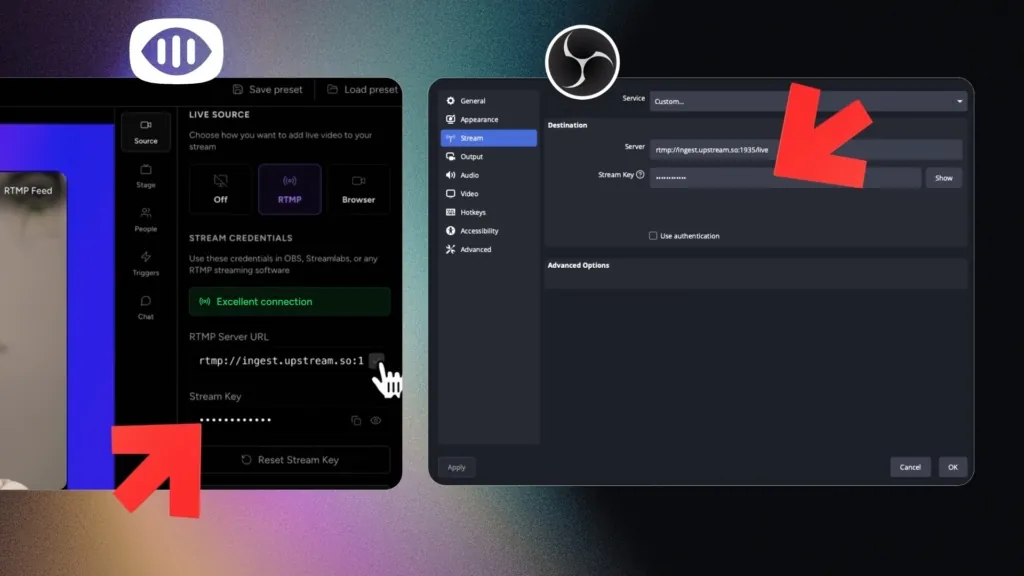
- In the Upstream Live Studio, copy the Stream URL. The OBS setup guide shows where each field goes.
- In OBS, go to Settings > Stream. Set your Service to Custom, and paste the URL into the Server box.
- Go back to Upstream, copy the Stream Key, and paste it into the Stream Key box in OBS.
- Click Apply and OK.
Step 5: Go Live!
You are ready to roll.
- Click Start Streaming in OBS. (Don’t worry, you aren’t broadcasting to the public just yet!)
- Look at your Upstream Live Studio. In a few seconds, you’ll see your live gameplay preview appear in the “RTMP” preview box.
- Adjust your layout if needed, then hit the big Start button on your Upstream dashboard to activate Twitch, Kick, and YouTube simultaneously.
Within a couple of seconds, all three platform statuses will turn green. You can open up your phone or browser tabs to double-check, and you’ll find yourself flawlessly live on three major platforms at the exact same time.
Platform Rules for Simulcasting to YouTube, Twitch & Kick
Check the current written rules for every destination before you go live. Public policies can change, and a separate agreement attached to your account can add restrictions.
Twitch simulcasting rules
Twitch allows simulcasting unless a separate agreement requires exclusivity. Its current Terms require the Twitch experience to be no worse than other destinations, prohibit directing viewers away from Twitch to another concurrent stream, and prohibit showing combined activity from other platforms on the Twitch broadcast.
Read the current rules in Twitch’s Terms of Service and the simulcasting FAQ. The FAQ says a combined tool is allowed for your own private monitoring; the restriction applies when merged activity appears on the Twitch stream.
YouTube and Kick rules
Check each platform’s current help pages and any agreement attached to your account before going live. Public help pages do not override an exclusivity clause or other terms you accepted separately.
Managing chat across three platforms
You can monitor several chats in one private dashboard. Upstream combines YouTube, Twitch, Kick and Rumble chat into one feed while you stream, so all three chats show up in one place without putting any of them on the video. As of October 2026, Twitch’s written Terms still bar merged chat from other platforms on the Twitch stream, but Twitch CEO Dan Clancy said in February 2026 that Twitch would no longer take enforcement action for showing combined chat. If the same program feed goes to every destination, the zero-risk setup is no merged chat overlay, or a Twitch-only one. See the current Twitch unified-chat rules.
Multistreaming Pre-Recorded and 24/7 Streams
Nothing in this guide requires you to be sitting at your PC. Upstream can broadcast pre-recorded videos as live streams to the same YouTube, Twitch, and Kick destinations, on a schedule or as an always-on channel. Creators use this to schedule launches and premieres, rerun their best broadcasts in other time zones, or run a 24/7 live channel that multistreams around the clock while they make new content. The destination setup from Step 3 is identical; the only difference is that the video comes from your media library instead of OBS.
Multistreaming FAQ
Can you stream to YouTube, Twitch, and Kick at the same time?
Yes. All three platforms allow simulcasting. You can do it from OBS with a multi-output plugin, or send one stream to a cloud multistreaming service that delivers to all three, which avoids the extra CPU and bandwidth cost.
Is multistreaming allowed on Twitch?
Yes. Since the 2023 policy update, Twitch allows simulcasting to any platform for nearly all streamers, as long as the Twitch stream quality is not degraded compared to other platforms and you do not direct Twitch viewers to leave for another platform during the stream.
Does multistreaming use more CPU or bandwidth?
Direct local outputs always use more upload bandwidth because each platform receives a separate feed. CPU or GPU use depends on whether the setup reuses one encode or creates separate encodes. A cloud service keeps the local side to one encode and one upload, then distributes the feed from its servers.
How much upload speed do I need to multistream?
Add the video and audio bitrate of every local output, then leave enough headroom for normal connection variation. A cloud route needs one outbound feed; a three-destination OBS setup needs three. Test on the same network and at the same quality you will use for the live show.
To skip the manual math, plug your resolution, framerate, and destination count into our free streaming bitrate calculator and it will show the upload speed you need.
What bitrate should I use to stream to YouTube, Twitch, and Kick at once?
Use a stable H.264 CBR setting accepted by all three destinations, with a 2-second keyframe interval, then test it. YouTube and Kick publish different bitrate ranges, and account or platform requirements can change. A common feed should follow the strictest current destination requirement in your setup.
Will my stream quality be identical on every platform?
Not necessarily. Platforms can differ in how they ingest and transcode a feed. Use the same stable source feed, keep the Twitch experience no worse than the others, and check the live result on every destination instead of assuming the players will look identical.
Can I multistream for free?
Yes. Upstream’s free plan includes every feature, including multistreaming, with 24 hours of live streaming per month, no watermark, and no credit card required.
Can I multistream without OBS?
Yes. You can go live from a browser-based studio with your webcam and screen share, or broadcast pre-recorded videos as live streams, and multistream either one to YouTube, Twitch, and Kick simultaneously.
Choose the Route You Can Operate Reliably
Use an OBS multi-output plugin when you want a free, local workflow and have enough upload capacity for every destination. Use Upstream multistreaming when you want one encoder upload, saved destinations, or the option to run browser-produced, scheduled, pre-recorded, and 24/7 streams from the cloud. Streaming as a VTuber? Your avatar stays in OBS either way; see VTuber streaming with Upstream.
Whichever route you choose, run a private or unlisted test, confirm all three platform dashboards receive a stable feed, and recheck Twitch’s written simulcasting rules before the broadcast.