TL;DR:
- Check that both accounts can go live before you choose a multistreaming method.
- Upstream sends your stream to both Facebook and YouTube from the cloud, so you upload it once.
- Use safe settings that both platforms accept to keep stream quality consistent.
If your viewers are split between Facebook and YouTube, you don't need to run two separate live streams to reach them.
To multistream to Facebook and YouTube, you send one stream to a multistreaming tool, which forwards it to both platforms at the same time.
Before that, both accounts need live streaming turned on, and Facebook needs a persistent stream key.
Skip one of these steps, and YouTube may go live on time while your Facebook Page stays empty.
Before You Start: Get Facebook and YouTube Ready to Go Live
Before you start multistreaming, Facebook and YouTube both need to confirm that you can go live.
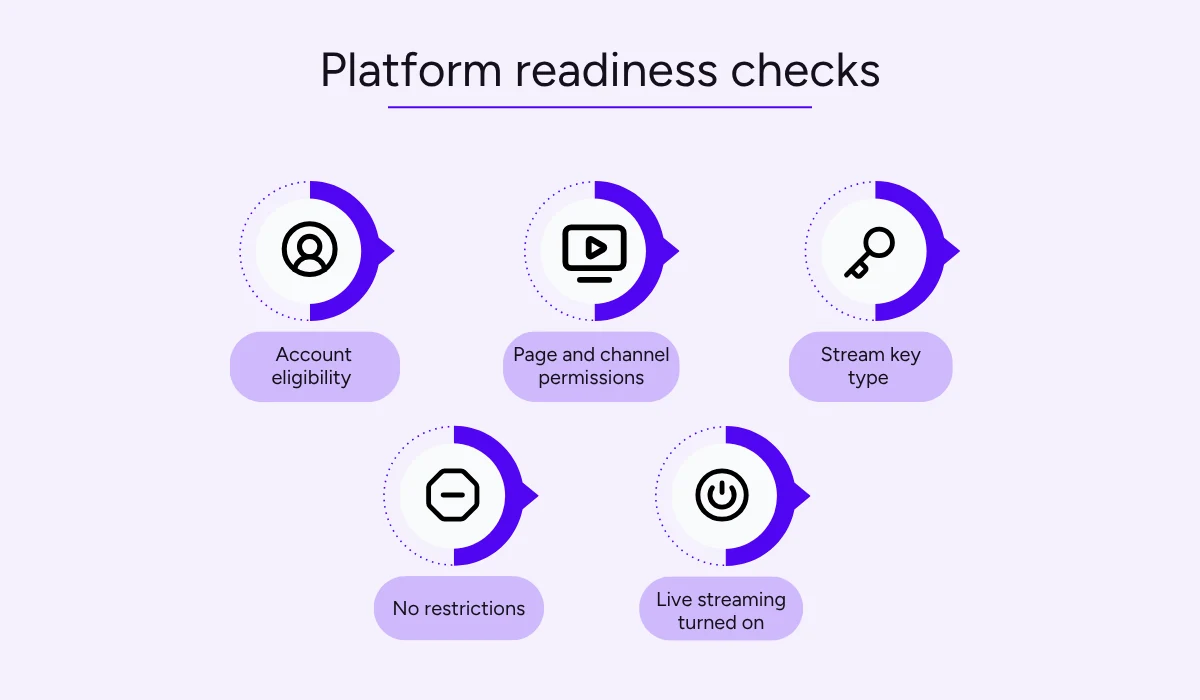
These are the checks to run on both platforms:
YouTube has three main requirements to enable live streaming, as shown in the excerpt below.
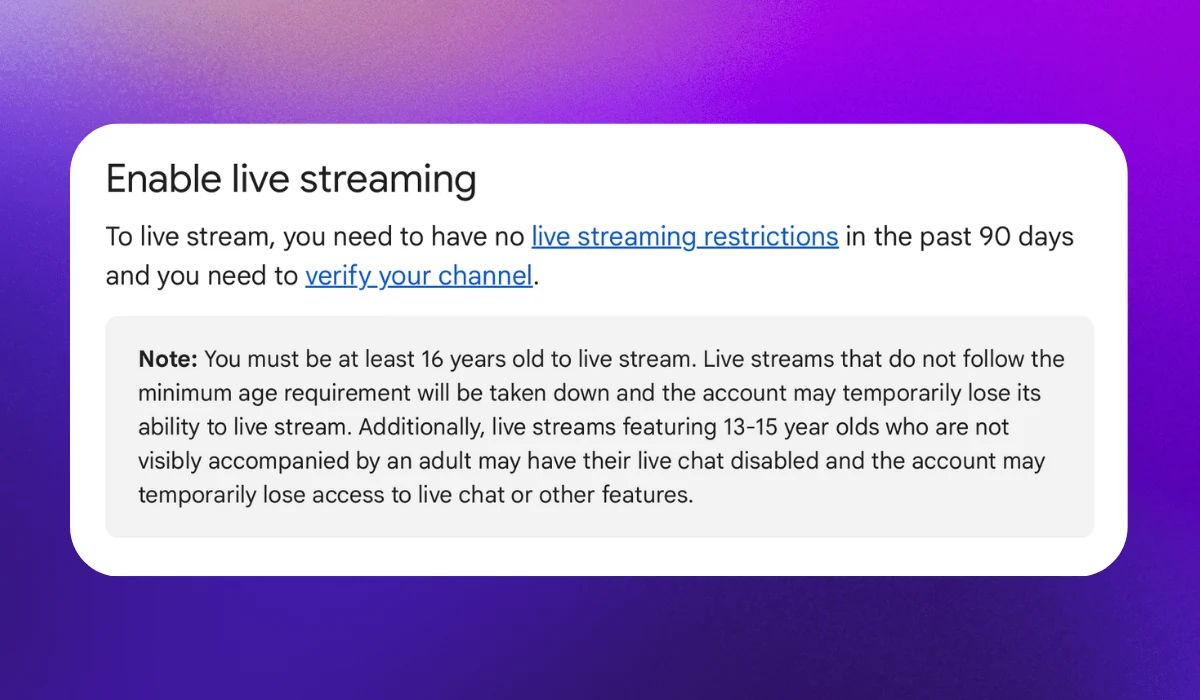
To go live, you need to be at least 16 and have a verified channel.
Your channel also can't have had any live streaming restrictions in the past 90 days, such as:
- Age restrictions
- Community Guidelines restrictions
- Copyright restrictions
With most of these restrictions, you need to wait for them to pass. A Community Guidelines strike, for example, blocks live streaming for 14 days.
Just be aware that YouTube can take a full day to turn on live streaming the first time, so turn it on a day early.
On Facebook, the requirements depend on how old your account is, how many followers it has, and who can post for a Page, as shown below.
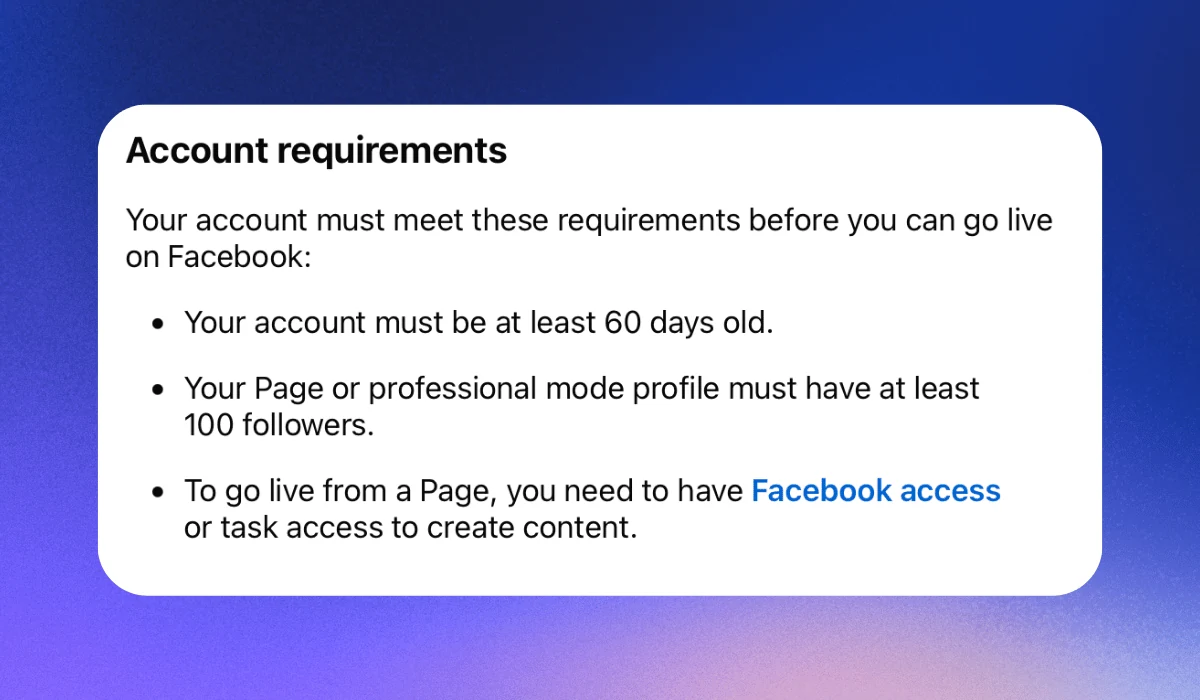
If you stream to a Page, the person who manages it needs to give your account access to post on it.
And if you stream for a client or a shared Page, ask for access before the day of the stream.
Facebook also needs a persistent stream key. A one-time stream key works for a single live video only, so it stops working after your first multistream.
A Facebook persistent stream key stays the same for every broadcast, and you add it to your multistreaming tool once.
You turn it on in Live Producer, Facebook's page for setting up live videos, where you also copy the stream key.
Here's what you need for a Facebook and YouTube multistream:
- A Facebook Page or profile that meets the live requirements
- A verified YouTube channel with live streaming turned on a day ahead
- Your Facebook persistent stream key, copied
- A video source: Open Broadcaster Software (OBS), a browser (Live Studio), or a pre-recorded video
With these ready, the setup itself takes a few minutes.
Ways to Multistream to Facebook and YouTube
Multistreaming software sends one stream to both platforms in one of two ways.
The difference is where the extra copy of the stream is created: on a cloud server or on your computer.
This affects how much computer power and upload bandwidth you need. Upload bandwidth is how fast your internet sends data.
A Cloud Multistreaming Tool
A cloud multistreaming tool takes your stream and makes the copies for Facebook and YouTube on its own servers. Your computer sends only one stream, so it does no extra work.
YouTube itself suggests a cloud service if you want a simple setup that's light on your computer or plan to stream to more than two platforms.
With our multistreaming tool Upstream, the setup steps look like this:
- Create a stream in Upstream and choose where the video comes from.
- Pick YouTube as the main platform and sign in with Google.
- Add Facebook as a multistream destination with your persistent stream key.
- Send your video from OBS, Live Studio, or an uploaded file.
- Press Start stream, and both platforms go live together.
Upstream accepts video in three different ways, shown on its setup screen below.
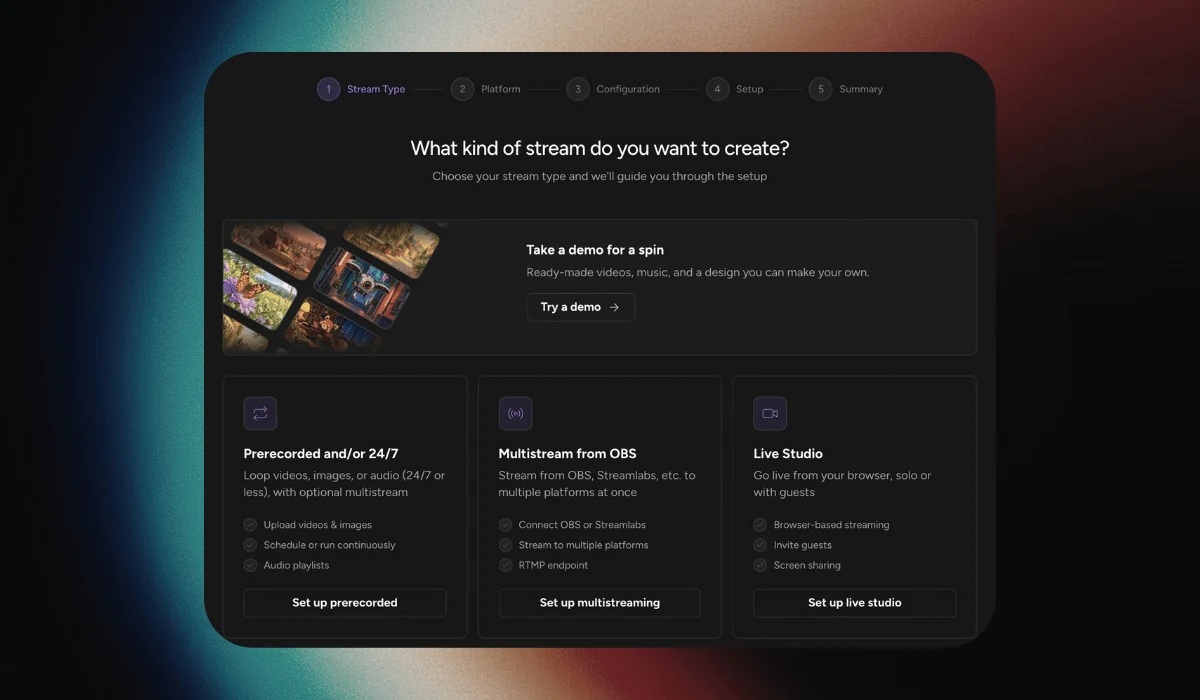
If you use OBS or another app that supports RTMP (Real-Time Messaging Protocol), you paste Upstream's server address and stream key into it, as our OBS guide shows.
If you don't use OBS, Live Studio needs nothing installed, and guests join through a link, with up to 10 people on stage.
You can also upload pre-recorded videos and schedule them to air on both platforms once, daily, or weekly with Scheduling and Stream Automation. On YouTube, which has no time limit, the same videos can also run as a 24/7 stream.
Whichever you choose, you add YouTube as the main platform by signing in with Google, and Upstream creates the broadcast for you.
Every other destination goes into the Multistreaming section of your Stream Settings, shown below.
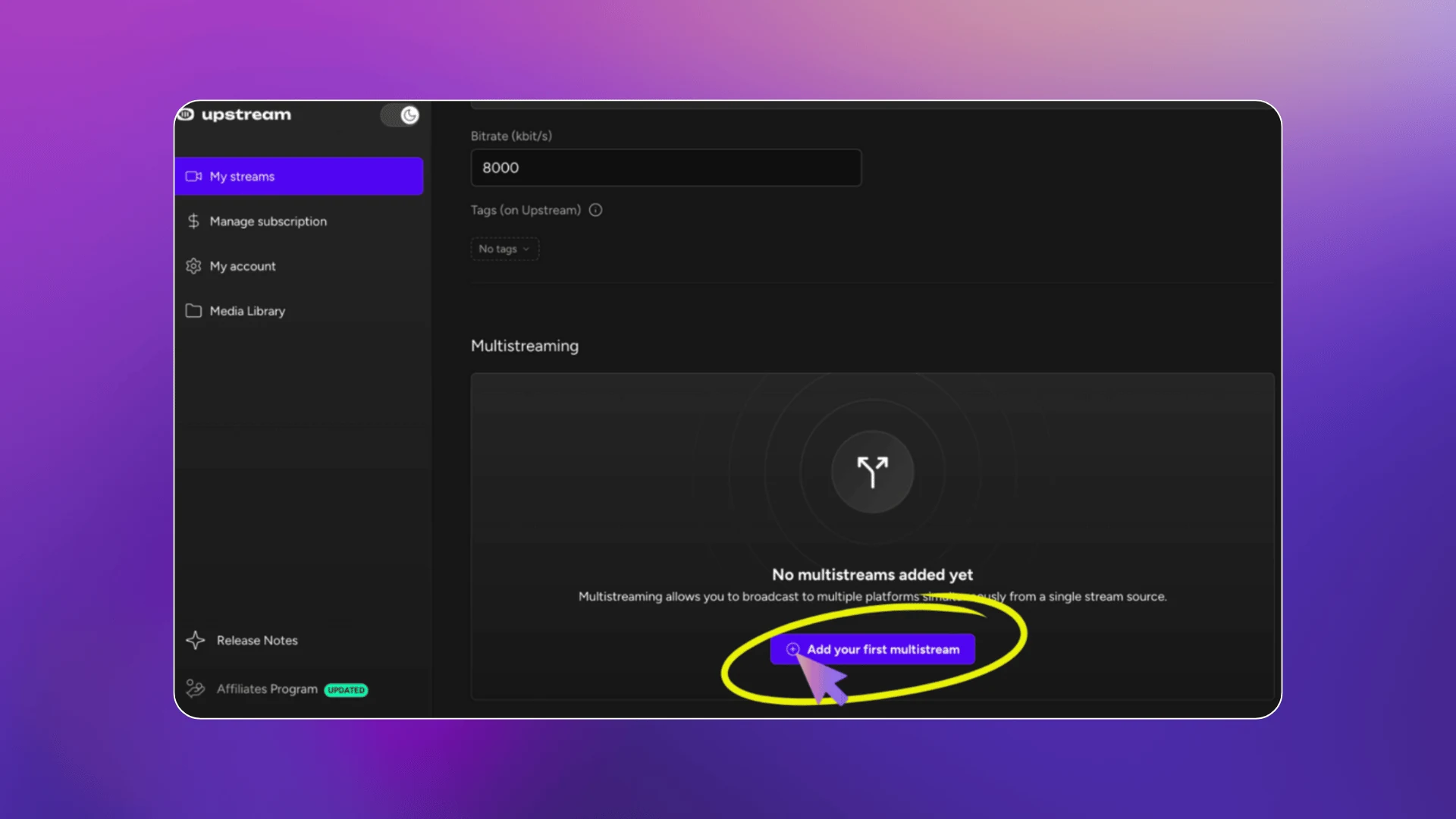
Here, you can add Facebook using your persistent stream key.
Avoid re-adding YouTube as a multistream destination since it would send the broadcast to YouTube twice.
When you stream live from OBS or Live Studio, your computer stays on for the show.
Scheduled and pre-recorded streams play from Upstream’s servers, so you can turn it off.
For the full click-by-click process, see our YouTube and Facebook setup guide.
Here’s why we recommend Upstream for multistreaming:
- One upload from your side
- Up to 10 destinations per stream
- A free plan with every feature and 24 streaming hours a month
You can also add more destinations later, like Twitch and Kick, without changing anything in OBS.
For most creators, and for agencies running streams for clients, this is the simpler route.
OBS With a Multiple Outputs Plugin
The alternative is to do everything on your own computer with OBS.
On Windows or Linux, a plugin lets OBS send a separate output to each platform at no extra cost.
Some of the pros include:
- It’s free
- No extra account or service
- Everything stays inside OBS
- Little extra load on your computer’s processor (CPU) when sharing OBS’s encoder
- Separate bitrate per platform possible
With a fast connection and a capable computer, this is a reasonable way to start.
You need the Multiple RTMP Outputs plugin, shown below.
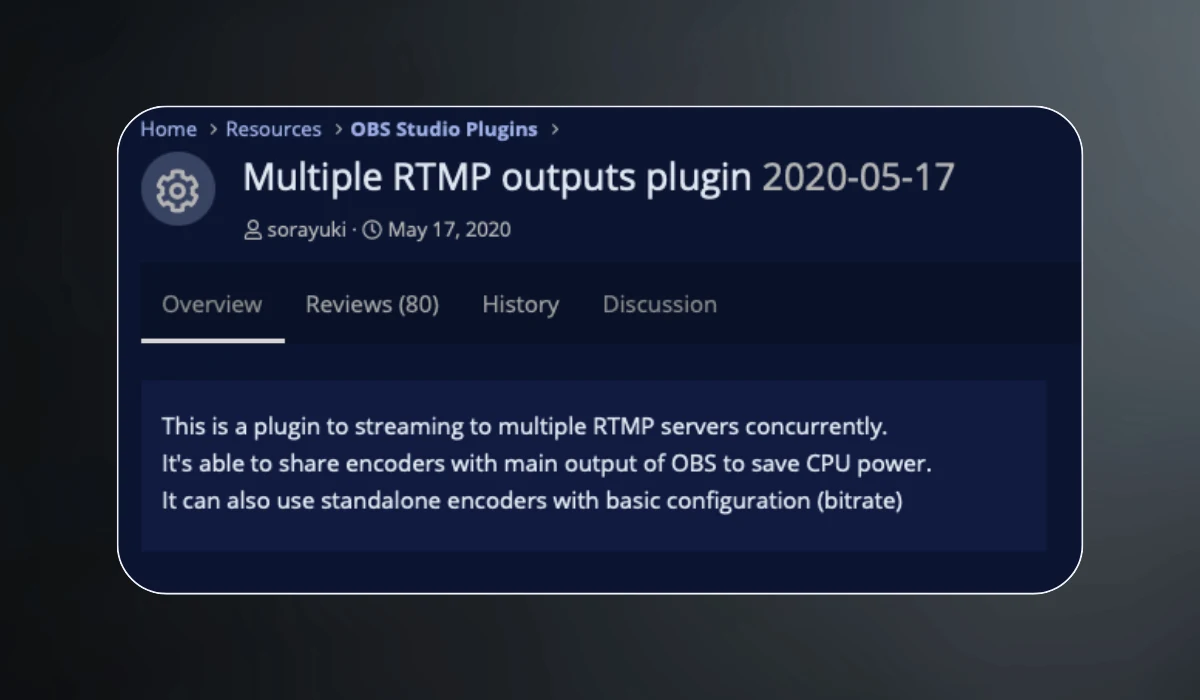
You install it separately, then add Facebook and YouTube as targets, each with its own stream key.
Whether this needs more CPU than a cloud setup depends on how you configure it.
Sharing OBS's main encoder, the part that compresses your video, saves CPU, as the plugin description notes, but both platforms then receive the same settings.
A separate encoder lets you set a different bitrate for each platform, but your computer then does the encoding work twice.
As Paul Richards, former Chief Streaming Officer at StreamGeeks and founder of WorshipMetrics, says in his plugin guide, bandwidth is a concern here.
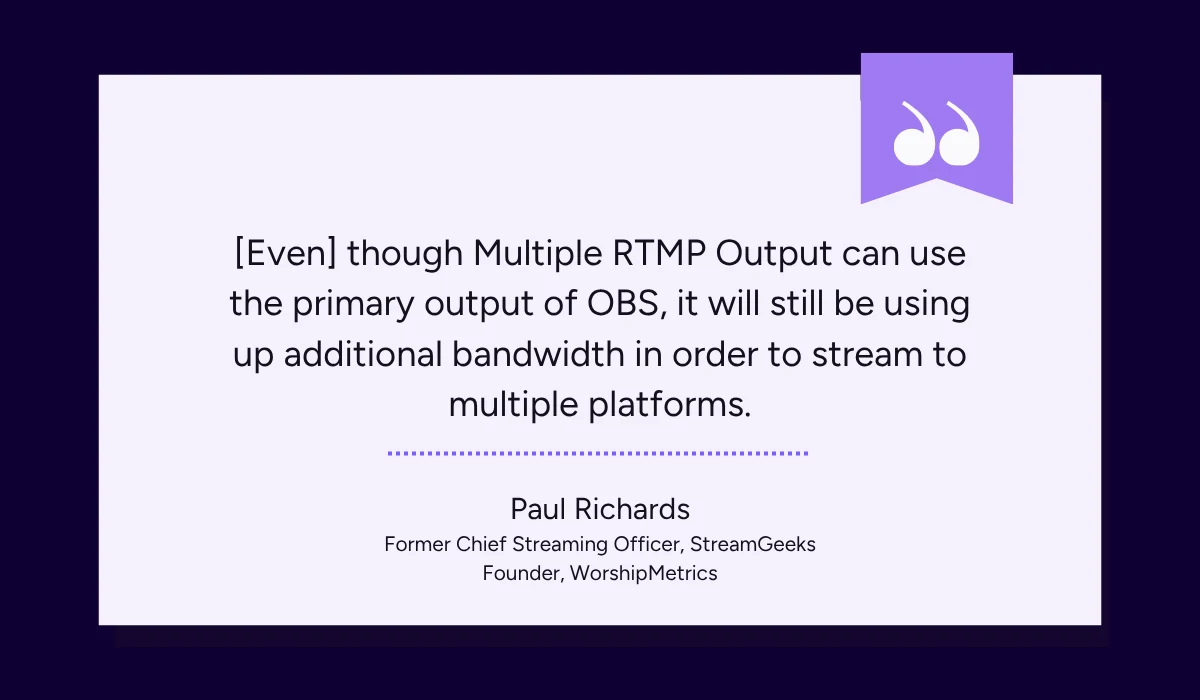
He explains that adding one more target can almost double the bandwidth, since each platform receives its own upload.
YouTube recommends an upload speed 1.5 to 2 times the combined bitrate of all your streams.
You can check if your connection can carry two outputs with our streaming bandwidth calculator.
With the plugin, your computer must stay on for the whole stream.
You can’t schedule a stream and turn your computer off. If it crashes or loses power, both streams stop.
You also manage everything yourself, including two stream keys and two sets of settings.
If you already use OBS, a simpler option is to send one stream to a cloud tool that handles both platforms.
Here’s how the two methods compare:
| Method | What runs on your computer | Upload bandwidth needed | Can your computer be off? | Cost | Best for |
|---|---|---|---|---|---|
| Cloud multistreaming tool (Upstream) | OBS, or a browser tab with Live Studio. Nothing for pre-recorded streams | One stream (about 6 Mbps at 1080p30, so 9–12 Mbps upload) | Yes for scheduled or pre-recorded streams. No for live shows | Free plan: 24 hours a month, 10 destinations. Paid from $30/month | Average home internet, guests, scheduled shows, and small teams |
| OBS + Multiple RTMP Outputs plugin | OBS, the plugin, and one or two encoders | One stream per platform (about 12 Mbps for both, so 18–24 Mbps upload) | No | Free | Fast upload, full local control |
For example, a church team streaming a weekly service on an average connection is better served by a cloud tool, while a gamer with fast internet might prefer the plugin.
How to Make Sure Both Streams Go Live and Look Good
Both platforms get the same stream, so settings that work on one can make it look worse on the other, or stop it from going live there at all.
The settings you need to check are shown in the image below.
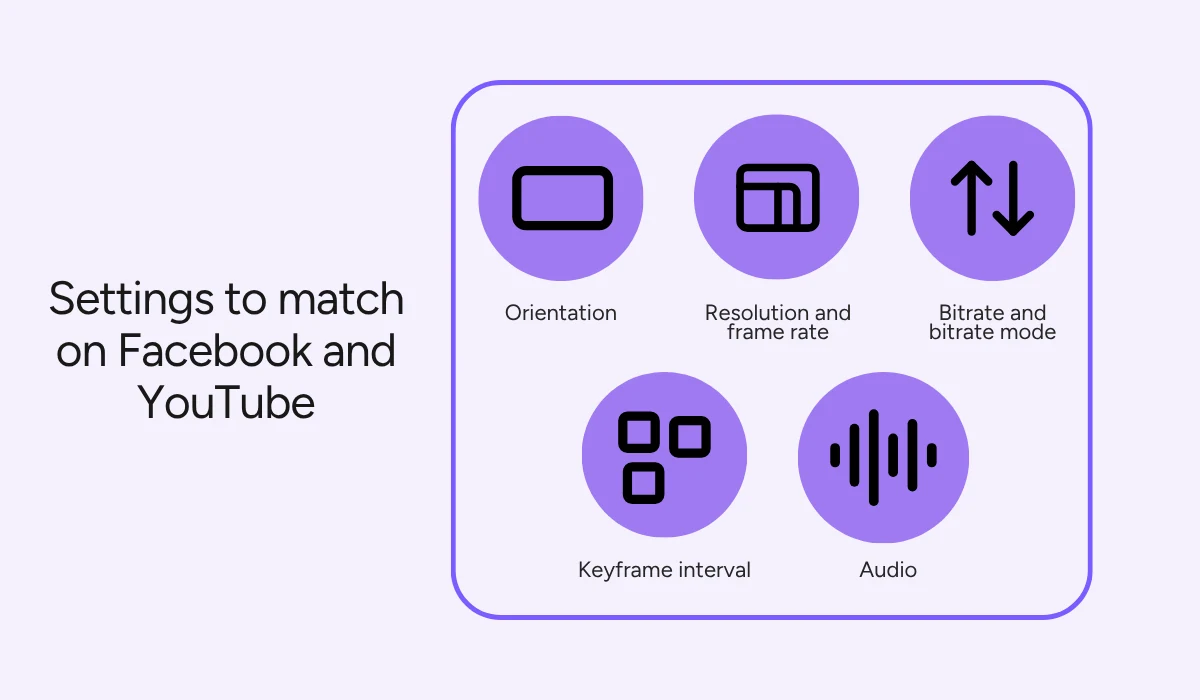
YouTube Live, for example, accepts up to 60 frames per second (fps) and both vertical and horizontal formats.
Compare that to Facebook, which works best with a 16:9 frame and, for 1080p at 30 fps, recommends a bitrate of 3,000 to 6,000 kbps.
Its requirements warn that picture shapes far from 16:9 may not work, and a 60 fps stream at YouTube's recommended bitrate goes over Facebook's range.
Audio differs too: YouTube accepts AAC (Advanced Audio Coding) or MP3, while Facebook asks for AAC, so an MP3 track could fail on Facebook.
These safe settings work on both platforms at once:
- 16:9 landscape orientation
- 1920x1080 resolution at 30 fps
- 6,000 kbps bitrate in constant bitrate (CBR) mode
- A keyframe interval of 2 seconds
- AAC audio at 128 kbps, stereo, 44.1 kHz
On Facebook, a live you didn’t schedule in Live Producer only starts when you click Go live there, after the preview appears.
A live that’s scheduled in Live Producer starts on its own, as the note from Facebook below shows.
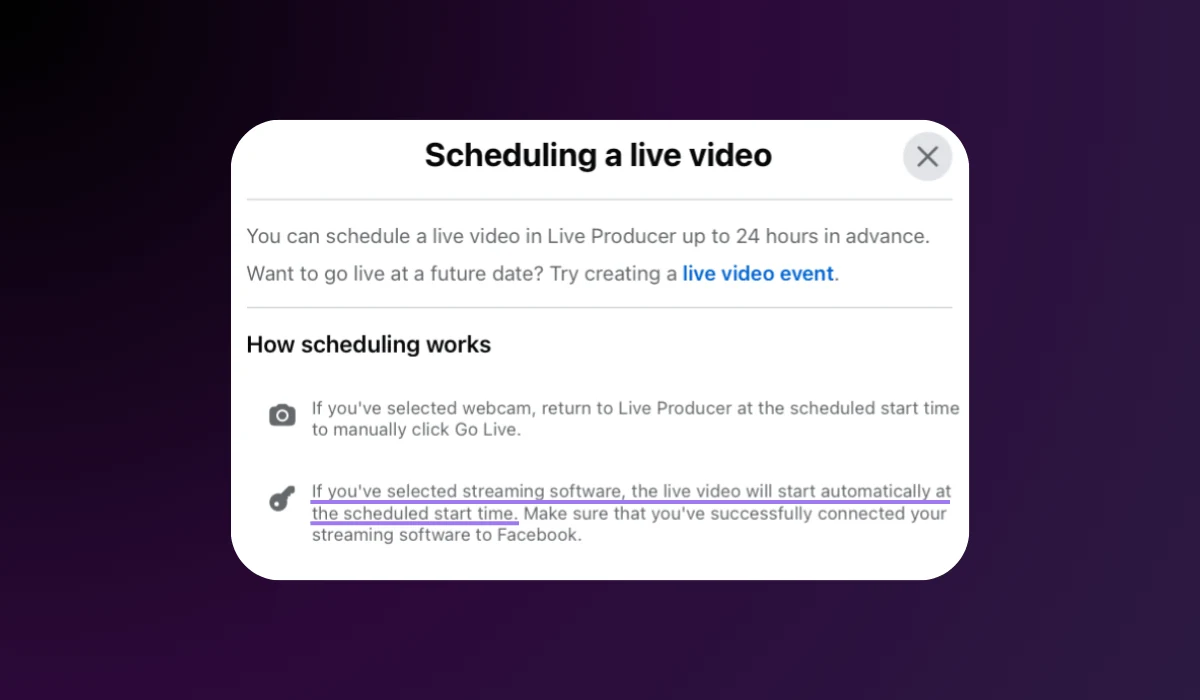
That way, Facebook goes live at the same time as YouTube, even when no one is at the computer. Our Facebook live streaming setup uses this for pre-recorded streams.
Before the real broadcast, run a short private or unlisted test on YouTube, and use Facebook's test broadcast, which only people with access to your Page can see.
During the test, check:
- Picture quality on each platform
- Sound level and sync
- Delay behind real time
- Title and description on each platform
Comments also arrive on two platforms, and a question asked on Facebook is easy to miss while you’re reading YouTube chat.
As the video below shows, third-party chat aggregation brings both chats into one place, which Upstream supports through its Multichat Overlay integration.
Source: Upstream on YouTube
Once the test looks right and both chats are in view, you're ready for the real broadcast.
What to Do When Facebook or YouTube Doesn't Go Live
Even with a careful setup, one side of a multistream sometimes doesn't start.
Here are the most common problems and how to fix them.
| Problem | Likely cause | Fix |
|---|---|---|
| YouTube is live, Facebook isn't | One-time key, or Go live not clicked | Turn on the persistent key and paste the new key into Upstream. Click Go live in Live Producer |
| YouTube says live streaming isn't available | Channel not verified, or live streaming not turned on yet | Verify by phone, then allow up to 24 hours |
| Facebook won't offer live at all | Account under 60 days old, under 100 followers, or no Page access | Wait, grow the Page, or ask whoever manages the Page for access |
| Facebook ends after about 8 hours | Facebook's limit | Upstream ends the Facebook side at 7 hours 55 minutes while YouTube keeps going. Start a new Facebook broadcast if needed. |
| Picture or sound differs between platforms | Settings outside one platform's range | Use the safe settings listed above |
One of the most common problems is YouTube going live while Facebook doesn’t, and the usual cause is a one-time Facebook stream key.
It works for the first broadcast, so the problem only appears the next time you go live.
Facebook's 8-hour limit also surprises people during long events, so check the live streaming limits before you plan one.
For anything else, Upstream’s helpdesk has setup and troubleshooting guides for each platform.
Conclusion
Multistreaming to Facebook and YouTube is mostly preparation: a verified YouTube channel, live access on Facebook, and a persistent stream key.
After that, you only choose where the extra copy of your stream is made.
The OBS plugin works if your computer and upload can handle two streams. If they can’t, or if you want to schedule streams and turn your computer off, a cloud tool like Upstream is the better choice.
Most problems show up during the first test stream, so run it a day before the real one, while there’s time to fix a key or a setting.
When you’re ready, try Upstream free and send your next stream to Facebook and YouTube at once.