Most IP cameras can’t stream to YouTube on their own. Dahua and some Hikvision models can send video straight to YouTube. Axis cameras need a paid app that runs on the camera. Reolink and most other brands only let other software read their video, so they need a small computer on the same network to send it to YouTube for them.
Whichever setup you end up with, YouTube expects the same four things from a camera: H.264 video, an audio track, frequent full frames and a stream key that doesn’t change. Get those right and one YouTube link can stay live for months.
Which setup fits your camera
A camera gets its video out in one of two ways. Some cameras can push: you type in YouTube’s address and your stream key, and the camera sends the video out by itself. Most cameras can only be read: they offer an address on your home or office network (an RTSP address), and another program has to connect to it, pick up the video and pass it on. That program is called a relay.
| Camera | Can it push to YouTube? | What you need |
|---|---|---|
| Dahua | Yes, on models with an RTMP setting | Nothing extra |
| Hikvision | Some models | Nothing extra if the RTMP menu is there, a relay if it isn’t |
| Axis | Not by itself | The CamStreamer app on the camera ($399 per camera, one time) |
| Reolink (wired and Wi‑Fi) | No | A relay on site |
| Reolink battery and 4G | No | Not suited to 24/7 streaming |
| Other brands | Only if the settings have an RTMP field for a stream key | A relay if there’s no such field |
Reolink trips a lot of people up because its settings mention RTMP. On a Reolink camera, RTMP is just another address that software reads from the camera. There’s nowhere to paste a YouTube stream key, and Reolink’s own guide tells you to run OBS on a computer. Battery models are worse: through a Home Hub or recorder, Reolink limits each live session to 5 minutes, and its 4G cameras offer no RTSP or RTMP at all.
Set the camera up the way YouTube wants
Change these four settings in the camera’s app or web page before you connect anything. Each one is behind a common YouTube error.
- Video codec: H.264. A codec is how the camera compresses video. Many newer cameras default to H.265 (also called HEVC) because it saves space. YouTube’s help page lists H.265, but its developer guide says RTMP takes H.264, and that’s what camera streams use. Reolink’s 8MP and 12MP models send H.265 at full resolution, so pick a lower resolution there or let the relay convert it.
- Audio: on. YouTube won’t take video without sound. Its error reads “Please provide one audio stream.” Turn on the camera’s microphone, and choose AAC if the camera offers a choice. If the camera has no microphone, the relay can add a silent track.
- Keyframes: every 2 seconds. A keyframe is a full picture. The frames in between only store what changed. YouTube wants one every 2 seconds and never more than 4. Cameras call this the I-frame interval or GOP. Set it to twice the frame rate: 50 at 25 fps, 60 at 30 fps.
- Smart codec: off. Features like Smart Codec, H.264+ and H.265+ save space by spacing keyframes far apart. One camera owner saw YouTube report a 16.7 second gap between keyframes because of it.
Use the camera’s main stream, which is the full resolution one. The sub stream is a small copy meant for phone apps and looks soft on a big screen.
Cameras that push on their own
If your camera can push, you don’t need anything else on site. You need two things from YouTube first: the server address rtmp://a.rtmp.youtube.com/live2 and a stream key from YouTube Studio (Create, Go live, then Stream). Make it a custom key so it stays the same. There’s more on that further down.
Dahua: open the camera’s web page and go to Network, Access Platform, RTMP. Turn it on, choose a custom address and enter the YouTube address and your key together, as rtmp://a.rtmp.youtube.com/live2/YOUR-KEY. Dahua’s guide asks for H.264, AAC audio and Smart Codec turned off, which matches the settings above.
Hikvision: some cameras have an RTMP section under Configuration, Network, Network Parameters. Many Hikvision manuals have no such menu. If yours doesn’t, treat the camera like a Reolink and use a relay.
Axis: Axis cameras don’t stream to YouTube by themselves. Axis points people to CamStreamer, an app that installs on the camera. It costs $399 per camera, one time, with a 30-day trial, and it has a YouTube 24/7 mode that restarts the stream if it stops.
Cameras that can’t push: a relay on site
A relay is a small computer that stays on next to the camera, reads its video and sends it to YouTube. A mini PC, a Raspberry Pi 4 or 5, or a NAS that runs Docker all work. The program that does the work is FFmpeg, which is free.
First, turn on RTSP in the camera. On Reolink it’s in the app under the gear icon, then More Features, Advanced Network Settings, Server Settings. Then find the camera’s RTSP address. These are the formats the camera makers publish:
| Camera | RTSP address |
|---|---|
| Reolink | rtsp://user:password@CAMERA-IP:554/Preview_01_main |
| Reolink, H.265 models | rtsp://user:password@CAMERA-IP:554/h265Preview_01_main |
| Hikvision | rtsp://user:password@CAMERA-IP:554/Streaming/channels/101 |
| Dahua | rtsp://user:password@CAMERA-IP:554/cam/realmonitor?channel=1&subtype=0 |
| Axis | rtsp://user:password@CAMERA-IP/axis-media/media.amp?videocodec=h264 |
Check the address in VLC (Media, Open Network Stream) before you go further. If VLC shows the picture, FFmpeg can read it too.
For a camera that sends H.264, this command passes the video through as it is and adds a silent audio track. Put in your camera’s address and your YouTube key:
ffmpeg -rtsp_transport tcp -timeout 10000000 \
  -i "rtsp://user:password@CAMERA-IP:554/Preview_01_main" \
  -f lavfi -i anullsrc=channel_layout=stereo:sample_rate=44100 \
  -map 0:v:0 -map 1:a:0 \
  -c:v copy -c:a aac -b:a 128k \
  -shortest -f flv "rtmp://a.rtmp.youtube.com/live2/YOUR-KEY"
The -rtsp_transport tcp part reads the camera over a connection that resends lost data, so you don’t get smeared frames. -c:v copy passes the video through without converting it, which is light enough for a Raspberry Pi. To keep the camera’s own sound instead of silence, delete the anullsrc line and change -map 1:a:0 to -map 0:a:0.
For a camera stuck on H.265, the relay converts the video to H.264 at 1080p, with keyframes 2 seconds apart at 30 fps:
ffmpeg -rtsp_transport tcp -timeout 10000000 \
  -i "rtsp://user:password@CAMERA-IP:554/h265Preview_01_main" \
  -f lavfi -i anullsrc=channel_layout=stereo:sample_rate=44100 \
  -map 0:v:0 -map 1:a:0 \
  -vf scale=-2:1080 -c:v libx264 -preset veryfast -pix_fmt yuv420p \
  -b:v 6000k -maxrate 6000k -bufsize 12000k -g 60 \
  -c:a aac -b:a 128k \
  -shortest -f flv "rtmp://a.rtmp.youtube.com/live2/YOUR-KEY"
Converting video takes far more computing power than passing it through, so a mini PC is a safer choice than a Raspberry Pi for this one. We ran both commands on test video with FFmpeg 7.1. Both came out as H.264 with an AAC audio track, and the second had keyframes 2 seconds apart.
FFmpeg stops when the connection to the camera or to YouTube breaks, and it doesn’t reconnect by itself. Wrap it in a loop so it starts again a few seconds later:
while true; do
  ffmpeg -rtsp_transport tcp -timeout 10000000 \
    -i "rtsp://user:password@CAMERA-IP:554/Preview_01_main" \
    -f lavfi -i anullsrc=channel_layout=stereo:sample_rate=44100 \
    -map 0:v:0 -map 1:a:0 \
    -c:v copy -c:a aac -b:a 128k \
    -shortest -f flv "rtmp://a.rtmp.youtube.com/live2/YOUR-KEY"
  sleep 5
done
On a Raspberry Pi or Linux box, a system service with automatic restart does the same job and also starts the relay after a power cut.
The relay only needs to connect out to YouTube. Don’t open the camera’s RTSP port (554) to the internet. An open port lets anyone online try your camera’s password.
Remote sites and Starlink
Pushing works on Starlink. Reading the camera from outside doesn’t. Starlink’s Residential and Roam plans share public addresses between customers (called CGNAT), and Starlink says this doesn’t allow incoming connections. The Starlink router can’t forward ports either. Only Priority plans can get a public IPv4 address.
So a cloud service that offers to read your camera from the internet can’t reach a camera behind Starlink. A camera that pushes, or a relay on site, connects out, and outgoing connections work fine. The same goes for many 4G and 5G routers, which often sit behind CGNAT too.
Two numbers to check before you mount anything. Starlink lists upload speeds of 15 to 35 Mbps on Residential and Roam, which is plenty for one 1080p camera. And a stream running around the clock uses a lot of data: at 5 Mbps that’s about 1.6 TB a month, so make sure the plan has no data cap you’d hit.
Why YouTube ends your stream, and how to keep one link
YouTube ends the broadcast about a minute after the video stops arriving, if auto-stop is on. When the camera comes back, YouTube starts a new video with a new link, so embeds and links you’ve shared stop working. On camera forums, owners describe their YouTube stream ending every 9 to 12 hours.
Two settings help. Use a custom stream key, so the camera always connects with the same key. And in the stream’s settings in YouTube Studio, turn off auto-stop, so YouTube waits for the camera instead of ending the broadcast.
The 12-hour number you’ll see in forums is about replays, not the stream itself. YouTube may not save a replay of a stream longer than 12 hours, but the live broadcast can run for months. Our guide on whether 24/7 streams are allowed on YouTube covers the rules.
Keep it live through drops with Upstream.so
Send your camera to Upstream.so instead of straight to YouTube, and a camera drop no longer ends anything. Upstream.so runs the YouTube broadcast from our cloud servers. If the camera or the relay loses its connection, YouTube keeps getting video. Your viewers see a clip you picked, like a “back soon” video or the best moments from last week, or a “camera offline” card. You set that card up once in the Stream Designer, and it appears whenever the camera stops. When the camera reconnects with the same key, the live picture comes back on the same YouTube link.
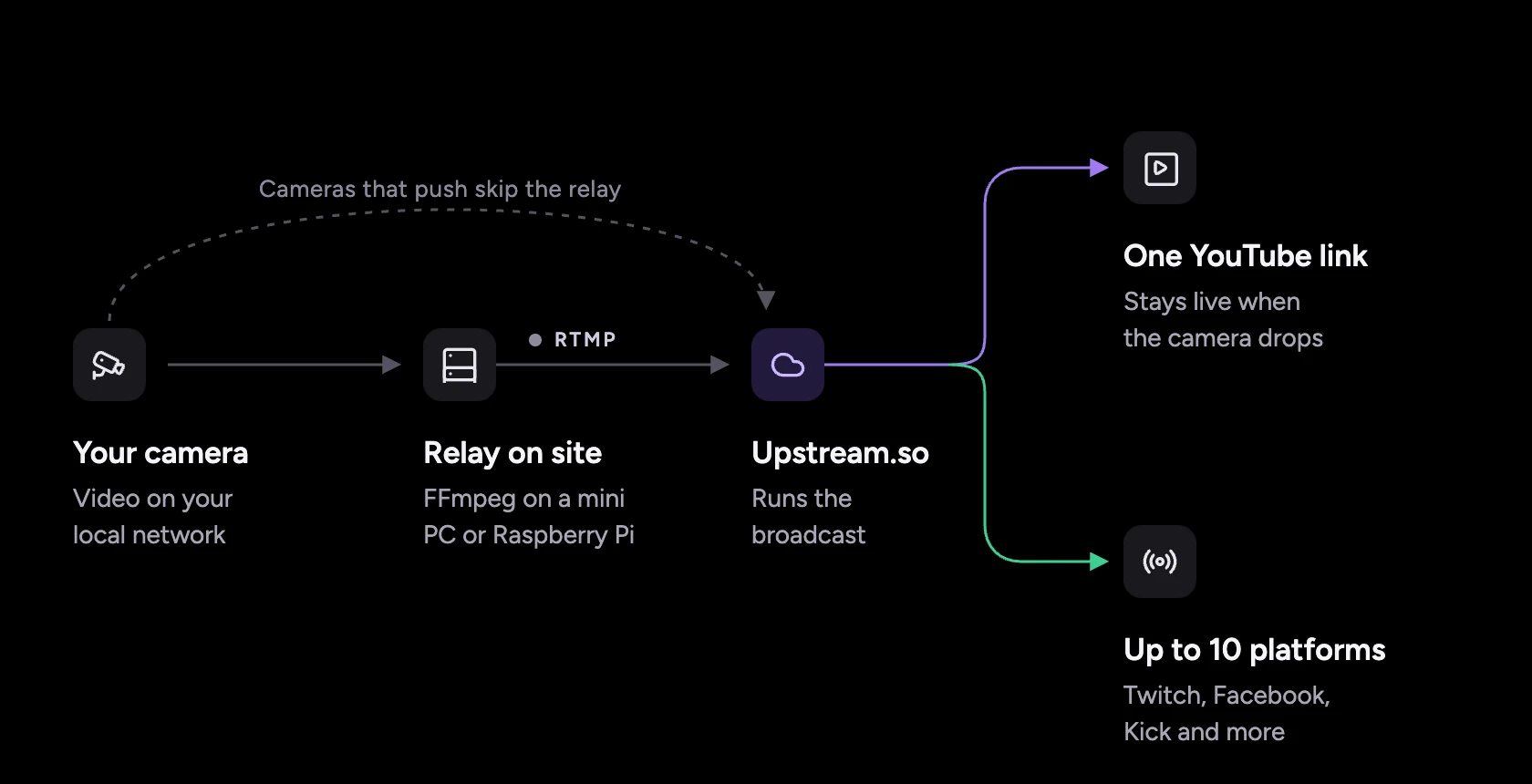
Setup takes a few minutes. Create a stream, pick Multistream from OBS, connect YouTube by signing in, and copy the RTMP Server URL and Stream Key. Paste them into a Dahua or Hikvision camera’s RTMP setting, or use them in the relay command in place of the YouTube address. A camera that pushes can go straight to Upstream.so with no computer on site at all.
The same camera can also go to up to 10 of 30+ platforms at once, like Twitch, Facebook and Kick, and Upstream.so puts the YouTube, Twitch, Kick and Rumble chats in one feed.
Already have an HLS link? Skip the relay
Some cameras and media servers already publish their video at a public address, an HLS link that ends in .m3u8. If yours does, you don’t need a relay or OBS. In the Stream Designer, add an HLS stream element from the Media menu, paste the link and size it to fill the screen. Upstream.so plays the feed on your stream, and if the feed drops, the element keeps trying to reconnect while the YouTube broadcast stays up.
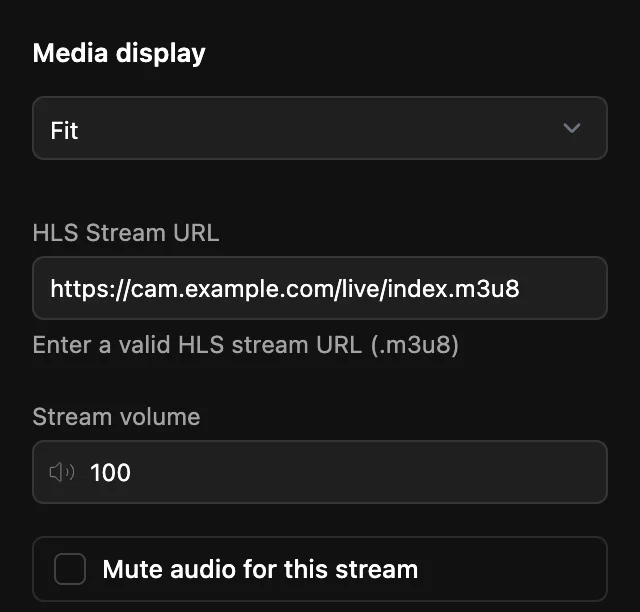
Two catches. Our servers play the link in a browser, so it has to be reachable from the internet and its server has to allow playback from other sites. Media servers like MediaMTX and go2rtc allow it by default, but a camera’s own built-in HLS page often doesn’t. And links that need a username and password don’t work yet. A camera behind Starlink or most 4G routers still needs to push or go through a relay.
A few limits so you know them up front. Upstream.so takes RTMP like YouTube does, so a camera that only offers RTSP still needs the relay, or a media server like MediaMTX that turns its RTSP into an HLS link. The camera feed can be up to 1080p, in H.264. Upstream.so doesn’t email you when the camera goes offline, so keep the camera’s own alerts on. A camera running around the clock needs a paid plan, $30 a month for one stream, or $24 a month billed yearly. Try it free first with 24 streaming hours a month, no credit card and no watermark.
Keep a live channel running 24/7.
Upload files, build a playlist, and let Upstream run continuous live playout from the cloud without OBS, a VPS, or an always-on computer.





Sources
- Reolink: RTMP, RTSP, video and audio formats and which products support RTSP
- Camera makers: Dahua RTMP to YouTube, Hikvision RTSP, Axis video streaming, Axis on live streaming and CamStreamer
- YouTube: encoder settings, ingestion protocols, stream health messages, stream keys, live archives and auto-stop
- FFmpeg: protocols and filters
- Starlink: IPv4 and IPv6, port forwarding and specifications
- Our own test: both relay commands run on generated test video with FFmpeg 7.1 on macOS, November 9, 2026