Yes, one YouTube channel can run multiple live streams at the same time. YouTube currently allows up to 10 active streams per channel and up to three active streams per stream key. If the broadcasts contain different video, create a separate YouTube broadcast and use a unique stream key for each one.
That makes it possible to run two or more 24/7 channels from a single YouTube account, such as one lo-fi stream for work and another for sleep, without creating a separate channel for every theme.
Watch the two-minute walkthrough below, then use the written steps for the details and troubleshooting checks.
What “multiple live streams” means on YouTube
This guide is about running different live broadcasts at the same time on one YouTube channel. Each broadcast has its own title, thumbnail, live chat, analytics, video source, and watch page.
That is different from:
- Multistreaming: Sending one live stream to YouTube, Twitch, Kick, and other platforms.
- Horizontal and vertical live: Sending the same YouTube broadcast in two viewing formats.
- Reusing one stream key: Sending the same encoder stream to more than one broadcast.
If you want YouTube streams to show different content, treat every stream as an independent broadcast with its own source and key.
Can one YouTube channel run multiple live streams?
Yes. According to YouTube’s live streaming limits, a channel can have up to 10 active streams and a single stream key can be associated with up to three active streams.
The second number can be misleading. A stream key represents the incoming video stream. If you bind the same key to multiple broadcasts, those broadcasts receive the same data. To run two different videos at once, use two separate broadcasts and two unique stream keys.
YouTube’s developer documentation makes the distinction clear: a broadcast is the event viewers see, while a stream is the video being delivered to it. Each concurrent broadcast with different content needs its own stream resource.
| What you want to do | Recommended setup |
|---|---|
| Run two different 24/7 videos on one channel | Two broadcasts, two unique stream keys, two video sources |
| Send the same video to several platforms | One source plus multistreaming |
| Send one YouTube live in horizontal and vertical formats | Use YouTube’s supported dual-format workflow |
| Reuse the same stream on several YouTube watch pages | Possible within YouTube’s stream-key limit, but usually not useful for distinct 24/7 programming |
You also need enough streaming capacity for every active output. If you use Upstream, confirm that your plan has enough concurrent stream slots before building the full lineup.
How to run multiple live streams on YouTube
The video demonstration uses the manual RTMP method because it makes the separate-broadcast logic easy to see. Upstream’s YouTube Connect option can simplify repeated setup once your channel is connected.
1. Plan each stream as a separate program
Give every stream a clear purpose before you touch the technical settings. Define its content, title, thumbnail, description, playlist, and audience. Two broadcasts that look nearly identical can compete for the same viewers and make your channel page harder to understand.
For example, a music channel could run:
- an upbeat daytime work stream
- a calm nighttime sleep stream
- a weekend jazz stream
Prepare a separate video or playlist for each stream. Check that you own or license every visual and audio element for continuous use.
2. Schedule a new broadcast in YouTube Studio
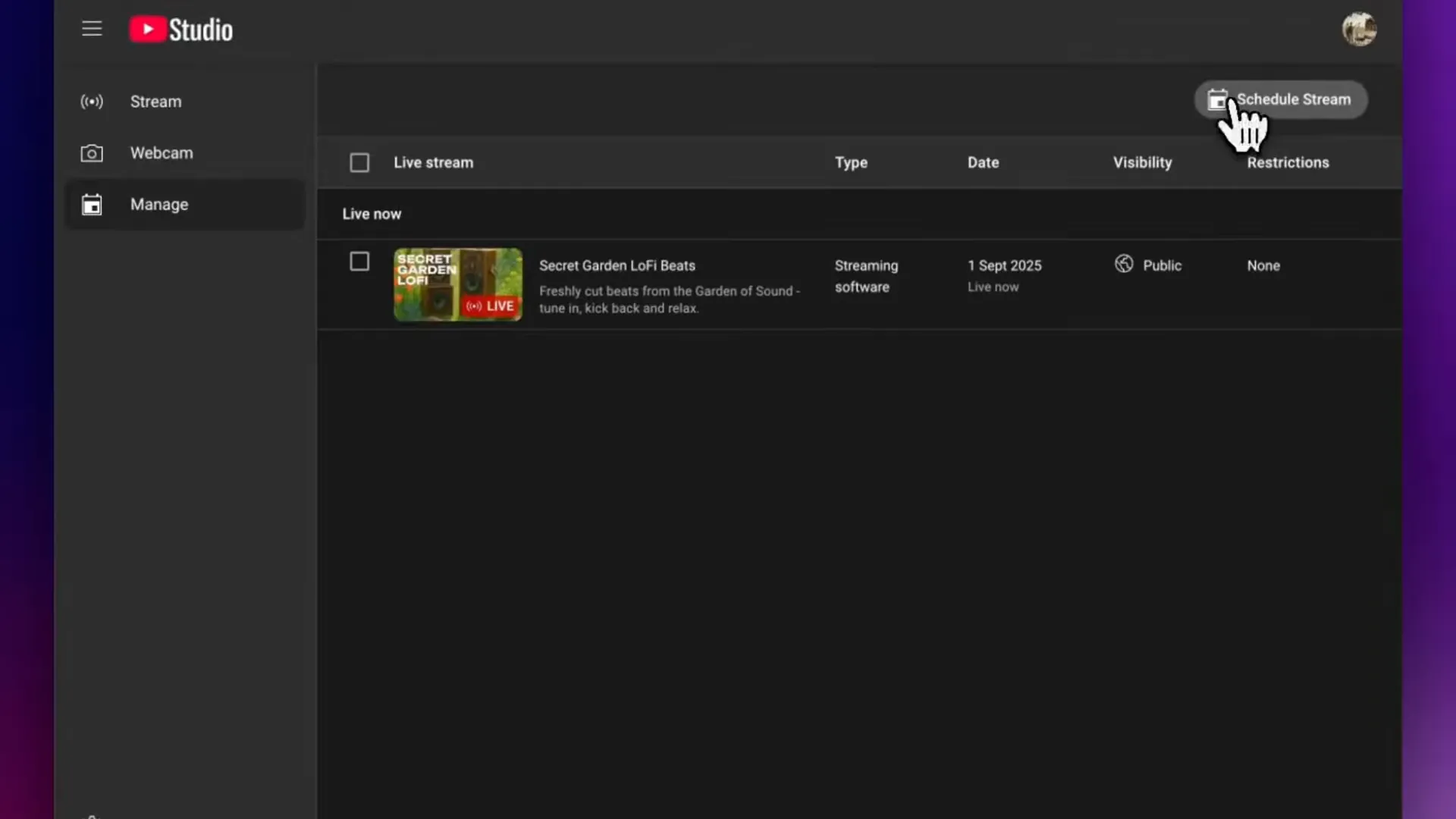
Open YouTube Studio, enter the Live Control Room, and select Manage. Click Schedule stream, then create a new broadcast or reuse settings from an earlier one.
Add a distinct title, description, thumbnail, category, audience setting, and visibility. Choose Streaming software as the source when you plan to connect Upstream or another encoder.
Source: Upstream YouTube Channel
3. Turn on Auto-start
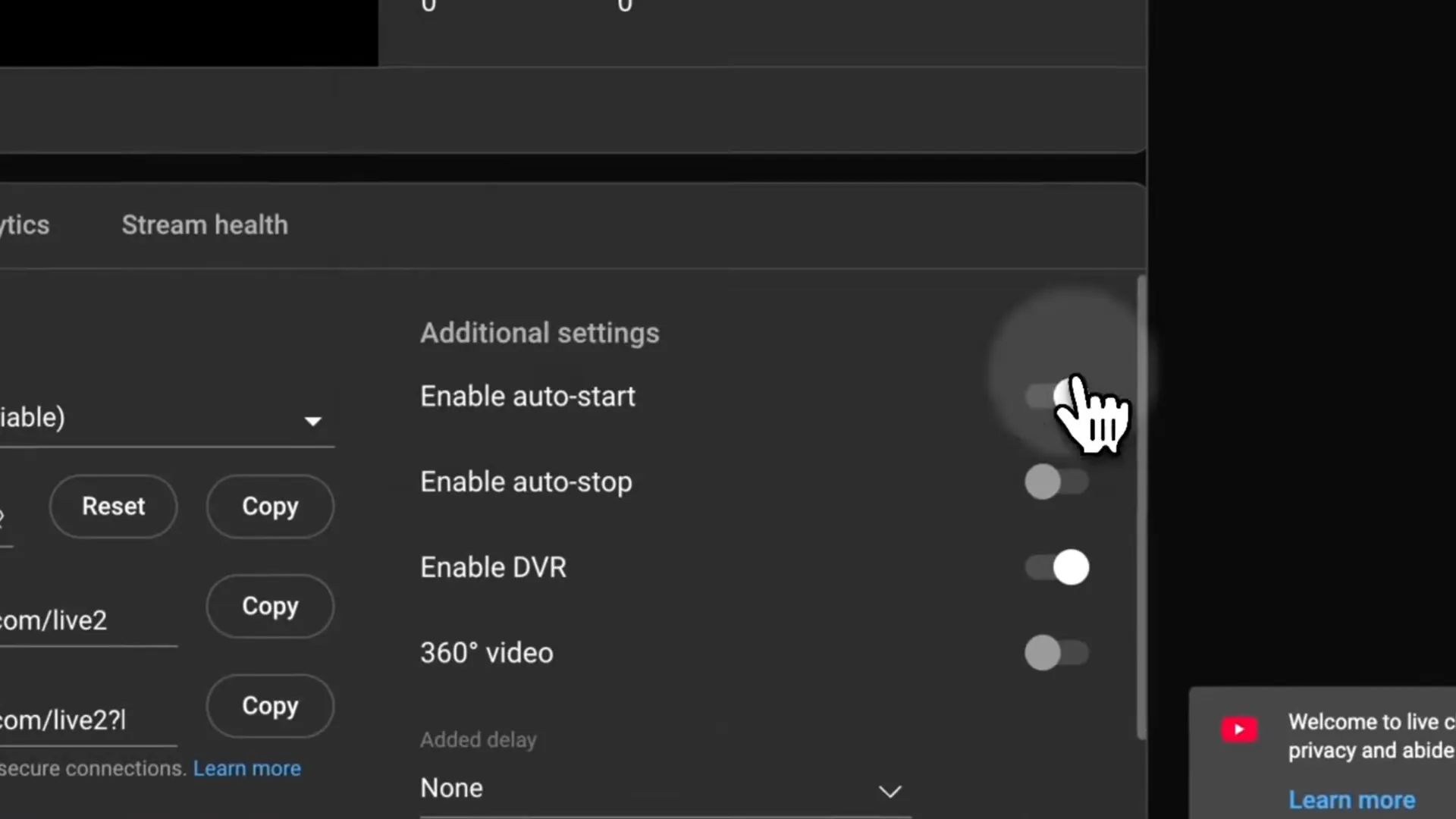
Open the new broadcast’s stream settings and enable Auto-start. This lets YouTube begin the broadcast when it detects the incoming data stream, so you do not have to return to YouTube Studio and click Go Live after starting the source.
You can also enable Auto-stop if you want the YouTube broadcast to end when the stream stops. For a permanent 24/7 stream, review that choice carefully before enabling it.
Source: Upstream YouTube Channel
4. Create a unique stream key
Under Stream settings, open the stream-key menu and choose Create new stream key. Give it a name that identifies the program, such as “Night sleep stream” or “Daytime focus stream.”
Do not use the same key for two broadcasts that need different content. A clear naming system also reduces the chance of routing the wrong source to the wrong public watch page.
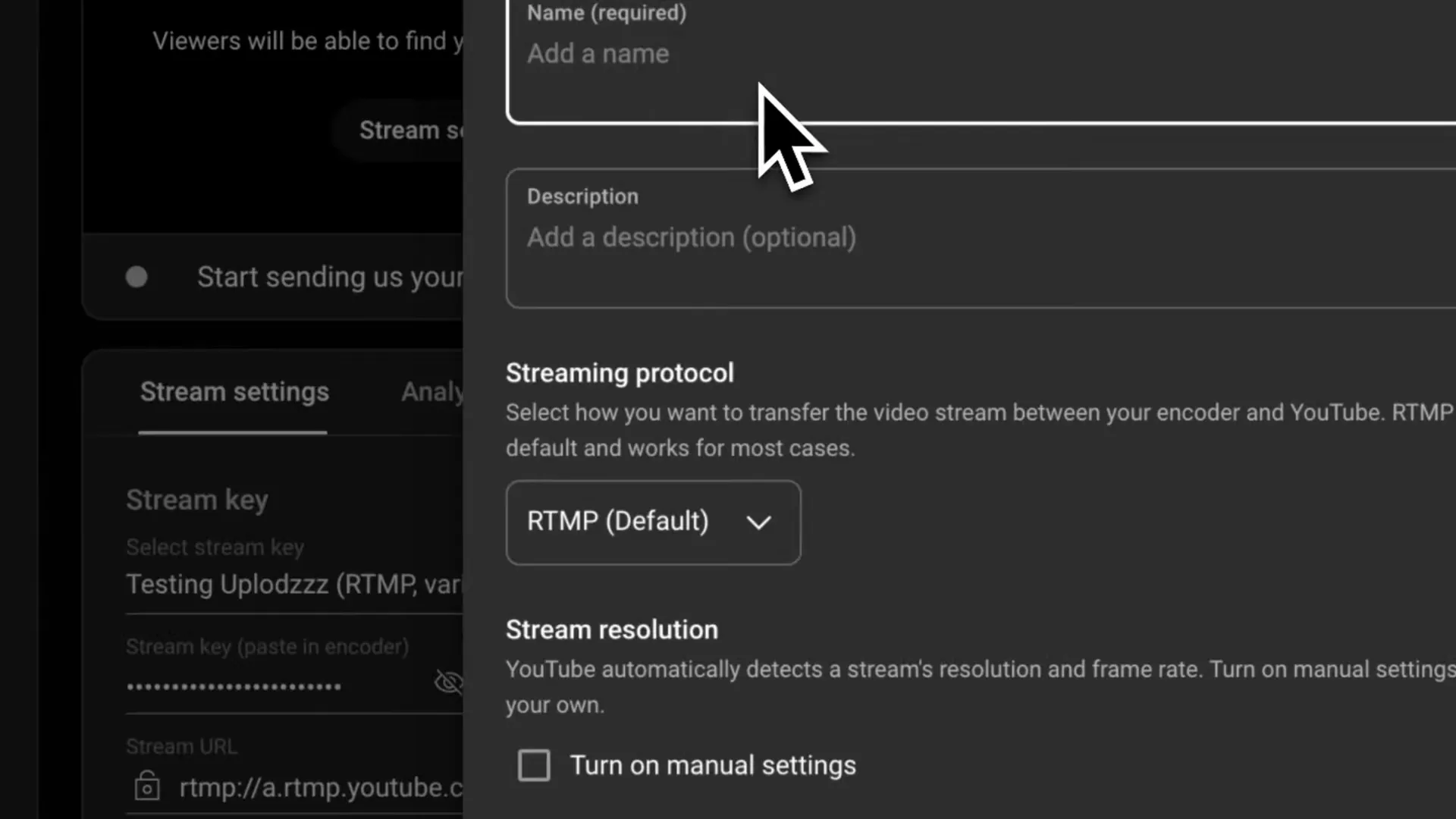
Source: Upstream YouTube Channel
Treat stream keys like passwords. Never place one in a screenshot, document, chat, or public tutorial. If a key is exposed, reset it in YouTube Studio and update the connected encoder.
Need more detail? Follow the step-by-step guide to finding your YouTube stream key.
5. Connect the broadcast to Upstream
You have two options.
YouTube Connect: Connect your YouTube account to Upstream and choose the correct channel. This is the easier ongoing workflow because you can manage key broadcast details without repeatedly copying a stream key. Follow Upstream’s YouTube Connect setup guide.
Manual RTMP: Copy the unique key from YouTube, open the matching stream in Upstream, go to its settings, and update the stream key. Keep the default YouTube RTMP URL unless your setup requires a different ingest server. Upstream also has a manual RTMP walkthrough.
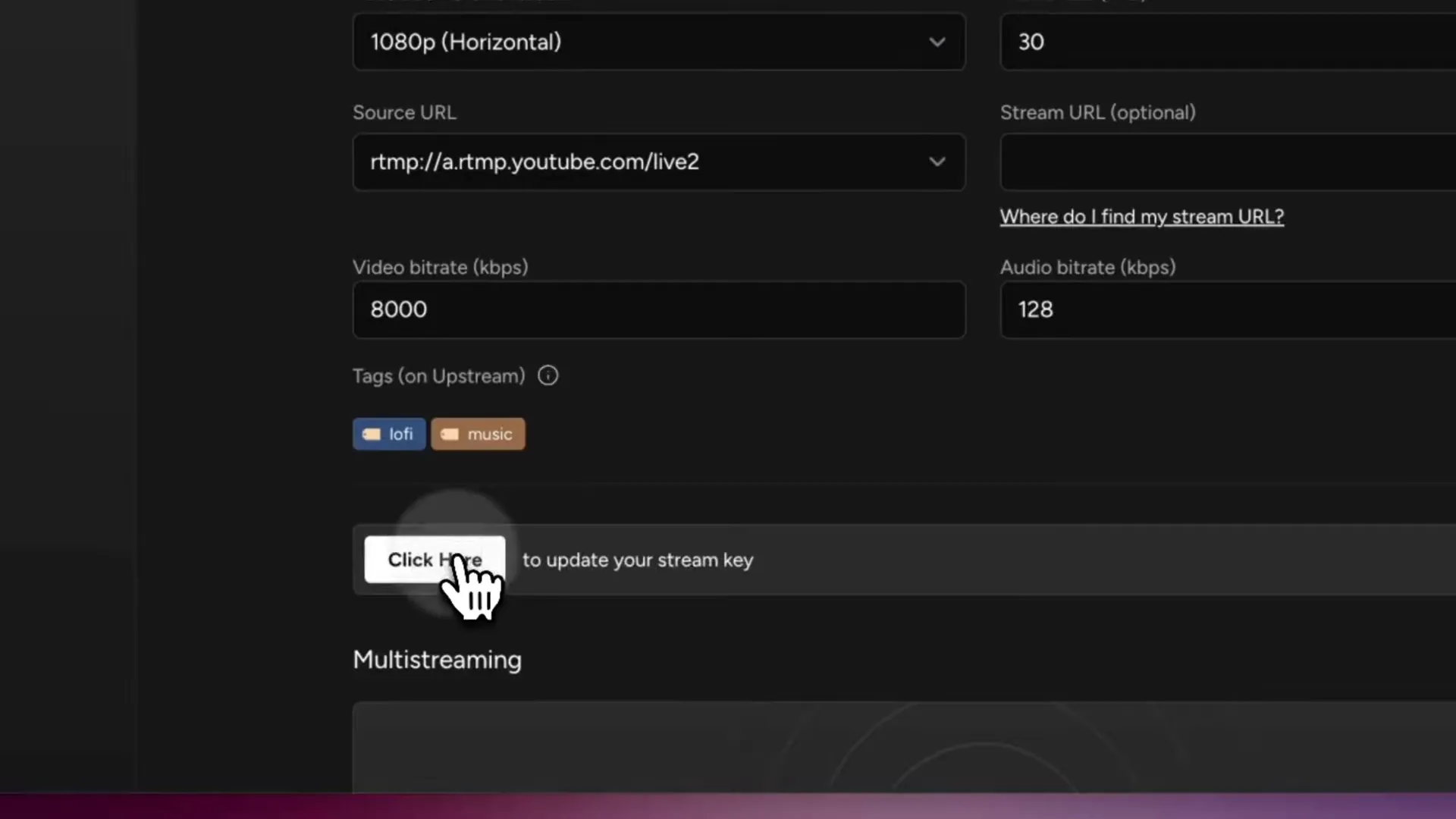
Source: Upstream YouTube Channel
6. Start one stream, then verify it before starting the next
Start the first stream in Upstream. In YouTube Studio, confirm that the preview appears, the stream health is good, and the correct broadcast goes live. Repeat the process for the second stream.
Open your channel’s Live tab in a private browser window and check that both watch pages are visible. Play each one briefly to confirm that the content, title, thumbnail, and audio match.
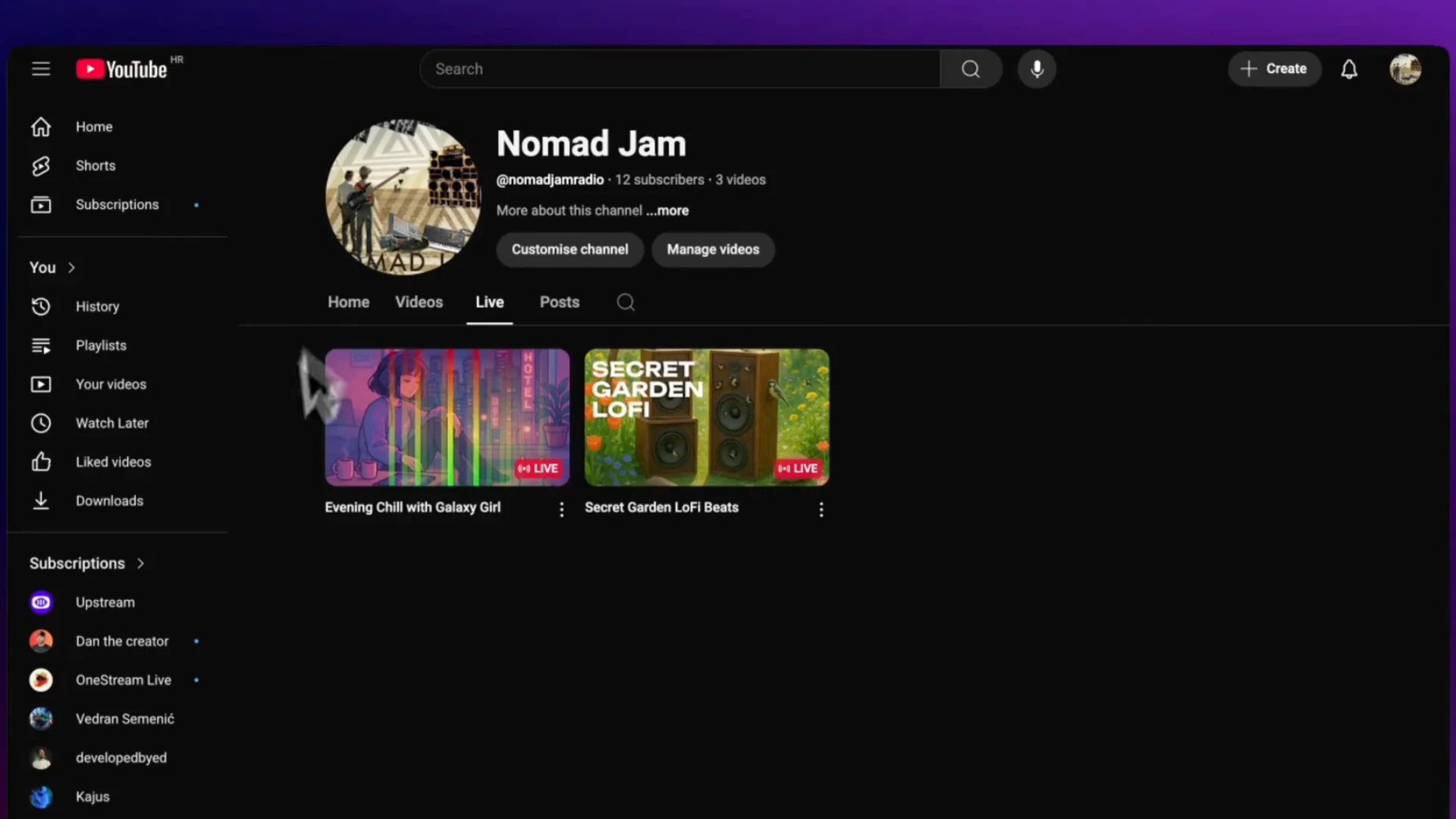
Source: Upstream YouTube Channel
If you want to schedule the streams for specific times instead of running them continuously, use Upstream’s YouTube scheduling guide.
OBS or cloud streaming: what changes with each additional stream?
You can run concurrent streams from a local encoder such as OBS, but every additional output requires more upload bandwidth, encoding capacity, and operational attention.
| Setup | What happens when you add another stream |
|---|---|
| Local OBS setup | Your computer must encode another output and your connection must upload another stream |
| Cloud streaming with Upstream | You upload and configure the media, then Upstream delivers each scheduled stream from the cloud |
OBS is a strong choice for live production with cameras, microphones, scene switching, and real-time interaction. For prerecorded 24/7 channels, a cloud workflow removes the need to keep a local computer awake and continuously connected. Our guide to the best 24/7 live streaming software compares Upstream with the other cloud options.
Whichever method you use, monitor each stream separately. YouTube reports stream health per stream, so a green status on one broadcast does not prove that the others are healthy.
Before launch, check:
- the correct video and audio are assigned to each stream
- titles and thumbnails clearly differentiate the broadcasts
- every stream uses the intended key or connected channel
- bitrate, resolution, and frame rate match YouTube’s recommendations
- live chat and moderation settings are appropriate
- your YouTube and Upstream limits cover the number of concurrent streams
Ideas for multiple 24/7 live streams
The best multi-stream strategy gives viewers a reason to choose between broadcasts. Start with two clearly different programs instead of launching many nearly identical streams.
Some stream categories that are well suited for multiple streams are:
- Music: focus beats, sleep music, jazz, ambient soundscapes
- Nature: ocean camera, bird feeder, aquarium, city view
- Education: beginner lesson loop, advanced lesson loop, exam study room
- Faith and wellness: prayer stream, meditation stream, calming readings
- Gaming: main gameplay stream, event broadcasts, community radio or lobby stream
- Business: product demo, customer education, conference or event coverage
Match each stream to a specific search intent and viewer need. That makes titles easier to optimize and gives returning viewers a predictable destination.
Why run more than one live stream?
One channel can serve several audience moods or use cases at the same time. A viewer who wants energetic focus music at noon may want slow ambient audio at night. Separate live broadcasts let both experiences stay available without forcing one program to compromise.
Multiple streams can also give you cleaner performance data. You can compare concurrent viewers, average view duration, chat activity, subscriber growth, and traffic sources by concept. Use that evidence to decide which format deserves more promotion or a permanent place in your schedule.
More streams are not automatically better. Each broadcast needs a distinct purpose, reliable content, and active monitoring. Launch the second stream when you can explain whom it serves and how it differs from the first.
Troubleshooting multiple YouTube live streams
The second broadcast shows the first stream’s video
The two broadcasts are probably using the same incoming stream or stream key. Create a unique key for the second broadcast, add it to the correct source, and confirm the routing before restarting.
The stream reaches YouTube but does not go live
Check whether Auto-start is enabled. If it is off, you may need to open the broadcast in YouTube Studio and start it manually. Also confirm that the scheduled time and visibility are correct.
YouTube says the channel has too many active streams
Stop unused tests and old active broadcasts, then check the channel limit. YouTube currently documents a maximum of 10 active streams per channel.
The wrong stream stopped
Use descriptive names for stream keys and Upstream streams. Before changing or resetting a key, confirm which live broadcast depends on it.
The streams are live but performance is poor
Look at each broadcast separately in YouTube Analytics. Check whether the concepts overlap, whether thumbnails are easy to distinguish, and whether viewers understand the promise of each stream. Technical uptime cannot fix two streams competing for exactly the same audience need.
Frequently asked questions
Can you livestream two videos at once on YouTube?
Yes. Create two separate YouTube Streams and send a different data stream to each one. For different content, use a unique stream key or a separate YouTube Connect configuration for every broadcast.
How many live streams can one YouTube channel run at once?
YouTube currently states that a channel can have up to 10 active streams. Your encoder, bandwidth, cloud-streaming plan, and operational capacity may set a lower practical limit.
Can I use the same stream key for multiple YouTube live streams?
YouTube allows a stream key to be bound to up to three active streams, but those broadcasts receive the same incoming stream. Use separate keys when the content is different.
Do I need a separate YouTube channel for every 24/7 stream?
No. One channel can host multiple live broadcasts. Create another channel only when the audiences, branding, or content strategy are distinct enough to justify it.
Can I run multiple YouTube live streams without OBS?
Yes. A cloud streaming platform can deliver prerecorded content without keeping OBS and your computer running. For a full start-to-finish setup, read how to set up a 24/7 YouTube live stream.
Start your next 24/7 stream
Begin with two clearly different broadcasts. Schedule each one in YouTube Studio, give it a unique source, verify the routing, and watch both from the public channel page before you leave them unattended.
Start a free stream with Upstream and build your second 24/7 broadcast without keeping your computer on.
Keep a live channel running 24/7.
Upload files, build a playlist, and let Upstream run continuous live playout from the cloud without OBS, a VPS, or an always-on computer.