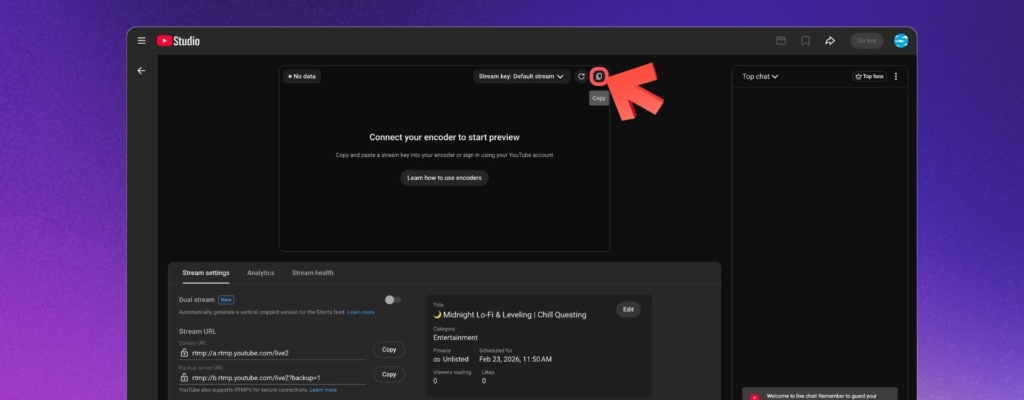
To find your YouTube stream key, open YouTube Studio, select Create > Go live, and open your stream for streaming software. Find Stream key and click Copy. In the layout shown below, the copy icon sits above the stream preview.
Your stream key lets an encoder such as OBS send video to your YouTube channel. Keep it private, just like a password. You do not need to show the key on screen to copy it.
How to find your YouTube stream key
1. Open YouTube Studio for the channel you want to stream to. Check the channel before you copy anything, especially if you manage more than one.
2. Select Create, then Go live. This opens YouTube’s Live Control Room.
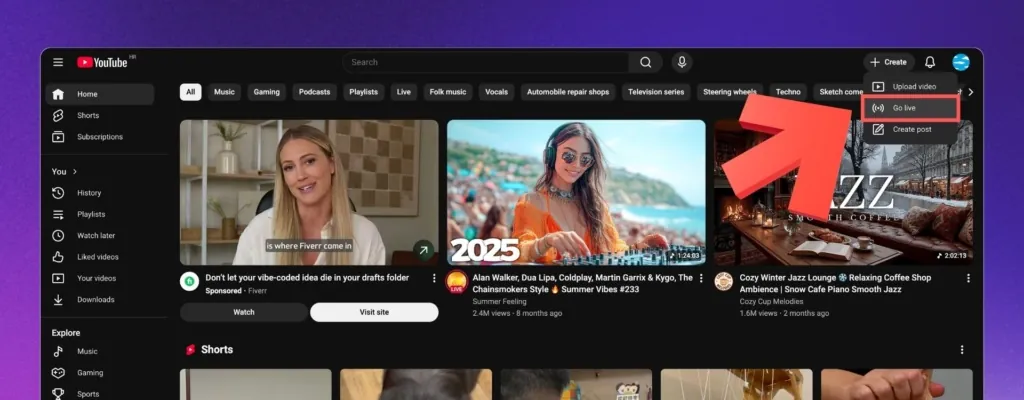
3. Open a stream that uses streaming software. Use the Stream tab for an encoder stream. If YouTube asks how you want to go live, choose Streaming software. For an existing scheduled stream, open it from Manage.
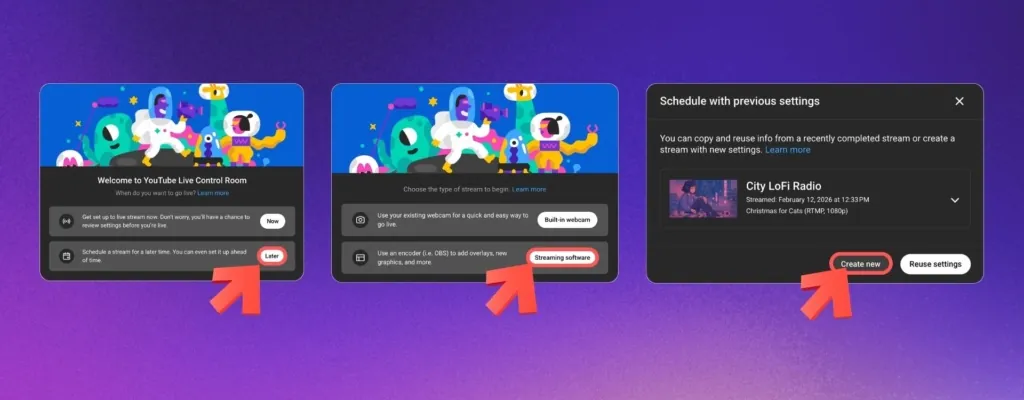
4. Complete the setup if this is a new stream. Add its title and other details, including the audience and visibility settings.
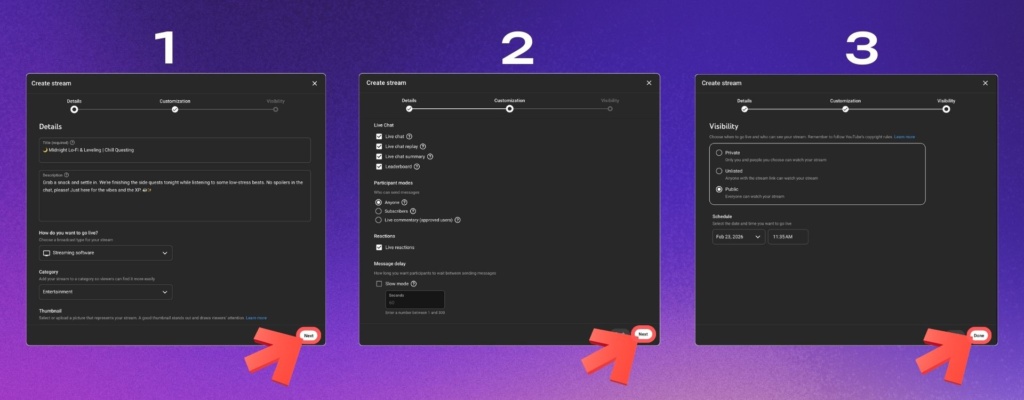
5. Find Stream key and click Copy. The screenshot at the top shows the copy icon beside the key selector. Your layout may show a Stream key section instead. Copy the key for the stream you intend to use.
These steps follow YouTube’s encoder setup guide. If you have streamed before, YouTube may load your previous settings.
Why can’t I find my YouTube stream key?
Start with the screen you are on. The key belongs to an encoder stream, so a webcam or mobile streaming screen is not the right place to look.
- You chose Webcam: return to the encoder stream setup and choose Streaming software or the Stream tab.
- You scheduled a stream earlier: open Manage and select that stream, then look for its key.
- You are still in the setup form: finish the stream details to reach the control room.
- You manage several channels: check that YouTube Studio is showing the intended channel.
- This is your first live stream: complete YouTube’s verification and live-streaming activation steps.
YouTube says first-time activation can take up to 24 hours. An enabled feature badge alone does not mean every channel can go live: restrictions can also affect access. Check YouTube’s current live-streaming requirements if activation is blocked.
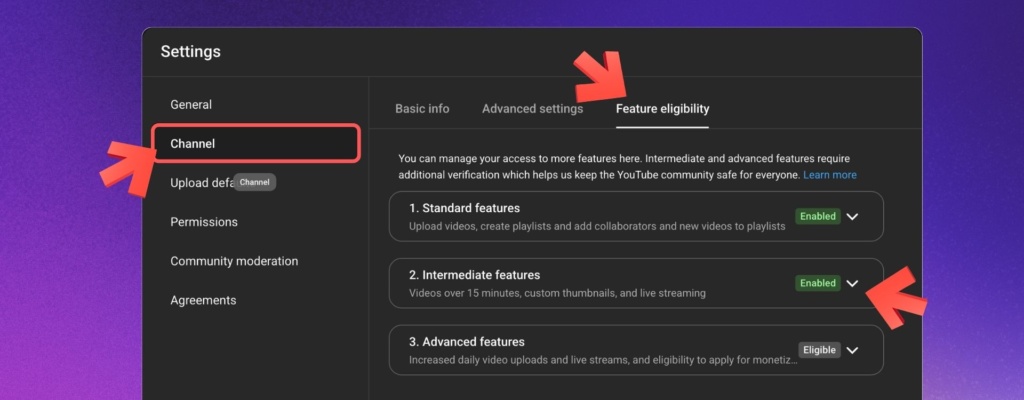
The Feature eligibility screen helps you check verification. Once live streaming is available, return to Create > Go live to find the key.
Where to paste your YouTube stream key in OBS
In OBS, open Settings > Stream and choose YouTube as the service. If you are using the stream-key connection method, paste the copied key into the Stream Key field and save your settings.
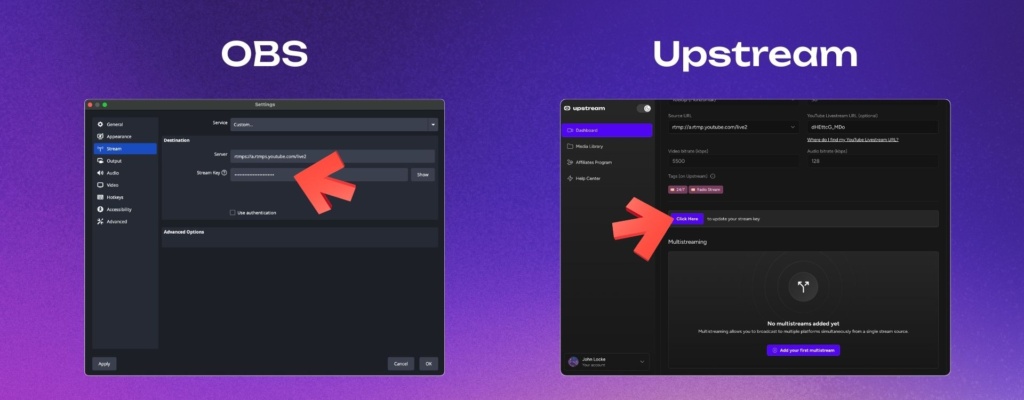
If your encoder asks for both a stream URL and a stream key, copy each from YouTube into its matching field. The stream URL is the ingest address, not the public link viewers use to watch your video. Our guide to YouTube’s RTMP URL explains the difference.
What if YouTube says the stream key is invalid?
Reopen the intended stream in YouTube Studio and copy its key again. Replace the saved key in your encoder, especially if you reset it or switched to a different stream. If your software also needs a server address, check the stream URL too.
For an encoder connection error, YouTube recommends getting a new stream key and updating the encoder. If the stream connects but drops frames or disconnects, the key may not be the cause. Check your connection and bitrate using OBS’s connection troubleshooting guide.
How to reset or reuse a YouTube stream key
To reset a key, open YouTube Studio > Create > Go live > Stream. Find the Stream key section and select Reset. Copy the new key into your encoder before you use it again.
Reset a key if you accidentally show it on screen or share it. YouTube requires the channel owner or a manager to reset keys; editors and viewers cannot do this. See YouTube’s stream settings guide for the current controls.
You can reuse a saved key for future streams. YouTube also lets you create and name custom keys in the stream-key selector, which helps you keep different setups organized.
Test the connection before a public stream
Choose Private or Unlisted before sharing your test broadcast. Our YouTube privacy setup guide explains the settings and how to check viewer access.
Set the test stream to Private before starting your encoder. Check the auto-start setting too: some workflows can go live as soon as the encoder starts sending video.
Start sending video from your software, then check YouTube’s preview for picture and sound. For a scheduled stream with auto-start off, use Go live when you are ready. Do not assume that every streaming setup waits for a second confirmation.
Connect Upstream without copying a stream key
If you use Upstream, YouTube Connect lets you link your channel without manually copying the key. Follow our YouTube Connect setup guide to connect your channel and create a 24/7 stream. You can also use the manual stream-key method if you prefer.
Keep a live channel running 24/7.
Upload files, build a playlist, and let Upstream run continuous live playout from the cloud without OBS, a VPS, or an always-on computer.