Live stream automation means letting software handle streaming tasks that you would otherwise have to do manually. There may be more of these tasks than you think!
At its simplest, that could mean scheduling a live stream to start automatically each day at 9 AM. A more advanced setup can run a 24/7 channel, manage and rotate playlists, distribute the stream to multiple platforms, or add new videos automatically through an API. If you are technically savvey. Scene-switching can also be automated, and overlays can respond to real-world events.
And as of recently is another level of live stream automation: AI assistants can use tools like MCP or even use your browser handle a streaming account on their own, check schedules and media, and carry out approved streaming tasks from a conversation.
But you definitely do not need all of this to automate a live stream. A good question is: which parts of your streaming workflow are you doing manually that software could reliably do for you?
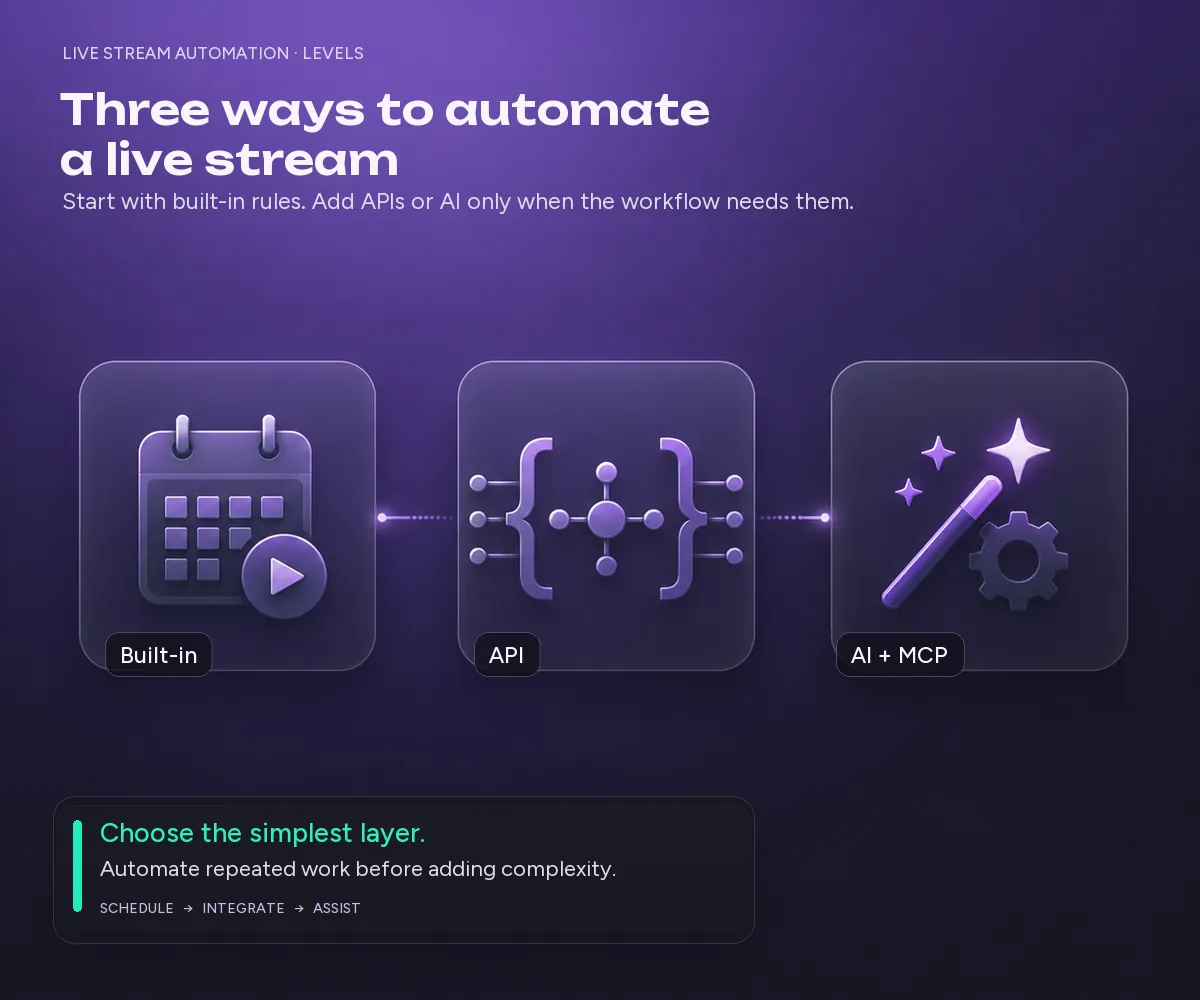
There are three main ways automate live streams:
- Built-in automation: use scheduling, playlists, playback rules, and other automation already available inside your streaming software like Upstream or OBS.
- API automation: connect your streaming platform to your own apps, content pipelines, and workflows.
- AI-assisted automation: use an AI assistant to inspect and manage supported streaming tasks through MCP or another tool connection.
What is live stream automation?
Live stream automation is the use of software to automatically perform repetitive streaming tasks such as starting and stopping broadcasts, scheduling content, managing playback, managing 24/7 streams, or reacting to real-world events like new subscriptions or gifts.
It does not describe one particular technology. A YouTuber scheduling a pre-recorded video to go live tomorrow is using live stream automation. So is a music channel that runs continuously from a cloud server. So is a developer whose content system automatically adds a newly rendered video to a streaming playlist through an API.
Even OBS streamers could automate parts of a live production, such as scene changes, alerts, and other actions. The important difference is where the automation happens and what triggers it.
What parts of live streaming can be automated?
| Streaming task | Can it be automated? | Typical method |
|---|---|---|
| Start or stop a stream | Yes | Schedule, API, or MCP |
| Repeat a stream every day | Yes | Recurring schedule |
| Play pre-recorded videos | Yes | Cloud playlist |
| Run continuously 24/7 | Yes | Cloud server, VPS, or dedicated PC |
| Loop or shuffle content | Yes | Playback rules |
| Add new media automatically | Yes | API |
| Stream to several platforms | Yes | Multistreaming |
| Organize media automatically | Yes | API or MCP |
| Change OBS scenes or trigger alerts | Yes | OBS plugins, scripts, or automation tools |
| Check stream configuration with AI | Yes | MCP/API integration |
| Create good content | Not really | That is still your job |
You probably do not need automation for the whole table. For most streamers, the best place to start is with repetitive tasks they already perform every day or every week.
Level 1: Built-in live stream automation
The easiest automation does not require code, APIs, or AI. It is already built into many streaming platforms and software like Upstream and OBS.
Automatically start and stop live streams
Suppose you run a live music show from 8 AM until 8 PM every day. Without automation, somebody has to be available twice a day just to start and stop the broadcast. With scheduling, you configure those times once and let the streaming system handle them.
This is useful for scheduled shows, webinars, church services, radio programs, podcasts, premieres, daily broadcasts, and streams targeting another time zone.
Some platforms also let you repeat the schedule automatically. In Upstream, for example, you can schedule a live stream with start and end times and repeat the schedule daily. Because the broadcast runs from Upstream’s servers, your computer does not need to remain online while you wait for the scheduled start.
Turn recordings into live streams.
Upload videos, schedule them as live events, or keep a channel running up to 24/7 without staying on camera or leaving a computer online.







Automate pre-recorded live streams
Live does not necessarily mean the source video was recorded at that exact moment. You can record and edit a video beforehand and then have software broadcast it as a live stream at a specific time.
That works well for tutorials, interviews, presentations, product demonstrations, webinars, concerts, podcasts, and educational programs. You get more control over production while your audience can still watch together and participate in live chat.
With a cloud streaming platform this can go a step further. Instead of keeping OBS and your computer running until the scheduled broadcast, you upload the video beforehand and the cloud server handles the stream. See the step-by-step guide to schedule a pre-recorded YouTube Live stream.
Automate a 24/7 live stream
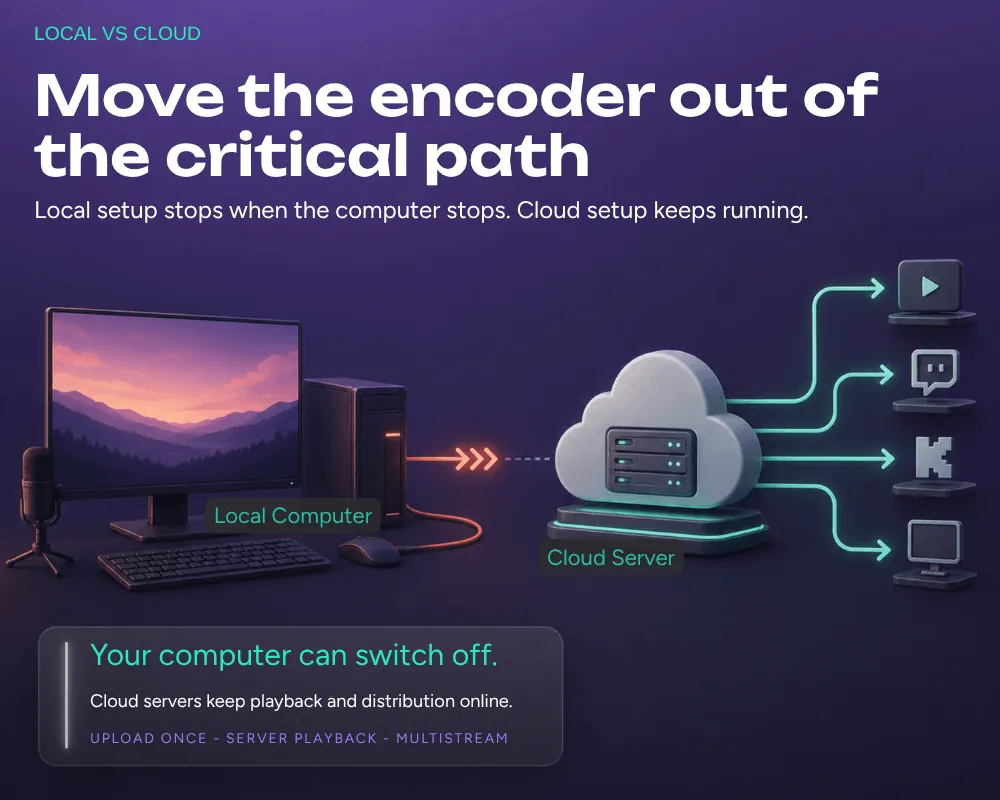
Automation becomes much more valuable when a stream needs to stay live for days, weeks, or months. A 24/7 live stream needs (new) content to keep playing and an encoder that continues sending the stream even when nobody is sitting in front of it.
Typical examples include lo-fi radios, music channels, ambient and relaxation streams, meditation, cartoons, news and information, educational programming, religious content, branded TV-style channels, and gaming or entertainment channels.
You can build this yourself using OBS, FFmpeg, a VPS, or a dedicated computer. But something physical still needs to remain online. If OBS is running on your PC and the PC shuts down, the stream shuts down too. With cloud live stream automation, your own computer is removed from that chain. Upstream lets you upload your content, hit start and you can turn off your computer, with many automated tasks going on without you present.
Automate playlists and playback
Once the stream is running, automation can determine what plays next. Imagine a simple online radio schedule: morning playlist → station ident → interview → music → sponsor message → evening show.
You could render all of that into one extremely long video, but then changing one segment means creating the whole thing again and that is out of the question. A playlist-based workflow keeps the pieces separate so you can reorder, loop, shuffle, add, remove, or skip items and preserve playback position between restarts.
Automate multistreaming
Distribution is another repetitive part of streaming. Instead of separately creating an outgoing stream for YouTube, Twitch, Facebook, Kick, and other destinations, a service can receive one feed and distribute it for you, as soon as you go live.
Cloud multistreaming also means your computer does not necessarily need to upload a separate stream for every destination. Upstream, Restream, OneStream Live, and other services provide different versions of this workflow.
Level 2: Live stream automation with an API
Built-in automation works well when the rule you need already exists in the streaming software. An API becomes useful when the trigger comes from somewhere else.
A media company that produces 30 videos every day is a perfect example: a person could download every finished video, re-encode it in the proper format, open the streaming dashboard, upload the file, place it in the correct folder, and add it to the appropriate channel. Or the production system can be set up to do that automatically.
What can you automate with a live streaming API?
- Media automation: a video finishes rendering, the system uploads it to the streaming platform.
- Playlist automation: a new episode is published, it is added to the appropriate stream queue.
- Channel automation: after uploading files, a corresponding stream is created.
- Schedule automation: the streaming start and end times are updated based on your rules or live data.
- Distribution automation: a new destination is assigned to a channel, so its publishing configuration is updated.
- Internal tools: your team retrieves stream status and configuration for many channels in one dashboard.
This is a different level of automation from just setting a timer. Your streaming platform becomes one component inside a larger system.
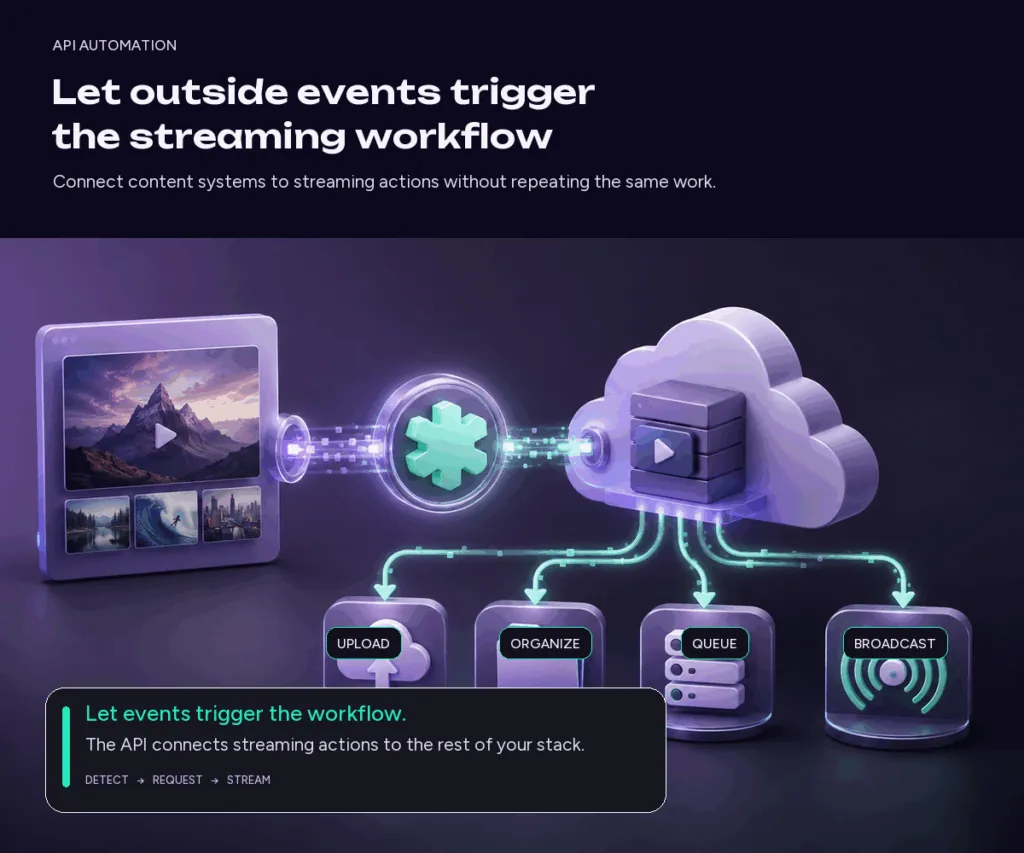
Example: automatically stream every new video you publish
- The video finishes rendering.
- Your application detects the finished file.
- The live streaming API uploads it.
- The video is placed into the correct folder.
- It is added to the appropriate stream queue.
- The existing schedule determines when that stream goes live.
Nobody needs to manually repeat the upload-and-queue process every morning.
What can the Upstream API automate?
The Upstream live streaming API exposes the main building blocks used in Studio: streams, schedules, playback queues, media files and uploads, folders, tags, settings, and multistream destinations. Streams can be created, updated, started, and stopped programmatically.
That means you can use it for simple automation, such as adding newly rendered videos to a queue, or build a larger product where Upstream handles broadcasting behind your own interface. The Studio is usually faster for tasks you perform once. The API becomes interesting when you notice you are doing the same operation again and again.
Level 3: AI-assisted live stream automation with MCP
There is now another way to interact with streaming APIs. Instead of writing requests yourself, a compatible AI assistant can be given structured tools for working with a streaming account. One emerging standard for this is Model Context Protocol, or MCP.
What is MCP?
MCP is an open standard that lets AI applications discover and use external tools. A normal chatbot can tell you how to change a schedule or even control your browser to do so in the UX / interface. An AI assistant connected to a streaming service through MCP can inspect the actual schedule and use an available tool to change it.
The MCP server exposes specific structured tools that the assistant can call.
What does AI live stream automation look like?
Which of my channels are currently live?
Show me tomorrow’s streams and tell me whether all of their media is processed.
Inspect the Evening Radio stream. Propose a schedule that runs for 55 minutes followed by a five-minute break, and wait for my approval before changing anything.
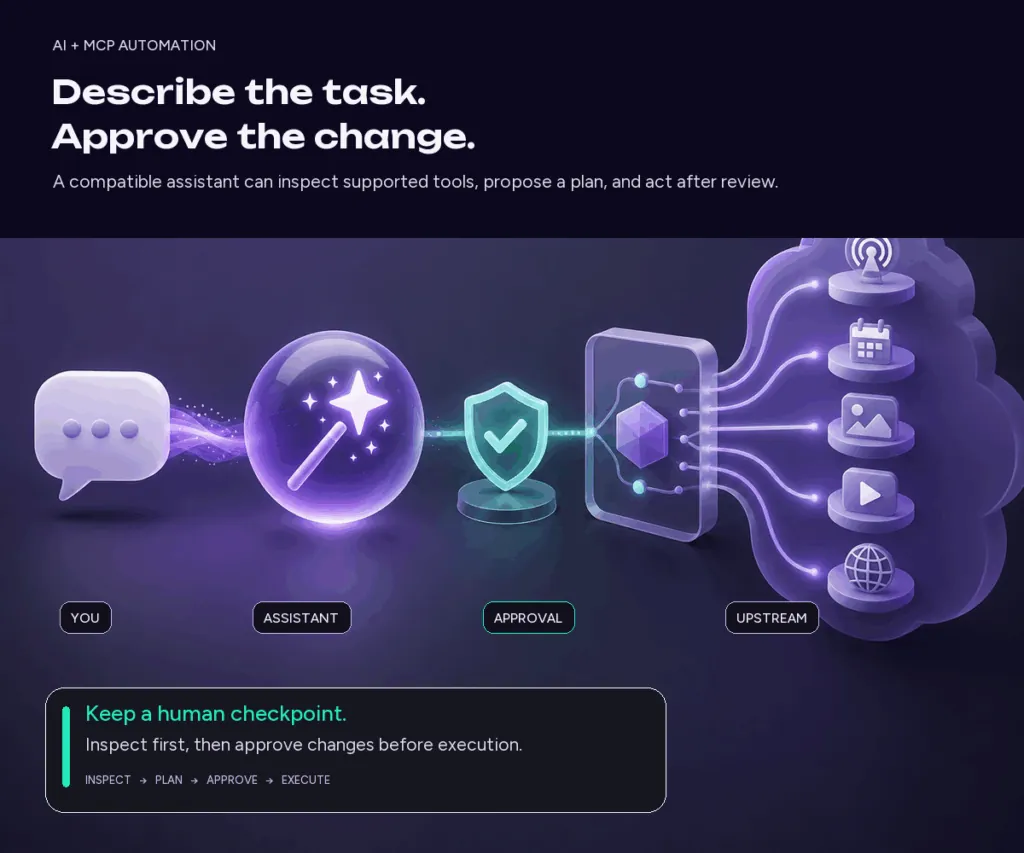
The assistant can inspect relevant information, explain what it found, and, where supported, call the appropriate streaming tool. This makes conversational control another interface for live stream automation.
What can Upstream MCP currently manage?
Upstream MCP works through the same customer API used by Upstream integrations. A compatible AI client can use supported tools for streams and playback, schedules, media and folders, multistream destinations, stream settings, and tags.
For example, it can inspect what is playing, reorder queue items, configure repeating schedules, organize media, or review where a stream will publish.
It does not currently control everything in Upstream. Live Studio guests and scenes, Stream Designer elements, overlays, and unified chat are not part of the current MCP release.
AI automation should still have a human checkpoint
Giving an AI assistant access to streaming tools does not mean it should silently change everything it thinks could be improved. For consequential actions, use this workflow:
Inspect → propose → review → approve → execute
Start with a read-only request such as: “Check the schedule for all my streams and tell me if anything overlaps. Do not change anything.” After reviewing the result, approve only the changes you want.
Can I automate using AI in the Browser?
Yes! Even without the MPC, if you download ChatGPT, Antigravity, Kimi Desktop or any other AI to your computer as a standalone app, you can use it to control your browser, as if you were doing it. This means that you can automate pretty much any process, since the AI can click, type and upload data to your account.
This is perhaps the easiest to set up, as all you need to do is to tell the AI what you want it to set up, and it will figure out how to do it from the help documentation, and simply carry out the tasks.
However, browser control can be tricky sometimes for AI and there is a high chance you will need to babysit it a little bit.
What about OBS automation?
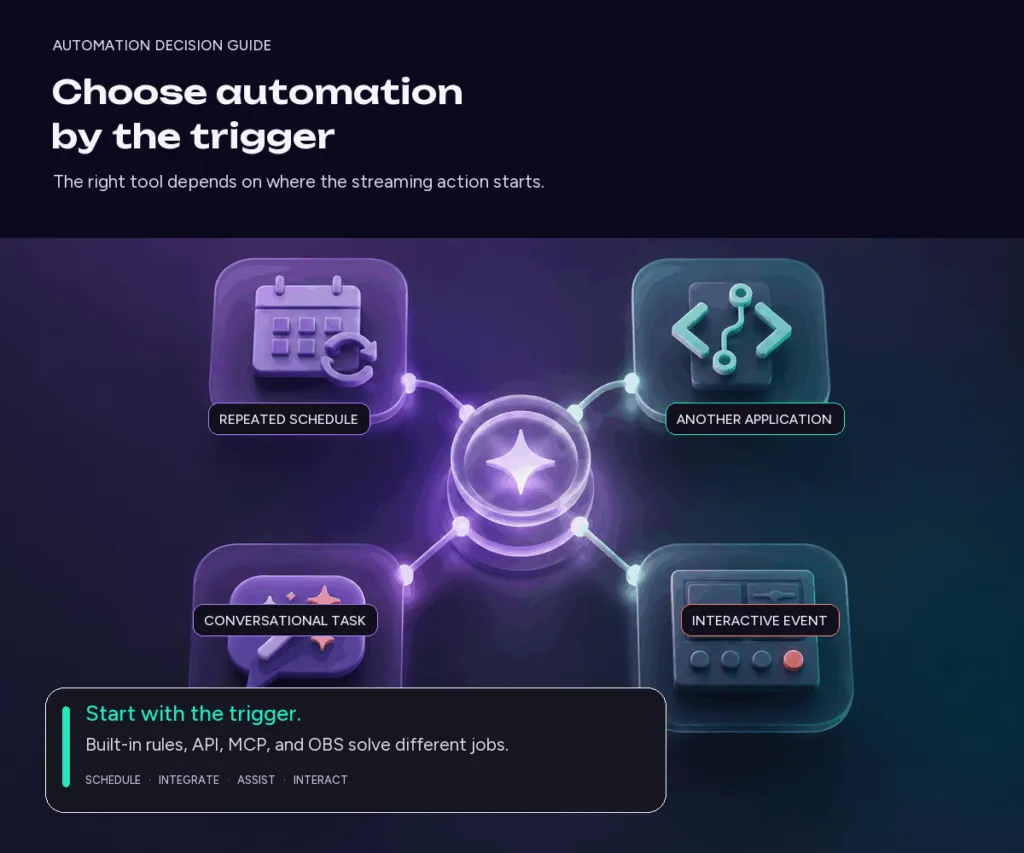
Some automation problems do not need a cloud platform. OBS can be automated extensively using plugins, scripts, macros, WebSocket integrations, and external tools.
An event might trigger a scene change, alert, sound, replay, graphic, chat action, or camera change. For interactive gaming and creator streams, that may be exactly what you need.
The distinction is that OBS automation generally changes what happens during a live production running on a computer. Cloud streaming automation is more useful when the goal is to automate when a broadcast runs, what content plays, where it goes, and how it continues without your computer.
Local vs cloud vs API vs AI automation
| If you want to… | Start with… |
|---|---|
| Automatically start a stream every day | Built-in scheduling |
| Broadcast pre-recorded videos automatically | Cloud streaming platform |
| Run continuously without leaving your PC on | Cloud 24/7 streaming |
| Automatically distribute to several platforms | Multistreaming |
| Trigger OBS scenes and alerts | OBS automation |
| Add content automatically from another application | API |
| Build streaming into your own product | API |
| Manage supported streaming tasks conversationally | MCP + AI assistant |
| Build a completely custom system | API, FFmpeg, VPS, or your own infrastructure |
Live stream automation software: which tools should you consider?
There is no single tool that is best for every kind of automation.
Upstream combines cloud-based scheduled and 24/7 streaming, playlist and playback control, multistreaming, and built-in automation, with an API for programmatic workflows and MCP for supported AI-assisted workflows. For 24/7 playback alone, our guide to the best 24/7 live streaming software compares Upstream with other cloud tools.
OBS Studio makes sense when you want deep control over a live production running locally and are comfortable configuring the workflow yourself.
SAMMI and similar OBS automation tools are useful when events, chat activity, or viewer actions should trigger production changes.
If you prefer to build everything yourself, FFmpeg plus a VPS gives you enormous flexibility. It also means you are responsible for maintaining it.
What should you not automate?
Automation is most useful when it removes repetitive operational work. It does not automatically make content better.
Looping 200 mediocre slop videos forever does not make them more interesting simply because they are live. Automatically publishing more streams is not useful if nobody wants to watch them. Automating every audience interaction can quickly make a supposedly live channel feel less human.
The best automation removes boring work around the content, not the content itself. Automate repetition and keep judgment human.
Live stream automation best practices
Start with a problem, not a tool
Do not add AI, APIs, or complicated automation simply because they are available. Ask: what streaming task do we keep doing manually? If somebody starts the same stream every morning, you probably need a schedule, not an API.
Test the complete workflow
A rule that works in a dashboard can still fail at the destination. Test with a private or unlisted stream, confirm platform auto-start and auto-stop behavior, and make sure media has processed before the broadcast begins.
Design for failure
Long-running channels need a recovery plan. Decide what happens if a media item fails, a platform disconnects, an API request is rejected, or a destination changes its requirements.
Keep permissions and approvals tight
Use a separate API key for each integration, keep keys in secure server-side settings, revoke keys you no longer use, begin AI workflows with read-only inspection, and approve consequential changes before they run.
Review the automation regularly
A workflow that was correct six months ago may be stale today. Review schedules, playlists, destinations, credentials, and content rules on a regular cadence.
Live stream automation FAQ
Can YouTube Live be automated?
Yes. You can automate scheduled starts and stops, recurring broadcasts, pre-recorded playback, 24/7 channels, and other parts of a YouTube Live workflow. The exact setup depends on the software encoder and streaming software you use like OBS, Upstream, Streamyard, etc…
Can OBS be automated?
Yes. OBS supports automation through scripts, plugins, macros, WebSocket integrations, and external tools. It is particularly useful for scene changes, alerts, viewer-triggered actions, and other events during a live production.
Can I automatically stream pre-recorded videos?
Yes. Upload the finished video to a cloud streaming platform, add it to a playlist, and configure a one-off or recurring schedule. The server can broadcast it while your own computer is off.
Can a live stream run while my computer is off?
Yes, if the encoder is running somewhere else. A cloud streaming service like Upstream or a VPS can keep sending the stream after your local computer is turned off. A stream encoded locally in OBS stops when that computer or its internet connection goes offline.
What is the best live stream automation software?
The answer depends on what you want to automate. Use built-in scheduling for predictable timing, a cloud platform for pre-recorded or 24/7 playback, OBS tools for interactive production, an API for application-driven workflows, and MCP to manage supported tasks via AI chat. Upstream can handle all of those cases.
Automate the repetitive work, not the reason people watch
Live stream automation is a whole stack of tools that can save you a lot of time. Built-in rules handle predictable work. APIs handle programmatic work. AI and MCP make supported workflows conversational.
Start with the manual task that keeps repeating and choose the simplest layer that removes it reliably. If that means scheduled, pre-recorded, multistream, or 24/7 broadcasting from the cloud, create a free Upstream account and build your first automated stream.