
To schedule a live stream on YouTube, open YouTube Studio on a computer and click Create, then Go live. In the Live Control Room that opens, click the Manage tab, then Schedule stream. Add a title and description, choose who can watch, set the date and time, and save. On your phone, tap Create, then Live, tap Edit and pick Schedule for later.
YouTube then makes a watch page for the stream ahead of time. People can tap Notify me to get a reminder, and you can share the link anywhere. The schedule doesn’t start anything on its own, though. At the set time you still have to go live, from your webcam, your phone, or an encoder like OBS (an app that sends video to YouTube).
That’s fine when you’ll be there. For one finished video, a YouTube Premiere can play it at a set time, like a live event. For a live stream that starts by itself every week, loops a playlist or goes to other platforms too, something has to send the video for you. Upstream does that from its own servers, with your computer off.
How to schedule a live stream in YouTube Studio
You need a channel that can live stream before you start. YouTube asks you to verify the channel with a phone number, to have no live streaming restrictions in the past 90 days, and to be at least 16. Turning on live streaming for the first time can take up to 24 hours, so do it a day before your first stream.
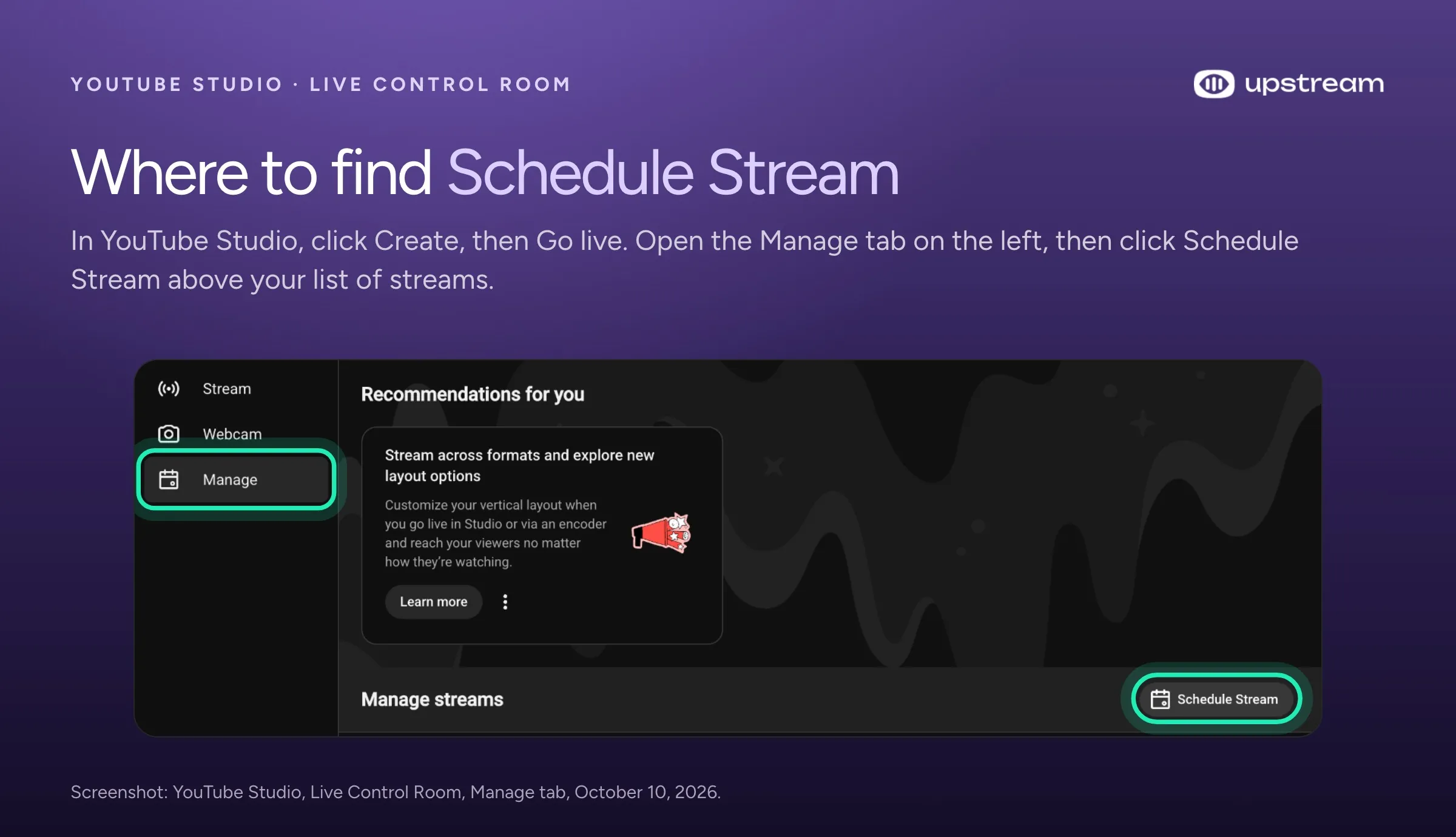
- Go to YouTube Studio and click Create, then Go live. This opens Live Control Room.
- Click the Manage tab, then Schedule stream.
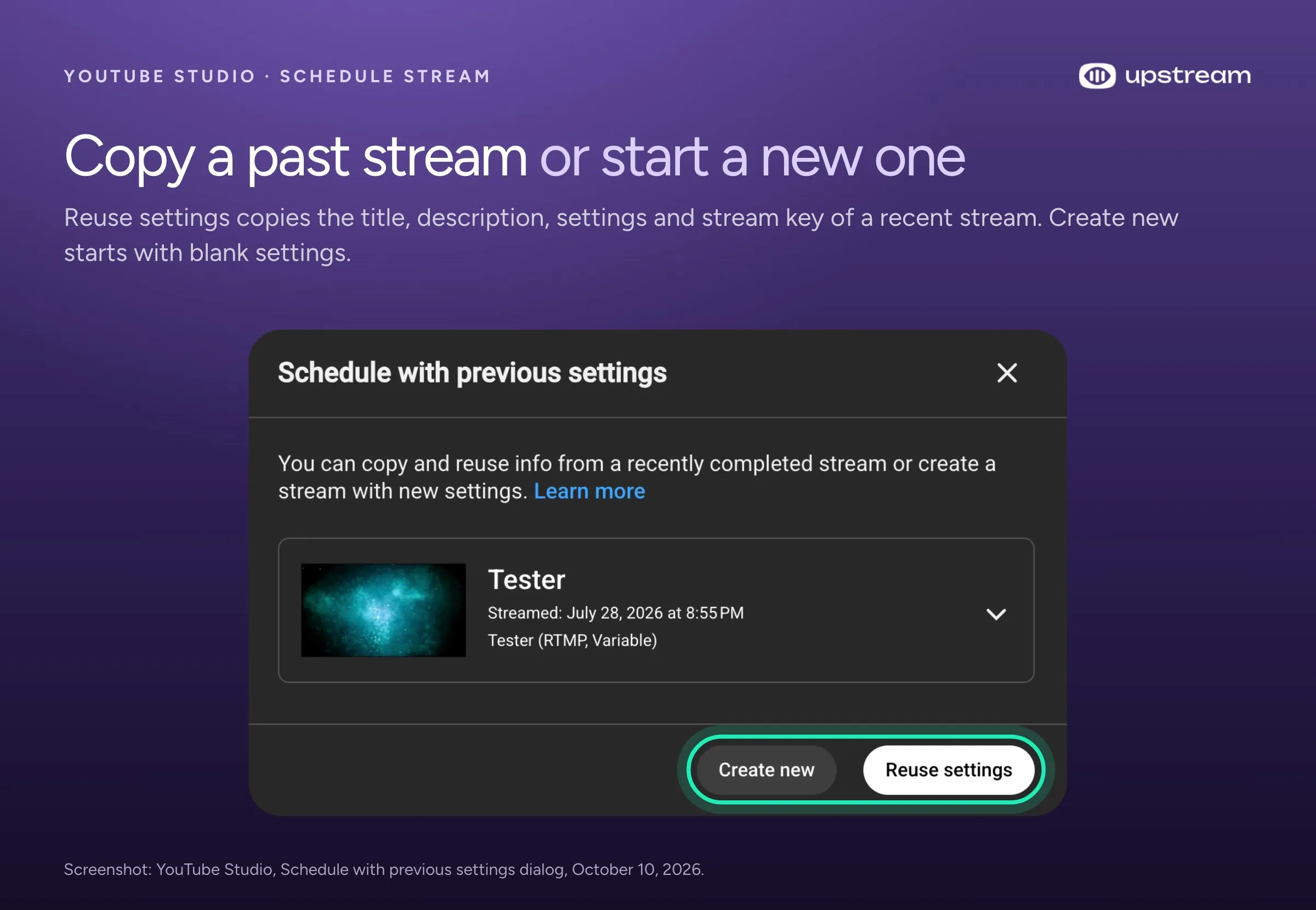
- Pick Reuse settings to copy a past stream, or Create new to start fresh. Reuse settings copies the title, description, settings and stream key (the private code an encoder uses to send video to that stream) of the stream you pick.
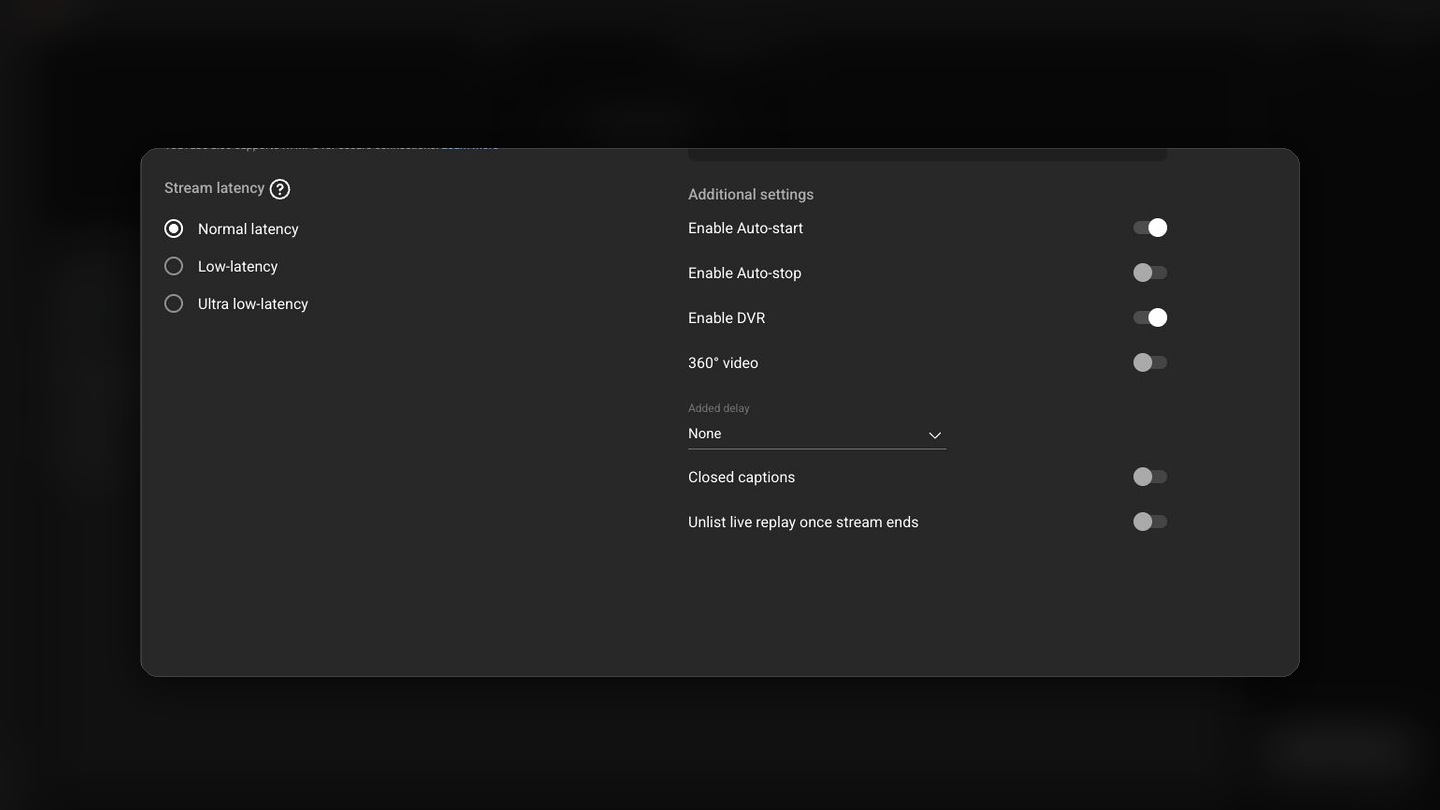
- Add the title and description, choose public, unlisted or private, and set the date and time. The stream’s settings also cover the category, tags, comments and monetization.
- Save the stream. It now shows up as upcoming on the Manage tab, and in Studio under Content, on the Live tab.
When it’s time, open Live Control Room, click Manage and pick the stream. If you use your webcam, choose the stream and go live from the browser. If you stream from an encoder with Auto-start off, start the encoder at least 15 minutes early (that’s YouTube’s own advice), wait for the preview to show up in Live Control Room, and click Go live at the scheduled time. With Auto-start on, the stream goes live as soon as the encoder starts sending, so start it right on time.
How to schedule a live stream on your phone
In the YouTube app, tap Create, then Live. Before you go live, tap Edit, choose Schedule for later and pick the date and time. To start it later, tap Create, then Live, tap the calendar icon, pick the stream and tap Go live. You can delete a scheduled stream from the same list.
To stream from your phone, your channel needs at least 50 subscribers. Between 50 and 1,000 subscribers, YouTube may limit how many people can watch, and the replay is private by default. And a phone stream comes from your camera or your screen, so you need to be there with the phone when it starts.
What a scheduled stream does on YouTube
A scheduled stream gives people a place to wait for you. As soon as you save it, YouTube creates the watch page, and from then on:
- People can set a reminder. The watch page has a Notify me button, and the stream may appear as upcoming in your subscribers’ feeds.
- You can share the link early. YouTube suggests sharing it at least 48 hours before the stream.
- It shows on your channel. Add a Live section to your channel page and upcoming streams appear there next to the ones that are live.
- Subscribers get notified when you actually go live. YouTube sends the alert once the stream is public and it detects that you’re live, so a late start means a late alert.
One limit matters for busy channels. Viewers get at most 3 notifications from one channel in 24 hours, and uploads, live streams and Premieres all count. If you upload three videos on the day of a stream, the stream’s alert may never reach some people.
What YouTube’s scheduler won’t do
The time you set only tells viewers when to show up.
- It won’t start the stream for you. In the stream settings, Auto-start makes the stream go live when your encoder starts sending video, even if that’s before the scheduled time. Without it, you click Go live yourself. Either way, the stream stays offline until video arrives.
- It won’t play a video file. YouTube has no setting that plays an uploaded video into a scheduled live stream. Something has to send that video: OBS on a computer that stays on and awake, or a cloud service. For one finished video, YouTube’s own option is a Premiere.
- It won’t repeat. Each scheduled stream is one event, and YouTube’s help pages list no daily or weekly repeat.
- It won’t save a very long replay. YouTube archives streams under 12 hours automatically. A longer stream may not be saved at all.
There are caps too: 10 active streams per channel and 3 per stream key, plus a daily limit on how many streams you can create.
Premieres: YouTube’s option for one prerecorded video
If you have one finished video and want people to watch it together at a set time, a Premiere does that inside YouTube. Upload the video as usual. On the visibility step, click Schedule, enter a date and time, and check Set as Premiere. Click Set up Premiere to choose the countdown theme and length.
A Premiere gets its own public watch page where people can set a reminder, comment and chat before it starts. Reminders go out about 30 minutes before and again at the start. When it ends, it stays on your channel as a normal video.
Premieres have limits. Each one plays a single video, once. They don’t work with Shorts, 360 or VR180 video, or anything above 1080p. And a Premiere only plays on YouTube, so it can’t go out to Twitch or Facebook at the same time.
| YouTube scheduled stream | YouTube Premiere | Upstream scheduled stream | |
|---|---|---|---|
| Goes live by itself at the set time | No. It goes live when your encoder starts sending or you click Go live | Yes | Yes |
| Plays a video you made earlier | Only through an encoder like OBS | Yes, one video | Yes, one video or a playlist |
| Your computer has to stay on | Yes, for a webcam or OBS | No | No |
| Repeats every day or week | No | No | Yes, or in back to back cycles |
| Watch page with reminders before it starts | Yes | Yes | Yes for a one time stream; weekly runs appear when they start |
| Highest quality | Whatever your encoder sends | 1080p | Up to 4K at 60 fps on paid plans |
| Platforms | YouTube | YouTube | Up to 10 of 30+ at once |
| Cost | Free | Free | Free plan with 24 hours a month, paid from $30 a month ($24 billed yearly) |
How to make a prerecorded video go live on its own
This is the part YouTube leaves to you, and it’s what Upstream was built for. Upstream plays your video from its own servers at the time you set, so your prerecorded live stream starts on its own while your computer is off. Run it once, every day, every week, or in back to back cycles with a break in between. Loop a whole playlist, and send the same stream to up to 10 of 30+ platforms at once.
Upstream is on YouTube’s list of verified encoders, and scheduling is on every plan, the free one too.
Step 1: create a prerecorded stream
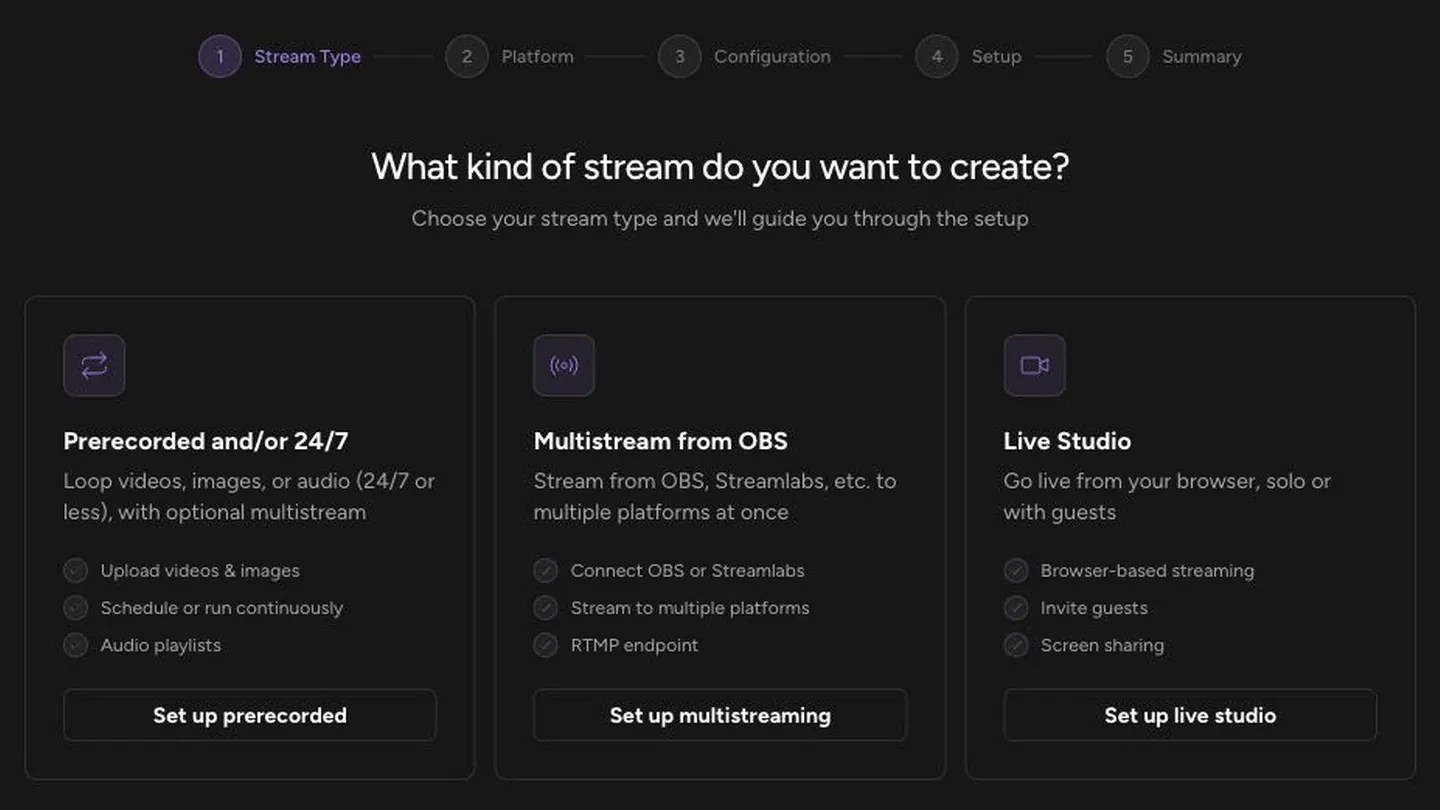
Sign in to Upstream and click Create new stream. When it asks what kind of stream you want, pick Prerecorded and/or 24/7. That’s the type that plays your own files, once or on a loop.
Step 2: connect YouTube
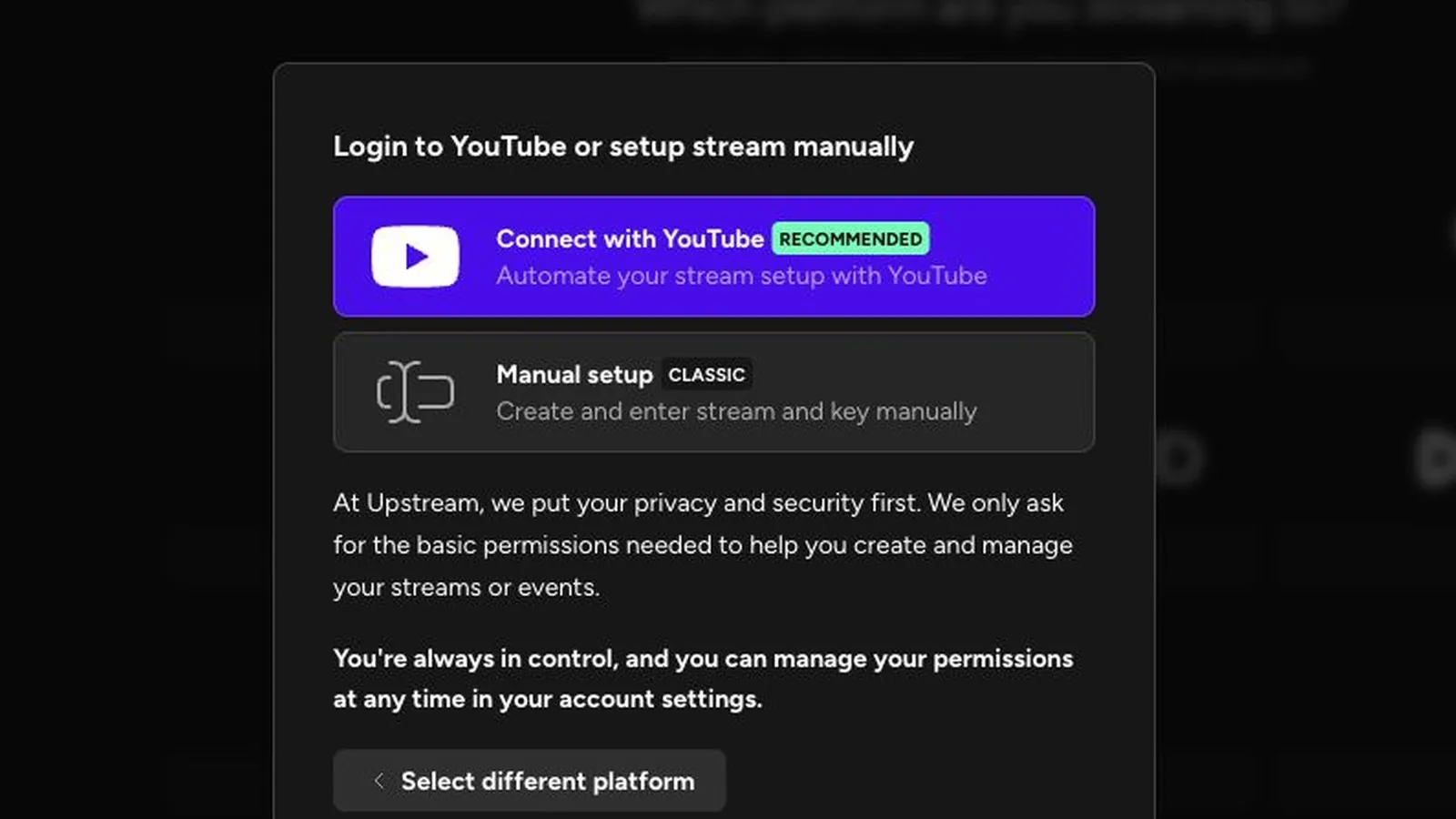
Choose YouTube, then Connect with YouTube, and sign in with the Google account that owns your channel. Upstream then creates the YouTube live for you, with your title, description, thumbnail, category and audience setting, and it turns on Auto-start. There’s no stream key to copy. New streams start as unlisted, so switch the privacy to public when you want subscribers to see it.
To set up the event yourself, pick Manual setup, schedule the stream in YouTube Studio, turn on Auto-start in its settings and paste its stream key into Upstream.
Step 3: add your video or playlist
Upload the video, or several videos for a playlist. Upstream takes MP4, MOV, WebM and TS files, and it can import from a Dropbox, Google Drive or OneDrive link. Videos straight from an iPhone upload as they are, and if one won’t play, Upstream can convert it.
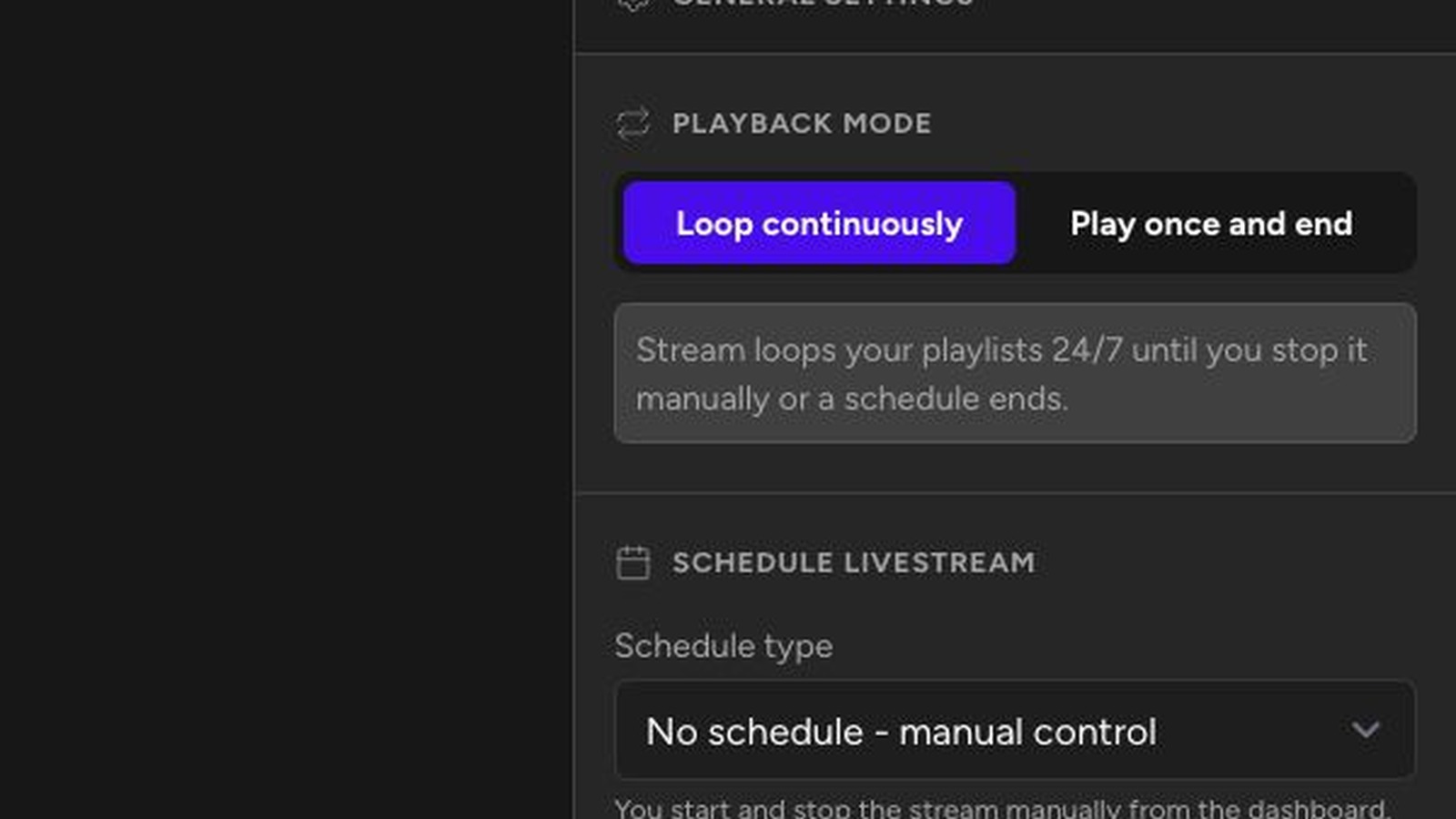
Then choose the playback mode. Play once and end stops the stream when the playlist finishes, which suits a sermon or a webinar replay. Loop continuously starts the playlist over until the schedule ends. Playlists play in order or shuffled.
Step 4: pick when it runs
Under Schedule, choose a schedule type. You can change it later in the stream’s settings, under Schedule livestream.
- One-time schedule: a start date and time, and an end if you want one. Make sure Create YouTube live now is selected under YouTube Event Settings. You get the link straight away, and anyone who opens it before the start sees a waiting screen with your start time, so you can share it days ahead.
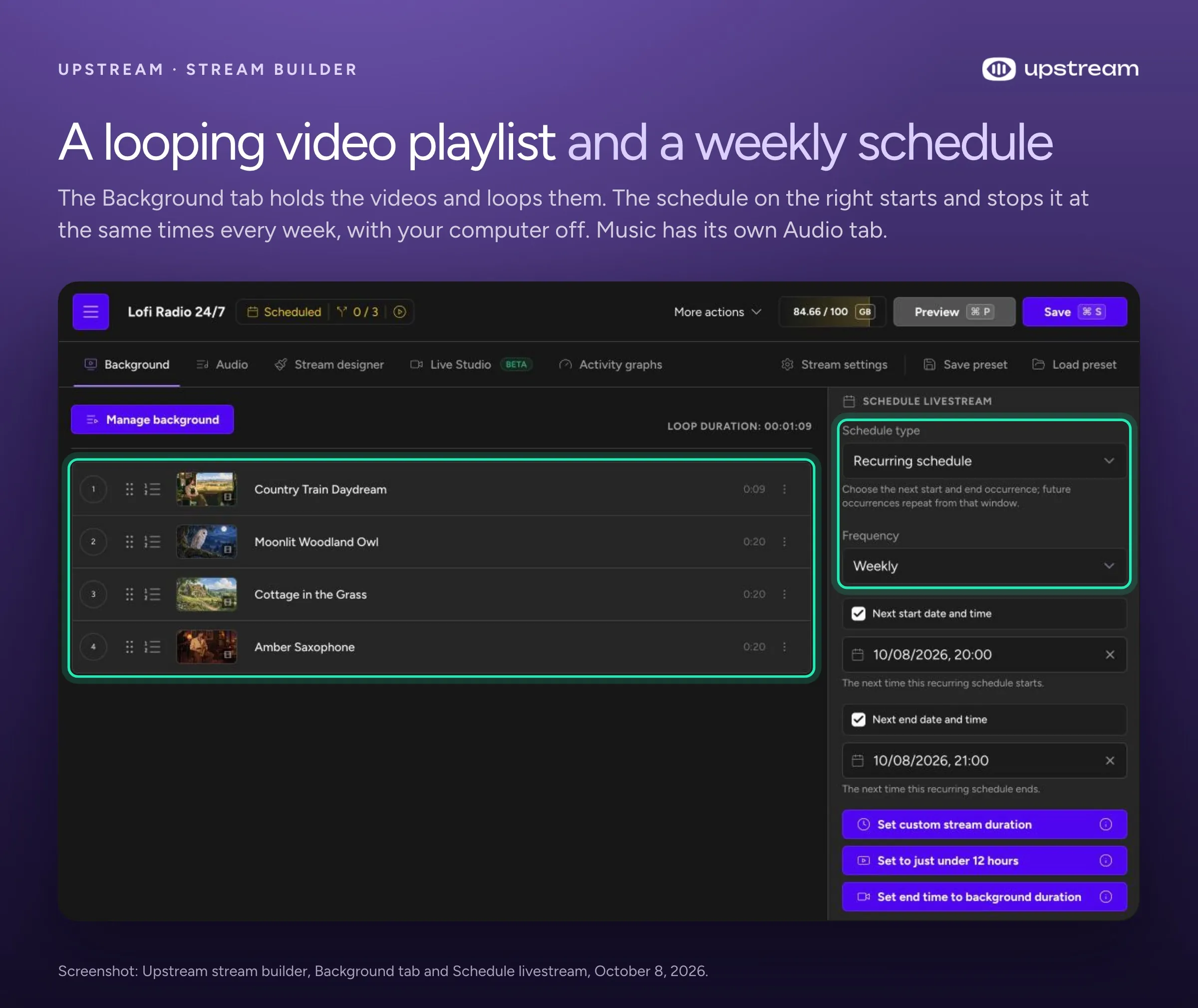
- Recurring schedule: Daily or Weekly. The start and end you set repeat every day, or every week on the same day.
- Back-to-back stream cycles: the stream runs for a set time (anything from 5 minutes to 72 hours), takes a break, then starts again. It can repeat forever, stop at a set time, or stop after a number of cycles.
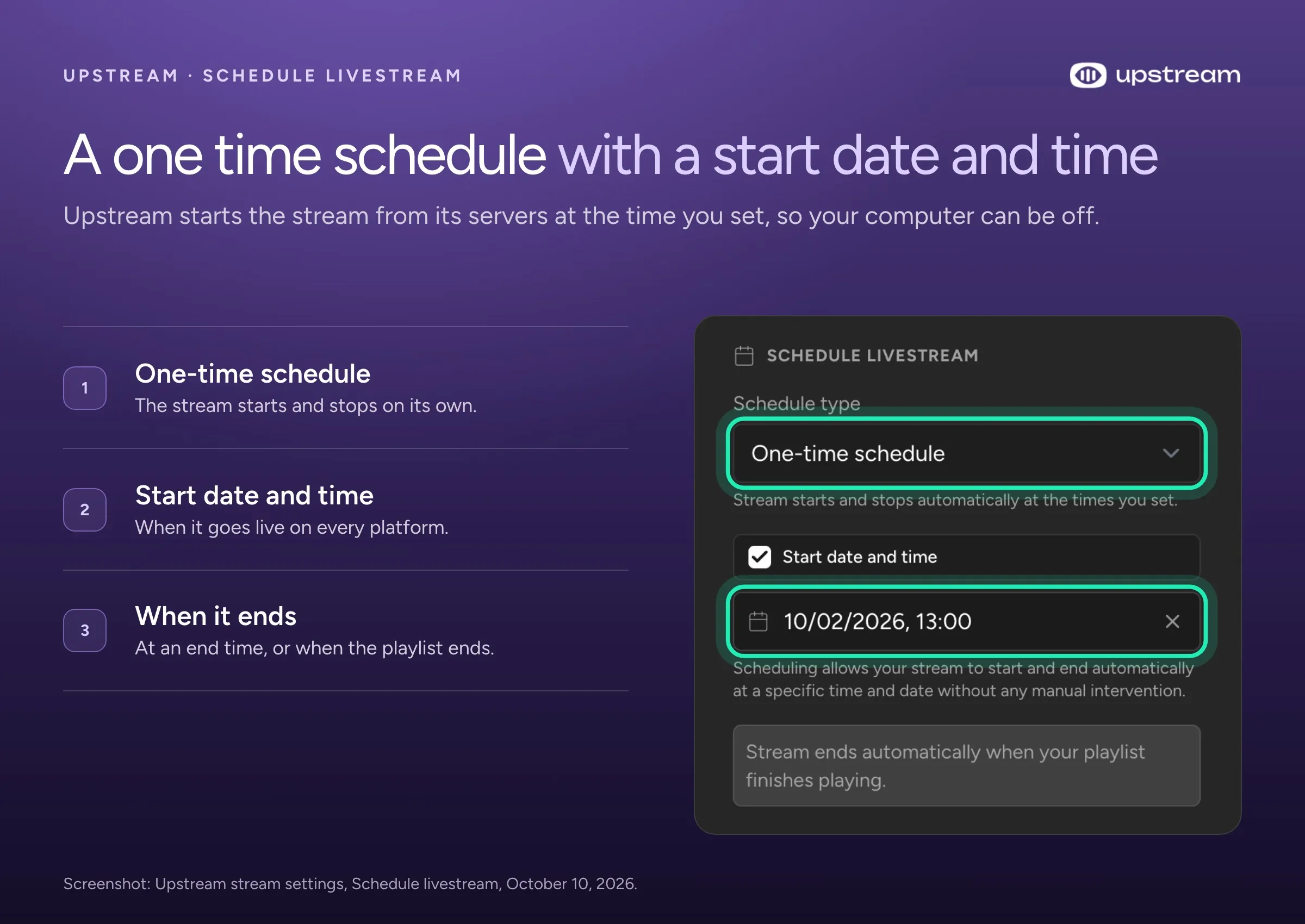
With Loop continuously on and no end time, the stream runs until you stop it. Choose Set to just under 12 hours and a YouTube stream ends at 11 hours 50 minutes, so YouTube still saves the replay.
Step 5: add other platforms
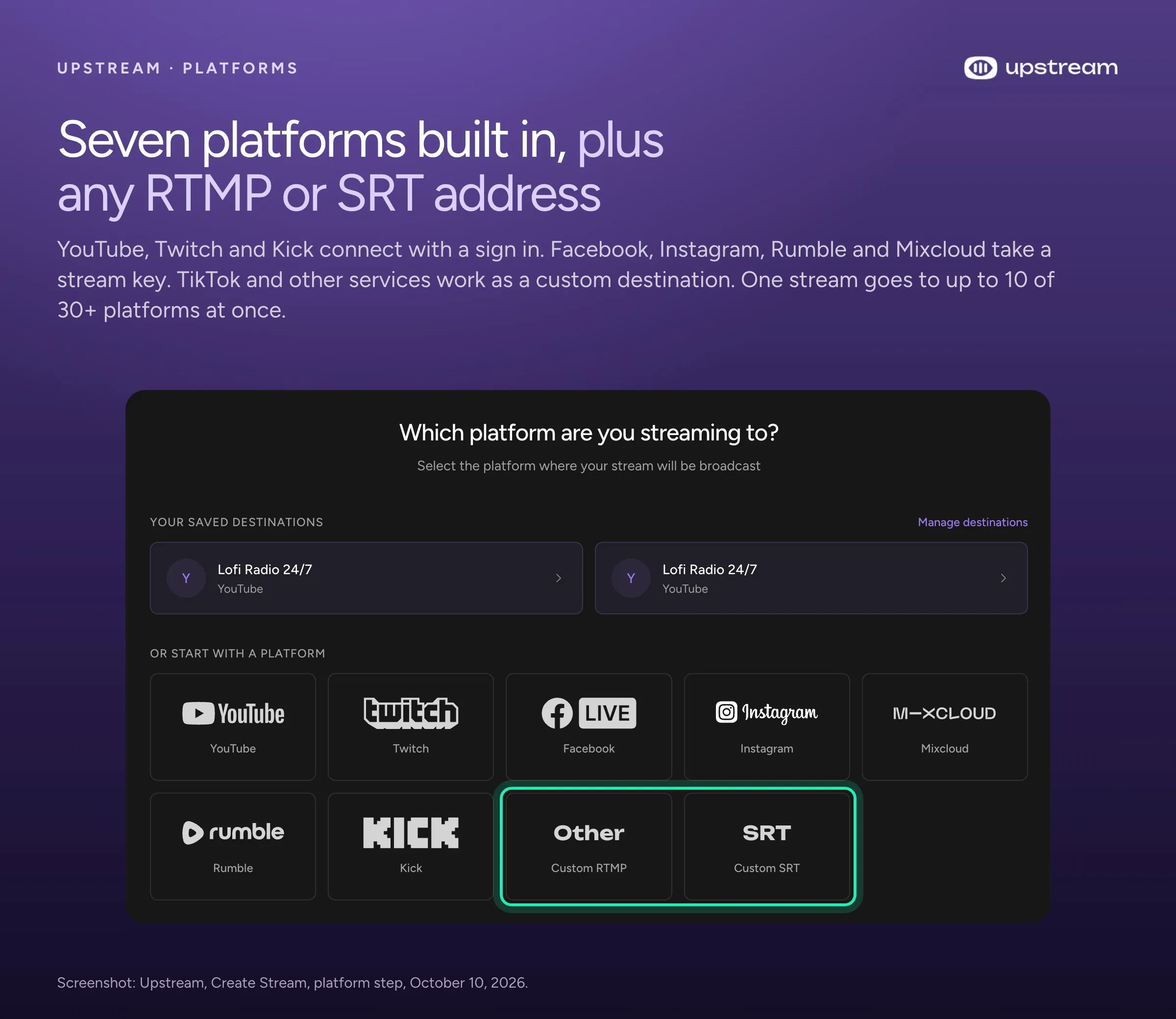
This step is optional. Add other platforms under Multistream to other platforms. Each one starts with the schedule unless you switch it off under Multistreams in schedule. With multistreaming, one stream goes to up to 10 of 30+ platforms at once. Twitch and Kick connect with a sign in, Facebook and Rumble take a stream key, and any service with an RTMP or SRT address works as a custom destination. Every platform starts and stops on the same schedule, from Upstream’s servers, so your own internet never carries the extra copies.
Step 6: create it, then turn your computer off
Click Create Stream. At the start time, Upstream starts the stream from its servers, YouTube’s Auto-start takes it live, and if the stream is public, your subscribers get the go live alert. Nothing on your side has to be running. The first time, open the watch page a few minutes in and watch it like a viewer would.
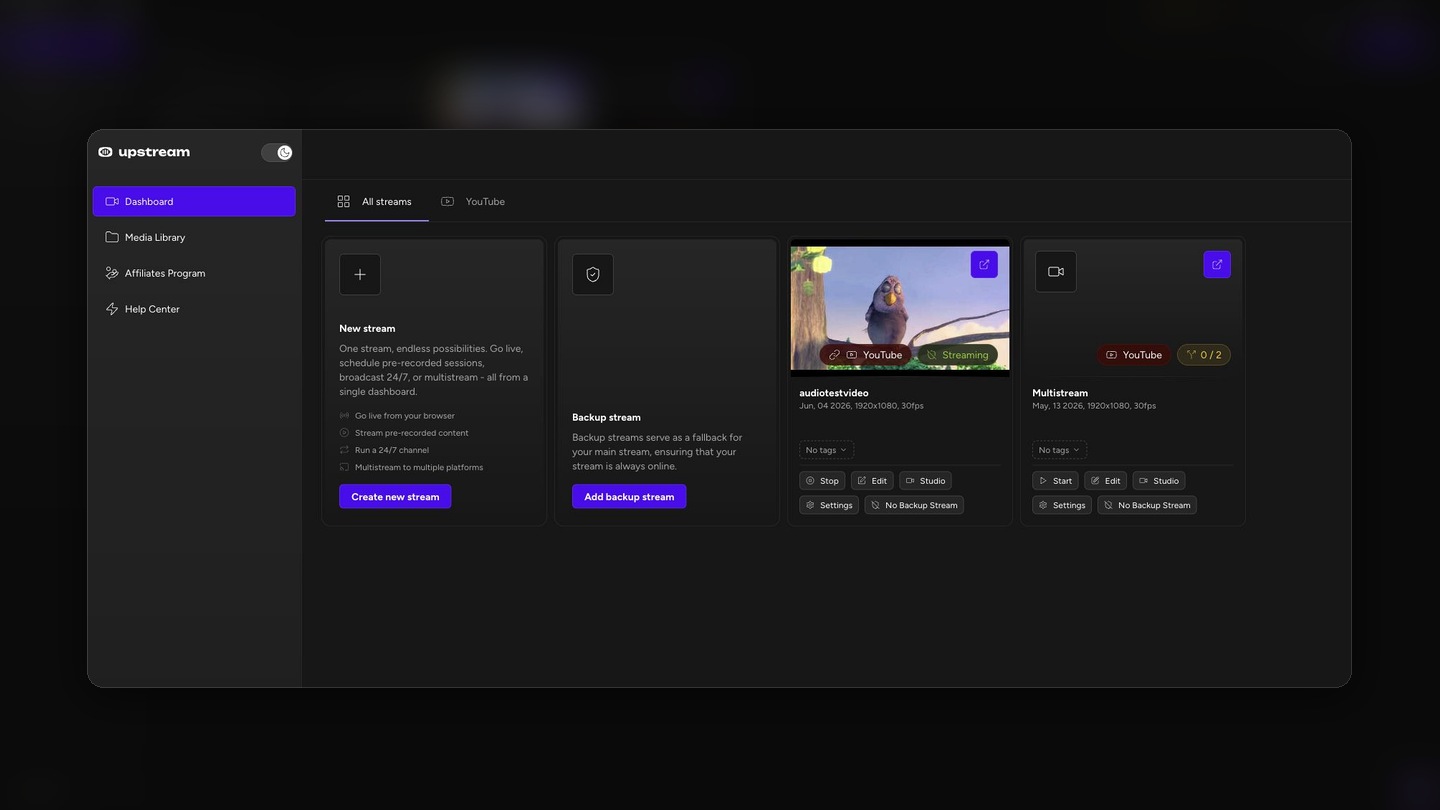
Turn recordings into live streams.
Upload videos, schedule them as live events, or keep a channel running up to 24/7 without staying on camera or leaving a computer online.







The free plan gives you 24 streaming hours every month at 1080p, with no card and no watermark. That covers a one hour show every week with plenty to spare. Paid plans start at $30 a month for one 1080p stream with no hour limit, or $24 a month billed yearly. 1080p at 60 fps is $40, 4K at 30 fps is $70 and 4K at 60 fps is $120. See pricing.
Run the same show every week
On YouTube alone, a weekly show like a Sunday sermon means setting up a new scheduled stream every week. Reuse settings makes it quick: click Schedule stream, pick last week’s stream, change the date and save. A custom stream key, a key you keep using instead of a new one each time, means your encoder settings never change. You still have to start the encoder or go live yourself every week.
In Upstream, set the schedule type to Recurring schedule, the frequency to Weekly, and the first start and end time. From then on the stream starts at that time every week by itself. Swap in next week’s video whenever you like, and the schedule stays as it is. Weekly repeats on one day. For a show on Monday and Thursday, set up one stream for each day. Use Daily only for a show that runs every day.
Each weekly run is a fresh YouTube live that Upstream creates as it starts, so every episode gets its own replay and its own go live alert. The watch page only appears when the episode starts, so viewers can’t set a reminder ahead of time. Post the time on your channel and socials instead. Open Upstream to save your browser time zone, then check and correct the next start and end times. Times already set do not update on their own.
Get the time zone right
Your viewers don’t all live where you do. Put the start time in the title or description with its time zone, for example 7 pm ET (4 pm PT), and share the watch page link so nobody has to do the math.
Upstream sets times in the time zone of the browser you schedule from. If you set up a stream while traveling, check the zone on your computer first.
Daily and weekly repeats keep the local start time across daylight saving changes when your time zone is saved before the next run is calculated. Open Upstream to save your browser time zone. Check and correct times already set, since those stay unchanged. A run is skipped if the clocks skip its start or end time.
Add a live intro or Q&A
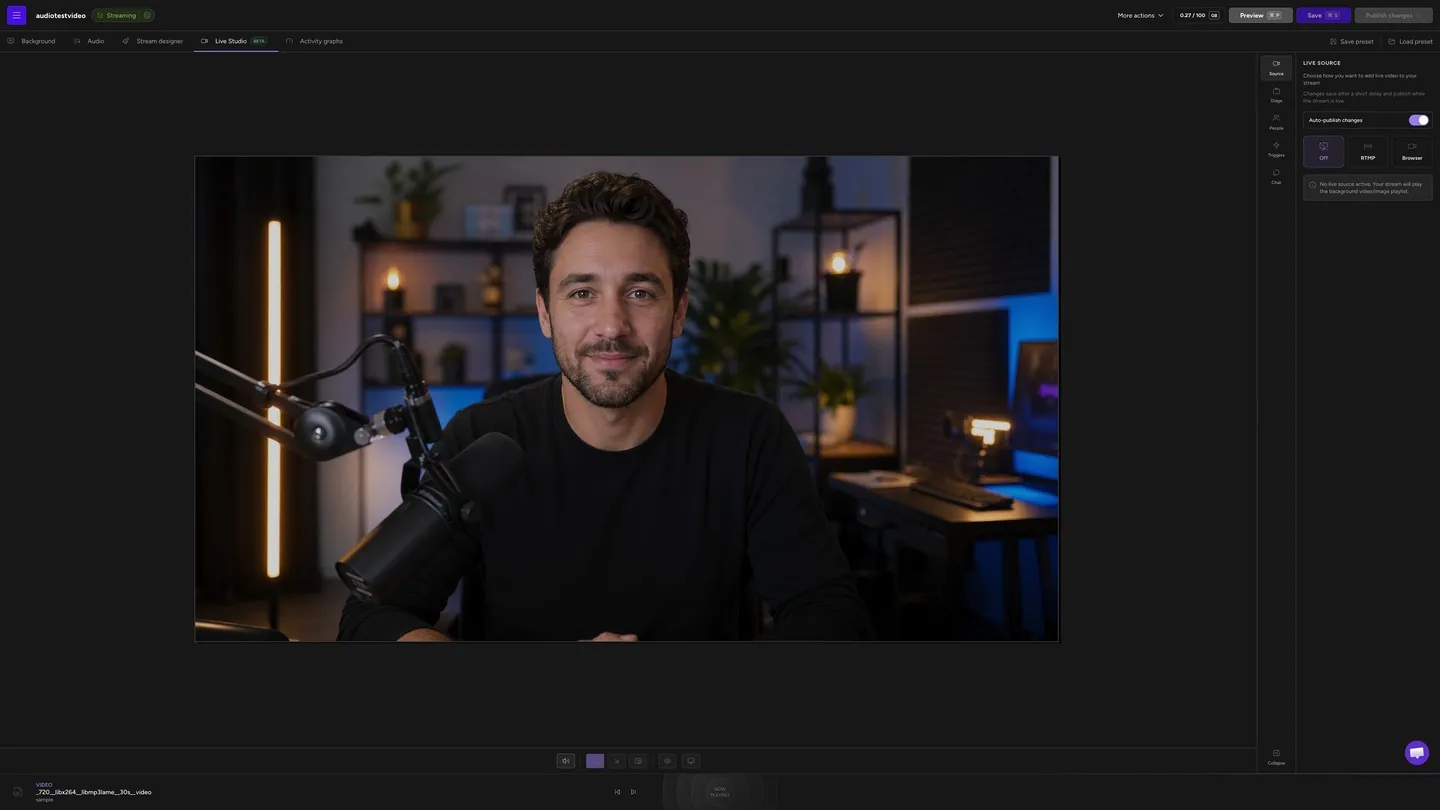
Most scheduled streams can stay fully prerecorded. For a live welcome, a guest or questions at the end, Live Studio (in beta) puts your camera, your guests or an OBS feed on top of the running stream. Pick full screen, a small overlay, split screen or a bottom bar. The playlist keeps playing underneath, and when you leave, your video fills the screen again.
You join live at the moment you choose. The video doesn’t pause and wait for you, so plan the live part around a quiet moment in the video or the end of the playlist.
Scheduled streams vs 24/7 channels
A scheduled stream is built around a start time. Use it when people should show up together: a sermon, a lesson, a replay, a weekly show or a launch.
A 24/7 live stream runs all day, every day. Music channels, lofi radios and channels that loop old episodes use one, because being live all the time matters more to them than a start time. For that, our guide to the best 24/7 streaming software compares Upstream with other tools.
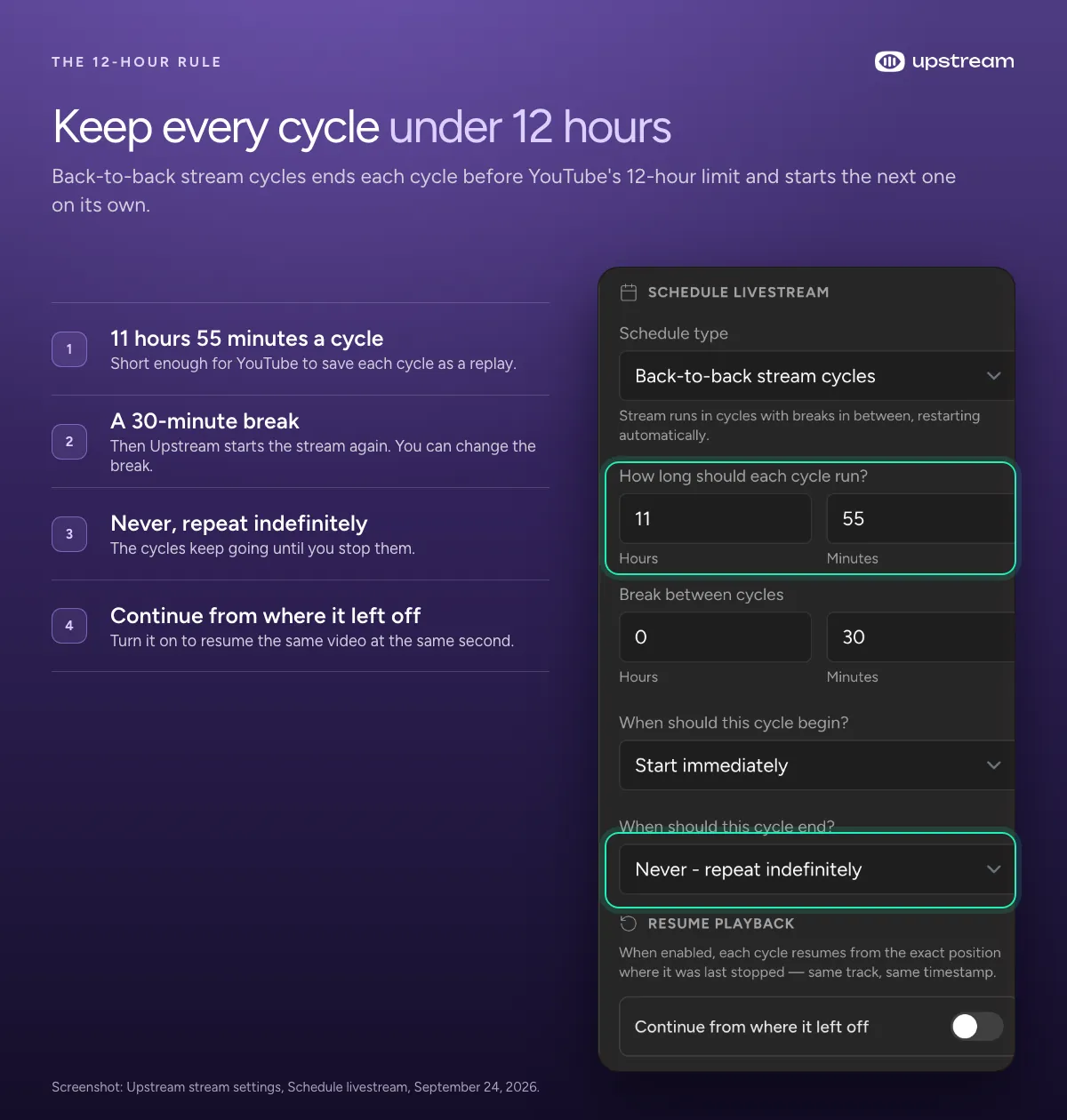
For a channel that should be live almost all the time, use Back-to-back stream cycles. Run each cycle for 11 hours 55 minutes with a 30 minute break. Every cycle stays under YouTube’s 12 hour replay limit, so each one is saved. Turn on Continue from where it left off and the next cycle picks up the playlist at the same second.
Checklist before the start time
Treat a scheduled stream like an event, even when the video is finished. The title, thumbnail and start time decide whether people show up.
- Write the title and description before you create the stream. The free YouTube metadata generator drafts a title, description, tags and a pinned comment from a short brief.
- Make a thumbnail that reads on a phone and makes the stream worth joining live.
- Check the video’s shape. If it isn’t 16:9, crop it to the right aspect ratio before you upload it.
- Open with a title card or a short countdown. People who arrive early see the first seconds, so skip the dead air.
- Check the audio level from start to end.
- Run a private or unlisted test the first time.
- Open the watch page and check the date, the time zone, the visibility and the live chat settings.
- If you stream to other platforms too, check each one before the start.
Common mistakes with scheduled streams
- Scheduling the stream on YouTube and expecting it to play your video by itself.
- Leaving Auto-start off when an encoder is supposed to start the stream.
- Starting the encoder before you want to be live while Auto-start is on.
- Sending video to the wrong stream key, so it lands on a different stream.
- Relying on a laptop that can sleep, update or lose its connection at the wrong moment.
- Setting a weekly stream in the wrong time zone, or leaving an incorrect start time unchanged after Upstream saves your browser time zone.
- Using up the 3 daily notifications with uploads on the day of the stream.
- Letting a playlist run out before the planned end time.
Frequently asked questions
How do I schedule a live stream on YouTube?
In YouTube Studio, click Create, then Go live, open the Manage tab and click Schedule stream. Add a title and description, choose the visibility, set the date and time, and save. In the YouTube app, tap Create, then Live, tap Edit and choose Schedule for later. At the scheduled time you still have to go live, or have an encoder or a service like Upstream send the video.
Can I schedule a YouTube live stream on my phone?
Yes, if your channel has at least 50 subscribers. Tap Create, then Live, tap Edit and choose Schedule for later. To start it, tap Create, then Live, tap the calendar icon and pick the stream. Under 1,000 subscribers, YouTube may limit how many people can watch a phone stream.
Will a scheduled YouTube live stream start automatically?
Only once video is coming in. With Auto-start on, the stream goes live the moment your encoder starts sending, so the encoder has to start on time. YouTube doesn’t go live at the scheduled minute by itself. Upstream starts the stream from its servers at the time you set, so it goes live with your computer off.
Can I schedule a prerecorded video as a YouTube live stream?
Yes. For one video, once, use a YouTube Premiere: upload it, click Schedule, set the time and check Set as Premiere. For a live stream that can repeat, loop a playlist or go to other platforms too, upload the video to Upstream, connect YouTube and set a schedule. Upstream plays it from the cloud at that time.
How do I schedule a recurring live stream on YouTube?
YouTube has no repeat option, so you create each stream, using Reuse settings to copy last week’s details. To make it repeat on its own, set a Recurring schedule in Upstream, Daily or Weekly. Daily and weekly repeats keep the local start time across daylight saving changes when your time zone is saved before the next run is calculated. Open Upstream to save your browser time zone. Check and correct times already set, since those stay unchanged. A run is skipped if the clocks skip its start or end time. For a channel that should stay live, Back-to-back stream cycles repeat with a break between runs.
Can I schedule a live stream on YouTube without OBS?
Yes. A webcam or phone stream needs no encoder. You go live from the browser or the app at the scheduled time. For a prerecorded video, Upstream takes the place of OBS: it plays the file from its servers, so nothing has to run on your computer.
Can I schedule a stream on YouTube and Twitch at the same time?
Not with YouTube’s scheduler, which only covers YouTube. In Upstream, one scheduled stream goes to up to 10 of 30+ platforms at once, including YouTube, Twitch, Kick and Facebook. Every platform starts on the same schedule.
What is an automated live stream schedule?
It’s a schedule that starts and stops your stream with nobody pressing a button. Upstream runs one from its servers: once, daily, weekly or in back to back cycles. Our page on stream scheduling shows every option.
Schedule your first stream free
Upload a video, connect YouTube with one sign in, pick the time and close your laptop. The free plan gives you 24 streaming hours a month to try it with your own show. When the first episode airs on its own, switch the schedule to Weekly.
Sources
Checked October 10, 2026.
- YouTube Help on live streams: streaming with an encoder and scheduling, live stream settings, Reuse settings and Auto-start, live streaming on mobile, webcam streams, getting started and limits, verifying your channel, promoting a stream, streaming tips, subscriber notifications and live stream replays.
- YouTube Help on Premieres: premiering a video and customizing a Premiere.
- YouTube Live Streaming API: live broadcasts and the life of a broadcast.
- Upstream: pricing, free plan, stream scheduling, and the help center on scheduling a YouTube live stream and Live Studio over prerecorded content.