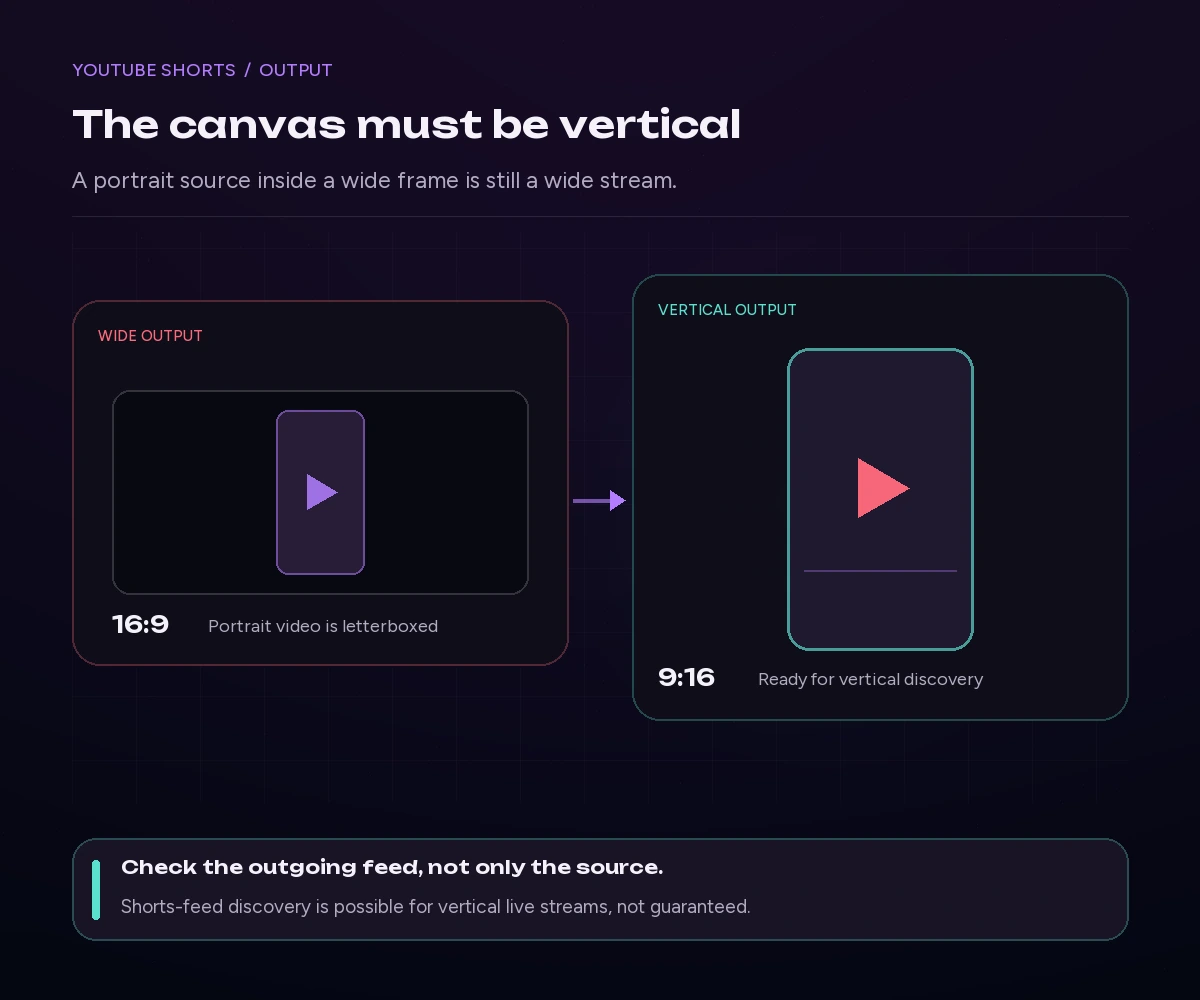
For your live stream to apper in YouTube Shorts, stream a vertical live video. Use your phone in portrait orientation, send a 9:16 stream from an encoder such as OBS, or run a vertical stream from Upstream. Your live stream can then be discovered in YouTube’s mobile Shorts.
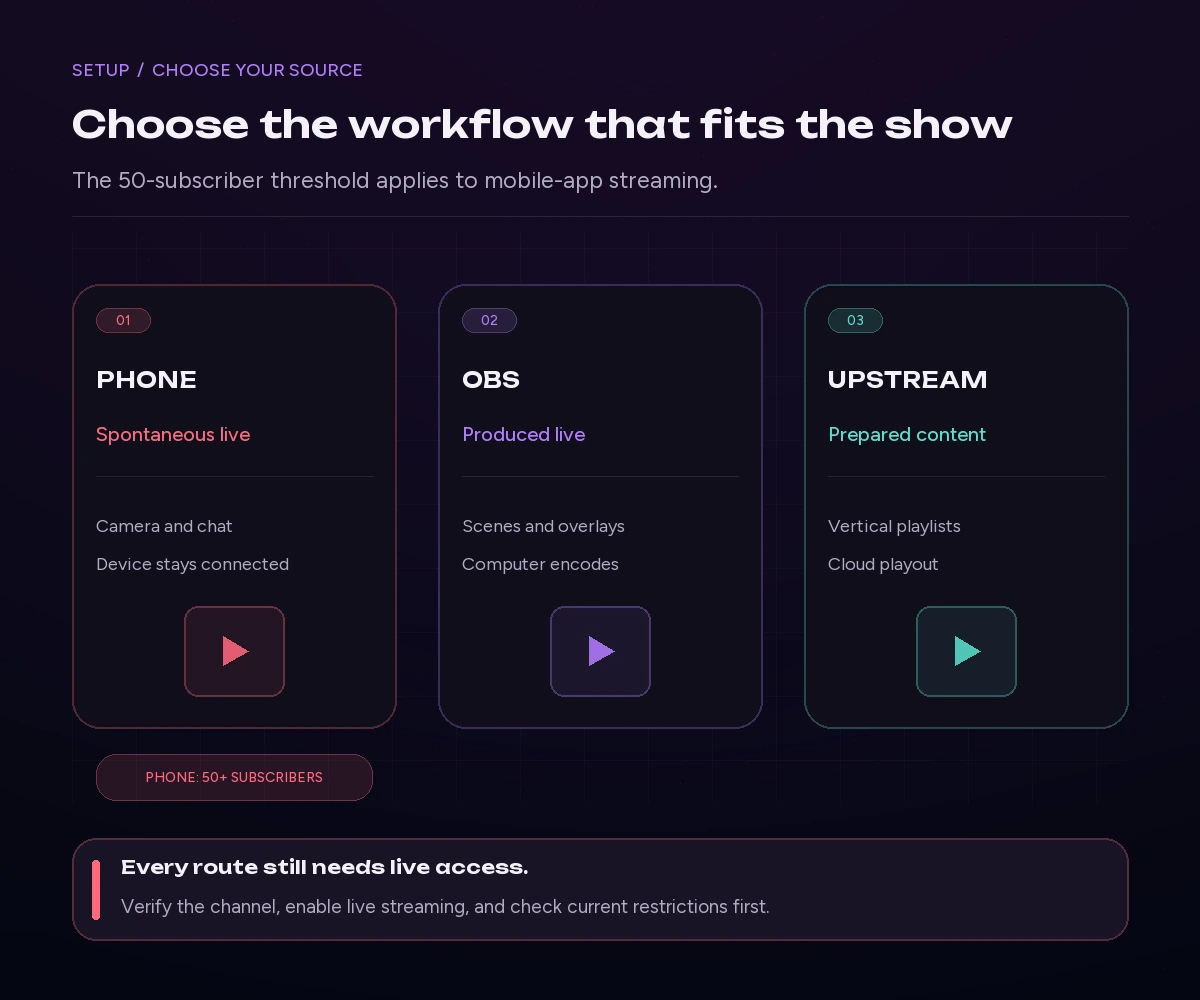
The best route depends on what you want to broadcast: your camera right now, a produced show from your computer, or a playlist that keeps running while your computer is off.
Can live streams appear on the YouTube Shorts Feed?
Yes. “Going live on Shorts” means broadcasting a vertical YouTube live stream that viewers can find while scrolling Shorts. It is still a simple live broadcast, not a short-form video upload. Viewers can enter a full-screen live experience and move between live streams.
There are important exceptions: Tablets, and Scheduled streams.
The tablet app does not show live streams in the shorts feed, ever.
Scheduled live streams and Premieres do not appear in the vertical live feed either.
If Shorts-feed discovery is your goal, use the immediate Go live workflow described below rather than assuming an event scheduled in advance will qualify. See YouTube’s vertical live feed guidance.
Keep in mind that the stream being live on your channel and a stream being recommended to the viewers’ Shorts feed are completely different things.
Build the stream in the cloud.
Schedule videos, produce browser-based live shows, or send one feed to multiple platforms from the same Upstream workflow.
Choose your setup: phone, OBS, or Upstream
| Your goal | Best starting point | What stays running |
|---|---|---|
| Talk to viewers, show a process, or broadcast from a location | YouTube mobile app | Your phone and its connection |
| Produce a live show with cameras, gameplay, and overlays | OBS or another encoder | Your computer and upload connection |
| Broadcast a prepared vertical playlist, including longer or 24/7 programming | Upstream | Cloud playout, rather than your local computer |
Start with a phone if your value is being there live. Use OBS if you need hands-on production. Choose Upstream when you already have useful video content and want a repeatable vertical channel without keeping a laptop encoding all day.
Requirements before you start
YouTube’s baseline rules require a verified channel, no live-streaming restrictions in the previous 90 days, and a streamer who meets its minimum age of 16. Check YouTube’s live eligibility guidance before planning a broadcast.
For the YouTube mobile app, you also need at least 50 subscribers. First-time live activation can take up to 24 hours. Channels below 1,000 subscribers may face mobile audience limits, and their mobile stream archive may default to private. These are mobile-specific requirements, not a universal 50-subscriber rule for every encoder workflow.
Enable live access before the day you want to stream. A cloud service cannot bypass a channel restriction or YouTube’s activation process.
How to go live on YouTube Shorts from your phone
The mobile app is the simplest option for an informal vertical broadcast.
- Open the YouTube app and confirm you are using the right channel.
- Tap Create, then Live. Follow any activation or permission prompts.
- Hold the phone upright and check the portrait preview before starting.
- Add a clear title, choose the correct audience setting, and review visibility. Use Public when your goal is public discovery.
- Check your microphone, framing, and connection, then tap Go live.
- When finished, end the stream and review the archive’s visibility.
These steps follow YouTube’s mobile live instructions. Interface details can vary by device and account.
For your first broadcast, choose one small promise: answer three questions, demonstrate one technique, or give viewers a short behind-the-scenes tour. Someone arriving halfway through should understand what they are watching without hearing your opening minute.
Before going public, rehearse privately if needed. A private test checks your setup; it does not test Shorts-feed distribution.
How to stream vertically from OBS
OBS is a good fit when you need a camera, screen capture, graphics, or multiple scenes. The important detail is the outgoing video shape, not whether your source footage was originally filmed on a phone.
Build a real 9:16 output
In OBS, open Settings → Video and set Base (Canvas) Resolution and Output (Scaled) Resolution to a portrait size. A practical starting point is 1080 × 1920; 720 × 1280 is a lighter alternative. Keep the output portrait rather than placing a vertical video inside a landscape canvas.
Then rearrange your sources to fit. A wide gameplay capture may need a carefully chosen crop; a tutorial may work better with the demonstration above a camera view. Do not stretch a landscape image until people and objects look unnaturally thin.
For a simple talking-head stream, 30 fps is a sensible starting point, not a Shorts eligibility rule. Use YouTube’s current live encoder recommendations for bitrate and codec settings. They recommend constant bitrate and a two-second keyframe interval. Test audio and motion as well as a static starting screen.
Connect OBS to YouTube
- In YouTube Studio, select Create → Go live and open the encoder stream setup.
- Connect the correct YouTube account in OBS, or use the stream key from that broadcast in your streaming settings.
- Keep the stream key private. Do not show it in a tutorial recording or screenshot.
- Start sending your OBS feed and check the preview and stream health in YouTube’s Live Control Room.
- Complete YouTube’s Go live step if the broadcast is not configured to start automatically.
Check the result on a phone as well as your desktop. Large desktop previews can hide the fact that a label is unreadable at mobile size. Keep faces and essential text away from interface overlays, particularly along the lower and right edges; test the actual viewing layout instead of relying on a universal pixel-safe-zone template.
If your local upload cannot sustain the stream, reduce your settings or improve the connection. Our upload speed and bitrate guide explains that tradeoff.
How to run a vertical YouTube stream with Upstream
Upstream is useful when you want to turn prepared content into an ongoing vertical broadcast. Instead of leaving OBS running on your computer, you upload your videos and let cloud playout handle the stream. If your clips are landscape, reframe them to 9:16 first with the free video cropper.
For example, a cooking channel could assemble a vertical sequence of short technique demonstrations. A fitness creator could build a clearly labeled replay program of exercise explanations. The playlist should remain useful whenever someone joins. Repeating a sales message alone is not enough.
Set up the vertical stream
- Open YouTube Studio and choose Go live, using the immediate stream workflow for this Shorts-feed use case.
- Copy the broadcast’s stream key without sharing it publicly.
- Open your Upstream dashboard and create a 24/7 stream slot, or open Settings on an existing slot.
- Under Resolution & Orientation, choose a vertical output.
- Enter the YouTube stream key and save the settings or create the stream.
- Upload your prepared content and start the stream. If you changed orientation while it was already running, restart it.
This is the workflow documented in Upstream’s 24/7 YouTube Shorts setup guide. Confirm the portrait preview and live status in YouTube before you leave it running.
Cloud playout removes the need for your computer to encode that uploaded playlist continuously. It does not remove the need to check the program, moderate viewers, or follow YouTube’s rules. Label prerecorded material honestly, use content you have rights to broadcast, and review your playlist before repeating it.
You do not need API or MCP automation for this first setup. Get one stream working manually before adding orchestration; automating a misconfigured landscape output just repeats the same mistake faster.
Ready to try it? Create a free Upstream account and start with a focused vertical playlist. Check the current account limits before planning an unattended 24/7 run.
Can you stream horizontally and vertically at once?
Yes. YouTube documents a native Dual stream option in Live Control Room → Stream settings. It can create a vertical layout automatically or accept a separate encoder stream. Layout-editing availability is rolling out, so check what your channel actually exposes.
Both versions share a stream URL and live chat; Shorts viewers see the vertical version. Follow YouTube’s dual-stream instructions for the current setup.
Use this when you already have a strong widescreen show. Review the vertical composition deliberately: a center crop can cut out slides, guests, or the part of a game viewers need to see. If your whole program is designed for phone viewing, a dedicated portrait stream is usually a simpler production choice.
Why is my live stream not showing in Shorts?
Work through these checks in order:
| Check | What to do |
|---|---|
| The output is still landscape | Inspect the video YouTube receives, not only the original source file. |
| The broadcast is not actually live | Check the Live Control Room preview and public live status. |
| You used a scheduled event or Premiere | Revisit the immediate Go live workflow and YouTube’s vertical-feed guidance. |
| You are testing from desktop or tablet | Check the vertical live in the YouTube mobile app on a phone. |
| The Upstream orientation change has not taken effect | Restart the running stream after changing its orientation. |
| You expected guaranteed recommendations | Confirm the setup, then evaluate results over time. Technical eligibility is not a promise of distribution. |
Do not repeatedly create new broadcasts just because one account does not see yours while scrolling. First separate a setup problem from a recommendation outcome.
Once the stream works, improve the opening experience for every new arrival. Make the topic recognizable immediately, keep the main action visible, and use transitions that explain what comes next. For recurring programming, review chat and viewer behavior to identify segments worth keeping or replacing.
Frequently asked questions
Do I need 1,000 subscribers to go live on Shorts?
Not as a universal requirement. YouTube’s mobile app requires at least 50 subscribers, with additional limitations possible below 1,000. Encoder streaming follows a different setup path. Your channel still needs live access and must meet YouTube’s eligibility rules.
Do I need to add #Shorts to the title?
The official vertical-live instructions focus on the broadcast format and viewing experience, not a required hashtag. Write a useful title describing the live content. A hashtag cannot fix a landscape output or force recommendations.
Is a vertical live stream limited to the length of an uploaded Short?
No: it is a live broadcast, not a Shorts upload. Plan duration and replay handling separately. See YouTube’s live streaming limits before setting up a long-running program.
Can I run prerecorded content as a vertical live stream?
Upstream supports that workflow through uploaded content and vertical cloud playout. Make the program worth watching, describe replays honestly, and ensure you have the necessary rights. Treat continuous streaming as a programming choice, not a guarantee of growth or monetization.
Start with one useful vertical broadcast
For a live conversation, use your phone. For a produced real-time show, use OBS. For an ongoing program built from existing videos, use Upstream.
Start small: prepare a portrait layout, verify it on a phone, and make the first few seconds understandable to a new viewer. When you want that program to keep playing without leaving your computer on, start with a free Upstream account.