
Quick answer
To live stream on YouTube for the first time, verify your channel, enable live streaming, and wait up to 24 hours if YouTube asks you to. Then open YouTube Studio, click Create > Go Live, and choose how you want to stream: phone, webcam, encoder software such as OBS, or a game console.
If this is your first stream, the webcam method is usually the easiest place to start. Set the stream to Unlisted for a short test, check your audio and video, and switch to Public when you are ready.
- You must be at least 16 years old to live stream on YouTube.
- Your channel must be verified and have no live streaming restrictions in the past 90 days.
- First-time activation can take up to 24 hours.
- Mobile streaming requires at least 50 subscribers. Webcam and encoder streaming do not have a subscriber minimum.
- You can start for free with a phone, webcam, OBS, or your game console.
YouTube live streaming requirements
YouTube checks a few things before it lets a channel go live. Complete these steps before you plan your first broadcast.
Meet the minimum age
You must be at least 16 years old to live stream on YouTube. YouTube may remove streams that do not meet its minimum age requirement.
Verify your YouTube channel
Channel verification is required before you can stream. Here is how to verify your channel:
- Go to youtube.com/verify.
- Select your country.
- Choose whether to receive the verification code by text message or phone call.
- Enter the six-digit code YouTube sends you.
- Enable live streaming and allow up to 24 hours for first-time activation.
If you already verified your channel to upload videos longer than 15 minutes, this step may already be complete.
Check for live streaming restrictions
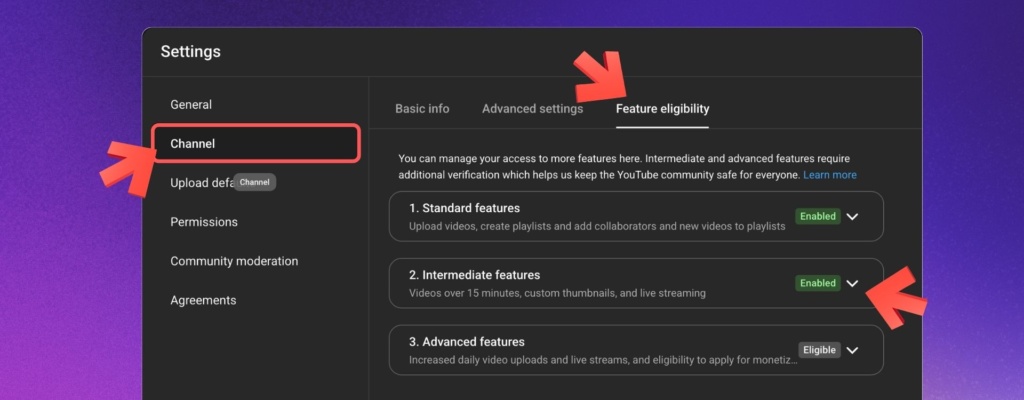
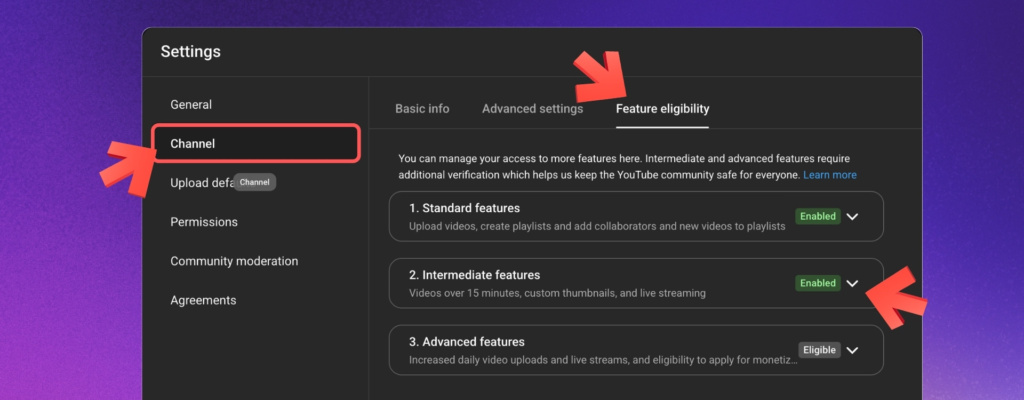
Your channel must not have had a live streaming restriction during the previous 90 days. You can check your feature access in YouTube Studio under Settings > Channel > Feature eligibility.
Understand the 50-subscriber rule
You need at least 50 subscribers to go live from the YouTube mobile app. This rule applies to mobile streaming only. You can use a webcam or encoder from a computer without reaching 50 subscribers.
Build the stream in the cloud.
Schedule videos, produce browser-based live shows, or send one feed to multiple platforms from the same Upstream workflow.
Choose how to live stream on YouTube
The best method depends on what you want to show and how much control you need.
| Method | Best for | What you need |
|---|---|---|
| Phone | Vlogs, events, and quick updates | YouTube app and 50 subscribers |
| Webcam | Talking-head streams and simple Q&As | Computer, browser, camera, and microphone |
| OBS or another encoder | Gaming, screen sharing, scenes, and overlays | Streaming software and a capable computer |
| Game console | PlayStation or Xbox gameplay | Supported console and linked YouTube account |
| Cloud streaming | Scheduled, pre-recorded, multistreamed, or 24/7 content | A cloud streaming service |
How to start your first YouTube live stream
Step 1: Open YouTube Studio
- Sign in to YouTube Studio.
- Click Create in the top-right corner.
- Select Go Live.
- If YouTube asks you to verify the channel, follow the prompts and wait for activation.
Step 2: Choose your streaming method
Select Webcam for a simple camera stream or Streaming software if you are using OBS or another encoder. Mobile and console streams are started from those devices.
Step 3: Configure the stream
In YouTube Live Control Room, add the following:
- Title: Say what the viewer will see or learn.
- Description: Explain the stream and add useful links.
- Thumbnail: Upload a clear custom thumbnail.
- Audience: Tell YouTube whether the stream is made for children.
- Visibility: Choose Private, Unlisted, or Public.
- Schedule: Start now or choose a future date and time.
Step 4: Test before going public
Set the stream to Unlisted and run a short test. Open the watch page on another device and check the picture, audio, delay, and stream health. Fix any problems before changing the visibility to Public.
Step 5: Go live
When the preview looks and sounds right, click Go Live. Watch the stream health panel and keep an eye on the live chat while you broadcast.
How to live stream on YouTube from your phone
Mobile streaming is the quickest option for vlogs, events, and updates where you need to move around.
- Open the YouTube app.
- Tap the + button.
- Tap Go Live.
- Add the title, description, audience, and visibility.
- Choose portrait or landscape orientation.
- Check the preview and tap Go Live.
Good to know: Mobile streaming requires at least 50 subscribers. Your channel must also be verified and enabled for live streaming.
How to go live on YouTube with a webcam
YouTube’s webcam mode is the easiest desktop option. It runs in your browser, so there is nothing to install.
- Open YouTube Studio and click Create > Go Live.
- Select Webcam.
- Allow your browser to use the camera and microphone.
- Add the stream details and choose Unlisted for your first test.
- Check the preview, then click Go Live.
Webcam mode works well for interviews, lessons, Q&As, and other simple broadcasts. It does not offer the scenes, overlays, and advanced controls found in encoder software.
How to stream on YouTube with OBS
OBS Studio and similar encoders give you more control. You can share your screen, combine several cameras, add overlays, and switch between scenes.
- Install OBS Studio.
- Open YouTube Studio and click Create > Go Live.
- Select Streaming software.
- Copy your stream key and server URL from YouTube.
- Paste them into the stream settings in OBS.
- Add your video, audio, screen, and other sources.
- Click Start Streaming in OBS.
- Check the incoming preview in YouTube Live Control Room, then go live.
Use the free streaming bandwidth calculator to choose a bitrate that matches your upload speed. A stable setting is better than forcing a resolution your connection cannot support.
How to stream from PlayStation or Xbox
Modern PlayStation and Xbox consoles can broadcast gameplay without a capture card. Link your YouTube account in the console’s broadcast or sharing settings, enter the stream details, check your microphone and camera options, and start broadcasting. The exact menu names depend on the console and software version.
A capture card and OBS are useful if you want custom overlays, multiple cameras, or more control over the production.
When cloud streaming makes more sense
Phone, webcam, OBS, and console streaming are good choices when you are present for the broadcast. Cloud streaming is useful when the stream needs to run on a schedule or continue while your computer is off.
A cloud service such as Upstream can help you:
- Schedule pre-recorded videos as live broadcasts.
- Run a 24/7 YouTube channel without leaving a computer on.
- Send one stream to YouTube and other platforms.
- Build browser-based live shows with guests, screen sharing, and overlays.
If you only want to appear on camera, start with YouTube’s webcam mode. If you want scheduled, pre-recorded, multistreamed, or 24/7 YouTube live streams, a cloud workflow can remove the need to manage a local encoder around the clock.
Five mistakes to avoid on your first stream
1. Making the setup too complicated
You do not need several cameras, a green screen, or a second computer for your first stream. Start with the simplest method that can show your content clearly.
2. Skipping the test stream
A short Unlisted test can reveal a muted microphone, wrong camera, slow upload, or private screen before viewers arrive.
3. Streaming without a plan
Prepare a short outline with an opening, three or four talking points, and a clear ending. This prevents long silences and makes the stream easier to follow.
4. Ignoring the audience
Welcome viewers and respond to useful comments. Live chat is one of the main reasons people choose a live stream instead of a regular video.
5. Accepting poor audio
Viewers will often accept average video, but they leave quickly when they cannot understand the speaker. Test your microphone, reduce background noise, and keep the input level out of the red zone.
How to improve your next YouTube live stream
- Use a custom thumbnail: Make the topic easy to understand at a glance.
- Schedule the stream: Give viewers time to set a reminder.
- Moderate live chat: Add moderators and blocked words before the broadcast.
- Review analytics: Check peak viewers, average watch time, and traffic sources.
- Reuse the recording: Edit highlights into regular videos or Shorts after the stream.
If you prefer to prepare the content first, Upstream can schedule a pre-recorded video as a live stream. For longer growth campaigns, see how public live streams can contribute to YouTube watch hours.
YouTube live streaming requirements: quick reference
| Requirement | Phone | Webcam | OBS or encoder | Console |
|---|---|---|---|---|
| Minimum age | 16 | 16 | 16 | 16 |
| Subscribers needed | 50+ | None | None | None stated for standard console access |
| Verified channel | Required | Required | Required | Required |
| First activation | Up to 24 hours | Up to 24 hours | Up to 24 hours | Up to 24 hours |
| Extra software | YouTube app | None | OBS or another encoder | Console broadcast tools |
Frequently asked questions
What is the easiest way to go live on YouTube?
The easiest desktop method is YouTube’s webcam mode. Open YouTube Studio, click Create > Go Live, select Webcam, and allow access to your camera and microphone. Mobile streaming is also simple, but it requires at least 50 subscribers.
Do I need 1,000 subscribers to go live on YouTube?
No. You need at least 50 subscribers to stream from the mobile app. Webcam, encoder, and standard console streaming do not have a 1,000-subscriber requirement.
Is YouTube live streaming free?
Yes. YouTube does not charge you to start a live stream. You may choose to pay for equipment, streaming software, or a cloud service, but free tools are enough for a basic broadcast.
How do I get my YouTube stream key?
Go to YouTube Studio, click Create > Go Live, and select Streaming software. Copy the stream key and server URL into your encoder. Keep the stream key private because anyone with it may be able to send video to your channel.
Can I test a stream without anyone seeing it?
Yes. Set the visibility to Unlisted or Private before starting. Open the watch page on another device, check the video and audio, and stop the test before creating the public stream.
Can I live stream a pre-recorded video?
Yes. Encoder software or a cloud streaming service can send a video file to YouTube as a live broadcast. Make sure you have the rights to the content and do not mislead viewers about what they are watching.
How long can a YouTube live stream be?
YouTube can automatically archive streams shorter than 12 hours. Streams longer than 12 hours may not be saved as a recording. If the archive matters, end the stream before the 12-hour limit and start a new broadcast.
Start with one simple stream
Verify your channel today, wait for activation, and run a short Unlisted test. For a first public stream, a phone or webcam is usually enough. Add OBS, extra equipment, or cloud automation only when the content needs it.
If you want to schedule pre-recorded content, multistream, or keep a channel live while your computer is off, start a free stream with Upstream.