Content Calendar is live in Upstream.so today, on every plan, free plan included. It turns your 24/7 stream into a real TV channel: shows on a week grid, daily and weekly repeats, live shows that cut in on time, a TV guide that FAST platforms can read, and an as-run log of what aired. Restream and StreamYard have nothing like it, Gyre’s scheduler can’t even repeat a show, and Upstream.so gives you all of it from $30 a month, with a free plan to start.
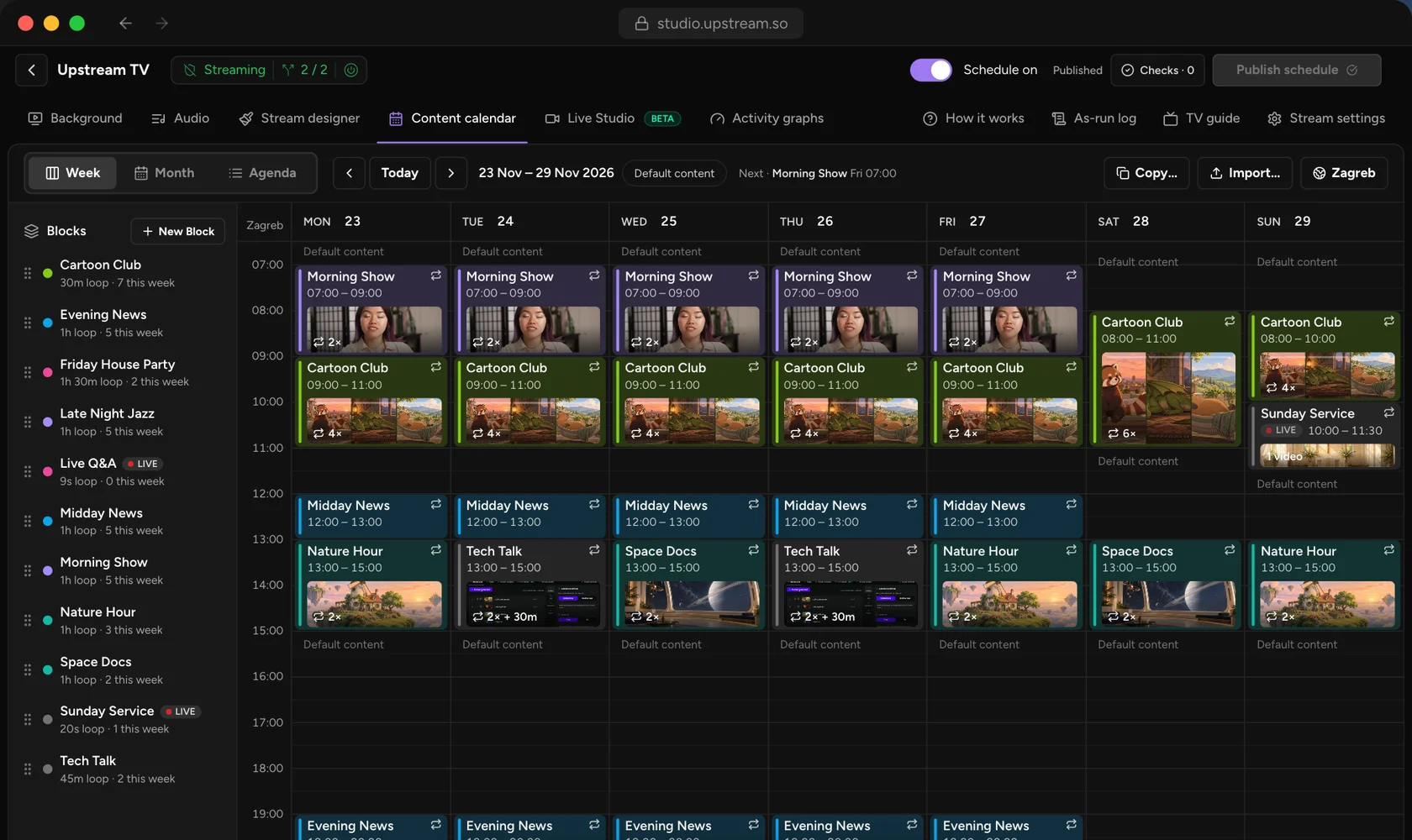
Open any 24/7 stream, click the new Content calendar tab, and plan your week. See the full tour on the Content Calendar page.
Plan the whole week on one calendar
A show in the calendar is a Block. Each Block has its own videos and music, so your morning show, your cartoons and your late night music each look and sound different. Drag a Block onto the week, and it goes on air at that time with your computer off.
When nothing is booked, your stream keeps playing its normal videos and music. Your channel never goes quiet between shows.
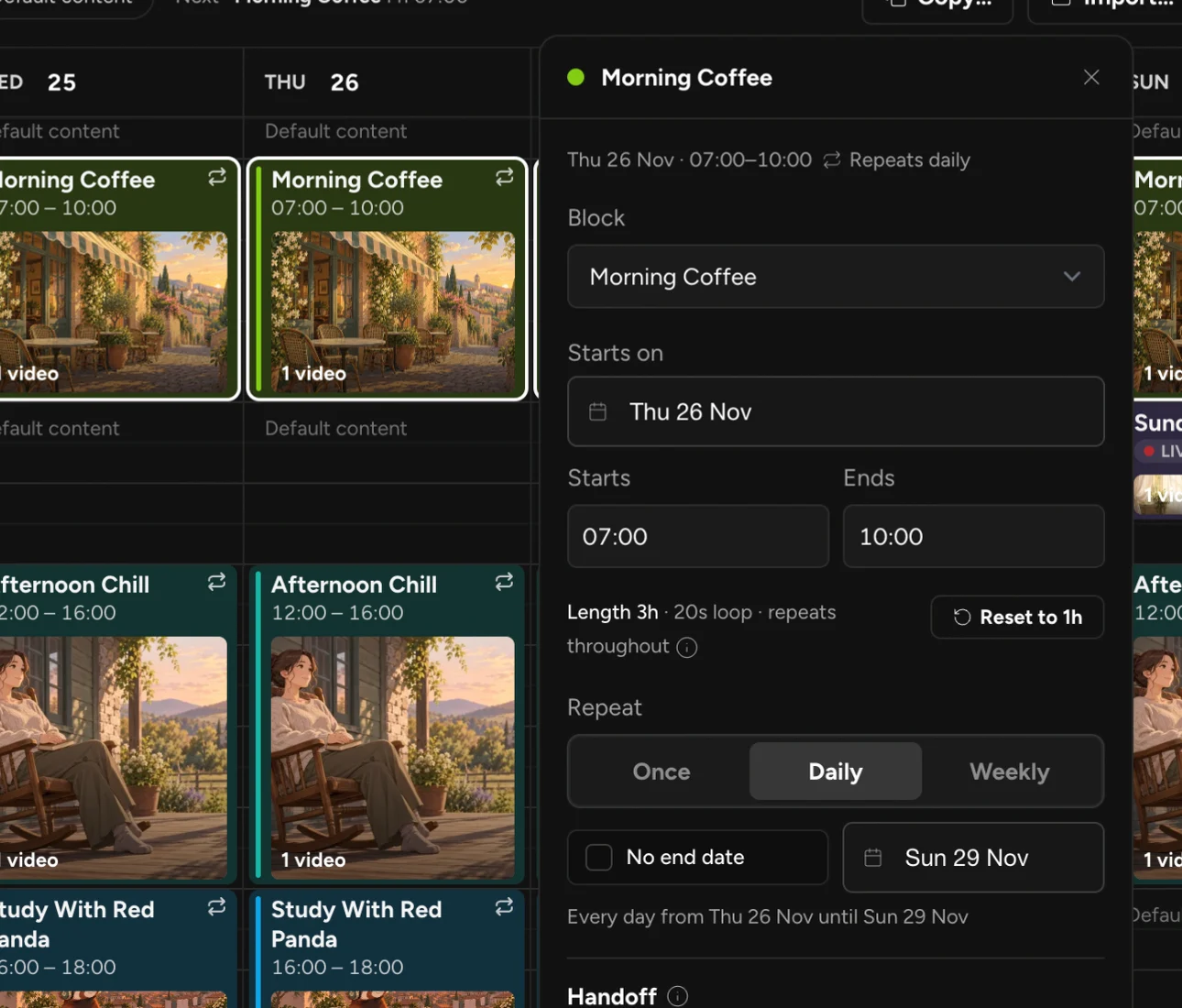
Repeat shows daily or weekly
Set a show once and it comes back every day, or on the weekdays you pick. Move a single airing for a holiday, or change every airing in one go. This is dayparting, the way TV stations plan a day: news in the morning, kids shows after, talk at lunch, music at night.
Live shows inside your 24/7 channel
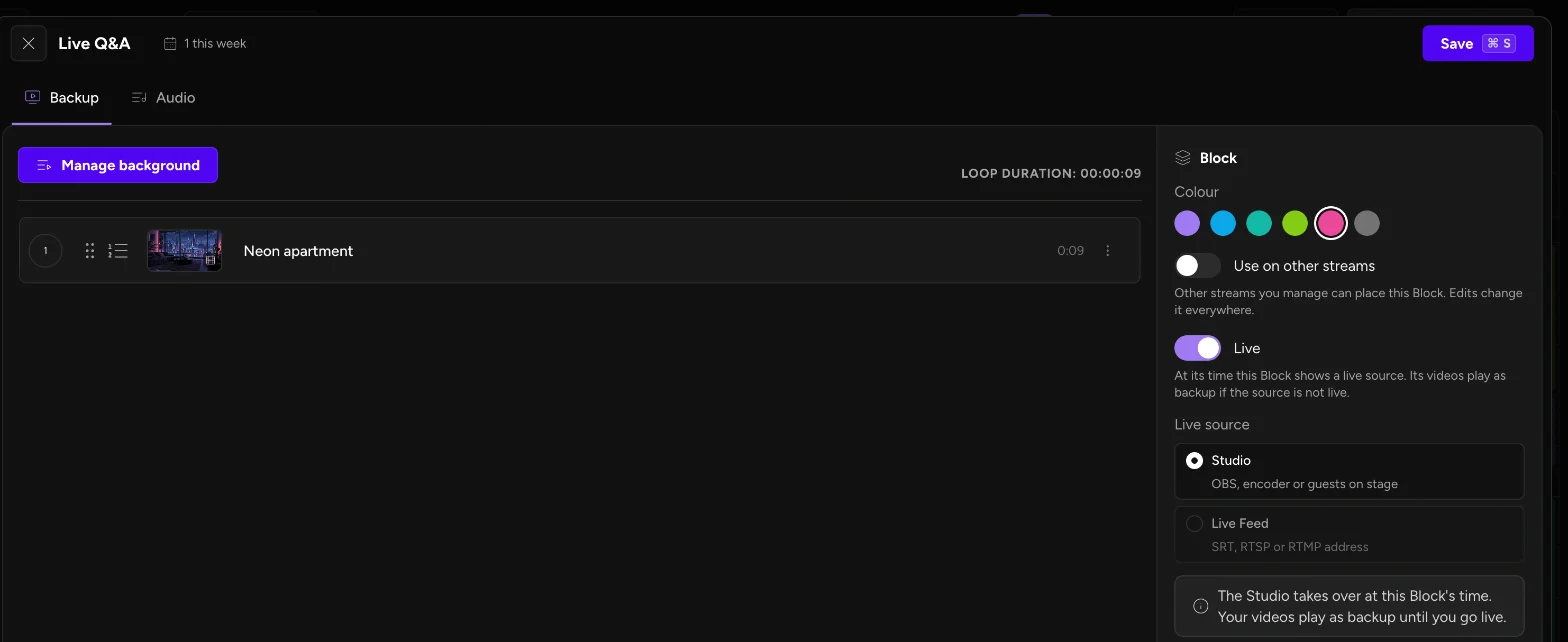
Mark a Block as live and pick Live Studio or a live feed. At its time, your live show takes over the same channel, so viewers stay on the stream they already follow. If you are a few minutes late, the Block’s own videos play until you go live. No black screen, no dead air.
Your schedule in TV guides
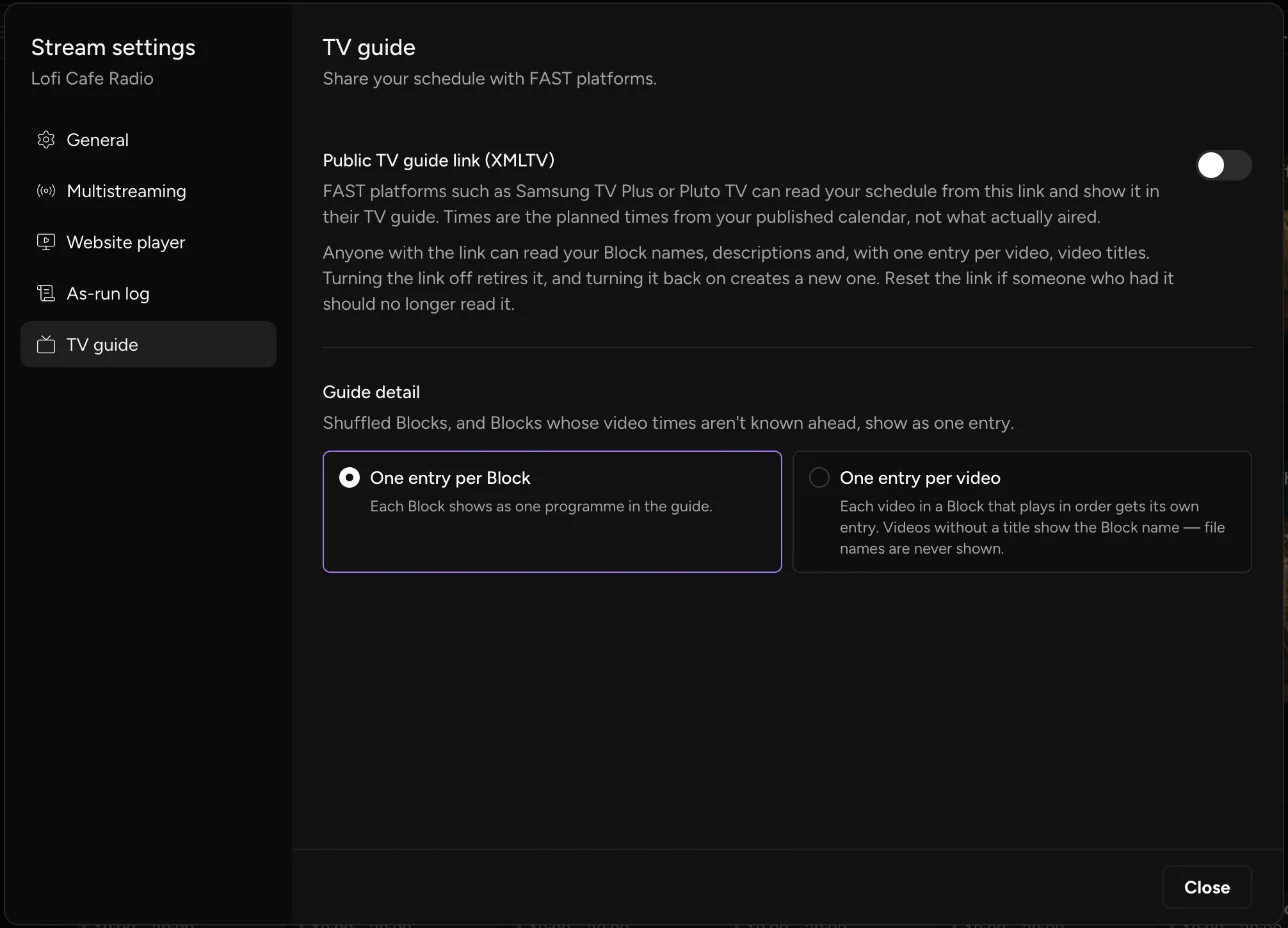
Turn on the public TV guide link and Upstream.so publishes your schedule as an XMLTV feed, the format FAST platforms such as Samsung TV Plus and Pluto TV read for their EPG. Your programme names, times and descriptions show up in their guide, straight from your calendar.
Import a week, keep an as-run log
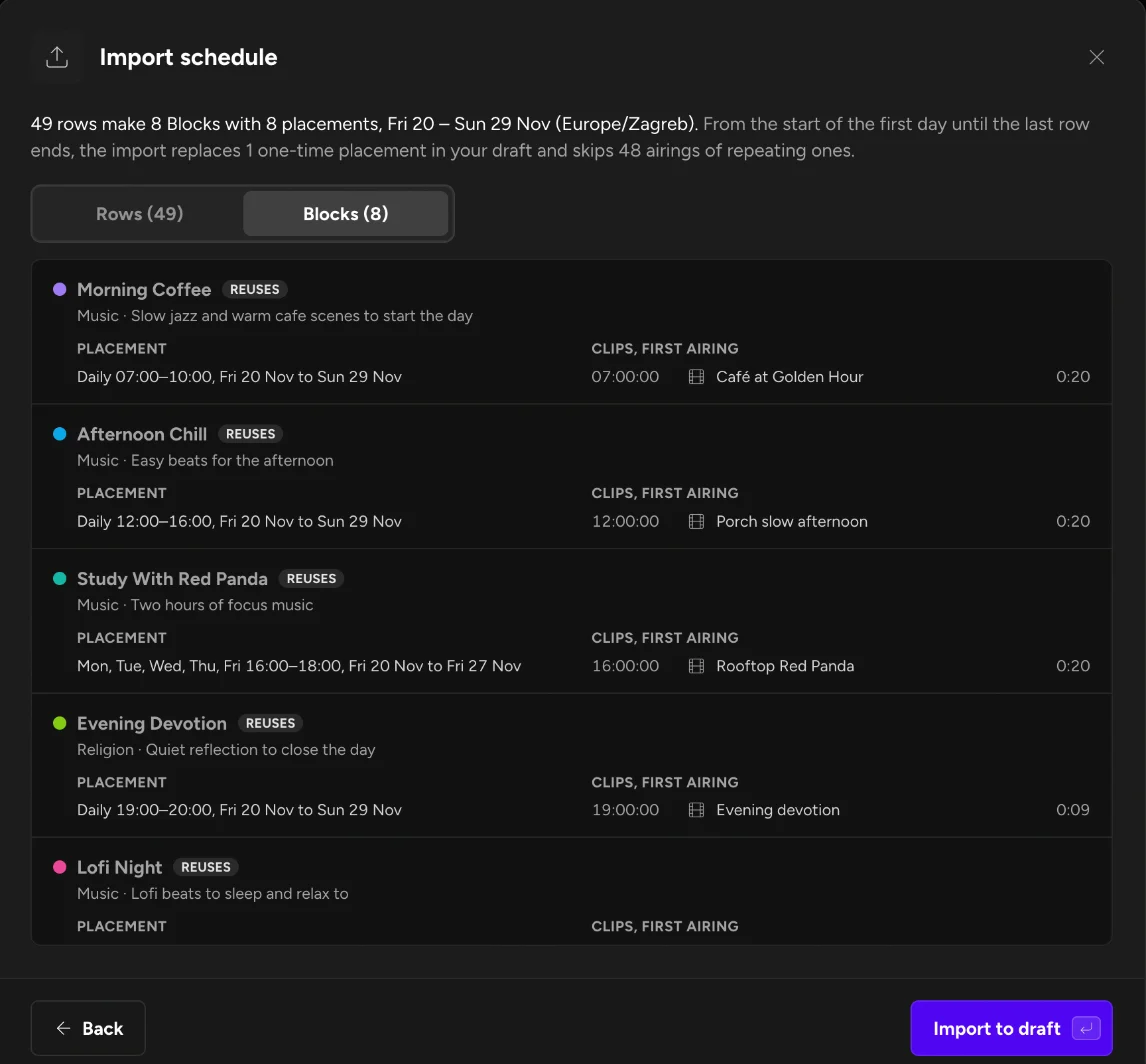
Already plan your channel in a spreadsheet or another playout system? Import the week as a CSV, M3U or XML file. You see every show in a preview before anything changes, then it goes into your draft.
The as-run log records what actually aired, when it started and how long it ran. Download it as a CSV for your sponsors or your own reports.
Draft, check, publish
Every change goes into a draft first, so you can plan next month without touching what is on air now. Before you publish, Upstream.so checks the schedule for overlaps and empty shows. Click Publish schedule and the new week goes live.
How to start
- Open a stream in Upstream.so and click the Content calendar tab.
- Click New Block and add the videos and music for your first show.
- Drag the Block onto the week and set it to repeat daily or weekly.
- Click Publish schedule.
Your AI assistant can plan the week too. The Upstream.so MCP server and API can import a schedule into your calendar and read the as-run log.
Content Calendar is included on every plan, including the free plan with 24 hours of streaming every month. Plan your first week today.
Keep a live channel running 24/7.
Upload files, build a playlist, and let Upstream.so run continuous live playout from the cloud without OBS, a VPS, or an always-on computer.