Upstream’s October Update covers what shipped after the Fall Update on October 1. The biggest change is Multi-chat, which puts YouTube, Twitch, Kick and Rumble chat in one feed inside the stream builder, on all plans and stream types, 24/7 included. Claude, ChatGPT, VS Code and Cursor can now connect to your account without an API key, OBS comes in at your stream’s frame rate (60 fps and 1080p vertical at full size), and Mixcloud connects with your Mixcloud login.
What’s new at a glance
| Feature | What it does | Where to find it |
|---|---|---|
| Multi-chat | YouTube, Twitch, Kick and Rumble chat in one feed | Stream builder, then Chat in the right sidebar |
| Shared sidebar | Chat, Destinations and Triggers in all builder views | Right sidebar of the stream builder |
| AI assistants without an API key | Connect Claude, ChatGPT, VS Code or Cursor and approve Upstream once | Your AI app, then Account settings, Connected apps |
| OBS at 60 fps and vertical | OBS input keeps your stream’s frame rate and orientation | Live Studio, then Source, then RTMP |
| Mixcloud Connect | Sign in with Mixcloud instead of pasting a stream key | Destinations, then Add destination |
| YouTube destination settings | Connected YouTube destinations get their own privacy, category, thumbnail and description | Stream settings, then Multistreaming |
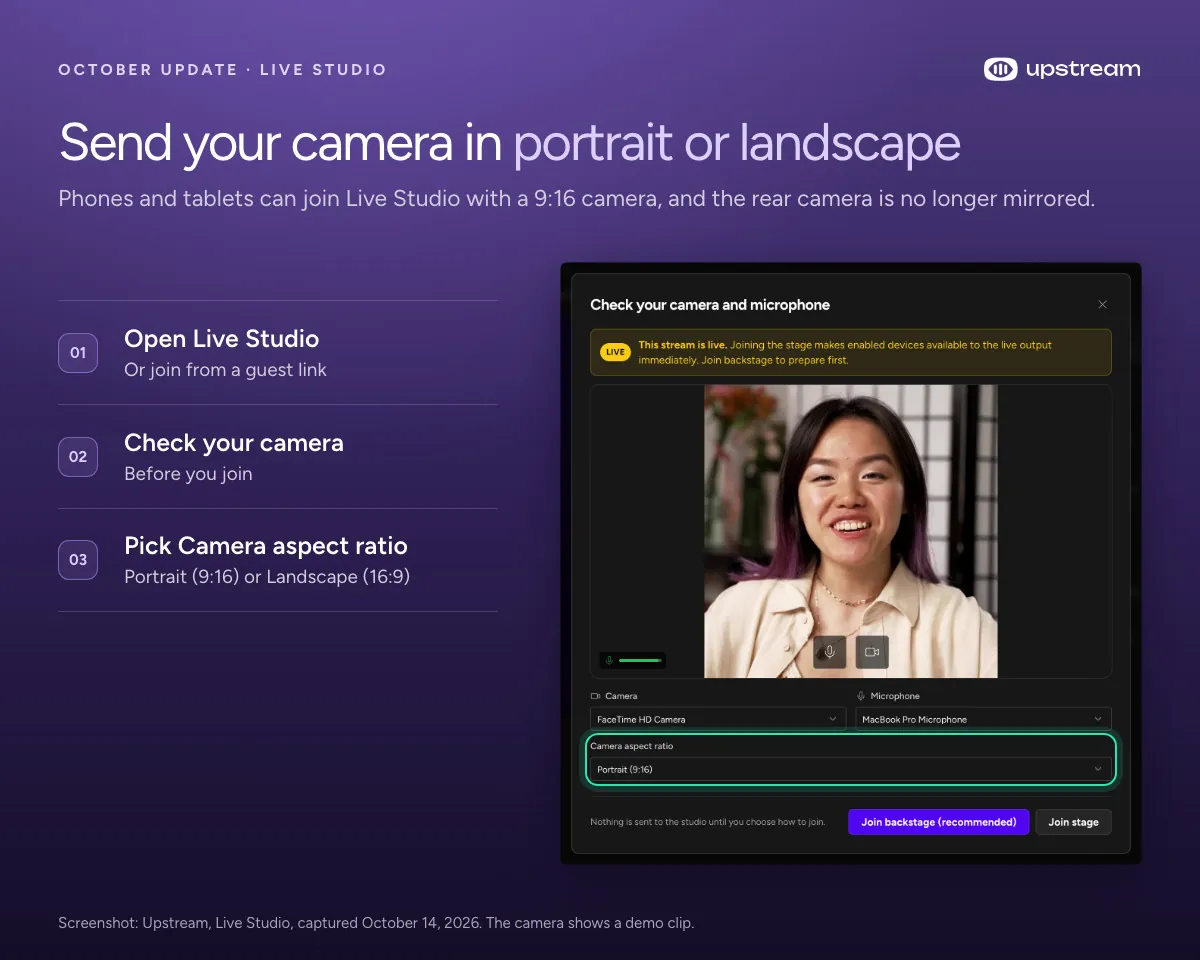
| Portrait cameras | Phones and tablets can join Live Studio in 9:16 | Live Studio camera check |
| Speaker lower thirds | Name and title that follow whoever is speaking | Stream designer, Templates |
| Schedules across daylight saving | Daily and weekly schedules keep your local start time | Automatic |
| Google Drive picker | Import private Drive files without making them public | Media Library, Upload file, Import from link |
How does Multi-chat work?
Open any stream in the builder and click Chat in the right sidebar. Messages from YouTube, Twitch, Kick and Rumble land in one feed, each marked with the platform it came from, so you can follow all four chats while you multistream to up to 10 of 30+ supported platforms at once. It works on 24/7 channels, prerecorded premieres, Live Studio shows and OBS streams. Multi-chat is included on all plans, the free plan too.
Filter chips at the top of the feed show one destination at a time, or All for everything. Super Chats, Super Stickers, new members, Twitch bits, subs and raids, and Rumble Rants stand out in the feed, and Twitch and Kick emotes and name colors come through. The Chat tab shows a count of new messages while you’re in another panel, and the last 200 messages are still there for an hour if you refresh the page.
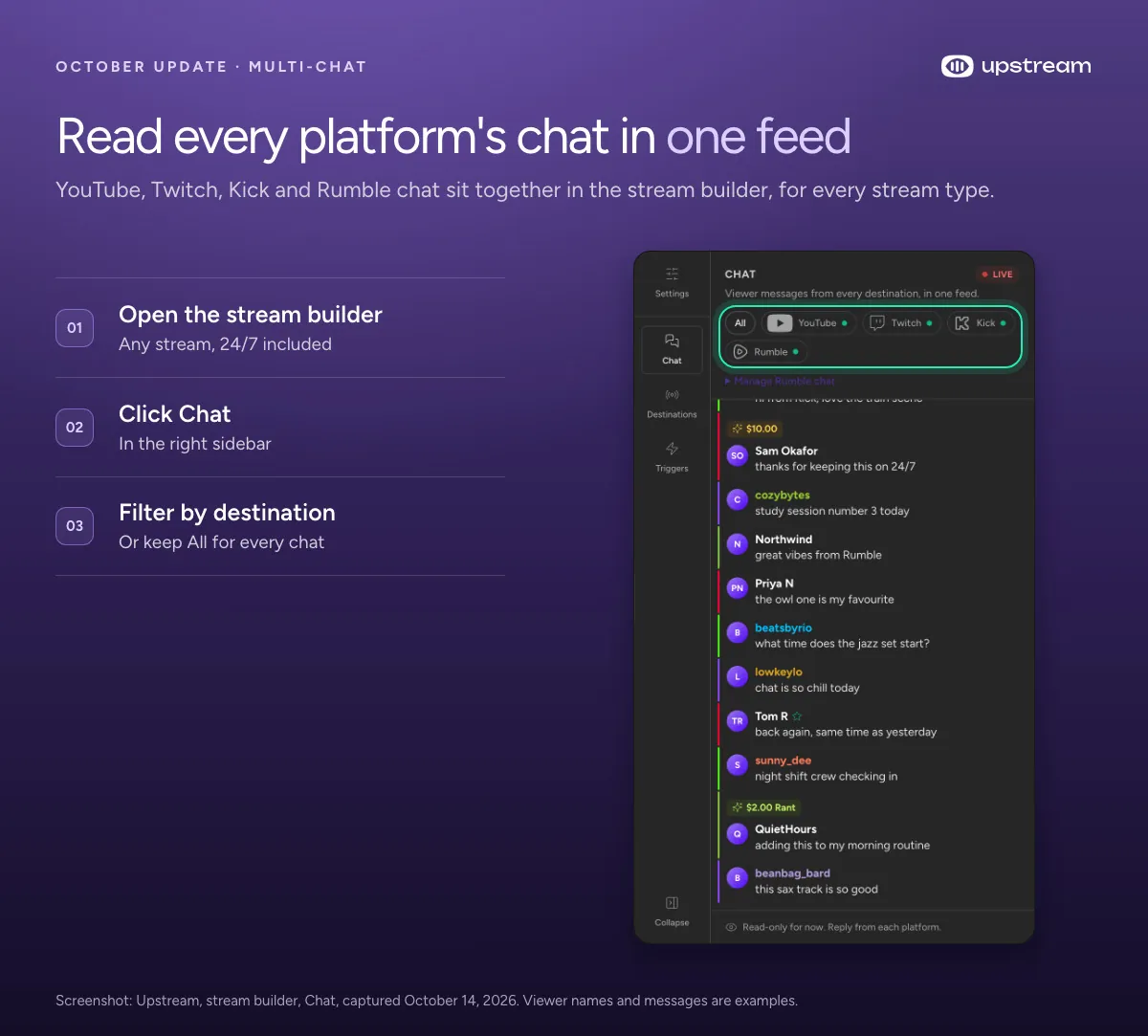
What each platform needs:
- YouTube: a destination connected with YouTube Connect. Chat appears once the YouTube event exists.
- Twitch: Twitch Connect, or your Twitch channel URL on the destination.
- Kick: Kick Connect, or your Kick channel URL, which you can paste right in the Chat panel.
- Rumble: your private Rumble Live Streaming API URL, pasted under Manage Rumble chat in the panel.
Multi-chat is read only for now, so you still reply on each platform. YouTube chat refreshes while the Chat panel is open and you’re active in Upstream. After 15 minutes without a mouse move or key press it pauses, and it picks up again as soon as you’re back. Kick and Rumble keep collecting messages while any page of a live stream is open in Upstream.
Chat, Destinations and Triggers in all builder views
The right sidebar now ends with the same three tabs everywhere in the builder: Background, Audio, Stream designer and Live Studio. Chat is the new feed. Destinations lists where the stream goes with each destination’s state (Streaming, Starting, Ready, Paused or Reconnect) and a Manage destinations button. Triggers shows up on streams that use the Stream designer. A tab you open stays open when you switch views, so the chat follows you from the playlist to the designer to Live Studio. The Live Studio tab for talking to your guests is now called Backstage.
Build the stream in the cloud.
Schedule videos, produce browser-based live shows, or send one feed to multiple platforms from the same Upstream workflow.
Can Claude or ChatGPT connect to Upstream without an API key?
Yes. Upstream MCP now supports sign in with OAuth. Add https://studio.upstream.so/mcp as a custom connector in Claude or ChatGPT, or as an MCP server in VS Code or Cursor, and approve the Connect to Upstream screen. There’s no key to create or paste, and the connection renews itself for 30 days. API keys still work for clients that use custom headers.
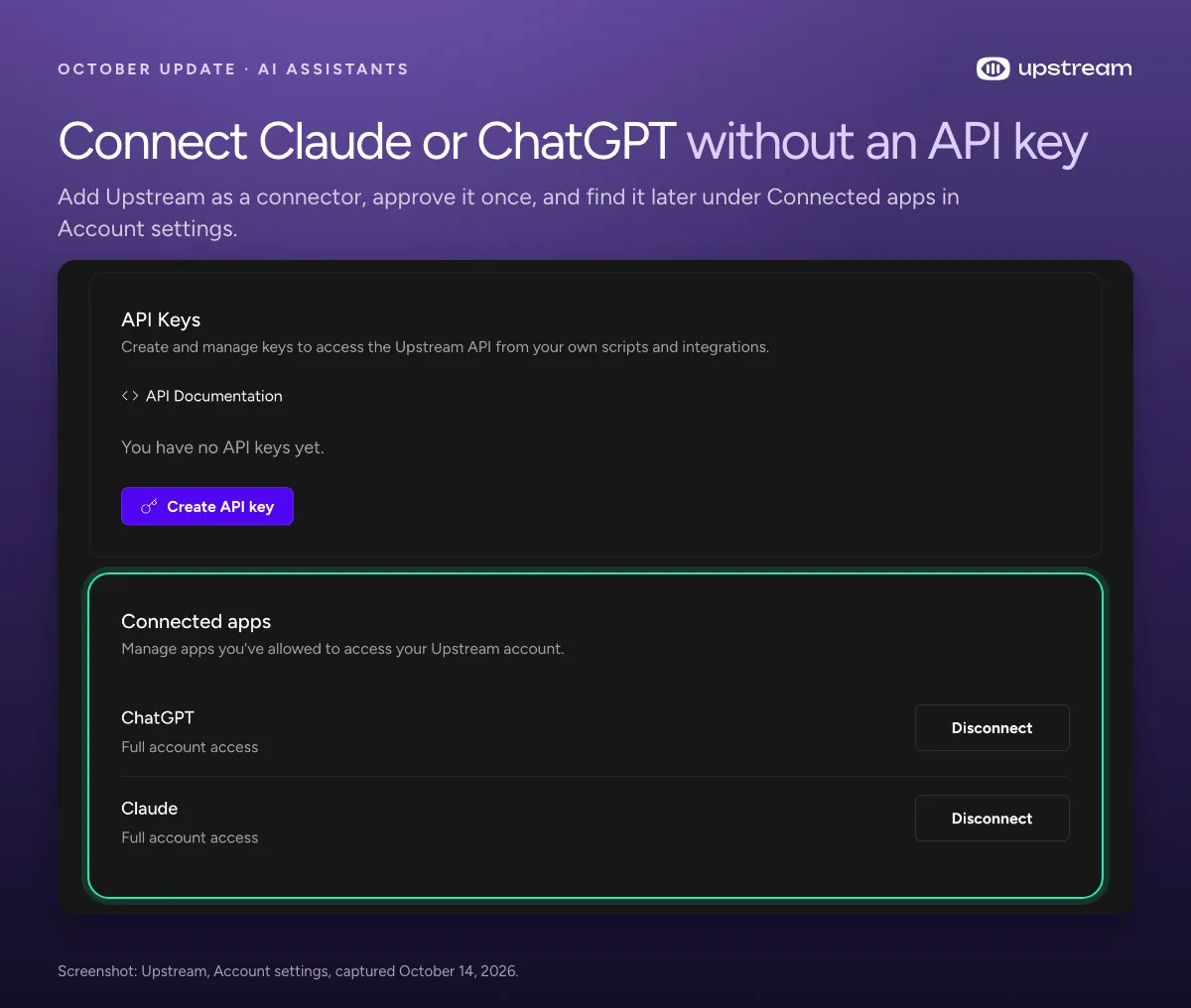
Apps you approve are listed under Connected apps in Account settings, with a Disconnect button. Upstream MCP now has 35 tools. New ones skip to the next item in a live stream’s queue, jump to a specific item, and open an interactive overview of your streams right inside ChatGPT or Claude. The same skip and play controls are new in the Upstream API as well, for playback control from your own code.
What’s new for OBS streams?
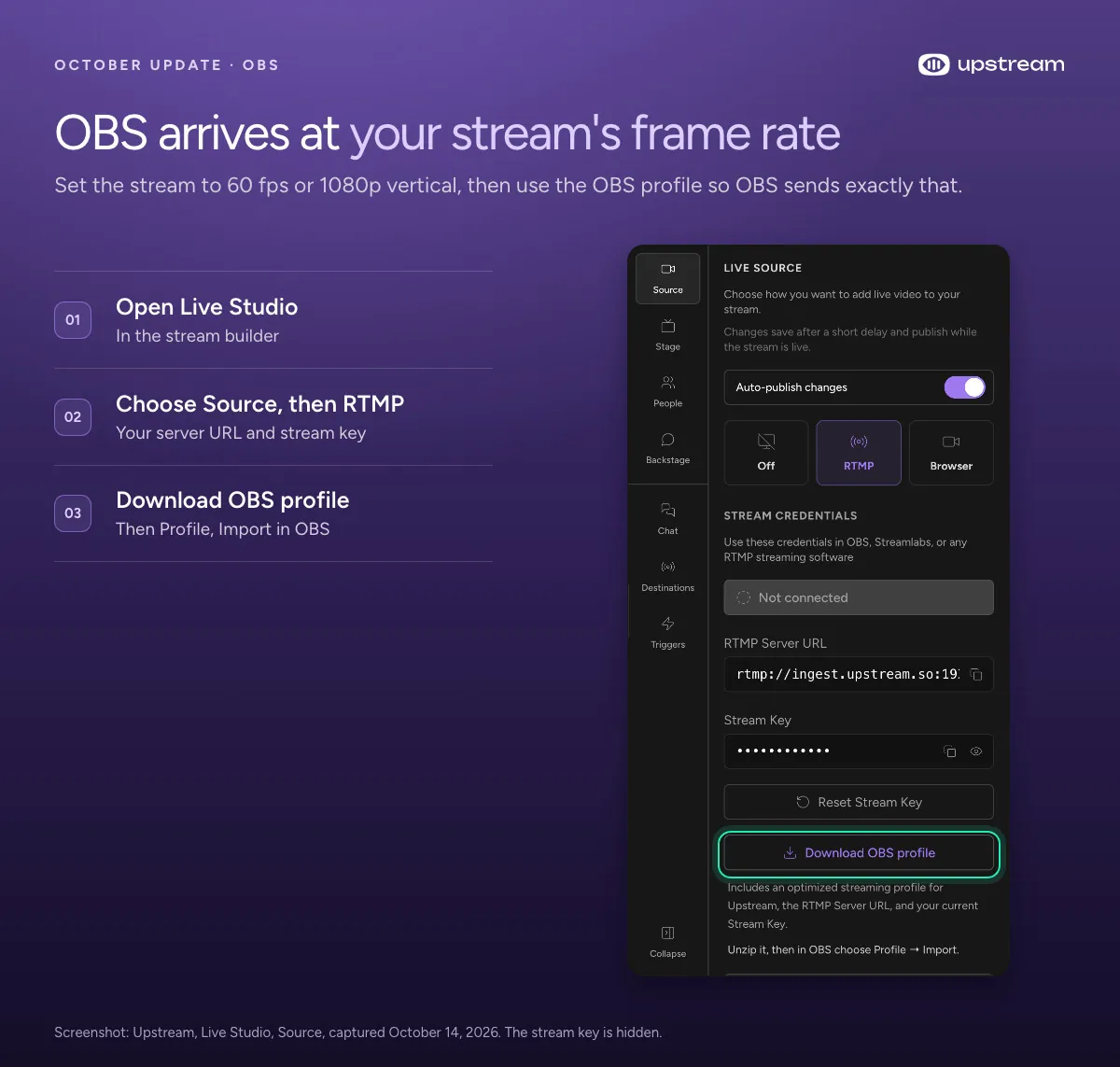
OBS and other RTMP software now come in at your stream’s own frame rate and orientation. Set the stream to 60 fps and OBS stays at 60 fps all the way through. Set it to 1080p vertical and a 1080×1920 picture arrives at full size, where it used to be squeezed to 608×1080. A 4K stream now takes OBS in at 4K too, where it used to arrive at 1080p. 60 fps and 4K need a plan that includes them; vertical works on all plans.
The OBS and Streamlabs profiles you download from Live Studio match the stream too, for example 1080p at 60 fps. If you already stream from OBS, download the profile again after you change the stream’s frame rate or orientation. Your server URL and stream key stay the same.
Can you connect Mixcloud to Upstream?
Yes. Mixcloud now connects the way YouTube, Twitch and Kick do. Choose Connect Mixcloud under Add destination, or Connect with Mixcloud when you create a stream, and sign in with your Mixcloud account. Upstream gets a fresh stream key from Mixcloud every time the stream starts, so resetting your key on Mixcloud never breaks a stream. A manual Mixcloud multistream destination can switch with Convert to Mixcloud Connect. See Mixcloud live streaming with Upstream.
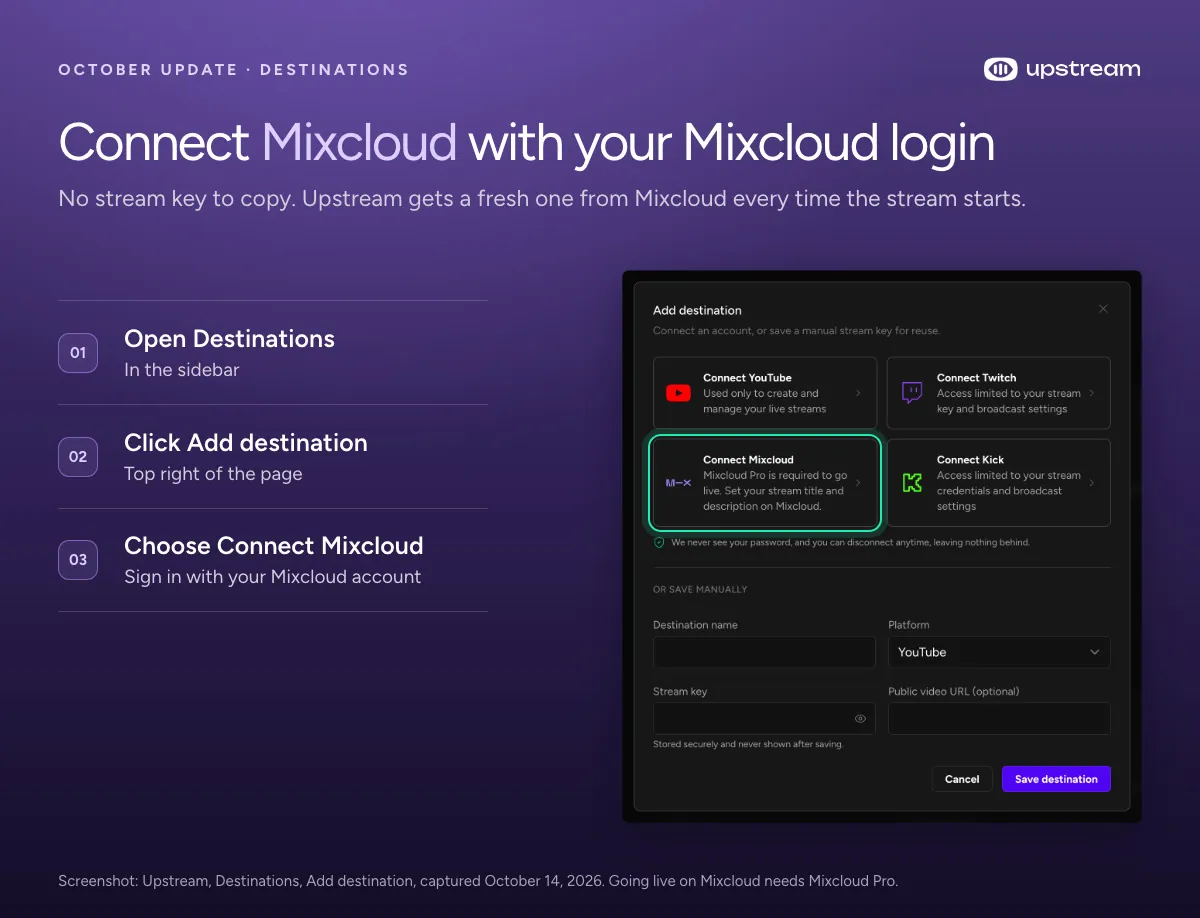
Going live on Mixcloud needs Mixcloud Pro. Without it, the start stops with a message that says so. Mixcloud has no way for other apps to set live titles, so set the title and description on Mixcloud. Dashboard cards for Mixcloud streams now show Mixcloud’s own picture, the live preview while you’re on air and your channel artwork when you’re not, and the link button opens your Mixcloud channel.
What’s new for YouTube destinations?
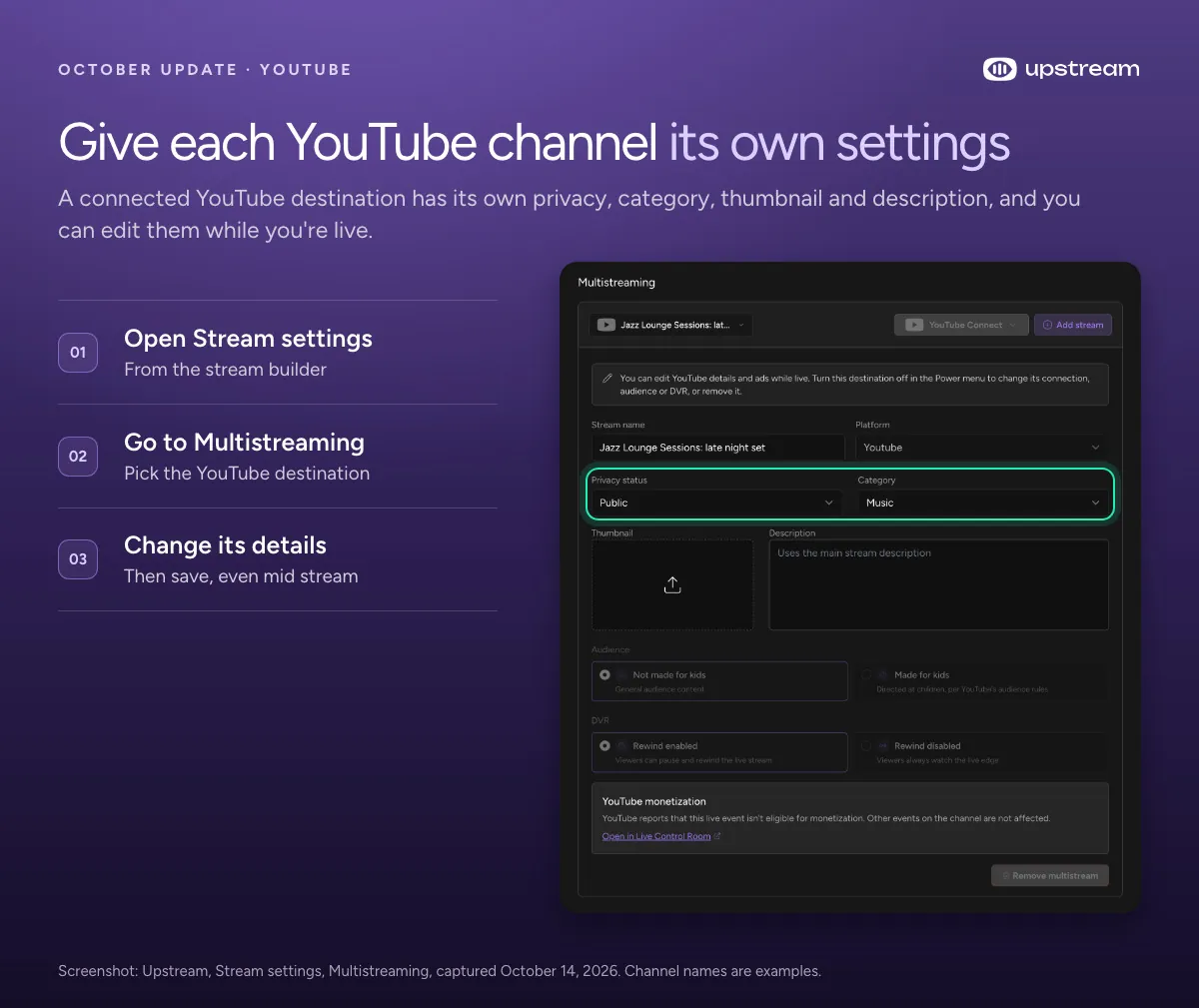
A YouTube channel you add as a multistream destination with YouTube Connect now gets its own broadcast settings: Privacy status, Category, Thumbnail, Description, Audience and DVR, plus ad settings when YouTube says the event can run ads. The title is the destination’s Stream name, and the description falls back to the main stream’s until you write one. See YouTube live streaming with Upstream.
You can change these while you’re live. Edit the title, description, thumbnail, privacy, category or ad settings, save, and Upstream updates the YouTube event that’s on air. Audience and DVR stay locked during a broadcast. To change them, turn the destination off in the Power menu first.
Smaller YouTube fixes in this update:
- Main stream thumbnails saved as WebP, even with a .jpg name, are converted for YouTube automatically instead of being dropped.
- Connecting YouTube to a stream that’s already scheduled now uses your scheduled time for the YouTube event. Before, the event was set for an hour later.
- YouTube titles are checked when you save, so a title with < or > or more than 100 characters can’t stop a stream at its start.
- Fewer “reconnect YouTube” prompts: Upstream refreshes a rejected token before it asks you to reconnect.
What’s new in Live Studio?
Portrait cameras from phones and tablets
Live Studio has a new Camera aspect ratio setting: Landscape (16:9) or Portrait (9:16). You’ll find it on the camera check before you join, on the guest join page, and in the Studio camera settings. So hosts and guests on a phone can send a vertical camera. The rear camera is no longer mirrored, Android phones report portrait and landscape correctly, and Share screen is hidden on phones and tablets.
Lower thirds that follow the speaker
Two new text variables, {{speaker.name}} and {{speaker.title}}, show whoever is speaking right now: the pinned person first, then the Auto speaker pick, then the host. Add them from the new Speaker row in the variable picker, or start from the Speaker Lower Third or Guest Speaker ID templates, which now carry a Live speaker badge. Give each guest a title with Edit title in their participant menu. In grid and custom layouts, the lower third shows the host.
Do schedules change when the clocks change?
Not anymore. Daily and weekly schedules now repeat in your local time, so a show set for Sunday at 10:00 still starts at 10:00 after the clocks change in Europe on October 25 and in the US on November 1. Before, repeats were stepped in UTC and drifted by an hour. Upstream learns your time zone from your browser, so open Upstream once before the change and your schedules follow your local time from then on.
What’s new in the Media Library?
Import from link now handles private Google Drive files. Paste a Drive link and choose Connect Google Drive, then pick files with Choose from Google Drive. Upstream only gets access to the files you pick, so nothing has to be shared publicly first. When an import fails, the error now says why, for example that the source service refused access, instead of a plain “Import failed”.
Deleting files or folders that streams still use is safer too. One dialog lists the streams that use them, with a Live tag on streams that are on air. Confirm, and the files leave those streams and the live ones update right away, so nothing on air tries to play a deleted file.
Smaller improvements
- Higher bitrate limits: 1080p streams go up to 14,000 kbps, or 17,000 at 60 fps (was 12,000), and 4K streams up to 42,000, or 50,000 at 60 fps (was 30,000).
- The Design tab opens when you draw a new element on the canvas or insert a template in the Stream designer.
- A video that hits a bad transfer or decode error is retried from the same spot up to 3 times instead of being skipped.
- Streams no longer get stuck on Starting, and a stream stopped during startup stays stopped.
- Long looping schedules no longer show a false capacity warning, and staggered play once schedules are checked against the real video lengths.
- Disconnect on the Destinations page works even after you’ve revoked access on the platform, and accounts used by deleted streams no longer stay in Cleanup in progress.
FAQ
Can I see YouTube, Twitch, Kick and Rumble chat in one place?
Yes. Open the stream builder and click Chat in the right sidebar. Multi-chat shows all four in one feed, with a filter per destination. It’s read only for now, so you reply on each platform.
Is Multi-chat included on the free plan?
Yes. Multi-chat works on all plans, including the free plan, and on all stream types, including 24/7 streams.
Can I stream vertical or 60 fps video from OBS to Upstream?
Yes. OBS input now keeps your stream’s settings: 1080p vertical arrives at full size on all plans, and 60 fps works on plans that include 60 fps. Download the OBS profile from Live Studio again after you change the stream.
How do I connect ChatGPT or Claude to Upstream?
Add https://studio.upstream.so/mcp as a custom connector and approve Upstream when it asks. No API key is needed. You can disconnect the app anytime under Connected apps in Account settings.
Do I need Mixcloud Pro to stream to Mixcloud with Upstream?
Yes. Any Mixcloud account can connect, but Mixcloud only allows live streaming on Mixcloud Pro.
Get started
Most of this update works on the free plan, which includes 24 streaming hours a month. Open a stream, click Chat, and see your whole audience in one place. Missed the last round? Read the Fall Update.