If YouTube says “your channel does not meet our eligibility requirements for live streaming,” open YouTube Studio on the exact channel you want to use, click Create → Go live, complete phone verification, and turn on live streaming.
First-time activation can take up to 24 hours. If you still get the message and you are verified, the cause is usually the streaming method, a restriction, the channel’s age setting, or a third-party app connected to the wrong channel, not your bitrate or internet speed.
This message often appears at the worst possible moment: you are ready to stream, connected your streaming tool, and expect to see a preview. The good news is that it is normally an account-access problem with a short checklist, not a broken stream.
What the YouTube live streaming eligibility error means
YouTube checks whether your channel is allowed to go live before it accepts video from a webcam, encoder, mobile device, or cloud streaming service. Live streaming is a part of what YouTube calls “Intermediate Features” and you have to verify via phone to enable them.
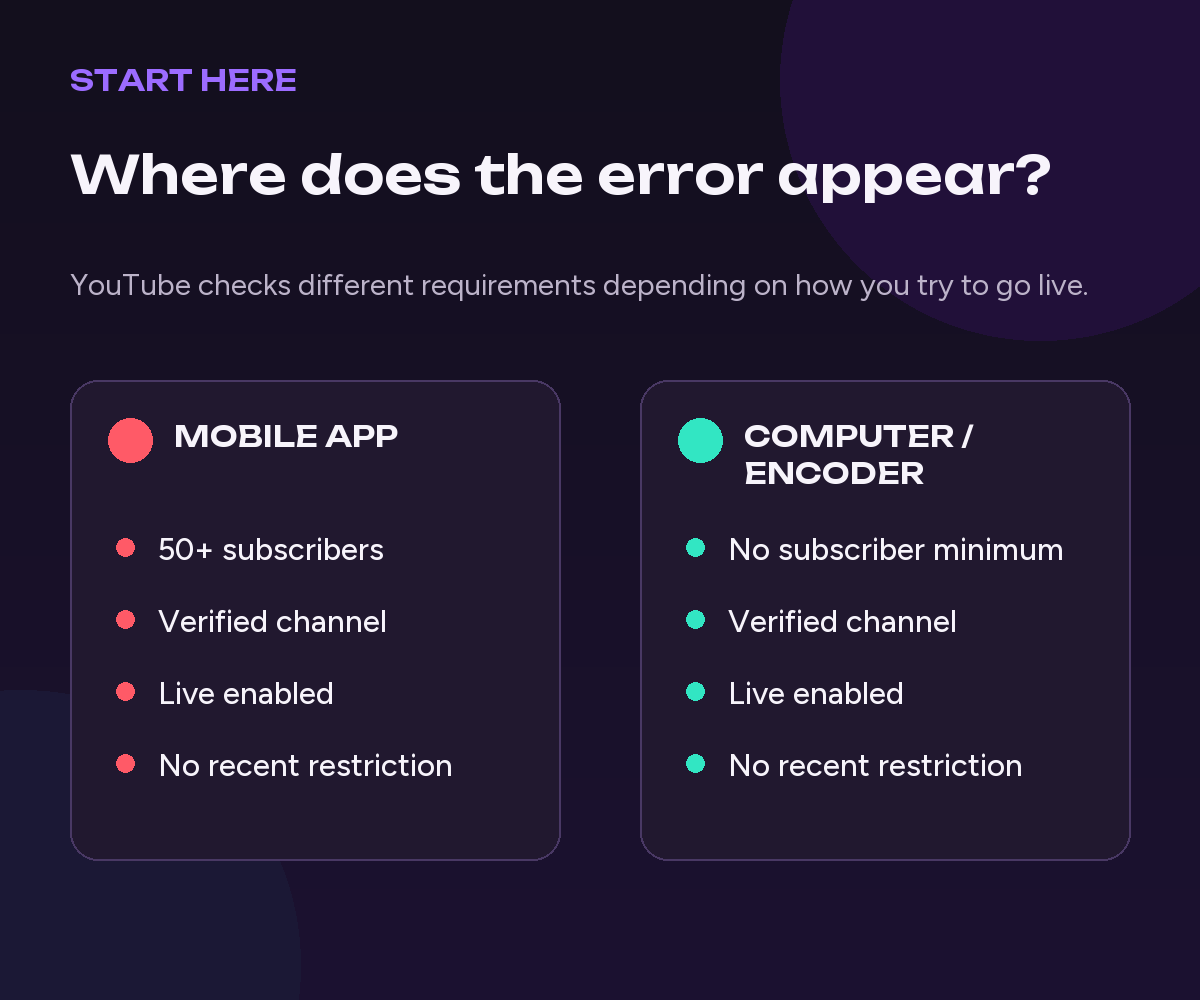
For most desktop and encoder streams, YouTube’s current baseline requirements are simple:
- Your channel is verified by phone.
- You have no live streaming restrictions from the past 90 days.
- You are at least 16 years old.
- You have live streaming enabled and you completed the 24-hour waiting period.
Mobile live streaming has one extra requirement: at least 50 subscribers. That 50-subscriber rule does not apply to ordinary desktop webcam or encoder streaming.
How to fix “your channel does not meet our eligibility requirements for live streaming”
1. Confirm that you are checking the correct YouTube channel
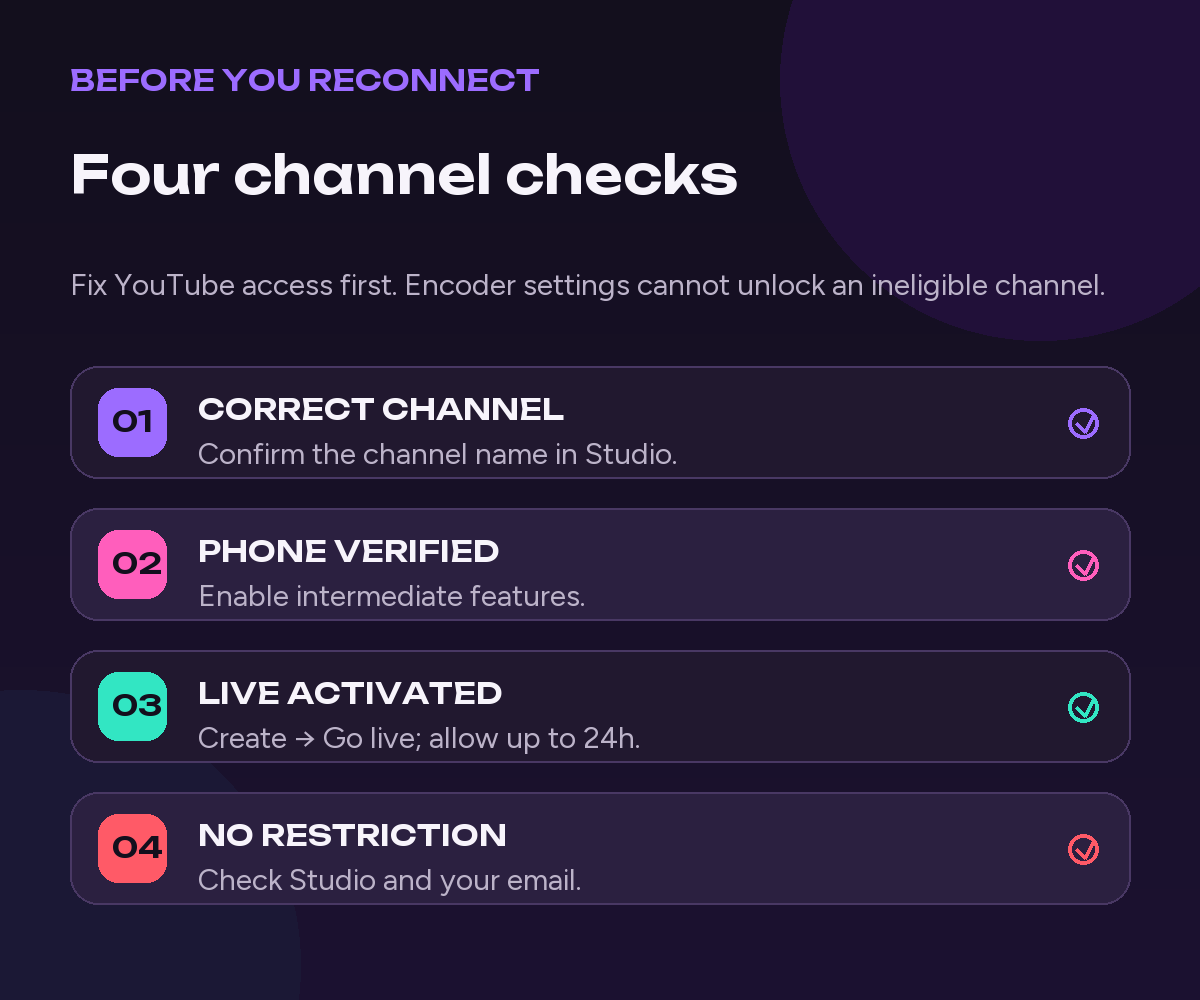
A Google account can own or manage more than one YouTube channel, including Brand Accounts. It is easy to verify one channel and accidentally connect another.
- Open YouTube and click your profile picture.
- Choose Switch account.
- Select the channel you actually want to stream from.
- Open YouTube Studio and confirm the channel name and avatar again.
Do this before repeating verification. If the error appears inside Upstream or another third-party service, remember which exact channel you authorized there too.
2. Verify the channel by phone
In YouTube Studio, go to Settings → Channel → Feature eligibility. Under intermediate features, start phone verification if it is not already enabled. YouTube can send the code by text message or automated voice call.
If the code does not arrive, try the voice-call option. Some carriers do not support Google’s messages, and one phone number can be associated with no more than two channels per year. In that case, use another supported number that has not reached the limit.
You do not normally need to upload an ID or record a verification video just to enable basic live streaming. Those methods relate to advanced features; live streaming is listed among the features unlocked by phone verification.
3. Turn on live streaming and allow up to 24 hours
Verification and live-stream activation are connected, but they are not always instantaneous.
- Go to YouTube Studio.
- Click Create → Go live.
- Follow the activation prompts.
- If YouTube shows a countdown, wait for it to finish.
YouTube says a first live stream may take up to 24 hours to activate. There is no legitimate shortcut, and Upstream cannot bypass this YouTube-controlled waiting period. You can use the time to prepare your video, title, thumbnail, description, and stream settings.
4. Check the requirement for the device you are using
If you are tapping Create → Live in the YouTube mobile app, your channel needs at least 50 subscribers. It may also take time for YouTube to process a newly reached threshold. Channels with 50 to 999 subscribers can stream from mobile, although YouTube may limit the audience and set the archived stream to private by default. After 1000 subs, this limitation is lifted, and you get full reach.
If you have fewer than 50 subscribers, use a computer with YouTube’s webcam mode or an encoder like Upstream instead. The general YouTube requirements do not list a subscriber minimum for those methods.
5. Check your age and channel restrictions
YouTube requires creators to be at least 16 to live stream. Streams featuring creators aged 13 to 15 who are not visibly accompanied by an adult can also lose chat or other features.
Next, check YouTube Studio, your email, and the channel dashboard for a live streaming restriction. YouTube says a live-stream-related strike can prevent streaming for 14 days, and live access requires no live-stream restrictions in the past 90 days. Follow the exact notice shown for your channel and use the appeal option only if YouTube made a mistake.
Do not use another channel to evade an active live-streaming restriction. YouTube treats that as circumvention and says it may terminate the account.
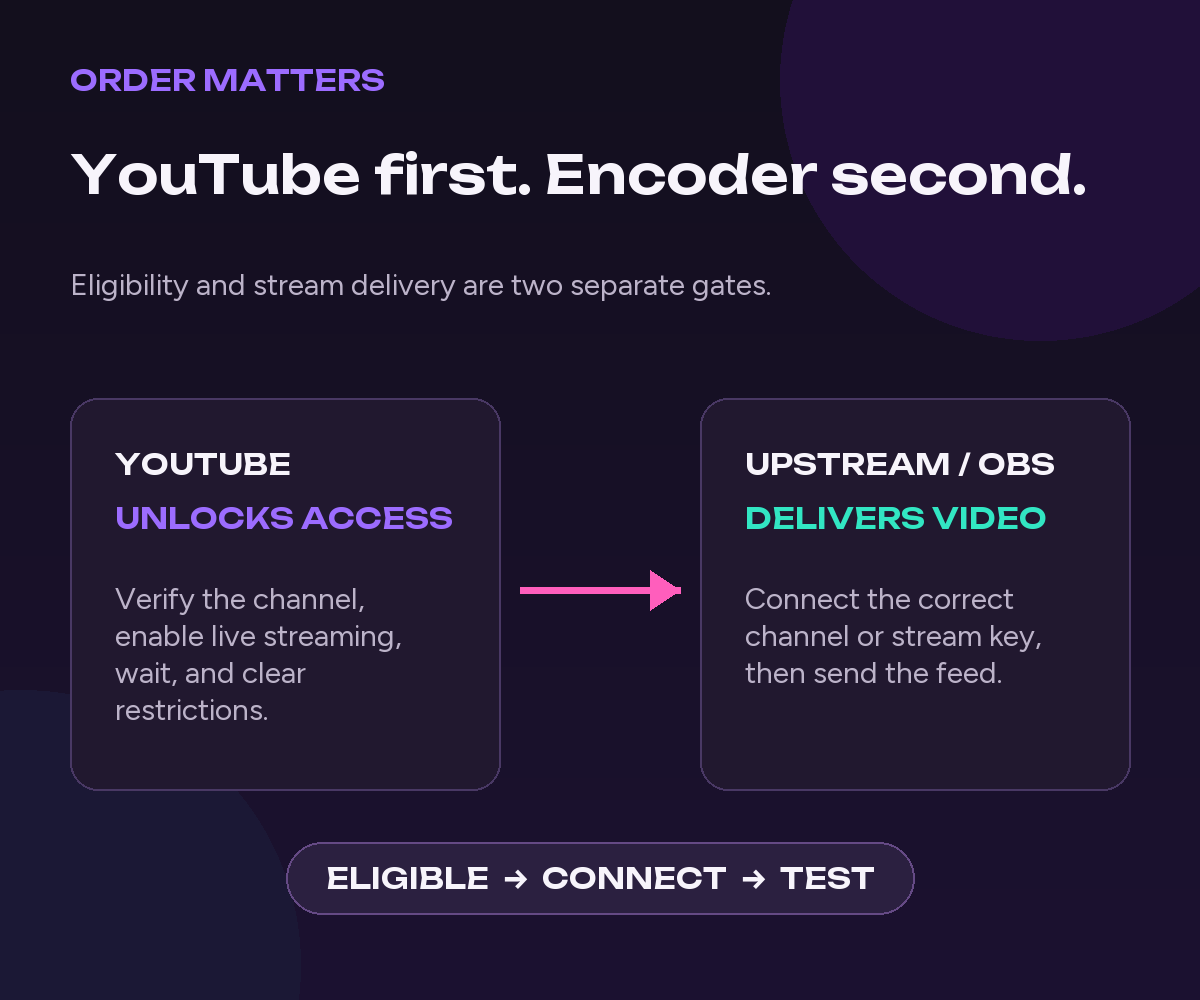
6. If YouTube Studio works, reconnect your streaming tool
If Live Control Room opens normally and shows your stream setup, your channel eligibility is probably fixed. A remaining error in Upstream, OBS, or another encoder is then more likely to be a connection issue.
- Disconnect and reconnect YouTube authorization, selecting the correct channel.
- If you use RTMP, create or copy a fresh stream key and update it in the encoder.
- Never paste your stream key into public screenshots, chats, or support posts.
For the exact RTMP steps, see how to find your YouTube stream key. Upstream also supports YouTube Connect, which avoids manually copying the key once the channel itself is eligible.
How to know the problem is fixed
Your channel is ready when Create → Go live opens Live Control Room instead of the eligibility warning. For an encoder stream, you should be able to see stream settings and create or select a stream key. In Feature eligibility, the relevant intermediate features should show as enabled.
Run the first test as unlisted. Send a short feed, confirm that video and audio reach the preview, and check the watch page from another device before switching to public.
Build the stream in the cloud.
Schedule videos, produce browser-based live shows, or send one feed to multiple platforms from the same Upstream workflow.
Start your first YouTube stream without leaving a computer on
Once YouTube has activated live streaming, you can build the broadcast in Upstream, connect the eligible YouTube channel, upload your video, and start the stream from the cloud. The broadcast can continue even when your own computer is off.
This is especially useful for a scheduled loop, a 24/7 channel, prerecorded programming, or a first test where you want to remove local encoder setup from the equation. If you want the complete workflow, follow our guide to setting up a 24/7 YouTube live stream.
Your channel is eligible. Now make the first stream easy.
Create a free Upstream account, connect YouTube, and launch an unlisted test stream from the cloud.
Common advice that will not fix this error
- “You need 1,000 subscribers.” Not for basic live access. Mobile requires 50 subscribers; 1,000 affects some mobile audience safeguards.
- “Upload your ID.” Basic live streaming is unlocked through phone verification. ID or video verification is for advanced features when required.
- “Change the bitrate.” Bitrate matters after YouTube accepts the feed, not when the channel fails eligibility.
- “Regenerate the stream key.” A new key can repair an encoder connection, but it cannot verify or activate the channel.
- “Use a different channel during a restriction.” YouTube explicitly prohibits that workaround.
Frequently asked questions
How long after verification can I live stream on YouTube?
Your first activation may take up to 24 hours. Once YouTube enables live streaming, later streams can normally start without repeating that wait.
Do I need 50 subscribers to live stream on YouTube?
You need at least 50 subscribers to stream directly from the YouTube mobile app. YouTube’s general requirements for webcam and encoder streams do not list that subscriber minimum.
Why do I still see the error after 24 hours?
Check that you verified and activated the exact channel you connected, not another channel under the same Google account. Then check mobile subscriber eligibility, age, restrictions, and whether your third-party tool needs to be reauthorized.
Can Upstream bypass YouTube’s eligibility requirements?
No. YouTube must first mark the channel eligible. After that, Upstream can deliver and run the broadcast from the cloud.
Does a Content ID claim disable live streaming?
A Content ID claim is not usually a copyright strike. However, copyrighted content detected during a live stream can interrupt or terminate it, and a resulting copyright strike can temporarily restrict live access. Check the exact status in YouTube Studio.