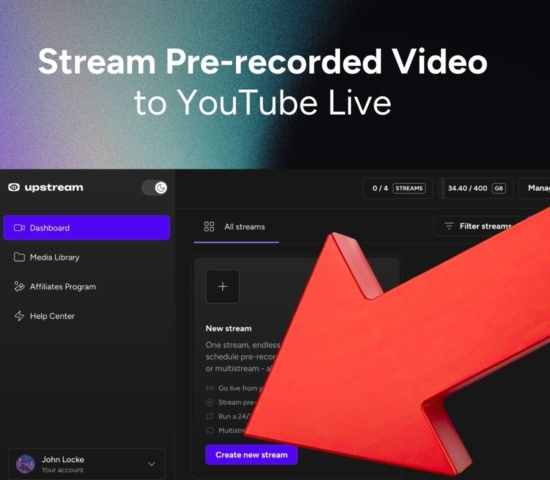
Pre-recorded live streaming means recording and editing a video first, then broadcasting it as a scheduled live stream. It removes most of the risk that comes with going live: technical problems and presentation mistakes are fixed before anyone sees them.
And since the video was prepared in advance, you can focus more on managing the broadcast and interacting with viewers as it airs.
What Is Pre-Recorded Live Streaming?
In practice, you record and edit the video, then a tool plays that finished file to a live-streaming destination at a time you choose.
From the viewer’s perspective, a pre-recorded stream can include many of the same features as a regular live broadcast, such as a scheduled watch page and live chat.
The process has four steps:
- You add the finished file to an encoder such as OBS Studio or to the cloud.
- The tool plays the file and sends it as a continuous live signal.
- The destination receives that broadcast over RTMP, or whichever protocol it supports.
- Viewers watch it as a live stream starting at the scheduled time.
Pre-recorded streaming suits broadcasts that need a scheduled, shared viewing experience but not a live presenter.
Here is a quick explanation of when pre-recorded live streaming does and doesn’t work:
| Strong fit | Product announcements and launches, webinars, training sessions, conference talks, course modules, film and music premieres |
| Poor fit | Breaking news, open Q&A, anything where the audience expects you to react to them |
It all comes down to how much the broadcast depends on the moment.
If you can plan the message and timing in advance, pre-recorded streaming gives you more control.
If the content depends on live questions, updates, or reactions, it makes more sense to stream in real time.
Turn recordings into live streams.
Upload videos, schedule them as live events, or keep a channel running up to 24/7 without staying on camera or leaving a computer online.







Why Stream a Pre-Recorded Video as Live?
The main benefit is production control.
With a pre-recorded broadcast, you can complete the full editing and review process before the video airs.
You can prepare a video that has been:
- Scripted and rehearsed
- Recorded across as many takes as needed
- Edited for pace with no dead air
- Captioned accurately
This reduces the risk of mistakes and awkward pauses while preserving the feeling of a shared live event.
Scheduling is another advantage.
A pre-recorded video can run at a set time without requiring the presenter to be available, which is useful when viewers are in different time zones or the broadcast needs to start outside your working hours.
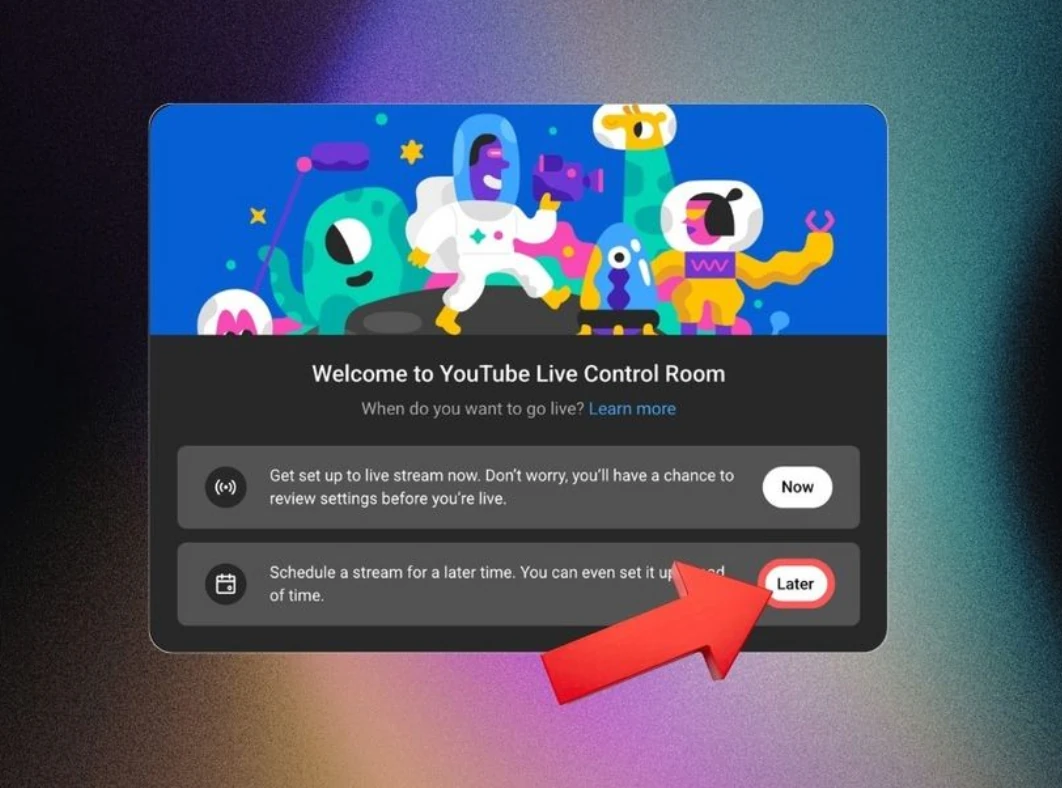
With cloud streaming software, the computer used to upload the video does not need to stay on during the broadcast.
You can also reuse the same finished video for different broadcasts or send it to several streaming platforms at once.
Streaming Pre-Recorded Video on Popular Platforms: What to Keep in Mind
If you’re used to live broadcasting, you’ll see that the core process is similar.
You upload the file, connect the account, set a time, and press go.
Eligibility, encoder setup, technical requirements, and content rules vary by platform.
There are four things to sort out before you schedule the broadcast.
Check Whether the Platform Supports Pre-Recorded Live Streaming
First, a platform may accept a pre-recorded video through an encoder even if it does not offer a feature specifically called “pre-recorded live streaming.”
Second, just because a platform lets you send the video does not mean every type of content is allowed.
For example, Twitch’s Terms of Service cover distributing both live and pre-recorded audio-visual works, while its Music Guidelines separately prohibit radio-station-style broadcasts of recorded music without a live visual performance.
You can compare the platform requirements below:
| Platform | Live from a file? | Native premiere option | Typical method | Main limitation |
| YouTube | Yes | Yes | OBS or a cloud streaming tool | Premieres and live streams are different formats |
| Yes | Yes, for pages | Live Producer with OBS or a cloud streaming tool | Access varies by account; replays deleted after 30 days | |
| Eligible accounts | No | Live Producer, custom RTMP | Live Producer availability varies; stream key changes between broadcasts | |
| Eligible profiles and Pages | No | Partner tool or custom RTMP | Eligibility review; RTMP key available 1 to 2 hours before the start | |
| Twitch | Yes | No | OBS with the video added as a media source | Pre-recorded live streams require external streaming software or a cloud service |
| TikTok | Eligible accounts | No | TikTok LIVE Studio or an RTMP stream key, where available | Must be 18+ and meet the local follower threshold; encoder access may vary |
| X | Eligible accounts | No | Live Studio, RTMP or RTMPS | Requires a verified Premium or Premium+ account, or an eligible Verified Organization account |
Note: Platform requirements were last checked in September 2026.
Features and eligibility rules may vary by account and region.
Choose How You’ll Stream: Local Encoder or Cloud Streaming Tool
Something has to play the file and push it out as a live broadcast. You can do this either on your computer or in the cloud.
OBS Studio is a common local encoder. You add the recording as a media source and stream it from your computer.
It’s free, flexible, and gives you full control over scenes and audio routing.
But because it’s local, several problems can interrupt the broadcast:
- Your computer has to stay on and awake throughout the broadcast.
- Your internet connection must stay stable.
- System updates, crashes, or overheating can interrupt the broadcast.
- If any of the above happens, someone has to be physically there to restart the stream.
For a 40-minute webinar, a local setup may be manageable.
However, a broadcast scheduled for another time zone may still require someone to monitor the computer while it runs.
With Upstream, the broadcast runs from the cloud, so your computer can be off.
You can upload your videos, arrange the playback order, connect your destinations, and schedule the broadcast.
Daily and weekly repeats keep the local start time across daylight saving changes when your time zone is saved before the next run is calculated. Open Upstream to save your browser time zone. Check and correct times already set, since those stay unchanged. A run is skipped if the clocks skip its start or end time.
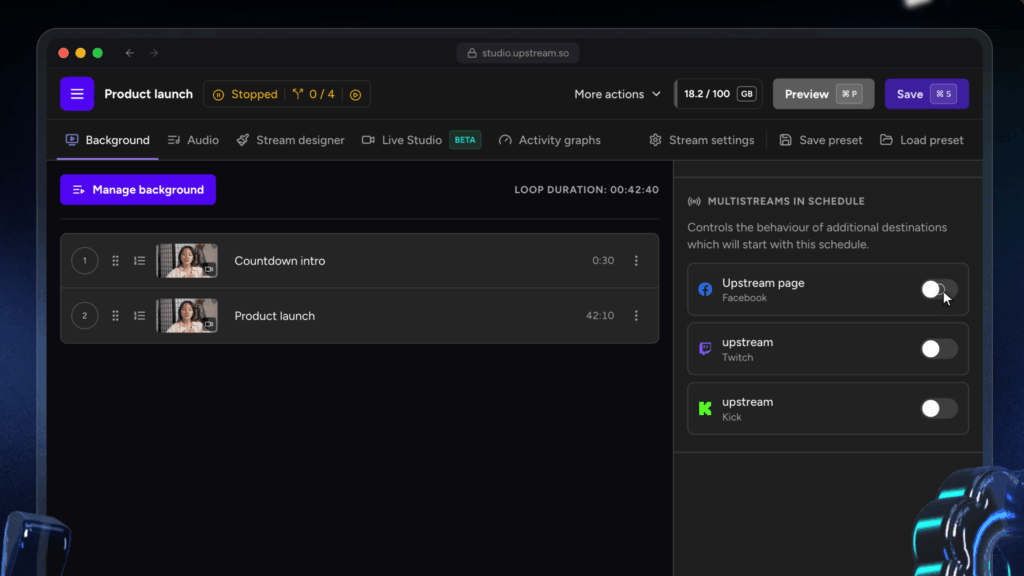
With Upstream, you can also send the same pre-recorded live stream to several destinations at once, including supported social platforms and custom RTMP destinations.
See the full setup process in this tutorial:
https://www.youtube.com/watch?v=wZMLNYFFijM
Source: Upstream on YouTube
Pre-recorded streaming is one part of Upstream’s wider cloud streaming suite, which also includes 24/7 streaming, multistreaming, and a browser-based Live Studio.
OBS can work well when you are available to run and monitor the broadcast.
A cloud solution is more practical when the stream must start automatically, repeat on a schedule, or continue without depending on your computer. If the stream should run around the clock, our guide to 24/7 live streaming software compares Upstream with other cloud tools.
Prepare the Video for the Destination Platform
One video format rarely works equally well on every platform.
Before scheduling the broadcast, check these four requirements for each platform:
| Aspect ratio | A 16:9 broadcast works on YouTube, Facebook, LinkedIn, Twitch, and X, while Instagram and TikTok are vertical-first |
| Resolution and bitrate | For landscape streams, 1080p is widely supported, but each destination has its own resolution and bitrate limits |
| Codec and container | H.264 video with AAC audio is widely supported, but check both the upload requirements of your streaming tool and the live encoder settings required by each destination. |
| Length | Instagram Live has a maximum broadcast length, so check the current limit for your account before scheduling a long video. |
Aspect ratio often requires the most preparation because a horizontal video may need to be re-edited for vertical platforms.
So, decide early whether you plan to stream on Instagram and TikTok.
Adding these platforms later may require re-editing the video.
Tell Viewers What They Are Watching
Be upfront that the video was recorded in advance.
Melissa Kwan, CEO and co-founder of webinar automation platform eWebinar, explains that viewers generally accept pre-recorded content as long as you tell them in advance about it.
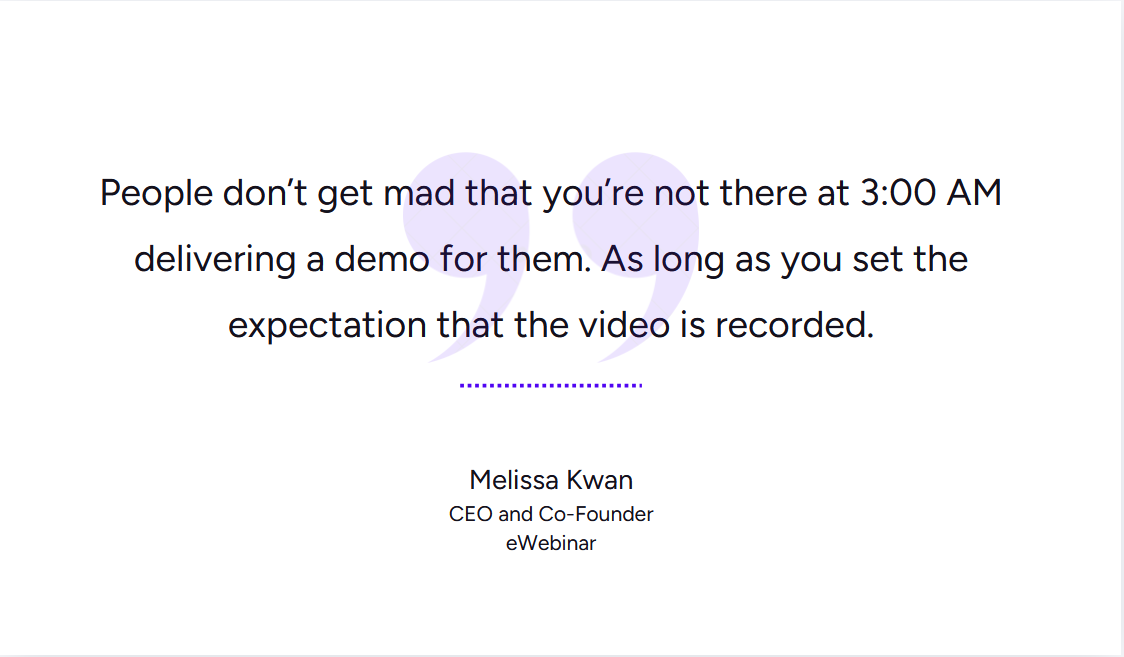
Presenting a pre-recorded video as spontaneous live content can confuse viewers and damage their trust.
So, state clearly in the title, description, or a pinned comment that the video was recorded in advance.
If possible, have someone from your team answer the chat while the video plays, but don’t let viewers think the
presenter in the video is answering live.
After your first broadcast, note where viewers asked questions or lost
interest, fix those parts in the edit, and schedule the improved video for the next audience or platform. If you’d
rather run it from the cloud than keep a computer online,
try Upstream free.