You can live stream your own music on YouTube if you hold the rights needed for that use. But if your distributor manages your songs through Content ID, YouTube may still flag them on your own channel. Before you start a 24/7 music stream, check both your rights and how your distributor handles live broadcasts.
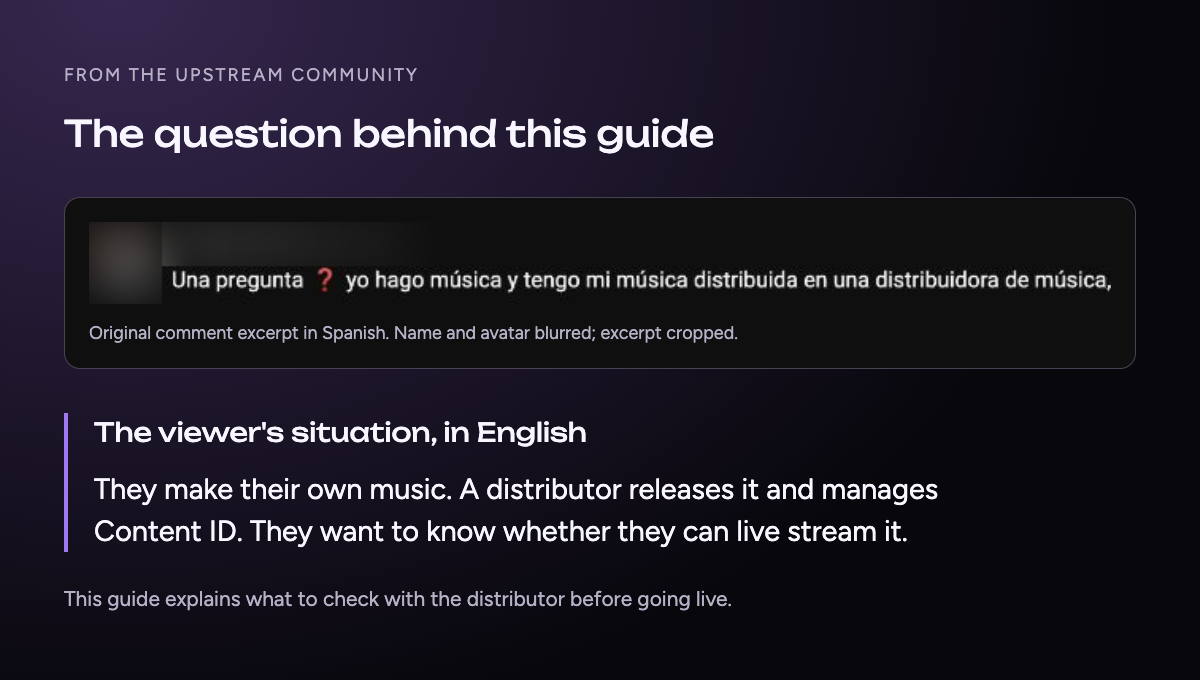
A musician asked us about this under our Upstream walkthrough video. Their songs were on Spotify and other services through a distributor. They wanted to stream those songs, but Content ID already found the music on their own channel.
That is the problem this guide addresses: you made the music, yet a system working for your distributor treats your video as a match.
Why your own song gets a claim
Content ID is YouTube's system for matching uploaded videos against files supplied by rights holders. Your distributor may submit your recordings to that system on your behalf. When it finds your song, it can apply a claim, including on a video you uploaded yourself.
A match does not tell the whole story about who has permission. It means the audio matches a reference recording. What happens next depends on the claim and the rights holder's settings. YouTube lists monetizing, tracking, and blocking as possible outcomes for claimed videos.
Distribution and Content ID are also different services. Sending a song to Spotify or YouTube Music does not, by itself, tell you whether it is in Content ID. For example, DistroKid says its YouTube Music delivery does not automatically enroll music in Content ID. That requires its optional service.
A video claim is not the same as a live interruption
A claim on an uploaded video is not a reliable guide to what will happen while you are live. Treat the broadcast and its saved replay as separate checks.
| Where the issue appears | What to check |
|---|---|
| An uploaded video or saved replay | Open the claim details. Check the claimant, matched song, and effect on the video. |
| A live broadcast | Watch for copyright warnings. Ask the rights administrator how your channel is cleared for live use before you start. |
| A copyright strike | Read the notice as a separate issue. Do not assume it is the same as an ordinary Content ID claim. |
YouTube says it scans live streams for third-party content. A match can lead to a warning, a placeholder, or an interrupted broadcast. Its guidance also warns that a license alone may not prevent interruption without the relevant Content ID allowlisting. Claims on an archived live stream are made after the broadcast ends. See YouTube's live-stream copyright guidance.
For the wider difference between claims and takedowns, read our YouTube copyright claim vs. strike guide. For this music stream, the immediate task is to confirm how your distributor handles your channel while it is live.
Check your rights before the technical setup
Start with the tracks you plan to play, rather than the name on your artist profile. “My music” can still include a leased beat, a sample, a co-written song, or a recording covered by a label agreement.
Use this as a checklist for your distributor or rights adviser, not as a ruling on your contract:
- Do I have permission to use both the recording and the song in this broadcast?
- Are there samples, beats, or other licensed parts with limits on live use?
- Does my agreement cover a continuous stream and a saved public replay?
- Does another label, publisher, or rights service manage part of the music?
- Do I also have permission to use the artwork or video shown with the tracks?
If an answer is unclear, leave that track out until you resolve it. A music file in your account is not proof that all uses are covered. Ask the person who manages the relevant rights to confirm the planned use in writing.
Ask your distributor about live-stream allowlisting
Ask for a process that covers your live channel. A tool that releases a claim on one saved video may not solve the live-stream problem.
An allowlist is an exemption managed by the Content ID partner. YouTube's partner tools can exempt a channel from that partner's future claims. Existing claims are not released automatically, and other rights partners may need to exempt the channel too. See YouTube's channel allowlist guide.
What you can request through your distributor varies:
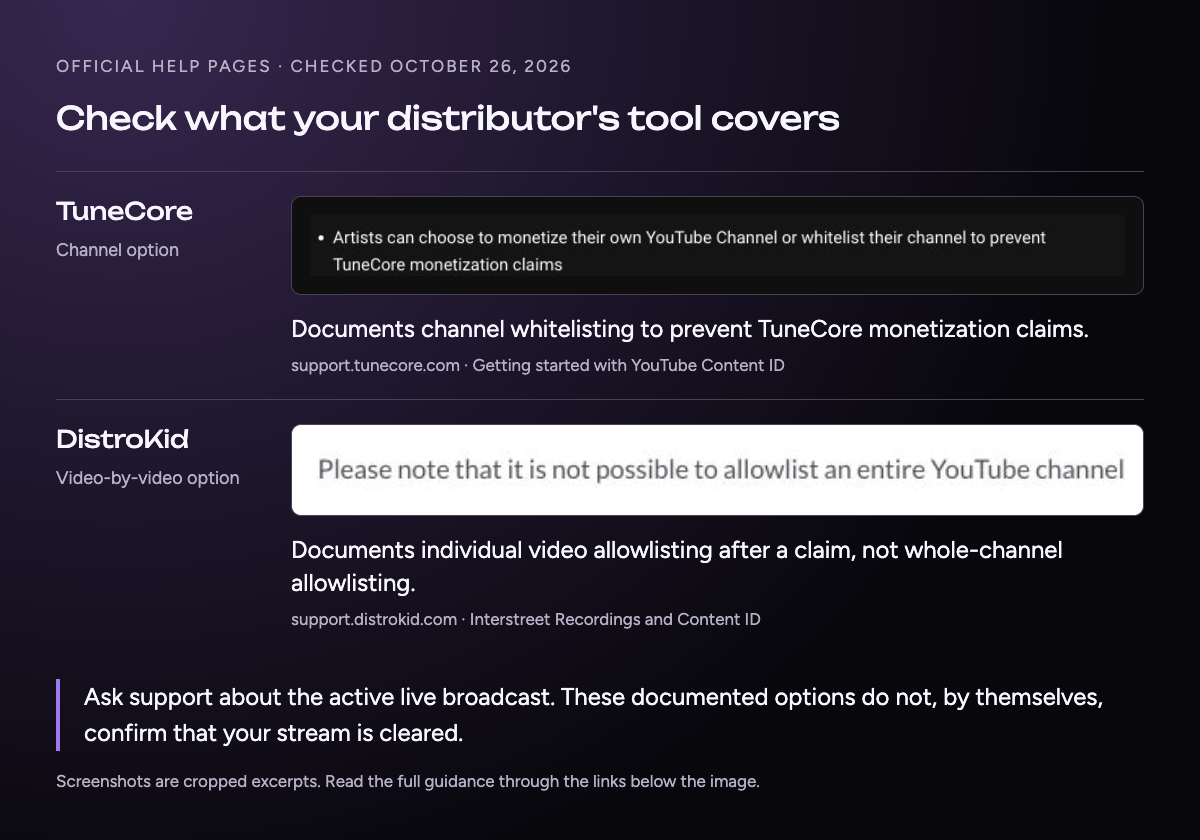
- TuneCore documents a channel whitelist option to prevent its monetization claims on that channel.
- DistroKid documents allowlisting individual videos after a claim, rather than whole channels. Do not assume that tool clears an ongoing live broadcast.
Those are different tools, not a ranking of distributors. Neither description is a promise that your planned live stream is cleared. Tell support that you want to run a continuous music broadcast, and ask what they can confirm for that use.
Email your music distributor
Send this to your music distributor's support team, not Upstream support. Replace the details in square brackets before sending. The copy buttons only copy text; they do not send an email.
Hello [distributor name] support team,
I want to run a YouTube live stream of my own music, including a continuous 24/7 playlist. Could you help me check the rights and Content ID settings before I start?
Artist name: [artist name]
Channel URL: [YouTube channel URL]
Channel ID: [YouTube channel ID]
Releases: [release titles, plus UPCs or track ISRCs if available]
Do you manage these recordings through Content ID? Does my agreement cover this live use and a saved replay?
Can my channel be allowlisted or otherwise cleared before I go live? Does your process cover the active broadcast, or only claims on uploaded videos and saved replays?
If channel allowlisting is not available, what do you recommend for a continuous live stream? Are there other rights administrators I should contact?
Thank you,
[your name]
Keep the reply with your release records. If support only sends instructions for disputing a saved video's claim, ask again about the active broadcast. That is the part you need settled before leaving a music stream running.
Check an existing claim before you dispute it
Read the claim details before choosing a response. A distributor's name may appear because it manages Content ID for your recording, not because a stranger took your song.
CD Baby explains that its system can claim music on an artist's own channel. Its standard policy collects revenue on the artist's behalf. That example helps explain the notice, but you still need to check the effect of your specific claim.
If the claimant is unfamiliar, ask your distributor whether it uses that company to manage rights. If the match is wrong, follow YouTube's current dispute process and provide the grounds for your dispute. Do not dispute solely because the notice arrived on your own channel.
Keep a record of the video URL, claimant, matched track, and support response. If a claim is released, confirm what was cleared: that video, your channel, or a specific recording. Do not treat those as the same outcome.
Test before you leave a music stream running
Run a short, monitored test after you have checked the rights and received the distributor's guidance. An unlisted broadcast can keep the test out of your public launch, but it is not a way to avoid copyright checks.
- Build a small playlist from the tracks you have cleared.
- Check the artwork and visuals as well as the audio.
- Start the test and stay available to read YouTube Studio warnings.
- If a copyright warning appears, stop using the flagged track and follow the notice. Contact your distributor with the details.
- After the test ends, check the saved replay if you chose to keep one. Review any claims separately.
A clean test shows what happened during that test. It does not guarantee that later tracks or future broadcasts will be treated the same way. Keep the playlist limited to cleared material and review new releases before adding them.
Run your cleared music playlist with Upstream
Once the rights and distributor checks are done, Upstream can run the music channel from the cloud. Your computer does not need to stay on to play the playlist.
Upload your cleared audio and visuals, build the rotation, and connect your YouTube channel. Upstream supports a separate audio playlist over a video loop, so you can arrange the music without making a new video file for the whole mix. See the 24/7 streaming workflow for the setup.
Upstream handles the stream delivery. It cannot grant music rights, release a distributor's claim, or bypass YouTube's checks. Resolve those with the rights administrator first.
Start a free Upstream account when your playlist is ready. The free plan includes 24 streaming hours per month, which you can use for a monitored first broadcast before planning a longer schedule.