To live stream a church service to YouTube and Facebook, open Upstream Live Studio in your browser, choose your camera and microphone, and connect both platforms. You can also upload a recorded service and schedule it to play from the cloud. If you already use OBS, connect it to Upstream and keep your current scenes and sound setup.
You do not need several cameras for your first service. You need a setup the volunteer on duty can start, monitor and stop without calling its builder every week.
Live now or play a recording?
Keep your computer and internet on.
Your computer can be off when it plays.
Church live streaming equipment: what do you actually need?
For a live service, start with a camera and microphone your browser can use. A built-in camera or USB webcam does not need a capture device. If you are streaming an uploaded recording, skip the camera setup and prepare the file instead.
| Part | A simple starting point | Check before spending |
|---|---|---|
| Camera | One webcam or camera on a tripod | Can you frame the speaker clearly from its position? |
| Sound | The speaker’s mic through the sound desk | Can the desk send audio to your computer by USB or a suitable interface? |
| Computer | The laptop or desktop you already use | Can it run the full service setup without lag or overheating? |
| Camera connection | Built-in camera or USB webcam; capture device only for an HDMI camera | Does your browser recognize the camera? |
| Internet | Ethernet to the streaming computer | Can the upload stay steady during a full rehearsal? |
| Streaming software | Upstream in your browser, or OBS connected to Upstream | Can the operator use it comfortably? |
| Power and mounting | Camera power supply, laptop charger and a stable tripod | Will anything run out of battery or block an aisle? |
Place the camera where it has a clear view without filming over people’s heads. Frame the area where the speaker moves. Check the picture with the lights set as they will be during the service, not just with all the room lights on.
Can you stream a church service with a phone?
A phone on a stable mount can work as a first camera. The hard part is often getting clear sound into it from across the room. Work out the microphone or mixer connection before adding another camera angle.
If you stream straight from a platform’s mobile app, check that account’s mobile live requirements first. Sending one phone picture to both YouTube and Facebook needs a compatible streaming app or a way to bring the phone into your computer setup. Do not assume a phone’s charging cable also turns it into a webcam.
Choose your church live streaming software
Church live streaming software should fit the person running the service. Use the route that keeps the controls familiar.
OBS on your computer vs Upstream
| What you need | OBS on your computer | Upstream Cloud and browser |
|---|---|---|
| Live camera service | Run your scenes and sound on the OBS computer. | Use Live Studio in your browser, or connect your existing OBS setup. |
| Scheduled recorded service | Keep the PC running and arrange a manual start or automation. | Upload the recording and set a start and end time. |
| Replays and a 24/7 channel | Keep the computer, OBS and its internet connection running. | Uploaded videos play from the cloud. Your computer can be off. |
| YouTube and Facebook together | Connect OBS to a multistreaming service, or use a plugin for separate outputs. | Connect YouTube and add Facebook as another destination. |
| Guest speaker joining remotely | Bring the guest’s call or video into your OBS scene. | Send a Live Studio guest link. |
| Local power or internet outage | The stream stops if the sending computer loses power or its connection. | Uploaded playlists keep playing. A live camera still needs its local connection. |
| Cost | Free software, plus your equipment, electricity and internet. | 24 free streaming hours each month. One paid 1080p, 30 fps stream is $30/month on monthly billing. |
An encoder turns your picture and sound into the video stream you send online. OBS runs on your computer. Upstream lets you produce a show in the browser or receive a stream from an external encoder and send it to your destinations.
For a live service, the camera and sound still have to reach the cloud. Upstream handles distribution to the platforms; it cannot replace a lost camera signal. Uploaded sermon replays can run separately after the local computer is off.
Prepare both accounts before the service
Set up live access well before the service. YouTube requires a verified channel with no live streaming restrictions in the previous 90 days. Its minimum age for live streaming is 16. First-time activation can take up to 24 hours.
Use the church's accounts rather than a volunteer's personal channel. Make sure the person on duty has the access needed to run the stream. Do this check with the account they will use during the service.
Open Facebook Live Producer for the intended Page or profile and check whether live access is available. Follow any account or permission requirements shown there. A multistreaming service cannot grant access that Facebook has not enabled.
Create or schedule the streams, then save both viewer links. Open the links as a viewer to check where they lead. A studio preview and a public watch page serve different jobs.
Connect the camera, sound desk and Upstream
Stream straight from your browser with Upstream
- Open Live Studio in your Upstream stream.
- Choose the camera and microphone you want to use. Allow browser access when prompted, then check the picture and sound.
- Arrange the show in the studio. Share your presentation when you want viewers to see slides, or send a guest speaker an invitation link.
- In Stream settings > General, use Connect YouTube to link your channel. Under Multistreaming, add Facebook with its stream key.
- Run a short test and open both watch pages on a separate device. Check the sound, then use the same setup for the service.
Keep the browser, camera and internet connection running while you are live. You only need a capture device if your chosen camera needs one, for example to bring an HDMI camera into the computer.
If you already use OBS and an HDMI camera
For this example, use one HDMI camera, a USB capture device, a sound desk with a suitable audio output, and a computer running OBS. If the sound desk has no USB audio output, use an audio interface that accepts its line-level output. Check the connections with your sound operator.
- Connect the camera’s HDMI output to the capture device, then connect the device to your computer.
- In OBS, add a Video Capture Device source and select that camera input.
- Connect the sound desk through USB or the audio interface. Add Audio Input Capture in OBS and choose that device. Mute the camera microphone if it duplicates the same sound.
- Open your stream in Upstream. In Live Studio, enable RTMP Input and copy its stream URL and key.
- In OBS, open Settings > Stream, choose Custom, paste the URL into Server, and paste the key into Stream Key.
- In Stream settings > General, choose Connect YouTube and follow the prompts to connect the church’s channel. Then open Multistreaming and add Facebook as a separate destination. Prepare the scheduled streams and their viewer links before the service.
- Send video from OBS, check the Upstream preview, and save and publish the setup when you are ready. Start the destinations as required, then open both viewer links to check sound and picture.
The connection is: camera + sound desk → OBS → Upstream → YouTube and Facebook. Keep the camera, computer, sound desk and local internet running for the service. The Upstream RTMP setup instructions show where to find the incoming stream details.
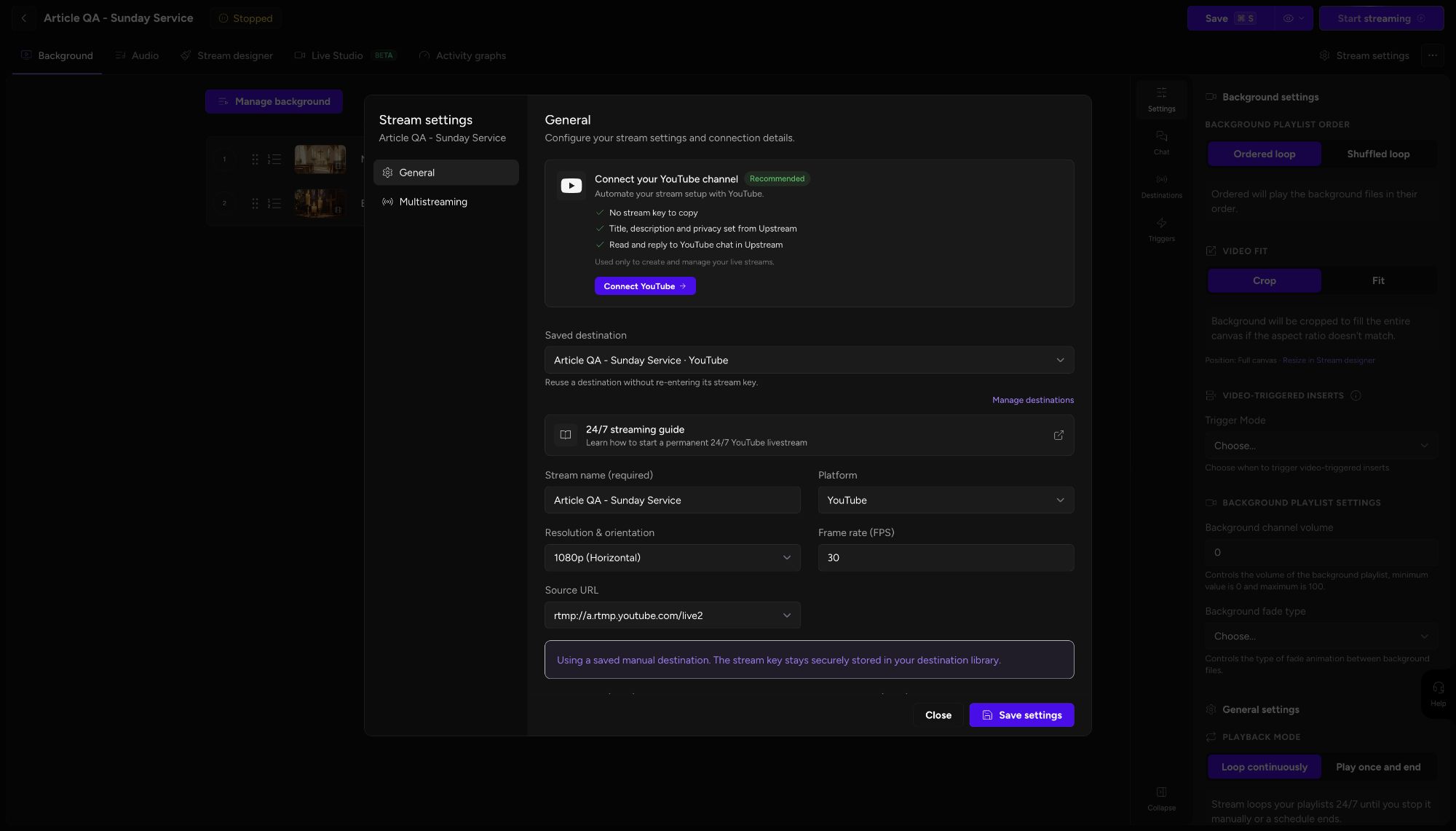
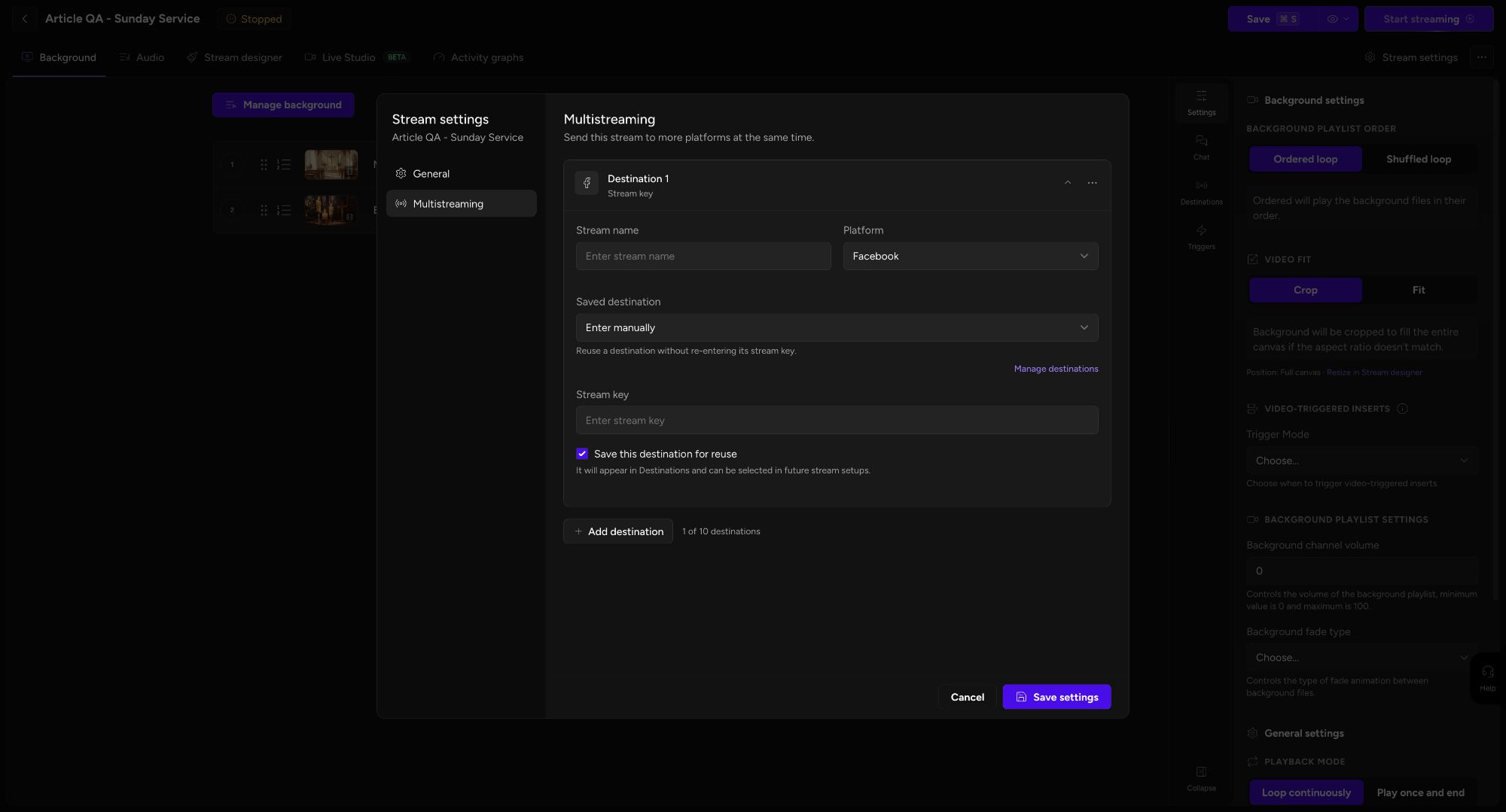
The Facebook and YouTube setup guide walks through the destination setup. Keep the stream keys in a private location the operator can access. Share the public watch links with the congregation.
Get clean sound from the mixer into your church live stream
Good church live stream audio starts with the speaker’s microphone, not the camera at the back of the room. Send the mixer’s USB audio to the computer if it supports that. Otherwise, use a suitable line output and an audio interface that accepts it. Match the connections to the mixer’s manual; do not connect a powered speaker output to a computer audio input.
In OBS, select that device under Audio Input Capture. Mute the camera mic if it is picking up the same sound. Two copies arriving at different times can make the voice sound hollow or echo.
The room mix and the stream mix are different
Picture a drummer who is already loud in the room. The sound operator puts very little of the drums through the speakers. Send that same mix online and the viewers get a different balance from the people in the seats.
Ask for a separate stream mix if the desk supports it. Listen to speech, music and video clips through headphones on a separate viewing device. Make adjustments for that listener, not just for the room. Leave space for louder singing so the sound does not distort when the service gets going.
Add lyrics and Bible verses to the stream
Keep the in-room screens and the online picture as two outputs. People in the room need large, readable text. Viewers at home often need to see the speaker at the same time.
If your slides run on the OBS computer, capture the presentation window or its dedicated output. On Windows, OBS provides Window Capture; on current macOS versions, use the appropriate macOS Screen Capture source. Keep the slide controls and speaker notes out of the captured view.
If another computer runs the slides, you need a supported way to send that output to the streaming computer, like a compatible video capture connection. A wireless link to the room TVs does not automatically make the slides available in OBS.
Prepare a camera-only scene and a slides scene before the service. Switch between them during rehearsal and read the result on a phone. If you use Upstream Live Studio, its screen-sharing and layout controls give you another way to place a presentation in the show.
Do you need multiple cameras or a video switcher?
One steady shot is enough to start. Add a second angle when it solves a specific problem: a closer view of the speaker, a musician away from the lectern, or a wide view during a transition.
OBS accepts webcams and capture devices through its video capture sources. Before buying several capture cards, test the exact combination with your computer. A USB hub adds sockets, but does not guarantee that all the cameras will work together at your chosen settings.
| Approach | Useful when | Test first |
|---|---|---|
| One camera | One volunteer handles the stream | Framing, sound and a full service-length run |
| Several capture devices into OBS | You want to build and switch scenes on the computer | All cameras active together, plus slides and recording |
| Hardware video switcher | You want physical buttons for camera changes | Compatible camera signals, audio routing and computer connection |
Keep a simple wide scene ready. If one camera fails, the operator can switch to that view and carry on instead of rebuilding the scene in public.
How much does a small church streaming setup cost?
The cost depends on what you already own. Price the missing connections first: camera capture, mixer audio, mounts, power and cables. Then add any camera or computer upgrade you actually need. A fixed package price is not useful if it assumes a sound desk and laptop you do not have.
Separate one-time equipment costs from the monthly software bill:
| Cost to plan for | What to include |
|---|---|
| Getting existing gear connected | Capture device, audio interface if needed, cables and adapters |
| Keeping it steady | Tripod, power supplies and a wired network connection |
| Adding a camera | Camera, lens if needed, mount, power and its connection to the setup |
| Ongoing costs | Streaming plan, internet, recording storage and any required music licenses |
Upstream’s free plan includes one stream with 24 streaming hours a month at 1080p and 30 fps. One paid stream at those settings costs $30 a month on monthly billing. Check the current plan before budgeting for extra streams or higher settings.
For a worked example, four two-hour services use eight streaming hours. Four half-hour online rehearsals add two more, for ten hours total. Add any extra services, tests or replays to your own monthly total.
Check internet and picture settings before the service
Test the upload from the connection the streaming computer will use. Use Ethernet where you can, and pause backups or other heavy uploads during the service.
Start your rehearsal at 1080p and 30 fps if your equipment and connection can handle it. If the test struggles, try 720p before adding more gear. Use settings accepted by both destinations; YouTube’s recommendations alone are not a Facebook preset. Our upload speed and bitrate guide explains how to choose them.
Run a rehearsal with speaking, music, movement and slide changes. YouTube’s encoder guidance recommends testing with the sound and movement you expect in the real stream. A still camera preview does not test the whole service.
Give the volunteer a service run sheet
Rehearse with the person who will operate the stream. If possible, have another volunteer check the public picture and sound so the operator can focus on the service.
| When | What to do |
|---|---|
| Before people arrive | Power the gear, open the saved setup and confirm both watch links |
| During sound check | Listen to the sermon mic, music and clips on the public players |
| Before the service starts | Start recording if planned, start the stream and check both destinations |
| During the service | Follow the scene cues, monitor sound and note errors |
| After the closing | End the streams, save the recording and note fixes for next week |
Choose who starts the stream, who checks each platform and who ends it. Keep the fallback simple enough for that team to run.
Fix common church live streaming problems
| Problem | First action |
|---|---|
| Viewers hear echo | Mute the public player in the room and check for duplicate mic inputs |
| Music sounds wrong online | Listen to the stream mix; do not judge it only through the room speakers |
| Camera picture disappears | Switch to the wide view, then check power and the capture connection |
| Slides show the desktop or notes | Switch to camera-only and select the presentation output |
| OBS reports dropped frames | Check the wired connection and pause other uploads; try a lower bitrate in rehearsal |
| Only one platform stops | Check that destination’s status and notices before stopping the working stream |
| The church internet goes down | Keep a local recording if you have one; use a backup connection only if the team has tested it |
For repeated disconnects, use our YouTube stream troubleshooting guide. If the source connection is lost, tell viewers what happened when you can and share the saved service later. Do not expect a cloud destination to recreate video that never reached it.
Plan music permissions and the replay
Check rights for the music, recordings, lyrics and other material you plan to share. A license for use inside the building may not cover online video or a saved replay. Ask the rights provider about the specific use and country involved.
YouTube checks live streams for third-party content. Permission alone may not prevent an automated interruption. Ask the rights owner whether your channel needs to be added to their Content ID allowlist before the service.
Save the sermon and make the replay useful
Keep your own copy of the service. You can record locally in OBS, or use Upstream recording after support enables it for your account. With Upstream recording enabled, confirm the recording length you need and download the finished file from Media Library after the service.
Meta’s Facebook Live storage policy removes new live recordings after 30 days. Download the ones you want to keep instead of treating Facebook as your only archive.
Use an editor to trim the wait at the beginning and end. Add the sermon title and date, then share a public replay link. If you want to release an audio sermon, export the audio and upload it to your podcast host.
Schedule a recorded service from the cloud
Upload the finished service as one video, or arrange the talk, music and announcements in a playlist. Set a start and end time and choose a one-time or recurring schedule. Check the time zone and label the stream as a replay.
The uploaded video plays from Upstream’s servers, so your local computer can be off. Before the next scheduled service, replace the recording if you want a new one to play. Remove old announcements and check that your music permissions cover the replay. The church streaming page shows this setup.
Church live streaming questions
Can we stream to YouTube and Facebook at the same time?
Yes. Send your camera and sound to Upstream, connect both destinations and start the service. Both accounts need their own live access. Check both public watch pages during rehearsal.
What is the simplest setup for a small church?
Start with one stable camera view, clear sound from the speaker’s mic, a computer and a reliable connection. Use Upstream in the browser, or connect OBS if you already know it. Add more cameras after the team can run that setup comfortably.
Can we use the same slides on the room screens and the stream?
Yes, with a separate output path to each. The TVs receive the room presentation; the streaming setup captures the presentation output or receives it through a compatible connection. Preview both so private notes do not appear online.
Do we need a new laptop to use OBS?
Test the existing one first with all planned cameras, slides, audio and recording running. Check OBS Stats for rendering or encoding lag. Buy an upgrade to solve a measured problem, not just because the laptop is a few years old.
Can we stream worship music if we already have a church license?
Check what that license covers for live online video, lyrics, recordings and saved replays in your country. Ask the rights provider about your exact use. YouTube also advises asking the rights owner to allowlist your channel for licensed content.
Try the church streaming workflow in Upstream with the volunteer who will run your next service.
Volunteer handoff template
Keep this with the run sheet. Leave passwords and stream keys in your private account-access system.
Copy the service stream handoff
Service date and time zone: [fill in]
Operator: [name]
YouTube watch link: [link]
Facebook watch link: [link]
Audio source to select: [input]
Person checking the public sound: [name]
Fallback if the stream fails: [tested plan]
Recording saved to: [location]
After the service: end both streams and check the replay.
Keep a live channel running 24/7.
Upload files, build a playlist, and let Upstream run continuous live playout from the cloud without OBS, a VPS, or an always-on computer.