To live stream a podcast with remote guests, bring everyone into a browser studio like Upstream, choose your layout and send the show to YouTube or your other channels. Your guests join through a private link. Viewers watch through the public stream link. Start with a webcam, headphones and a quiet room, then check everyone’s sound before going live.
Your podcast, together in one studio
Bring your guests in. Send your show out.
 You, the hostYour guests
The setup below is for a host and a remote guest. You can use the same steps for a co-host or a small panel. Get the first episode working with the gear you own, then decide what needs an upgrade.
What do you need to live stream a podcast?
You and your guest each need a camera, a microphone, headphones and a stable internet connection. A laptop covers the camera and mic to get started. An external mic gives you more control over where it sits and how close you speak to it.
| Part of the setup | Start with | Upgrade when |
|---|---|---|
| Camera | Your laptop webcam, at eye level | The picture is too dark or soft after you improve the lighting |
| Microphone | The mic you already have, in a quiet room | Your voice still sounds distant or picks up too much room noise |
| Headphones | Wired headphones or earbuds | You need something more comfortable for long episodes |
| Lighting | Face a window or a light in front of you | Your face is hard to see at your usual recording time |
| Connection | A stable connection, with heavy uploads paused | Dropouts keep interrupting the conversation; try Ethernet first |
| Studio | A browser studio with guest links | You need more guests, layouts or recording options |
Keep the mic close enough to hear your voice clearly. A quiet room and good mic placement are better first fixes than buying more gear.
Choose your live podcast platforms
There are two choices here: where you make the show and where people watch it. Upstream Live Studio is where you bring guests together, switch layouts and share your screen. YouTube, Facebook or another connected channel is where viewers watch.
Start with the channel where people already follow you. If you have an audience on more than one platform, send the same show to those channels through Upstream. You do not need to ask the guest to start a separate stream.
For a phone-based interview, YouTube also offers Go Live Together, with one guest on screen at a time. The steps below use Upstream’s browser studio for a desk-based show.
Before inviting anyone, enable live access on your chosen channels. Create the episode title and scheduled watch page where the platform supports it. Our Facebook and YouTube multistreaming guide covers connecting those two destinations.
How to bring remote guests into Upstream Live Studio
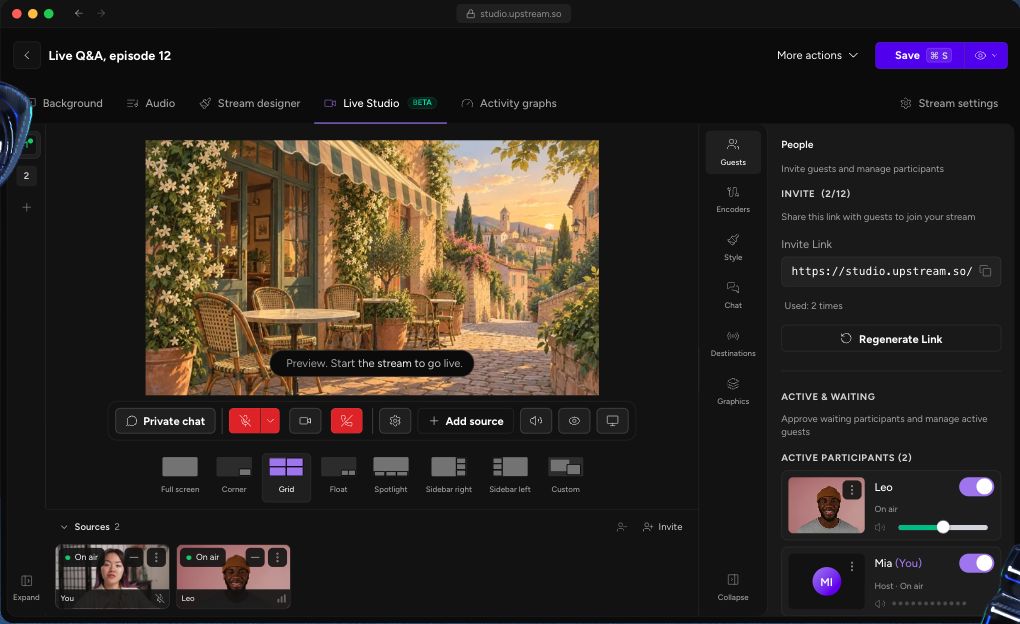
Set up the episode before your guest arrives. Keep the private studio invitation separate from the public link you use to promote the show.
- Open your stream’s Live Studio tab. Use Join studio to set up your camera and microphone.
- Choose Invite guests and send the invitation privately, along with the arrival time and time zone.
- Your guest opens the link, enters a display name, checks their camera and microphone, then clicks Enter studio.
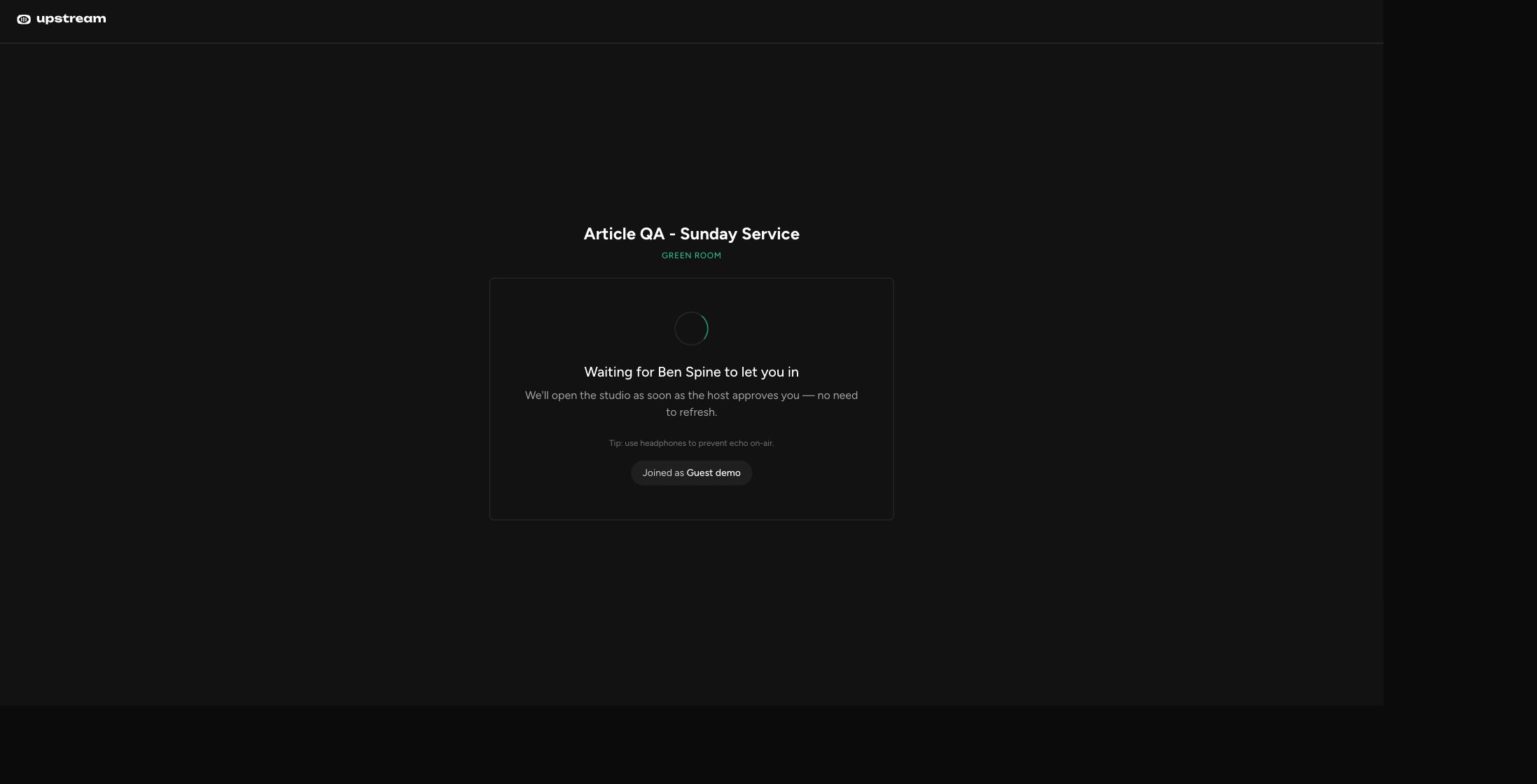
- The guest waits in the green room. Click Approve when you are ready to let them in.
- The guest then clicks Join studio. Use Add to stream on their participant card to put them in the layout.
- Pick your layout and check the preview. Live Studio settings save automatically.
Do this while the stream is stopped so you can get ready together. Approving a guest and adding them to the stream are separate controls. The Live Studio guide explains the studio’s inputs and layouts.
A guest link is not a watch link
Join you in Upstream
Your guest uses this link to enter the studio and take part in the show.
Watch on YouTube
Your audience uses this link to watch the episode and join the chat.
Send the guest link privately. Share the watch link in your posts and announcements.
Run a sound check before your live podcast
Ask everyone to wear headphones. Speakers send the other person’s voice back into the mic, which causes echo.
Ask your guest to check which mic is selected in the studio. It's easy to plug in a good mic and still end up using the laptop's built-in one.
Have a short conversation at your normal speaking volume. Try a louder sentence, play any clip you plan to use, and listen for echo or distortion. Make a short test recording with both voices and play it back. That checks the file you will edit later, as well as what you hear in the room.
| What you hear | What to try first |
|---|---|
| Echo or a delayed second voice | Put on headphones and mute any public watch page |
| A distant, hollow voice | Select the right mic and move it closer |
| Rough or distorted loud speech | Lower the mic’s input level |
| Broken speech and frozen video | Pause uploads and check that person’s connection |
| A clip plays without sound | Check the sound-sharing option for the source you are sharing |
Change one thing at a time. Ask the guest to repeat the same sentence so you can hear whether it helped.
Set up layouts for the conversation
Prepare the views you will actually use. You should be able to switch without rebuilding the scene while your guest is talking.
| Part of the episode | Layout | What to put on screen |
|---|---|---|
| Introduction | Host alone | Your name and the episode topic |
| Interview | Host and guest side by side | Both faces and each person’s name |
| Walkthrough | Shared screen with a smaller camera view | The app, slides or example you are discussing |
| Audience questions | Return to the conversation view | The speakers, with room for a question if you display it |
Read the names and other small text on a phone before the show. Leave space around faces so an overlay does not cover someone’s mouth or eyes.
Tell your guest when you plan to share a screen or play a clip. Agree on the first question and how you will wrap up. Close private tabs and notifications before sharing your screen, and share a single window when that covers what you need.
A simple live podcast run sheet
For a 30-minute interview, this gives both people time to settle in without turning the rehearsal into a second episode.
| Time | Host or producer | Guest |
|---|---|---|
| 20 minutes before | Open the studio and confirm destinations | Join through the private guest link |
| 10 minutes before | Run the sound check and short test recording | Check headphones, framing and mic choice |
| Just before live | Select the opening layout | Mute any public watch page |
| During the show | Lead the interview and choose audience questions | Follow the cues for clips and pauses |
| After the show | End the stream and download the recording | Stay briefly for any follow-up |
Give your guest a private way to reach you if they cannot join. You will find short invitation and reminder messages at the bottom of this guide.
Go live and keep the episode moving
Confirm the guest is ready, select the opening layout and start the stream. Check the public watch page on another device with its speakers muted. You want to see the same picture your audience sees.
Introduce the topic and your guest, then move into the conversation. For your first show, save audience questions for a short section near the end. Reading every comment while interviewing someone makes it hard to follow their answer. If you have a producer, ask them to pick useful questions for you.
If the guest drops out, tell viewers what happened and carry on with a point you can cover alone. Send the guest a private message and bring them back when they reconnect. Keep a relevant clip ready if your format needs a longer break.
Record your live podcast in Upstream
Upstream recording is available to all users on request. Ask support chat to enable it before the interview and confirm the recording length and storage you need. While the stream is stopped, turn on Stream settings > General > Stream Recording and save. Check Record this stream in the start dialog too.
After the show, find the recording in Media Library and choose Options > Download to save the MP4. This is the finished show, including the layout viewers saw.
What if you need separate tracks for each speaker?
Separate tracks let you change one speaker’s volume or cut a cough without changing the other person’s audio. The Upstream recording workflow described here saves the finished mix. Do not count on getting a separate file for each guest from this workflow. If your edit depends on those files, arrange a separate recording method before the show.
YouTube offers another copy of the episode: streams under 12 hours can be archived automatically. YouTube also recommends a local backup.
Turn the live episode into a replay, audio podcast and clips
Once you have the MP4, use your video or audio editor to prepare the versions you want to publish.
- Trim the full episode. Remove the wait at the start and the chat after the show. Keep a clean copy of the original download.
- Export the audio episode. Remove parts that only make sense with a picture, or add a short explanation. Export the format your podcast host accepts and upload it there.
- Cut a few useful clips. Pick answers that make sense on their own. Add captions and adjust the framing for the platform where you will post them.
- Send the guest the replay. Include the public episode link and any clips they can share.
A live stream does not automatically become an episode in podcast apps. Your podcast host distributes the audio through an RSS feed, the list of episodes those apps use. Upstream handles the live show in this workflow; your editor and podcast host handle the audio release.
Live podcast questions
Do remote guests need an Upstream account?
Guests join through the private invitation link in their browser. They do not need an Upstream account to take part. They enter their name, set up their devices and wait for the host to approve them.
Do I need OBS to live stream a podcast?
No. You can use Upstream Live Studio in your browser to bring in guests and build the show. OBS is another option if you want to produce the stream on your computer, but you still need a way to bring remote guests into that setup.
Can I live stream and record the podcast at the same time?
Yes, with recording enabled in Upstream. Ask support to enable it before your show, then turn it on for the stream. You can download the finished recording from Media Library afterwards.
Where should I live stream my podcast?
Start where your audience already follows you. Use a scheduled public watch link to promote the episode, and add other destinations if you have viewers there too. Keep the private guest invitation out of those announcements.
Does the recording include a separate file for each guest?
The workflow in this guide gives you the finished show as an MP4. If you need a separate audio or video file for each person, choose and test that recording setup before the interview.
Ready to try an episode? Open Upstream Live Studio and invite a guest for a short rehearsal.
Guest messages you can copy
Use these at different points in the show. Replace the bracketed details before sending, and keep the studio link private.
Initial invitation
Hi [name], would you like to join me on [podcast name] to talk about [topic]?I'm planning a [length]-minute live conversation on [date] at [time and time zone], streamed to [platforms]. I'd love to hear your take on [specific question].
Would that work for you?
Sound-check details
Hi [name], here are the details for [podcast name]. We go live on [date] at [show time and time zone]. Please join at [sound-check time] so we can check our sound and cameras first.Your private guest link: [guest link]
Bring headphones and join from a quiet room. We'll cover [topics]. If you have trouble joining, reach me at [contact].
30-minute reminder
Hi [name], we're live in 30 minutes! Please join at [sound-check time and time zone] using your private link: [guest link].Have your headphones ready. Message me at [contact] if you need a hand. See you shortly!
After the show: thank you
Thanks for joining me today, [name]. I especially enjoyed your point about [specific takeaway].Here's the episode: [public replay link]. Feel free to share it with your audience.
I'd love to have you back for another conversation about [follow-up topic].
Keep a live channel running 24/7.
Upload files, build a playlist, and let Upstream run continuous live playout from the cloud without OBS, a VPS, or an always-on computer.