Upstream’s Fall Update covers what we shipped from July to September 2026. Destinations now have their own page and get reused across streams, Kick connects through your Kick login the way YouTube and Twitch do, and a platform that fails during a multistream no longer takes the others down with it. New streams can start from one of 30 demos, media comes straight from Dropbox, Google Drive or OneDrive, and you can reencode up to 50 videos in one go. Here’s everything new and where to find it.
What’s new at a glance
| Feature | What it does | Where to find it |
|---|---|---|
| Saved destinations | Add a platform once and reuse it in any stream | Destinations, in the sidebar |
| Kick Connect | Sign in with Kick instead of pasting a stream key | Add destination, then Connect Kick |
| Steadier multistreaming | One failing platform pauses on its own while the rest stay live | Automatic |
| Notifications | Dropped outputs and blocked scheduled starts in one place | Account menu, then Notifications |
| YouTube ads and DVR | Midroll ads and rewind settings for YouTube Connect streams | Stream settings |
| Demo streams and Stock | 30 ready demos, 240 music tracks and 30 video loops | Create stream, then Try a demo |
| Import from link | Bring in media from Dropbox, Google Drive or OneDrive | Media Library, then Upload file |
| Bulk reencode | Reencode up to 50 videos at once at their own frame rates | Select videos, then Bulk reencode |
| Live Studio | Camera check, audio visuals for guests, Green Room shortcuts | Live Studio tab |
| Upstream MCP | Run your streams from an AI assistant | Account settings, then API Keys |
How do saved destinations work?
Destinations now have their own page in the sidebar. Add a platform once, either by connecting your account or by saving a stream key, and pick it from any new stream or multistream afterwards. Each destination shows whether its connection is active and which streams use it, so you know what a change will touch before you make it.
You can also create a stream without a destination and add one later from stream settings. That’s handy when you want the playlist ready before you have a stream key. And right before you go live, the Start dialog lists every destination with its status, so you can switch one off for this start, change it, or add a new one without leaving the dialog. If YouTube still has to turn on live streaming for your channel, you can keep building the stream and come back to YouTube later.
Stream everywhere from one feed.
Send one live feed to Upstream and let the cloud deliver it to YouTube, Twitch, Kick, Facebook, and custom RTMP without making your upload connection carry every copy.
Can you connect Kick to Upstream?
Yes. Kick now connects the same way YouTube and Twitch do. Click Connect Kick and sign in with Kick, and Upstream fills in your Kick stream key and ingest server for you, so there’s nothing to copy. It works for your main destination and for multistream destinations, and an existing Kick destination can switch over with Convert to Kick Connect. While a Kick stream is live, its card on your dashboard shows Kick’s live thumbnail. New to Kick? Here’s how to stream on Kick with Upstream, or, if you stream from OBS, where to find your Kick stream key.
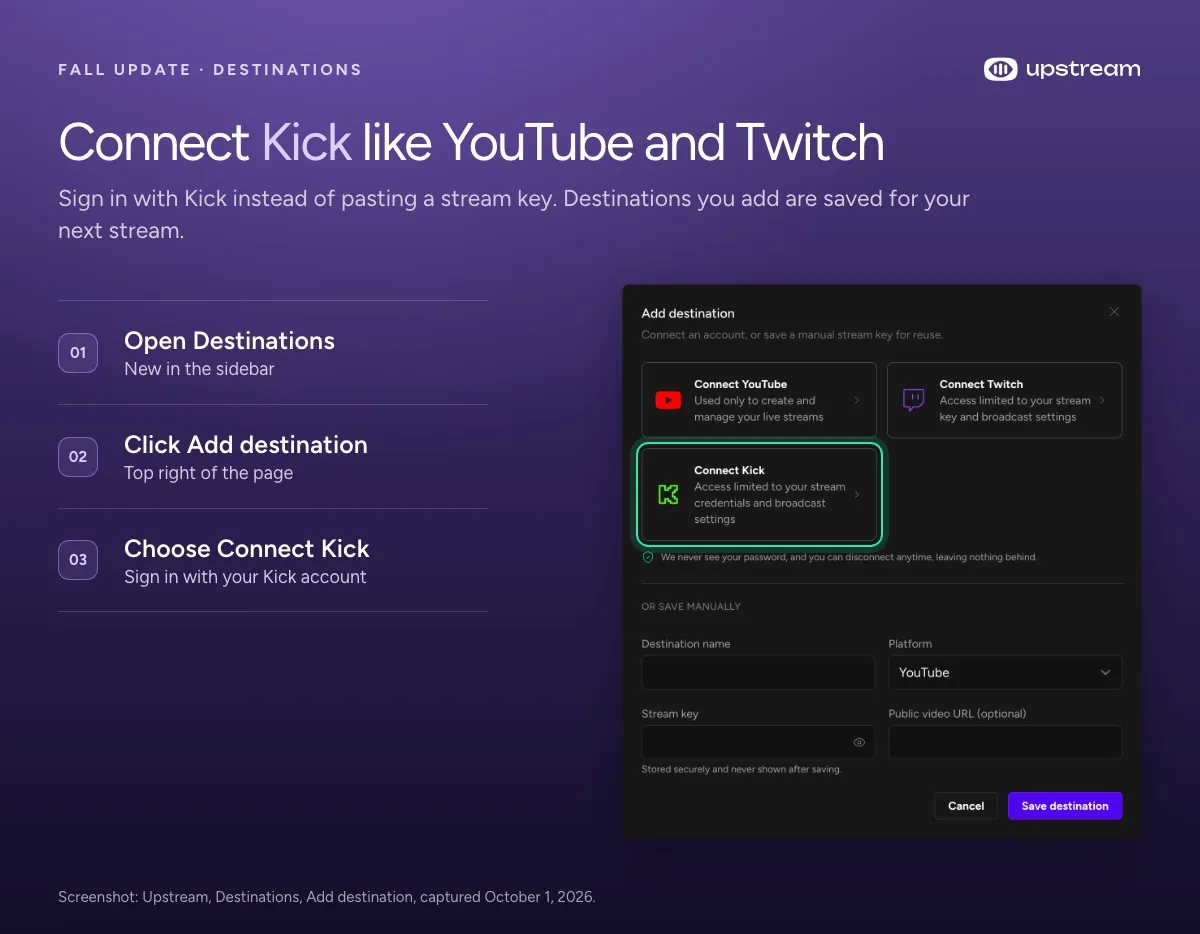
Twitch destinations also get an Ingest server setting. Automatic (Recommended) stays the default, or you can pick a specific Twitch ingest server yourself.
What happens when one platform fails during a multistream?
Only that platform stops. If a destination keeps rejecting the stream, Upstream tries to reconnect it 5 times, then pauses just that one and keeps every other platform live. The destination count on the stream drops (2/2 becomes 1/2, for example), you get an email naming the platform, and the drop shows up on the new Notifications page. Switching a destination on or off during a stream no longer interrupts the platforms that are already live.
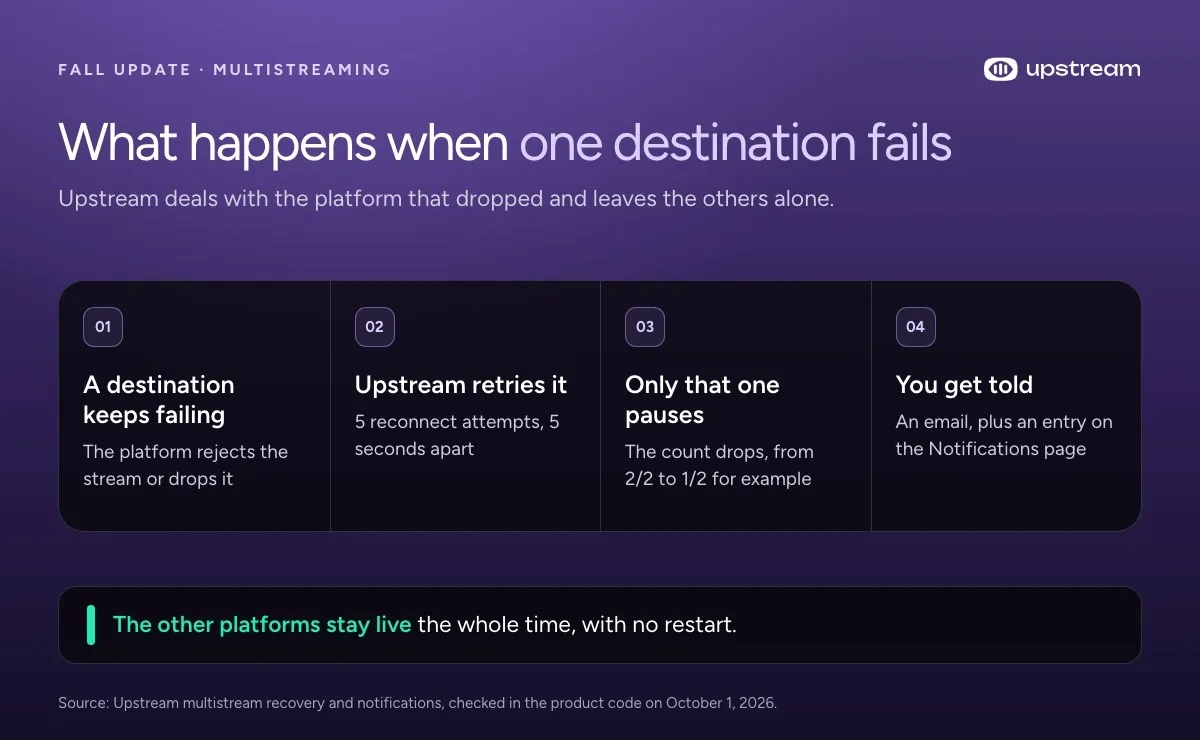
The Notifications page in the account menu keeps the last seven days of important stream notices: dropped multistream outputs and scheduled starts that couldn’t run. Scheduled streams also warn you ahead of time. If a schedule would run more streams at once than your plan allows in the next seven days, the schedule settings show a capacity warning before it happens.
What’s new for YouTube streams?
Streams that use YouTube Connect, on channels YouTube allows to monetize, now have ad settings in stream settings. Turn on Enable monetization, pick an Ad frequency (Low, Balanced, High, or a custom interval from 6 to 30 minutes), and choose whether midrolls play at the same time for everyone or staggered per viewer.
You can also turn off DVR, so viewers can’t rewind the live stream. And if Upstream can’t confirm that YouTube ended a broadcast after you stop or delete a stream, you now get an email with a link to YouTube Studio, so a broadcast doesn’t stay live by accident. Connect YouTube also shows Google’s account chooser now, so channels on a Brand Account can connect. See YouTube live streaming with Upstream.
How do demo streams work?
Create stream now opens with Take a demo for a spin. Pick from 30 ready demos across Music, Faith & worship, Gaming, and Shows & videos. Each one comes with videos, music and a stream design. Change anything you like, and Upstream creates a paused stream with no destination, so nothing goes live until you add one. It’s the quickest way to see what a 24/7 channel looks like before you upload anything.
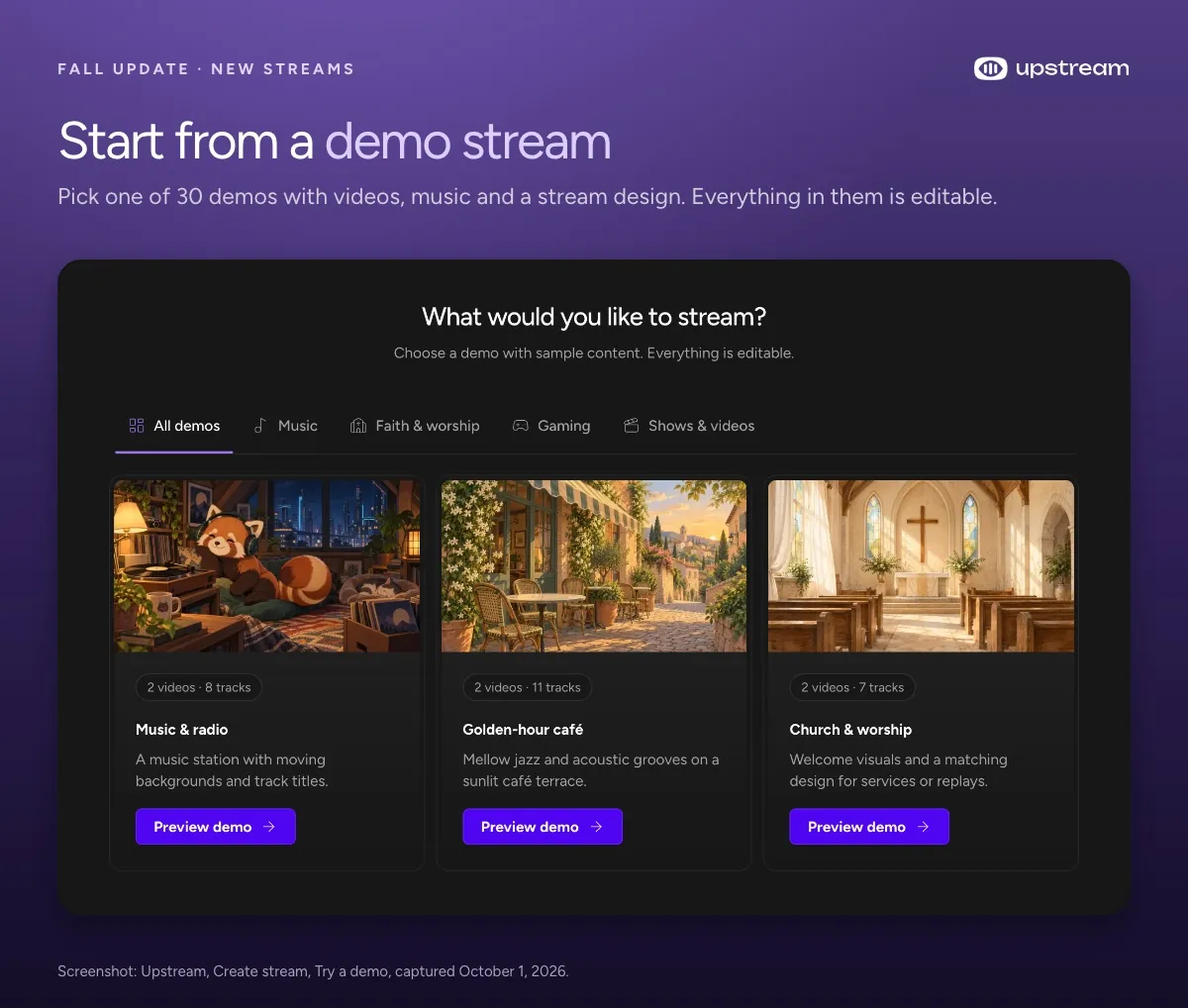
The demos draw from the new Stock library next to All files in the Media Library: 240 music tracks and 30 video loops you can preview, download or add to any stream. Stock files are read only and don’t count toward your storage. New accounts also get a setup guide on the dashboard that walks through the first stream: create it, add media, connect a destination and go live.
What’s new in the Media Library?
Import from a shared link
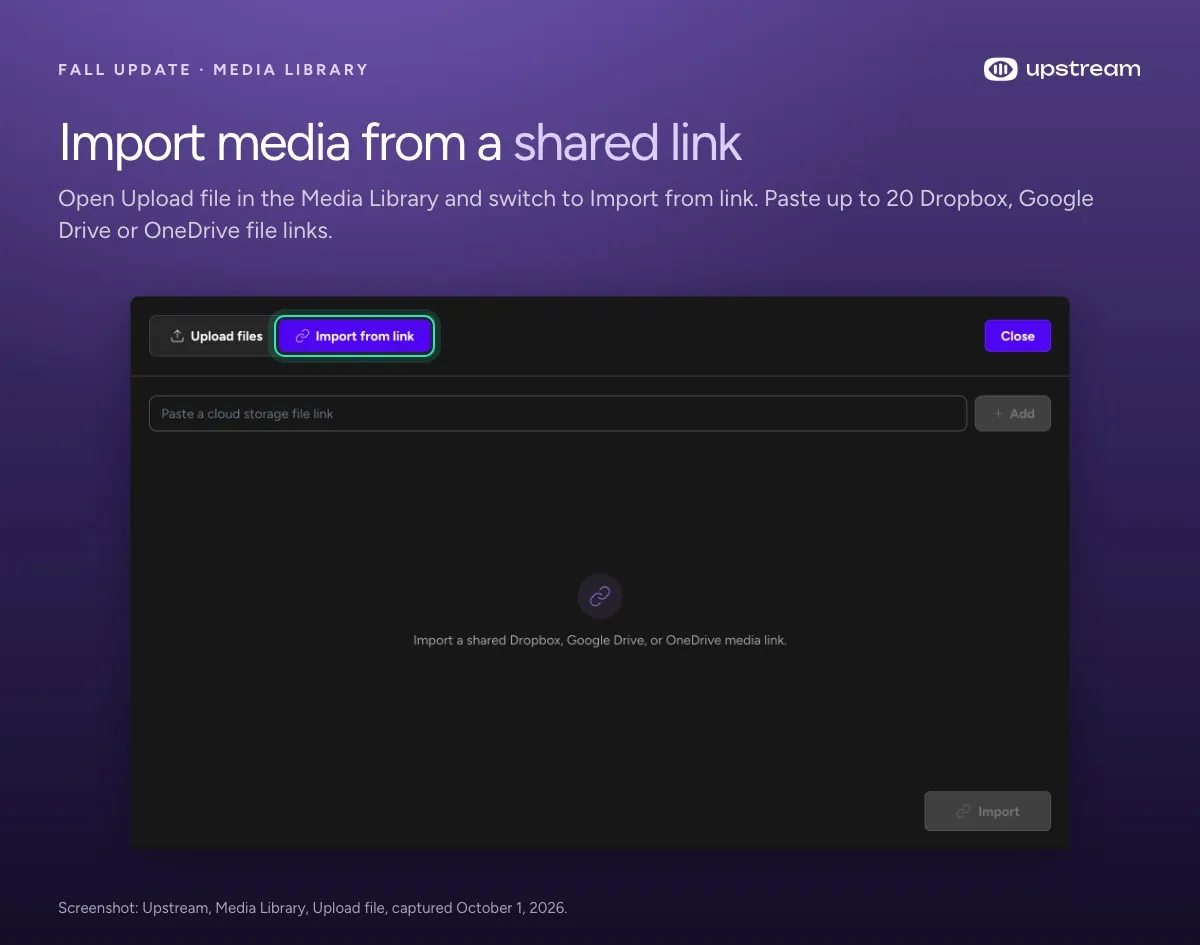
Upload file now has an Import from link tab. Paste shared Dropbox, Google Drive or OneDrive file links, up to 20 at a time, and Upstream brings the files in for you. Nothing downloads to your computer first, and you can import straight into a stream’s queue.
Add files and folders to a stream
Right click any file in the Media Library and choose Add to stream to put it at the start, the end or a specific position in a stream’s queue. In the stream builder you can tick a whole folder and click Add to queue to add every file in it, subfolders included. Both arrive as unpublished changes, so nothing reaches your viewers until you publish.
Bulk reencode
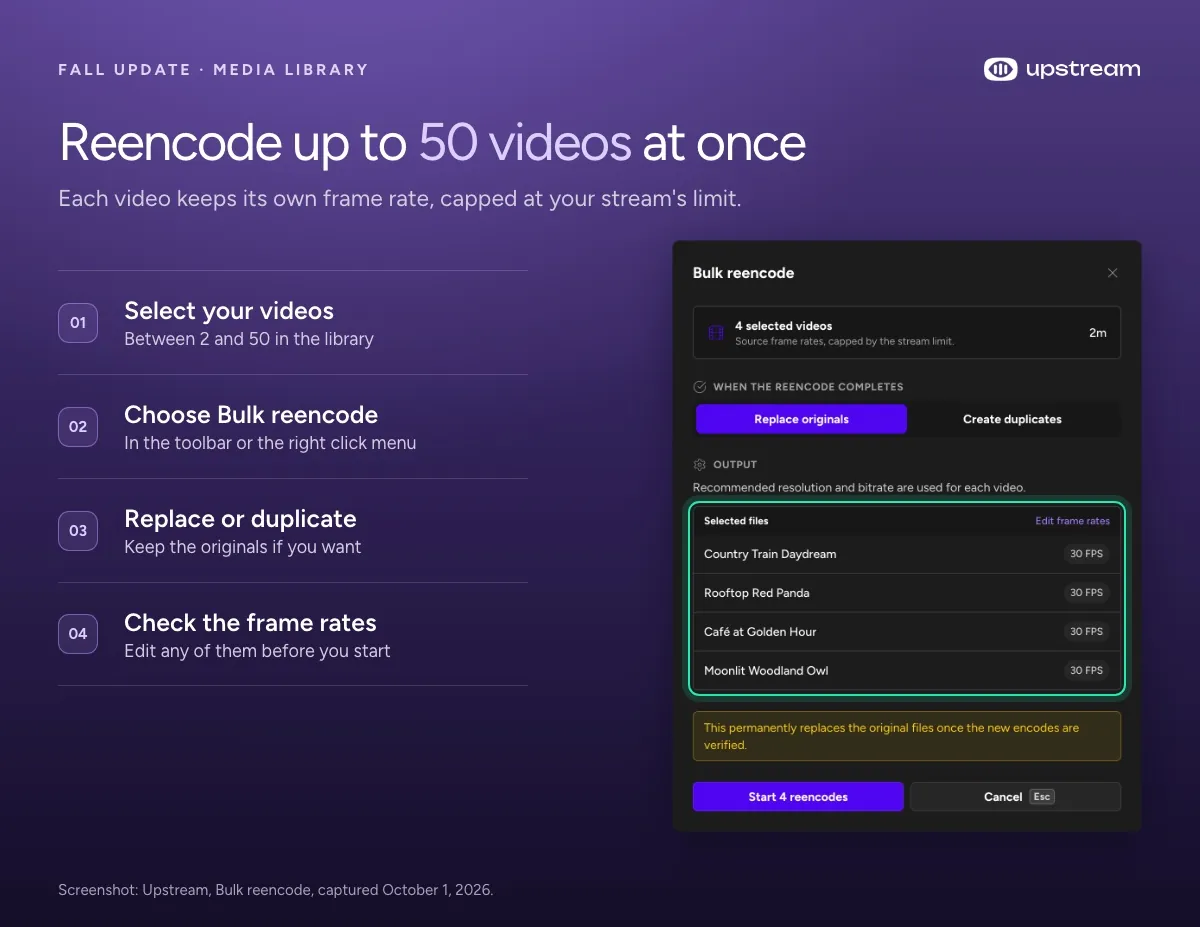
Select 2 to 50 videos and choose Bulk reencode. Each video keeps its own frame rate by default, capped at your stream’s limit, and you can edit any of them before you start. Choose whether to replace the originals or create duplicates. Bulk reencodes use the same reencode hours as single files. New to reencoding? Start with uploading HEVC and MOV videos and reencoding them in Upstream.
Warnings before a file reaches your stream
Files now tell you about problems before they go on air. A red icon marks black screens, silence, missing audio tracks, frozen frames, and audio formats Upstream can’t play, with timestamps for where it happens. Fix it with a reencode, or choose Mark as Intentional when the silence is on purpose. You can also upload MPEG-TS files (.ts, .mts and .m2ts) now. Upstream converts them to MP4 when it can and flags the ones that need a reencode. Uploads show their speed, and files that are processing show a percentage instead of a spinner.
What’s new in Live Studio?
Live Studio now opens with a Check your camera and microphone screen: a preview, a mic level meter and device pickers. Join backstage first (recommended when the stream is live) or go straight to stage.
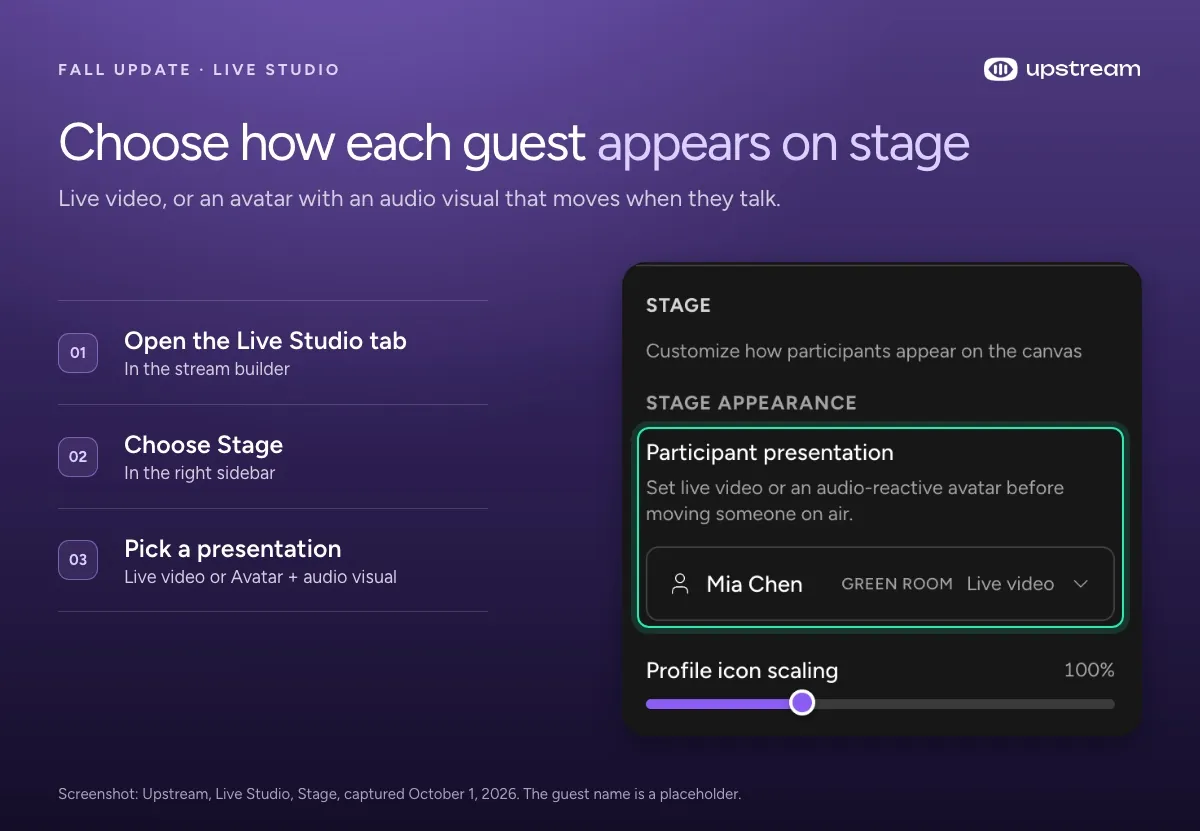
Guests don’t have to be on camera to look good on stage. Under Stage Appearance, Participant presentation shows each person as live video or as their avatar with an audio visual that moves when they talk: Fluid waves, Radial pulse, Holographic or Cosmic ring. Running a bigger panel is quicker too. One click moves everyone in the Green Room to stage, and one click sends everyone on stage back to the Green Room, with up to 10 people on stage at once.
Can an AI assistant manage your Upstream streams?
Yes, with Upstream MCP, our live streaming MCP server. Create an API key under Account settings, add https://studio.upstream.so/mcp to an MCP client that supports custom headers, such as Claude Code or VS Code, and your assistant gets 32 tools. It can list and inspect streams, start and stop them, edit queues, and manage destinations, media, folders and tags. MCP is included on every plan and shares the Upstream API‘s limit of 60 requests a minute. If you’d rather write code, the API itself launched in June: the Upstream API is live.
How do stream limits work now?
On paid plans, your plan’s stream count is now the number of streams that can run at the same time. You can keep up to 10 times that many saved, so a plan with 3 streams can hold 30 saved streams and run any 3 of them at once. Stopped streams don’t use a running slot, and a stream with a linked backup uses two. The counter at the top of the app shows how many are running. Compare plans on the pricing page.
Smaller improvements
- Publishing playlist changes while you’re live no longer makes the current track jump, restart or flash black.
- Video inserts follow the stream’s Video Fit setting, Crop or Fit.
- When streaming is restricted, the top bar explains why and what to do next.
- Deleting a stream shows the letters left to type, and marks a wrong one in red.
- The login page has a new look.
FAQ
Can I connect Kick to Upstream without a stream key?
Yes. Choose Connect Kick under Add destination and sign in with your Kick account. Upstream handles the stream key, and the connection works for your main stream and for multistream destinations.
What happens if one platform drops during a multistream?
Upstream tries to reconnect it 5 times, then pauses only that destination and keeps the others live. You get an email, and the drop appears on the Notifications page.
Can Upstream import videos from Google Drive or Dropbox?
Yes. In the Media Library, open Upload file and switch to Import from link. Paste up to 20 shared Dropbox, Google Drive or OneDrive file links per import.
How many streams can I run at once on Upstream?
As many as your plan’s stream count. On paid plans you can keep up to 10 times that many saved streams, and stopped streams don’t use a running slot.
Can I manage Upstream from an AI assistant?
Yes. Upstream MCP connects MCP clients such as Claude Code or VS Code to your account with an API key. It’s included on every plan.
Get started
Most of this update works on the free plan, which includes 24 hours of streaming every month. Try a demo stream, connect a destination, and go live when you’re ready.