Restream and StreamYard are often among the first options creators consider when choosing streaming software.
Both cover what beginners and growing creators typically need, but they suit different workflows.
Let’s see which tool fits your needs and when to consider an alternative.
Multistreaming Capabilities
Restream supports more than 30 platforms, including YouTube, Facebook, Twitch, LinkedIn, TikTok, and X, plus custom RTMP for anything not on that list.
But even with that coverage, how many you can stream to at once depends on the plan:
| Plan | Simultaneous channels | Notes |
|---|---|---|
| Free | 2 | Restream watermark in Studio streams and event thumbnails; no watermark on encoder output |
| Standard ($19/mo) | 3 | No watermark |
| Professional ($49/mo) | 5 | Adds dual-format streaming (landscape + vertical) |
| Business ($239/mo) | 8 | Team seats, website embed player |
Now, onto StreamYard.
Its multistreaming capability covers fewer platforms directly (Facebook, YouTube, Instagram, LinkedIn, X, Twitch, Kick, and Brightcove), with custom RTMP for the rest (Amazon Live, Vimeo, Dacast).
The free plan streams to one destination and doesn’t allow multistreaming, except during a 7-day trial.
Here’s how StreamYard’s paid tiers stack up on destination count:
| Free | 1 destination, no multistreaming |
| Core (from $35.99/month) | 3 simultaneous destinations |
| Advanced/Teams | 8 simultaneous destinations |
| Enterprise | custom limits, by request |
Both tools can send one broadcast to multiple destinations on the same platform, subject to the selected plan and each platform’s rules.
For example, LinkedIn is an exception: in a standard setup, only one LinkedIn Page or profile can be selected per broadcast.
Stream everywhere from one feed.
Send one live feed to Upstream and let the cloud deliver it to YouTube, Twitch, Kick, Facebook, and custom RTMP without making your upload connection carry every copy.
Scheduling Pre-Recorded Videos
Both platforms allow you to turn a finished, pre-recorded video into a live event to start broadcasting at a time of your choosing.
But when it comes to formats, limits, and destinations, their offerings diverge.
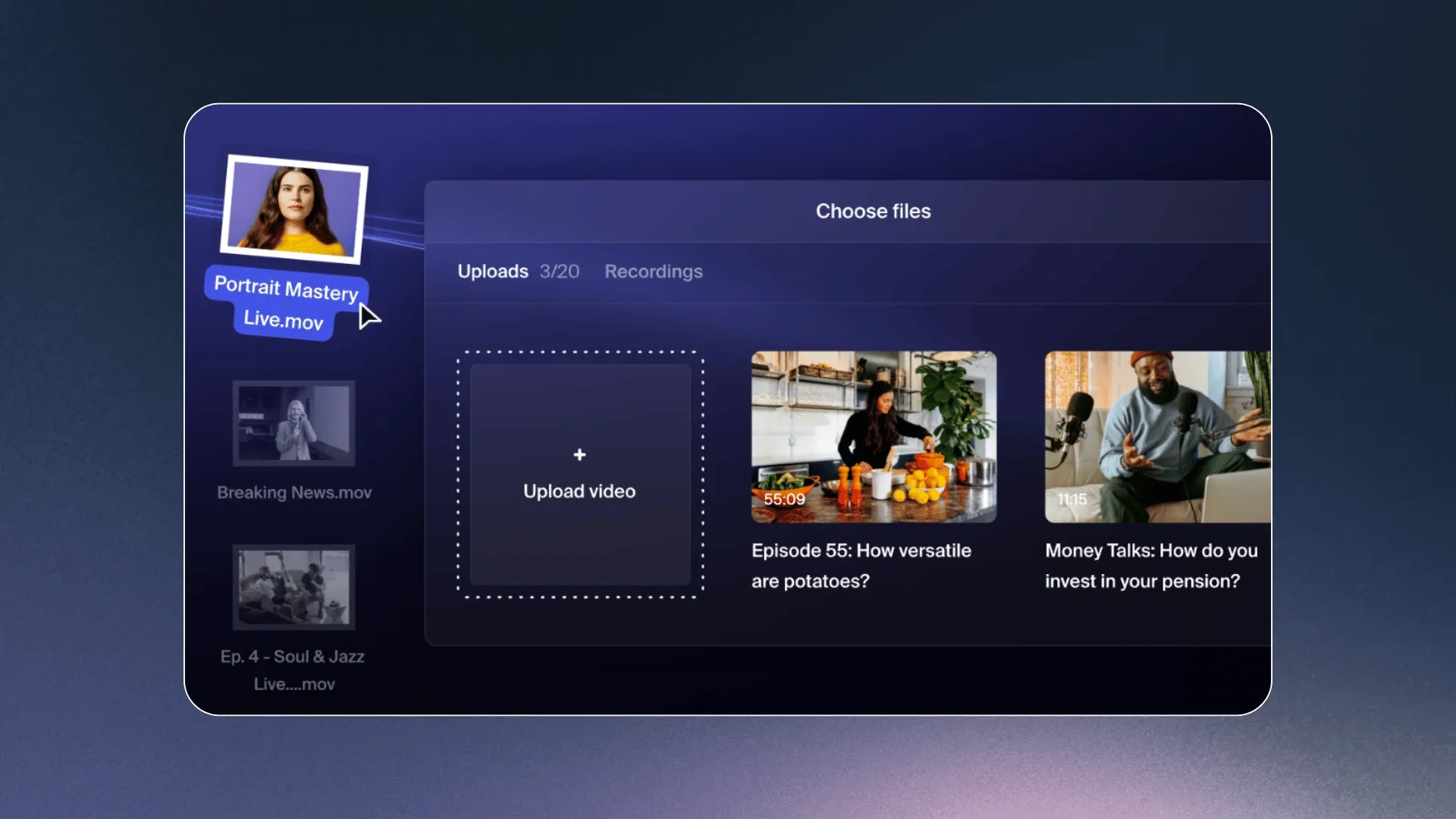
Restream’s Upload & Stream schedules a pre-recorded video to go live on YouTube, Facebook, LinkedIn, Instagram, TikTok, X, and more, from the same screen as a live event.
Source: Restream
It plays automatically at the set time even if your laptop’s off.
TikTok and Instagram are the exception: you still need to tap “go live” on their end once Restream starts the broadcast.
| Accepted formats | MP4, MOV, M4V, MKV; H.264 video and AAC audio |
| Single-video playback | Schedule one video; optional replay up to 10 times |
| Playlists | Paid Upload & Stream add-ons; up to 40 videos and 24 hours |
| Cloud operation | Starts automatically at the scheduled time, without the laptop staying online |
| Destination scheduling | Streams to supported channels; advance event links depend on the destination platform |
Restream also supports playlists and looping through its paid Upload & Stream add-ons. Playlists can combine up to 40 videos into a broadcast of up to 24 hours, while a single scheduled video can be replayed up to 10 times.
StreamYard’s Pre-recorded Streaming works the same way in principle, but the format and destination rules are tighter.
| Accepted formats | MP4 with H.264 video encoding |
| Max bitrate | 10,000 Kbps (10 Mbps); compress higher-bitrate files first |
| Max file size | 10GB (Core/Advanced), 25GB (Teams/Business) |
| Length cap | 2 hrs (Core), 4 hrs (Advanced), 8 hrs (Teams/Business) |
| Scheduling window | Up to 365 days ahead |
| Advance event scheduling | Facebook, LinkedIn, YouTube, and StreamYard On-Air |
StreamYard cannot create scheduled event posts in advance for X, Instagram, or custom RTMP destinations. Those channels can still be part of a multistream where supported, but they do not get the same native scheduled-event workflow.
StreamYard schedules one pre-recorded video per session.
If you want a multi-episode run, the burden is on you to schedule each video separately.
Both tools make it easy to schedule a recorded video, but their upload and event-page options are different.
Restream accepts MP4, MOV, M4V, and MKV files. It can schedule the video to start automatically and create an event post with a shareable link on Facebook, YouTube, LinkedIn, and X.
StreamYard accepts MP4 files and lets you schedule a pre-recorded stream up to a year ahead. It can create an announcement post and a shareable event link on Facebook, LinkedIn, YouTube, and StreamYard On-Air.
The two tools take different approaches when an uploaded video does not meet their requirements.
Restream provides a free standalone conversion tool.
To prepare an unsupported file for Restream, you upload it to the converter, convert it to MP4, download the new file, and then upload that version to Restream. The converter accepts files up to 2 GB and videos up to 12 hours long, with no stated limit on the number of conversions.
StreamYard’s documentation instead directs users to third-party software.
If a video has an unsupported format, codec, or bitrate, StreamYard recommends converting or compressing it with a tool such as HandBrake before uploading it.
Customization and Branding
Restream Studio covers logos, overlays, lower thirds, scrolling tickers, QR codes, and backgrounds, static or animated.
Recommended sizing is 1920×1080 for overlays and backgrounds, 512×512 for logos. You can stack up to 50 overlays per account.
These elements can be added into Brand Folders, useful if you’re running shows for more than one client.
Restream’s free plan adds its logo to Studio streams and event thumbnails, but streams sent through Restream from an external encoder such as OBS do not carry the watermark.
Standard plan removes Studio branding.
StreamYard runs branding through a dedicated Branding panel: logo, brand color, banners, tickers, name tags, overlays, backgrounds. One theme change updates every asset at once.

Source: StreamYard
Layouts like Single, Cropped, Group, Spotlight, and News come free. Custom logos, overlays, and backgrounds don’t, and free streams keep a visible StreamYard watermark.
Asset specs run smaller than Restream’s: 200×200 logos, 1280×720 overlays and backgrounds. You get up to 100 overlays per folder, 10 folders, on any paid plan.
Both tools can display manually entered text during a broadcast.
Restream calls these messages Captions: they appear in a fixed lower-third position, support up to 240 characters, and use the font and primary color selected in the Theme tab.
StreamYard offers a similar feature through static Banners, which support up to 200 characters, as well as scrolling Tickers for longer messages.
On StreamYard, Core removes the watermark, supports three destinations, and adds 1080p streaming. On Restream, Standard removes Studio branding and supports three destinations, while higher plans increase the destination limit.
Live Production and Guest Features
Both tools let you produce a live show in your browser, though some of their guest and production features differ.
Restream Studio allows up to five guests on the free plan and nine on paid plans, with hosts and co-producers counting toward the Studio limit.
StreamYard allows up to 10 people in the Studio on Free and Core, and 15 on Advanced and higher plans.
Guests can join either studio through a browser link and wait backstage until the host brings them on screen. Both systems also let you organize the way your guests appear on screen by choosing between different layouts.
Now, let’s talk scenes. A scene is a prearranged view of what the audience sees at a particular point in the broadcast.
For example, one scene might show the host, another a presentation, and a third a video or countdown.
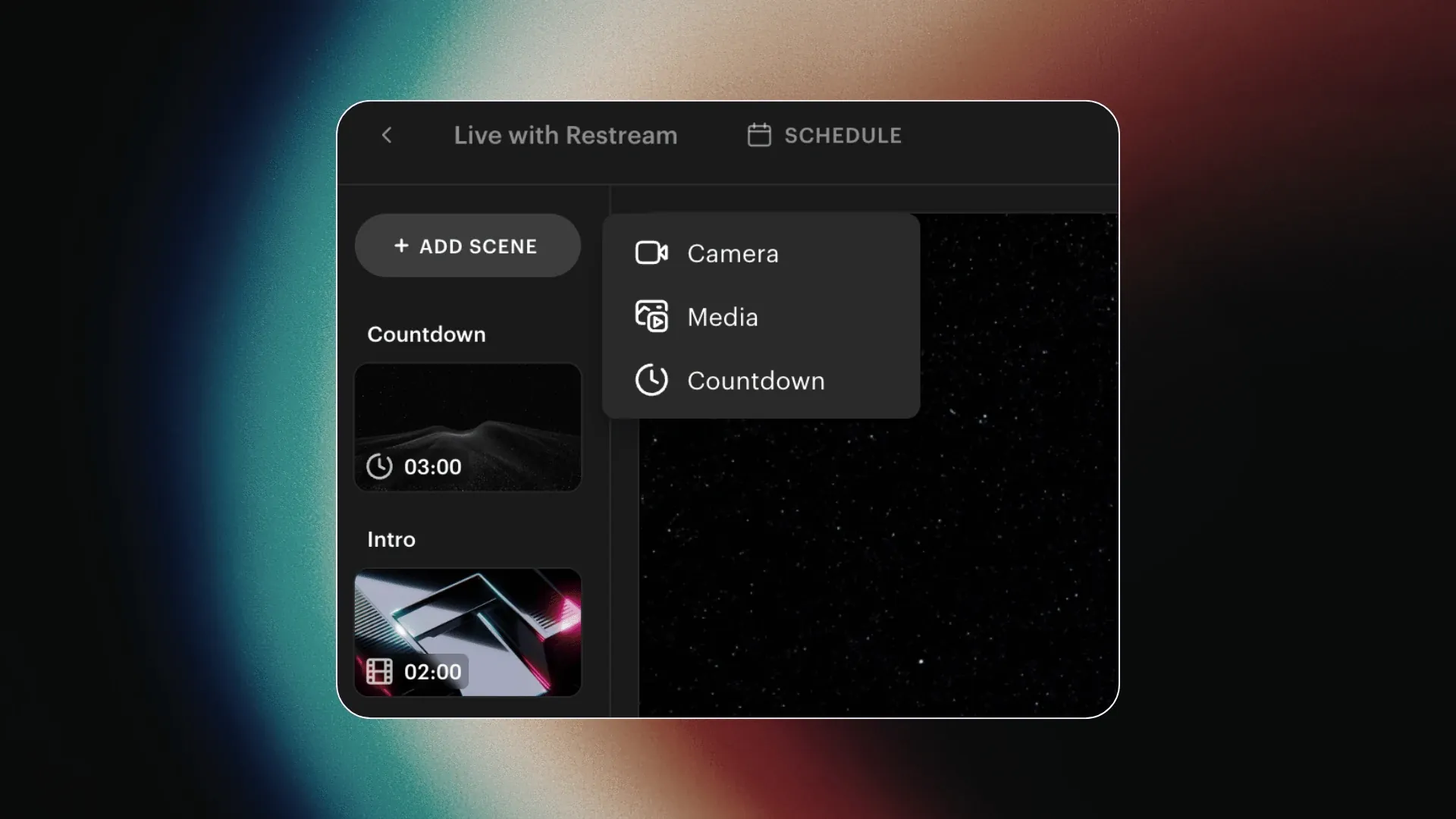
Restream offers three scene types: camera, media, and countdown, with up to 40 scenes allowed in each Studio.
Source: Restream
Video and countdown scenes can switch to the next scene automatically when playback ends. Restream saves the scenes you create, so they are still available when you leave the Studio and return later.
StreamYard’s Scenes also include three layouts: Speaker view, Group Discussion, Media Presentation
StreamYard saves your scene layouts and visual elements so you can reuse them in future broadcasts. However, you need to add participants and media presentations to the stage again after leaving the studio.
Custom layouts are available in Restream and StreamYard.
Restream lets you resize, reposition, and reshape participants and media within each scene.
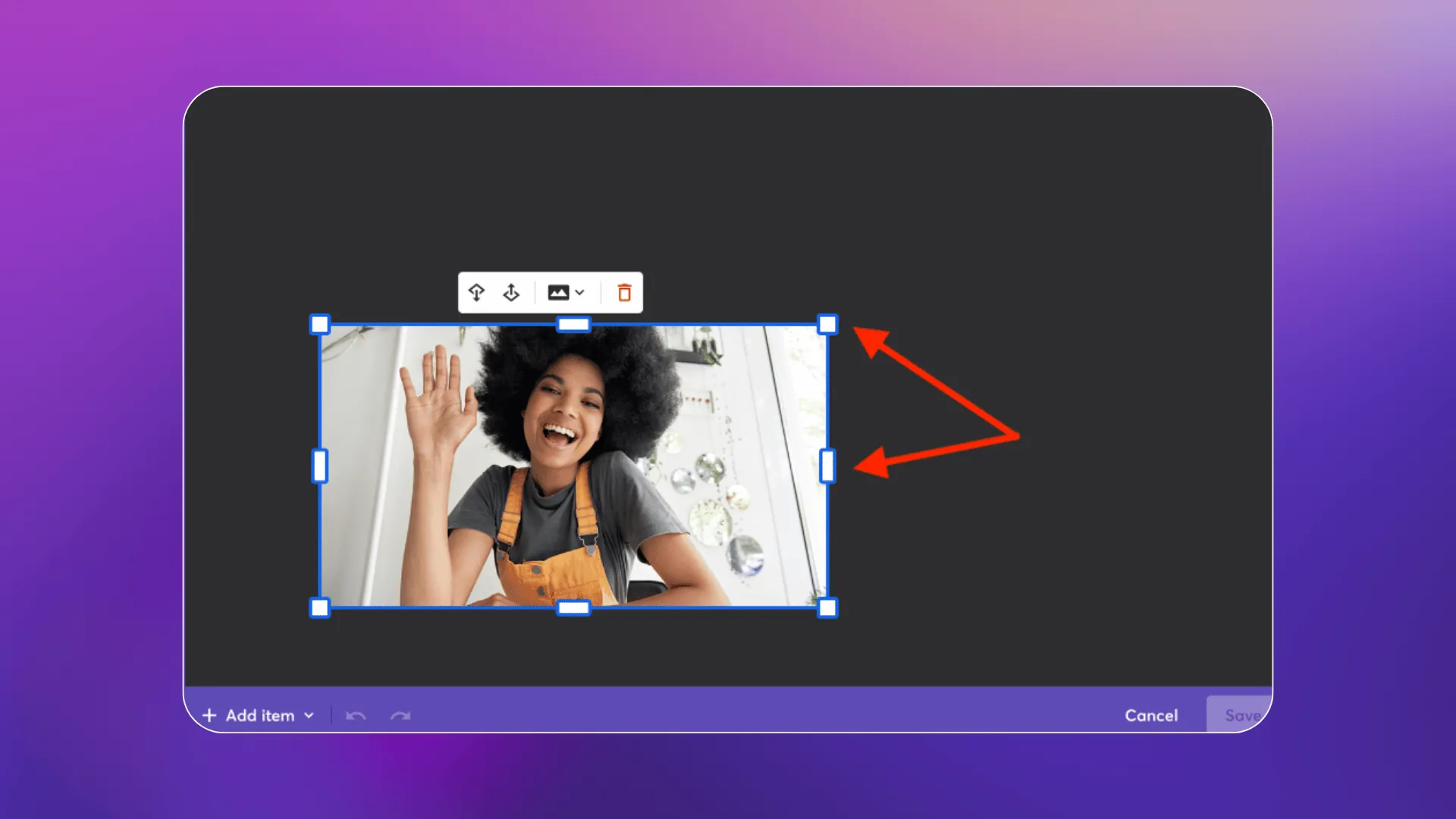
StreamYard includes eight preset layouts and lets you create up to eight custom layouts on every plan.
Source: StreamYard
Its layout editor includes camera and media slots, dynamic grids, layers, and alignment guides.
Restream and StreamYard both support 9:16 portrait streams.
Restream offers portrait streaming on every plan and can send landscape and portrait streams at the same time on Professional plans and above.
StreamYard’s Multi-Aspect Ratio Streaming (MARS) supports both orientations from one studio session on every plan, while separate layouts for each orientation are available on paid plans.
All in all, StreamYard is better suited to guest-heavy interviews, podcasts, webinars, and panel shows, especially when you need more people in the studio or more control over custom layouts.
Restream is a better fit for product demos, tutorials, presentations, and other structured shows that combine a host with prepared videos, slides, and countdowns. Its scenes can be reused, while videos and countdowns can move automatically to the next scene.
Integration and Compatibility
Restream works well for teams that already produce their streams in OBS, Streamlabs, vMix, Zoom, Microsoft Teams, XSplit, or Ecamm Live.
Common workflows include:
- OBS
- Streamlabs
- vMix
- Zoom
- Microsoft Teams
- XSplit
- Ecamm Live
- And more
In the standard encoder workflow, your production software sends one stream to Restream, which distributes it to the selected destinations.
Bringing an RTMP encoder feed into Restream Studio for layouts, guests, and graphics is a separate feature available on Business and Enterprise plans.
Restream Chat is a multichat integration that brings messages from supported platforms into one unified chat panel, so you don’t have to monitor separate chat windows.
StreamYard also brings comments from supported destinations into its studio, giving you a consolidated place to follow the conversation.
On paid plans, its Chat Overlay can automatically display incoming comments from supported platforms on the broadcast. However, comment support varies by destination and is unavailable for custom RTMP, Instagram, and some other streaming platforms.
It is less centered on external encoder integrations than Restream, though it connects directly to supported streaming platforms, custom RTMP outputs, and guest destinations, a feature that lets you add your guest’s channels and pages as destinations for your live stream.
Where StreamYard does offer extra functionality is marketing automation.
Its Zapier integration sends webinar registration data straight into Google Sheets, a CRM, or an email tool, though it’s limited to StreamYard On-Air and needs an Advanced plan or higher.
Already run OBS or Zoom?
Restream is usually the better fit if you already produce your stream in OBS, vMix, or another encoder. StreamYard’s browser-first model can reduce tool switching when the entire production is handled inside its studio.
Video Quality
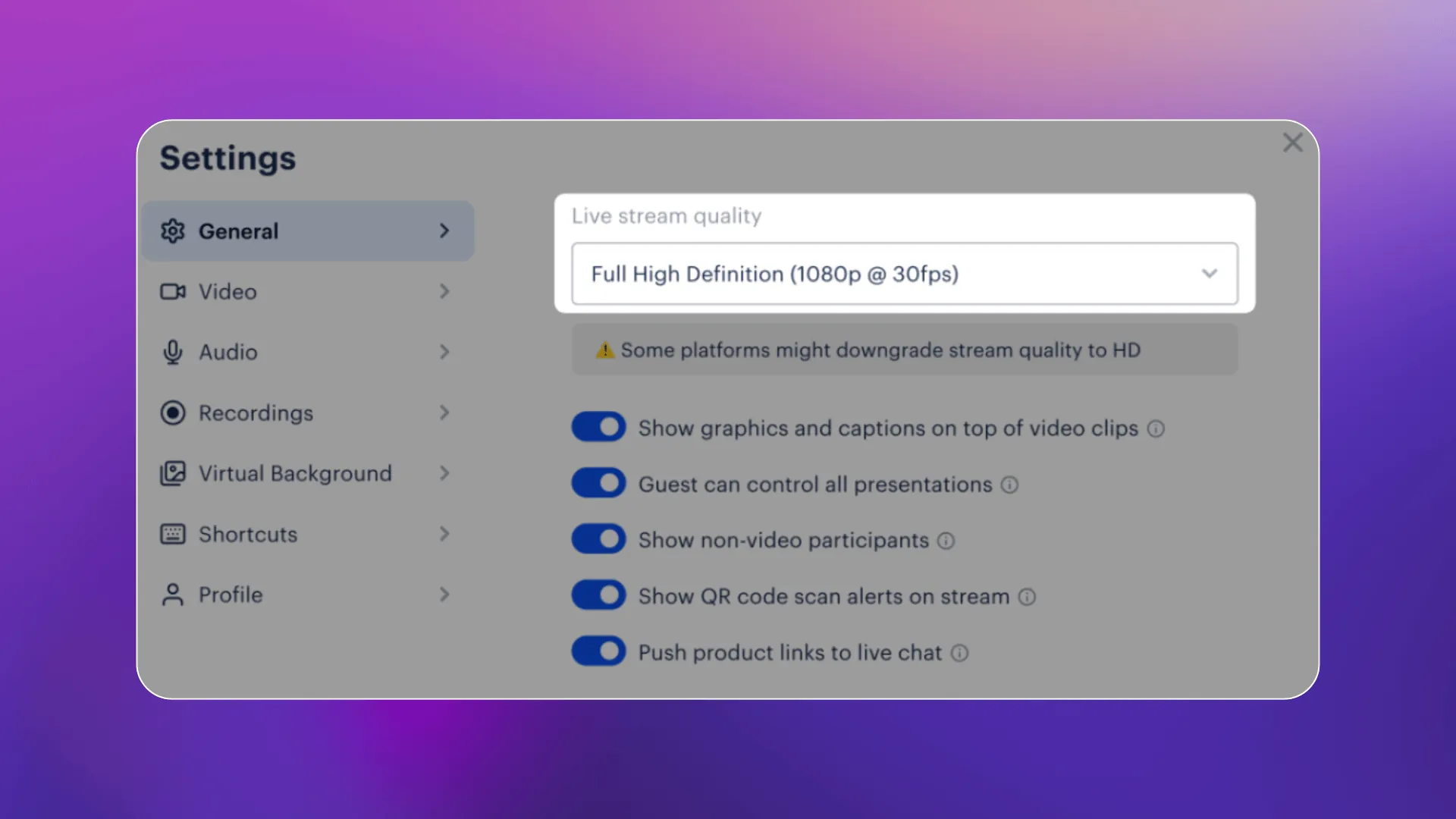
Restream Studio caps out at 1080p, 30fps in the browser. Bump down to 720p, and you can run 30 or 60fps instead.
Source: Restream
With an external encoder like OBS, Restream keeps the resolution and frame rate of the incoming feed, while the destination platforms still determine what viewers receive.
That makes external encoders the route to higher-resolution streams, including 4K where the destination supports it, but Restream still recommends compatible encoding settings and a maximum video bitrate of 15,000 Kbps.
StreamYard runs its live studio at 1080p, 4,500 Kbps video bitrate. 720p drops that to 3,000 Kbps. Audio holds steady at 128 Kbps either way.
StreamYard sets that bitrate on their end, so you can’t adjust it per stream.
Restream offers local recordings in up to 4K on Professional and higher plans. These are separate participant and source tracks recorded on each device, then uploaded to the host’s account for post-production.
StreamYard takes a similar approach: its 4K option applies to local, per-participant tracks on Advanced plans and higher, while the mixed cloud recording remains capped at 1080p.
Analytics and Reporting
This is where the separation in functionality between the two is the clearest.
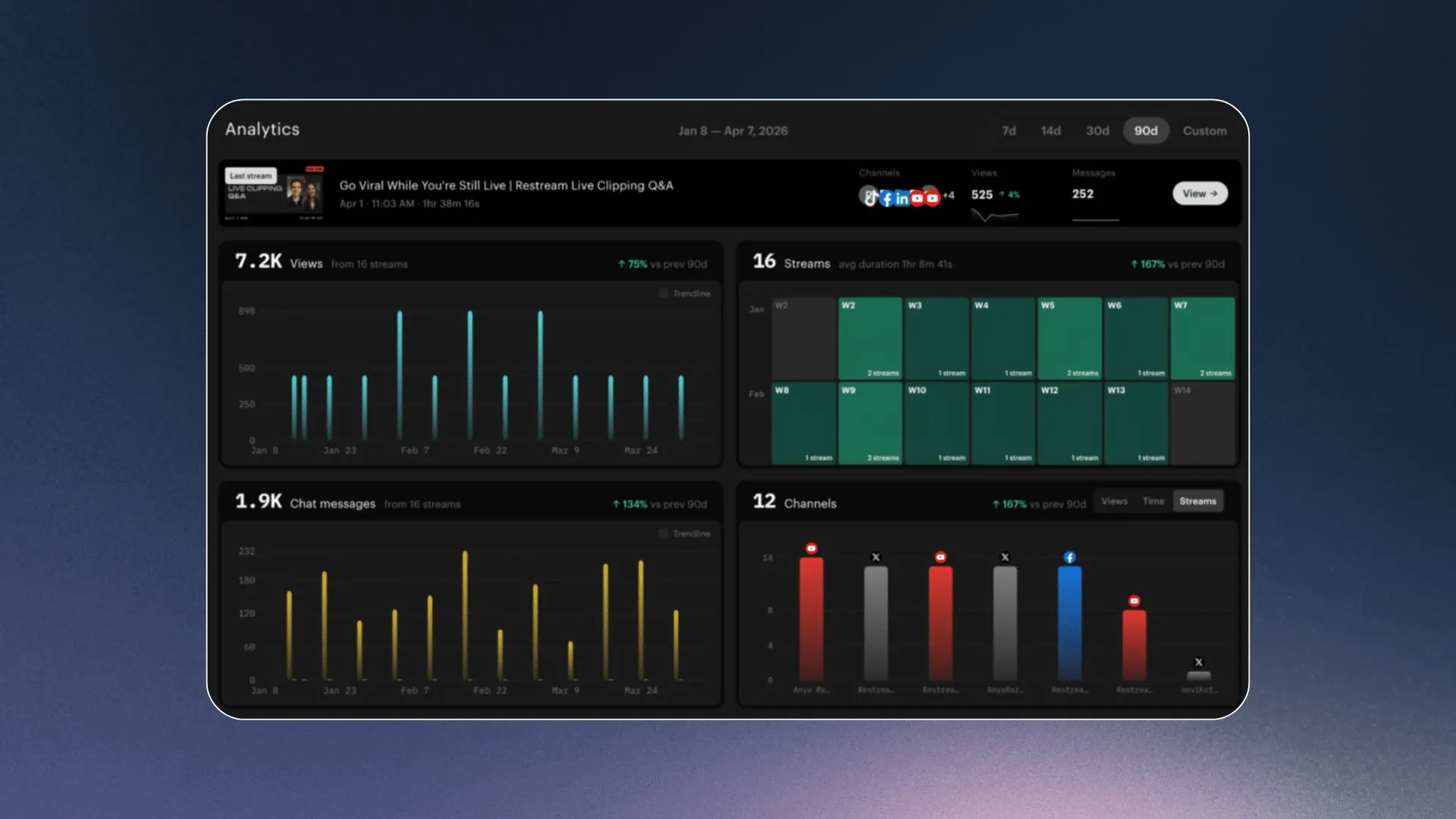
Restream’s Analytics dashboard pulls viewer counts, watch time, chat activity, and stream health into one place.
You can view results per platform or aggregated across channels, filter by date range, and compare performance with previous periods. Restream does not currently export the full Analytics dashboard as CSV or PDF, although transcripts and chat logs can be downloaded separately.
Source: Restream
Restream also provides an Analytics API for supported viewer and chat metrics, which can feed selected data into a custom reporting stack.
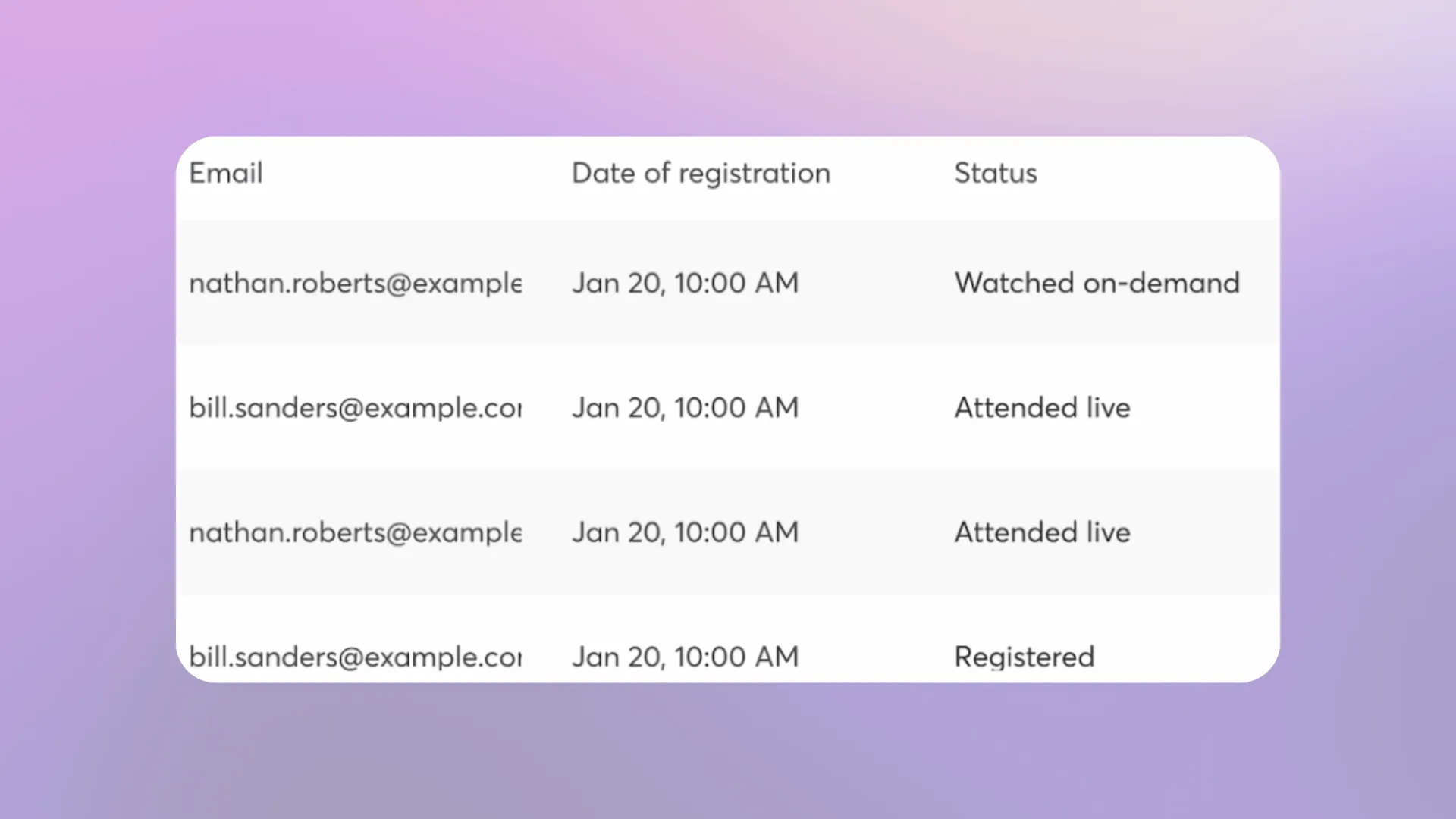
StreamYard has no equivalent. Outside its webinar product, StreamYard On-Air, its features are pretty bare-bones, limiting you to only a live viewer count during the broadcast, as shown below:
Source: StreamYard
Want numbers beyond that? You’ll have to head over to YouTube Studio, Facebook Insights, or LinkedIn’s dashboard separately, per platform, after the stream ends.
So, in essence, if cross-platform reporting matters to how you evaluate a show, Restream is the clear pick here.
If you’re fine with doing some extra work and having to pull numbers natively from each destination (or if you don’t care about analytics), StreamYard may still be the better choice for its browser studio and guest production tools.
Pricing and Plans
Restream’s free plan supports two destinations. Studio streams and event thumbnails carry Restream branding, but streams sent from OBS or another external encoder do not have an outgoing watermark.
Standard costs $19 per month and adds a third destination.
StreamYard’s free plan is thinner: one destination, watermark included, capped at 720p. Our StreamYard pricing breakdown compares every tier with Upstream.
Here’s the full pricing breakdown:
| Tier | Restream | StreamYard |
|---|---|---|
| Free | 2 channels, watermark | 1 destination, watermark, 720p |
| Entry paid | Standard, $19/mo, 3 channels | Core, $44.99/mo ($35.99 annual), 3 destinations, 1080p |
| Mid | Professional, $49/mo, 5 channels, 1080p | Advanced, $88.99/mo ($68.99 annual), 8 destinations, 4K local recording |
| Top | Business, $239/mo, 8 channels, team seats | Business: contact sales; multi-seat and advanced admin features |
So, Which Platform Should You Choose? And What If Neither Fits?
If your priority is reaching the widest possible spread of platforms on a lean budget, Restream is the stronger fit.
If you’re running guest-heavy interviews or webinars and production polish matters more than destination count, StreamYard earns its higher price.
Its Layouts (Group, Spotlight) are purpose-built for multi-guest shows, and On-Air’s native scheduling and Zapier automation make it the stronger pick for structured webinars specifically.
But just because these two tools are best-known, doesn’t mean they are the best.
Upstream combines multistreaming, browser-based live production, scheduled pre-recorded streams, and 24/7 streaming in one cloud software platform.
With Upstream, you get:
| Separate audio and video playlists | Run a looping video background while an independent audio playlist crossfades, shuffles, or takes requests on its own schedule. Built for radio-style and music channels specifically |
| Full workflow in one account | 24/7 playback, multistreaming to up to 10 destinations, scheduled pre-recorded streaming, and a browser-based Live Studio for guest shows. |
Upstream is a YouTube-verified software encoder, and multistreaming, scheduling, branding, Live Studio, and 24/7 streaming are included on every plan without a watermark. The free plan includes one concurrent stream and 24 streaming hours per month; paid plans remove that monthly limit.
Need a demonstration? Here’s what setting up multistreaming in Upstream looks like in practice:
Source: Upstream on YouTube
For scheduled pre-recorded and 24/7 live streaming, Upstream keeps the stream running without a local computer or server staying online. Live workflows can still use its browser studio or send a stream from OBS.
It’s also worth noting that Upstream handles re-encoding directly within the platform.
If an uploaded video has compatibility issues, an unusually high bitrate, or unsuitable settings, you can select Fix with reencode and either replace the original file or create a new optimized copy.
The table below compares all three tools feature by feature:
| Feature | Restream | StreamYard | Upstream |
|---|---|---|---|
| Multistreaming | 30+ platforms, up to 8 at once | Native platforms + custom RTMP; up to 8 destinations on Advanced | Up to 10 of 30+ supported platforms, included on every plan |
| Pre-recorded scheduling | Automated pre-recorded delivery; playlists require a paid add-on | Up to 365 days ahead; advance event scheduling varies by destination | Included, built for 24/7 and looped rotation |
| Branding | Broad overlay toolkit, paid tiers | Scene-based branding, paid tiers | Included on every plan, no watermark |
| Integration | OBS and other external encoders; Zoom and Teams; RTMP input in Studio on Business and Enterprise plans | Browser-first studio, direct connections to supported platforms, custom RTMP, and Zapier for On-Air | Cloud playout; Live Studio or OBS input for live shows with guests |
| Video quality | Up to 4K with external encoders; 4K local participant recordings on Professional+ | 1080p live studio; 4K local participant recordings on Advanced+ | 1080p/30 on free; paid 60 FPS and 4K options |
| Analytics | Full cross-platform dashboard | Live viewer count only | Live Viewer Count, Bandwidth, Framerate & Drops Graphs |
| Pricing for 24/7 streaming + 10 multistreaming destinations | Enterprise plan with custom pricing | Custom pricing for individual users or $299/month for business accounts | From $30/month per concurrent stream ($24/month with annual billing) |
Note that Restream and StreamYard can automate pre-recorded broadcasts, but their built-in workflows have fixed duration limits. A continuous 24/7 channel therefore requires additional scheduling or another streaming setup.
Upstream runs and loops the content continuously in the cloud without a local computer or server. Our
24/7 streaming software guide compares it
with other 24/7 tools.
Short version: pick Restream if you already produce in OBS or vMix and mainly need more
destinations, StreamYard if the show happens in the browser with guests, and Upstream if you also need scheduled
pre-recorded streams or a 24/7 channel.
You can try Upstream for free
to see whether that setup matches the way you stream.