Upstream
Upstream
  • Product
  • Features
  • Platforms
  • Resources
  • Pricing
Login Sign up for free
Blog

Insert Stings and Jingles to your Live Stream

Written by Bojan Opacak October 31, 2025 · Updated October 15, 2026 · 5 min read
  1. What are livestream stings and jingles?
  2. Two ways to add stings and jingles: Global and file-based inserts
  3. Global inserts: Automated stings throughout your stream
    1. Play every Nth file
    2. Play after a time interval
    3. How to set up global livestream inserts:
  4. File-based inserts: Precision-timed stings for specific moments within files
    1. How to set up file-based Inserts:
  5. Customizing how your livestream stings and jingles play
    1. Video sting options
    2. Audio jingle options
  6. Combining livestream stings with YouTube ad breaks
  7. Tips for better livestream stings and jingles
  8. Liven up your livestream with Stings and Jingles

I may not remember exactly what was on TV 15 years ago, but I can vividly remember the repeating ads, stings and jingles of the time.

Livestream stings and jingles are short video or audio clips (usually 2 to 10 seconds long) that reinforce your brand identity and signal transitions in your live broadcast. Adding stings and jingles can make your content feel more polished, engaging and more yours.

With Upstream, you can insert livestream stings and jingles to repeat periodically or at specific moments. Additionally, you can choose trigger YouTube Cue Points, to signal to YouTube that this is a good place to insert an ad.

Speaking of ads, the insert function is perfect for adding repeating ads or sponsored content to your streams!

Let’s dive into how to add stings and jingles to your livestream.

What are livestream stings and jingles?

Livestream stings (also called video bumpers or ID stings) are short video clips that display your logo, announce upcoming content, or create smooth transitions between videos in your playlist.

Audio jingles work the same way but for sound. They’re short audio clips that play between content, adding sonic branding to your stream without interrupting the video.

Together, stings and jingles create rhythm and make your live streams more memorable: They help viewers recognize your brand and make your stream feel more like a TV channel than a random playlist.
Livestream Stings and Jingles

Two ways to add stings and jingles: Global and file-based inserts

Upstream gives you two approaches for adding livestream stings and jingles, depending on how much control you need:

Build in the cloud

Build the stream in the cloud.

Schedule videos, produce browser-based live shows, or send one feed to multiple platforms from the same Upstream workflow.

Sign up for free See the platform
2 / 10 on stage
MiaLeo
Source Stage People Backstage Chat Destinations Triggers
Destinations

Where this stream goes when it is live.Streaming to 5 destinations.

  • Lofi HoursPrimary destination ChatReadyStartingStreaming
  • lofihoursMultistream destination ChatReadyStartingStreaming
  • lofihoursMultistream destination ChatReadyStartingStreaming
  • Lofi HoursMultistream destinationReadyStartingStreaming
  • TikTokMultistream destinationReadyStartingStreaming
Manage destinations

Global inserts: Automated stings throughout your stream

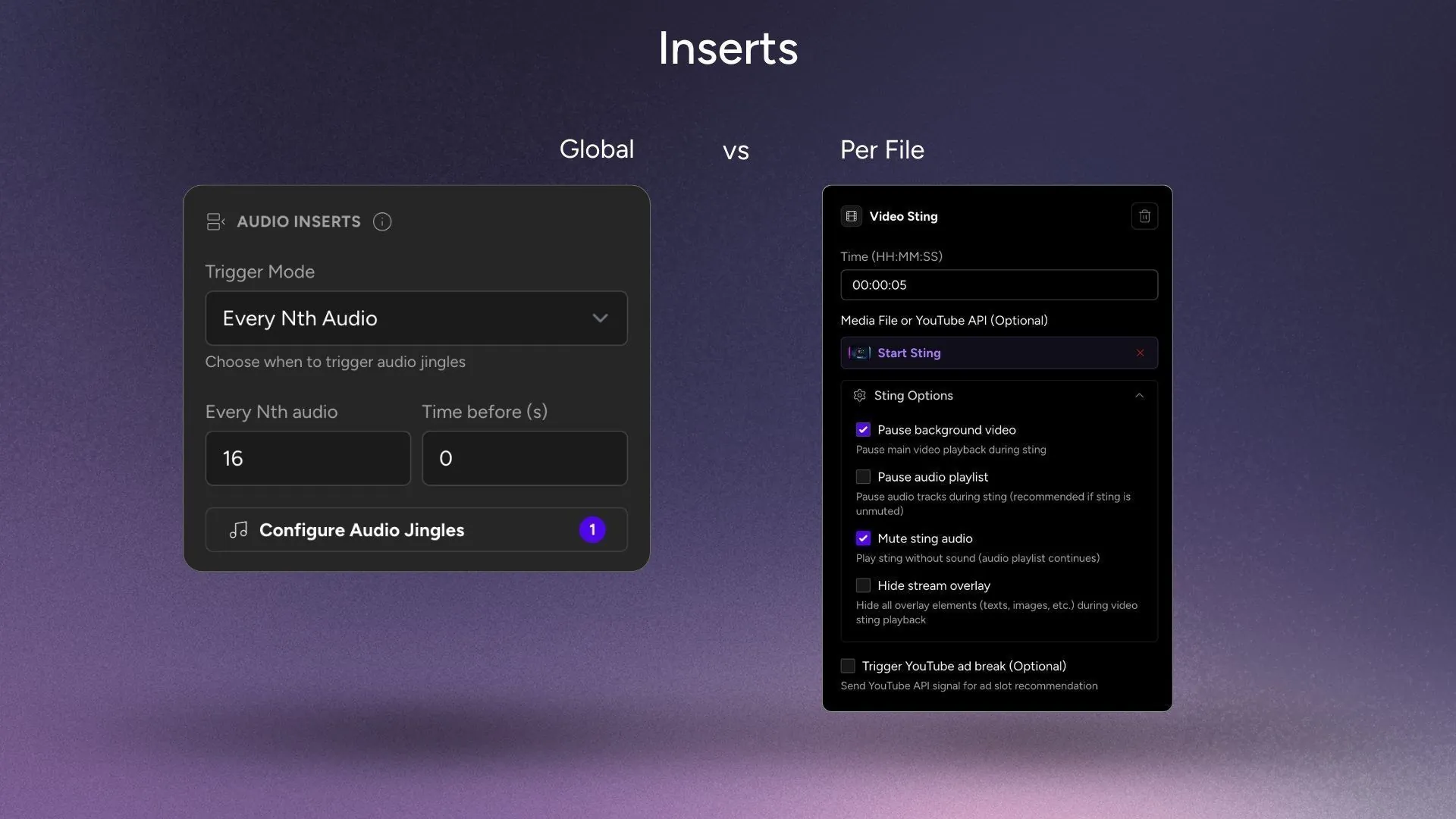
Global inserts automatically trigger your video stings or audio jingles across your entire playlist based on the rules you set. This is perfect for consistent branding throughout your livestream without manual intervention. Also, it is a great way to insert custom paid ads and sponsored content into your playlist, if this is how you support your live stream.

You have two options for triggering global stings and jingles:

Play every Nth file

Set your livestream sting to play after every 5 videos, every 10 videos, or any number you choose. For example, setting it to 5 will trigger a video sting after every 5th file in your playlist. This works great for maintaining consistent branding throughout your broadcast.

Play after a time interval

Set your audio jingles or video stings to play every 5 minutes, every 15 minutes, or whatever interval suits your content. This guarantees regular branding touchpoints regardless of how long the individual files are.
Inserts Global vs Per File

How to set up global livestream inserts:

  1. Go to your Stream Edit Page,
  2. Find the Inserts options in your playlist sidebar,
  3. Choose your trigger type (file count or time interval),
  4. Configure your playback rules,
  5. Select your media file,
  6. Modify Options (optional) and Save.

You can add multiple stings and jingles, configure video and audio separately, and even edit settings while your stream is live, no downtime.

File-based inserts: Precision-timed stings for specific moments within files

File-based inserts give you precise control over when livestream stings appear in individual files. This is ideal for longer content where you want stings and jingles at specific timestamps.

For example, you might have a 2-hour video and want to insert a branded sting at the 45-minute mark, or trigger an audio branded jingle during a natural pause in your content.

How to set up file-based Inserts:

  1. Hover over any file in your playlist and click the File Options button
  2. Select Add Inserts
  3. Click Add Insert in the popup
  4. Set the exact timestamp for your sting or jingle (hours, minutes, seconds)
  5. Choose your video sting or audio jingle from the library or upload a new one
  6. Configure your options and save

This approach is perfect for longer content where you want stream stings and jingles at specific moments rather than automated intervals. There is also a full help article on stings and jingles, should you need help setting up!

Customizing how your livestream stings and jingles play

Both global and file-based stings come with options to ensure they play exactly how you want.

Video sting options

When adding video stings to your livestream, you can:

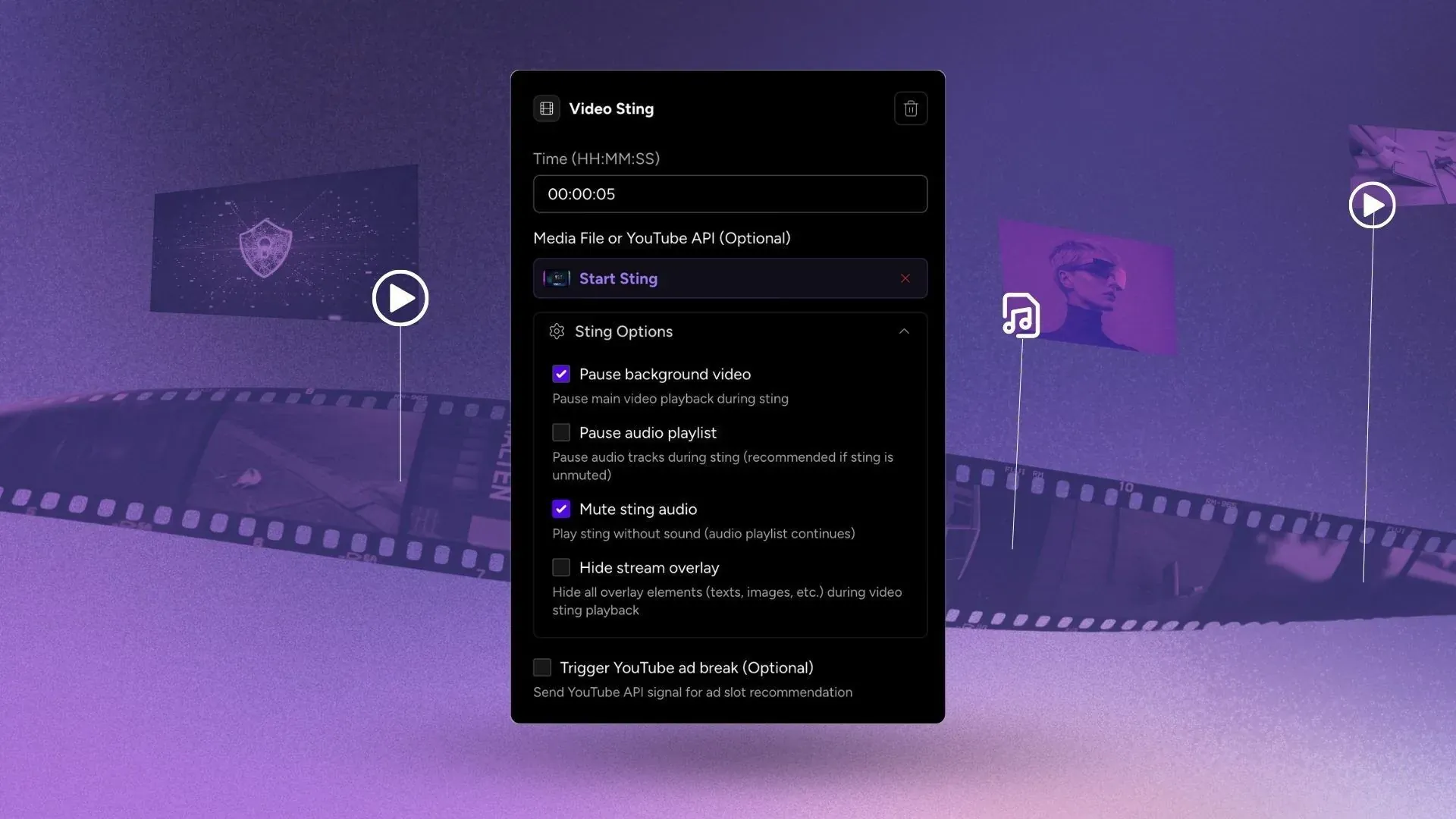
Pause background video: Stop your playlist while the livestream sting plays, so your audience does not miss anything important.

Pause audio playlist: You can choose to pause the audio playlist during the insert. Othewise, the sting will simply play over the content

Mute sting audio: Play the visual sting while your regular audio continues. Choose this when your video insert has audio you don’t want to play.

Hide stream overlay: Temporarily disable overlays from the Stream Designer during your video bumper.

Trigger YouTube ad break: Send an API signal to YouTube recommending an ad placement with your sting.

Audio jingle options

Audio jingles have their own settings:

Pause audio playlist tracks: Stop other audio during the jingle. If unchecked, audio crossfades. Note that jingles play over video without interrupting playback.

Trigger YouTube ad break: Signal YouTube for potential ad placement during your jingle.

Combining livestream stings with YouTube ad breaks

If you’re streaming to YouTube, you can send API signals recommending when YouTube should insert ads. YouTube may not always accept your ad requests, but when they do, it’s a great monetization opportunity.

The challenge? When you’re multistreaming to platforms like Twitch, Facebook, or other destinations, your YouTube audience sees an ad while everyone else does not, possibly creating an awkward, desynced experience, with YouTube audience skipping a part of your broadcast (or your other multistreaming audiences seeing a hole in the content, if you chose to pause the playlist during the insert)

The solution: Combine livestream stings with YouTube ad breaks.

When you trigger a YouTube ad break AND play a custom video sting or audio jingle at the same time, all your audiences stay synchronized. YouTube viewers see the YouTube ad, while viewers on other platforms see your branded sting or hear your jingle. This way, you can achieve a more smooth and synchronized experience across multiple platforms.

You can also trigger YouTube ad breaks without a sting or jingle file if you prefer: just select the Trigger YouTube Ad Break option without choosing an insert file.

Tips for better livestream stings and jingles

Here are a few pointers to make your video stings and audio jingles more effective:

Keep your stings and jingles short

The sweet spot is roughly 2-10 seconds. Professional broadcast stings rarely exceed 5 seconds, and for good reason: any longer risks losing viewers attention and watch-hours.

Use consistent branding

Keep the same colors, fonts, motion style, and design across all your livestream stings and jingles. This builds recognition and makes your stream feel cohesive.

Test your sting timing

Run through your playlist and watch how your video stings and audio jingles flow. Make sure they don’t interrupt at awkward moments. Adjust until your stream stings feel natural and flow without interruption.

Liven up your livestream with Stings and Jingles

Livestream stings and jingles make a big difference in the feel of your 24/7 live stream. Automated global stings or precision file-based video bumpers, ads, or a combination of either. They help you build a better viewing experience. Video stings create visual continuity, audio jingles add sonic branding, and together they transform a basic stream into a branded and smooth 24/7 programme.

Ready to insert ads, stings and jingles to your stream? Sign up free and start experimenting today. The free plan includes 24 hours of live streaming every month.

Published October 31, 2025
Bojan Opacak

About the author

Bojan Opacak

Content and Growth

Bojan writes for Upstream about live streaming strategy, platform policy changes, creator monetization, and practical workflows for 24/7 channels. He reads the platform rules and help pages and turns them into step by step guides for creators and small teams.

Keep exploring

Further reading

Browse all articles
YouTube Dual Stream: What the Vertical Copy Does and How to Turn It Off
Oct 20, 2026 Blog

YouTube Dual Stream: What the Vertical Copy Does and How to Turn It Off

Read article
YouTube Shorts Bonus Program: Who Gets Invited and How It Pays
Oct 16, 2026 Blog

YouTube Shorts Bonus Program: Who Gets Invited and How It Pays

Read article
Can a YouTube Live Stream Run for Years? This One Has Run 800+ Days
Oct 12, 2026 Blog

Can a YouTube Live Stream Run for Years? This One Has Run 800+ Days

Read article

Start streaming today

Go live to every platform, run a 24/7 channel, and produce live shows in your browser, with no software or server setup.

No credit card 24 hours/month free Full functionality
Start Streaming Free
24/7 Live Streaming Run cloud channels that stay live around the clock. Live Studio Invite guests, share screens, and add branded overlays in the browser. Multistreaming Send one live feed to YouTube, Twitch, Kick, and RTMP endpoints. Pre-recorded Live Streaming Upload pre-recorded videos & Go Live without the stress of live production. Free plan 24 hours a month with no watermark. Multi-channel streaming Separate live channels from one account. Enterprise Setups for teams, labels and agencies. About Upstream Who we are and how Upstream works.
Scheduling Streams that start and end on their own. Multichat Every platform's chat in one feed. Overlays Layers and widgets in Stream Designer. Stings, jingles and ads Inserts that play between your videos. Playback controls Skip or play any file while you stay live. Audio and video playlists Loop music and visuals separately. Team access Invite your team, each with their own role. RTMP server Stream in from OBS or any encoder. Live Streaming API Run streams, media and queues from code. MCP Server Manage streams from your AI assistant. All features Everything Upstream does, on one page.
YouTube live streaming Twitch live streaming Kick live streaming Facebook live streaming Instagram live streaming TikTok TikTok live streaming Rumble live streaming Mixcloud live streaming 30+ more Plus any custom RTMP or SRT destination.
Platform limits Bitrate and duration caps for each platform. Integrations Setup guides for OBS, vMix, cameras and more. VTuber Streaming Go live with your avatar on every platform.
Blog Guides, platform rules and news for anyone who goes live. Guides Setup guides for 24/7 streams, multistreaming and RTMP. Release Notes The new features in each Upstream update, in one place. Free Tools Video, audio, thumbnail and AI tools, plus camera and mic checks. Helpdesk Step by step setup help and troubleshooting for Upstream. Service status Current service health, uptime history and incident updates. Live Streaming FAQ Short answers to what people ask before they go live. Compare Upstream Upstream side by side with Restream, StreamYard and others. Latest post YouTube Dual Stream: What the Vertical Copy Does and How to Turn It Off
Always-on 24/7 Live Streaming Run cloud channels that stay live around the clock.
Explore
Real-time live Live Studio Invite guests, share screens, and add branded overlays in the browser.
Explore
One stream, 30+ platforms Multistreaming Send one live feed to YouTube, Twitch, Kick, and RTMP endpoints.
Explore
Schedule & Automate Pre-recorded Live Streaming Upload pre-recorded videos & Go Live without the stress of live production.
Explore
Free plan 24 hours a month with no watermark.
Multi-channel streaming Separate live channels from one account.
Enterprise Setups for teams, labels and agencies.
About Upstream Who we are and how Upstream works.
Scheduling Streams that start and end on their own. Multichat Every platform's chat in one feed. Overlays Layers and widgets in Stream Designer. Stings, jingles and ads Inserts that play between your videos. Playback controls Skip or play any file while you stay live. Audio and video playlists Loop music and visuals separately. Team access Invite your team, each with their own role. RTMP server Stream in from OBS or any encoder.
Live Streaming API Run streams, media and queues from code.
MCP Server Manage streams from your AI assistant.
All features Everything Upstream does, on one page.
YouTube live streaming. 24/7 channels with midroll ads. Twitch live streaming. Streams restart on their own at 48 hours. Kick live streaming. Stay live with your computer off. Facebook live streaming. Schedule lives that start on their own. Instagram live streaming. Go live from your browser or the cloud. TikTok TikTok live streaming. Go live on TikTok and Instagram at once. Rumble live streaming. Add Rumble to your YouTube or Kick stream. Mixcloud live streaming. DJ sets and radio shows from your browser. 30+ more Plus any custom RTMP or SRT destination.
Platform limits Bitrate and duration caps for each platform.
Integrations Setup guides for OBS, vMix, cameras and more.
VTuber Streaming Go live with your avatar on every platform.
Blog
Guides
Release Notes
Free Tools
Helpdesk
Service status
Live Streaming FAQ
Compare Upstream
YouTube Dual Stream: What the Vertical Copy Does and How to Turn It Off YouTube Dual Stream: What the Vertical Copy Does and How to Turn It Off
Upstream

Run your streams from the cloud

Free plan: 24 streaming hours a month, no card, no watermark.

4.6 · 245 reviews on Trustpilot
Legal entity
Zukunft d.o.o.
Registered address
Groznjanska 32, 10000 Zagreb
Company VAT ID
Company VAT ID: HR62560895839
About | Contact us | Tools | Content standards | Privacy Policy | Terms of Service | Affiliate terms |

Product

  • Pricing
  • Upstream Features Overview
    • Multistreaming
    • Separate Audio and Video
    • Overlays: Stream Designer
    • Live Streaming Studio
    • Scheduling & Automation
    • Live Playback Controls
    • Play Stings, Jingles and Ads
    • Team Access
  • Enterprise Broadcasting Solutions

Resources

  • Helpdesk
  • Service status
  • Live Streaming FAQ
  • Blog
  • Release Notes
  • Live Streaming API
  • MCP Server
  • Free Live Streaming
  • YouTube Live Streaming
  • RTMP Server
  • Supported Platforms
  • Live Streaming Limits
  • Integrations

Compare Us

  • Compare Upstream
    • Upstream vs Runnel.live
    • Upstream vs OneStream
    • Upstream vs Live247
    • Upstream vs Gyre
    • Upstream vs Streaming Bots
    • Upstream vs Restream
    • Upstream vs StreamYard
    • Upstream vs LiveReacting
    • Upstream vs Playout.video

Free Tools

  • Design tools
  • Video tools
  • Audio tools
  • AI tools
  • Setup checks

Use cases

  • For Creators
  • For Music Labels
  • Church Streaming
  • VTuber Streaming
  • Multi-Channel Streaming

© 2026 Upstream. All rights reserved.

Ready to go live? Start free in the cloud.

Sign up for free