On a computer, you go live on X (formerly Twitter) through Live Studio, which is in Creator Studio and needs X Premium. Click New Livestream and create a source, and X gives you a server URL and a stream key. Paste both into OBS or whatever streaming app you use, start streaming, then press Go Live or schedule the stream for later. On a phone you just tap the camera icon in the composer and choose Live.
Before you start
You need five things before your first stream on X:
- X Premium. Live Studio shows up under Creator Studio for Premium subscribers. X’s July announcement says “Premium users can get started today”.
- A public account. X’s help center says you can’t go live if your posts are protected.
- A streaming app. Also called an encoder, it turns your camera or screen into a live video feed. OBS Studio, Streamlabs, vMix and Wirecast all work, and so does a cloud studio like Upstream. Our OBS alternatives guide compares the options.
- A stable upload. X recommends 12 Mbps (megabits per second) of video, so your connection needs real headroom above that. Our upload speed and bitrate guide shows how to size it.
- A 16:9 thumbnail. X wants 1280×720 or 1920×1080. Other ratios may get cropped in posts.
Prefer to watch? Our video walks through the same setup in Live Studio:
How to go live on X (Twitter) from a computer, step by step
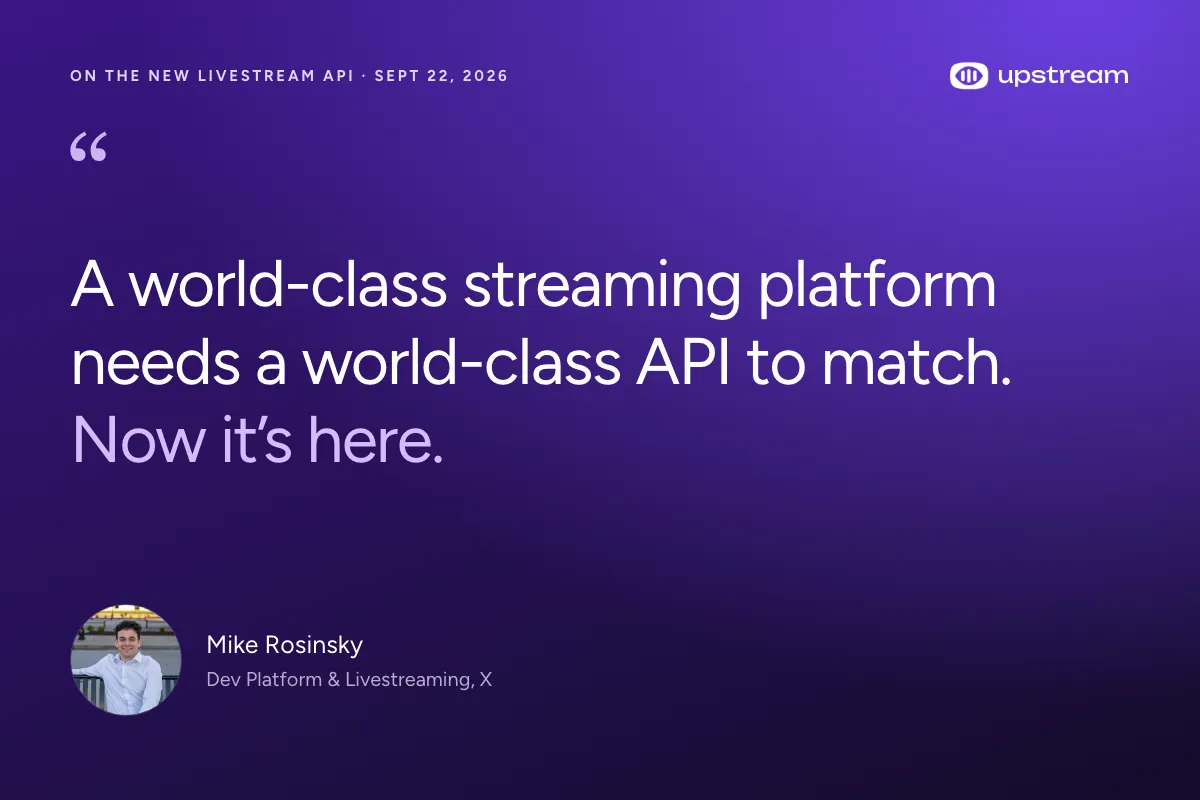
Live Studio turns the old Media Studio pages into one flow. You create a stream, pick where the video comes from and who can see it, then go live or schedule it. X is still building here. Mike Rosinsky from X’s developer platform posted this on September 22, the day the new API came out:
Step 1: Open Live Studio
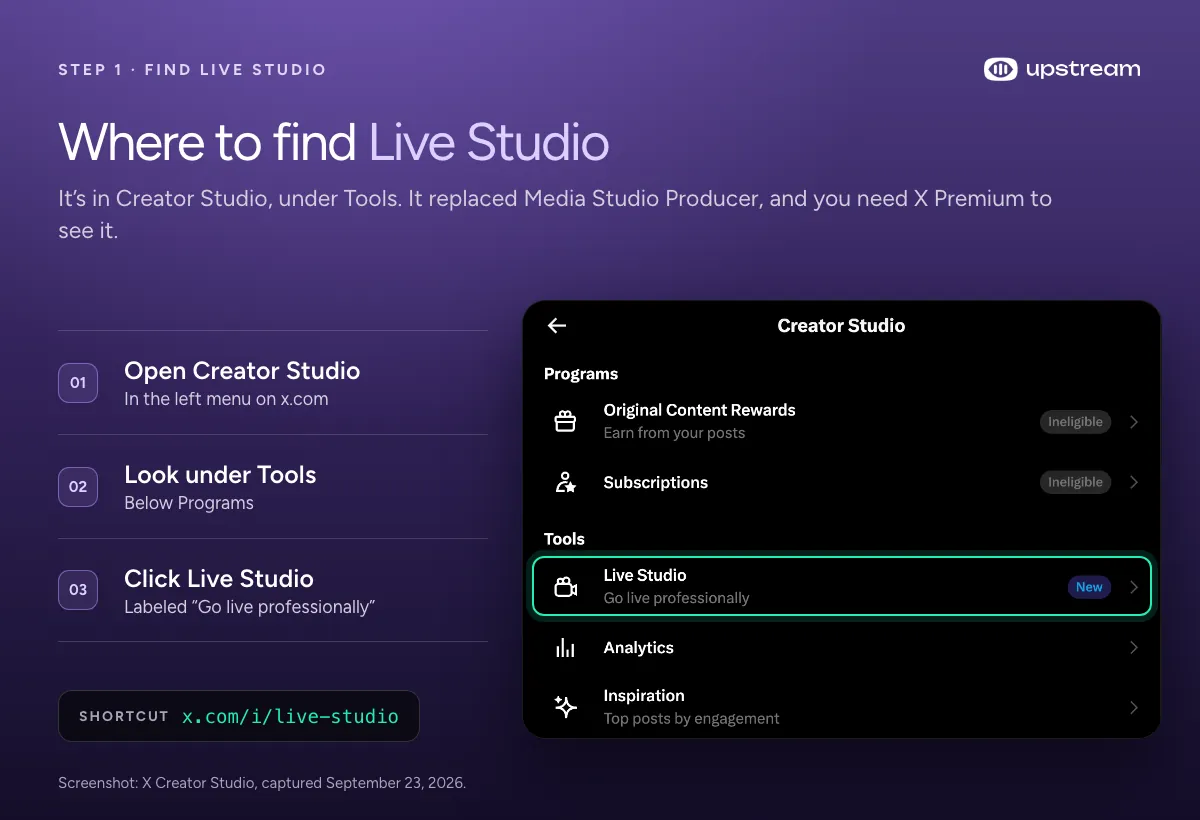
Go to Creator Studio in the left menu on x.com, then click Live Studio under Tools. You can also go straight to x.com/i/live-studio. If you don’t see it, check that your Premium subscription is active.
Step 2: Create a livestream and a source
Click New Livestream and give the stream a title. Public streams show that title on X. Then pick an existing source or create one. A source is the address where X receives your video, and you can reuse it for later streams.
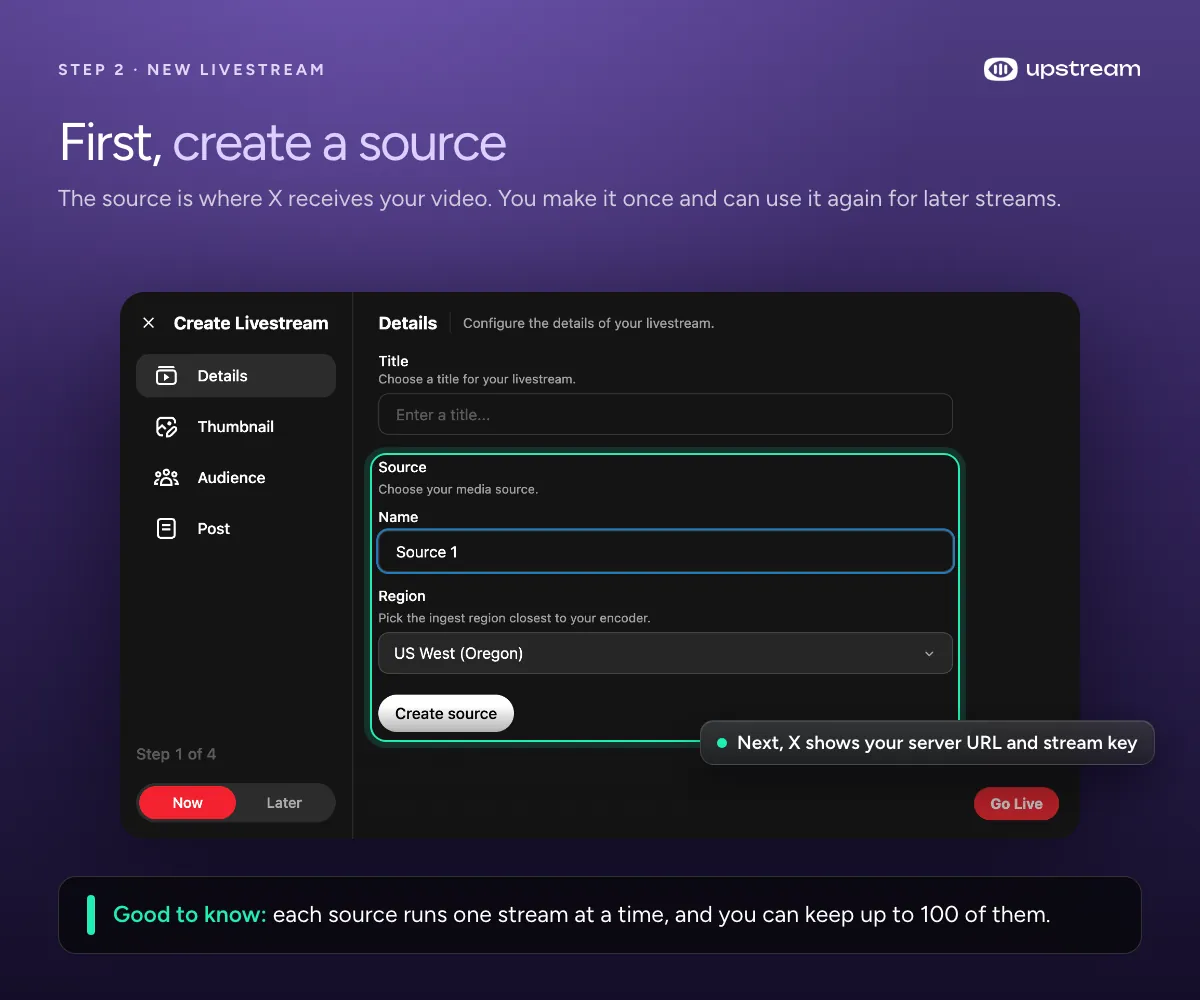
Each source carries one livestream at a time. For two streams at once, create two sources and use two streaming apps. Each account can keep up to 100 sources.
Step 3: Pick the ingest region
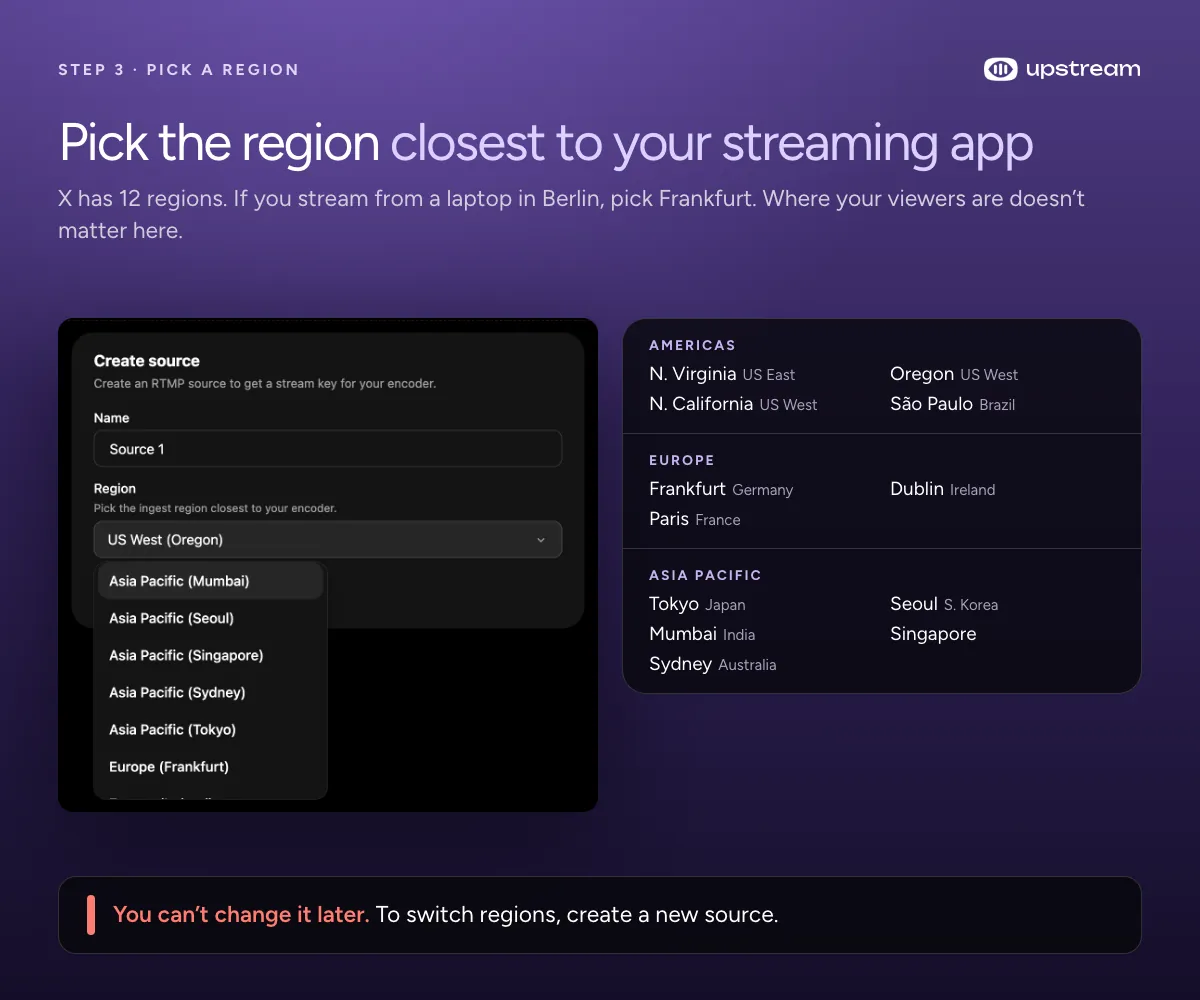
Pick the region closest to where your streaming app runs, even if most of your viewers are somewhere else. If OBS runs on your laptop in Berlin, pick Frankfurt. If a cloud service sends the video from Virginia, pick N. Virginia. You can’t change a source’s region later.
X has 12 ingest regions: N. Virginia, Oregon and N. California in the US, plus São Paulo, Frankfurt, Dublin, Paris, Tokyo, Seoul, Mumbai, Singapore and Sydney.
Step 4: Copy your X stream key into your streaming app
Once the source exists, X shows a server URL (X calls it the RTMP URL) and a stream key. This is what older guides call your Twitter stream key, and each source has its own. X also offers an RTMPS URL, which encrypts the connection. Use it if your app supports it, and treat the stream key like a password. You can find your sources and their keys again later under Manage Sources.
In OBS Studio, open Settings, then Stream. Set Service to Custom, paste the URL into Server and the key into Stream Key. Leave “Use authentication” off, because Live Studio doesn’t support it. Then click Start Streaming in OBS. Live Studio needs a signal before you can go live. The OBS Studio overview covers the same screen.
Step 5: Add a thumbnail
Upload a 16:9 image. X shows it on the post before and after the stream, and on the countdown card for scheduled streams.
Step 6: Choose Now or Later
The Now and Later switch sits at the bottom left of the dialog. Now goes live as soon as you press Go Live. Later adds a Date & Time step, lets you schedule up to a year ahead and has an Auto-start switch.
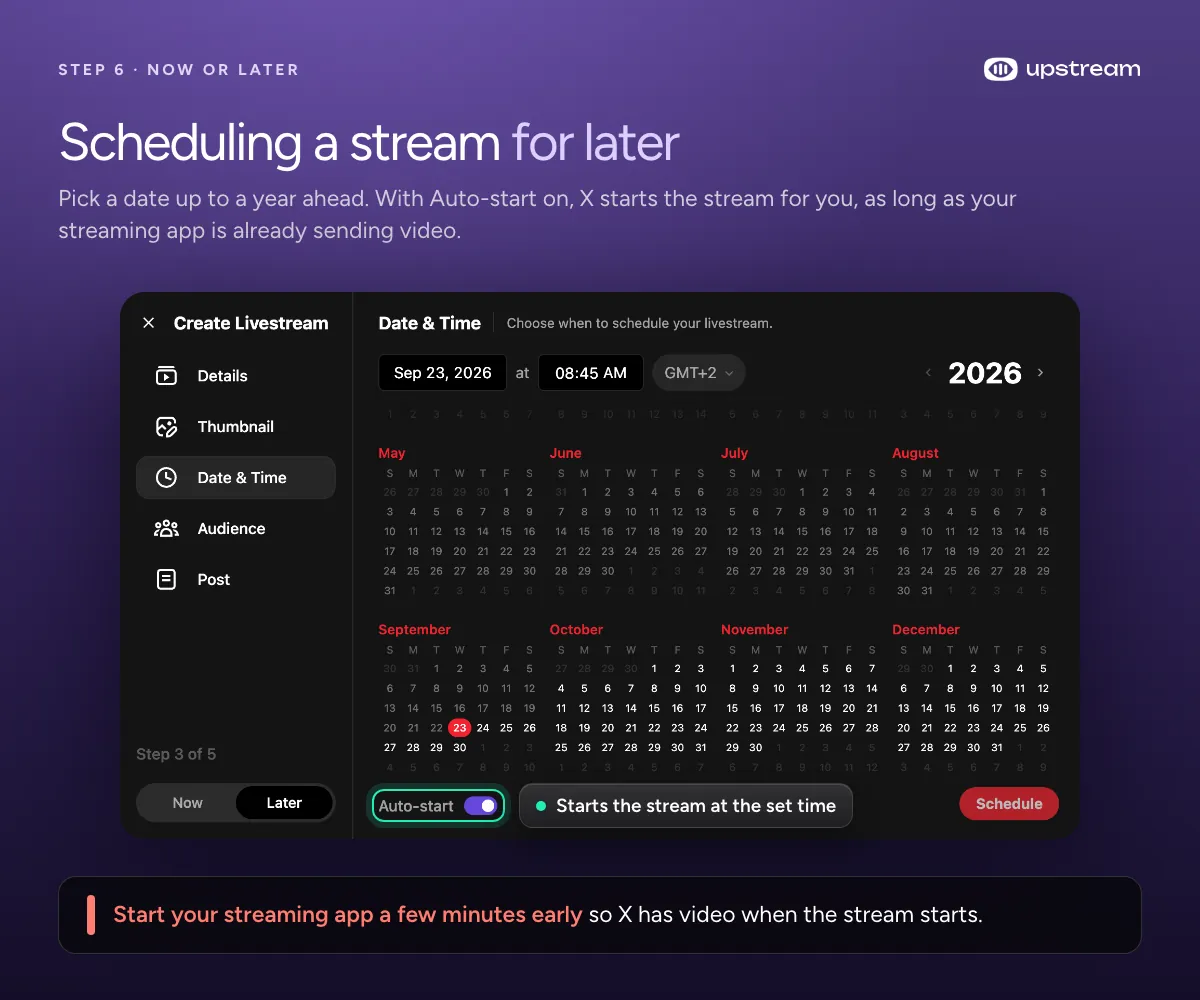
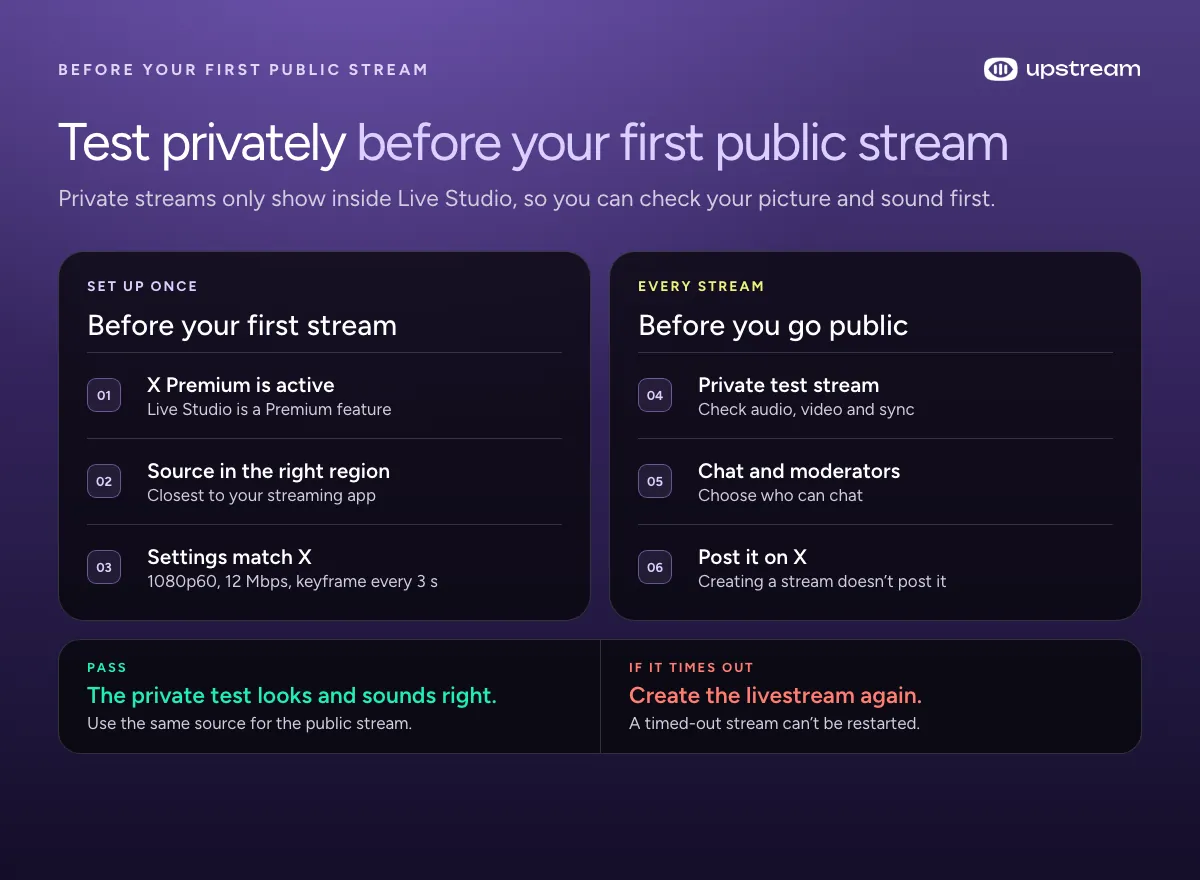
If no video reaches the source at the start time, the stream shows TIMED OUT and ends. Once a stream times out you can’t restart it, so start your streaming app a few minutes early.
Step 7: Set visibility, chat and country limits
Choose Public or Private. Private streams only appear inside Live Studio, which makes them the safest way to test. Then decide who can chat and whether to limit the stream to certain countries.
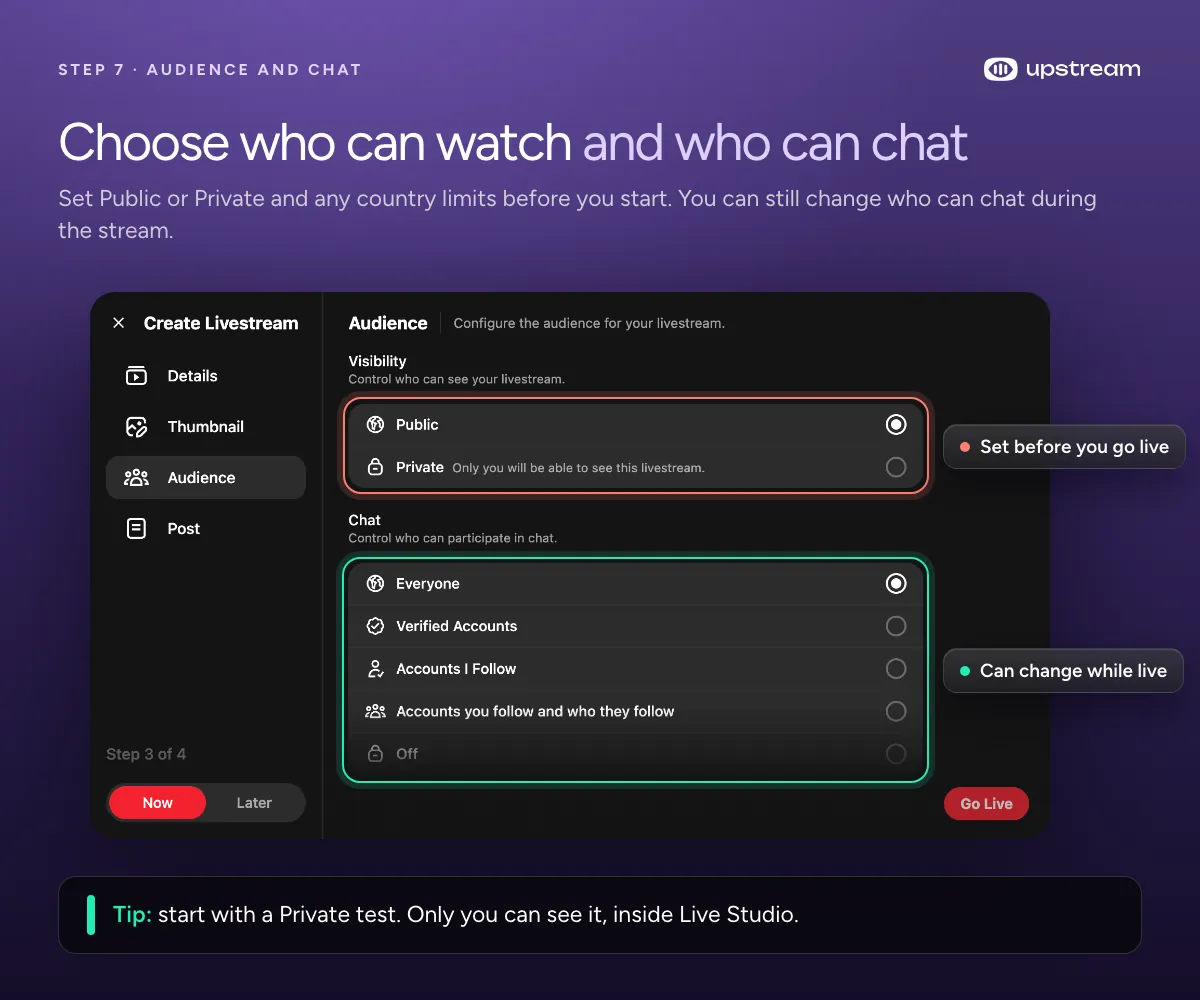
X’s help center lists five chat options: Everyone, Verified Accounts, Accounts You Follow, Subscribers and Off. My account showed “Accounts I Follow” and an extra option, “Accounts you follow and who they follow”. It had no Subscribers option, likely because subscriptions aren’t turned on for it.
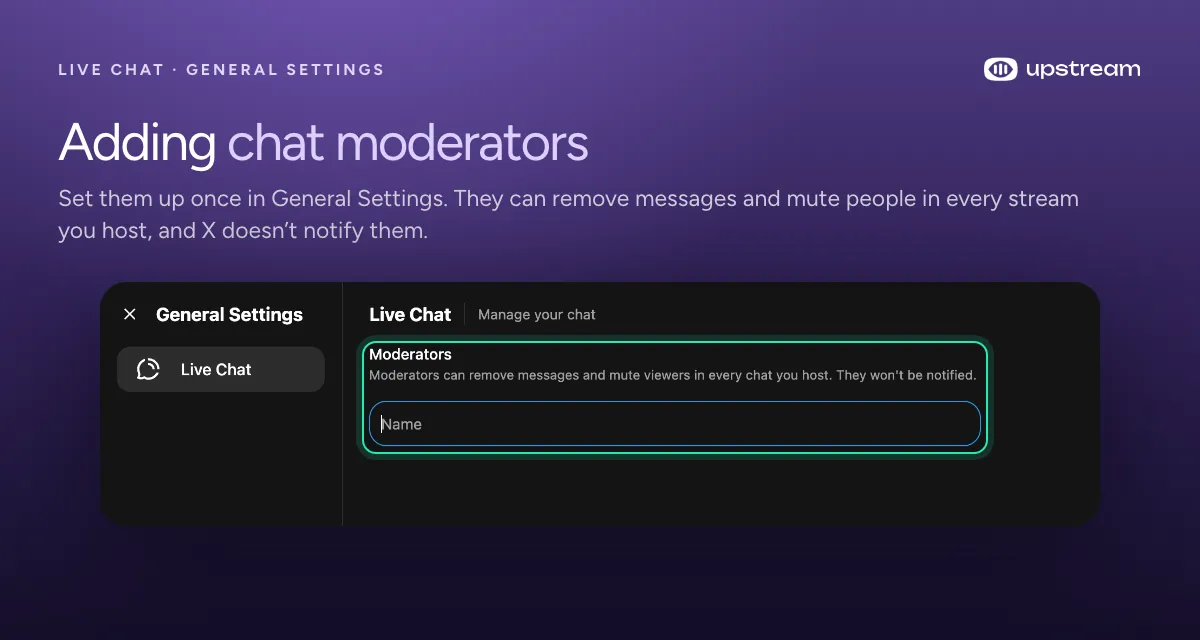
You can also add chat moderators once, in General Settings under Live Chat. They can remove messages and mute viewers in every stream you host, and X doesn’t notify them that they were added.
Step 8: Write the post and go live
Creating a livestream doesn’t post it on X. Write the announcement in the Post step of the dialog, or later from the stream’s details page with Post livestream on X. Check that Live Studio shows your signal, then press Go Live. Followers with live notifications on get a push when the stream starts. Posting the announcement doesn’t send one.
For a scheduled public stream, post early. The post shows your thumbnail and a countdown, and viewers can set a reminder.
While you’re live
Every stream gets a details page with the player and live chat, plus concurrent viewers, top countries and devices. You can change the title and chat settings during the stream. The same page has the URL and embed code, and after the stream you can download the replay from it. To stop, click End Livestream there.
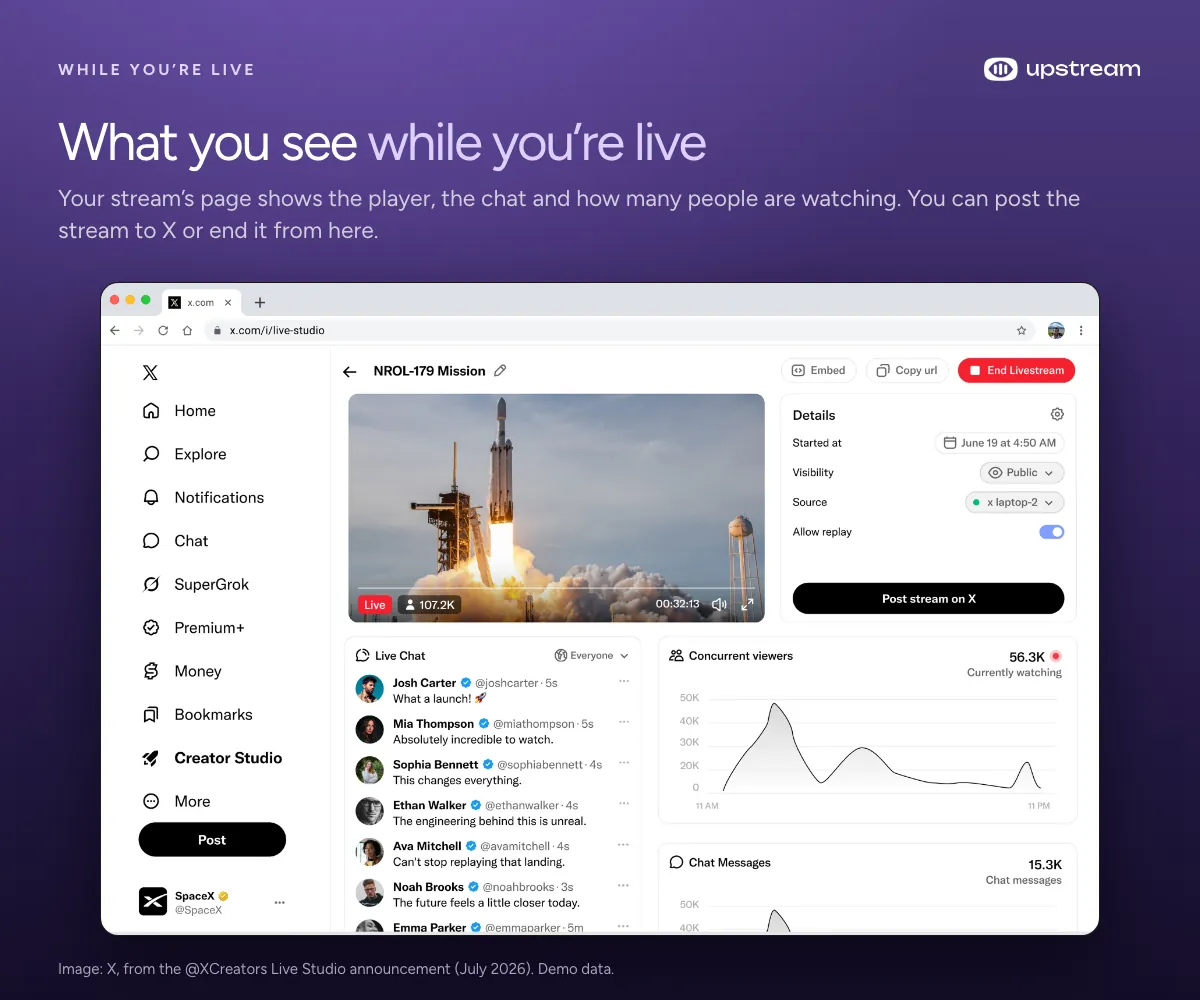
Live Studio only counts a view when someone logged in to X watches for 2 seconds with at least half the player on screen. That’s why its numbers can run lower than the view count on your post, which also counts people who aren’t logged in and views from embeds.
Build the stream in the cloud.
Schedule videos, produce browser-based live shows, or send one feed to multiple platforms from the same Upstream workflow.
X Live Studio encoder settings
Start at 1080p60 and 12 Mbps, with H.264 video, AAC audio at 128 kbps and a keyframe every 3 seconds. That’s X’s own recommendation. You can go up to 3840×2160 at 60 fps and 40 Mbps if your upload can keep up.
| Setting | Recommended | Maximum |
|---|---|---|
| Video codec | H.264, Main or High profile | H.264 |
| Resolution and frame rate | 1920×1080 at 60 fps | 3840×2160 at 60 fps |
| Video bitrate | 12 Mbps | 40 Mbps |
| Audio | AAC, mono or stereo, 128 kbps | 128 kbps |
| Keyframe interval | Every 3 seconds | Not listed |
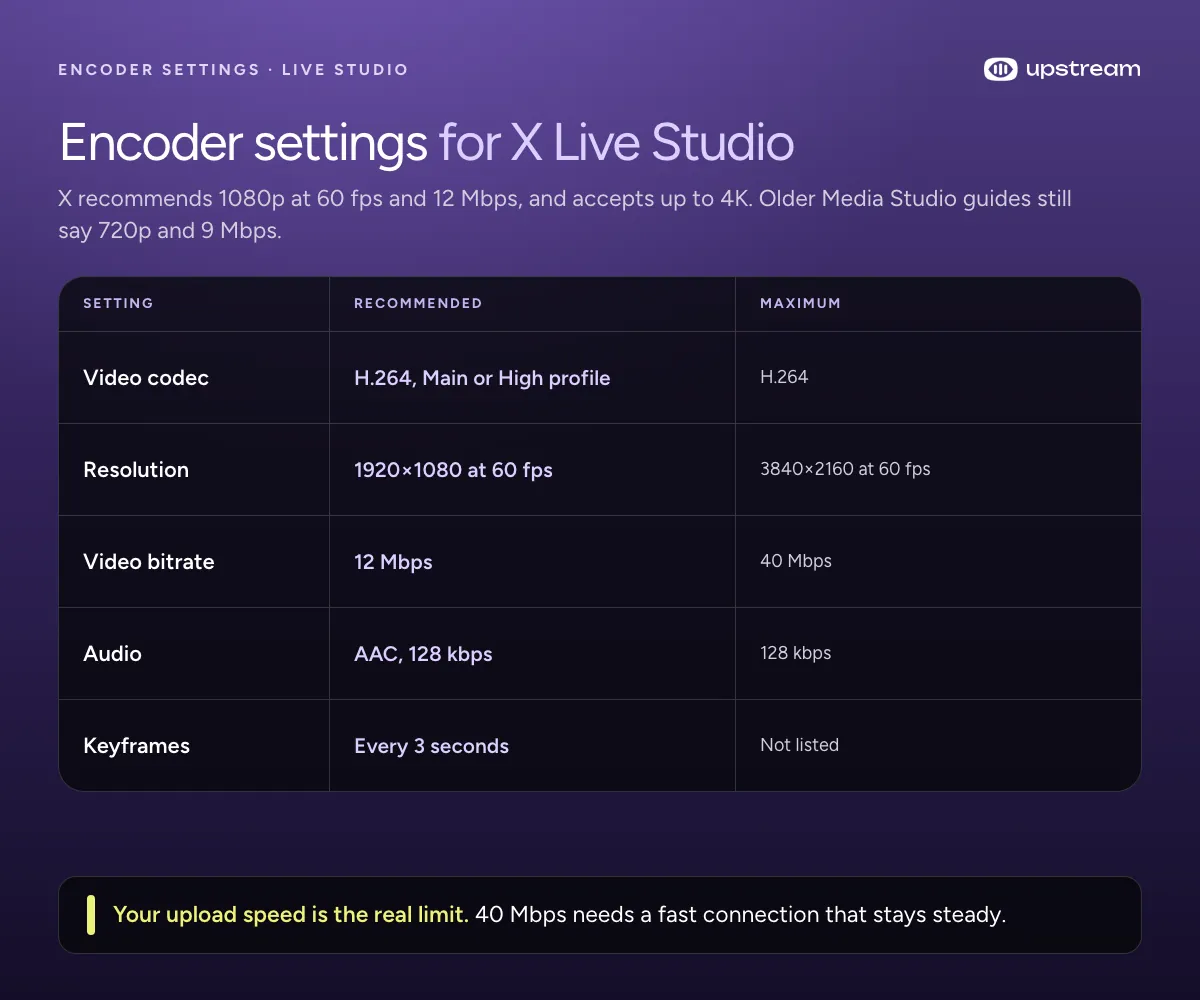
A keyframe is a full picture the video rebuilds from. If your app asks for it in frames instead of seconds, use 90 at 30 fps, 150 at 50 fps or 180 at 60 fps. X also suggests a few private test streams to find what your connection handles.
What changed on X in 2026
X changed how live streaming works twice in twelve weeks. Live Studio came out in July, and the rebuilt API followed in September.
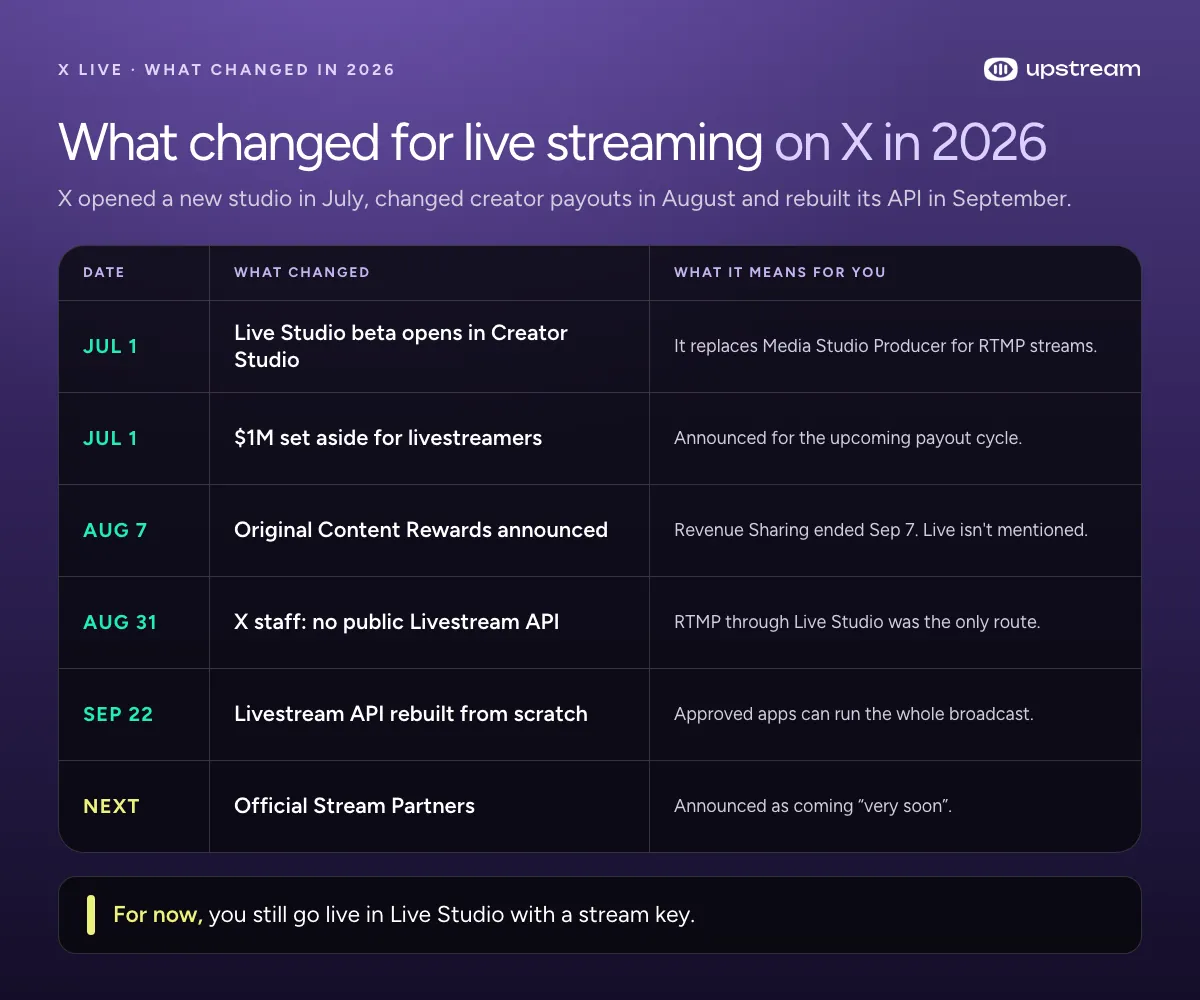
- July 1: Live Studio. It replaced Media Studio Producer as the desktop route. X says Producer “remains available for now”.
- July 1: A $1 million fund. X set aside $1 million for livestreamers in its upcoming payout cycle.
- August 7: Original Content Rewards. The new payout program launched, and Revenue Sharing earnings stopped on September 7. To join, you need X Premium, 500 verified followers and 500k verified Home timeline impressions in 90 days, and you must be 18 or older. It pays on those impressions, and its rules don’t mention live streams.
- September 22: Livestream API. X rebuilt its API so approved apps can run a whole broadcast. For now, apps have to apply and wait for X to approve them.
- Next: Official Stream Partners. X’s Chris Park said they’re coming “very soon”.
Live Studio also raised the quality limits and caps each stream at 24 hours, so a 24/7 channel needs a new stream every day. Older guides that say there’s no time limit are out of date, and X warns that very long streams may load slowly or have replay problems.
Twitter Media Studio Producer vs Live Studio
Live Studio replaced Media Studio Producer, the RTMP tool inside Twitter Media Studio, in July 2026. Producer still works. X said it “remains available for now”, and its help page shows a banner pointing to Live Studio. If a guide sends you to studio.twitter.com or quotes 720p60 at 9 Mbps, it’s describing Producer.
Live Studio recommends 1080p60 at 12 Mbps and accepts 4K60 at 40 Mbps. Producer tops out at 1080p30 and 12 Mbps. Live Studio also keeps sources, scheduling, moderators, analytics and replay downloads in one place. If you still stream through Producer, create a new source in Live Studio.
Going live on X from your phone
In the X app, tap the camera icon in the composer, tap Live at the bottom, add an optional description and location, then tap Go live. To stop, tap Stop at the top left and confirm. That’s the flow on X’s live video help page.
Mobile streams skip Live Studio’s scheduling, sources and encoder settings. X’s mobile help page doesn’t mention a Premium requirement. X did say in June 2024 that going live would become a Premium feature, so check your own app.
The new X Livestream API
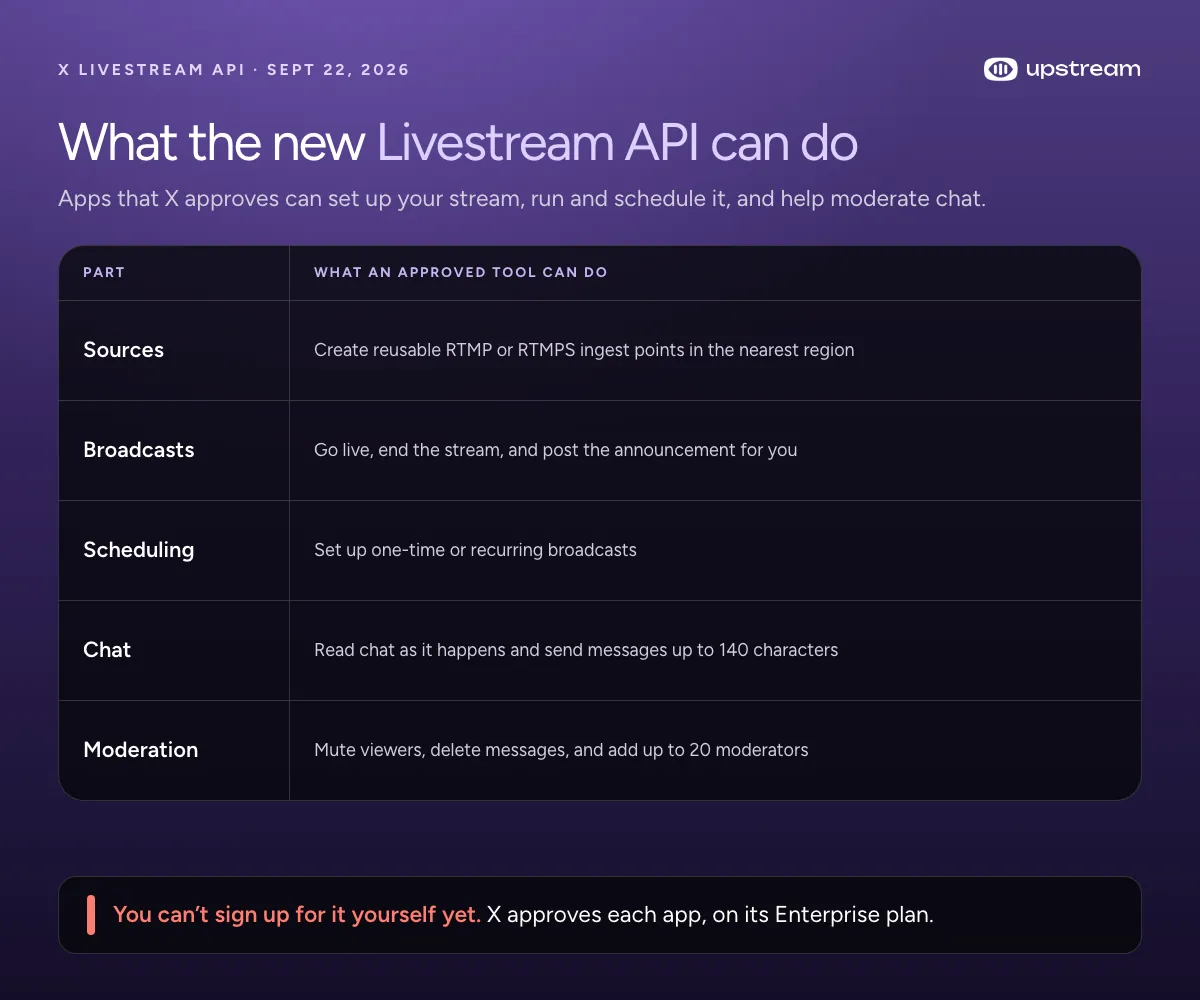
The X Livestream API lets approved apps run a whole broadcast on X. An app can set up your stream source, start and end the stream, schedule it, and read, send and moderate chat. X released it on September 22, 2026.
This came together fast. On August 31, Taylor Caldwell from X’s developer platform told developers there was “currently no public Livestream / X Live API”. Three weeks later it shipped.

For most streamers, nothing changes today. With OBS, you still paste a key from Live Studio. Some apps already connect to your X account directly. StreamYard’s help center has you authorize your X account instead of pasting a key, but says X doesn’t let it schedule streams or send chat from its studio. The new API covers both. As Taylor Caldwell summed it up, “If you broadcast or watch streams on X, expect the tooling and experience to keep getting better.”
Developers will want a few more details from X’s docs.
- Access. Apply through X’s Livestream API access form. It asks for your app ID, current API plan and monthly active users. X approves each app, the docs list the API under the Enterprise plan, and no price is published.
- Authorization. Apps use OAuth 2.0 with PKCE and the
broadcast.readandbroadcast.writescopes. That’s X’s usual way of letting an app act for your account. - Transport. Sources return both RTMP and RTMPS URLs. X’s docs recommend RTMPS on port 443 in production.
- Order of operations. The source must already be receiving video before you create the broadcast.
Multistreaming to X and YouTube at the same time
X’s Live Studio FAQ says a multistreaming service can take one encoder output and send it to several RTMP destinations at once, Live Studio included. You create a source in Live Studio and add its RTMP URL and stream key to a service like Upstream as a custom RTMP destination. Start the stream there, then press Go Live on X.
Word for word, the Live Studio FAQ says “third-party multistreaming services such as Restream or Castr can split a single encoder output and send it to multiple RTMP destinations simultaneously, including Live Studio.” Our multistreaming software comparison covers the options.
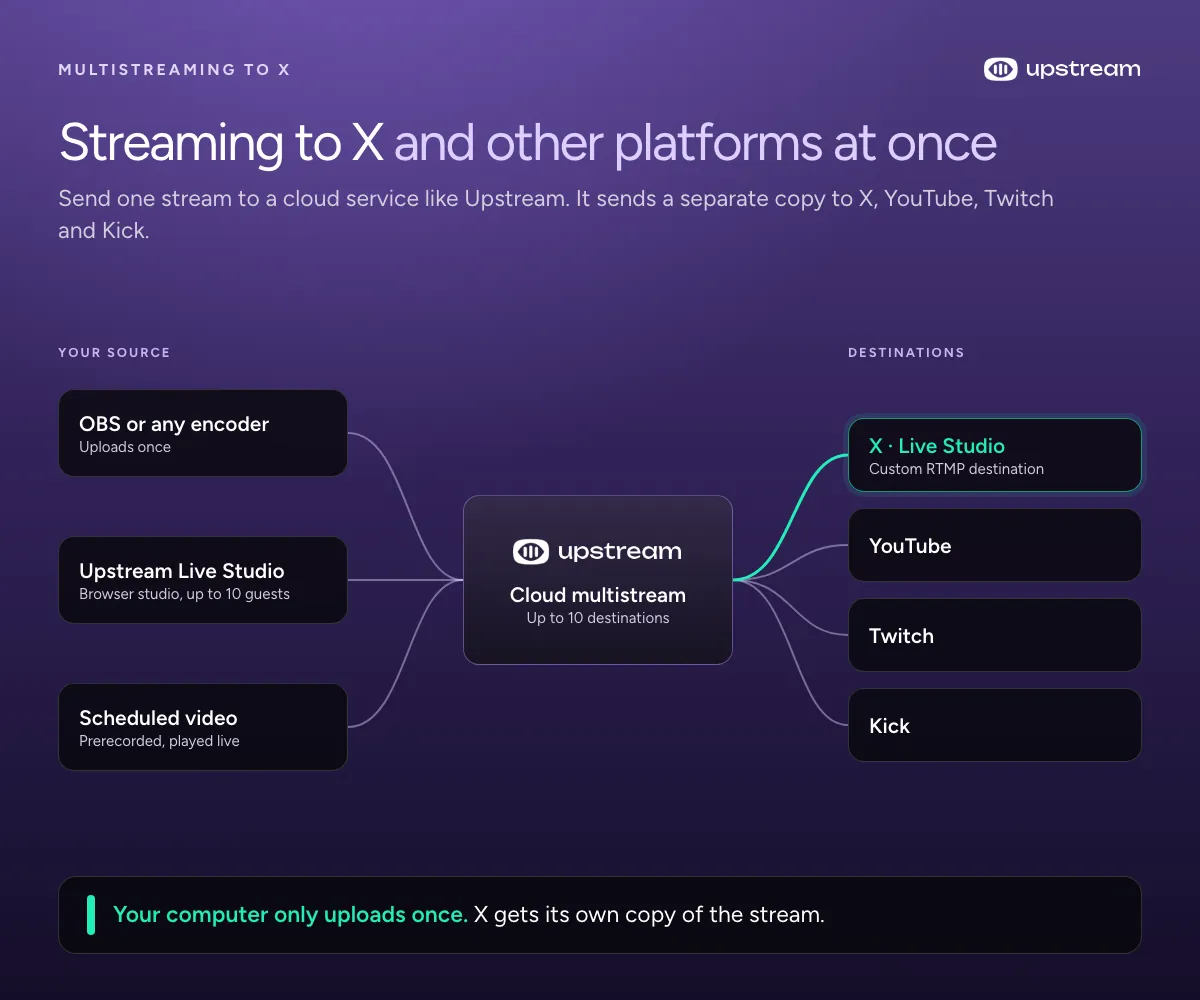
In Upstream, add a destination, choose Other as the platform, and paste X’s RTMP URL and stream key into their fields, as in the custom RTMP help article. Start the Upstream stream, wait for Live Studio to show the signal, then press Go Live. For a planned show, schedule the X stream with Auto-start and set Upstream to start a few minutes before X’s start time.
X’s usual limits still apply. Every stream ends at 24 hours, and one source carries one stream at a time. If X is one of several destinations, the multistreaming guide for YouTube, Twitch and Kick covers the rest of the setup.
Go live on X from the cloud with Upstream
OBS is fine if you like babysitting scenes, bitrate and your home upload. Upstream takes the whole job off your computer and streams to X from the cloud.
- Guests and screen share. Upstream Live Studio, our browser studio, takes up to 10 guests and sends the show to X.
- X plus other platforms. Multistreaming sends one feed to up to 10 of 30+ platforms at once, so your upload only carries one copy.
- Prerecorded shows. Upload a video and schedule it to play live, so nobody has to sit at the computer when X’s Auto-start fires.
Start free with 24 streaming hours a month at 1080p30, no credit card and no watermark. Paid plans add 60 fps and 4K.
Troubleshooting X Live Studio
If something goes wrong in Live Studio, it’ll probably look like one of these.
| What you see | What it means | Fix |
|---|---|---|
| Waiting for stream | No signal from your streaming app yet | Start streaming in the app and check the server URL and key |
| The media could not be played | X can’t read the video | Copy the URL and key again, and confirm H.264 video and AAC audio |
| Livestream already running | The source is carrying another stream | End that stream or use a different source |
| Invalid livestream | A scheduled stream has no Live Studio source | Create a source in Live Studio and try again |
| Error creating livestream | Live Studio couldn’t create the stream | Try again, then refresh the page or switch browsers |
| TIMED OUT | The signal stopped or never arrived | Recreate the livestream. It can’t be restarted |
| Create source does nothing | You hit the limit of 100 sources | Delete sources you no longer use |
| Sources or streams disappearing | Possibly a copyright action on the account | Review X’s copyright policy or contact your X account manager |
Our verdict on streaming to X
If your audience already follows you on X, start now. Live Studio is the best setup X has shipped so far. It takes 4K video, can start a stream on a schedule, and adds chat moderators and viewer stats. You do need Premium, though. Every stream also stops after 24 hours, and each source carries one stream at a time.
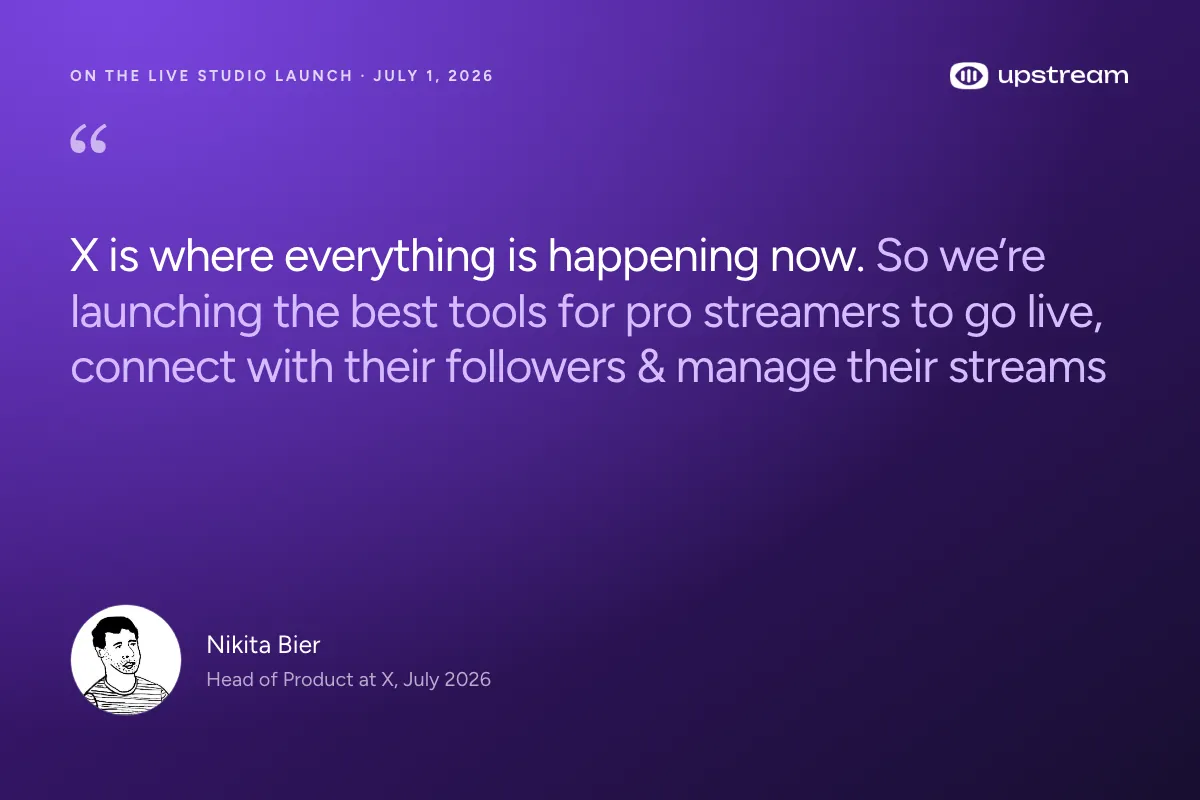
Nikita Bier, X’s Head of Product at the time, made the case when he launched Live Studio on July 1. He has since stepped back from leading product and stayed on as an advisor. Streamers on X still use the tools he launched.
If you want X next to YouTube, Twitch and Kick without running every copy from your own computer, start with Upstream’s free plan. If one local stream to X is all you need, OBS and the steps above will get you there.
Sources
- X Help Center: Live Studio, live video on X and Media Studio Producer
- X Developer docs: Livestream API and the access form, plus Taylor Caldwell on API availability (August 31, 2026)
- Posts on X: @XCreators on Live Studio (July 2) and on Original Content Rewards (August 7), the @XDevelopers API launch and Chris Park (September 22), Nikita Bier (July 1, 2026) and @Live (June 2024)
- StreamYard Help Center on X and the OBS Studio overview