Updated

YouTube Audio Out of Sync? Fix It Fast (2026 Guide)

YouTube sound out of Sync? We’ll go from the quickest 10-second fixes to the deeper technical solutions. Start at the top and work your way down until the problem is gone.

YouTube Audio Out of Sync? Fix It Fast (2026 Guide)

TL;DR: Quick Fixes

If you’re watching YouTube and the audio is out of sync:

  1. Refresh the page or restart the YouTube app – works more often than you’d think
  2. Toggle the video quality (gear icon > switch to a different resolution)
  3. Disable 5.1 surround sound in YouTube settings if you’re on a TV
  4. Check if Bluetooth audio is causing delay, switch to wired headphones
  5. Clear your browser cache or update the YouTube app

If you’re live streaming and your audio is out of sync:

  1. Add an audio sync offset in your streaming software (50–300ms usually fixes it)
  2. Set your stream latency to “Normal” instead of “Ultra Low” in YouTube Studio
  3. Update your audio drivers and capture card firmware
  4. Switch from wireless to wired microphones

If you want to avoid sync issues entirely: Use a cloud streaming software that handles audio processing server-side instead of on your local machine.

We, humans, are very sensitive to sync issues – there is about 50 milisecond window in which we consider audio and video to be in sync – this means 25ms +- from the baseline. Everything else, our brain starts to perceive as weird and it is impossible to ignore. It is impossible to get used to, even if you are watching for hours – it will never feel right.

The bad news is that the technical problem with audio sync can have about 12 different causes, and most troubleshooting guides give you one generic fix that probably won’t work for your specific situation. This guide covers every scenario: whether you’re watching a YouTube stream with sync problems, broadcasting a stream that has audio delay, or trying to prevent sync issues from happening in the first place.

We’ll go from the quickest 10-second fixes to the deeper technical solutions. Start at the top and work your way down until the problem is gone.

Part 1: Fixing Audio Sync Issues When Watching YouTube

If you’re a viewer and the video you’re watching has audio and video out of sync, the fix is usually on your end. Here’s what to try, ranked from fastest to most involved.

Fix 1: Refresh the Page or Restart the App

This sounds too simple to work, but temporary buffering hiccups are the #1 cause of YouTube audio sync problems on the viewer side. A quick refresh forces YouTube to re-buffer the stream with proper sync.

  • On desktop: Press F5 or Ctrl+R (Cmd+R on Mac)
  • On mobile: Force-close the YouTube app and reopen it
  • On smart TV: Exit the video, go back to the YouTube home screen, and reselect the video

This single fix resolves roughly 40% of viewer-side sync issues, according to YouTube support data. Try it first.

Fix 2: Toggle the Video Quality

YouTube’s adaptive streaming sometimes switches between quality levels mid-stream, and that transition can knock audio out of alignment. Manually forcing a quality reset fixes this.

  1. Click the gear icon on the YouTube player
  2. Select Quality
  3. Choose a different resolution (e.g., switch from 1080p to 720p)
  4. Wait 3–5 seconds, then switch back to your preferred quality

This forces YouTube to reload the audio and video tracks together, which usually resyncs them.

Fix 3: Check Your Bluetooth Connection

Bluetooth audio has inherent latency, usually between 100ms and 300ms. If you’re using Bluetooth headphones, earbuds, or a Bluetooth speaker, that delay can make YouTube audio out of sync feel much worse than it actually is.

Test: Switch to wired headphones or your device’s built-in speakers. If the sync improves, your Bluetooth connection was the problem.

Reduce Bluetooth delay:

  • Move your headphones closer to the audio source
  • Disconnect and reconnect the Bluetooth device
  • Switch to a codec with lower latency (AAC or aptX instead of SBC)
  • Restart both the headphones and your playback device

Fix 4: Disable 5.1 Surround Sound (Smart TVs and Streaming Boxes)

If you’re watching on a smart TV, Roku, Fire TV, or Apple TV, 5.1 surround sound can cause persistent audio delay. YouTube’s stereo audio track gets processed through your TV’s surround sound decoder, which introduces lag.

To fix:

  1. Open the YouTube app settings on your TV/streaming device
  2. Find Audio or Sound settings
  3. Change from Surround/5.1 to Stereo/PCM
  4. Restart the YouTube app

This is one of the most reliable fixes for YouTube audio out of sync on TV specifically.

Fix 5: Clear Your Browser Cache or Update the App

Corrupted cache data can cause playback issues, including sync drift. Here’s how to clear it:

Google Chrome:

  1. Press Ctrl+Shift+Delete (Cmd+Shift+Delete on Mac)
  2. Select “Cached images and files”
  3. Click “Clear data”
  4. Restart Chrome

YouTube Mobile App:

  1. Go to your device’s Settings > Apps > YouTube
  2. Tap Storage
  3. Tap Clear Cache (not “Clear Data” , that will log you out)
  4. Restart the app

Also make sure your YouTube app is updated to the latest version. App updates frequently include playback fixes.

Fix 6: Try a Different Browser or Device

If the sync issue only happens on one device, the problem is likely with that device’s hardware, software, or settings. Test on:

  • A different web browser (Chrome vs. Firefox vs. Safari)
  • A different device (phone vs. laptop vs. TV)
  • Incognito/private browsing mode (which disables extensions)

If the sync is fine everywhere except one browser, a browser extension might be interfering with YouTube’s playback. Disable extensions one by one to find the culprit.

Part 2: Fixing Audio Sync Issues When Live Streaming to YouTube

If you’re the one streaming and your viewers are telling you the audio is out of sync, the fix is in your setup. This is where things get more technical, but we’ll go step by step.

Understanding Why Live Stream Audio Goes Out of Sync

Before fixing, it helps to understand the root cause. Audio sync issues in YouTube live streaming typically come from one of these sources:

CauseWhat HappensHow to Fix
Video processing delayYour video gets processed slower than audioAdd audio delay offset in streaming software
Wrong latency settingUltra Low Latency prioritizes speed over syncSwitch to Normal Latency
Wireless audio interferenceBluetooth/wireless mics introduce variable delaySwitch to wired microphones
Capture card lagUSB capture cards process video slower than direct audioUpdate drivers or add sync offset
Outdated driversOld audio or GPU drivers mishandle timingUpdate all drivers
Encoding overloadYour CPU can’t keep up, causing audio/video desyncLower encoding settings or use cloud streaming

Fix 1: Add an Audio Sync Offset in Your Streaming Software

This is the fix that solves most broadcaster-side sync issues. Your streaming software lets you delay the audio (or video) so they line up properly.

In OBS Studio:

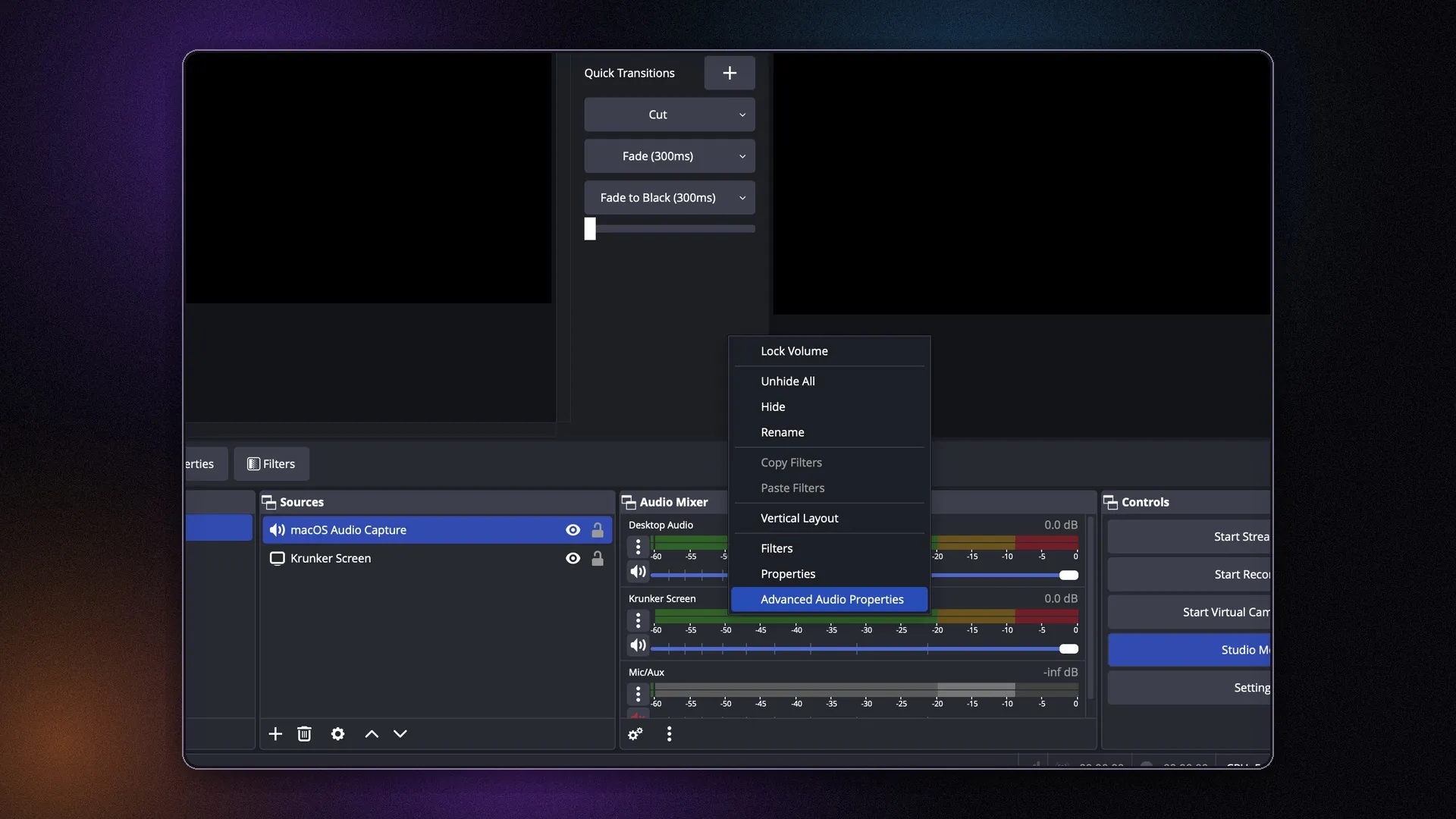
OBS Audio Mixer menu with Advanced Audio Properties selected
Open the Audio Mixer menu, right click on the audio channel to reveal pop-up menu, then choose Advanced Audio Properties.
  1. In the Audio Mixer at the bottom, right click anywhere on the audio source
  2. Select Advanced Audio Properties
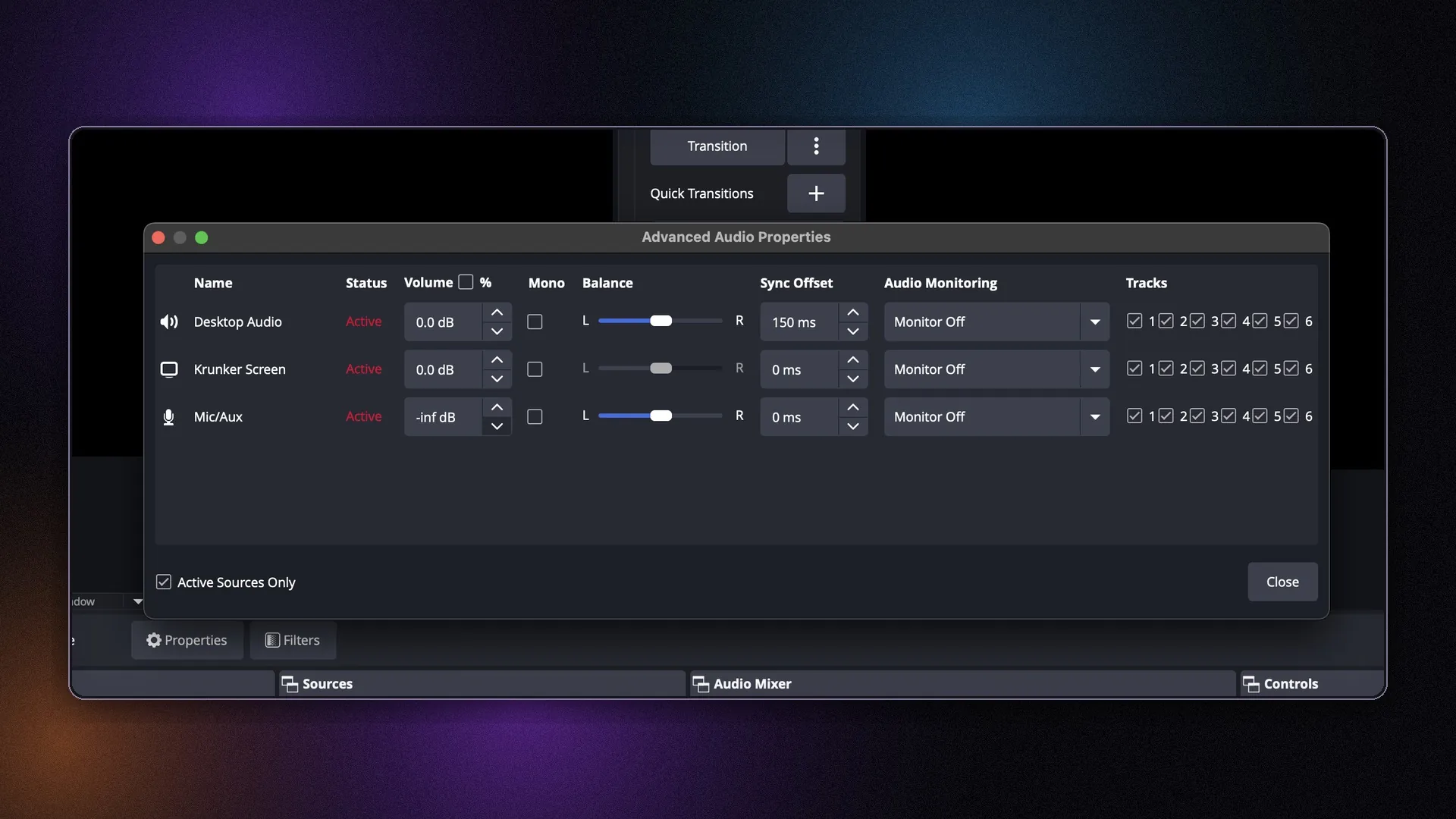
  3. Find the Sync Offset column for your microphone / input
  4. Enter a value between 50 and 300 milliseconds (start with 150ms)
  5. Do a test stream and adjust up or down until sync is perfect
OBS Advanced Audio Properties with Sync Offset column visible
Set a Sync Offset for the relevant audio source, then fine-tune it with a test recording. We had to set up a +150 ms offset here.

In Streamlabs:

  1. Go to Advanced Audio Settings in the audio mixer
  2. Find your microphone source
  3. Adjust the Audio Sync Offset value
  4. Test and fine-tune

Stream in perfect sync with Upstream:

Pre-recorded live streaming

Turn recordings into live streams.

Upload videos, schedule them as live events, or keep a channel running up to 24/7 without staying on camera or leaving a computer online.


How to find the right offset:

  • Start a local recording (not a live stream)
  • Clap your hands clearly in front of the camera
  • Watch the recording – if you hear the clap before you see it, increase the offset
  • If you see the clap before you hear it, decrease the offset
  • Aim for a 150–250ms offset as your starting point

Fix 2: Change Your Stream Latency Setting

YouTube offers three latency options, and the wrong one can cause sync issues.

  1. Go to YouTube Studio > Create > Go Live
  2. In the Stream Settings, find Latency
  3. Select Normal Latency (this is the sweet spot for sync)

Avoid Ultra Low Latency unless you’re doing real-time interaction that genuinely needs sub-second delay. Ultra Low Latency sacrifices sync stability for speed, which often causes audio and video out of sync issues during longer streams.

Fix 3: Update Your Audio Drivers and Capture Card Firmware

Outdated drivers are a silent cause of sync drift. Update everything:

  • Audio interface drivers: Go to your manufacturer’s website (Focusrite, Behringer, etc.) and download the latest drivers
  • GPU drivers: Update NVIDIA/AMD/Intel GPU drivers, they handle video encoding timing
  • Capture card firmware: If you use an Elgato, AVerMedia, or similar capture card, update its firmware and software
  • Motherboard chipset drivers: These handle USB timing, which affects audio interfaces and microphones

After updating, restart your computer completely. Driver updates often don’t take full effect until a reboot.

Fix 4: Switch from Wireless to Wired Audio

Wireless microphones and Bluetooth headphones are convenient, but they add unpredictable latency to your stream. It can be much harder to both troubleshoot and fix the wireless connection, so we recommend avoiding it, if possible. For consistent sync:

  • Use a wired USB microphone or XLR microphone with audio interface
  • If you must use wireless, position the receiver within 3 feet of the microphone
  • Monitor your audio through wired headphones plugged into your audio interface (not Bluetooth)

The 150–300ms delay from a wireless headset can turn a minor sync issue into an unwatchable stream.

Fix 5: Check Your Encoding Settings

If your CPU is overloaded, it may prioritize video encoding over audio processing, causing drift that worsens over time. Sync that gets progressively worse is probably the most annoying of all sync problems, and after an hour the A/V can get monstrously out of sync.

In OBS/Streamlabs, check these settings:

  • Encoder: Use hardware encoding (NVENC for NVIDIA, AMF for AMD, QuickSync for Intel) instead of x264 (CPU encoding)
  • Bitrate: Lower it by 10–20% if you’re dropping frames
  • Resolution: Stream at 1080p60 only if your system can handle it. If not, drop to 720p60
  • Frame rate: Consistent 30fps is better than inconsistent 60fps

Signs your encoding is overloaded:

  • “Encoding overloaded” warnings in OBS
  • Dropped frames in the status bar
  • Sync drift that gets worse the longer you stream

Fix 6: Use a Cloud Streaming Tool to Eliminate Local Sync Issues

If you’re constantly fighting audio sync problems, the real issue might be that you’re trying to process too much on your local machine. Every device, driver, and setting is another point of failure.

Cloud streaming tools like Upstream handle all the audio/video processing on a remote server instead of your computer. You upload your content, configure your stream in the browser, and the server handles the encoding, sync, and delivery to YouTube.

Benefits for sync:

  • No local encoding means no CPU overload causing sync drift
  • Server-side audio processing is more precise than real-time local mixing
  • Your stream stays synced even if your local internet hiccups
  • No capture cards, no driver issues, no wireless interference

This is especially useful for 24/7 YouTube live streams where sync drift over 12+ hours is a common problem with local home-computer setups. Especially when the computer streaming is also supposed to be doing other things, too.

Part 3: Preventing Audio Sync Issues Before They Happen

The best fix is not needing one. Here’s how to set up your stream so YouTube audio out of sync doesn’t happen in the first place.

Build a Sync-Proof Streaming Setup

Microphone: Use a wired USB mic (Shure MV7, Elgato Wave:3, or Audio-Technica ATR2500x) connected directly to your computer. Avoid Bluetooth or wireless mics for streaming.

Monitoring: Use wired headphones plugged into your audio interface. Never monitor through Bluetooth headphones, the delay will throw off your timing.

Capture card: If you use one, connect it via USB 3.0 (not USB 2.0) and keep the cable under 6 feet. Update the firmware monthly.

Latency setting: Always use Normal Latency in YouTube Studio unless you have a specific reason not to.

Test Before Every Stream

Do a 60-second test recording before going live:

  1. Start a local recording (not streaming)
  2. Clap your hands 3 times, 5 seconds apart
  3. Speak a full sentence clearly
  4. Stop the recording and play it back
  5. Check that the claps and speech are perfectly synced

If the test recording is synced but your live stream isn’t, the problem is likely your internet connection or YouTube’s processing, not your local setup.

Keep Everything Updated

Set a monthly reminder to check for:

  • Streaming software updates (OBS, Streamlabs, etc.)
  • GPU driver updates
  • Audio interface/capture card driver updates
  • Operating system updates

Most sync issues that “suddenly appear” after months of smooth streaming are caused by an outdated driver or software version.

Pre-recorded live streaming

Turn recordings into live streams.

Upload videos, schedule them as live events, or keep a channel running up to 24/7 without staying on camera or leaving a computer online.

Frequently Asked Questions

Why is my YouTube audio out of sync?

The most common causes are: browser buffering issues (viewer side), Bluetooth audio delay, incorrect audio sync offset in streaming software, or CPU overload during encoding. The fix depends on whether you’re watching or broadcasting.

How do I fix audio delay on YouTube live stream?

First make sure your latency setting is set to “Normal” instead of “Low” or Ultra Low”. If that does not work, go to your streaming software (OBS, Streamlabs, etc.), add an audio sync offset of 150–250ms to your microphone source. Go to Advanced Audio Properties, find the Sync Offset setting, and adjust until your test recording shows perfect sync.

Why does YouTube audio go out of sync on smart TV?

Smart TVs often have audio processing delays caused by 5.1 surround sound settings, soundbar processing, or Bluetooth audio output. Switch to stereo audio in YouTube’s TV app settings and use wired audio output if possible.

How do I sync audio in OBS for YouTube?

In the Audio Mixer, click the gear icon next your microphone > Advanced Audio Properties > add a Sync Offset value (start at 150ms). Do a test recording with hand claps to fine-tune the exact offset needed.

Can internet speed cause audio sync issues?

Yes, but indirectly. A slow or unstable connection causes YouTube to downgrade stream quality mid-broadcast, which can knock audio and video out of alignment. Use a wired ethernet connection and ensure at least 5 Mbps upload speed for 1080p streaming.

Why does audio sync get worse over a long stream?

This is called “sync drift” and it’s usually caused by CPU thermal throttling, memory leaks in streaming software, or capture card buffer overflow. Lower your encoding settings, close unnecessary programs, and consider cloud streaming for streams longer than 4 hours.

Bottom Line: Start Simple, Then Go Deep

If your YouTube audio is out of sync, don’t panic. Start with the 10-second fixes (refresh, toggle quality, check Bluetooth) and work your way down to the technical adjustments. Most sync issues are solved in the first three attempts.

For streamers dealing with recurring sync problems, remember: every cheap cable, free driver, and wireless connection is a potential point of failure. The fewer links in your audio chain, the fewer things that can go wrong. Wired mics, wired headphones, updated drivers, and Normal Latency settings will prevent 90% of sync issues before they start.

And if you’re tired of troubleshooting altogether, cloud streaming through Upstream eliminates local sync issues entirely by processing your audio and video on a remote server. Upload, schedule, go live, no offsets, no driver updates, no 2 AM troubleshooting sessions.

Now go fix that audio!