You can run a 24/7 Twitch channel, even though each broadcast has a 48-hour limit. The workaround is to restart the broadcast: your channel stays at the same URL, twitch.tv/yourusername, so viewers don't need a new link to keep watching. Upstream can handle those restarts for you. Twitch guidelines, Upstream setup guide
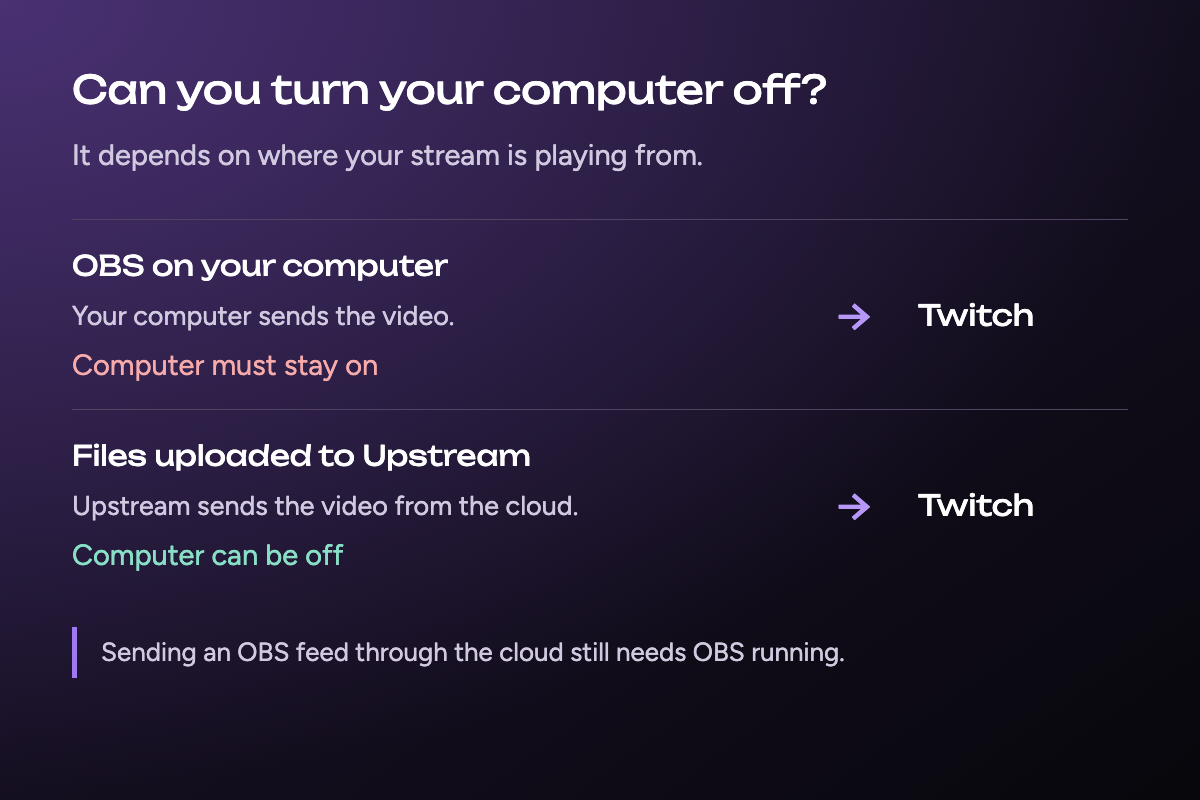
If you're playing uploaded videos through Upstream, they run from the cloud. You don't have to leave your computer on to keep the channel going.
Here's what the cap means for your stream, how to keep a channel running 24/7, and when you can turn your computer off.
How long can a single Twitch stream last?
Twitch limits each stream to 48 hours, but that doesn't mean your channel has to go quiet. The way around it is to start a new broadcast when the current one ends. You'll need to check whether your streaming software handles that restart for you or whether you need to do it yourself. Twitch broadcasting guidelines
It's easy to mix up the stream limit with how long Twitch keeps a replay. Here's the difference:
| What you want to do | What matters |
|---|---|
| Keep one stream live | Each broadcast has a 48-hour limit. |
| Run a 24/7 channel | Start a new broadcast when the current one ends. |
| Let viewers watch later | Check your saved-video settings and how long Twitch keeps replays. |
A tool can handle restarts for you. It can't turn the 48-hour cap off. Upstream explains how it handles this in its streaming limits guide.
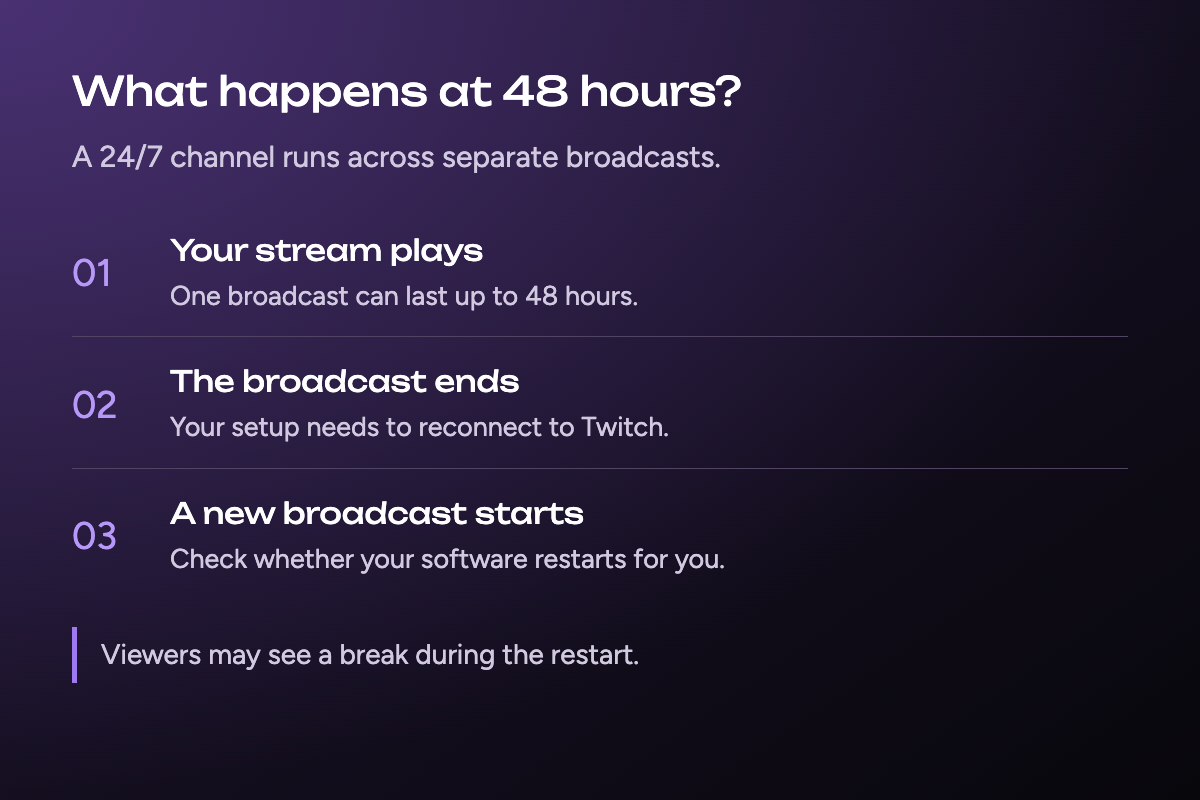
What happens when your Twitch stream reaches 48 hours?
The broadcast reaches Twitch's limit and needs to restart. Whether that happens on its own depends on your encoder, the software that sends your video to Twitch. Don't assume it will reconnect just because the stream started without any trouble. Twitch broadcasting guidelines
Before you leave a stream running overnight, check how your software handles the cutoff. You want to know whether it starts a new broadcast for you or waits for you to press a button.
Twitch's Disconnect Protection is a different feature. It can show an interruption screen for up to 90 seconds while your connection returns. It doesn't extend the 48-hour limit. Twitch Disconnect Protection
Check your channel around its first restart. That gives you a chance to catch a problem before you rely on the setup for longer runs.
Can you stream 24/7 on Twitch?
Yes, by running a series of broadcasts instead of one endless stream. Upstream handles those restarts as part of its Twitch cloud-streaming setup. Upstream streaming limits
The channel URL is what makes this convenient for viewers. You can share twitch.tv/yourusername once and keep sending people there, even after a broadcast restarts. You don't need to promote a different watch link for every session.
The idea is simple:
Your playlist plays → the stream restarts → your channel keeps going.
Viewers may see a break during the restart. Automatic doesn't mean every transition is invisible.
This works best when you have content people can enjoy while you're away. You could build a playlist of your own videos instead of staying on camera all night. Pick something that still makes sense to someone who joins halfway through.
You still need the rights to everything you play, including the music in your videos. Uploading a file to a cloud service doesn't change Twitch's content rules. Twitch Community Guidelines
With 24/7 cloud streaming, your videos can keep playing while you get some sleep.
How do you run a 24/7 Twitch stream with Upstream?
With Upstream, you upload your content, connect Twitch, and start the stream. You can use a video, a playlist, or an image with background audio. Full Twitch setup guide
Connect your Twitch channel
Find your stream key in Twitch's Creator Dashboard under Settings → Stream. Enter it when you set up Twitch as a destination in Upstream. Keep the key private and hide it in any screenshots.
Start small. Get one video playing on the right channel before building a longer playlist.
Prepare the content you want to broadcast
Upload the videos or audio you want to play and put them in the right order. Follow the setup walkthrough for the full steps.
Watch the joins between videos, too. A loud intro after a quiet track or a long blank ending can make a playlist hard to watch. Catch those before you leave it running.
Start the cloud stream and check playback
Once your uploaded videos are playing, Upstream sends them to Twitch from its servers. You can close OBS and turn your computer off. Upstream also handles the Twitch restarts. Upstream Twitch guide, restart details
Open your Twitch channel as a viewer and check the picture, sound, and video order. You don't need to sit beside your computer, but still check in on the channel to make sure it's playing as expected.
How long does Twitch keep your past broadcasts?
The 48-hour limit tells you how long you can stay live. It doesn't tell you how long viewers can watch the replay.
Twitch calls a saved video a VOD, short for video on demand. How long a past broadcast stays available depends on your account. Check Twitch's current broadcast-storage guidance and your VOD settings if you want viewers to catch up later.
Keep your own copy of anything you want to save long term. Don't rely on a temporary Twitch replay as your only backup.
Do you need to stay at your computer for a long Twitch stream?
Not if Upstream is playing your uploaded videos. The files play from its servers, so your computer can be off. That's useful when you want a playlist running overnight without tying up your PC. Upstream Twitch guide
If viewers come for your live reactions and chat, a video playlist won't replace that. It gives your channel something to show while you're away. Choose videos your viewers would actually want to watch again.
Can you try a Twitch cloud stream for free?
Upstream's free plan includes one stream and 24 hours of streaming each month, with no credit card required. That's enough to try a playlist and see how the setup works. It isn't enough to run a channel 24/7 for a whole month. Upstream pricing
Start with a few videos you own, connect Twitch, and check the stream on your channel. If it fits what you want to do, you can choose a paid plan for longer runs.
Try Upstream for free and use the Twitch setup guide to get your first cloud stream running.