
Multistreaming is the process of broadcasting the same live stream (same content) to multiple platforms simultaneously, such as Twitch, YouTube, Kick, TikTok, or Facebook Live. Instead of choosing just one platform, this allows you to reach audiences across many streaming platforms at the same time, from a single source – your streaming software.
For creators, this split audience isn’t a problem, it is an opportunity! If you stick to one URL, you get only one audience. The smart move is to broadcast everywhere all at once. You can multistream to YouTube, Twitch & Kick simultaneously, and it’s pretty easy to set up. Twitch has even lifted its combined chat ban recently, so as platforms embrace multistreaming, so should you!
Cloud-based streaming services like Upstream let you do this without an expensive computer. Whether you are a live broadcaster, a news outlet, or a music curator, cloud multistreaming software helps you reach all three platforms at the same time with exactly the same data feed.
Why Simulcast to Multiple Platforms?
The numbers are clear: The live streaming market is huge, but the audiences are split across platforms. Different users have habits of visiting different apps and sites, and it’s likely that each site attracts a totally different crowd.
Relying on a single platform is also risky. Algorithm changes or a sudden ban can wipe out your income in seconds. When you multistream to YouTube, Twitch & Kick, you build an insurance policy.
Broadcasting to multiple destinations helps you:
- Lower Risk: If one platform hides your content, the others keep you visible.
- Grow Faster: You catch traffic from three sources instead of one. More reach for the same content.
- Own Your Brand: You aren’t just a “Twitch streamer.” You are a brand that exists independently of any single website. If Twitch goes under, you don’t care! You’re a brand!
Stream everywhere from one feed.
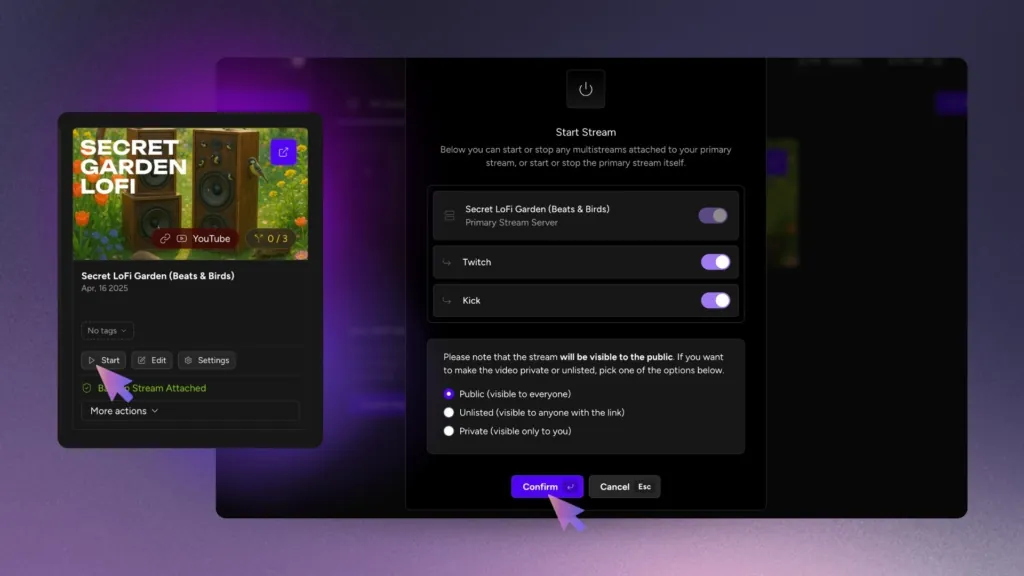
Send one live feed to Upstream and let the cloud deliver it to YouTube, Twitch, Kick, Facebook, and custom RTMP without making your upload connection carry every copy.
Top Platforms for Multistreaming
Each platform does something different. You need to know how they work to use them well.
YouTube Live is the best place for long-term growth. It is the second-largest search engine in the world, with an incredibly wide range of viewers. Basically everyone.
Twitch is still the king of gaming culture. It has the best tools for building a community. The chat experience and “emotes” are hard to beat. Recent changes have made it easier to stream elsewhere while keeping your Twitch account active. Think younger audiences.
Kick is the new challenger. It is growing fast because it pays creators better. The 95/5 revenue split is very attractive. For new streamers, Kick can be a faster way to start earning money than the older platforms.
Multistreaming is CPU-Heavy
In the not-so-distant past, sending video to three places at once was a hardware nightmare, putting significant strain on your CPU and GPU. You also needed to download OBS and plugins, further clogging up your PC’s resources. And if you were thinking of gaming and streaming on the same PC at the same time, there was no chance, as both your game and your stream would lag. Many have tried (and failed).
If you try to multistream to YouTube, Twitch & Kick directly from your PC using OBS, your computer has to do the work three times. It encodes and uploads three separate video feeds.
This causes problems:
- CPU Overload: Your computer slows down. Your game lags. The stream looks choppy.
- Internet Issues: Most home internet connections cannot handle the upload speed needed for three high-quality streams.
- Messy Management: Trying to watch three different chat windows on one screen is difficult.
Easiest Way to Multistream
Upstream fixes the hardware problem. The heavy lifting is done by cloud servers. This both works for real-time OBS streamers and for automated 24/7 channels.
You send a single stream to Upstream. We take that signal, multiply it, and send it out to the platforms for you. You can easily multistream to YouTube, Twitch & Kick (and even TikTok) without melting your CPU.
This means your PC only works as hard as it would for a single stream. Upstream handles the rest. If your home internet blips, our servers keep the connection alive so your stream doesn’t crash.
Simple Multistreaming Setup
You don’t need technical knowledge to multistream with Upstream. We made it simple. First you need to set up your OBS (or any other RTMP source) stream into Upstream Live Studio – so that the content from your computer is getting in to Upstream:
Setting up OBS
- Open OBS.
- Go to Settings (Preferences) → Stream.
- Select “Custom” as the Service.
- Copy and paste the Server URL from Upstream Live Studio.
- Copy and paste the Stream Key from Upstream Live Studio.
- Click “OK” and then “Start Streaming“.
Seting up multistreaming destinations / platforms
- Go to your Upstream Stream Settings.
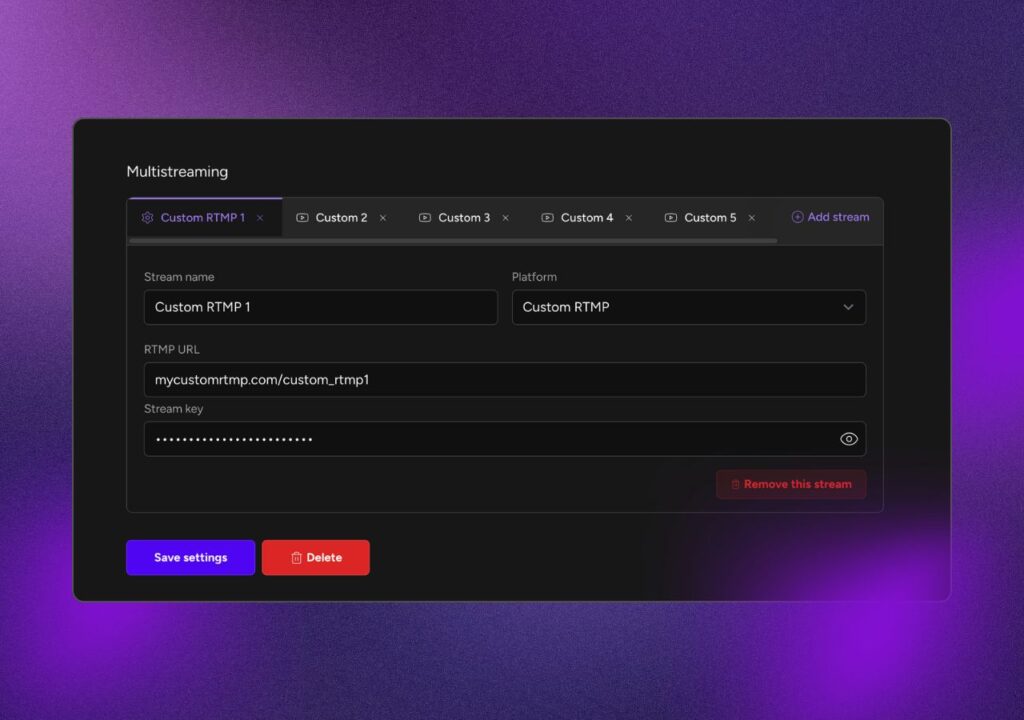
- Choose from one of the popular streaming platforms in the dropdown menu – Twitch, YouTube, Kick, Rumble or if your platform is not there, choose Custom RTMP.
- Copy the stream key from your platform of choice (and Stream URL for some platforms).
- Paste it into the RTMP Key field in the Upstream Multistream Settings.
- Repeat the process for all the platforms you want to stream live to (+ Add Stream).
And that’s it! You can start your stream, knowing that it will be getting to ALL the destinations you chose!
⚠️ Remember to set your stream bitrate to the highest value supported by all platforms you’re multistreaming to. For a full guide on multistreaming, see our helpdesk article.
The market is too crowded to rely on one website. You need to expand your reach. Upstream gives you the tools to multistream to YouTube, Twitch & Kick without the technical headaches. We handle the distribution. You focus on the content.
Check out Upstream today and start broadcasting to the world.