
Simulcasting has always been a bit of a technical headache. Until recently, you had three options, and each had a load of problems:
- Encode locally: Running separate encodes for each platform on your own machine. Your CPU cries, your game stutters, and your viewers get treated to a slideshow.
- OBS plugins: Relying on third-party plugins that break every single time OBS updates. You end up spending more time troubleshooting than actually streaming.
- Paying a premium: Services like Restream or Streamyard charge about $39/month just to split your signal in high quality. No extra features, just a split feed.
There is a better way. You can send one single stream to a cloud-based simulcasting service like Upstream, let a server handle the duplication, and manage everything from a browser tab, even on a cheap laptop.
Here is the exact 5-minute setup to get you live on both platforms using Upstream.so.
How to Simulcast to Twitch and YouTube
To get started on Twitch and YouTube at the same time, you will need an account on Upstream.so. The free plan gives you 24 hours of streaming per month, which is more than enough to test things out and see if it works for your setup. You can always upgrade to a paid plan, without interrupting your stream
Step 1: Create a Live Stream
Log into Upstream and click Create New Stream. Since you are streaming from your local setup, select the option to multistream from OBS. You can also select “Browser” and set up a Screen Share, but today we are going to be covering how to do it via OBS.
Step 2: Connect YouTube
Pick YouTube as your primary destination. Skip the manual RTMP setup and click the YouTube Connect button instead. Log into your Google account, authorize Upstream, and you’re instantly linked. Set your title, description, category, and resolution (1080p at 30 or 60fps works great).
Step 3: Add Twitch Simulcast
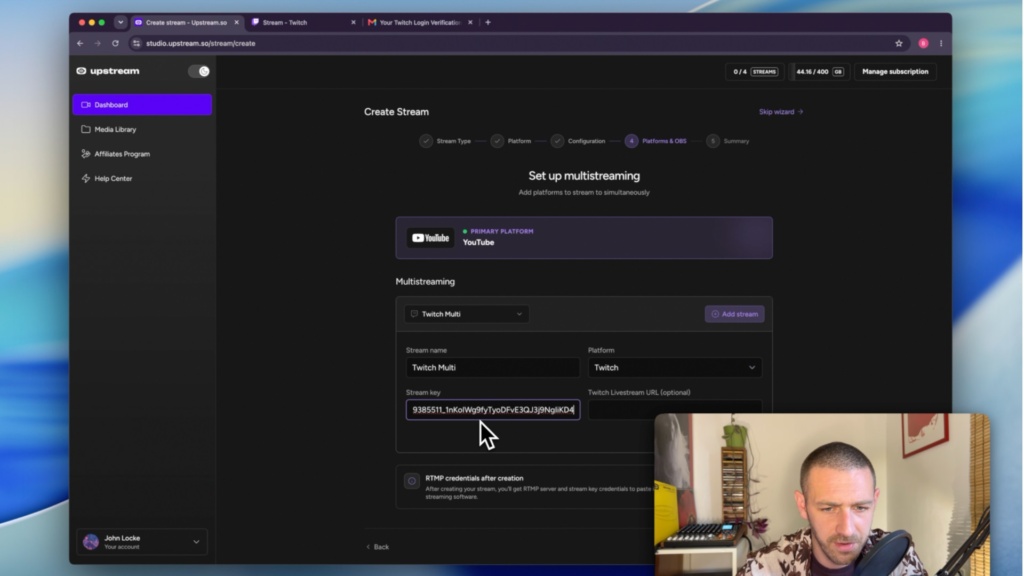
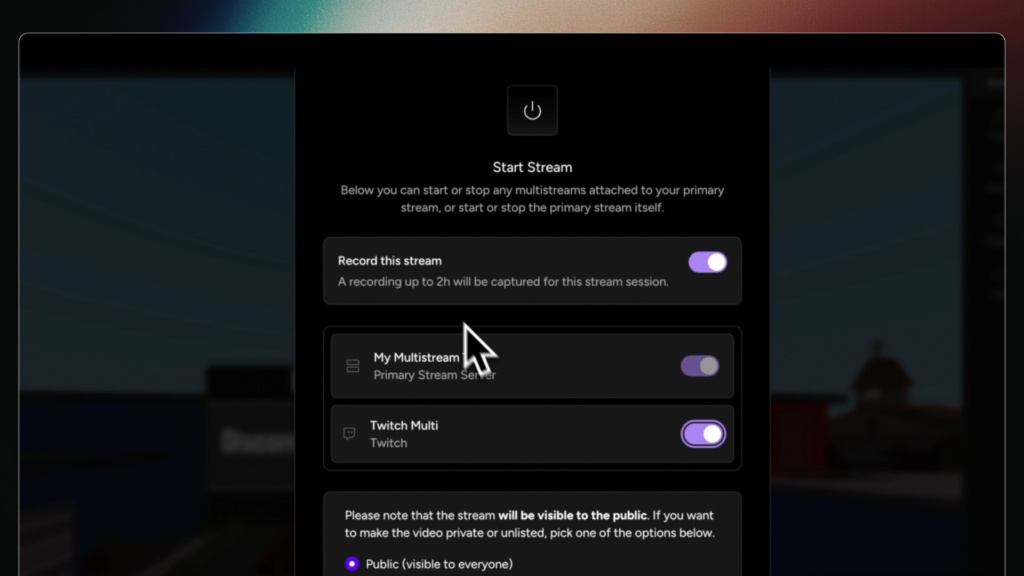
Under your multistream settings, select Twitch as your second destination.
💡 Quick Tip: Grab your Twitch Stream Key from your Twitch Creator Dashboard (under Settings > Stream), and paste it into the field. Upstream handles the Twitch server URL automatically, so you can leave that blank.
Review your settings and click Create Stream.
Step 4: Configure OBS Ingest
Upstream will now generate a custom RTMP server URL and stream key for you, and display it in the sidebar. Open OBS, go to Settings > Stream, set the Service to Custom, and paste both keys in. Hit Apply and Save.
Step 5: Go Live!
Hit Start Streaming in OBS. Your feed hits Upstream’s cloud servers, which instantly broadcast it to YouTube and Twitch at the exact same time. The best part? You can close your browser entirely if you want, the cloud keeps the stream running.
Why Cloud Streaming Beats OBS Plugins
I used to run a local plugin for multistreaming, and it was a nightmare.
When you use a (popular) OBS plugin, your computer has to encode your video once for YouTube, again for Twitch, and again for every other platform you add. Running three simultaneous encodes on a single machine will tank your in-game framerate unless you own a dedicated, high-end dual-PC streaming setup. Your viewers will notice the drop in quality, get frustrated, and leave.
Some plugins encode the video once, but still send the stream via your home network to three places at the same time. My home internet could not (and should not) handle that too, along with my regular heavy usage.
With Upstream, you send one stream. Your PC only handles one encode, and the cloud handles the heavy lifting. Your hardware barely notices the Simulcasting going on.
Stream everywhere from one feed.
Send one live feed to Upstream and let the cloud deliver it to YouTube, Twitch, Kick, Facebook, and custom RTMP without making your upload connection carry every copy.
Tool Comparison: Upstream vs. The Competition
Here is how Upstream stacks up against the other traditional methods of multistreaming:
| Feature | Local OBS Plugins | Restream ($39/mo) | Upstream.so |
| CPU & Internet Load | Extremely High | Low (Cloud-powered) | Low (Cloud-powered) |
| Setup Complexity | High (Plugin management) | Medium | Easy (Click-to-connect) |
| Stream Stability | Poor (Breaks during updates) | Good | Excellent |
| Additional Tools | None | Limited | Full Live Studio Included |
Upstream is More Than a Restreaming Tool
While competitors charge $39/month just to split your signal, Upstream gives you a full suite of creator tools included in the base price:
- Live Studio – Remote Guest Interviews: Bring guests and co-hosts into your stream directly from their browser.
- Stream Designer – Custom Overlays & Alerts: Professional branding tools built right into the dashboard.
- 24/7 Looping Streams: Keep your channel active and growing while you sleep by looping pre-recorded videos or audio playlists.
- Pre-recorded live streams: Schedule your live stream in advance with pre-recorded videos. Go live without the stress, and focus on your audience.
Skip the Streaming VPS Headache
Some creators try to bypass paid services by setting up their own Virtual Private Server (VPS) to route RTMP streams. Unless you are a DevOps engineer, this is a massive waste of your time and ultimately money. You will spend hours configuring code, dealing with ongoing maintenance, and paying hosting fees that quickly add up to the cost of a dedicated tool anyway.
It took me 15 minutes to set up Upstream the first time. Now, it takes me under a minute to start up a new multistream.
Start Growing Your Audience Today
Don’t let tech limit your growth. Set up a free account on Upstream.so, run a quick unlisted test stream to see how the chat aggregation feels, and experience what it’s like to stream without worrying about your computer melting.
Before you try the plugin route, run your numbers through our free streaming bitrate calculator to see whether your upload speed can actually carry every copy of your stream.