Understanding how this connection works matters whether you’re running a 24/7 music channel, streaming gaming content, or broadcasting live events. The technology enabling this is RTMP (Real-Time Messaging Protocol), and while tools like OBS have made streaming accessible to everyone, they weren’t designed for the always-on demands of continuous streaming. That’s where cloud streaming platforms come in, fundamentally changing how creators approach YouTube broadcasting.
What Is a YouTube Video Server?
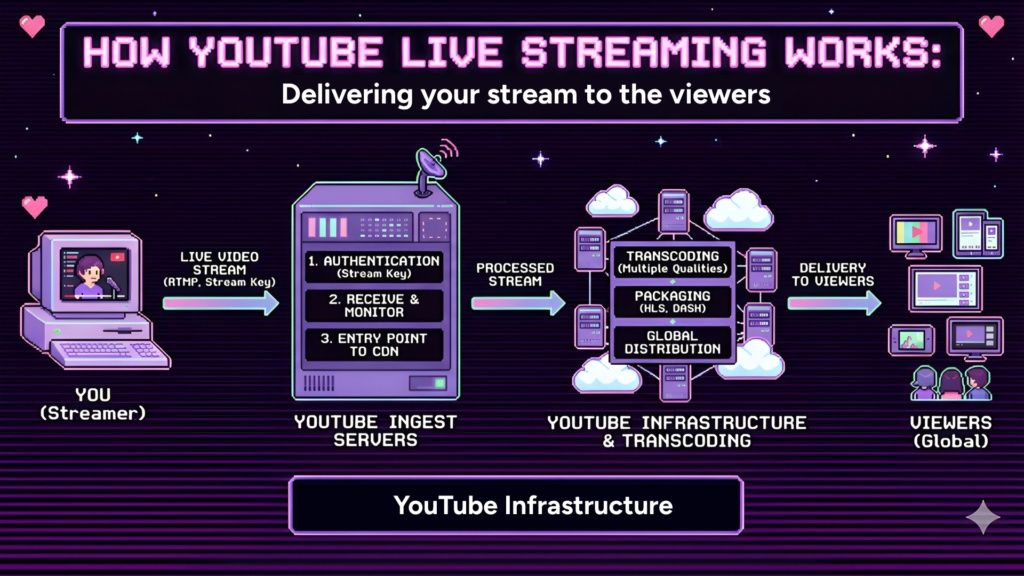
A YouTube video server is infrastructure that receives, processes, and distributes live video streams to viewers. When you stream to YouTube, you’re not connecting directly to every viewer watching your content. Instead, your stream connects to YouTube’s ingest servers: specialized systems designed to receive incoming video data via protocols like RTMP.
These ingest servers handle the initial connection and authentication using your stream key. Once authenticated, they receive your encoded video stream, process it through YouTube’s infrastructure, and prepare it for distribution. YouTube then transcodes your stream into multiple quality levels and packages it using adaptive streaming protocols like HLS or DASH for delivery to viewers.
The ingest server acts as the entry point to YouTube’s massive content delivery network. It validates your stream, monitors its health, and ensures the data flows properly through their systems. Understanding this infrastructure helps explain why streaming differs fundamentally from uploading: you’re maintaining an active connection that must remain stable for the duration of your broadcast.
Understanding RTMP for YouTube Streaming
RTMP (Real-Time Messaging Protocol) was developed by Macromedia (later Adobe) to enable low-latency transmission of audio, video, and data over the internet. Despite being created in 2002, RTMP remains the dominant protocol for ingesting streams to platforms like YouTube because it’s reliable, widely supported, and provides consistent performance.
RTMP works over TCP, ensuring reliable packet delivery, crucial for maintaining uninterrupted streams. When you configure streaming software to send video to YouTube, you’re establishing an RTMP connection that continuously transmits encoded video and audio data. This connection persists for the entire stream duration, making stability critical.
YouTube supports RTMPS (RTMP Secure), which adds encryption via SSL/TLS. This secure variant protects your stream from interception or tampering during transmission, particularly important for sensitive content or when streaming over networks you don’t fully control. RTMPS connections use port 443, the same port as HTTPS web traffic, making them more firewall-friendly than standard RTMP.
The connection requires two key pieces of information: the stream URL (typically rtmp://a.rtmp.youtube.com/live2 for YouTube) and your unique stream key. The stream key authenticates your connection, ensuring only you can broadcast to your channel. Treat this key like a password: anyone with it can stream to your channel.
How RTMP Streaming to YouTube Works
The complete streaming workflow involves several coordinated steps that transform your content into a stream viewers can watch.
The Complete Workflow
Everything starts with your source content. This could be a live camera feed, gameplay capture, or pre-recorded video files. This raw content then goes to an encoder, software or hardware that compresses the video and audio into efficient formats for transmission. YouTube requires H.264 or H.265 for video and AAC for audio.
The encoder takes your high-quality source, compresses it based on your chosen bitrate and resolution settings, and packages the compressed stream for RTMP transmission. This encoding happens in real-time, which is why encoding performance matters: your system must compress video frames faster than they’re being captured.
Once encoded, the RTMP protocol transmits this compressed stream over the internet to YouTube’s ingest servers. The connection remains open continuously, with encoded data flowing steadily from your encoder to YouTube. Any interruption in this connection stops your stream.
YouTube’s ingest servers receive your stream and pass it through their processing pipeline. They transcode it into multiple quality levels (360p, 480p, 720p, 1080p, etc.) to enable adaptive streaming. These transcoded versions get packaged into HLS or DASH format and distributed through YouTube’s content delivery network to viewers worldwide.
Viewers watching your stream aren’t receiving your original RTMP stream: they’re watching YouTube’s transcoded HLS stream, which adapts quality based on their connection speed and device capabilities. This is why viewers can watch your 1080p stream in 480p on slower connections.
Key Components
The stream URL tells your encoder where to send the video. YouTube’s primary ingest server is rtmp://a.rtmp.youtube.com/live2, though they provide backup servers for redundancy. This URL points to YouTube’s ingest infrastructure that will receive your stream.
Your stream key is the unique identifier that authenticates you. Found in YouTube Studio under the live streaming settings, this key links your stream to your specific channel and broadcast. Never share your stream key publicly: it’s your broadcast password.
Encoder settings determine your stream quality and compatibility. Key settings include bitrate (how much data per second), resolution (1920×1080 for Full HD), frame rate (30 or 60 FPS), and keyframe interval (typically 2 seconds for YouTube). These settings must balance quality against your upload bandwidth capabilities.
The YouTube Live dashboard monitors your stream health in real-time, showing connection quality, bitrate stability, and alerting you to issues. This dashboard becomes your control center during broadcasts, displaying viewer counts and stream analytics.
Traditional Method: Streaming with OBS
OBS (Open Broadcaster Software) has become the go-to tool for YouTube streaming. It’s free, open-source, and offers professional-grade features. Setting up YouTube streaming in OBS is straightforward: copy your stream URL and key from YouTube Studio, paste them into OBS’s stream settings, configure your output resolution and bitrate, and click “Start Streaming.”
OBS provides extensive customization: scene composition, source management, filters, plugins, and scripting. For live content creators who need real-time control and interaction, OBS delivers professional capabilities without the professional price tag. Gamers streaming with commentary, podcasters broadcasting live discussions, and educators conducting live lessons all benefit from OBS’s flexibility.
But there’s a fundamental limitation: OBS runs on your local computer. Every frame of video, every second of audio, every bit of data going to YouTube is being processed and transmitted from your machine. For short streams or live interactive content, this works well. For 24/7 streaming of pre-recorded content, it creates significant challenges.
The Reality of 24/7 OBS Streaming
Running OBS continuously for days or weeks reveals limitations the software wasn’t designed to handle. Your computer must remain powered on and connected to the internet constantly. Any interruption (power fluctuation, internet hiccup, Windows update) stops your stream.
Audio sync issues emerge after three or more days of continuous operation. Users report audio gradually drifting out of sync with video or developing static and distortion. The only fix is stopping OBS, restarting it, and hoping the new stream catches viewers before they leave.
Network interruptions prove particularly problematic. If your internet drops even briefly, OBS may show it’s still streaming while YouTube has actually lost the connection. You won’t know the stream is down until you manually check. There’s no automatic recovery: you must manually restart the stream.
The computer hardware cost adds up. Running a dedicated streaming PC 24/7 consumes electricity constantly. Beyond power costs, continuous operation accelerates hardware wear, particularly on cooling systems and hard drives. You’re essentially running a server from your home or office, with all the associated costs and reliability concerns.
Manual playlist management becomes tedious quickly. If you want to add new videos to your rotation, you need to stop the stream, update the playlist, and restart. There’s no live updating. Scheduling when streams start or stop requires external tools or scripts: OBS doesn’t handle this natively.
The Problems with OBS for 24/7 Streaming
While OBS works wonderfully for live interactive streaming, using it for continuous 24/7 broadcasts reveals structural limitations.
Hardware Requirements
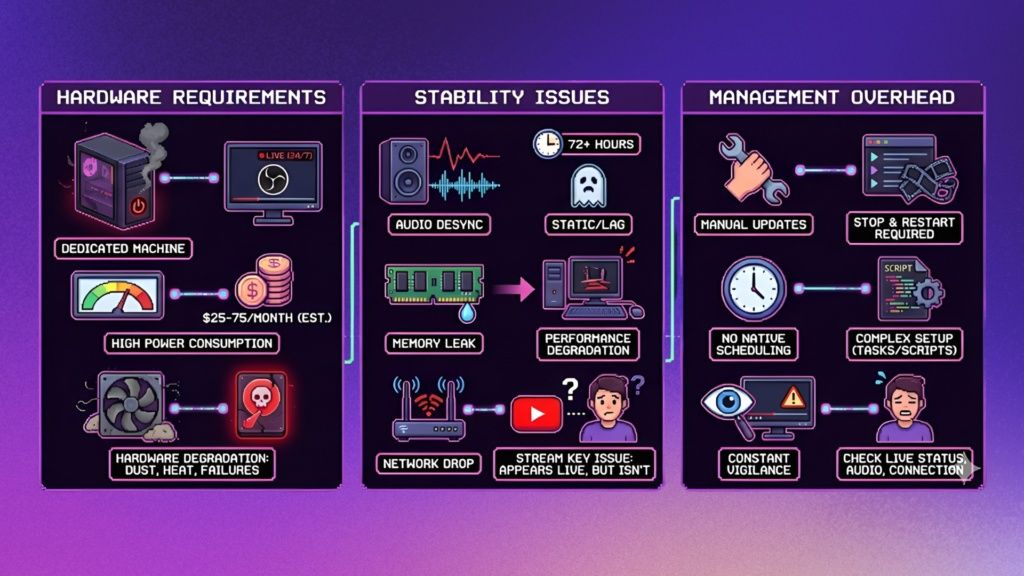
You need a dedicated computer that does nothing but run OBS. Using your main computer means leaving it on constantly, preventing restarts for updates and tying up resources. Budget streamers might repurpose an old PC, but older hardware struggles with encoding, leading to dropped frames and quality issues.
Power consumption varies by system but typically ranges from 100-300 watts for a streaming PC. Running continuously, that’s 2.4-7.2 kilowatt-hours per day, adding $25-75 to monthly electricity bills depending on your rates. Over a year, the power cost alone can exceed the price of cloud streaming services.
Hardware degradation accelerates with continuous use. Fans collect dust faster, thermal paste degrades, capacitors age. Hard drives spinning 24/7 have higher failure rates than those used intermittently. You’re trading hardware longevity for streaming uptime.
Stability Issues
Audio desync is the most commonly reported issue with extended OBS operation. After 72+ hours, users notice audio lagging behind video or static appearing. The root cause varies (memory leaks, codec issues, system resource contention), but the symptom is consistent: your stream quality degrades over time.
Memory leaks, while less common in recent OBS versions, still occur with certain plugins or configurations. Over days of operation, memory usage creeps up until system performance degrades. The only solution is restarting OBS, which means stopping your stream.
Network interruptions that would be minor annoyances for regular use become stream-ending events. Brief internet drops that you’d never notice while browsing can terminate your RTMP connection. While OBS attempts to reconnect, YouTube may not resume the stream properly, requiring manual intervention.
Stream key issues occasionally arise where YouTube doesn’t properly recognize a reconnection, even though OBS shows everything is fine. The stream appears live to you but isn’t actually broadcasting to viewers. This creates a frustrating situation where you think you’re streaming but you’re not.
Management Overhead
Every change requires manual intervention. Want to add a new video to your rotation? Stop streaming, update the playlist, restart. Need to adjust audio levels? Stop, modify, restart. Any time you touch the stream, you’re stopping it.
Scheduling capabilities don’t exist natively in OBS. If you want your stream to automatically start at 8 AM and stop at midnight, you need to write scripts or use external schedulers. Windows Task Scheduler can launch OBS with parameters, but setting this up requires technical knowledge.
Playlist management for looping content is clunky. You’re typically playing a single long video with all your content stitched together or using VLC as a source with a playlist: neither approach is elegant or easy to update on the fly.
Monitoring requires constant vigilance. You can’t just set up OBS and trust it will run smoothly for weeks. You need to check regularly that the stream is actually live, audio hasn’t desynced, and connection quality remains good. This monitoring responsibility never ends as long as your stream runs.
Cloud Streaming: The Modern Solution
Cloud streaming platforms fundamentally change the equation by moving the streaming infrastructure from your computer to dedicated servers designed for continuous operation.
What Is Cloud Streaming Software?
Cloud streaming services run the encoding and transmission infrastructure on their servers, not yours. You upload your content to their platform through a web interface, configure your stream settings, and click start. The cloud service handles everything from that point: encoding, RTMP transmission, connection management, and monitoring.
Platforms like Upstream.so specialize in 24/7 streaming, providing purpose-built tools for continuous broadcasting. Unlike general-purpose streaming software adapted for this use case, cloud platforms are designed specifically for always-on channels running pre-recorded content.
The fundamental advantage is decoupling your stream from your physical hardware. Once configured, you can close your browser, shut down your computer, and go offline. The stream continues running on cloud infrastructure designed for reliability and uptime.
How Cloud Streaming Works
You start by uploading your video content to the platform’s cloud storage. This could be individual videos, playlists, or audio files depending on your streaming needs. The upload happens once: after that, the content lives on the platform’s servers.
Through a web-based interface, you configure your stream design. This includes video sequencing, overlays, audio tracks, visual effects, and branding elements. Modern platforms provide visual editors that make this process intuitive even without technical expertise.
When you start your stream, the platform’s encoding servers begin processing your content and transmitting it to YouTube via RTMP. This happens on their infrastructure: dedicated servers optimized for encoding and streaming. These systems have redundancy, backup streams, and failover mechanisms that individual computers can’t match.
Your involvement ends after clicking “start.” Close your laptop, leave the office, sleep soundly knowing your stream continues on infrastructure designed for this exact purpose. Access the platform from any device to monitor, update playlists, or modify your stream, all without interrupting the broadcast.
Upstream vs OBS: Direct Comparison
Understanding the practical differences helps clarify which approach fits your needs.
Computer Dependency
OBS requires your computer to remain on and connected for the stream’s entire duration. Power outage? Stream ends. Need to restart for Windows updates? Stream ends. Computer crashes? Stream ends. You’re entirely dependent on your local hardware and internet connection staying stable.
Upstream operates independently after setup. Configure your stream, click start, close your browser, shut down your computer. The stream runs on Upstream’s cloud infrastructure. Your hardware and internet connection become irrelevant: you’re renting server time instead of repurposing your computer as a server.
Reliability
OBS creates a single point of failure at your location. Your internet connection, power supply, and hardware must all remain stable. Home internet, even good home internet, experiences occasional drops. Residential power can flicker. Any of these stops your stream.
Upstream provides enterprise-grade reliability with backup streams and redundant infrastructure. If a primary stream encounters issues, automatic failover switches to backup systems. Their servers run in data centers with redundant power, networking, and hardware. You’re getting infrastructure reliability that’s impossible to match from home.
Content Management
OBS requires stopping your stream to update playlists or add new content. Everything must be local files on your streaming computer. Managing a rotating library of content means organizing files, updating source references, and manually configuring playback order.
Upstream allows live content updates without stopping the stream. Drag and drop new videos into your playlist, reorder content, adjust audio tracks: all changes happen in real-time while your stream continues broadcasting. Separate video and audio playlists let you mix and match content on the fly.
Ease of Use
OBS demands technical setup. Configure encoding settings, understand bitrate calculations, manage sources and scenes, troubleshoot audio routing, and handle the dozen settings that affect stream quality. The flexibility is powerful but comes with complexity.
Upstream provides one-click YouTube integration via API. Connect your YouTube account, choose your content, customize your design, and click start. The platform handles encoder settings, bitrate optimization, and technical configuration automatically. No codec knowledge required.
Features for 24/7 Streaming
OBS offers basic looping through external players or media sources. You can configure it to repeat content, but there’s no native playlist management, no scheduling, and no visual design tools specifically for 24/7 channels.
Upstream builds features specifically for continuous streaming: automated scheduling for start/stop times, visual stream designer with overlays and widgets, “now playing” displays for music channels, multistreaming to 10 platforms simultaneously, and monetization controls for ad placement. These aren’t add-ons or workarounds: they’re core platform features.
Upstream Features for YouTube Streaming
Cloud platforms designed for 24/7 streaming provide tools that address the specific needs of continuous broadcasting.
One-Click YouTube Integration
Instead of copying stream keys and URLs manually, Upstream connects directly to YouTube via API. Authorize your YouTube account once, and Upstream handles all RTMP configuration automatically. When YouTube changes server addresses or you need to update keys, the integration handles it seamlessly.
The platform is a YouTube Verified Encoder, meaning it meets YouTube’s quality, security, and reliability standards. This verification ensures compatibility with YouTube’s latest features and guarantees your streams maintain platform compliance.
24/7 Streaming Capabilities
Cloud infrastructure designed for continuous operation eliminates the reliability concerns of desktop streaming. Upload your content, configure your playlist, and your stream runs indefinitely until you choose to stop it. No computer maintenance windows, no internet hiccups at your location, no hardware limitations.
Automatic looping ensures your stream never ends unexpectedly. When your playlist reaches the end, it automatically restarts from the beginning. This happens seamlessly: viewers see uninterrupted content without obvious loop points if you’ve designed your playlist well.
Stream Designer
A Figma-style visual editor lets you design your stream layout without coding or video editing software. Drag and drop elements: logos, text overlays, album art, “now playing” displays, embedded websites, visualizers, and animations. Layer these elements, adjust positioning, and see exactly how your stream will look before going live.
Real-time updates mean you can modify your stream design while broadcasting. Change overlay colors, update text, swap background images: all without stopping your stream. This flexibility allows you to refresh your channel’s appearance or respond to events without downtime.
Content Management
Separate video and audio playlists provide unprecedented flexibility. Run a video loop while playing a completely different audio playlist, allowing you to rotate background music independently from visuals. Perfect for music channels, ambient streams, or any scenario where audio and video should vary independently.
Live playlist updates eliminate the stop-and-restart cycle. Queue new videos, remove old ones, or reorder content while your stream continues broadcasting. The platform seamlessly transitions between items without interruption.
Shuffle and crossfade options add polish. Randomize your video order to keep the stream fresh for regular viewers. Smooth audio crossfades prevent jarring transitions between tracks. These details elevate your stream from amateur to professional quality.
Automated scheduling lets you configure specific start and stop times. Want your stream to run only during business hours? Schedule it to start at 8 AM and stop at 6 PM automatically. Set up recurring schedules for daily or weekly patterns: the platform handles execution without your intervention.
Multistreaming
Broadcasting to multiple platforms simultaneously expands your reach without additional work. Stream to YouTube, Twitch, Kick, Facebook, and up to six other destinations at once from a single stream setup. Each platform receives the same high-quality stream, synchronized perfectly.
This multistreaming comes at no additional cost per stream slot. You’re not paying extra to reach multiple audiences: it’s built into the platform. For creators building audiences across platforms, this feature alone can justify the platform cost.
Monetization Control
YouTube ad cue points let you specify exactly when mid-roll ads appear in your stream. Instead of YouTube inserting ads randomly, you set strategic break points at natural transitions in your content. This maximizes revenue while minimizing viewer disruption: ads appear between videos or during intentional pauses rather than interrupting content.
Optimal ad placement requires understanding your content flow. Place cue points where viewers expect breaks, not in the middle of songs or critical content. The platform gives you this control, ensuring ads enhance rather than harm the viewing experience.
When to Use OBS vs Cloud Solutions
Both approaches have appropriate use cases: choosing the right tool depends on your streaming style and requirements.
Use OBS When:
Live commentary or gaming requires real-time interaction. If you’re actively creating content during the stream (talking to chat, reacting to gameplay, hosting interviews), OBS may provide the flexibility and control you need. The ability to switch scenes, bring in guests, and manage live sources makes OBS irreplaceable for interactive content.
Real-time interaction is your primary value proposition. Viewers tuning in to watch you specifically, to interact with you live, or to participate in real-time events need the immediate responsiveness that only local encoding provides.
Budget constraints are absolute. OBS is free. If you already have a computer capable of encoding and can accept the limitations of running it continuously, OBS costs nothing but electricity. For creators just starting or testing ideas, this zero-cost entry point is valuable. However, in the long run, the electricity and wear and work costs may pile up.
Learning and educational purposes justify the complexity. Understanding OBS teaches encoding concepts, streaming protocols, and video production principles. This knowledge transfers to professional environments and builds technical skills.
Use Cloud Streaming When:
Running 24/7 channels forms your core strategy. If your content is pre-recorded and your goal is continuous presence rather than live interaction, cloud platforms are purpose-built for your use case. They solve problems OBS can’t address.
Pre-recorded content streaming defines your channel. Music channels, ambient video streams, educational content loops, promotional material: anything that doesn’t require live interaction benefits from cloud infrastructure’s reliability advantages.
Reliability without hardware investment matters to your operation. You want professional-grade uptime without building and maintaining server infrastructure. Renting proven reliability beats attempting to recreate it from consumer hardware.
Multistreaming to expands your reach. Simultaneously broadcasting to YouTube, Twitch, Kick, and other platforms from a single setup grows your audience without multiplying your workload.
Time value exceeds platform costs. If the hours you’d spend maintaining OBS, troubleshooting failures, and managing playlists are worth more than cloud platform fees, the economics clearly favor cloud solutions.
Setting Up YouTube Streaming
The technical process differs significantly between approaches.
With OBS (Traditional Method)
Log into YouTube Studio and navigate to the live streaming section. Create a stream and copy your stream URL and stream key. These credentials authenticate your connection.
Open OBS and go to Settings > Stream. Select YouTube as your service and paste your stream key. Configure your output settings under Settings > Output, choosing your encoder (x264 for CPU encoding or NVENC for NVIDIA GPU encoding), setting your bitrate based on your upload speed, and specifying resolution and frame rate.
Set your audio bitrate under Settings > Audio, typically 160-256 kbps for stereo audio. Configure your base canvas resolution and output resolution under Settings > Video.
Add your sources (video files, images, browser sources, whatever content you’re streaming). Arrange them in your scene, start streaming, and verify in YouTube Studio that your stream is live and healthy.
With Upstream (Cloud Method)
Create an Upstream account and connect your YouTube channel through the one-click integration. The platform handles all RTMP configuration automatically via YouTube’s API.
Upload your video files or add them to playlists within the platform. The system handles encoding settings automatically, choosing optimal parameters for YouTube delivery.
Use the stream designer to customize your broadcast appearance. Add overlays, configure layouts, set up “now playing” displays for music channels, and design your brand presentation.
Click “Create Stream” to start broadcasting. Close your browser: the stream continues running on cloud infrastructure. Monitor and manage your stream from any device through the web interface.
Best Practices for YouTube RTMP Streaming
Regardless of your streaming method, certain technical standards ensure quality and reliability.
Bitrate settings should match your upload bandwidth. For 1080p at 60fps, YouTube recommends 4,500-10,000 Kbps. For 1080p at 30fps, use 3,000-8,000 Kbps. Test your upload speed and set your bitrate to 70-80 percent of available bandwidth, leaving headroom for network variance.
Resolution and frame rate choices impact viewer experience and encoding difficulty. Standard 1080p at 30fps works universally. Gaming content benefits from 60fps for smooth motion. Higher resolutions demand proportionally higher bitrates and encoding power.
Keyframe intervals should be set to 2 seconds for YouTube. This means one keyframe every 60 frames at 30fps or every 120 frames at 60fps. YouTube uses keyframes to switch between quality levels during adaptive streaming, so regular keyframe intervals ensure smooth quality transitions.
Audio settings matter more than many realize. Use AAC audio codec at 160-256 kbps for stereo or 128 kbps for mono. Set sample rate to 48 kHz: this matches professional audio equipment standards and prevents resampling issues.
Network requirements extend beyond raw bandwidth. Stable connections matter more than peak speeds. A consistent 5 Mbps connection beats an unreliable 10 Mbps connection. Wired Ethernet connections dramatically outperform WiFi for streaming reliability.
Backup stream configurations provide critical redundancy for important broadcasts. YouTube allows backup RTMP endpoints. Cloud platforms like Upstream implement automatic failover to backup streams if primary connections fail. This redundancy prevents stream interruptions from single points of failure.
The Future of YouTube Streaming
Streaming technology continues evolving, with clear trends emerging that favor cloud-based solutions.
Cloud infrastructure investment is accelerating across the industry. As computing costs decrease and streaming demand increases, cloud platforms become increasingly cost-effective compared to maintaining local hardware. This economic reality drives adoption.
24/7 streaming is becoming standard rather than exceptional. YouTube’s algorithm favors active channels with consistent streaming schedules. Channels maintaining 24/7 presence gain advantages in discoverability and viewer retention. This algorithmic reality pushes creators toward solutions that make continuous streaming practical.
Platform algorithms increasingly reward consistency and uptime. Channels that stream regularly, maintain viewer engagement through watch time, and demonstrate reliability in their broadcasting schedule receive preferential treatment in recommendations. Cloud solutions’ reliability advantages directly translate to algorithmic benefits.
Automation reduces manual workload as platforms mature. Scheduled streaming, automated content rotation, dynamic overlay updates, and intelligent playlist management increasingly operate without human intervention. This automation makes professional-quality channels accessible to creators who can’t dedicate full-time attention to stream management.
Conclusion
RTMP streaming to YouTube connects your content to billions of potential viewers, but the method you choose for maintaining that connection dramatically affects your experience and results. Understanding how RTMP works (the protocol that bridges your encoder to YouTube’s infrastructure) helps you make informed decisions about your streaming setup.
OBS remains excellent for live, interactive content where real-time engagement defines the experience. Its flexibility, power, and zero cost make it invaluable for gaming streams, live commentary, interviews, and any scenario where you’re actively creating content during the broadcast.
But for 24/7 streaming of pre-recorded content, OBS reveals limitations it was never designed to overcome. Requiring constant computer operation, struggling with extended runtime stability, lacking playlist management sophistication, and demanding continuous monitoring create friction that cloud solutions eliminate.
Cloud streaming platforms like Upstream fundamentally change the equation by providing infrastructure purpose-built for continuous broadcasting. Upload content once, configure your stream design, click start, and close your computer. The reliability, ease of management, and feature set specifically designed for 24/7 channels solve the practical problems that make OBS challenging for this use case.
The choice isn’t about which tool is “better”: it’s about matching the tool to your needs. Live streamers creating content in real-time may need OBS’s flexibility. Creators running continuous channels with pre-recorded content need cloud platforms’ reliability and automation.
As YouTube’s algorithm increasingly rewards consistent channel activity and viewers grow accustomed to always-on content availability, the infrastructure supporting that content becomes critical. Whether you’re building a music channel, running ambient video streams, or maintaining constant brand presence, understanding your options lets you choose the approach that serves your goals without becoming a burden.
The streaming infrastructure you choose should enable your content strategy, not constrain it. For 24/7 broadcasting, cloud solutions like Upstream remove the technical barriers that make continuous streaming difficult, letting you focus on content rather than server management.