Quick Summary: Adding StreamElements to Upstream
The Core Tool: Use the “Embed Website” (globe icon) feature within the Upstream Stream Designer.
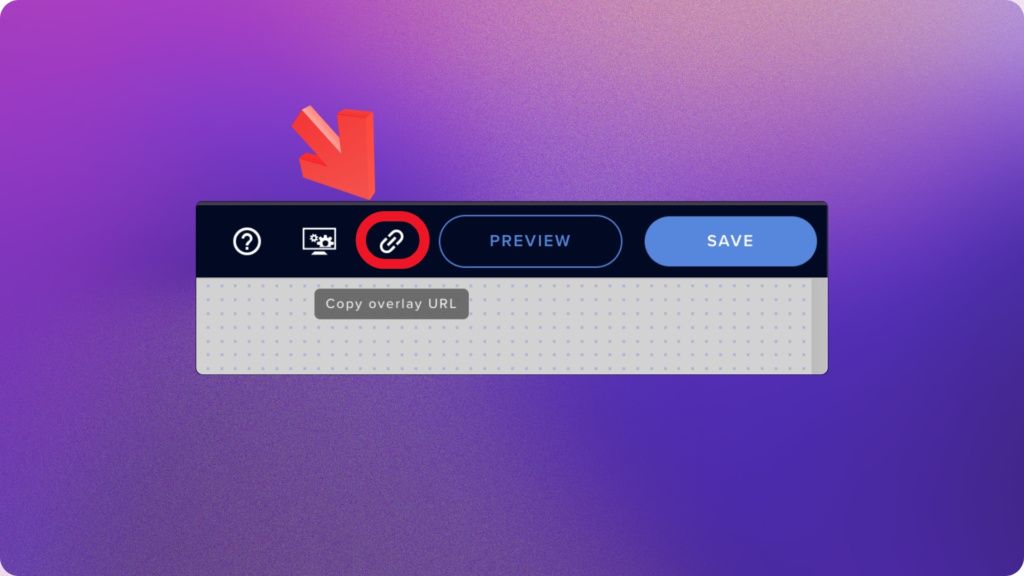
- Overlay URL (found via the chain-link icon in StreamElements), not your dashboard URL.
- Resolution Match: Always set your StreamElements overlay to 1080p (1920×1080) to ensure it aligns perfectly with the Upstream canvas.
- Performance Pro-Tip: Consolidate all your widgets (alerts, chat, labels) into one single Overlay URL in StreamElements to save system memory and prevent lag.
- The Test: Use the “Emulate” button in StreamElements to see your alerts pop up in real-time on the Upstream stage.
How Stream Elements works with Upstream
StreamElements Overlays are (animated or static) layers you can stack on top of your video. Each notification (sub, donation, chat alert) can be displayed in a separate layer. It is really about stacking video layers in the cloud and triggering them based on some rules.
First you’ll need a StreamElements account and connect it to your YouTube channel. This is as simple – a couple of clicks. This way StreamElements can know exactly when events happen, and display notifications.
StreamElements hosts your alert boxes & widgets on their servers, and the basic plan is free. You get a URL that you can open in any browser.
Upstream acts as the broadcaster. It takes your video files and sends them to YouTube, Twitch, or TikTok. When you add StreamElements overlays to Upstream (or OBS) as , you are really setting up a mini web browser window on top your video feed.
Because notifications are transparent when they are not actively “notifying”, you won’t notice them most of the time, but each time your trigger happens (like a new sub or a chat message) your StreamElements Widget will animate and show up on the screen instantly!
How to Add StreamElement Overlays to Your Stream
Step 1: Set Up Your StreamElements Overlay
Your first step happens outside of Upstream. You need to configure the graphics in StreamElements first.
- Log in to your StreamElements Dashboard.
- Go to Streaming Tools on the sidebar and select Overlays.
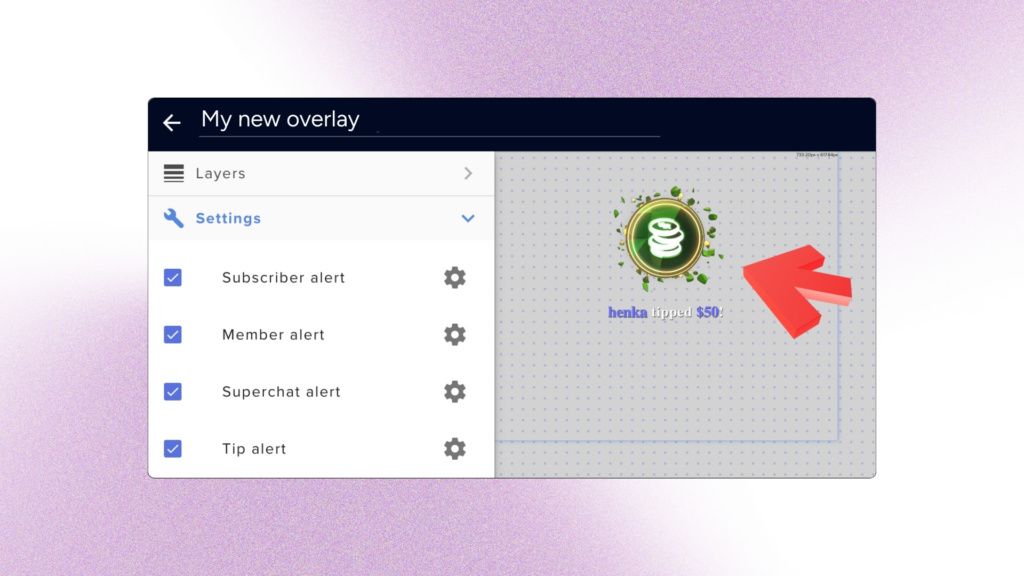
- Click “New Overlay” to start fresh. Set the resolution to 1080p (1920×1080). This matches the standard Upstream canvas.
Add your widgets here. Start with an Alert Box or a Chat Box. Customize your text and colors. Upstream will display exactly what you see in this editor.
Step 2: Get Your Unique URL
This part matters most. If you copy the wrong link, the integration will fail.
- Inside the StreamElements Overlay Editor, look at the top right corner.
- Find the chain-link icon (next to the “Preview” or “Save” button).
- Click it. This copies the Overlay URL to your clipboard.
Note: This URL is like a password. Anyone who has it can display your alerts. Keep it safe.
Step 3: Placing the URL in Upstream
But how to add StreamElements Alert Box to Upstream? Easy. Switch over to your Upstream Dashboard.
- Go to your project and enter the Stream Designer.
- Look at the toolbar for adding elements. Find the Embed Website option (globe icon).
- Click it. A properties panel will appear.
- Paste the StreamElements Overlay URL you copied earlier into the URL field.
- Hit Enter.
You might not see anything on the canvas immediately. This is normal. StreamElements overlays are mostly empty space until an event happens. You will likely see a bounding box. This indicates where the browser source is located.
If you need more help with the Stream Designer, check out our helpdesk article on adding a website as an overlay.
Positioning and Testing
Don’t just assume it works because the box is there. A common mistake is leaving the overlay covering the whole screen when an overlay is designed for lower-third usage, for example. This might block important parts of your main video.
Use the mouse to resize the bounding box. Make sure the StreamElements layer is at the top of your layer list so it sits on top of your background video, exactly as you want it.
The Test:
- Open two browser windows side-by-side. Put Upstream on one side and StreamElements on the other.
- In StreamElements, click the Emulate button in the bottom toolbar.
- Select any event, like a Follower Event.
- Watch your Upstream canvas.
You should see the alert pop up on Upstream instantly. If you see a white background behind the alert, go back to StreamElements settings and ensure the “Background Color” is set to transparent.
Tips for Better Performance
When figuring out how to add StreamElements to Upstream, keep performance in mind. These are browser sources, and they use memory.
- Consolidate: Try to build your layout inside a single StreamElements overlay scene. Do not add five different “Embed Website” layers in Upstream. One browser source handling five widgets is better than five sources handling one widget each.
- Interaction: Remember that viewers cannot click links inside the video. The overlay is visual only.
- Widgets: Upstream supports almost all standard widgets, including labels, event lists, and hype cups.
Summary
Figuring out how to add StreamElements to Upstream is easy and it’s a sure way to make your stream more dynamic and “live”. It enables users to feel that instant connection when they contribute and subscribe and that can motivate the chat A LOT. Generate your URL, use the “Embed Website” feature in the Upstream Stream Designer, and test it with the “Emulate” function.
Ready to build a broadcast that runs itself? Start using the Stream Designer today at upstream.so.
FAQ
Why is my StreamElements overlay not showing up in Upstream?
The most common reason is that the overlay is “empty” until an event occurs. Try using the Emulate button in your StreamElements dashboard to trigger a test follower or sub. If it still doesn’t appear, ensure you have pasted the correct Overlay URL (not the dashboard URL) into the Embed Website tool.
Does Upstream support transparent StreamElements overlays?
Yes. Upstream’s browser source automatically supports transparency. If you see a solid background (like white or black), check your Canvas Settings in StreamElements and ensure the background color is set to Transparent (0% opacity).
Can I use multiple StreamElements overlays at once?
While tehnically you can add multiple “Embed Website” layers, it is highly recommended to bundle all your widgets (alerts, chat, labels) into a single StreamElements Overlay scene. This reduces CPU and memory usage, ensuring a smoother, lag-free broadcast.
Is there a limit to which StreamElements widgets work in Upstream?
Upstream supports all standard StreamElements widgets, including Alert Boxes, Chat Boxes, Hype Cups, and Countdown Timers. Since Upstream renders these from a URL, if it works in a standard web browser, it will work in Upstream.
How do I resize the StreamElements alert box without stretching it?
To avoid stretching or pixelation, always set your StreamElements Overlay resolution to 1920×1080 to match the Upstream canvas (or 4k if you are streaming 4k). If you need a widget to be smaller, resize the widget inside the StreamElements editor rather than scaling the bounding box in Upstream.